TRADE SENTINEL MT5 — USER MANUAL v2.7
Product link:
MT5: https://www.mql5.com/en/market/product/185803
Trade Sentinel is a manual trading panel: draggable Entry, SL and TP lines, lot sizing from risk, one-click market and pending orders, breakeven, trailing, multiple take profits, a basket engine that manages groups of trades as one, and an equity monitor with daily and total loss protection. This manual covers version 2.7.
Every section below starts with a short explanation of what that part of the panel is for, followed by the instructions and the reference tables. If you are setting the EA up for the first time, read sections 0 to 3 in order; the rest can be used as a reference.
Summary
0 — IMPORTANT INFORMATION
What this section is about. Trade Sentinel is a tool you drive, not a robot that trades for you. It sends the orders you click, and from that moment it keeps watching them — breakeven, trailing, partial take profits, basket exits, equity guard. Understanding where that management lives, on your PC or on the broker's server, is the difference between a protected trade and an exposed one, so please read these few points before the first use.
The rules that matter
- The panel does not run in the Strategy Tester. MetaTrader generates the Market demo from the tester only, so the demo button on the product page will not show the panel. Test it on a demo account instead.
- One chart, one instance. Attach the EA to the chart of the symbol you want to trade. Settings are saved per symbol.
- AutoTrading must be ON in the terminal toolbar, and Allow Algo Trading must be ticked in the EA properties, otherwise no order can be sent.
- The EA must stay attached for the automatic functions to work. If the terminal is closed, nothing is managed — only the real SL and TP stored on the broker's server stay active.
- Hidden SL/TP is virtual. With Hide SL/TP ON the levels live on your PC, not on the server: if MetaTrader is closed, the trade is unprotected.
- Works on any symbol: forex, metals, indices, crypto, CFDs.
- Several charts at once are fine. Since version 1.04 the drawing and management engine only works when something actually changes, so the EA can stay attached to all your pairs without loading the terminal.
1 — INSTALLATION
What this section is about. Getting the EA onto a chart takes about a minute. If you bought Trade Sentinel on the Market, MetaTrader has already installed it for you and you only need steps 5 to 8; the first steps are for a manual copy of the file.
Step by step
- In MetaTrader 5 open File → Open Data Folder.
- Go to MQL5\Experts\.
- Copy Trade Sentinel.ex5 into it. Market purchases install themselves: you will find the EA under Market in the Navigator.
- Restart MetaTrader, or right-click in the Navigator and choose Refresh.
- Drag Trade Sentinel onto the chart of the symbol you want to trade.
- In the properties window, Common tab: tick Allow Algo Trading.
- Inputs tab: keep the defaults for the first run and press OK.
- Make sure the AutoTrading button in the toolbar is active.
The panel appears in the top-left corner of the chart. Drag its title bar to move it anywhere; the position is saved and restored the next time you open that symbol.
2 — THE ON-CHART PANEL
What this section is about. Everything happens in one small window on the chart: a title bar with quick buttons, six tabs, and a live line at the bottom that always tells you how much is open and how it is doing. Learn these three areas and the rest of the manual is just detail.
The panel is DPI-aware, so it stays sharp on 4K monitors, and it comes in three themes: Dark Slate, Light and Navy, switched with the theme icon on the title bar.
2.1 — Title bar. The quick controls you use all day: see the product name, version and chart symbol, move and collapse the panel, zoom it, centre the chart on the price, decide what is drawn on the chart, and switch the theme.
The title bar has two groups: the chart and zoom buttons (Ctr, +, -), then four icon buttons (closed-trade arrows, eye, calendar, theme).
| Control | What it does |
|---|---|
| Title (drag / click) | Shows the product name, the version and the chart symbol. Drag moves the whole panel; the position is saved per symbol. A plain click collapses the panel to the title bar; click again to expand it. |
| Ctr button | Keeps the price in the middle of the chart. The vertical scale is fixed and follows the price: when the price comes within the outer 20 % of the chart at the top or the bottom, the chart is re-centred with the current zoom. The button is green while it is on. If you zoom, scroll or drag the chart by hand, Ctr switches itself off and leaves the chart where you put it (no pull-back). Click Ctr again to centre the price with the new zoom; click it while it is on to go back to the normal MT5 scale. |
| + / - (zoom buttons) | Zoom the panel 0.75–2.00 in 0.10 steps. The zoom is saved per symbol. |
| Closed-trade arrows icon | Shows or hides the arrows of closed trades on the chart. |
| Eye icon | Cycles what is drawn on the chart: show all trades → show only the trades managed by this EA → hide all. |
| Calendar icon | Shows or hides the economic-calendar lines for the two currencies of the chart symbol. |
| Theme icon | Cycles the three themes: Dark Slate → Light → Navy → Dark Slate again. |
2.2 — Tabs. Each tab is one job. Opening a trade, splitting its exit, closing groups, managing a basket, guarding the account, setting defaults.
| Tab | Purpose |
|---|---|
| Trade | Open a new trade with risk-based lot sizing; breakeven and trailing defaults; apply-to-all switch; Custom sets (Set 1/2/3) for complete setups. |
| TPs | Split the exit into multiple partial take profits; the Trade tab shows how the lot is split between them. |
| Close | Close groups of positions with one click; partial close on everything. |
| Multi Trades | The basket engine: TP, SL, breakeven and trailing applied to many positions as one. |
| Equity Monitor | Daily and total loss limits, trading lock, midnight guard. |
| Settings | Panel preferences and trading defaults. |
2.3 — Info line. Under the tabs the panel always shows how many positions are currently managed and their floating profit or loss, so the exposure stays visible while you work in another tab.
2.4 — Footer and Guide button. The Guide button, bottom right on every tab, opens a small window next to the panel with the full link to this manual. An EA cannot open a browser, so the link is shown in a field: click in it, select it, press Ctrl+C and paste it in your browser. Close the window with its X or by clicking Guide again.
3 — TAB REFERENCE
What this section is about. One block per tab: first what the tab is for and when you would use it, then every control described in a table. Use it as a lookup while the panel is in front of you.
3.1 — Trade
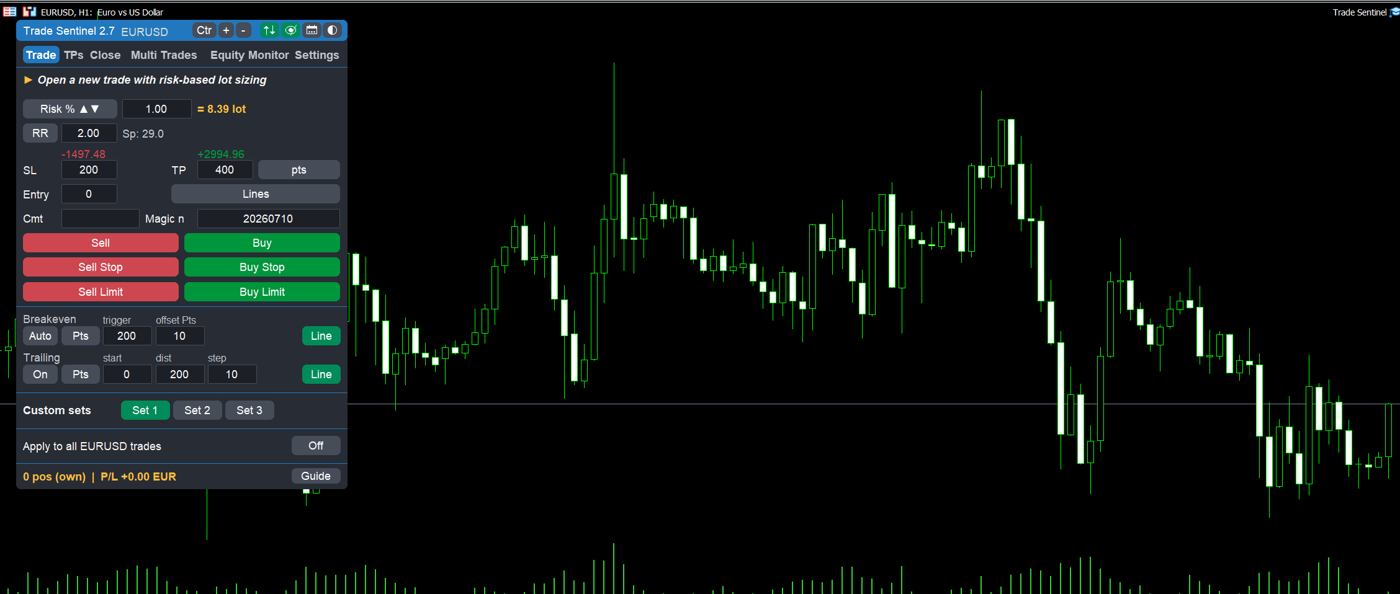
This is the order ticket. You choose how much risk to take, where the stop and the target go, and the panel turns that into a volume and shows the money involved before you click. The lower half of the tab arms the automatic protection that the same trade will receive once it is open.
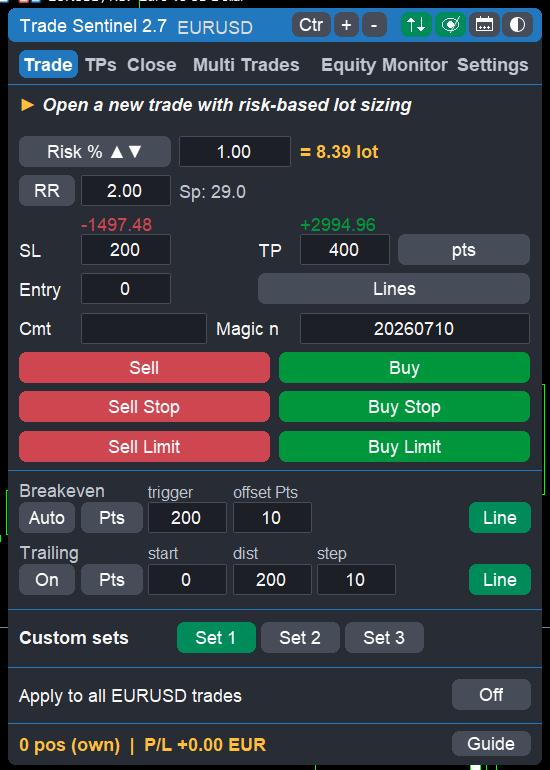
| Control | Description |
|---|---|
| Mode (cycle button) | Lot sizing mode: Risk % of the base, Risk $ (fixed money at the SL), or Lot (fixed volume). |
| Size | The value for the selected mode: percent, money, or lots. |
| = n lot | Read-only preview of the volume that will actually be sent, computed from the SL distance. |
| RR (button and field) | Risk/Reward. Green button = SL and TP linked: typing RR moves the TP, editing SL moves TP, editing TP moves SL. Grey button = fully manual: changing SL does not move TP. Typed RR and TP are remembered after a restart. |
| Sp: | Live spread, in the current distance unit. When Multiple TPs is ON, the same line shows how the lot is split: TPs x / run y, where x is the lot closed by the partial TPs and y the lot left to run to the final TP. |
| SL / TP | Stop loss and take profit for the next order, in points or price (the unit button toggles it). Above each field the panel shows the money at risk and the potential profit. |
| Entry | Entry price for pending orders. Zero means the market price. |
| Lines | Draws the draggable pre-trade Entry/SL/TP block on the chart (section 4). With the Lock button active, the SL stays fixed while the entry moves. |
| Cmt / Magic n | Comment and magic number used for the new orders. |
| Custom sets — Set 1 / Set 2 / Set 3 | Three complete setups, each a full copy of the Trade tab (sizing, SL, TP, RR, breakeven, trailing, Multiple TPs on/off) and of the TPs tab layout (size mode, level mode, number of TPs and their values). Click a Set button to switch: everything in that set is loaded at once. The active set is green, the values you change are kept in it, and the three sets are saved per symbol. The Set buttons are on this tab only. |
| Buy / Sell | Send a market order now. The order is refused with an Alert if the SL or the TP is on the wrong side of the entry, or if a TP row is on the wrong side or out of sequence (section 3.2). |
| Buy Stop / Sell Stop / Buy Limit / Sell Limit | Send the corresponding pending order at the Entry price. |
| Breakeven — Auto, unit, trigger, offset, Line button | Arms the automatic breakeven on the managed trades (section 6). The "Line" button shows or hides the BE trigger marker on the chart. |
| Trailing — On, unit, start, dist, step, Line button | Arms the trailing stop (section 6). The "Line" button shows or hides the Trail start marker on the chart. |
| Apply to all <SYMBOL> trades | When ON, breakeven, trailing and the close buttons act on every position of the chart symbol, including trades opened by hand or by another EA. When OFF, only the trades carrying this EA's magic number are managed. |
The Breakeven and Trailing unit buttons cycle through Points, RR, % Balance and % of TP distance, so the same field can mean "200 points", "1 R", "0.5 % of the balance" or "half the way to the take profit".
3.2 — TPs (multiple take profits)
Instead of one target for the whole position, this tab prepares a staircase: a part of the trade is closed at each level, the rest keeps running. You set it up before placing the order, and every new order gets that layout. Up to eight levels are available. The entire tab — On/Off, size mode, level mode, number of TPs and values — is remembered for every next trade and after restarting MetaTrader, until you change it. The TPs part of each Custom set (Set 1/2/3, chosen on the Trade tab) keeps its own layout.
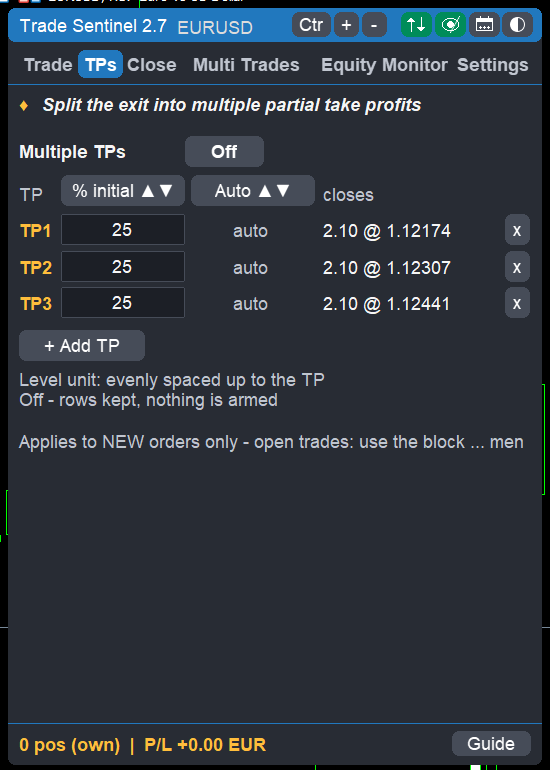
- Multiple TPs — On/Off: arms the feature for the orders you place next.
- The Set 1 / Set 2 / Set 3 buttons are on the Trade tab (section 3.1), not here: each set carries its own TP layout with the Trade tab settings.
- The two column headers are mode selectors (click to cycle):
- Size mode: percentage of the initial lot, percentage of the lot still open at that level, or a fixed lot.
- Level mode: auto (evenly spaced between entry and the final TP), points from entry, absolute price, RR multiples of the SL distance, Step pts (distance in points between consecutive TPs), percentage of the entry price, or percentage of the entry-to-TP distance.
- One row per take profit: the level, how much it closes, and an x to remove it. + Add TP adds a row.
- The total closed is shown at the bottom; rows left on auto share what remains.
- The armed levels are drawn on the chart as lines you can drag; dragging a line keeps the unit you chose (Step pts stays Step pts after a drag). Each partial TP bar on the chart has a Trail button (pre-trade only) that arms the panel trailing in Points starting from that TP level (start distance = that TP's distance from entry); click again to disarm.
Checks before an order. The TP side follows the Buy/Sell button: a Buy takes TPs above the entry, a Sell takes TPs below it. The levels must also run in order from the entry towards the final TP. If a TP row is on the wrong side or out of sequence, the order is refused with an Alert that names the row (for example "TP2 must be above TP1"), instead of arming fewer levels without warning. The main SL and TP are checked the same way.
To put multiple take profits on a trade that is already open, or on a pending order, use the ... menu of its chart block (section 4.4).
3.3 — Close
The panic-and-housekeeping tab. Instead of closing positions one by one, you close a whole category with a single click, or shave a percentage off everything at once. Each button tells you in advance how many trades it will touch and what they are worth.
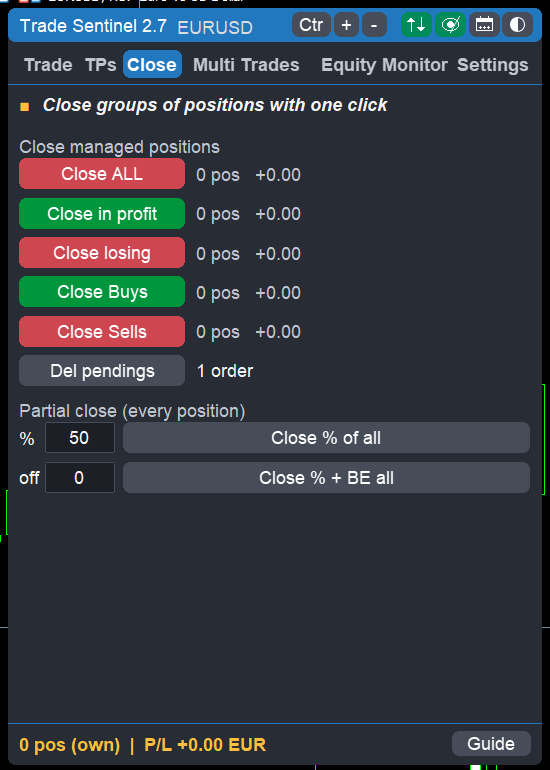
| Button | Action |
|---|---|
| Close ALL | Closes every managed position. |
| Close in profit | Closes only the winning positions. |
| Close losing | Closes only the losing positions. |
| Close Buys / Close Sells | Closes one side only. |
| Del pendings | Deletes all managed pending orders. |
| Close % of all | Partial close of every position by the percentage typed in the field. |
| Close % + BE all | The same partial close, then the stop of what remains is moved to breakeven. |
What counts as "managed" depends on the Apply to all switch of the Trade tab: with it OFF only this EA's trades are affected, with it ON every trade on the symbol.
3.4 — Multi Trades (the basket)
When you scale into a move, hedge, or run a grid, the individual profit of each ticket stops being meaningful — what matters is the total. This tab makes the terminal think the same way: it sums a group of positions and closes them together on a group target, a group stop, a group breakeven or a group trailing. Full explanation in section 7.
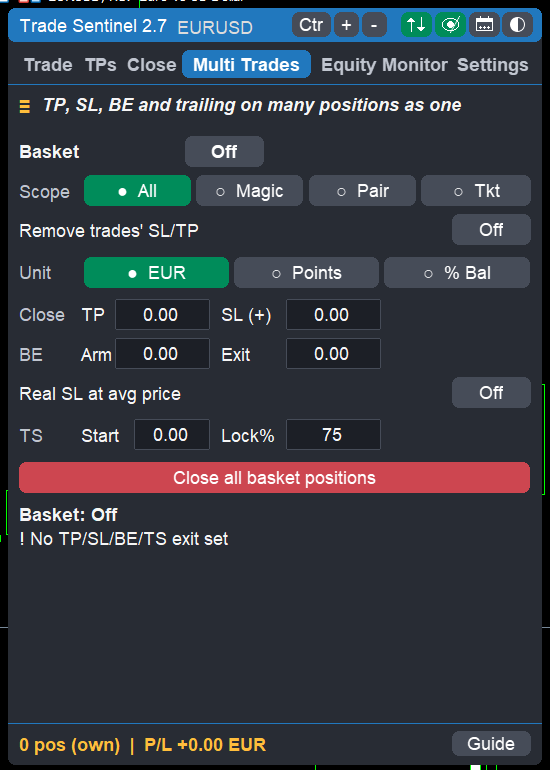
| Control | Description |
|---|---|
| Scope | Which trades belong to the basket: All, Magic, Pair, or Tkt (hand-picked tickets). |
| Magics (CSV) / Pairs (CSV) | The lists used by the Magic and Pair scopes. |
| Remove trades' SL/TP | When ON, the individual SL and TP of the members are removed so only the basket exit applies. Default OFF. |
| Unit | How the numbers below are read: account currency, points, or percent of balance. |
| Close — TP / SL | Group take profit and group stop loss. Zero means off. |
| BE — Arm / Exit | Basket breakeven: once the group profit reaches Arm, the group is closed if it falls back to Exit. |
| Real SL at avg price | When the basket breakeven arms, a real stop loss is written on every member at the basket average price. |
| TS — Start / Lock% | Basket trailing: once the group profit reaches Start, the basket is closed if the profit drops below Lock% of its peak. |
| Turn basket ON | Arms the basket; the same button stops it. |
| Close all | Closes every member now. |
| Select members | Opens the window where the tickets are ticked by hand (Tkt scope). |
| Info lines | Live members, group profit or loss, average price, peak, and the distance to the active exits. |
3.5 — Equity Monitor
This tab does not care about single trades: it watches the account. You give it a daily loss limit and a total loss limit, and it decides what happens when they are reached — a warning, a full close, a lock until tomorrow. It is the prop-firm discipline applied to any account, including your own. Full explanation in section 8.
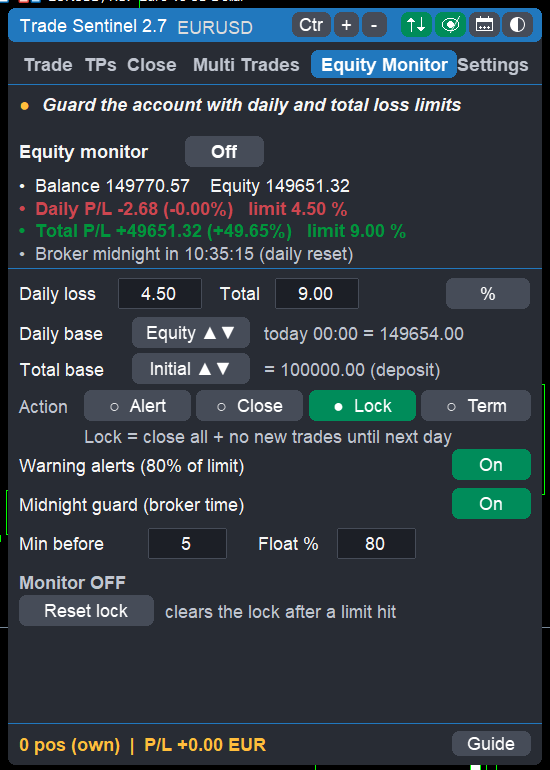
| Control | Description |
|---|---|
| Equity monitor On/Off | Master switch. The lines above show balance, equity, the day's profit or loss, and the countdown to broker midnight. |
| Daily loss / Total | The two limits. The unit button switches them between percent and account currency. |
| Daily base | What the daily limit is measured from: equity at 00:00, balance at 00:00, or the higher of the two (strictest). |
| Total base | A typed value, the first deposit of the account, or the highest equity ever seen (trailing drawdown). |
| Action | Alert notifies only; Close closes all positions and deletes the pendings; Lock closes all and blocks new orders until the next broker day; Term closes all and then the terminal. |
| Warning alerts | One early warning per day, per limit, at 80 % of the limit. |
| Midnight guard | Closes the floating losses shortly before the broker daily reset: set the minutes before midnight and the float percentage that triggers it. |
| Reset lock | Clears a lock manually after a limit has been hit. |
3.6 — Settings
The defaults the rest of the panel works with: what your risk percentage is measured on, what a "point" means on this symbol, when an order must be refused, and how much of the chart clutter you want to see. Set it once per symbol and forget it.
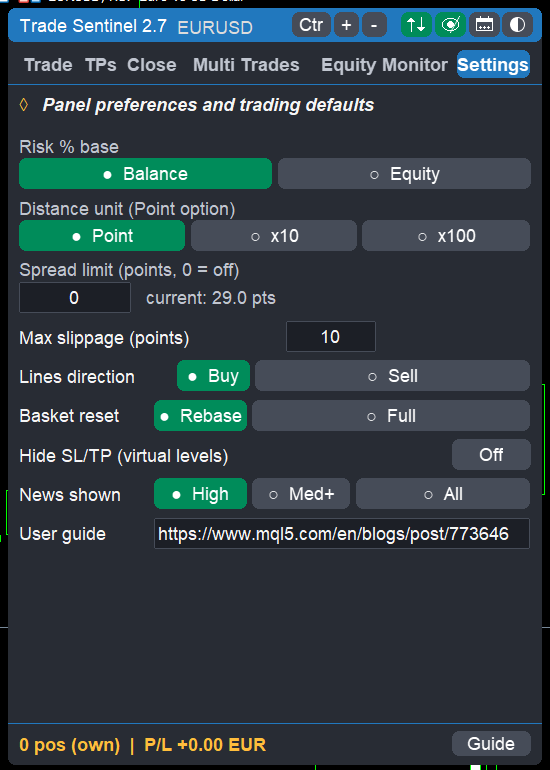
| Setting | Description |
|---|---|
| Risk % base | Balance or equity — the base the risk percentage is applied to. |
| Distance unit (Point option) | Point, x10 (pips on 3 and 5-digit symbols) or x100. Applies to every distance field. |
| Spread limit | Orders are refused when the spread is wider than this value in points. Zero disables the check. The live spread is shown next to it. |
| Max slippage | Maximum deviation accepted on market orders, in points. |
| Lines direction | Whether the pre-trade block starts as a buy or a sell setup. |
| Basket reset | What happens to the basket peak and lock when the membership changes: Rebase keeps the lock and adjusts it, Full starts over. |
| Hide SL/TP (virtual levels) | Keeps stops and targets off the server; the EA closes the trade itself when a level is reached. |
| News shown | Importance filter for the calendar lines: High, Med+ (medium and high), or All. |
| User guide | The full link to this manual, in a field you can select and copy (Ctrl+C). Same link as the Guide button in the footer. |
4 — CHART LINES AND TRADE BLOCKS
What this section is about. Half of Trade Sentinel lives outside the panel, directly on the price chart. A trade is not a row in a list: it is a block you can drag, expand, close or modify with the mouse, exactly where the price action is. Everything you drag recalculates the numbers on the panel, and every drop that changes a level is sent to the broker.
4.1 — The pre-trade block (before you open)
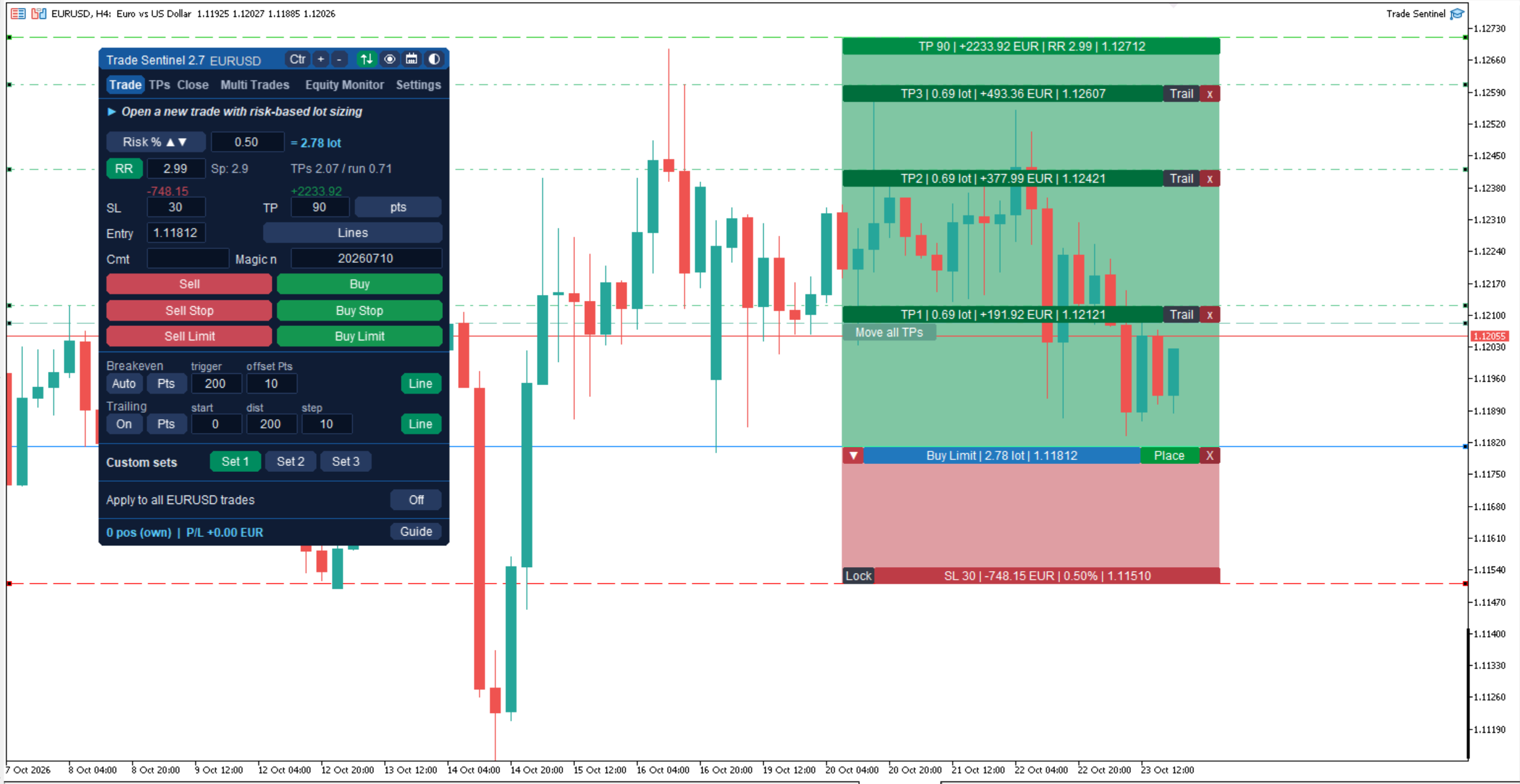
Press Lines on the Trade tab. A block appears with the Entry, SL and TP lines, the filled reward and risk zones between them, and a small toolbar with Place and X. It is the trade you are about to take, drawn on the chart before it exists.
- Drag the Entry line to change the price: the order type (market or pending) follows the position of the entry relative to the market.
- Drag SL or TP: lot size, money at risk, RR and potential profit update live on the panel and in the labels.
- Drag the block sideways to park it where the chart is free — the price is not touched. Horizontal and vertical drags are independent.
- Click the Lock button next to the SL bar to pin the SL at its current price. The entry then moves freely while the SL stays fixed and the lot follows the new SL distance.
- Place sends the order exactly as drawn; X cancels.
4.2 — Open-position blocks
Once a trade is open it gets its own block on the chart, so you can manage it without going back to the panel.
- A bar with type, lot, entry price and the current risk in account currency.
- An X button that closes the position, with confirmation.
- A ... menu (section 4.4).
- Clicking the bar expands the SL and TP lines with their zones; clicking it again collapses them.
- Dragging the SL or the TP line sends a real modification to the broker: what you see is what the server has.
- Each partial TP bar has a Trail button (green when trailing starts from that TP for this trade) and an x to delete that TP level.
4.3 — Pending-order blocks
Pending orders get the same treatment: entry bar, delete button, options menu, draggable SL and TP, and a draggable entry line that moves the order while keeping the SL and TP distances unchanged. Moving a planned trade is one drag, not a dialog. The partial TP bars (if armed) are draggable, and an x deletes each level.
4.4 — The "..." menu
Every action you may want on a single trade is one click away in this menu, including the two fields you would otherwise have to type somewhere else (the close percentage and the breakeven offset are editable inside the menu itself).
| Item | Action |
|---|---|
| Close position | Closes it now. |
| Close n % | Partial close; the percentage is editable inside the menu. |
| Close n % + BE | Partial close, then the stop is moved to breakeven. |
| BE now (+offset) | Moves the stop to the entry price plus the offset. |
| Show / Hide SL/TP | Expands or collapses the levels of this trade. |
| Trailing: on/off (start/dist/step) | Per-trade trailing override with its own unit selector. |
| BE auto: on/off (trigger+offset) | Per-trade automatic breakeven with its own unit selector. |
| Change SL/TP | Popup to type the levels instead of dragging them. |
| Multiple TPs: n / off | Opens the partial take profit editor for this trade. |
| Basket: In / Out | Adds or removes this ticket from the basket. |
For a pending order the menu offers: delete order, show or hide SL/TP, change entry/SL/TP, and multiple TPs.
4.5 — The Multiple TPs editor
Reached from the menu above, this is how you add a staircase of exits to a trade that is already running — the TPs tab only arms new orders. One row per take profit with the level price and the lot to close, plus + TP, - TP, Clear and Apply. The rows are prefilled with the levels already armed, otherwise with the layout of the TPs tab applied to that trade. A row is refused when the level is on the wrong side of the entry, when the lot is below the broker minimum, or when the total exceeds the volume of the trade.
4.6 — The "Move all TPs" handle
When the TPs tab has 2 or more partial TPs armed, a draggable "Move all TPs" bar appears at the top of the partial TPs group (pre-trade, pending orders, open trades). Drag it up or down to shift all the TP levels together by the same amount, keeping their spacing unchanged. The entry and final TP stay where they are.
4.7 — Trail start and BE markers
Two chart markers show where your automatic management will kick in:
- Trail start (dotted orange line + label): the profit level where trailing begins. Shows on the pre-trade block and on every open trade with trailing on (per-trade overrides honored). When it sits exactly on a TP bar, only the text label is shown.
- BE (dotted light-blue line + label): the profit level where breakeven triggers. Shows on the pre-trade block and on every open trade with auto BE on. When it sits on a TP bar, only the text label is shown.
Both markers can be hidden: use the Line buttons on the Breakeven and Trailing rows of the Trade tab, or the Show the BE trigger line / Show the Trail start line inputs. An input change wins over the saved button state.
4.8 — The eye button
Three levels of chart cleanliness, one button:
- Show all — the EA blocks and the terminal's own trade levels.
- Show only managed — only the trades this EA manages, terminal levels off. The cleanest chart.
- Hide all — nothing is drawn; the panel keeps working.
5 — LOT SIZING AND RISK
What this section is about. The volume is never something you guess. You decide how much you are willing to lose and where the stop goes; the panel derives the lot from those two numbers and shows you the money before the click. Change the stop by dragging it and the lot follows — the risk stays what you decided.
How the lot is computed
| Mode | How the lot is computed |
|---|---|
| Risk % | Risk money = base × percent / 100, where the base is the balance or the equity (Settings tab). |
| Risk $ | The typed amount is the money lost if the stop loss is hit. |
| Lot | Fixed volume; the money at risk is shown for information. |
The result is normalised to the broker's volume step, minimum and maximum, and to the available margin. Before the click the panel always shows the volume, the money at risk at the stop loss, the potential profit at the take profit, and the RR.
When a spread limit is set and the current spread is wider, the order is refused with a message — useful around news releases, where a widened spread would turn a good entry into a bad one.
6 — BREAKEVEN AND TRAILING
What this section is about. These are the two mechanisms that take a trade off risk and then let it run. Breakeven moves the stop to the entry once the trade has earned enough; trailing follows the price at a fixed distance. Both are armed on the Trade tab for every new trade, and both can be overridden per trade from the chart block.
How they behave
Automatic breakeven. When the profit reaches the trigger, the stop is moved to the entry price plus the offset, so the trade also covers its costs.
Trailing stop. Once the profit reaches start, the stop follows the price at distance, and it moves only when the improvement is at least step — which keeps the number of modifications low.
Both work on every trade the EA manages, and on every trade of the symbol when Apply to all is ON, including trades opened manually or by another EA. The trigger and the distances are read in the unit you select:
| Unit | Meaning |
|---|---|
| Points | Raw distance, in the chosen distance unit. |
| RR | Multiples of the initial risk R, the SL distance recorded when the trade was opened. |
| % Balance | The profit expressed as a percentage of the account balance. |
| % of TP | A percentage of the distance between entry and take profit. |
Each trade keeps its own settings. When a trade is opened, the breakeven and trailing settings on the panel at that moment (on/off, unit, trigger, offset, start, distance, step) are copied to that trade. Later changes on the panel apply to new trades only. To change an open trade, use its chart block "..." menu (section 4.4): the Trailing and BE auto items there change that trade alone. A trade the EA first sees without a copy (opened by hand or by another EA) takes the panel settings the first time it is managed.
Chart markers and Line buttons. The Trade tab has a Line button on each of the Breakeven and Trailing rows. Click to toggle whether the corresponding marker (BE or Trail start) is drawn on the chart. The buttons also remember which symbols had markers hidden — when you come back to the symbol, the saved preference is restored. The inputs Show the BE trigger line and Show the Trail start line override the button state.
Alert when the stop is inside the spread. MetaTrader shows an Alert when the trailing distance (in Points) or the BE trigger (in Points) is not larger than the current spread. This fires when you press Buy/Sell or place a pending order, when you switch Trailing or BE Auto On, and after editing the trailing distance or BE trigger field. The same message appears at most once per minute. This alert protects you on symbols with wide spreads (like BTC or indices) where a stop inside the spread can close the trade at once.
7 — THE BASKET ENGINE
What this section is about. A basket is a group of positions treated as a single trade: their profits and losses are summed, and one exit closes them all. It is what you want when several tickets are really one idea — a scaled entry, a hedge, a grid — or when you simply want to say "close everything when the day is +200".
How to use it
- Open the Multi Trades tab.
- Choose the Scope: All (every position of the account), Magic (the magic numbers in the list), Pair (the symbols in the list), or Tkt (the tickets ticked in Select members).
- Choose the Unit: account currency, points, or percent of balance.
- Fill only the exits you want — TP, SL, BE arm and exit, TS start and lock — leaving zero on the others.
- Press Turn basket ON.
Useful details
- A negative TP caps a drawdown: the group is closed when the loss shrinks back to that level.
- Real SL at avg price writes a genuine stop on every member when the basket breakeven arms, so the group survives a disconnection.
- Remove trades' SL/TP, OFF by default, strips the individual levels so that only the basket decides.
- Basket reset (Settings tab) decides what happens to the profit peak when a member joins or leaves: Rebase keeps the lock and adjusts it, Full starts the peak over.
- The basket disarms itself when all its trades have been closed, so it cannot capture the next trades by surprise.
8 — THE EQUITY MONITOR
What this section is about. Stops protect a trade; this protects the account. It watches balance and equity against a daily and a total limit and, when one is reached, it acts on its own — warns you, closes everything, or locks trading until the next broker day. If you trade a funded account, this is the rule set you have to respect anyway; on your own account it is the rule set that keeps a bad day from becoming a bad month.
How to set it up
- Turn Equity monitor ON.
- Set the daily and the total limit, in percent or in money.
- Choose the two bases: what the daily loss is measured from (equity or balance at 00:00 broker time, or the stricter of the two) and what the total loss is measured from (a typed value, the first deposit, or the highest equity ever reached — a trailing drawdown).
- Choose the action: alert, close, lock, or terminal close.
- Optionally enable the warning alerts at 80 % of each limit.
- Optionally enable the midnight guard: a few minutes before the broker daily reset, if the floating loss is worse than the set percentage, the positions are closed — so a bad float does not become tomorrow's handicap.
When Lock fires, no new order can be sent from the panel until the next broker day; the Reset lock button clears it manually. The tab shows balance, equity, the day's result and the countdown to broker midnight at all times.
9 — SETTINGS, PERSISTENCE AND INPUTS REFERENCE
What this section is about. Where your configuration is stored, what survives a restart, and the complete list of the inputs you see in the EA properties dialog. The inputs are only the starting values: once the panel is running, what you change on the panel wins and is saved.
9.1 — Persistence
The panel settings are saved per symbol in MQL5\Files\TradeManager\<SYMBOL>.cfg and restored on the next attach, after a timeframe change and after a terminal restart. The initial risk R of every trade is stored in a global variable, so the RR-based breakeven and trailing keep working after a restart. The TPs tab settings (On/Off, size mode, level mode, sizes, levels for all three sets) are also saved per symbol and restored on restart. The Custom sets (Set 1/2/3) keep the Trade tab settings and the TPs layout of each setup. The panel zoom, the title-bar collapse, the Ctr switch and the eye setting are saved per symbol as well.
Two switches deliberately start from the input value on a fresh attach — Apply to all trades and the basket arming — so that a new chart never starts managing trades you did not ask for.
9.2 — Inputs
| Group | Input | Default | Meaning |
|---|---|---|---|
| Trade | Point option | Point | Distance unit used by every points field |
| Trade | Lines default direction | Buy | Direction of the pre-trade block |
| Trade | Magic number | 20260710 | Magic used for new orders |
| Trade | Order comment | empty | Comment attached to new orders |
| Trade | Manage ALL symbol positions | false | Start with "Apply to all" ON |
| Trade | Max slippage (points) | 10 | Deviation accepted on market orders |
| Trade | Sizing mode | Risk % | Risk % / Risk $ / fixed lot |
| Trade | Risk % of the base | 1.0 | Percentage risked at the stop loss |
| Trade | Risk $ at SL | 100 | Money risked at the stop loss |
| Trade | Fixed lot | 0.01 | Volume in Lot mode |
| Trade | Risk/Reward | 2.0 | Default RR used for the take profit |
| Trade | Default SL (points) | 200 | Starting stop loss distance |
| Breakeven | Auto breakeven | false | Arms the automatic breakeven |
| Breakeven | BE trigger unit | Points | Points / RR / % balance / % of TP |
| Breakeven | BE trigger | 200 | Profit needed to move the stop |
| Breakeven | BE offset (points) | 10 | Points beyond the entry price |
| Breakeven | BE offset unit | Points | Points / RR / % balance / % of TP (set the offset value accordingly) |
| Breakeven | Show the BE trigger line | true | Draws the BE marker on the chart |
| Trailing | Trailing enabled | false | Arms the trailing stop |
| Trailing | Trailing mode | Points | Points / RR / % balance / % of TP |
| Trailing | Start | 0 | Profit needed before trailing starts |
| Trailing | Distance | 200 | Distance kept from the price |
| Trailing | Min step | 10 | Minimum improvement before modifying |
| Trailing | Show the Trail start line | true | Draws the Trail start marker on the chart |
| Basket | Basket active at start | false | Arms the basket on initialisation |
| Basket | Basket scope | All | All / magic / pair / ticket |
| Basket | Remove members' SL/TP | false | Strips the individual levels |
| Basket | Basket magics (CSV) | empty | List for the magic scope (empty = EA magic) |
| Basket | Basket pairs (CSV) | empty | List for the pair scope (empty = chart symbol) |
| Basket | Basket unit | Money | Money / points / % of balance |
| Basket | Basket TP | 0 | Group target (0 = off) |
| Basket | Basket SL | 0 | Group stop (0 = off) |
| Basket | Basket BE trigger | 0 | Group breakeven trigger (0 = off) |
| Basket | Basket BE offset | 0 | Group breakeven offset |
| Basket | Real SLs at avg price when BE arms | false | Server-side protection for the group |
| Basket | Basket trail trigger | 0 | Profit that starts the group trailing (0 = off) |
| Basket | Basket trail lock (%) | 75 | Percentage of the peak that is kept |
| Basket | Lock reset on membership change | Rebase | Rebase or full reset |
| Basket | Disarm basket when all its trades are closed | true | Prevents capturing the next trades |
| Settings | Risk % base | Balance | Balance or equity |
| Settings | Spread limit (points) | 0 (off) | Refuses orders on a wide spread |
| Settings | Hide SL/TP (virtual levels) | false | Keeps the levels off the server |
| Settings | Trades on chart | Hide unmanaged | Show all / only managed / hide all (eye button) |
| Settings | Show calendar news | true | Draws the news lines |
| Settings | Show closed-trade arrows | true | Shows the arrows of closed trades on the chart |
| Settings | Confirmations | true | Ask before closes, resets and basket activation |
| Settings | News importance shown | High | High / Med+ / All |
| Trade colors | Entry line | DodgerBlue | Color of the entry line |
| Trade colors | SL line | Red | Color of the SL line |
| Trade colors | TP line | LimeGreen | Color of the TP line |
| Trade colors | Entry info bar | C'33,120,190' | Color of the entry bar |
| Trade colors | SL info bar | C'190,60,70' | Color of the SL bar |
| Trade colors | TP info bar | C'0,140,70' | Color of the TP bar |
| Trade colors | Pending info bar | C'108,88,160' | Color of the pending order bar |
| Trade colors | Basket member bar | C'200,120,30' | Color of the basket member bar |
| Trade colors | Multiple-TP line | C'96,200,144' | Color of the Multiple-TP level line |
| Trade colors | Multiple-TP info bar | C'0,110,60' | Color of the Multiple-TP bar |
| Trade colors | Zone opacity (%) | 50 | Opacity of the SL/TP zones, 0-100 |
| Trade colors | Menu background | C'52,58,70' | Background of the block menu and buttons |
| Trade colors | Menu On color | C'0,140,90' | Active toggle color in the block menu |
| Trade colors | Menu danger color | C'150,45,55' | Close and delete buttons on the blocks |
| Trade colors | News high importance | C'205,70,80' | News line: high importance |
| Trade colors | News medium importance | C'224,144,0' | News line: medium importance |
| Trade colors | News low importance | DarkGray | News line: low importance |
| Panel | UI size | Auto (screen DPI) | Auto, or a fixed size from 80 % to 300 % |
| Panel | UI theme | Dark Slate | Dark Slate, Light or Navy (also switched by the theme icon) |
| Panel | Panel X | 20 | Starting horizontal position on the chart |
| Panel | Panel Y | 20 | Starting vertical position on the chart |
The equity monitor is configured entirely from its own tab and saved in the per-symbol configuration file.
10 — TIPS, FAQ AND TROUBLESHOOTING
What this section is about. The questions that come up most often, with the one-line answer and where to fix it. Almost every "it does not work" turns out to be one of the first three.
The Buy and Sell buttons do nothing.
Check AutoTrading in the toolbar and Allow Algo Trading in the EA properties. If a spread limit is set, a wide spread also refuses the order; the reason is printed in the Experts log.
Breakeven and trailing ignore my manual trades.
Turn Apply to all <SYMBOL> trades ON in the Trade tab, or open them with the same magic number.
RR-based breakeven or trailing on a trade opened elsewhere.
The initial R is taken from the stop loss distance recorded when the EA first saw the trade. If the trade had no stop loss at that moment, use the Points unit instead.
The basket closed everything at once.
That is what a basket exit does: the group TP, SL, breakeven or trailing closes all members. Use the Tkt scope when only a hand-picked subset should be involved.
The multiple take profits did not fire.
Partial closes need the EA attached and running; every row must be at least the broker's minimum lot, and the sum of the rows cannot exceed the volume of the trade.
Hidden SL/TP and a closed terminal.
Virtual levels only exist inside MetaTrader. If the protection must survive a disconnection, use real levels, or the basket option Real SL at avg price.
The panel looks incomplete after a timeframe change.
It rebuilds itself automatically; clicking any tab forces the redraw.
Wide-spread symbols (BTC, indices) and breakeven/trailing distance.
Symbols like BTC or major indices can have spreads of hundreds or thousands of points. If your trailing distance or BE trigger in points is not noticeably larger than the spread, the stop may not be placed, or will close as soon as it is set. Example: BTC spread ~3430 pts, trailing distance 200 pts → the stop closes the trade at once. Keep TP steps, trailing distance and BE trigger well above the spread. An alert warns when the distance ≤ spread in Pts mode. One practical tip: turn on the Ask line in the chart properties so you see both bid and ask, then set your stops with the spread in mind.
How do I open the manual from MetaTrader?
Press the Guide button in the footer of the panel. A small window opens next to the panel with the full link in a field: click in it, select it, press Ctrl+C and paste it in your browser. The same link is in Settings, under User guide. An EA cannot open the browser by itself.
An order is refused with an Alert about the wrong side or the sequence.
The Alert names the problem: the SL and TP must be on the correct side of the entry for the Buy or Sell button, and the TP rows must rise (Buy) or fall (Sell) in order, ending before the final TP. Correct the row and press the button again; nothing is sent to the broker in that case.
Ctr switched itself off.
You zoomed, scrolled or dragged the chart by hand, so Ctr stepped aside to keep the view where you left it. Click Ctr again to centre the price with the current zoom.
A change on the panel did not affect an open trade.
By design, each trade keeps the breakeven and trailing settings it had when it was opened. Use the chart block "..." menu of that trade to change it; panel changes apply to new trades.
A good first setup.
Demo account, risk 0.5 %, default stop loss, RR 2, breakeven at 1 R, trailing off, equity monitor ON with a daily loss of 3 % and the Lock action. Then adapt it to your own trading plan.
11 — LINKS AND SUPPORT
What this section is about. Where to get the product, and how to reach me if something does not behave as described here. Bug reports and feature requests are welcome — several features in this manual came from users.
Product page: Trade Sentinel MT5
Questions, bug reports and feature requests: private message to the author on MQL5.com.
When reporting a problem, please include the broker, the symbol, the MetaTrader build, a screenshot of the panel and the relevant lines of the Experts log.
Manual for version 2.7. Features and defaults may change in later versions.
MORE TOOLS BY INAKIS
- Trade Guardian Pro - loss protection for personal, funded and evaluation accounts, with prop-firm presets
- MT5 To Telegram Signal Bridge - post your trades to Telegram as professional, copier-friendly signals
- MT4 To Telegram Signal Bridge - the same signal bridge for MetaTrader 4
- Strategy Compare - compare your EAs by magic number: P&L and performance in one dashboard (MT5)
- Strategy Compare MT4 - the same comparison dashboard for MetaTrader 4
Contact: Telegram @inakis1 or private message on MQL5.