Hector EA is an MT5 Expert Advisor for XAUUSD. You can learn more about the EA on the official Hector EA product page
This article explains the settings and input parameters for Hector EA, updated for the latest version, v1.5.
■ INFO & General (Identity & Lot Sizing)
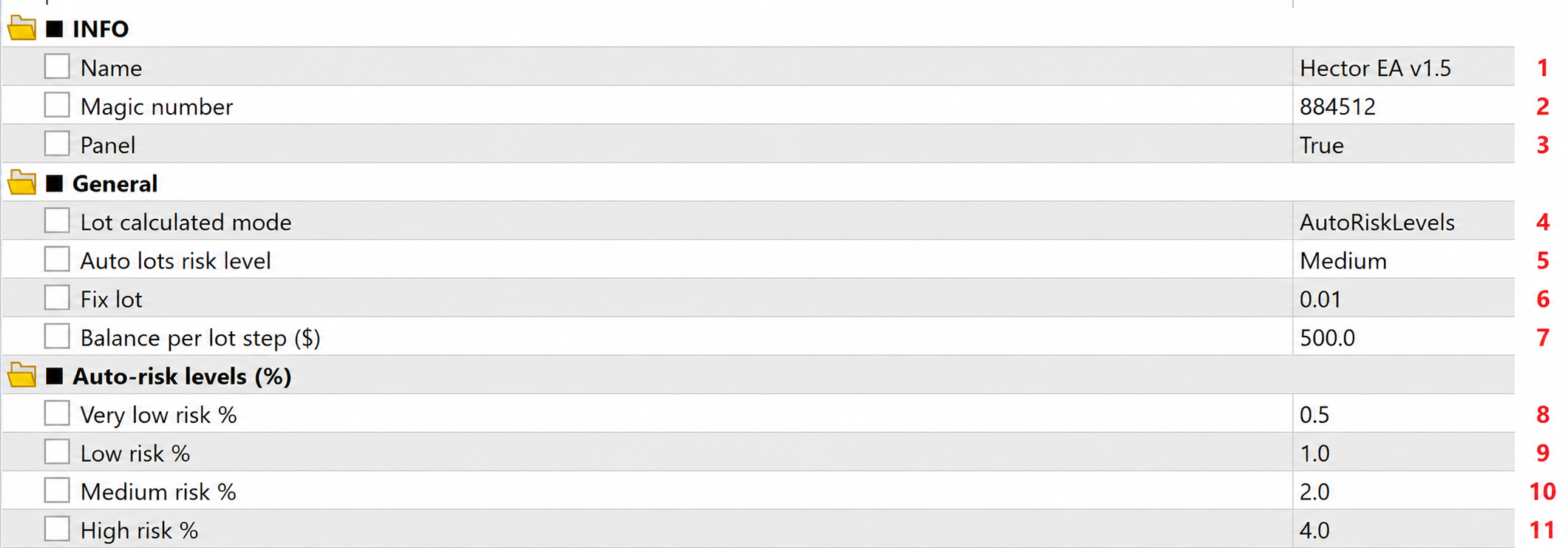
(1) Name: The EA display name shown on the chart and in the terminal. Default: Hector EA v1.5.
(2) Magic number: A unique ID that tags all orders of this EA. It keeps them separate from manual trades and other robots. Default: 884512.
(3) Panel: Shows the on-chart info dashboard with the current state, baskets and floating result. Default: True.
(4) Lot calculated mode: Select the volume calculation method. AutoRiskLevels (recommended) calculates the lot automatically from a risk percentage. Fixed lot always trades the volume set in Fix lot. Lot per balance grows the volume with the account.
(5) Auto lots risk level: The global risk profile for the auto lot, used by all non-hardwired slots. Default: Medium.
(6) Fix lot: Lot size used only in the fixed-volume mode. Default: 0.01.
(7) Balance per lot step ($): Used in Lot per balance mode. It sets how many dollars of balance correspond to one Fix-lot unit. Default: 500.
■ Auto-risk levels (%)
These four inputs define the risk sizes behind the AutoRiskLevels mode. Selecting a level in input (5) maps to these percentages.
(8) Very low risk %: The most conservative auto-lot profile. Default: 0.5.
(9) Low risk %: Default: 1.0.
(10) Medium risk %: Balanced default. Default: 2.0.
(11) High risk %: Aggressive profile — use only after thorough testing. Default: 4.0.
■ Smart Stop Loss

(12) Enable Stop Loss [Safe. Backtest me]: Optional adaptive protective stop. It limits the loss not by a predefined drawdown level, but by an algorithmic assessment of the market situation. Its triggering creates a temporary drawdown that takes time to recover, but in return it prevents the account from being wiped out in extreme markets. Test it on a demo account before going live. Default: False.
■ Friday Close
(13) Enable Friday Close [Safe. Backtest me]: Optional weekend-risk control. It closes open trades on Friday evening to avoid carrying positions over the weekend gap. Default: False.
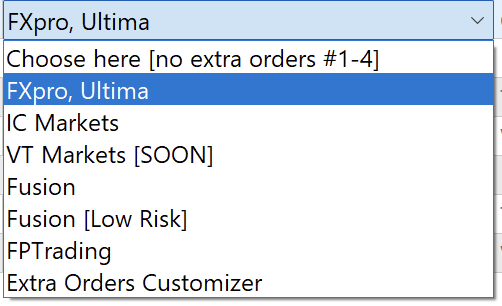
■ Choose your broker or customization
■ Extra Orders #1–9 (Customizer)
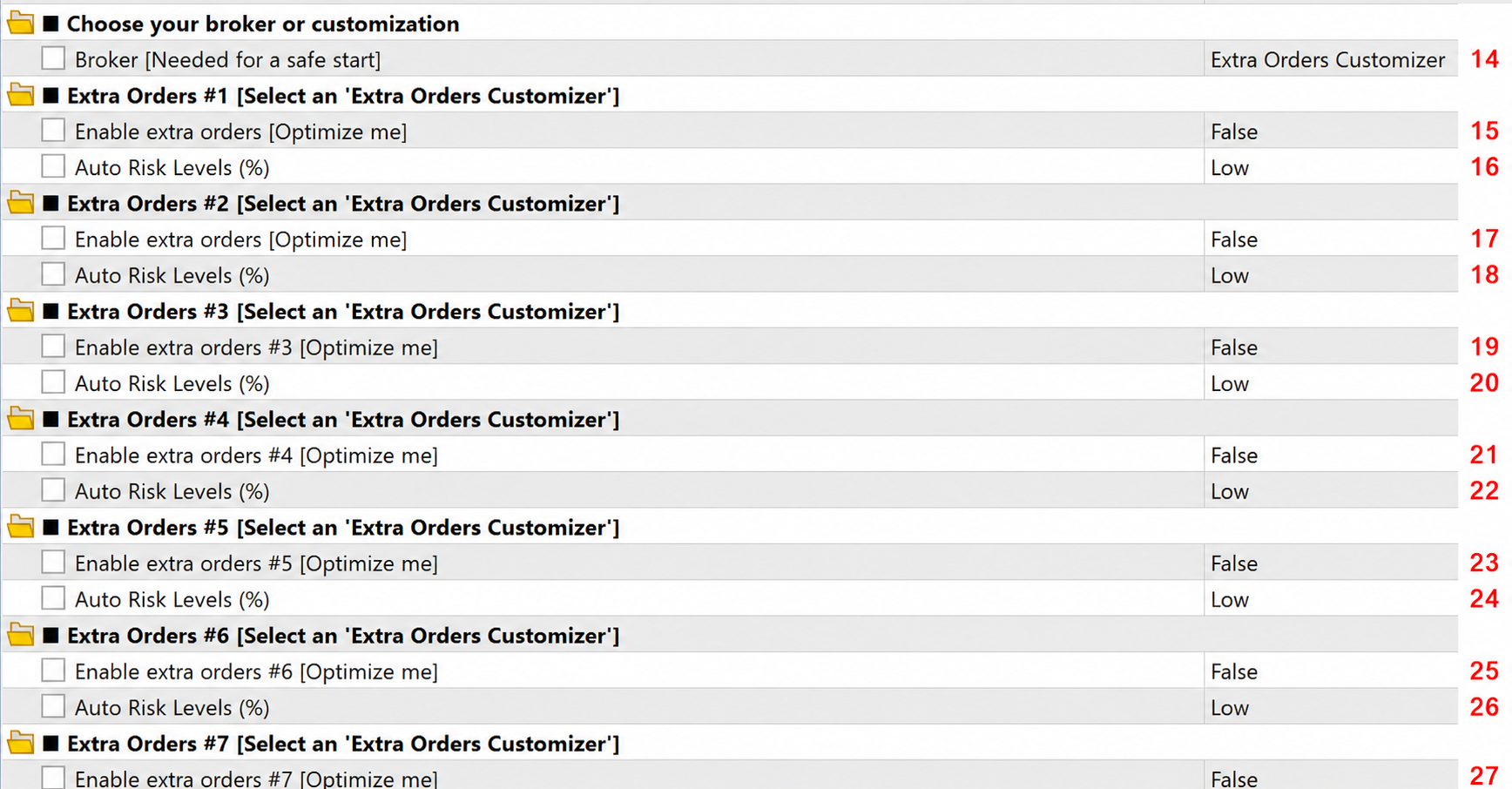
For advanced users. First select Extra Orders Customizer in input (14) — only then do all nine additional modules become active. Each module captures individual market opportunities and brings in trades beyond the core logic.
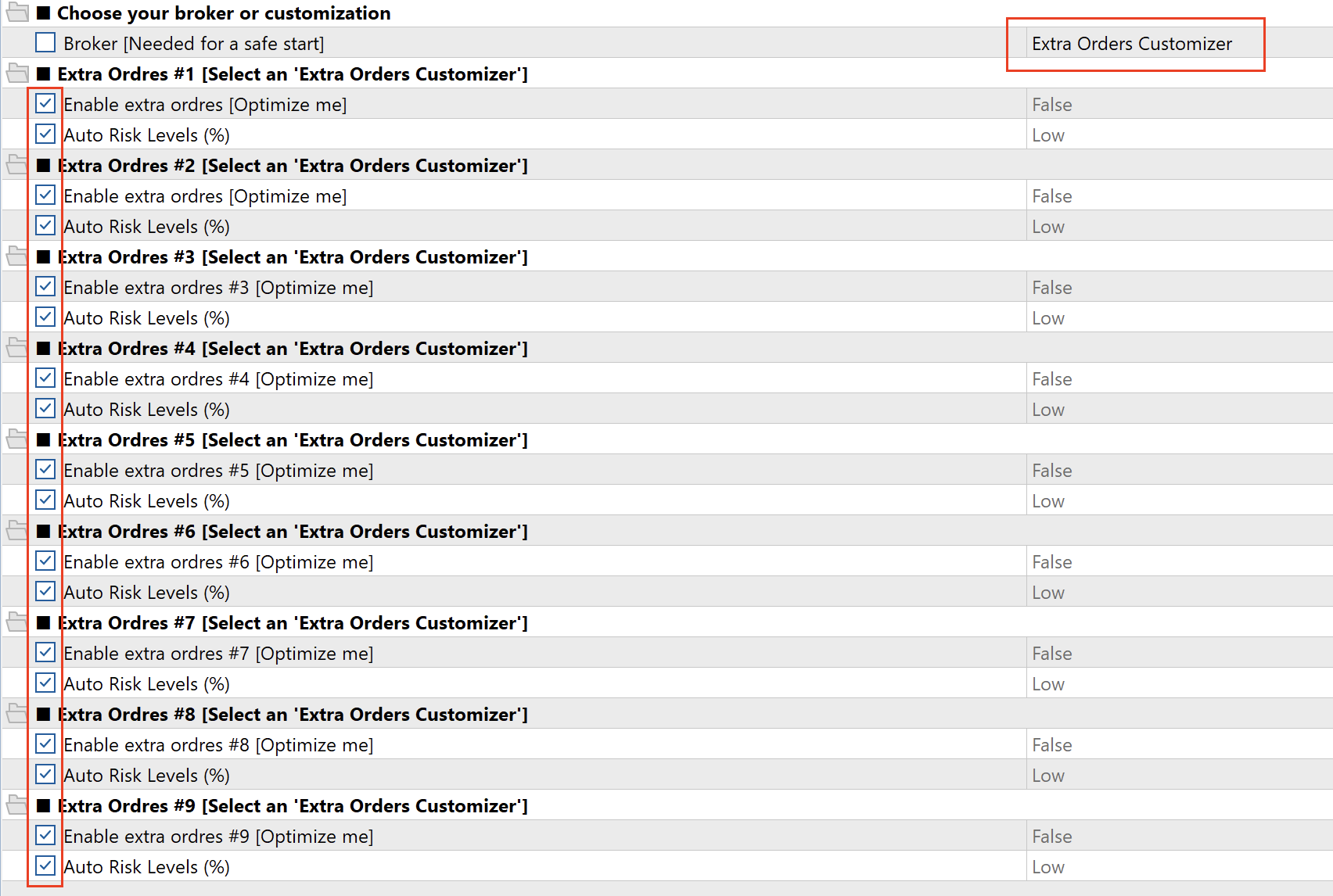
■ How to optimize the nine extra modules
The idea is simple: a fast search on 2020–2023, then a stability check on the full 2020–2026 period. This filters out settings curve-fitted to a single slice of history.
- Select Extra Orders Customizer in input (14) to unlock the modules.
- Open the Strategy Tester. Symbol: XAUUSD. Modelling mode: 1 minute OHLC (the fast mode for the search).
- Set the optimization period: 01.2020 – 31.12.2023.
- On the Inputs tab, tick Enable extra orders [Optimize me] for each of the nine modules so the tester tries both False and True. Also tick Auto Risk Levels (%) for each module with the range Low → Medium.
- Run the optimization and take the best sets from the results table.
- Verify the chosen set over the full 2020–2026 period, preferably on "Every tick based on real ticks". A set is trustworthy only if it stays profitable across the whole range.
- Enable in live trading only the modules that survived the full-period check.