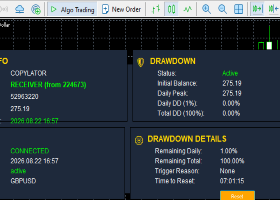
NTS Local Copier (Free) v2.36 - Start HereThis guide explains how to set up Simple Local Copier safely for local MT5-to-MT5 trade copying on the same PC or VPS. Recommended first step: test one Master and one Slave on demo first. Confirm one clean open, modify, and close cycle before using live or funded accounts.
Important: This EA copies trades. It does not provide signals and does not guarantee profit. |
Simple Local Copier (Free) v2.36 - User Manual
Simple Local Copier copies trades between MetaTrader terminals on the same PC by using the MetaTrader common files folder. There are no DLLs, no external copier server, and no internet-based bridge required for normal MT5-to-MT5 local copying.
What This EA Can Do
| Feature | Description |
| Master Mode | Writes open trades to a local shared copier file. |
| Slave Mode | Reads the copier file and opens matching trades on the receiving account. |
| Auto-Close | When the Master closes a trade, the Slave can close its matching trade. |
| SL/TP Sync | Copies Stop Loss and Take Profit changes from Master to Slave. |
| Partial Close Support | If the Master reduces a position, the Slave can reduce proportionally. |
| Restart Protection | The Slave remembers copied trades after terminal restart or EA re-attach, helping prevent duplicate copies. |
| Master Ownership Safety | Prevents multiple Masters from accidentally writing to the same single copier file. |
Quick Setup - One Master to One Slave
| Step | Master Terminal | Slave Terminal |
| 1 | Open the sending MT5 terminal. | Open the receiving MT5 terminal. |
| 2 | Attach the EA to any chart. | Attach the EA to any chart. |
| 3 | Set Copier Mode = MASTER. | Set Copier Mode = SLAVE. |
| 4 | Leave Enable Multi Master Mode = false. | Leave Enable Multi Master Mode = false. |
| 5 | Use the same Copier File Name, for example TradeCopier.csv. | Use the same Copier File Name, for example TradeCopier.csv. |
| 6 | Open one demo trade. | Confirm the trade appears on the Slave. |
Note: In normal single-master mode, you do not need to enter the master account number.
Recommended Safe Settings
| Input | Recommended Value | Why |
| Startup Copy Mode | NEW_TRADES_ONLY | Safest first test. Existing Master trades are registered but not copied. |
| Auto Close Slave Trades | true | Slave closes matching trades when the Master closes them. |
| Copy SL | true | Syncs Stop Loss changes. |
| Copy TP | true | Syncs Take Profit changes. |
| Magic Number | 444444 | Default tracking magic. Change only if another EA uses the same magic number. |
| Enable Multi Master Mode | false | Use false unless one Slave must copy from multiple Master accounts. |
Startup Copy Mode Explained
| Mode | What It Does | When to Use |
| NEW_TRADES_ONLY | Registers trades already present in the master file, then copies only new trades that appear later. | Recommended for most users and first-time setup. |
| ALL_EXISTING_TRADES | Copies currently open Master trades when the Slave starts, after fresh-file and ownership safety checks. | Use only when you intentionally want the Slave to match trades already open on the Master. |
Copy Existing Trades safety: version 2.36 remembers already-copied trades after restart or EA re-attach, so the same Master ticket should not be copied twice while the original Slave position still exists.
Multi-Master Mode
Use Multi-Master Mode only when one Slave must copy from several Master accounts.
| Terminal | Settings |
| Each Master | Set Copier Mode = MASTER and Enable Multi Master Mode = true. Each Master writes its own account-number file. |
| Slave | Set Copier Mode = SLAVE, Enable Multi Master Mode = true, and enter the Master account numbers in Allowed Master Account(s). |
| Example | 307829,52665834,270774017 |
Important: Do not run multiple active Masters on the same single file unless Multi-Master Mode is enabled.
Multiple Slaves
Multiple Slave accounts can copy from the same Master.
- Use one terminal as MASTER.
- Set the other terminals as SLAVE.
- Use the same Copier File Name.
- Leave Enable Multi Master Mode = false unless copying from several Masters.
- Each Slave keeps its own state file, so restarting one Slave should not affect another Slave.
Manual Master Takeover
If a Master is closed and another Master is attached to the same file, the EA may show a blocked status. This is intentional and prevents two Masters from overwriting each other.
| Panel Message | Meaning |
| Another master is already writing | Another active Master owns the copier file. This EA will not overwrite it. |
| Old master stale - click button | The old Master appears closed. Click Make Main Master if you want this terminal to take over. |
| Make Main Master | Manual takeover button. It only works after the previous Master is stale. |
Lot Sizing
| Lot Mode | Description |
| FIXED | Always uses Fixed Lot Size. |
| MULTIPLIER | Slave lot = Master lot x multiplier. |
| RISK_PERCENT | Calculates lot size from risk percent and Stop Loss distance. |
| MASTER_COPY | Copies the Master lot size exactly. |
| BALANCE_PROPORTIONAL | Adjusts lot size based on Master and Slave account balances. |
Warning: Always test lot sizing on demo before using live or funded accounts.
Magic Number Filtering
| Setting | Behavior |
| Copy All Trades = true | The Master exports all open positions. |
| Copy All Trades = false | The Master exports manual trades with magic 0 and trades whose magic matches the EA Magic Number. |
| Custom magic list | Not available in this version. A future update may add include/exclude magic-number lists. |
Symbol Mapping
The EA supports broker symbol differences such as XAUUSD, GOLD, XAUUSDm, prefixes, and suffixes.
| Input | Example |
| Custom Symbol Mappings | GOLD=XAUUSDm,US30=DJ30 |
Troubleshooting
| Problem | What to Check |
| Slave does not copy | Master is MASTER, Slave is SLAVE, Algo Trading is enabled, same copier file name is used, and panel does not show a blocked or stale-file message. |
| Panel says another master is writing | Another account owns the copier file. Close the old Master, wait for the lock to expire, then click Make Main Master if needed. |
| Copy Existing Trades did not copy | The EA waits for a fresh active Master file. Make sure the Master EA is attached and running. If Allowed Master Account(s) is filled, confirm the correct Master login is entered. |
| Trades duplicated after old versions | Update all terminals to version 2.36 or newer, then remove and re-attach the EA. Close any duplicates from older versions manually. |
| SL/TP does not match | Make sure Copy SL and Copy TP are enabled and the broker allows those SL/TP levels. |
Support Checklist
If you report an issue, please include:
- Master account number
- Slave account number
- EA version
- Copier mode on each terminal
- Startup copy mode
- Whether Multi-Master Mode is enabled
- Screenshot of both panels
- Experts log around the time of the issue
Safety Notes
|
© Navigator Trading Systems