Osloma Gold is an MT5 Expert Advisor that scans for structural breakouts across different timeframes and enters grid baskets on pullbacks. You can learn more about the EA on the official Osloma Gold product page.
This article explains the settings and input parameters for Osloma Gold, updated for the latest version, v2.4, released on 19/07/2026.

(1) Entry Model: You can select G4Grid / ExtendedGrid / SingleEntry model from this setting. G4Grid is the legacy 1+4 Grid Model that was originally present in the previous versions of Osloma Gold.
(2) Lot Size Method: Select LOT_FixLot or LOT_PercentageEquity. If LOT_PercentageEquity is selected, MaxRisk per Basket in Percentage Equity can be adjusted as it take the value to calculate lot sizes.
(3) FixLot Size: Input Fix lot size you want to run. This is used when Lot Size Method is set to LOT_FixLot.
(4) LOT_PercetageEquity Risk % (AutoLot): You can enter the percentage of equity that you want to risk per basket, in this setting. Your entry lot will be calculated based on this risk and using the MaxBasket Loss set (below) for each basket.
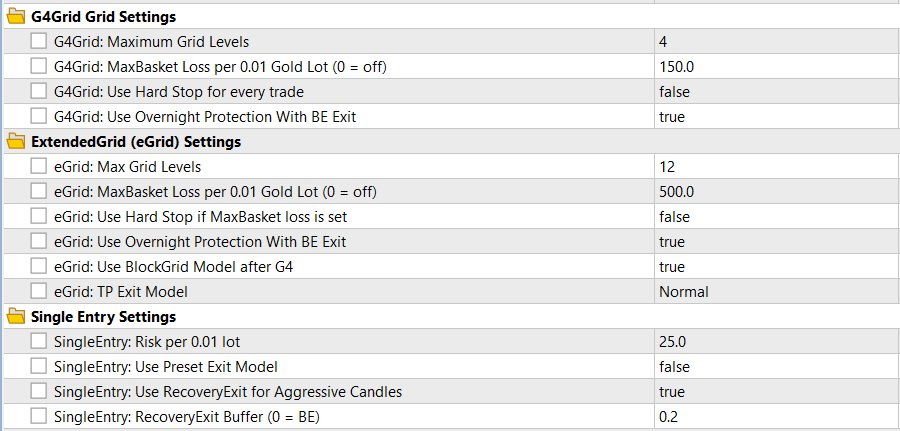
(5) G4Grid Maximum Grid Levels: For G4Grid, the max gird levels has been set to 4. This means it will add only 4 levels of grid after the original entry.
(6) G4Grid MaxBasket Loss per 0.01 Gold lot: MaxBasket loss per 0.01 lot has been set to $150 by default.
(7) G4Grid Use Hard Stop for every trade: This options puts a hard stop for each basket. This has been disabled by default.
(8) G4Grid Use Overnight Protection with BE Exit: If true, the EA blocks new original entries between 21:30 and 01:00 broker server time. It waits for baskets at G4 or higher to close in breakeven after they have remained open for at least 120 minutes. Open baskets continue to be fully managed during the blocked period.
(9) eGrid Maximum Grid Levels: Sets the maximum number of grid entries that ExtendedGrid can add after the original entry. For example, 12 allows the original entry plus up to 12 grid levels.
(10) eGrid MaxBasket Loss per 0.01 Gold Lot: Sets the maximum permitted floating basket loss for every 0.01 lot when ExtendedGrid is selected. The amount scales according to the actual entry lot.
(11) eGrid Use Hard Stop if MaxBasket Loss is Set: If true, the EA places a broker-side stop loss on every open position at a common price calculated from the ExtendedGrid basket-loss limit. The stop price is updated as new grid positions are added.
(12) eGrid Use Overnight Protection with BE Exit: If true, the EA blocks new original entries between 21:30 and 01:00 broker server time. It also waits for baskets at G4 or higher to close in breakeven after they have remained open for at least 120 minutes.
(13) eGrid Use BlockGrid Model after G4: If true, grid entries after G4 are arranged in repeating four-level blocks, with a wider space introduced between these blocks. If false, all entries after G4 use the normal uniform post-G4 spacing.
(14) eGrid TP Exit Model: Select Normal or OnClose. Normal uses price touch to exit. OnClose exit the trade when a candle closes beyond the configured TP. The TP distances remain unchanged.
(15) SingleEntry Risk per 0.01 Lot: Sets the maximum loss for every 0.01 lot in SingleEntry mode. The risk amount scales according to the actual entry lot. For example, a value of $25 means a maximum loss of approximately $50 when trading 0.02 lot.
(16) SingleEntry Use Preset Exit Model: If false, a simple Stop and TP is used. If true, the preset profit trailing and dynamic stop adjustment model is used. Max loss for the trades are still set as per the setting above.
(17) SingleEntry Use RecoveryExit for Aggressive Candles: If true, an aggressive candle against the trade will trigger a Recovery Exit. The EA waits for price to recover to the calculated recovery target.
(18) SingleEntry RecoveryExit Buffer: This setting adds a buffer to the Recovery Exit. A value of 0 exits at the trade at, while a positive value waits for additional profit beyond the reference.
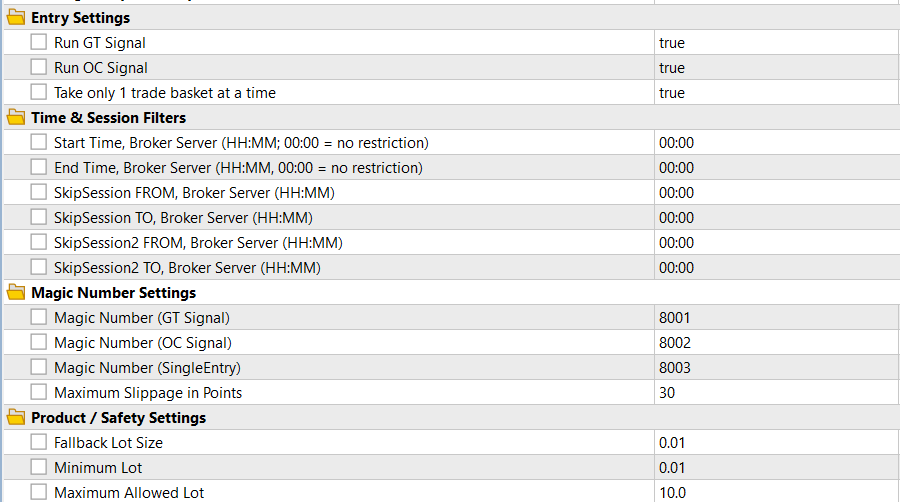
(19) Run GT Signal: Enables or disables new entries from the GT signal. Existing GT baskets remain fully managed if this setting is later disabled. SingleEntry mode operates only through the GT signal, so this must be true when using SingleEntry.
(20) Run OC Signal: Enables or disables new entries from the OC signal. Existing OC baskets remain fully managed if this setting is later disabled. This setting is ignored when SingleEntry mode is selected.
(21) Take Only One Trade Basket at a Time: If true, the EA will not open a new GT or OC basket while another basket is already active. If false, GT and OC baskets may run simultaneously on hedging accounts.
(22) Start Time: Sets the beginning of the permitted original-entry session in broker server time using HH:MM format. It works together with End Time and can support sessions that cross midnight.
(23) End Time: Sets the end of the permitted original-entry session in broker server time. When Start Time and End Time are equal, including 00:00 and 00:00, the main session restriction is disabled.
(24) SkipSession FROM: Sets the beginning of the first period during which new original entries are blocked. Existing baskets, grid entries, stops and exit management continue normally.
(25) SkipSession TO: Sets the end of the first blocked-entry period. The skip session is disabled when its FROM and TO values are equal.
(26) SkipSession2 FROM: Sets the beginning of a second independent period during which new original entries are blocked.
(27) SkipSession2 TO: Sets the end of the second blocked-entry period. The second skip session is disabled when its FROM and TO values are equal.
(28) Magic Number – GT Signal: Sets the unique identification number used for GT Grid trades. It must be different from the OC and SingleEntry magic numbers.
(29) Magic Number – OC Signal: Sets the unique identification number used for OC trades. It must be different from the GT and SingleEntry magic numbers.
(30) Magic Number – SingleEntry: Sets the unique identification number used for SingleEntry trades. Avoid changing magic numbers while related positions are open.
(31) Maximum Slippage in Points: Sets the permitted price deviation for trade execution and closing requests, measured in broker points rather than pips.
(32) Fallback Lot Size: Sets the backup lot size used if an internally calculated or entered lot is invalid or unavailable. This is a safety fallback and is not the normal trading lot setting.
(33) Minimum Allowed Lot: Sets the smallest lot size the EA is permitted to trade, subject to the broker’s minimum lot. A risk-calculated AutoLot below this limit will be skipped instead of being rounded upward.
(34) Maximum Allowed Lot: Sets the maximum lot size the EA is permitted to trade, subject to the broker’s maximum lot limit. By default it is set to 10.
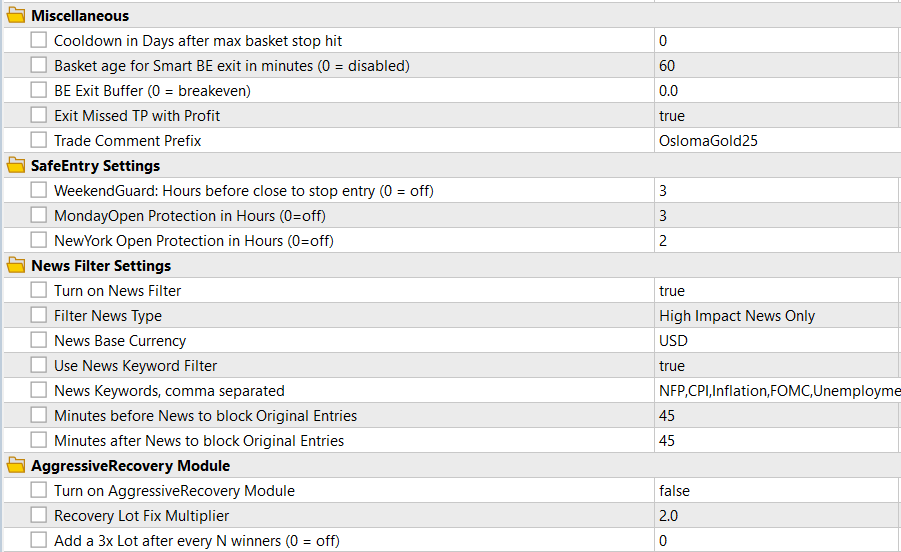
(35) Cooldown in Days after Max Basket Stop: Blocks new original entries for the selected number of days after a basket is closed by the maximum-loss set. Set it to 0 to disable the cooldown.
(36) Basket Age for Smart BE Exit in Minutes: After a G4Grid or ExtendedGrid basket reaches this age, the EA closes it when its floating profit reaches the BE Exit Buffer requirement. Set it to 0 to disable this age-based exit.
(37) BE Exit Buffer: Sets the minimum required floating basket profit, in account currency, for Smart BE-related exits. A value of 0 requires the basket to be in any positive floating profit rather than closing at exactly zero.
(38) Exit Missed TP with Profit: If true and the first TP close attempt is not completed, later close retries are allowed only when the basket is in profit by at least the BE Exit Buffer. No additional grid positions are added while the basket is waiting for this protected exit.
(39) Trade Comment Prefix: Adds a custom prefix to order comments, making the EA’s trades easier to identify in the terminal and account history.
(40) WeekendGuard Hours before Close: Blocks new original entries during the selected number of hours before the assumed weekend close at 00:00 Saturday broker server time. Set it to 0 to disable the protection.
(41) MondayOpen Protection in Hours: Blocks new original entries from 00:00 broker server time on Monday for the selected number of hours. For example, 3 blocks entries from Monday 00:00 until 03:00.
(42) NewYork Open Protection in Hours: Blocks new original entries from 08:00 New York time for the selected number of hours on weekdays. New York daylight-saving time and the broker’s server-time offset are handled automatically.
(43) Turn on News Filter: Enables or disables the MT5 Economic Calendar filter for new original entries. Existing baskets continue to be managed normally. The filter does not block entries in Strategy Tester.
(44) Filter News Type: Select NONE to disable news-type filtering or HIGH_IMPACT_ONLY to block entries around high-impact economic events.
(45) News Base Currency: Selects the currency used when searching for economic events. The current public options are NONE and USD.
(46) Use News Keyword Filter: If true, only high-impact events containing one of the specified keywords will block entries. If false, all high-impact events for the selected currency can block entries.
(47) News Keywords: Enter the event-name keywords to filter, separated by commas. The matching is not case-sensitive. Example: NFP,CPI,Inflation,FOMC,Unemployment.
(48) Minutes before News to Block Original Entries: Sets how many minutes before a matching economic event the EA must stop opening new original entries.
(49) Minutes after News to Block Original Entries: Sets how many minutes after a matching economic event the EA must continue blocking new original entries.
(50) Turn on AggressiveRecovery Module: If true, it gets activated ONLY when a MaxBasket Stoploss is hit. The EA temporarily increases the lot size until the loss is recovered.
(51) Recovery Lot Fix Multiplier: Sets the lot multiplier used while recovery mode is active. For example, 2.0 trades recovery baskets at twice the normally calculated lot size.
(52) Add a 3x Lot after Every N Winners: After every selected number of profitable recovery baskets, the next recovery basket uses a 3x lot multiplier. Set it to 0 to disable this additional recovery step.

(53) Show Trading InfoPanel: Shows or hides the on-chart Trading Control Panel. The panel displays the EA status, next lot, basket risk, news-filter status and recovery status, and includes a button for pausing or resuming new entries. Open baskets remain fully managed.
(54) Debug Logging: If true, the EA prints detailed signal, filter, entry, exit and operational information in the MT5 Experts log. This does not change the trading logic but may increase log activity.