![[SETUP FREE & PAID PRODUCTS] How to Use EA CyberBot Correctly and What Are the Steps?](https://c.mql5.com/6/1006/splash-770271.png "[SETUP FREE & PAID PRODUCTS] How to Use EA CyberBot Correctly and What Are the Steps?")
[SETUP FREE & PAID PRODUCTS] How to Use EA CyberBot Correctly and What Are the Steps?
21 May 2026, 03:38

0
25
How to Use EA CyberBot Correctly and What Are the Steps?
| PRODUCTS | METATRADER 5 | METATRADER 4 |
|---|---|---|
[PAID] REAL ACCOUNTS | ||
[FREE] DEMO ACCOUNTS | ||
[FREE] ADD-ON 1 | --- | |
[FREE] ADD-ON 2 | --- |
Initial Product Setup
For MT5 (Drag & Drop / Double Click):
- On EA: Click 1 → Analyzer Screen Display
- On EA: Click 2 → Trade Dashboard Panel
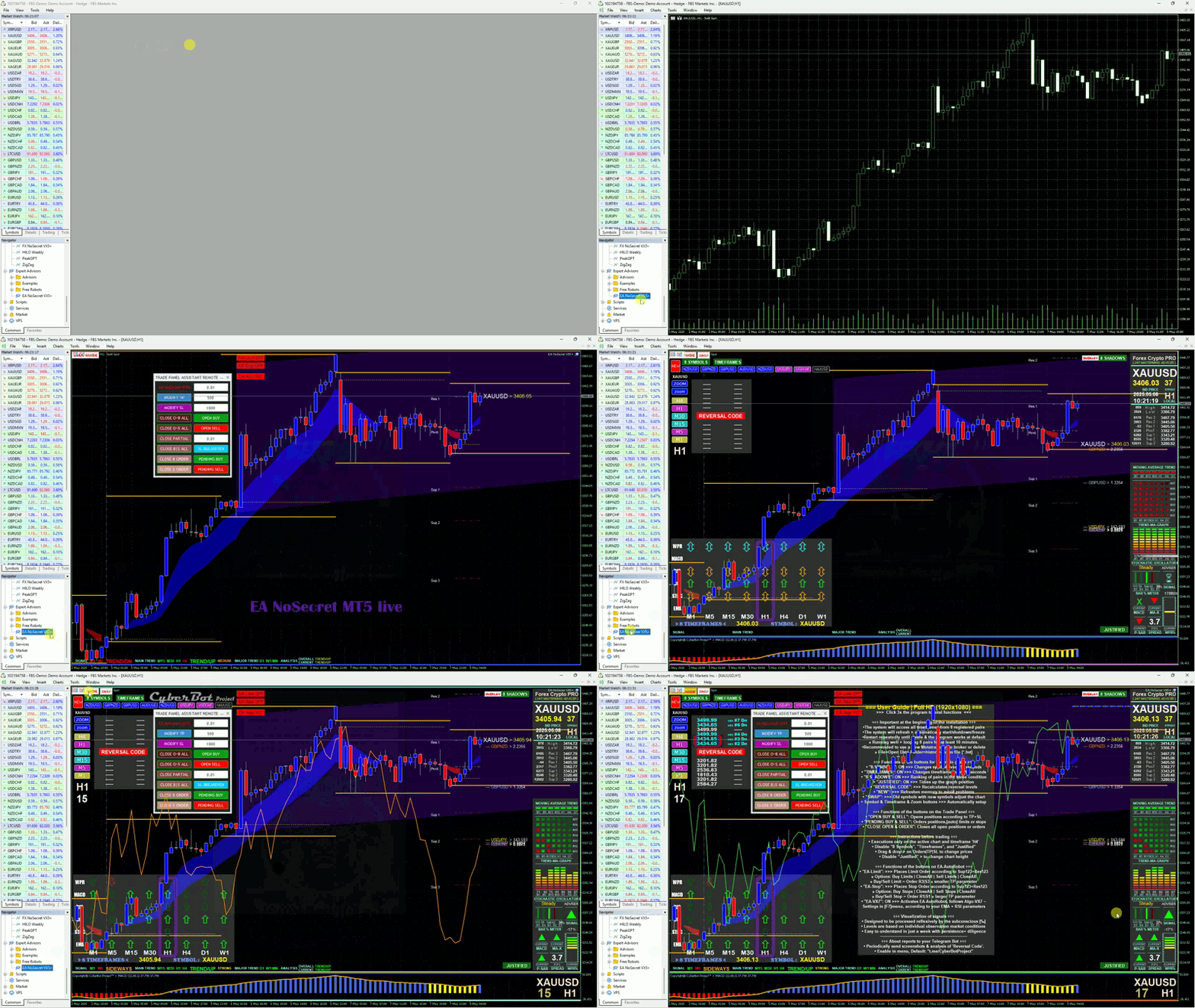
For MT4 (Drag & Drop / Double Click):
- On Main Expert Advisor → Core activation
- On Indicator Add-On. 1 → Oscillator IQ7
- On Indicator Add-On. 2 → HiLoTren IQ7
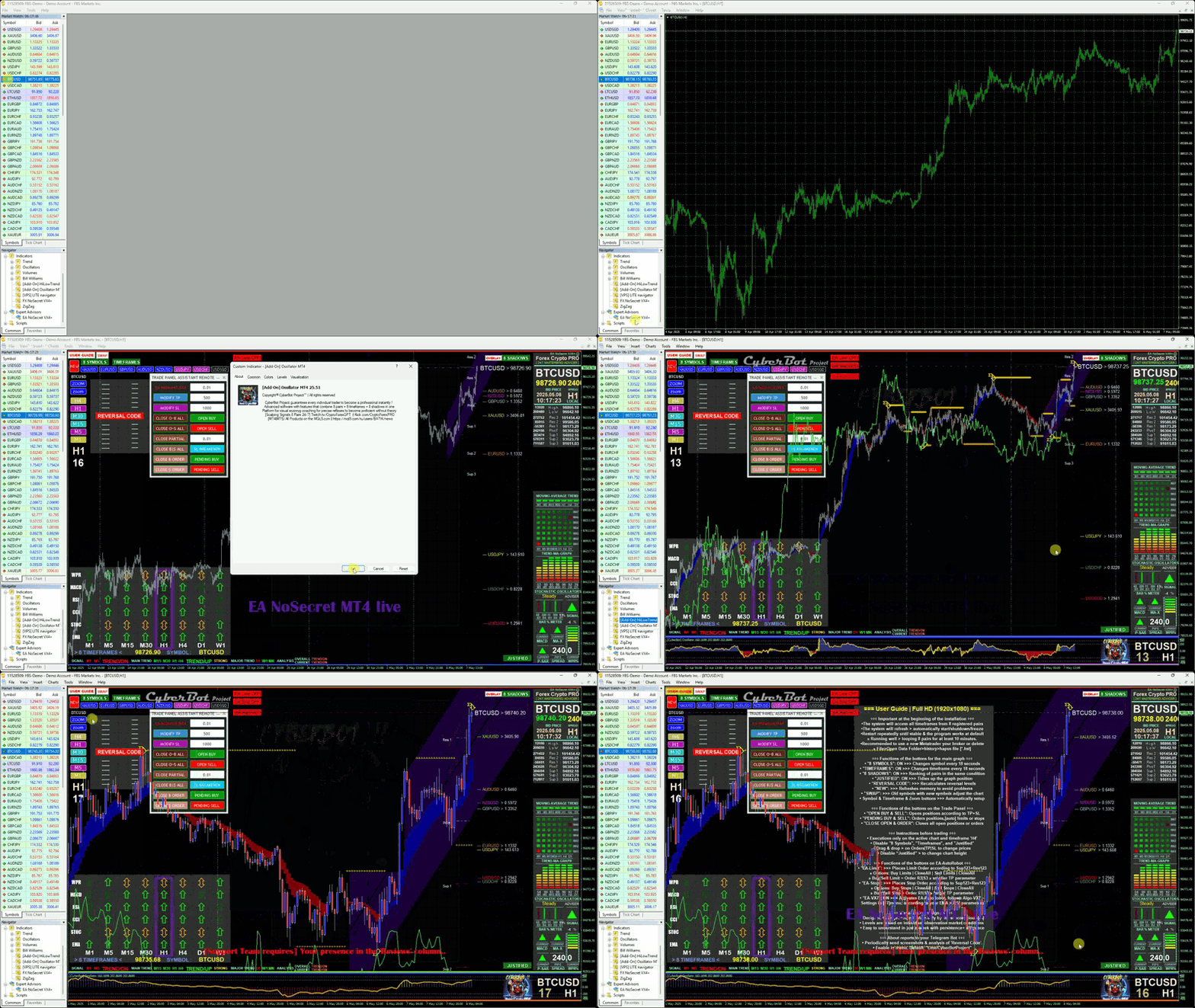
Note: At the beginning, you may need to repeat this process frequently until everything runs smoothly.
Recommended Initial Steps
- Use a fresh MetaTrader installation and activate the pair manually.
- Stop the rolling function for "Symbols" and "Timeframes."
- Click each pair button to complete the timeframe database.
- Ensure all databases are complete before activating rolling.
- The rolling function runs the analyzer for all registered pairs.
- Stop the rolling function when using the trade panel function.
- Use the H4 timeframe and zoom out once for the Trade Panel display.
ID-Code & Account Limitation
- The system is only active on demo accounts, if the ID-Code is not entered at the beginning [available only for paid products].
- A detailed explanation of the ID-Code installation system is provided at the bottom of the blog: https://mql5.com/en/blogs/post/768995
Important Note & Disclaimer
- Some free products, which are identical to paid products, are allowed to be used as a limited-time “test drive” for potential clients.
- A 7-day extension will automatically be activated if the trigger is initiated when the paid product is first activated, from the "Free Demo" file downloaded from the paid product content.