Start Trading Gold Smarter with Luna Gold – Free Expert Advisor Guide

EA Settings and Configuration Guide
In this section, I will provide a detailed overview of all the parameters of the EA and how to set them for optimal performance. If you are new to using the EA or want to fine-tune the settings, this guide will assist you.
The default settings are generally well-optimized, and you don't need to change anything to get started.
However, optional filters and risk-reduction features have been added for users who want more control.
It’s entirely up to you which ones you’d like to use based on your preferences.
Personally, I still use the default configuration.
I’m sharing three alternative set files with different configurations.
Moving Average trend filter fixed SL/TP
Fixed SL/TP without a Moving Average trend filter
ATR based SL TP without a Moving Average trend filter
- Allow only one open trade at a time: If set to false, only one trade will be allowed at a time. If set to true, new trades can be opened even if there is an existing position.
- Select SL/TP/TS calculation mode
This option allows you to calculate the stop loss, take profit, and trailing stop levels based on the ATR (Average True Range) indicator. - ATR indicator period
Sets the period used for the ATR calculation. - Timeframe used for ATR calculation
Specifies the timeframe on which the ATR is calculated. - Multiplier for SL based on ATR
The stop loss is determined by multiplying the ATR value by this factor. - Multiplier for TP/TS based on ATR
The take profit and trailing stop values are calculated by multiplying the ATR by this factor. - Stop Loss & Take Profit: Set the stop loss (SL) and take profit (TP) in pips.
- Enable trailing stop: Enables or disables the trailing stop.
- Start trailing after profit: Set the pip value at which the trailing stop will start working.
- Distance to trail stop: Set the pip distance at which the trailing stop will follow the price.Breakeven – Enables breakeven functionality.
- Enable breakeven function: Enables breakeven functionality.
- Profit to move stop to breakeven: Sets the profit level (in pips) at which the stop loss will be moved to breakeven.
- Extra profit to move stop above breakeven: Sets how many pips beyond the entry point the stop loss should be placed after breakeven is triggered.
- Enable trailing take profit: Enables dynamic trailing of the take profit.
- Start trailing TP after loss: The trailing TP activates when the distance between price and TP reaches this value.
- Distance of trailing TP from price: The take profit will trail the price by this amount of pips.
- Enable Virtual Stops: Enables virtual stop loss and take profit, meaning the SL and TP are not sent to the broker but handled internally.
- Emergency Stop Multiplier (0 = disabled) – Adds a real SL/TP beyond the virtual one, calculated as a multiplier of the original SL/TP. Set to 0 to disable.
- Add Pips to Emergency Stop (0 = disabled) – Adds a fixed number of pips to the virtual SL/TP and places a hidden real SL/TP further away as a backup. Set to 0 to disable
- Time Offset Mode
Choose whether trading times should be set manually or automatically adjusted to the last trading hour of the day based on server time.
Note: The automatic time adjustment does not work in the strategy tester, only in live or demo trading environments. - Start TimeHour & Start Time_Minute: The start time of the trade, in hours and minutes.
- Enable spread filter: Enables or disables the spread filter.
- Maximum allowed spread: The maximum allowed spread, beyond which no trades will be opened.
Risk_management:
- This free edition operates with a fixed lot size of 0.01.
Trading Days Filter:
- Enable trading on Monday - Friday: Enables or disables trading on specific days of the week.
- Minutes before market close on Wednesday to exit trades
Defines how many minutes before market close the trade should be exited on Wednesday. - Enable early close on Friday to reduce weekend gap risk
Enables closing trades a certain number of minutes before Friday market close to avoid potential weekend gaps. - Minutes before market close on Friday to exit trades
Specifies how many minutes before close the position should be closed on Friday.
- Enable Buy Above MA: If enabled, buy trades will only be opened when the price is above the moving average.
- Moving Average Timeframe: Select the timeframe for the moving average filter.
- Moving Average Period: Set the period used for calculating the moving average.
How to Check if the Broker’s Server Time Matches the Default Settings:
- Right-click on the Gold symbol in the Watchlist.
- Select Specifications.
- Scroll down to the Trading Hours section.
- Check the market close time. The trading hour should be set to the last hour before the market close — for example, if the close time is 23:59, the trading hour should be 23.
- If it is 23:59, no adjustment is needed.
- If, for example, the market close time is 20:59, set the Start Time to 20:00.
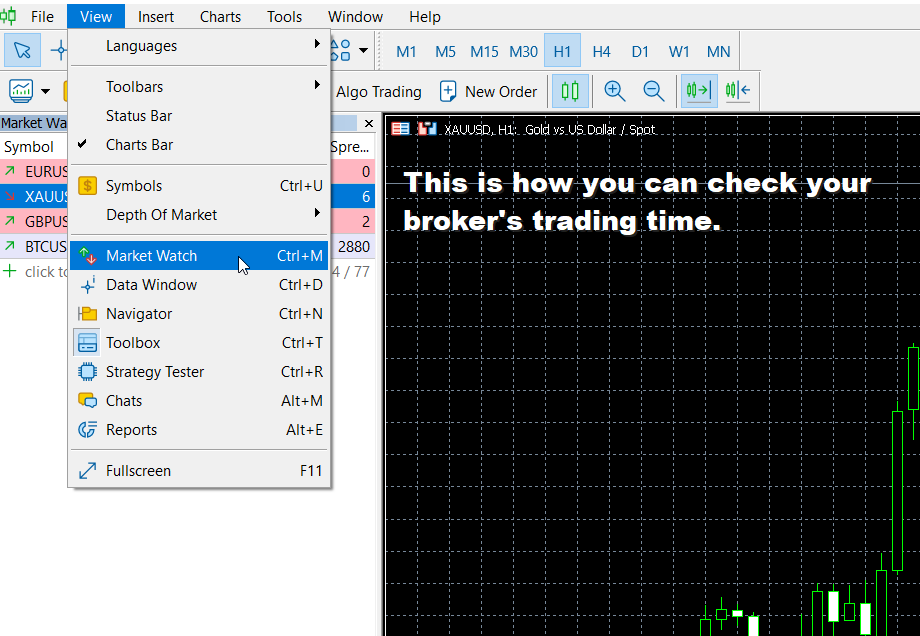
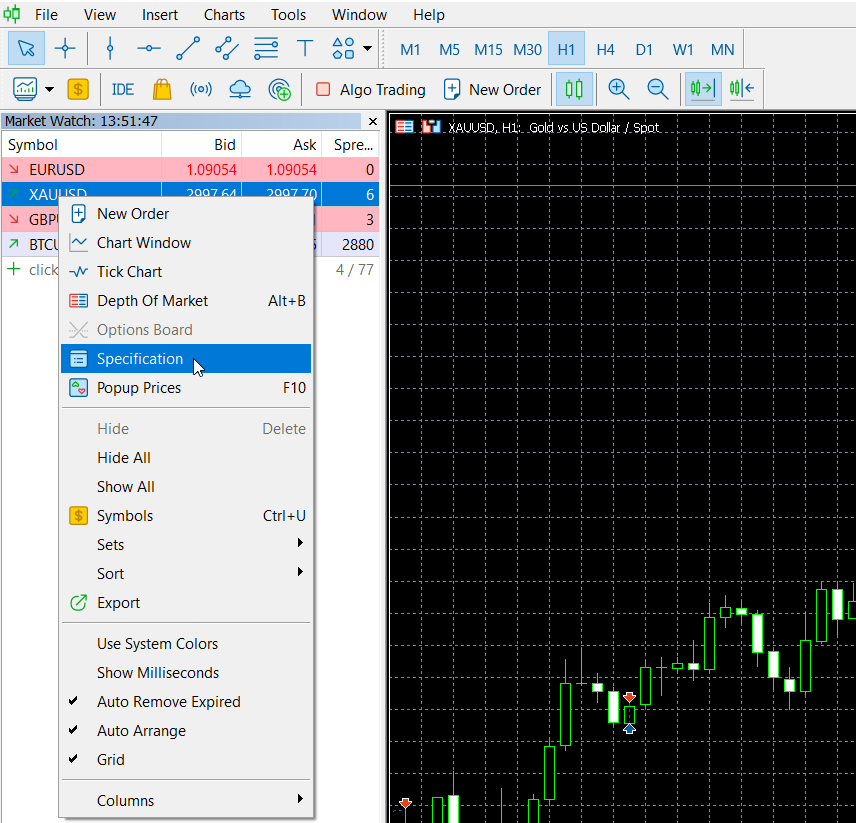
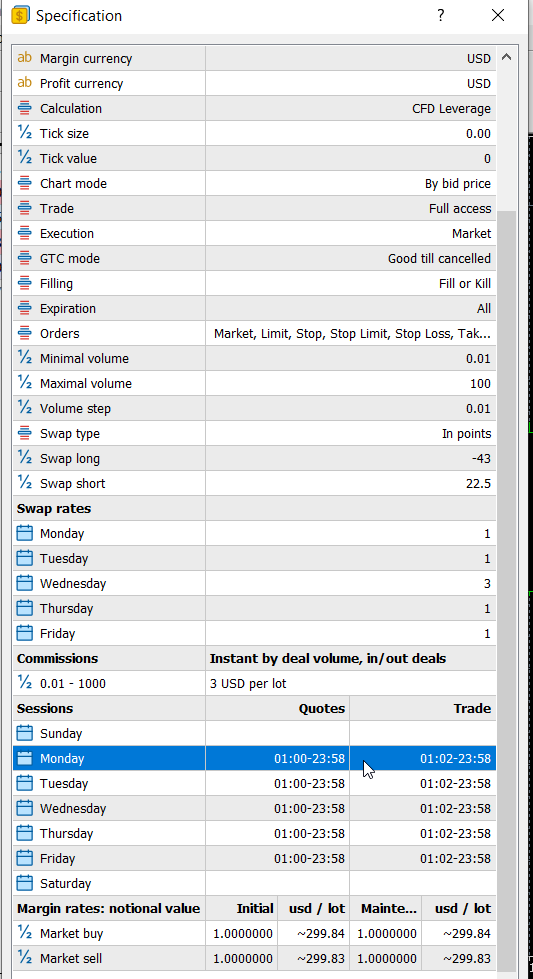
An indicator is included to help you set the correct trading hours both in the Strategy Tester and for manual configuration.
Recommended Brokers for Using the EA
I’d like to share my personal experience with the broker I’ve been using, which has been performing excellently with the EA. The broker offers swap-free accounts and low fees, making it a great choice for running the EA effectively.
XMGlobal for European Clients with trading leverage 1:500
That said, this EA should work well with other brokers too.
Keep in mind that low spreads, good customer support, and swap-free accounts are essential for maximizing the performance of your EA.
Before using the expert on a live account, test your settings in the strategy tester and on a demo account to understand how the system operates. This way, you can make any necessary adjustments and gain confidence in the settings.
If you have any questions or need further assistance, please don't hesitate to reach out. You can find our contact information here. We are always happy to help!
Successful trading!