Product Link: https://www.mql5.com/en/market/product/150278
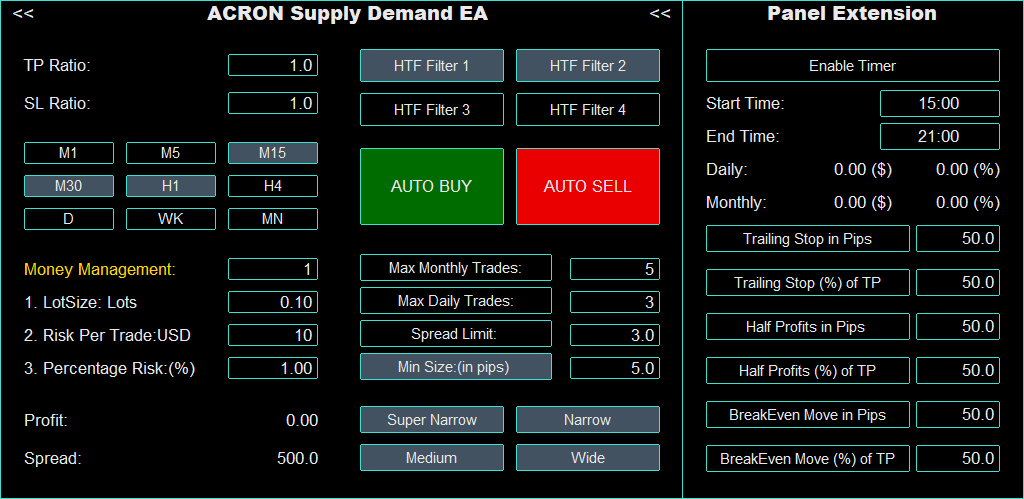
Important Note: The Trading Panel is only for visual purposes. All settings are controlled entirely by the user through the Input Parameter list. The panel simply provides a visual representation of these settings, making it easier for the user to see which options are enabled, and does not affect how the EA operates or executes trades.
Trade Settings
-
Magic Number:
A unique identifier for each trade, ensuring that trades opened by this EA are distinct from others. -
Trade Comment:
A label or note attached to each trade to identify and differentiate them in the trading platform. Important: If you want to use two or three different strategies on the same symbol but on different charts, use a different Trade Comment for each strategy so the EA can handle them separately. - Execution Mode:
The EA offers two execution modes: Every Tick, which opens a trade immediately when price touches a supply or demand zone, and 1-Minute, which waits for the 1-minute candle that touched the zone to close and then opens the trade at the open of the next 1-minute candle, providing a more confirmed entry. When the 1-Minute execution mode is selected, the EA can be backtested in the Strategy Tester using 1-Minute OHLC Modelling, which is a faster backtesting model and still provides accurate and reliable results.
TP/SL Settings
-
TP Ratio
Determines the distance between the entry point and the take profit level, expressed as a multiple of the zone size. For example, if the zone size is 10 pips and the TP Ratio is 2, the take profit will be set 20 pips away from the entry point. -
SL Ratio
Specifies the distance between the entry point and the stop loss level, expressed as a multiple of the zone size. For instance, if the zone size is 10 pips and the SL Ratio is 3, the stop loss will be set 30 pips away from the entry point. -
TP/SL Calculation
Defines the method used to calculate take profit and stop loss levels. Options include:-
Zone Based: Calculates TP and SL based on the size of the supply/demand zone.
-
ATR Based: Calculates TP and SL based on the Average True Range (ATR) of the current timeframe using the ATR Period price below.
- Fixed Risk (Points): Calculates both the Take Profit (TP) and Stop Loss (SL) based on the value defined in Fixed Risk Points input parameter. The final TP and SL distances are calculated by multiplying Fixed Risk Points with the corresponding TP and SL ratios. For example, if Fixed Risk Points is set to 100 points, the TP Ratio is 2, and the SL Ratio is 3, then the Take Profit distance will be 100 × 2 = 200 points, and the Stop Loss distance will be 100 × 3 = 300 points. As a result, the TP level will be placed 200 points away from the open price, while the SL level will be placed 300 points away from the open price.
-
-
ATR Period
Determines the period used for the ATR calculation, which affects take profit and stop loss levels when the ATR Based TP/SL Calculation is enabled. - Fixed Risk Points: Defines the fixed risk distance in points used to calculate the Take Profit and Stop Loss when Fixed Risk (Points) mode is selected. This value is multiplied by the TP and SL ratios to determine the final TP and SL distances from the open price.
Money Management Settings
-
Money Management:
Determines how the EA sizes trades. You can choose between fixed lot sizes, fixed risk per trade, or percentage-based risk. -
Fixed Lots:
If you use fixed lot sizing, this sets the exact number of lots the EA will trade for each position. -
Fixed Risk:
If you use fixed risk per trade, this sets the risk amount in your account currency for each trade. -
Percentage Risk:
If you use percentage-based risk, this sets the percentage of your account balance to risk per trade.
Timeframes Selection
-
Monthly Timeframe:
Enable or disable trading on the monthly chart. -
Weekly Timeframe:
Enable or disable trading on the weekly chart. -
Daily Timeframe:
Enable or disable trading on the daily chart. -
4hr Timeframe:
Enable or disable trading on the 4-hour chart. -
1hr Timeframe:
Enable or disable trading on the 1-hour chart. -
30min Timeframe:
Enable or disable trading on the 30-minute chart. -
15min Timeframe:
Enable or disable trading on the 15-minute chart. -
5min Timeframe:
Enable or disable trading on the 5-minute chart. -
1min Timeframe:
Enable or disable trading on the 1-minute chart.
HTF Direction Settings
You can enable up to four HTF Filters (Higher Timeframe Filters), which represent the market direction of the higher timeframes above the one where a zone was formed. These direction filters help the EA decide whether to take a buy or a sell trade, based on the direction of higher timeframes.
-
HTF Filter 1:
Checks the direction of the first higher timeframe. A trade will only be placed if this timeframe aligns with the trade direction. -
HTF Filter 2:
Checks the direction of the second higher timeframe. A trade will only be placed if this timeframe aligns with the trade direction. -
HTF Filter 3:
Checks the direction of the third higher timeframe. A trade will only be placed if this timeframe aligns with the trade direction. -
HTF Filter 4:
Checks the direction of the fourth higher timeframe. A trade will only be placed if this timeframe aligns with the trade direction.
How it Works
If multiple Timeframes Above are enabled, the EA will place a trade only when all the enabled higher timeframes are aligned in the same direction as the intended trade. For example, if the 2nd and 3rd Timeframes Above are enabled, a buy trade at a demand zone will occur only if both higher timeframes indicate an uptrend. Similarly, a sell trade at a supply zone will occur only if both higher timeframes indicate a downtrend. This filtering method helps prevent trades against the trend and improves overall trade quality.
MA Crossover Settings
• Enable MA Filter:
When enabled, the EA uses a Moving Average crossover to filter trades by trend direction: buy trades are allowed only when the short-term Moving Average is above the long-term Moving Average, and sell trades are allowed only when the short-term Moving Average is below the long-term Moving Average.
• MA Timeframe:
Select the timeframe on which the Moving Averages are calculated.
• Short-Term MA Period:
Set the period of the short-term (fast) Moving Average.
• Long-Term MA Period:
Set the period of the long-term (slow) Moving Average.
• MA Method:
Specify the type of Moving Average method the EA will use (e.g., SMA, EMA, SMMA, LWMA).
Types of Zones
You can choose from four types of zones: Wide, Medium, Narrow, and SuperNarrow. These represent the relative size of the supply and demand zones compared to the entire chart — not their size in pips.
-
Super Narrow Zones:
The narrowest zones, usually offering higher risk-to-reward opportunities. They are often more precise for entries. -
Narrow Zones:
Slightly wider than Super Narrow zones but still relatively small. They also tend to provide good risk-to-reward trades. -
Medium Zones:
Moderate-sized zones. They may offer more confirmation but generally lower risk-to-reward ratios than narrower zones. -
Wide Zones:
The largest zones. They cover a broader area, which may reduce precision but can still catch bigger market moves.
How it Works
You can choose which types of zones the EA should trade. For example, you might decide to trade only Narrow and SuperNarrow zones while skipping Medium or Wide zones. Narrower zones typically offer better opportunities for a higher risk-to-reward ratio, which can result in more efficient and potentially more profitable trades.
Recovery Settings
-
Enable Recovery:
This feature activates the EA to use a recovery strategy after a losing trade. When enabled, the EA attempts to recover losses by adjusting trade sizes . -
Max Recovery Cycles:
Specifies the maximum number of recovery trades the EA will perform in a row. This prevents the EA from extended amount of losses while trying to recover.
Timer Settings
-
Enable Timer:
Turn this on to make the EA place trades only within a specific time range. The times are based on your PC or VPS clock, not the broker’s server time. For example, if the start time is 15:00 and the end time is 20:00, the EA will only place trades during this window. -
Start Time:
The beginning of the trading window when the EA is allowed to place trades. -
End Time:
The end of the trading window when the EA will stop placing trades.
General Settings
-
Max Global Open Orders
Checks the total number of open trades that were placed by the EA across the account (all symbols). If that total is equal to or greater than this limit, the EA running on the current chart will not open any new trades. - Max Symbol Open Orders
Checks the total number of open trades that were placed by the EA on the current chart. If that amount is equal to or greater than this limit, the EA running on the current chart will not open any new trades.
-
Enable Buy
Turn this on to allow the EA to open buy trades. -
Enable Sell
Turn this on to allow the EA to open sell trades. - Max Global Open Recovery Trades:
Defines the maximum number of recovery trades allowed globally across all charts where the EA is running. This helps control total account risk by limiting how many recovery trades can be opened at the same time. -
Enable Min Size Filter
Turn this on to prevent the EA from placing trades on zones that are too small. Only zones larger than the Min Size value will be traded. -
Min Size Price
Sets the minimum zone size in pips. For example, if set to 20, the EA will ignore zones smaller than 20 pips. (This price is used only when Automated Min Size is FALSE.) -
Enable Automated Min Size
Turn this on to let the EA calculate the minimum zone size automatically. The calculation is based on the current spread and the Min Size Multiplier. The automated Min Size is always at least 5 pips. -
Automated Min Size Multiplier
If Automated Min Size is enabled, this sets the multiplier used to calculate the minimum zone size. Formula: Min Size = Current Spread × Min Size Multiplier. (This price is used only when Automated Min Size is TRUE.) -
Enable Spread Limit
Turns the spread filter on or off. When enabled, the EA will check the current spread before opening a trade. -
Spread Limit
Sets the maximum allowed spread (in pips). If the current spread is higher than this value, the EA will not open new trades.
- Enable Filters Display
Allows you to turn on or off the display of all active filter settings directly on the chart. When it is set to true, the EA shows a summary of the filters that are currently enabled. Users can see which Daily and Monthly filters are active, both at the Symbol level and the Global level. This includes profit limits, loss limits, and drawdown limits, as well as the recovery system settings.
- Chart On Top
If this option is enabled, when a new trade is placed by the EA, the chart of the pair where the trade was created will automatically come on top.
Symbol Trades Limits
-
Enable Monthly Trades
Turn this on to limit the number of trades the EA can place on this symbol per month. -
Max Monthly Trades
Sets the maximum number of trades the EA can place on this symbol in a month. Once this limit is reached, the EA will stop opening new trades automatically on this symbol. -
Enable Daily Trades
Turn this on to limit the number of trades the EA can place on this symbol per day. -
Max Daily Trades
Sets the maximum number of trades the EA can place on this symbol in a day. Once this limit is reached, the EA will stop opening new trades automatically on this symbol.
Daily Symbol Profit Limits
-
Enable Daily Profit Amount ($)
Turn this on to stop the EA from opening new trades on this symbol once a certain profit in account currency has been reached for the day on this chart. If this limit is reached while there are open trades, the EA will close them automatically. -
Max Daily Profit Amount ($)
Sets the maximum profit in account currency the EA can achieve on this symbol in a day. Once reached, no further trades will be opened on this chart and any open trades will be closed. -
Enable Daily Profit Percentage (%)
Turn this on to stop the EA from opening new trades once a certain percentage profit of your account balance has been reached for the day on this chart. Open trades will be closed when this limit is reached. -
Max Daily Profit Percentage (%)
Sets the maximum profit as a percentage of your account balance allowed per day on this symbol. Once reached, the EA will close any open trades on this chart. -
Enable Daily Profit Trades
Turn this on to limit the number of profitable trades on this symbol for the day. -
Max Daily Profit Trades
Sets the maximum number of profitable trades allowed per day on this symbol. Once reached, any open trades will be closed.
Daily Symbol Loss Limits
-
Enable Daily Loss Amount ($)
Turn this on to stop the EA from opening new trades on this symbol once a certain loss in account currency has been reached for the day on this chart. If this limit is reached while there are open trades, the EA will close them automatically. -
Max Daily Loss Amount ($)
Sets the maximum loss in account currency allowed on this symbol in a day. Once reached, no further trades will be opened on this chart and any open trades will be closed. -
Enable Daily Loss Percentage (%)
Turn this on to stop the EA from opening new trades once a certain percentage loss of your account balance has been reached for the day on this chart. Open trades will be closed when this limit is reached. -
Max Daily Loss Percentage (%)
Sets the maximum loss as a percentage of your account balance allowed per day on this symbol. Once reached, the EA will close any open trades on this chart. -
Enable Daily Loss Trades
Turn this on to limit the number of losing trades on this symbol for the day. -
Max Daily Loss Trades
Sets the maximum number of losing trades allowed per day on this symbol. Once reached, any open trades will be closed.
Daily Global Profit Limits
-
Enable Daily Profit Amount ($)
Turn this on to stop the EA from opening new trades on the current chart once a certain profit in account currency has been reached across all charts where the EA is attached. If this limit is reached while there are open trades on the current chart, the EA will close them automatically. -
Max Daily Profit Amount ($)
Sets the maximum profit in account currency allowed per day across all charts. Once reached, no further trades will be opened on the current chart and any open trades will be closed. -
Enable Daily Profit Percentage (%)
Turn this on to stop the EA from opening new trades on the current chart once a certain percentage profit of your account balance has been reached across all charts. Open trades will be closed when this limit is reached. -
Max Daily Profit Percentage (%)
Sets the maximum profit as a percentage of your account balance allowed per day across all charts. Once reached, the EA will close any open trades on the current chart. -
Enable Daily Profit Trades
Turn this on to limit the number of profitable trades across all charts. -
Max Daily Profit Trades
Sets the maximum number of profitable trades allowed per day across all charts. Once reached, any open trades on the current chart will be closed.
Daily Global Loss Limits
-
Enable Daily Loss Amount ($)
Turn this on to stop the EA from opening new trades on the current chart once a certain loss in account currency has been reached across all charts. If this limit is reached while there are open trades on the current chart, the EA will close them automatically. -
Max Daily Loss Amount ($)
Sets the maximum loss in account currency allowed per day across all charts. Once reached, no further trades will be opened on the current chart and any open trades will be closed. -
Enable Daily Loss Percentage (%)
Turn this on to stop the EA from opening new trades on the current chart once a certain percentage loss of your account balance has been reached across all charts. Open trades will be closed when this limit is reached. -
Max Daily Loss Percentage (%)
Sets the maximum loss as a percentage of your account balance allowed per day across all charts. Once reached, the EA will close any open trades on the current chart. -
Enable Daily Loss Trades
Turn this on to limit the number of losing trades across all charts. -
Max Daily Loss Trades
Sets the maximum number of losing trades allowed per day across all charts. Once reached, any open trades on the current chart will be closed.
Monthly Symbol Profit Limits
-
Enable Monthly Profit Amount ($)
Turn this on to stop the EA from opening new trades on this symbol once a certain profit in account currency has been reached for the month on the current chart. Open trades on this chart will be closed when the limit is reached. -
Max Monthly Profit Amount ($)
Sets the maximum profit in account currency allowed per month on this symbol for the current chart. Once reached, any open trades on this chart will be closed. -
Enable Monthly Profit Percentage (%)
Turn this on to stop the EA from opening new trades on this symbol once a certain percentage profit of your account balance has been reached for the month on the current chart. Open trades on this chart will be closed when the limit is reached. -
Max Monthly Profit Percentage (%)
Sets the maximum profit as a percentage of your account balance allowed per month on this symbol for the current chart. Once reached, any open trades on this chart will be closed. -
Enable Monthly Profit Trades
Turn this on to limit the number of profitable trades on this symbol on the current chart for the month. -
Max Monthly Profit Trades
Sets the maximum number of profitable trades allowed per month on this symbol on the current chart. Once reached, any open trades on this chart will be closed.
Monthly Symbol Loss Limits
-
Enable Monthly Loss Amount ($)
Turn this on to stop the EA from opening new trades on this symbol once a certain loss in account currency has been reached for the month on the current chart. Open trades on this chart will be closed when the limit is reached. -
Max Monthly Loss Amount ($)
Sets the maximum loss in account currency allowed per month on this symbol for the current chart. Once reached, any open trades on this chart will be closed. -
Enable Monthly Loss Percentage (%)
Turn this on to stop the EA from opening new trades on this symbol once a certain percentage loss of your account balance has been reached for the month on the current chart. Open trades on this chart will be closed when the limit is reached. -
Max Monthly Loss Percentage (%)
Sets the maximum loss as a percentage of your account balance allowed per month on this symbol for the current chart. Once reached, any open trades on this chart will be closed. -
Enable Monthly Loss Trades
Turn this on to limit the number of losing trades on this symbol on the current chart for the month. -
Max Monthly Loss Trades
Sets the maximum number of losing trades allowed per month on this symbol on the current chart. Once reached, any open trades on this chart will be closed.
Monthly Global Profit Limits
-
Enable Monthly Profit Amount ($)
Turn this on to stop the EA from opening new trades on the current chart once a certain profit in account currency has been reached across all charts for the month. Open trades will be closed when this limit is reached. -
Max Monthly Profit Amount ($)
Sets the maximum profit in account currency allowed per month across all charts. Once reached, any open trades on the current chart will be closed. -
Enable Monthly Profit Percentage (%)
Turn this on to stop the EA from opening new trades on the current chart once a certain percentage profit of your account balance has been reached across all charts for the month. Open trades will be closed when this limit is reached. -
Max Monthly Profit Percentage (%)
Sets the maximum profit as a percentage of your account balance allowed per month across all charts. Once reached, any open trades on the current chart will be closed. -
Enable Monthly Profit Trades
Turn this on to limit the number of profitable trades across all charts for the month. -
Max Monthly Profit Trades
Sets the maximum number of profitable trades allowed per month across all charts. Once reached, any open trades on the current chart will be closed.
Monthly Global Loss Limits
-
Enable Monthly Loss Amount ($)
Turn this on to stop the EA from opening new trades on the current chart once a certain loss in account currency has been reached across all charts for the month. Open trades will be closed when this limit is reached. -
Max Monthly Loss Amount ($)
Sets the maximum loss in account currency allowed per month across all charts. Once reached, any open trades on the current chart will be closed. -
Enable Monthly Loss Percentage (%)
Turn this on to stop the EA from opening new trades on the current chart once a certain percentage loss of your account balance has been reached across all charts for the month. Open trades will be closed when this limit is reached. -
Max Monthly Loss Percentage (%)
Sets the maximum loss as a percentage of your account balance allowed per month across all charts. Once reached, any open trades on the current chart will be closed. -
Enable Monthly Loss Trades
Turn this on to limit the number of losing trades across all charts for the month. -
Max Monthly Loss Trades
Sets the maximum number of losing trades allowed per month across all charts. Once reached, any open trades on the current chart will be closed.
Daily Symbol Drawdown Limits
-
Enable Daily Symbol Absolute Drawdown ($)
Turn this on to stop the EA from opening new trades on this symbol if the absolute drawdown (loss in account currency from the equity peak of the day on the current chart, including all trades of the current chart, closed and open) reaches the Max Daily Symbol Absolute Drawdown ($). Open trades on this chart will be closed when the limit is reached. -
Max Daily Symbol Absolute Drawdown ($)
Sets the maximum absolute loss allowed per day on the current chart, calculated from the equity peak of the day including all trades of the current chart, closed and open. Once this value is reached, any open trades on this chart will be closed. -
Enable Daily Symbol Relative Drawdown (%)
Turn this on to stop the EA from opening new trades if the relative drawdown (percentage loss from the equity peak of the day on the current chart, including all trades of the current chart, closed and open) reaches the Max Daily Symbol Relative Drawdown (%). Open trades on this chart will be closed when the limit is reached. -
Max Daily Symbol Relative Drawdown (%)
Sets the maximum relative loss allowed per day on the current chart, calculated from the equity peak of the day including all trades of the current chart, closed and open. Once this value is reached, any open trades on this chart will be closed.
Daily Global Drawdown Limits
-
Enable Daily Global Absolute Drawdown ($)
Turn this on to stop the EA from opening new trades on the current chart if the absolute drawdown (loss in account currency from the global equity peak of the day, including all trades that the EA placed across the platform, closed and open) reaches the Max Daily Global Absolute Drawdown ($). Open trades on the current chart will be closed when the limit is reached. -
Max Daily Global Absolute Drawdown ($)
Sets the maximum absolute loss allowed per day across all charts, calculated from the global equity peak including all trades that the EA placed across the platform, closed and open. Once this value is reached, any open trades on the current chart will be closed. -
Enable Daily Global Relative Drawdown (%)
Turn this on to stop the EA from opening new trades if the relative drawdown (percentage loss from the global equity peak of the day, including all trades that the EA placed across the platform, closed and open) reaches the Max Daily Global Relative Drawdown (%). Open trades on the current chart will be closed when the limit is reached. -
Max Daily Global Relative Drawdown (%)
Sets the maximum relative loss allowed per day across all charts, calculated from the global equity peak including all trades that the EA placed across the platform, closed and open. Once this value is reached, any open trades on the current chart will be closed.
Monthly Symbol Drawdown Limits
-
Enable Monthly Symbol Absolute Drawdown ($)
Turn this on to stop the EA from opening new trades on this symbol if the absolute drawdown (loss in account currency from the equity peak of the month on the current chart, including all trades of the current chart, closed and open) reaches the Max Monthly Symbol Absolute Drawdown ($). Open trades on this chart will be closed when the limit is reached. -
Max Monthly Symbol Absolute Drawdown ($)
Sets the maximum absolute loss allowed per month on the current chart, calculated from the equity peak of the month including all trades of the current chart, closed and open. Once this value is reached, any open trades on this chart will be closed. -
Enable Monthly Symbol Relative Drawdown (%)
Turn this on to stop the EA from opening new trades if the relative drawdown (percentage loss from the equity peak of the month on the current chart, including all trades of the current chart, closed and open) reaches the Max Monthly Symbol Relative Drawdown (%). Open trades on this chart will be closed when the limit is reached. -
Max Monthly Symbol Relative Drawdown (%)
Sets the maximum relative loss allowed per month on the current chart, calculated from the equity peak of the month including all trades of the current chart, closed and open. Once this value is reached, any open trades on this chart will be closed.
Monthly Global Drawdown Limits
-
Enable Monthly Global Absolute Drawdown ($)
Turn this on to stop the EA from opening new trades on the current chart if the absolute drawdown (loss in account currency from the global equity peak of the month, including all trades that the EA placed across the platform, closed and open) reaches the Max Monthly Global Absolute Drawdown ($). Open trades on the current chart will be closed when the limit is reached. -
Max Monthly Global Absolute Drawdown ($)
Sets the maximum absolute loss allowed per month across all charts, calculated from the global equity peak including all trades that the EA placed across the platform, closed and open. Once this value is reached, any open trades on the current chart will be closed. -
Enable Monthly Global Relative Drawdown (%)
Turn this on to stop the EA from opening new trades if the relative drawdown (percentage loss from the global equity peak of the month, including all trades that the EA placed across the platform, closed and open) reaches the Max Monthly Global Relative Drawdown (%). Open trades on the current chart will be closed when the limit is reached. -
Max Monthly Global Relative Drawdown (%)
Sets the maximum relative loss allowed per month across all charts, calculated from the global equity peak including all trades that the EA placed across the platform, closed and open. Once this value is reached, any open trades on the current chart will be closed.
News Settings
-
Enable News Filter
Turn this on to prevent the EA from opening trades during or around significant economic news events. -
Stop Trading Before [In Minutes]
Specifies how many minutes before a scheduled news event the EA will stop placing new trades. -
Stop Trading After [In Minutes]
Specifies how many minutes after a scheduled news event the EA will stop placing new trades. -
High Impact News
Enable this option to have the EA filter trades for high-impact news events. -
Medium Impact News
Enable this option to have the EA filter trades for medium-impact news events. -
Low Impact News
Enable this option to have the EA filter trades for low-impact news events. -
Close Open Orders
Turn this on if you want the EA to automatically close all open trades during news events that match your filter settings. -
Additional Currencies [Comma Separated]
The EA automatically detects the currencies of the current pair and applies the news filter accordingly. However, for some instruments like indices, the pair name may not directly contain the relevant currency. In these cases, you can list additional currencies here, separated by commas, to ensure the news filter monitors them as well. -
Specific Texts [Comma Separated]
Define specific keywords or phrases in the news that the EA should watch for. If these keywords are detected in a news event, the EA will stop trading during that event. For example, you can input Interest Rate, CPI, GDP.
Trade Management Settings
-
Enable Trailing Stop in Pips
Turn this on to activate a trailing stop based on a fixed number of pips. The EA will adjust the stop loss as the trade becomes profitable. -
Trailing Trigger Price in Pips
Specifies the number of pips the trade must be in profit before the trailing stop activates. -
Trailing Step Price in Pips
Sets the number of pips the stop loss moves each time the price moves in your favor. -
Enable Trailing Stop Percentage
Turn this on to activate a trailing stop based on a percentage of the trade’s profit. -
Trailing Trigger Price Percentage
Specifies the percentage of profit the trade must reach before the percentage-based trailing stop activates. -
Trailing Step Price Percentage
Sets the step of the stop loss movement as a percentage of profit when using a percentage-based trailing stop. -
Enable Half Profits in Pips
Turn this on to automatically close half of the position once a certain profit in pips is reached. -
Half Profits in Pips Price
Specifies the number of pips profit required before the EA closes half of the position. -
Enable Half Profits Percentage
Turn this on to automatically close half of the position once a certain profit percentage is reached. -
Half Profits Percentage Price
Specifies the percentage profit required before the EA closes half of the position. -
Enable BreakEven in Pips
Turn this on to move the stop loss to break-even after the trade reaches a certain profit in pips. -
BreakEven in Pips Price
Specifies the number of pips profit required before the EA moves the stop loss to break-even. -
Enable BreakEven Percentage
Turn this on to move the stop loss to break-even after the trade reaches a certain profit percentage. -
BreakEven Percentage Price
Specifies the percentage profit required before the EA moves the stop loss to break-even.
Trading Days Filter
-
Allow Monday
Enable this option to allow the EA to place trades on Mondays. -
Allow Tuesday
Enable this option to allow the EA to place trades on Tuesdays. -
Allow Wednesday
Enable this option to allow the EA to place trades on Wednesdays. -
Allow Thursday
Enable this option to allow the EA to place trades on Thursdays. -
Allow Friday
Enable this option to allow the EA to place trades on Fridays. -
Allow Saturday
Enable this option to allow the EA to place trades on Saturdays. -
Allow Sunday
Enable this option to allow the EA to place trades on Sundays.
Alerts Settings
-
Opening Position Alerts
Turn this on to receive alerts when the EA opens a new trade. -
Opening Position Push
Enable this option to receive push notifications when a new trade is opened. -
Opening Position Email
Turn this on to receive an email notification when the EA opens a new trade. -
Closing Position Alerts
Turn this on to receive alerts when the EA closes a trade. -
Closing Position Push
Enable this option to receive push notifications when a trade is closed. -
Closing Position Email
Turn this on to receive an email notification when the EA closes a trade.
Panel Settings
-
Panel Horizontal Size
Adjusts the width of the panel. The default value is 1.1. You can increase or decrease this value in steps of 0.1 to make the panel wider or narrower. For example, setting it to 1.3 or 1.4 will make the panel wider to better fit your screen. -
Panel Vertical Size
Adjusts the height of the panel. The default value is 1.1. You can modify this value in increments of 0.1 to increase or decrease the panel height. For example, setting it to 1.3 or 1.4 will increase the panel height. -
Panel Text Size
Adjusts the size of the text displayed on the panel. The default value is 1.2. You can increase or decrease this value in increments of 0.1. Increasing the value makes the text larger, while decreasing it makes it smaller. -
Theme Color
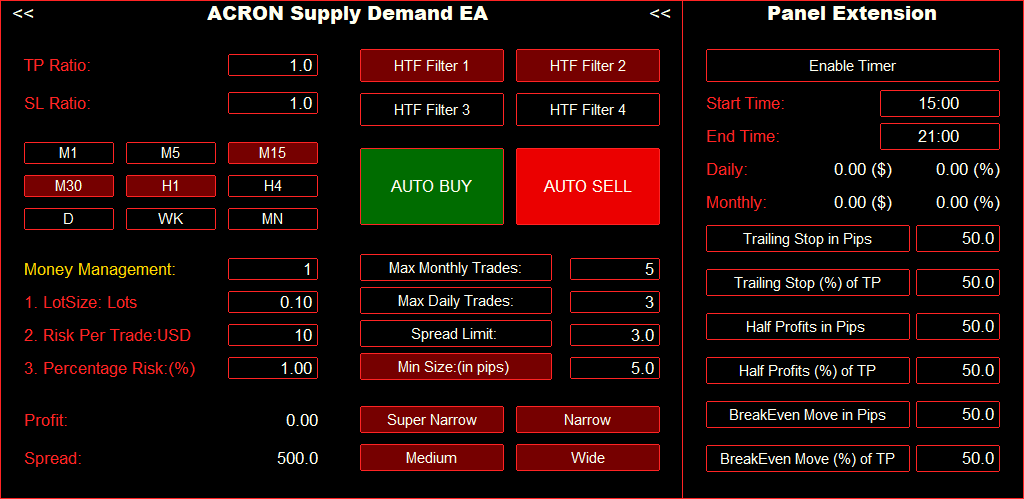
Allows you to choose the color theme of the panel. There are different options available, so you can select the one that best matches your chart colors and personal preference.
Visual Zones Settings
-
Enable First MTF
When the EA is attached to the chart, dotted lines appear indicating the supply and demand zones from the first timeframe above the current chart. Enable this option to show these lines or disable it to hide them. -
Enable Second MTF
Solid lines on the chart represent supply and demand zones from the second timeframe above the current chart. Enable this option to show these lines or disable it to hide them. -
Enable Third MTF
Dashed lines on the chart represent supply and demand zones from the third timeframe above the current chart. Enable this option to show these lines or disable it to hide them. -
Show Wide Zones
Enable or disable the display of Wide supply and demand zones on the chart. Disabling this option will hide Wide zones. -
Show Medium Zones
Enable or disable the display of Medium supply and demand zones on the chart. Disabling this option will hide Medium zones. -
Show Narrow Zones
Enable or disable the display of Narrow supply and demand zones on the chart. Disabling this option will hide Narrow zones. -
Show SuperNarrow Zones
Enable or disable the display of SuperNarrow supply and demand zones on the chart. Disabling this option will hide SuperNarrow zones. -
Supply MTF Zones Number
Sets the number of higher timeframe Supply Zones to display on the chart. -
Demand Zones MTF Number
Sets the number of higher timeframe Demand Zones to display on the chart. -
Show Size Labels
Enable or disable labels next to the zones that indicate their size (Wide, Medium, Narrow, SuperNarrow).
Color Settings
-
Demand Zones Color
Sets the color of the demand zones on the chart. -
Supply Zones Color
Sets the color of the supply zones on the chart. -
Demand MTF Lines Color
Sets the color of the higher timeframe demand lines. -
Supply MTF Lines Color
Sets the color of the higher timeframe supply lines. -
Limit Lines Color
Sets the color of the limit lines on the chart. -
Limit Lines Text Color
Sets the color of the text associated with limit lines. -
Bullish Trendlines Color
Sets the color of bullish trendlines displayed on the chart. -
Bearish Trendlines Color
Sets the color of bearish trendlines displayed on the chart. -
Zones Labels Color
Sets the color of the labels that show the type of zones (Wide, Medium, Narrow, SuperNarrow). -
Size Labels Color
Sets the color of the labels that indicate the size of each zone. -
News Label Color
Sets the color of labels related to news events on the chart.