[ Русский ]—[ 中文 ]—[ Español ]—[ Português ]—[ Deutsch ]—[ Français ]—[ Italiano ]
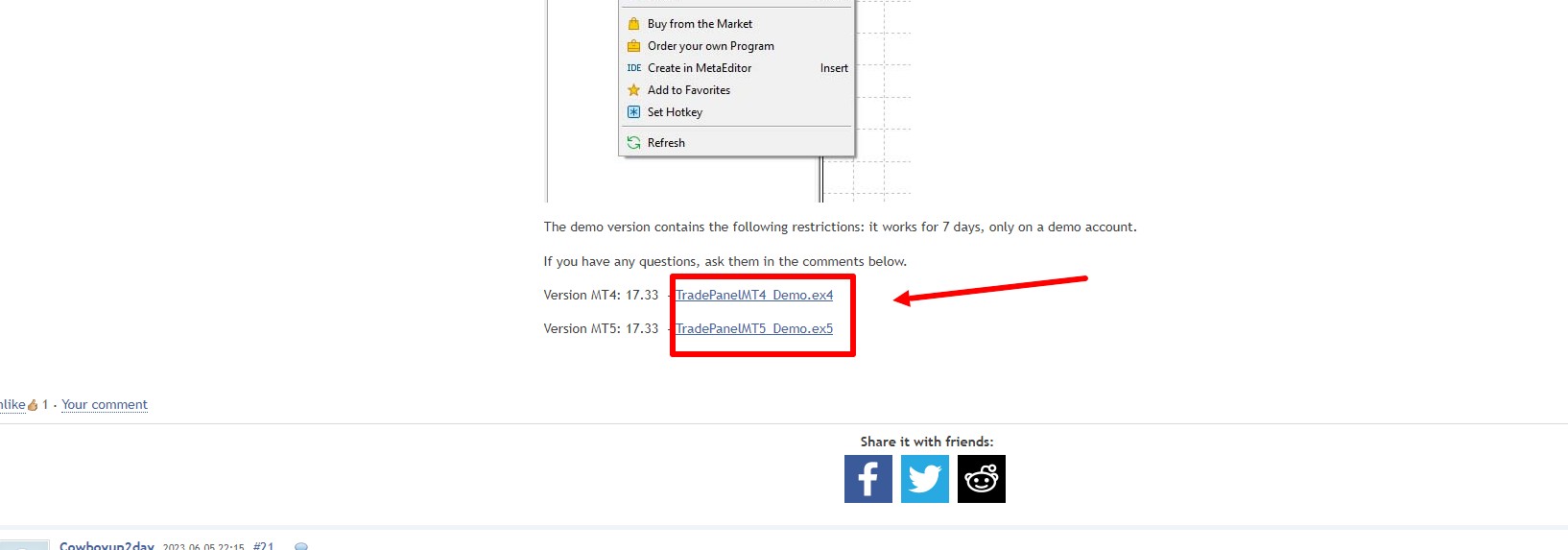
Download the demo version:
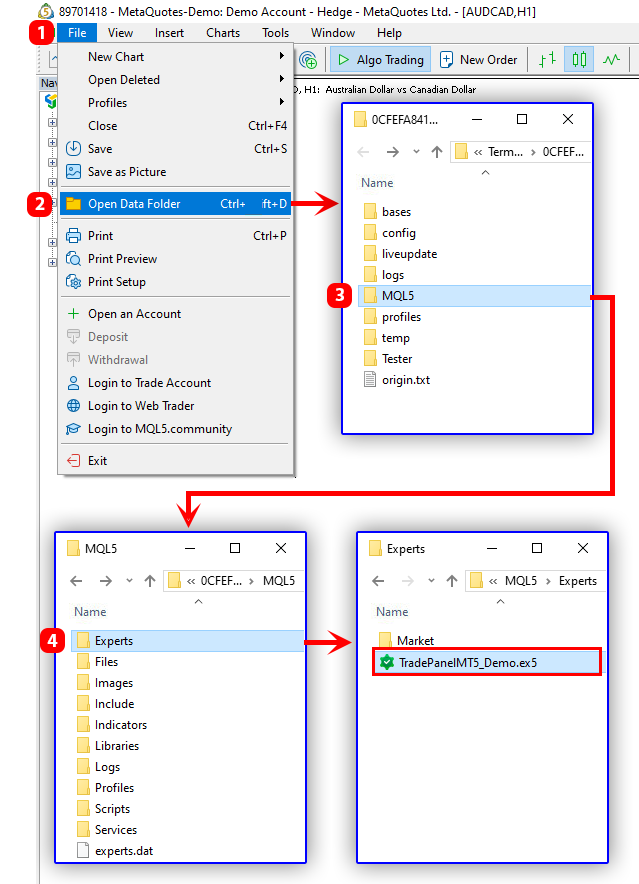
Open the MetaTrader 4 or 5 platform and go to the "Experts" folder:
- for MT5 - "File" button in the terminal menu > "Open Data Folder" > "MQL5" > "Experts"
- for MT4 - "File" button in the terminal menu > "Open Data Folder" > "MQL4" > "Experts"
Copy the downloaded demo version to the "Experts" folder.
Refresh the "Expert Advisors" tab in the "Navigator" window (right-click on the "Expert Advisors" tab and select "Refresh" in the context menu).

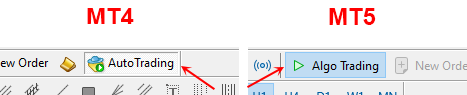
Enable auto trading for the terminal (click the "Auto Trading" button for MT4 or "Algo Trading" for MT5).
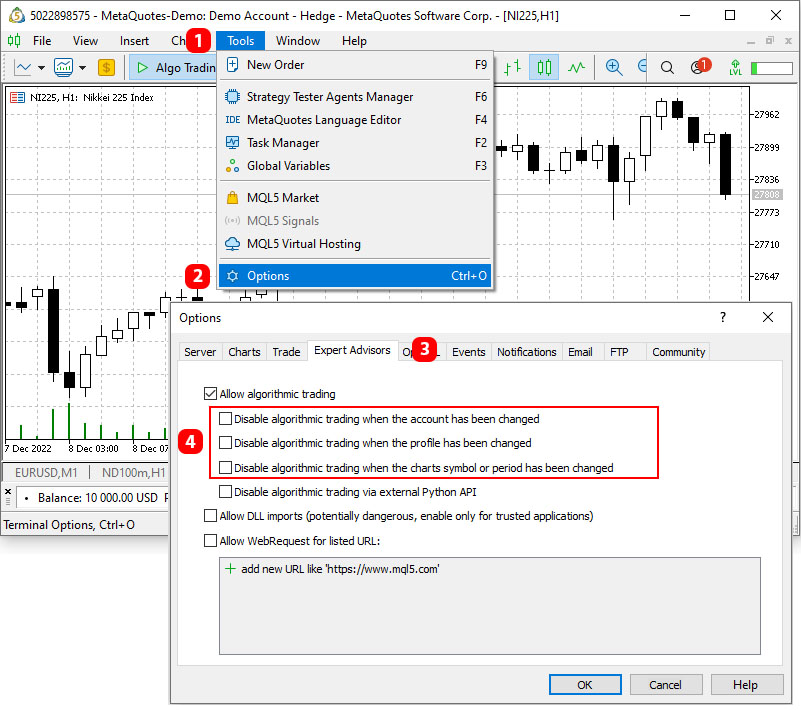
Go to "Tools" > "Options" > "Expert Advisors" and uncheck the boxes that disable automated trading.
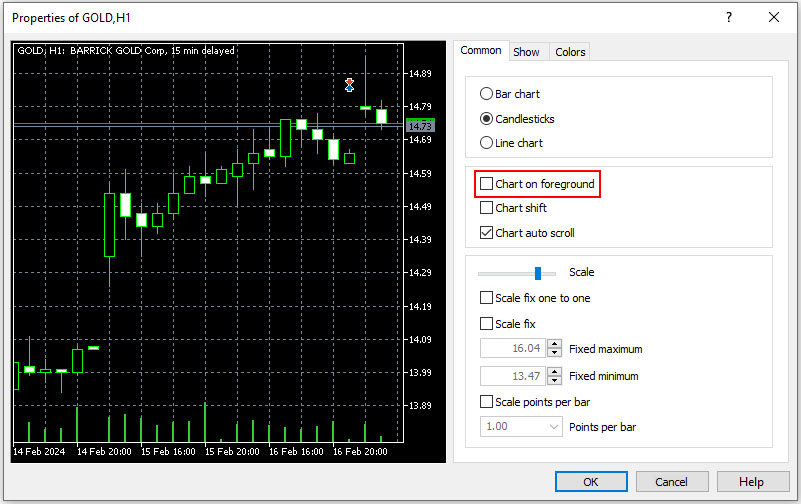
To place the panel above the graph, right-click on the graph, go to "Properties" > "Common", and uncheck the "Chart on foreground" option.

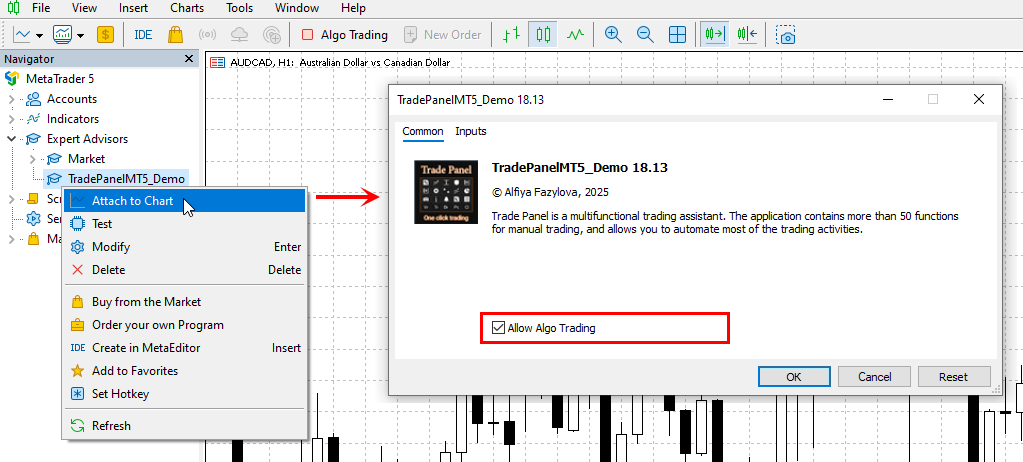
In the "Navigator" window, find the "TradePanelMT5_Demo" file, right-click it, and select "Attach to Chart" from the context menu, or simply drag the file onto the chart. In the window that opens, go to the "Common" tab and check the "Allow live trading" box for MT4, or "Allow Algo Trading" for MT5.
Go to the "Inputs" tab, set a unique number for the "Trade Panel ID" parameter and click the "OK" button.
Set the "Trade Panel ID" to a number greater than -1. If more than one TradePanel is installed in the terminal, their "Trade Panel ID" identifiers must be different from each other (there should not be TradePanels with the same "Trade Panel ID" in the terminal).
All application settings are linked to the "Trade Panel ID." For example, if TradePanel had "Trade Panel ID" = 5 and you closed it, you can easily restore all its settings by restarting TradePanel with "Trade Panel ID" = 5. 
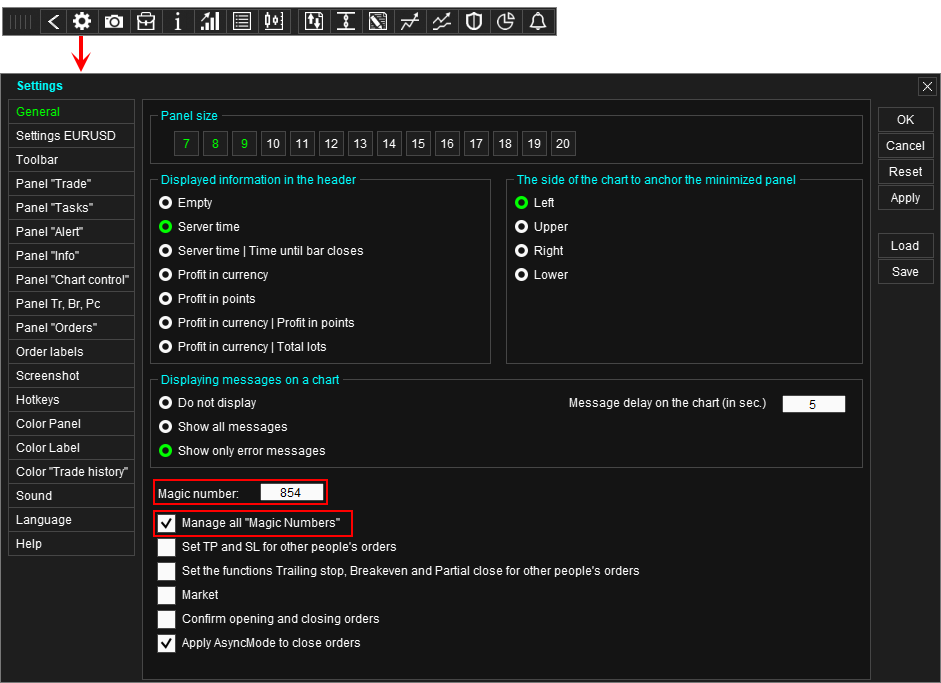
After launching the application, go to its settings and set the "Magic number" parameter to a unique number.
If you want TradePanel to manage all orders on your account (including orders opened from your phone), enable the "Manage all Magic Numbers" checkbox.
TradePanel signs its orders and positions with this identifier and subsequently uses it to identify its orders and positions among others.
To prevent applications running in the terminal from confusing orders and positions, each application's Magic Number must be unique. No applications with the same Magic Number should be in the terminal.
If several TradePanels are installed in the terminal:
- Each TradePanel must have a unique Magic Number. No TradePanel with the same Magic Number should be present in the terminal.
- The "Manage all Magic Numbers" checkbox must be unchecked for each TradePanel (the "Manage all Magic Numbers" checkbox can only be enabled if there is only one instance of TradePanel running on the terminal).
- it works for 14 days.
- it only works on a demo account.