
MyFXRoom Position Size Calculator EA
- Yardımcı programlar
- Sürüm: 3.61
- Güncellendi: 25 Mayıs 2026

Overview
MyFXRoom EA is a professional semi-automated trading tool designed to remove the guesswork and manual calculation from trade execution. Built for serious traders who manage their own entries and exits but want precision, speed, and consistency in every trade — without the complexity of a fully automated system.
The EA does one thing exceptionally well: it calculates the correct position size for your exact risk tolerance, places the trade at market with a single click, and monitors the position through to completion. No more manual lot size calculations. No more spreadsheets. No more mistakes.
Compatible with all brokers and prop firm accounts including FTMO, E8 Funding, The5ers, MyForexFunds, and any MT5 instant or market execution account.
What It Does
Automated Position Sizing The EA continuously calculates the correct lot size in real time based on your account balance, your defined risk percentage, and the distance between the current price and your stop loss line. As you drag the stop loss line to your desired level, the lot size updates instantly on the panel. What you see is what gets traded.
One-Click Market Execution Once your stop loss is positioned, a single click on the Execute Trade button places the market order with the pre-calculated lot size and stop loss attached automatically. No need to manually enter lot sizes or stop levels in the order window.
EMA Trend Filter (100/200) The EA plots EMA 100 and EMA 200 on your chart and enforces trend direction on trade entries. If you attempt to place a BUY while the fast EMA is below the slow EMA, or a SELL while the fast EMA is above the slow EMA, the trade is blocked with a clear alert. This filter can be toggled on or off in the inputs — keeping counter-trend trades entirely at your discretion.
TP Detection & Status Tracking After a trade is executed the button turns orange — "Waiting for TP..." — prompting you to place your take profit manually. The moment a TP level is detected on the position, the button turns green — "SL & TP Set" — confirming the trade is fully configured and being monitored.
Auto Close by Time Set a specific broker server time (HH:MM format) at which any open position will be automatically closed at market. Designed for traders who need to enforce session-based exit rules or avoid holding trades overnight. The function uses broker terminal time directly so there is no timezone ambiguity. Can be toggled on or off with a single input.
Prop Firm Compatible Filling Mode The EA automatically detects the correct order filling mode for your broker by reading the symbol's filling mode bitmask at runtime. It prioritises ORDER_FILLING_RETURN for instant execution accounts (standard for FTMO and most prop firms), with IOC and FOK as fallbacks. No manual configuration required — it works correctly out of the box on any MT5 broker.
How It Works
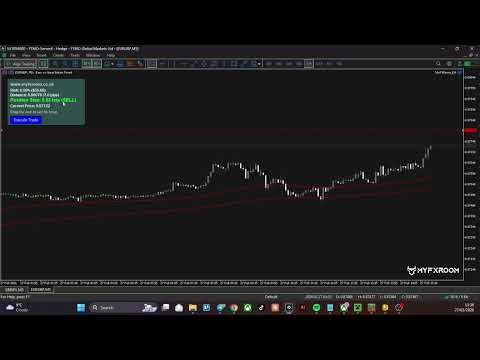
The EA creates a draggable horizontal stop loss line on your chart when it loads. This line is your primary input — everything is calculated relative to its position.
- The EA reads the distance between the current mid-price and the stop loss line
- It determines trade direction automatically — stop loss below price = BUY, above price = SELL
- It calculates the exact lot size required to risk your defined percentage on that stop distance
- All values are displayed live on the on-chart panel
When you execute, the EA places a market order using the bid or ask price (not mid) with the stop loss attached. After execution it monitors the position via OnTradeTransaction — detecting any TP placement, SL modification, or position closure automatically.
State is persisted using MetaTrader's GlobalVariables system, meaning if you switch timeframes, restart the terminal, or reload the EA, it correctly restores the button state and position tracking without losing context.
On-Chart Panel
The panel displays the following information at all times:
- Risk — your configured risk percentage and the monetary value in account currency
- Distance — the gap between current price and stop loss in price and pips
- Position Size — the calculated lot size and trade direction (BUY/SELL)
- Current Price — live mid-price update
- Execute Trade button — changes colour and label to reflect current state:
- 🔵 Blue — "Execute Trade" (idle, ready)
- 🟠 Orange — "Waiting for TP..." (trade open, no TP set)
- 🟢 Green — "SL & TP Set" (trade fully configured)
Inputs
| Parameter | Description | Default |
|---|---|---|
| Risk Percentage | Percentage of account balance to risk per trade | 0.5 |
| Stop Loss Line Color | Colour of the draggable SL line | Red |
| Stop Loss Line Thickness | Thickness of the SL line (1–5) | 1 |
| Stop Loss Line Style | Style of the SL line (dot, dash, solid etc.) | Dot |
| Panel Background Color | Background colour of the info panel | Dark Slate Gray |
| Panel Text Color | Text colour on the info panel | White |
| Magic Number | Unique identifier for positions opened by this EA | 12345 |
| Enforce EMA Trend Direction | Block counter-trend entries based on EMA 100/200 | true |
| Auto Close Active | Enable automatic position close at a set time | false |
| Auto Close Time | Broker server time to close open positions (HH:MM) | 22:00 |
How to Operate
Step 1 — Attach the EA Attach MyFXRoom EA to any chart. Enable "Allow automated trading" in MetaTrader. The stop loss line and info panel will appear automatically.
Step 2 — Set Your Stop Loss Drag the red horizontal line to your desired stop loss level. The panel will instantly display the calculated lot size and pip distance. The direction of the trade (BUY or SELL) is determined automatically by whether the line is below or above the current price.
Step 3 — Verify the Setup Confirm the position size and direction shown on the panel are correct. If the EMA trend filter is enabled, ensure the trade direction aligns with the EMA structure — a counter-trend attempt will be blocked with an alert.
Step 4 — Execute Click the Execute Trade button. The order is placed at market with the stop loss attached. The button will change to orange — "Waiting for TP..."
Step 5 — Place Your Take Profit Manually drag a TP level onto the open position using MT5's trade management tools or the chart. The EA detects the TP and the button turns green — "SL & TP Set" — confirming the trade is fully set up.
Step 6 — Monitor The EA monitors the position and resets automatically when it closes — whether by TP, SL, manual close, or the auto close function.
Notes & Requirements
- MetaTrader 5 build 2000 or later recommended
- Automated trading must be enabled in terminal settings
- The EA manages one position per chart instance — run on separate charts for multiple simultaneous trades
- For prop firm accounts, no additional filling mode configuration is required — the EA handles this automatically
- The EMA 100 and EMA 200 are rendered visually on the chart using the terminal's built-in indicator rendering





















































bueno facil de usar