Rapid Trade Manager Fast
- Утилиты
- Версия: 2.50
- Обновлено: 30 сентября 2026

OVERVIEW
**Starting today, September 30, 2026, I am making the EA free for a while. Enjoy!**
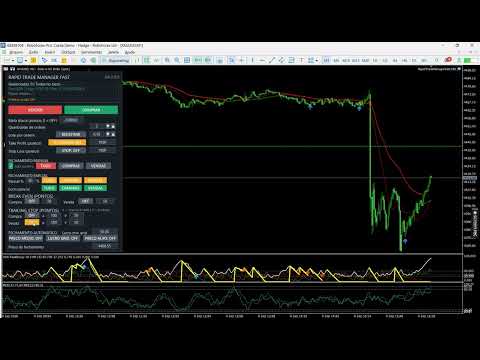
Rapid Trade Manager Fast is a semi-automatic utility for MetaTrader 5. It combines order execution, position management, automatic grid trading, operational protections, and a Currency Portfolio in two on-chart panels.
The user decides how to configure and enable each feature and remains responsible for risk. This product is not a signal service: automatic entries occur only when the relevant features are enabled. Both panels can be minimized separately, including an information-only view.
MAIN PANEL
• Open one or several Buy or Sell orders and set order count, volume, Take Profit in points, and optional Stop Loss.
• Use Shared TP, Continuous Buy, Continuous Sell, and Automatic Grid with separate controls.
• Monitor managed positions, floating and daily realized results, daily-target points, average price, and separate Buy and Sell results.
• Optionally include chart-symbol manual positions with Magic Number 0, opened from the mobile app or desktop terminal.
• Adjust values using panel arrows and retain settings by account, symbol, and Magic Number.
The DD indicator shows the current decrease in account equity relative to account balance. It is not the maximum historical drawdown from a previous equity peak.
DAILY TARGET AND CONTINUOUS ENTRIES
The main-panel daily target uses realized points. Once reached, new initial entries and Continuous Buy/Sell re-entries are paused; existing positions remain under management. If grid is enabled, it may continue only in directions that already had positions when the target was reached, subject to its limits. Reaching the target does not immediately close positions.
Continuous Buy and Continuous Sell follow cycles initiated by the user. A continuous entry is requested only after positions in that direction have closed. In Prop Firm Mode, re-entry also respects the minimum interval and configured adverse distance.
MANUAL AND PARTIAL CLOSING
The main panel's TUDO, COMPRAS, and VENDAS manual-closing buttons act on managed positions of the chart symbol. For COMPRAS or VENDAS, users can choose individually PROFITABLE, LOSING, or ALL positions. TUDO selects all managed positions of the symbol. The choice uses each position's floating profit plus swap at submission time; zero-result positions are excluded from PROFITABLE and LOSING.
Partial closing lets users set a percentage and select TUDO, COMPRAS, or VENDAS. The Lucro parcial row applies that percentage only to individually profitable positions in the selected group. All six partial-close buttons require confirmation before submission; the window shows the selected percentage.
Manual and partial closing use a separate confirmation window. While it is open, the button that started the action becomes CANCEL in the same location. The user may confirm or cancel, and the request expires after 15 seconds. The first click alone does not submit a close request. Auto Positive monitors the configured automatic basket-closing conditions; it does not filter the manual-close buttons.
AUTOMATIC CLOSING MODES
AVERAGE PRICE: monitors the volume-weighted average price and requests closing when the mode's conditions are met.
GRID PROFIT: permits individually losing positions, but requests a basket close only when the configured price and minimum estimated net-profit conditions are met.
TARGET PRICE: lets the user specify a closing price while respecting each position's direction.
DIRECTION: BUY, SELL, and BOTH select the positions considered for automatic closing. Color indicates the selection; BOTH does not remove price or result requirements.
MAIN-PANEL AUTOMATIC GRID
Buy and Sell positions are managed separately. A new Buy grid level requires an adverse move below the last Buy; a new Sell level requires an adverse move above the last Sell. Point distance, orders per level, maximum entries per direction, and interval between attempts are configurable.
An optional protection pauses new entries on a side with many positions until the configured price return occurs. In Prop Firm Mode, the end of the countdown does not force an order: the EA checks distance conditions again before submitting it.
DRAWDOWN RECOVERY AND COMBINED BASKET
At the configured DD trigger, optional recovery analyzes the trend on the selected timeframe. Grid entries against the trend may be paused until price reverses and DD improves by the required amount. Entries remain subject to spread, margin, news, position limits, and other applicable protections.
During recovery, positions managed by the main panel are monitored as one combined basket, and automatic closing seeks the configured minimum estimated net profit. Combined Basket can also remain enabled independently of the recovery trigger. Portfolio positions are not automatically included in the main-panel basket.
An additional option, disabled by default, can submit trend-side entries during recovery. It requires a price pullback and resumption, minimum distance from the last same-direction entry, minimum interval, entry count, maximum volume, minimum margin level, and DD within the allowed range. The recovery trend timeframe and minimum price move also govern this option. The default configuration sets a 20% DD ceiling for these new entries; none are sent above it. Values can be changed in the inputs.
An opposite-side position must already be open before an additional trend-side entry is considered. This feature does not guarantee recovery of losses or a profitable exit.
BREAK EVEN AND TRAILING STOP
Break Even and Trailing Stop have separate Buy and Sell controls. Users set activation points, stepped advancement, and the points to protect. The EA considers tick size, stop-distance, and freeze-level restrictions reported by the broker.
CURRENCY PORTFOLIO
The Portfolio works with USD, GBP, AUD, NZD, CAD, EUR, JPY, and CHF. BUY aims to represent appreciation of the selected currency against the others; SELL aims to represent its depreciation. Before opening, the EA checks compatible pairs and may skip those that fail quote, spread, news, volume, margin, or configured-limit checks. Eligible pairs may be submitted even when others are skipped.
Each row shows separate floating BUY and SELL results, realized points for the day, and total points for the currency. The currency is highlighted according to its open basket direction. The panel also displays baskets, orders, floating and daily realized results, points against its own daily target, account balance, and equity.
The Portfolio has its own Magic Number and does not mix its positions or results with the main panel. Clicking a currency's X button lets users select its BUY-origin basket, SELL-origin basket, or BOTH, then confirm the close request. This choice refers to the basket's opening direction, not each pair position's trade direction. CLOSE PORTFOLIO is below the currency rows and above Grid distance, and requires confirmation before closing all baskets. Confirmation appears in a separate window, with CANCEL also shown where the action started, and expires after 15 seconds.
NEW BASKETS AND MANAGEMENT MODES
NEW BASKETS: OFF prevents another basket from starting while Portfolio positions remain open. ON permits new baskets, subject to limits and the submission queue. Another basket in the same direction for the same currency cannot start while a matching basket remains open.
In COMBINED MANAGEMENT, points, estimated net result, target, and maximum loss apply to the Portfolio as a whole. In INDIVIDUAL MANAGEMENT, each new basket receives its own identifier and target and is managed for closing separately. Changing the target for future baskets does not alter targets recorded for existing baskets.
The daily target, margin check, maximum positions per pair, combined volume limit, and CLOSE PORTFOLIO remain Portfolio-wide. Automatic target closing requires the configured point total and a positive estimated net result.
PORTFOLIO GRID AND LIMITS
Each pair has its own fixed-volume grid; the EA does not automatically double volume. The first two grid levels follow the configured adverse distance. If price keeps moving against the positions, later levels also require the configured return from the extreme, up to the permitted limits.
Users can set grid distance and return in points, maximum positions per pair, combined volume limit, maximum loss, and minimum hold time. The Portfolio daily target blocks new baskets, but baskets that were already open may keep receiving grid levels when conditions are met.
ACCOUNT POSITION LIMIT
If the broker rejects a new order because the account position limit has been reached, the EA shows the reason in both panel status areas and pauses new attempts. A basket still in the submission queue is interrupted. Entries are considered again when a position or order frees capacity; closing remains available.
PROP FIRM MODE AND NEWS
Prop Firm Mode offers optional minimum hold time, minimum entry interval, spaced submission, news windows, and time-and-distance validation. Minimum hold times are separate for the main panel and Portfolio. A manually scheduled event can simulate news in Strategy Tester.
Independently of Prop Firm Mode, separate options can request preventive closing of main-panel and Portfolio positions before high-impact news, with configurable advance notice. Each proprietary firm has its own rules; these controls assist configuration but do not guarantee compliance or approval.
COMPATIBILITY AND RISKS
The utility runs on MetaTrader 5. The main panel can be used on Hedging and Netting accounts; the Currency Portfolio requires a Hedging account. The EA can be attached to any chart timeframe for the intended symbol; recovery trend analysis uses the timeframe selected in the inputs, independently of the displayed chart timeframe.
The product does not provide financial advice or guarantee profit, a lower DD, execution price, or execution speed. Grid, hedging, and recovery can increase exposure and losses. Execution depends on the broker, server, spread, slippage, and market conditions. The terminal, EA, and Algo Trading must remain active for automatic management. Test settings on a demo account before using them on a live account.