Panel Trading MT5
- 유틸리티
- 버전: 2.0

Panel Trading MT5 - On-Chart Trading Panel for Manual Trading
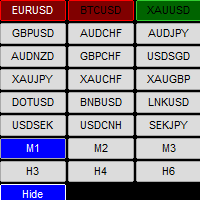
Panel Trading MT5 is a compact, draggable control panel for manual trading in MetaTrader 5. It lets you open and close positions, watch the live price and profit/loss, and switch symbols without leaving the chart or opening the order ticket.
This utility does not trade by itself and does not generate trading signals. Every order is placed by you.
The panel is built on the standard CTrade class. Close requests are retried automatically, lot size follows the broker's step, minimum and maximum, and settings are stored separately for each chart.
Usage guide (every button explained, close modes, magic number scope, FAQ): TradePanel v2.0 - Usage Guide
Main functions
Opening orders
- Buy and Sell buttons with an adjustable lot field. Lot step, minimum and maximum are read from the broker.
- Stop Loss and Take Profit are entered in pips and sent in the same request as the order.
Closing positions
- Five close modes: Close All, Close Last, Close Profit, Close Loss and Close Partial. [Describe what Close Partial does, for example which part of the position is closed.]
- Each close is retried up to 3 times. If a position still cannot be closed, the panel shows an alert and writes the reason to the Experts tab.
- The tooltip of the Close button shows which positions it will affect.
Magic number scope
The Close button and the statistics can work with:
- only trades opened by the panel,
- all positions on the symbol, including manual trades,
- a custom comma-separated list of magic numbers.
Information shown on the panel
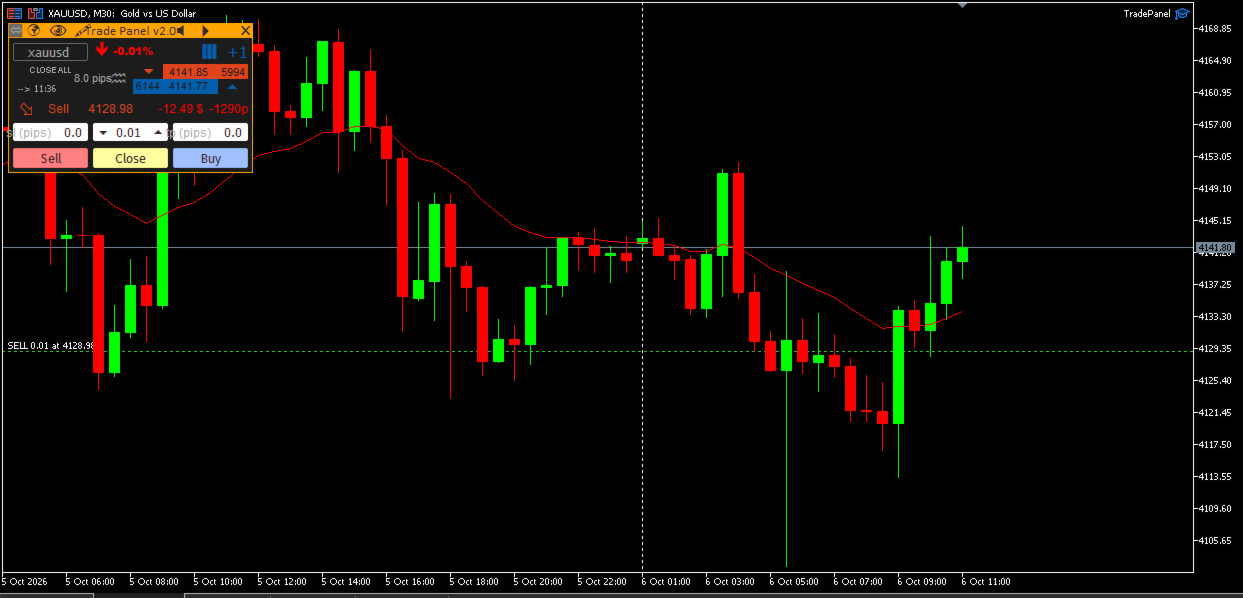
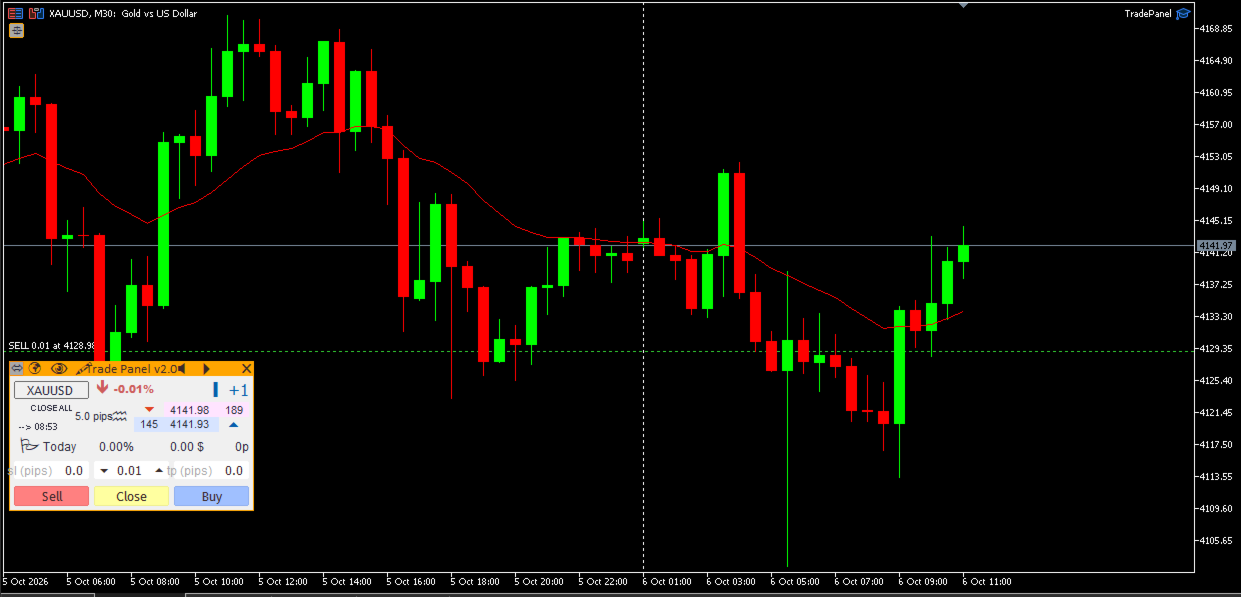
- Floating profit/loss and points while a position is open; daily profit/loss and points when there is no open position. Only the managed magic numbers are counted.
- Ask/Bid, spread in pips, daily % change, a tick-speed meter and a countdown to the candle close.
Other tools
- Symbol switcher: type a symbol (not case-sensitive) to open its chart; the symbol is added to Market Watch automatically.
- Freehand drawing tool controlled with the keyboard. [List the hotkeys for line style, color and clear.]
- Today's closed trades drawn on the chart: entry and exit markers joined by a dotted line.
- Per-chart memory of position, lot, SL/TP and close mode, so several charts do not overwrite each other.
- Light and dark theme, with tooltips on every control.
How to use
- Attach the EA to a chart and enable "Allow Algo Trading".
- Set the lot size, Stop Loss and Take Profit (in pips) on the panel.
- Press Buy or Sell to open a position.
- Select a close mode and press Close to close positions within the chosen magic number scope.
Inputs
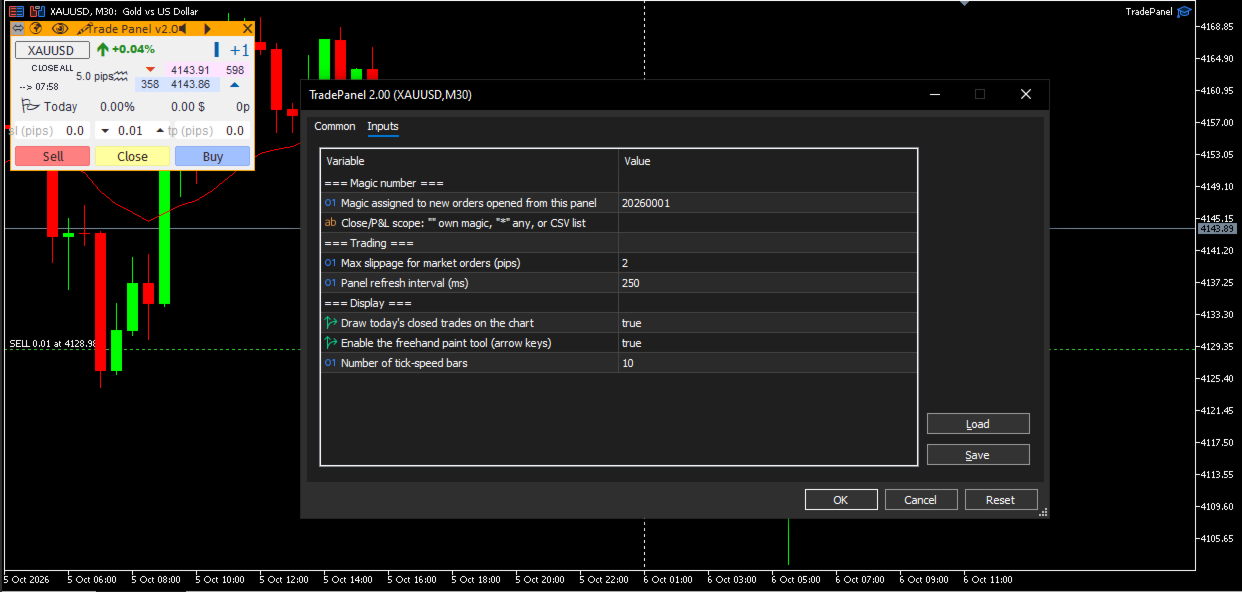
| Input | Default | Description |
|---|---|---|
| InpMagicNumber | 20260001 | Magic number assigned to orders opened from the panel. |
| InpManagedMagics | "" (empty) | Magic numbers that the Close button and the statistics apply to. Empty = InpMagicNumber only; "*" = every position on the symbol; or a list such as "1001,1002". |
| InpSlippagePips | 2 | Maximum slippage for market orders, in pips. |
| InpTimerMs | 250 | Panel refresh interval, in milliseconds. |
| InpShowOrderHistory | true | Draw today's closed trades on the chart. |
| InpShowPaintTool | true | Enable the freehand drawing tool. |
| InpMaxSpeedBars | 10 | Number of bars shown on the tick-speed meter. |
Requirements and notes
- Works on any symbol and timeframe.
- "Allow Algo Trading" must be enabled.
- [Account types supported: hedging / netting.]
- [Strategy Tester: state whether the panel works in the tester.]
Risk notice
Trading leveraged products involves a risk of loss. This utility is a tool for order execution and does not provide signals or guarantee any result. Test it on a demo account first.