TradePanel v2.0 for MT5 — Usage Guide
TradePanel is an on-chart manual trading panel: Buy/Sell with one click, five ways to close positions, live price and P&L, and a freehand drawing tool — all without opening the standard order ticket. This guide walks through every control on the panel, so you can start using it in a few minutes.
The panel is 245×150 px and appears by default in the top-left corner of the chart. All icons are drawn with the Wingdings/Webdings font, so they render as symbols rather than text.
1. Panel layout
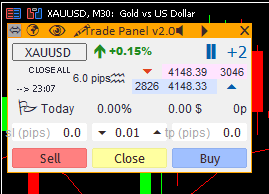
Title bar (orange strip)
| Button | Icon | What it does |
|---|---|---|
| Move | 4-way arrow | Toggles move mode. Click once (the button stays pressed), then drag the panel background to reposition it. Click again to lock the position. |
| Reset | small square | Snaps the panel back to its default position. This button always stays at the default location — when you drag the panel elsewhere, Reset is left behind marking "home". |
| Connection | check / X | Shows the connection status to the trade server. Click to show the latest ping in the middle of the chart; click again to hide it. |
| Theme | half light / half dark | Switches between dark and light panel themes. Shared across all charts. |
| Paint | pen | Toggles the freehand drawing tool (see section 2.6). Can be hidden entirely with the InpShowPaintTool input. |
| Sound | speaker | Mutes/unmutes all panel sounds (orders, closes, errors, mode changes). Shared across all charts. |
| Tick sound | play icon | Toggles a per-tick sound whose pitch follows price speed. Off by default. |
| Exit | X | Removes the EA from the chart, with a confirmation prompt first. |
Price info block
| Element | Content |
|---|---|
| Symbol field | Current symbol. Type a different symbol and press Enter to switch the chart — case-insensitive, and it is added to Market Watch automatically if missing. |
| Arrow + % | Change vs. today's opening price. Green = up, red = down. |
| Close-mode label | Small text under the symbol field: CLOSE ALL / CLOSE LAST / CLOSE PROFIT / CLOSE LOSS / CLOSE PARTIAL . Click it to cycle through the 5 modes — this is what the Close button will use. |
| Spread | Current spread, in pips. |
| Ask / Bid | Two colored fields showing Ask (top) and Bid (bottom). |
| Tick up / down count | Cumulative up-ticks and down-ticks on the current bar, resetting on every new bar. |
| Candle clock | --> mm:ss — time remaining until the current bar closes. |
| Speed meter | Vertical bars on the right showing tick speed (points moved on the last tick). Green = up, red = down. Bar count set by InpMaxSpeedBars . |
Result row
This line switches automatically depending on whether you are currently holding a position:
- No open position — shows today's closed-trade results: the label Today , today's P&L % against the day's starting balance, total money P&L for trades closed today, and total points.
- Position open — shows the live position: Buy / Sell / Hedge , the average entry price (net break-even price when hedged, or Locked if both sides have equal volume), floating P&L and floating points.
Every number on this row is scoped to the chart's symbol and the managed magic numbers only (see section 2.3).
Input fields and order buttons
| Element | Function |
|---|---|
| sl (pips) | Stop Loss in pips; 0 = no SL. If you enter a value closer than the broker's minimum stop distance, the panel automatically widens it to the allowed minimum instead of silently dropping the SL. |
| tp (pips) | Take Profit in pips, handled the same way as SL. |
| Lot field (center) | Order volume. The arrows on either side step by the broker's lot step. Any typed value is rounded to a valid step and clamped to the broker's min/max. |
| Sell | Opens a market Sell with the lot/SL/TP above, tagged with InpMagicNumber . |
| Buy | Opens a market Buy, same logic. |
| Close | Closes positions using the currently selected close mode (see section 2.2). |
2. How to use it
2.1 Opening a trade
- Type the volume into the Lot field (or use the arrows).
- Type SL and TP in pips. Leave 0 if you don't want one.
- Click Buy or Sell.
SL/TP are sent in the same request as the order, so there is no window where the position is open without protection. If an order is rejected, the panel plays an error sound and prints the error code and description to the Experts tab — check that tab if a click doesn't seem to do anything.
2.2 Closing a trade
Click the close-mode label to pick a mode, then click Close:
| Mode | What gets closed |
|---|---|
| CLOSE ALL | Every managed position on this symbol. |
| CLOSE LAST | Only the most recently opened position (by actual open time, not list order). |
| CLOSE PROFIT | Only positions currently in profit. |
| CLOSE LOSS | Only positions currently in loss. |
| CLOSE PARTIAL | Closes exactly the volume shown in the Lot field from each position. If the remainder would fall under the broker's minimum lot, the panel closes the whole position instead of leaving an untradeable remainder. |
Each position is retried up to 3 times (200 ms apart) to get past requotes. If anything is still open afterward, the panel raises an Alert with the count and logs every failed ticket to the Experts tab — nothing fails silently.
Hover over the Close button at any time to see exactly what it will do, e.g. "Close positions on EURUSD with magic 20260001."
2.3 Which positions the panel touches
The Close button and every P&L figure only count positions that match both: the chart's symbol, and a magic number listed in InpManagedMagics .
- InpManagedMagics = "" (default) — the panel only touches trades it opened itself.
- InpManagedMagics = "*" — the panel manages every position on the symbol, including manual trades and other EAs'. Convenient, but Close will close everything — use with care.
- InpManagedMagics = "0,1001,20260001" — only these magic numbers. Manual trades opened from the terminal carry magic 0 , so add 0 to the list if you want the panel to manage manual trades without touching other EAs.
2.4 Moving the panel
Click Move (it stays pressed), drag the panel background to the new spot, then click Move again to lock it. Once locked, normal chart interaction won't accidentally drag it. To return to the original spot, click Reset, which always stays parked at the default position.
Panel position, Lot, SL, TP and close mode are remembered per chart, so running the panel on several charts never overwrites another chart's settings. Theme and sound are shared across the whole terminal.
2.5 Switching symbol
Type a symbol name into the symbol field and press Enter — the chart switches to it and the panel follows. An invalid name shows an alert and the field reverts to the previous symbol.
2.6 Freehand drawing tool
Click the pen icon, then hold the left mouse button and drag on the chart to draw. While drawing, chart scrolling is locked and these keys are active:
| Key | Action |
|---|---|
| Left | Cycle line style (7 styles) |
| Up | Cycle color (9 colors) |
| Down | Clear all drawn strokes |
| Right | Exit drawing mode, restore chart scrolling |
2.7 Trade history on the chart
When InpShowOrderHistory = true , trades closed today are drawn on the chart: an arrow at the entry point, a yellow arrow at the exit point, and a dotted line connecting them, colored by trade direction. The drawing only refreshes when the history actually changes, so it doesn't cause chart stutter.
3. Tooltips
Every control has a tooltip — just hover over it. Several are state-aware:
- The Close button tooltip states exactly which positions it will touch, e.g. "Close positions on EURUSD with magic 20260001", or "Close every position on EURUSD (any magic, manual trades included)" when InpManagedMagics = "*" . Since this is the most destructive action on the panel, the tooltip always spells out scope and close mode.
- The panel title shows the magic number used for new orders and the list of managed magic numbers.
- Connection / sound / tick-sound / theme icons show their current state and what clicking them will do.
- The result row's wording adapts to whether you currently hold a position or are viewing today's closed results.
4. Inputs reference
Magic number
| Input | Default | Meaning |
|---|---|---|
| InpMagicNumber | 20260001 | Magic number assigned to new orders opened from the panel. |
| InpManagedMagics | "" (empty) | Which magic numbers the Close button and P&L figures are scoped to. See section 2.3. |
Trading
| Input | Default | Meaning |
|---|---|---|
| InpSlippagePips | 2 | Maximum slippage for market orders, in pips (not points). |
| InpTimerMs | 250 | Panel refresh interval, in milliseconds. |
Display
| Input | Default | Meaning |
|---|---|---|
| InpShowOrderHistory | true | Draw today's closed trades on the chart. |
| InpShowPaintTool | true | Enable the freehand drawing tool. |
| InpMaxSpeedBars | 10 | Number of bars shown on the tick-speed meter. |
5. Known limitations
- Daily Points are only accurate for trades opened and closed the same day. A trade opened yesterday and closed today still counts correctly toward Daily Profit (it's read straight from the closing deal), but its pip figure won't be added to Daily Points, since the opening deal falls outside the "today" history window the panel scans. The on-chart connector line for such a trade will similarly collapse to a point at the close time.
- On a Netting account (the default for most non-hedging-enabled MT5 brokers), each symbol can only hold one net position, so the Hedge state can only occur on a Hedging account. The panel works correctly on either account type since it always reads directly from the live position list.
- Currency amounts are shown with letter codes ( EUR , GBP , JPY , Fr. , $ ) rather than symbols, to keep the source file pure ASCII.
Get TradePanel v2.0: link to the Market listing