Renko Archive
- ユーティリティ
- バージョン: 1.0
- アクティベーション: 5

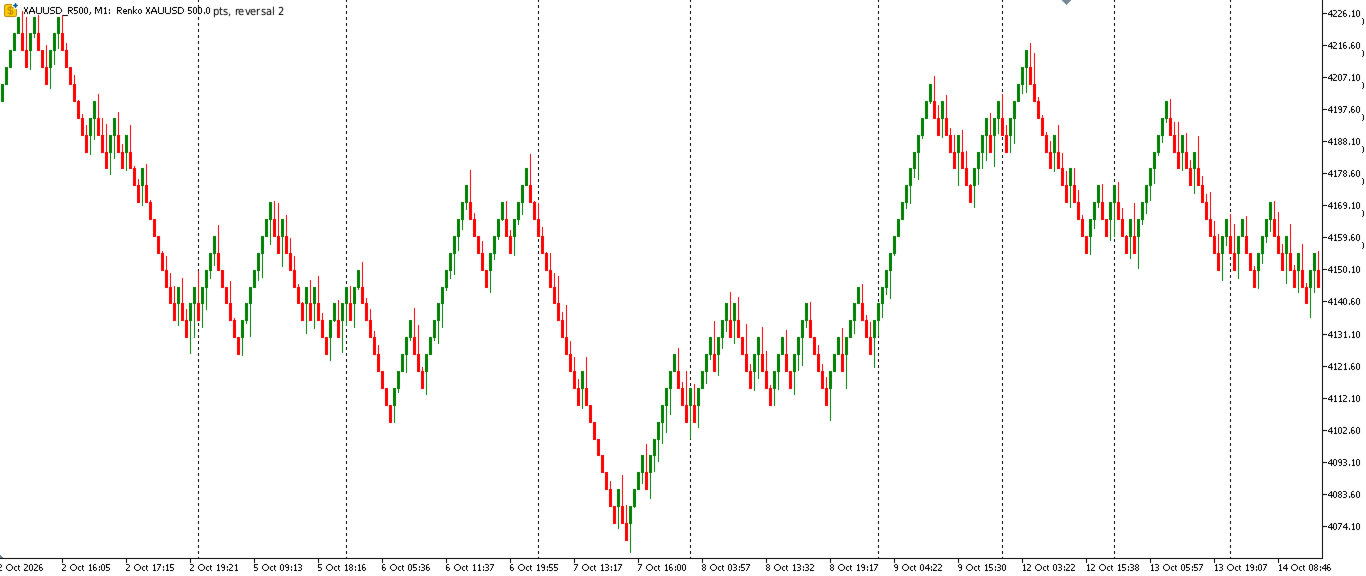
Renko Archive builds a real Renko chart in MetaTrader 5, with years of history and not just the last few weeks.
How it works
Renko Archive reads the M1 price history your broker provides, which often goes back many years. If you prefer, it can read real ticks instead. It turns this data into Renko bricks and saves them as a custom symbol (for example, EURUSD_R100), which opens in a normal MT5 chart. Once the history is built, the EA keeps running and adds new bricks with every tick.
Because it is a real symbol and not a drawing on top of another chart, you can:
- apply any indicator to the Renko chart;
- scroll back through years of bricks;
- test your Expert Advisors on the Renko symbol in the Strategy Tester;
- use it on forex, gold, indices, stocks and futures.
Advantages
- Long history: build bricks from any start date, as far back as your broker’s M1 data goes.
- Accurate bricks: the price path inside each M1 bar (open, high, low, close) is simulated, so no brick is skipped.
- Classic or custom reversal: 2 bricks by default, or any number you choose.
- Optional wicks that show how far price moved before the brick closed.
- Live updates: new bricks appear in real time, with an optional “forming” brick.
- Automatic price type: Last for exchange instruments, Bid for forex and CFDs.
- Several symbols at once: attach one copy to each chart, and each one creates its own Renko symbol.
Input parameters
- Brick size (points): the size of each brick in symbol points. On 5-digit forex, 100 points = 10 pips.
- Reversal bricks: how many bricks against the trend are needed to reverse. The classic Renko value is 2.
- History start date: the first date used to build the chart.
- Data source: M1 bars (longest history) or Real ticks (most precise, but usually shorter history).
- Price path inside M1: Close only, or Simulate OHLC (recommended).
- Price used: Automatic, Bid or Last.
- Show wicks: show or hide brick wicks.
- Show forming brick: show the brick that is still forming. Turn it off if indicators must see only closed bricks.
- Open Renko chart automatically: opens the Renko chart once the history is ready.
- Symbol name: the name of the custom symbol. Leave it empty to create it automatically.
How to use
- Go to Tools > Options > Charts and set Max bars in chart to Unlimited, then restart MetaTrader 5. Without this setting, MT5 limits how much M1 history is available.
- Attach Renko Archive to a chart of the original symbol.
- Wait while the history is processed. The progress is shown on the chart, and the Renko chart opens when it is ready.
- Keep the EA running on the original chart so the Renko chart stays updated.
Strategy Tester tips
- Select the Renko symbol with the M1 period. Each M1 bar is one brick.
- Use the 1 minute OHLC or Every tick modeling. Do not use Every tick based on real ticks.
- Set a fixed, realistic spread, because the bricks are stored with zero spread.
How much history is available depends on your broker’s data