Chart Pilot
- Utilità
- Versione: 3.31

CHARTPILOT RISK SUITE
Chart planning, position sizing, staged exits and trade management for MetaTrader 5
SHORT DESCRIPTION
Plan chart setups, calculate risk-based lots, review orders and manage TP1-TP4 exits in MetaTrader 5.
PRODUCT DESCRIPTION
ChartPilot Risk Suite is an all-in-one chart planning and execution utility for MetaTrader 5. It is designed for traders who want their drawings, position-sizing calculations and trade controls in one focused workspace without covering most of the chart.
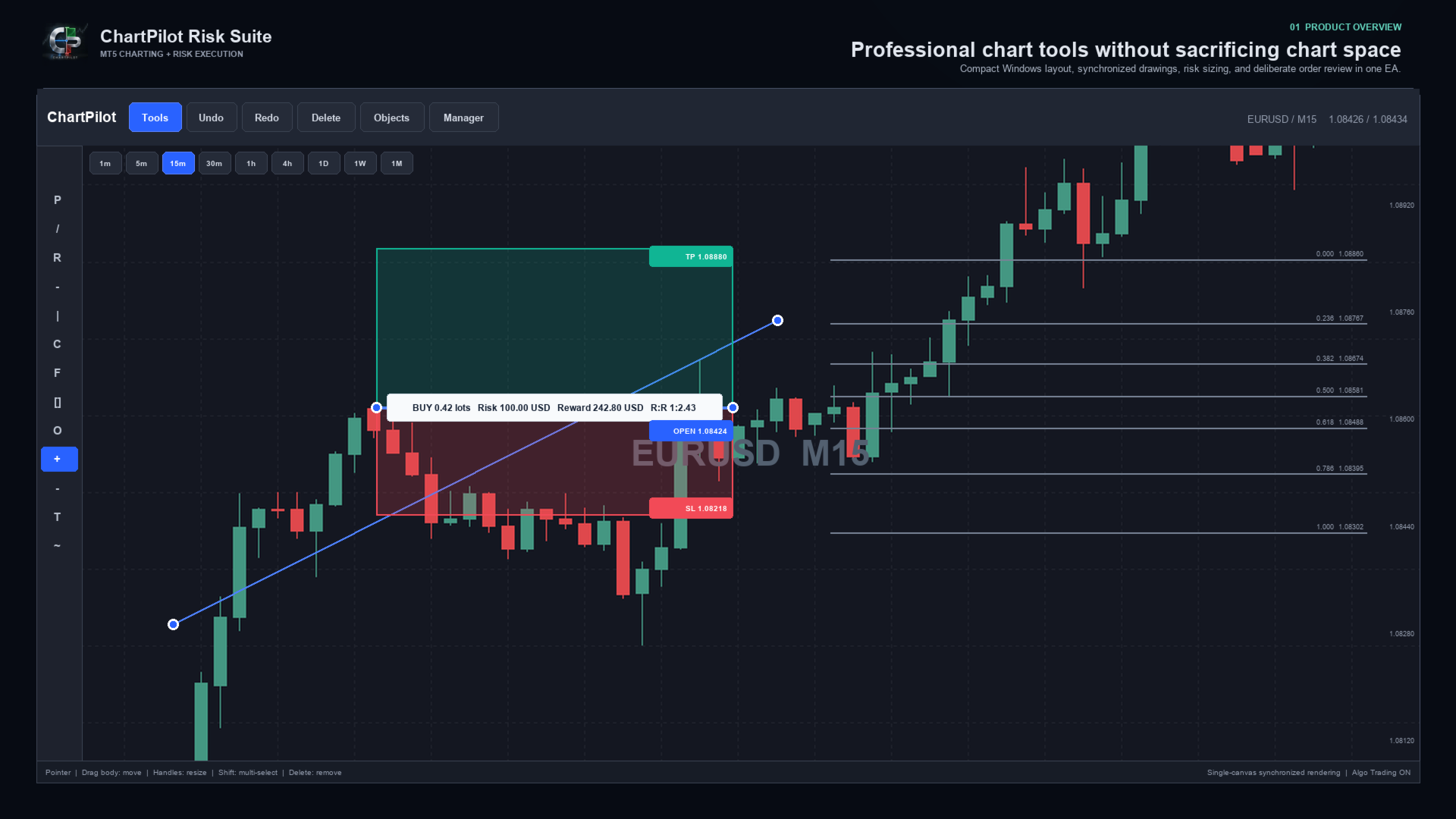
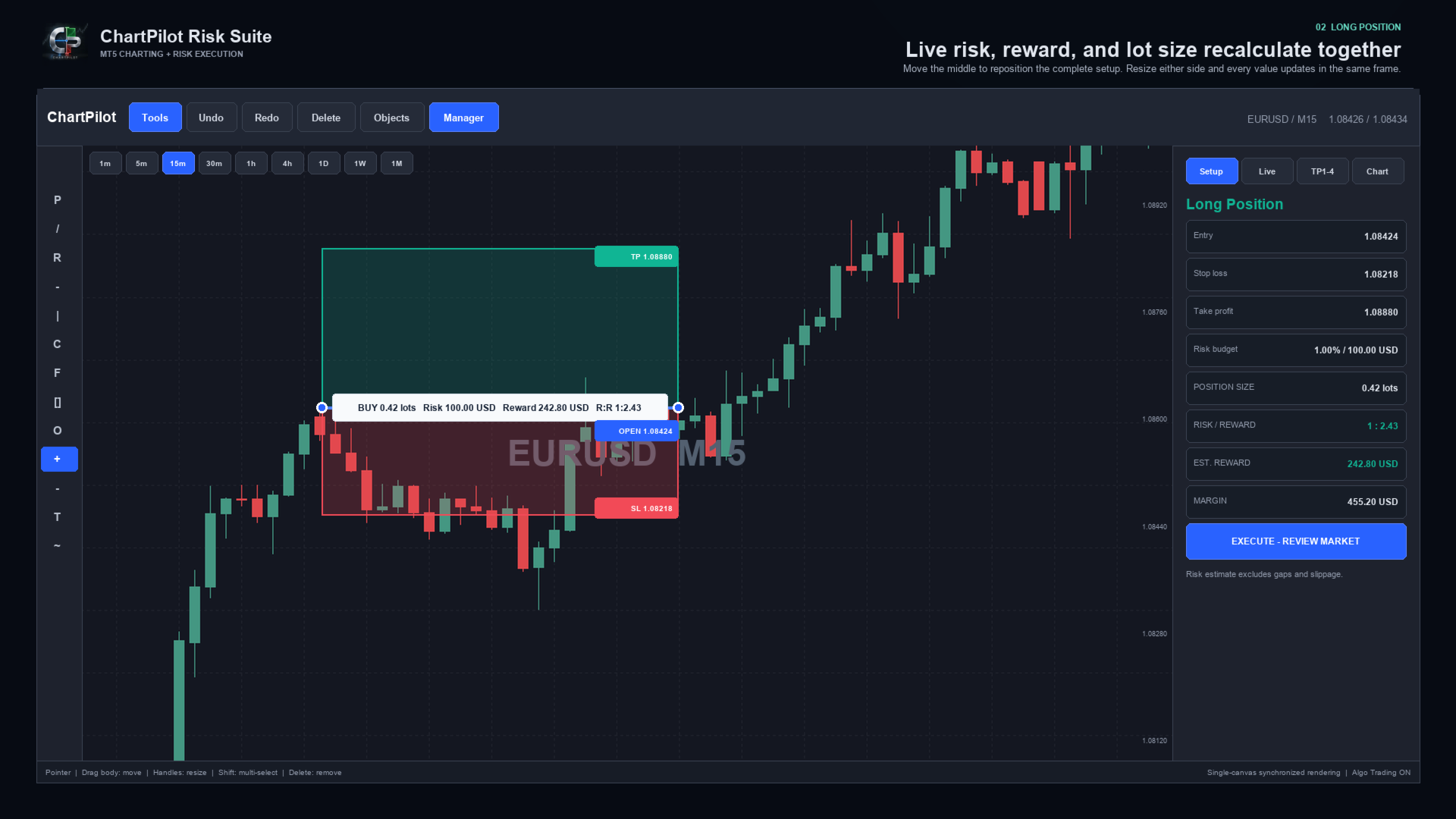
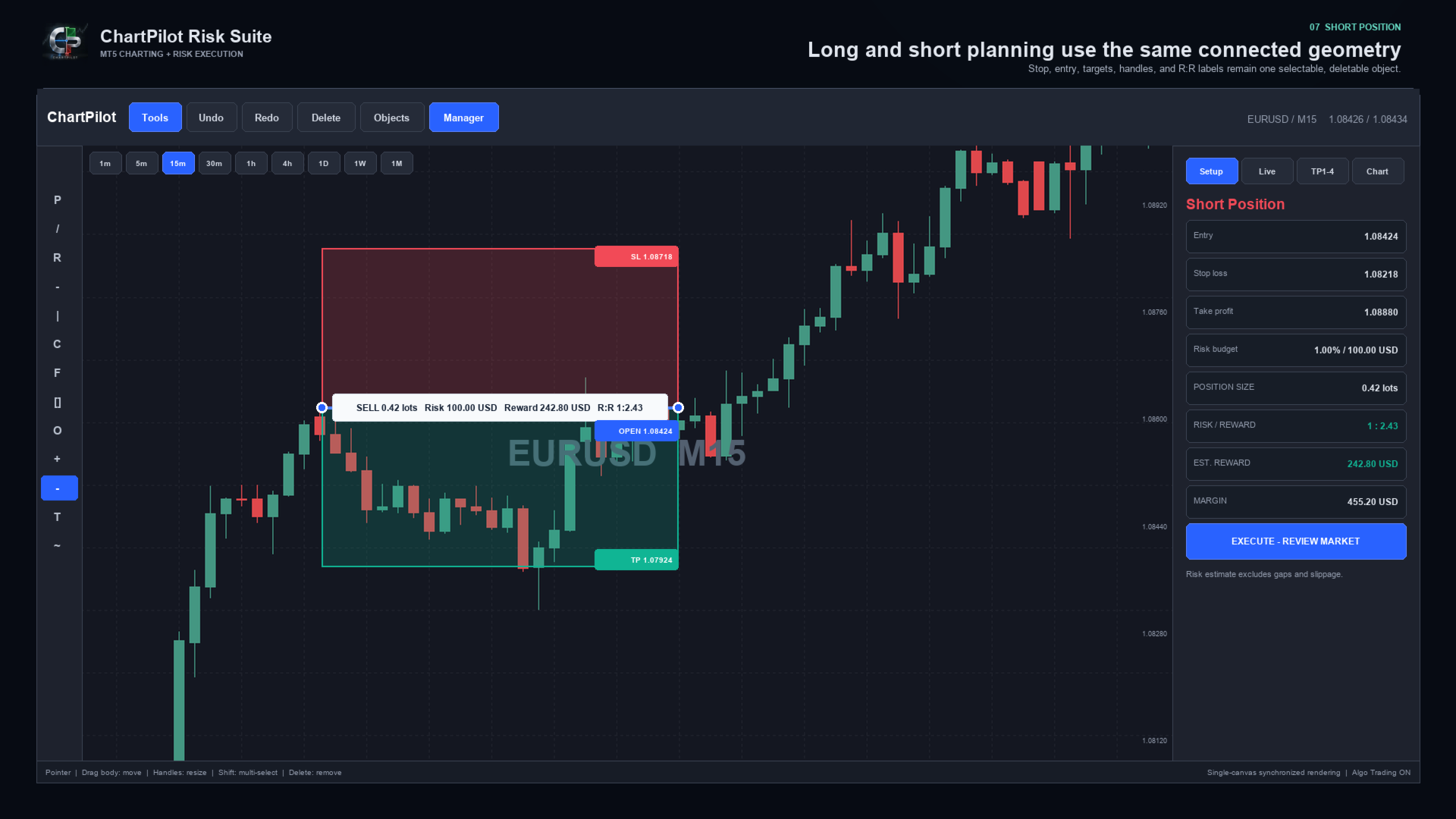
The Long Position and Short Position tools behave as connected objects. Drag the middle of a setup to move the complete position plan. Drag its handles to change the time range, stop or target. The profit zone, loss zone, entry line, labels, position size and risk-to-reward calculation update from the same underlying anchors.
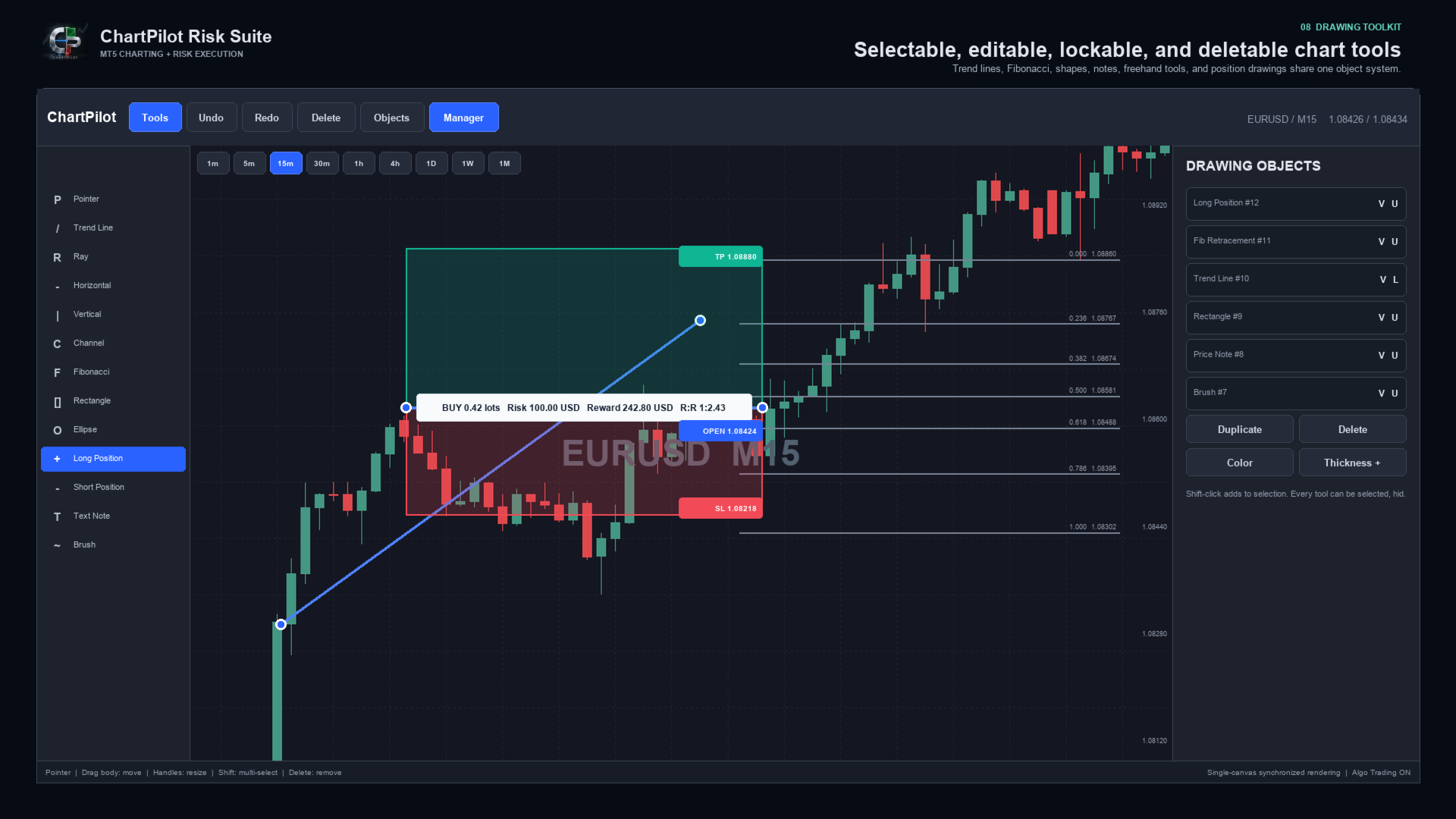
Every drawing can be selected and deleted. Drawings can also be hidden, locked, duplicated, recolored or given a different line thickness. The interface includes undo and redo history, multi-selection, object management and optional OHLC snapping.
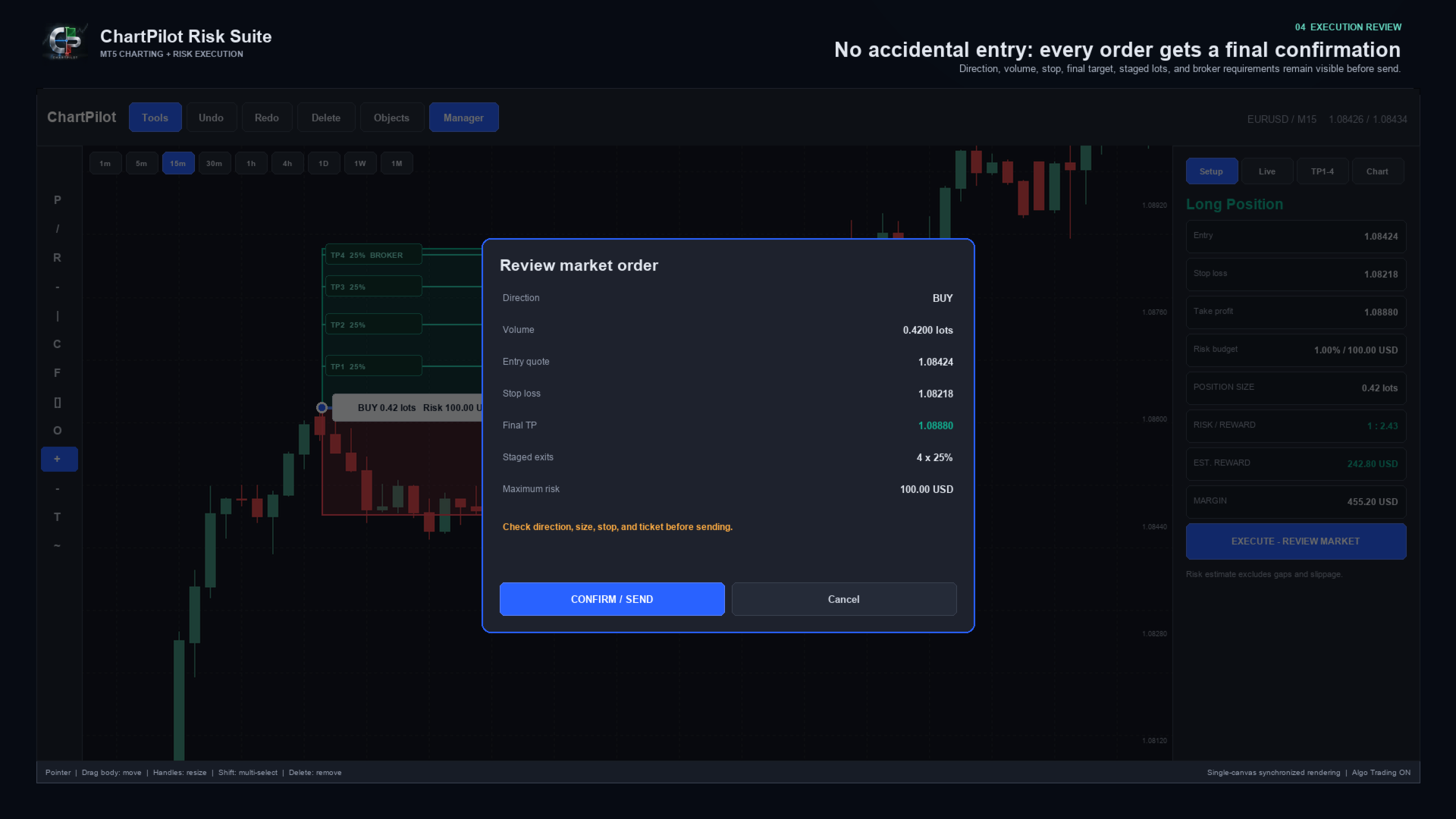
ChartPilot does not place a trade simply because a position drawing exists. Select the setup, check its values, press the execution button and review the complete request. The order is sent only after CONFIRM / SEND is pressed.
MAIN FEATURES
- Long Position and Short Position planning tools
- Percentage-of-equity risk sizing
- Fixed cash-risk sizing
- Optional manual lot size
- Estimated commission-per-lot input
- Live position size, cash risk, estimated reward, margin and R:R calculations
- Market entry and drawn-price pending entry modes
- Final confirmation before every submitted order
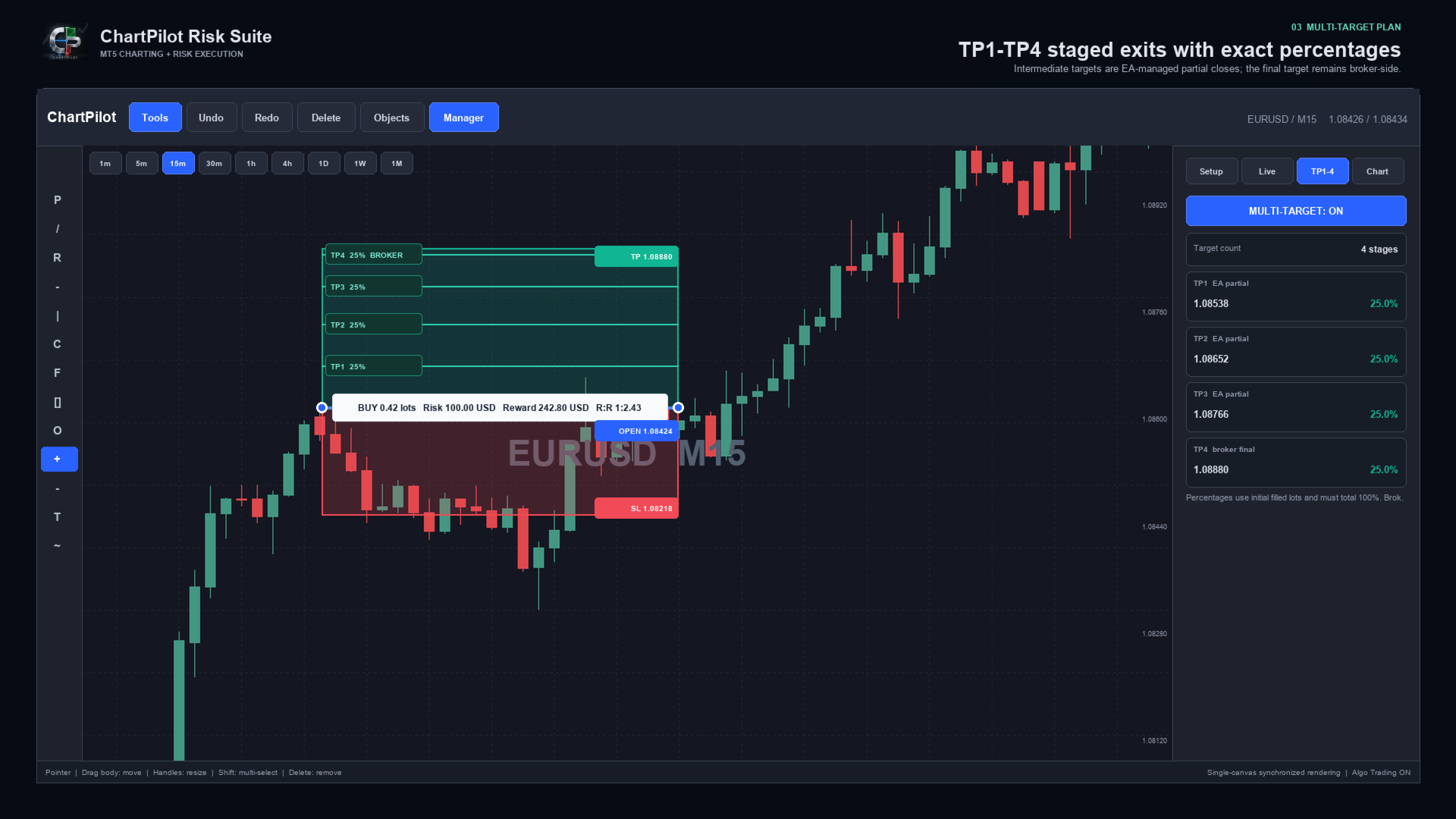
- TP1, TP2, TP3 and TP4 planning
- Two, three or four target stages
- Percentage allocation based on the initial filled volume
- Automatic intermediate partial closes for confirmed ChartPilot positions
- Broker-side stop loss and final take profit
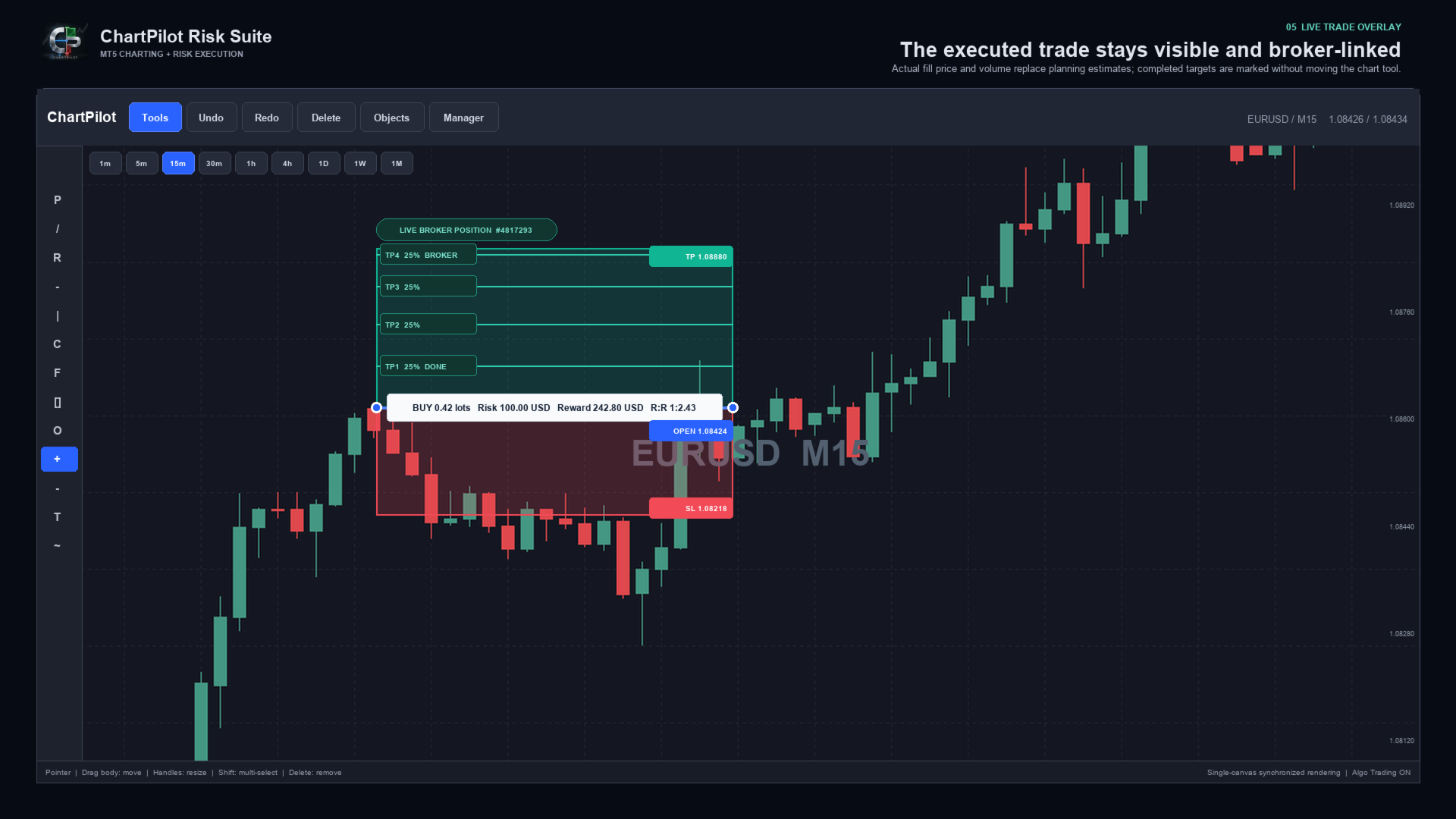
- Live broker-position overlay using the actual fill price and volume
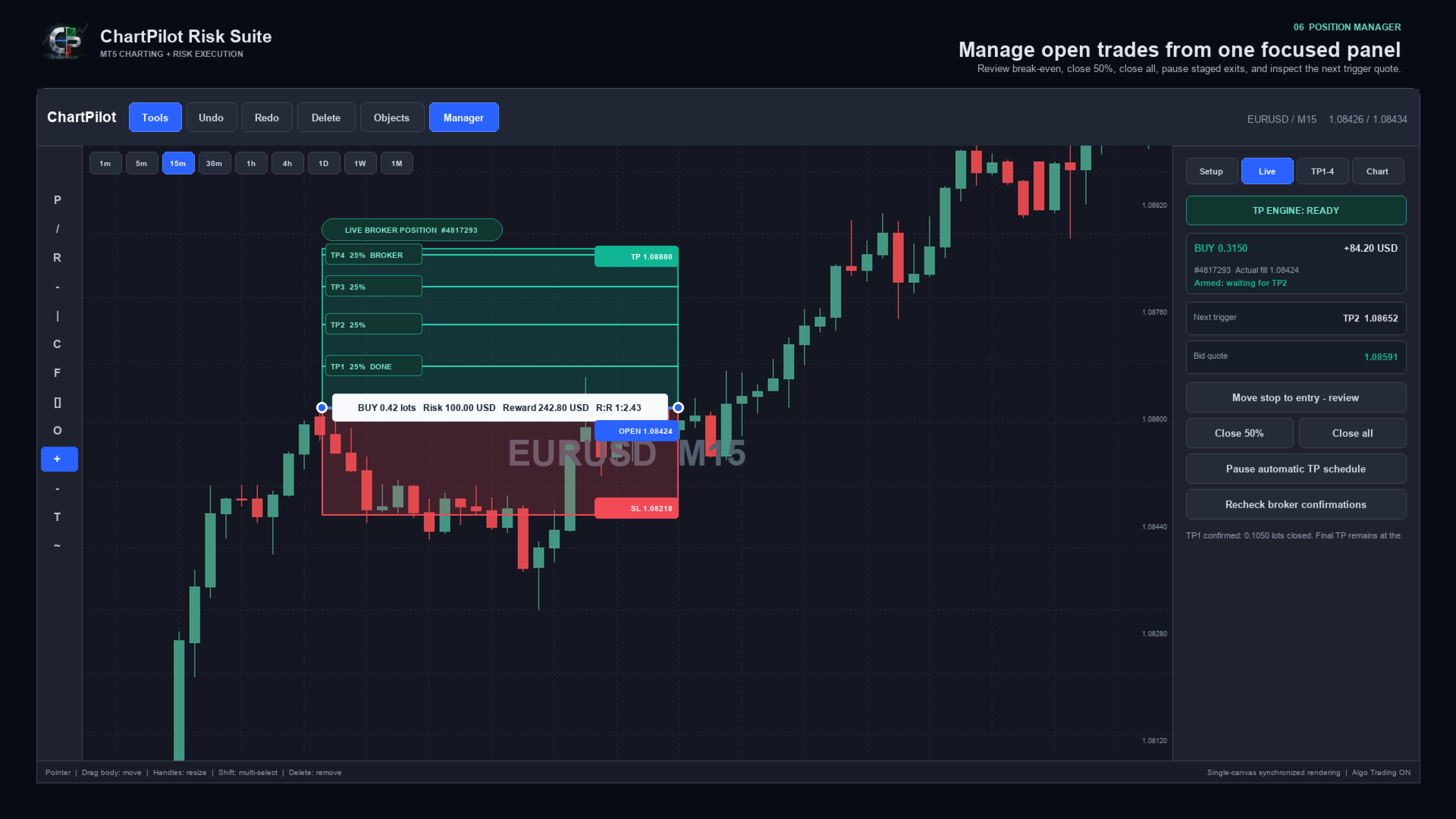
- TP engine status, next target and live trigger quote
- Position manager with reviewed break-even, Close 50% and Close All actions
- Pause, review and resume controls for an automatic TP schedule
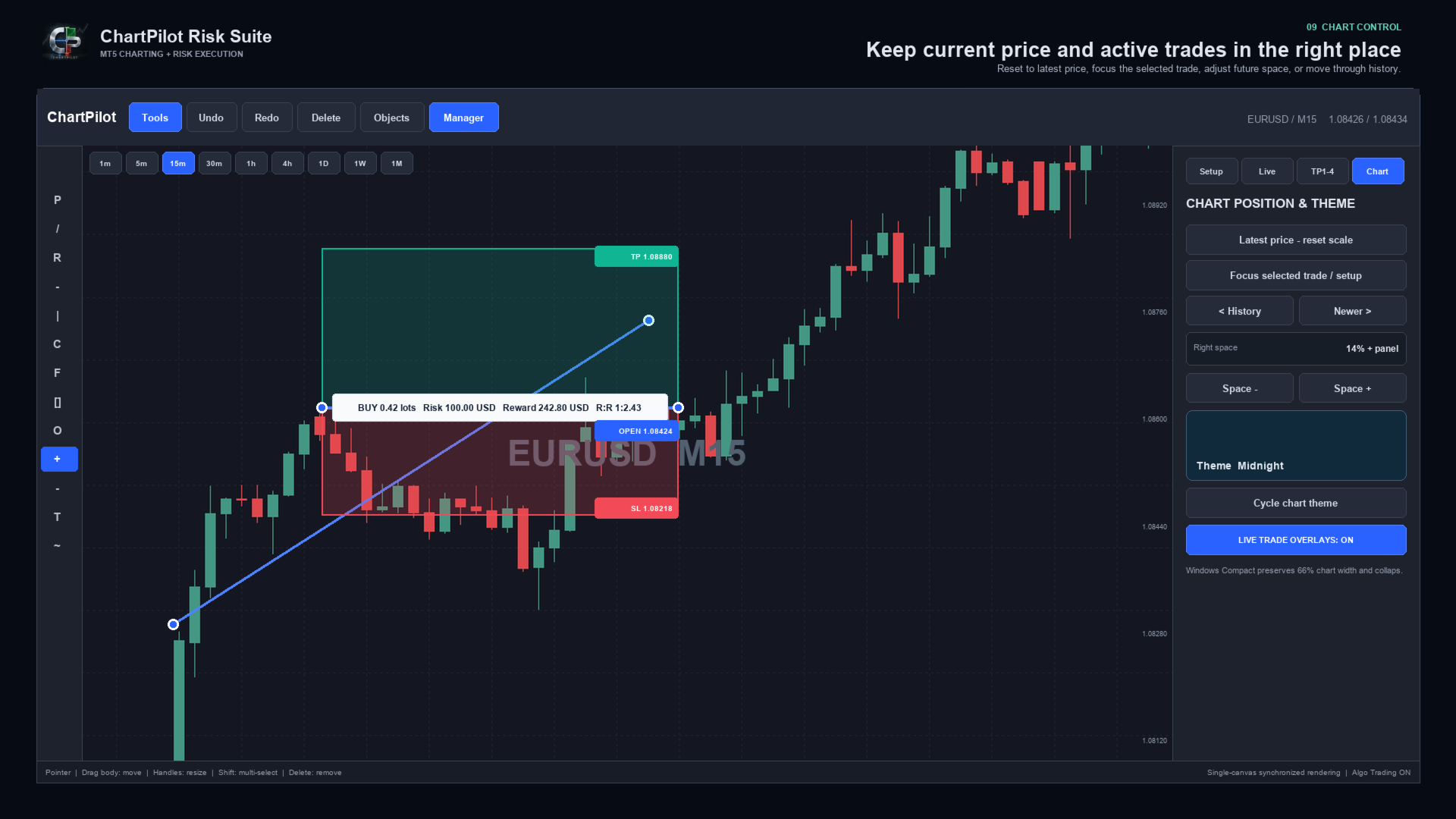
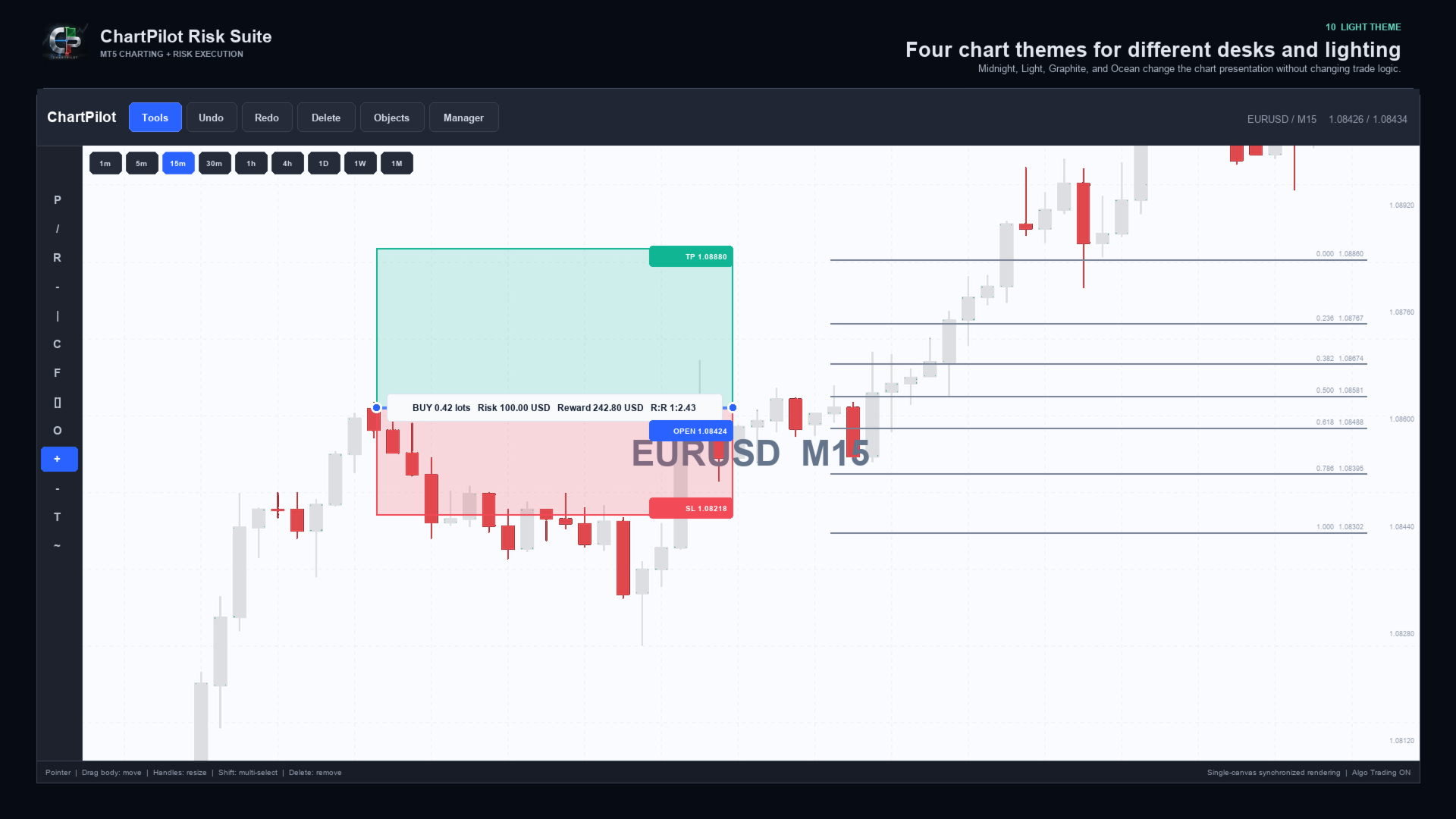
- Midnight, Light, Graphite and Ocean chart themes
- Latest-price reset, Focus Trade, history navigation and adjustable right-side chart space
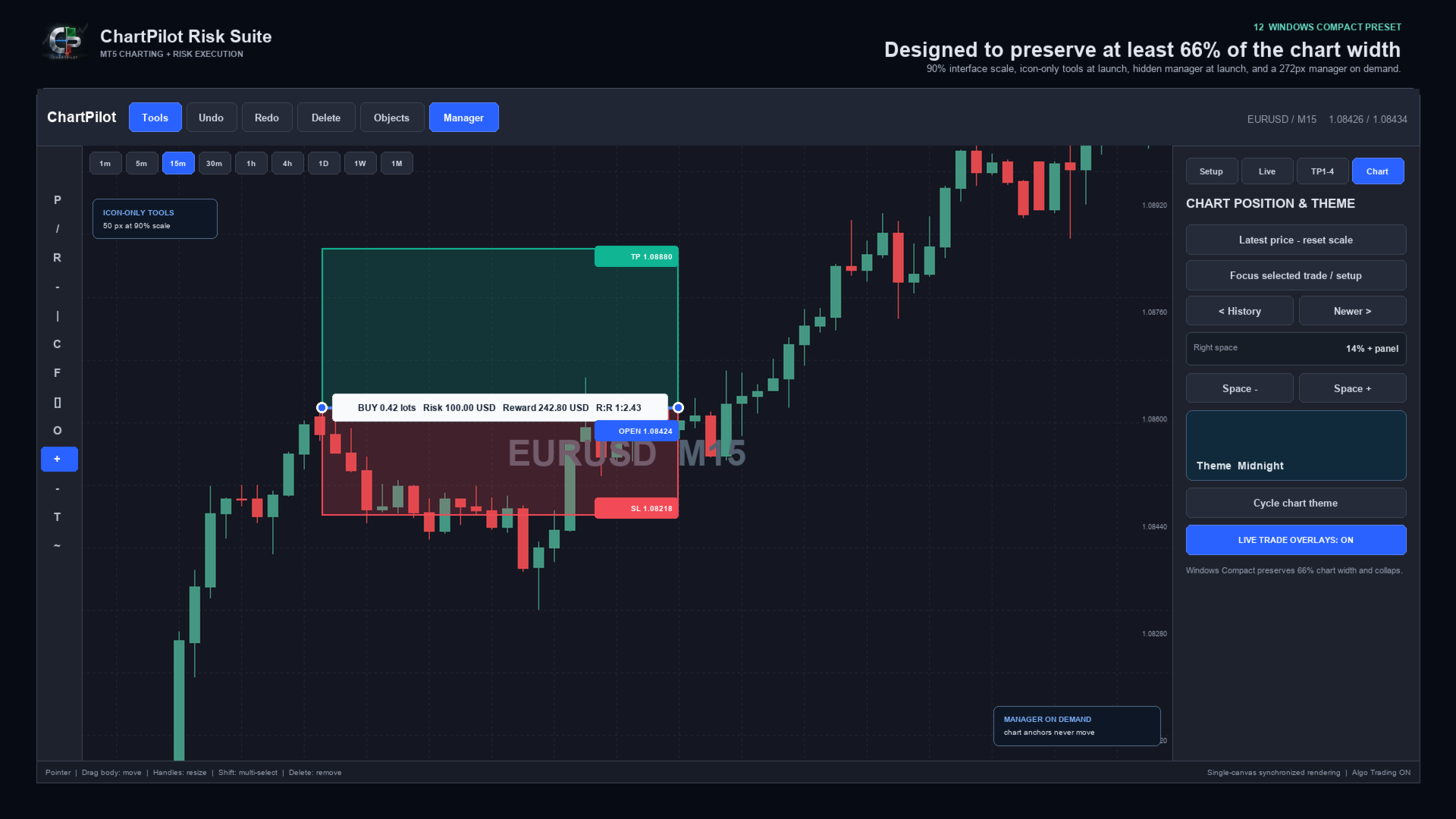
- Compact Windows layout with automatic panel reduction
- Persistent chart workspaces and confirmed-plan journal
- Self-contained Market product with no companion indicator or DLL imports
DRAWING WORKSPACE
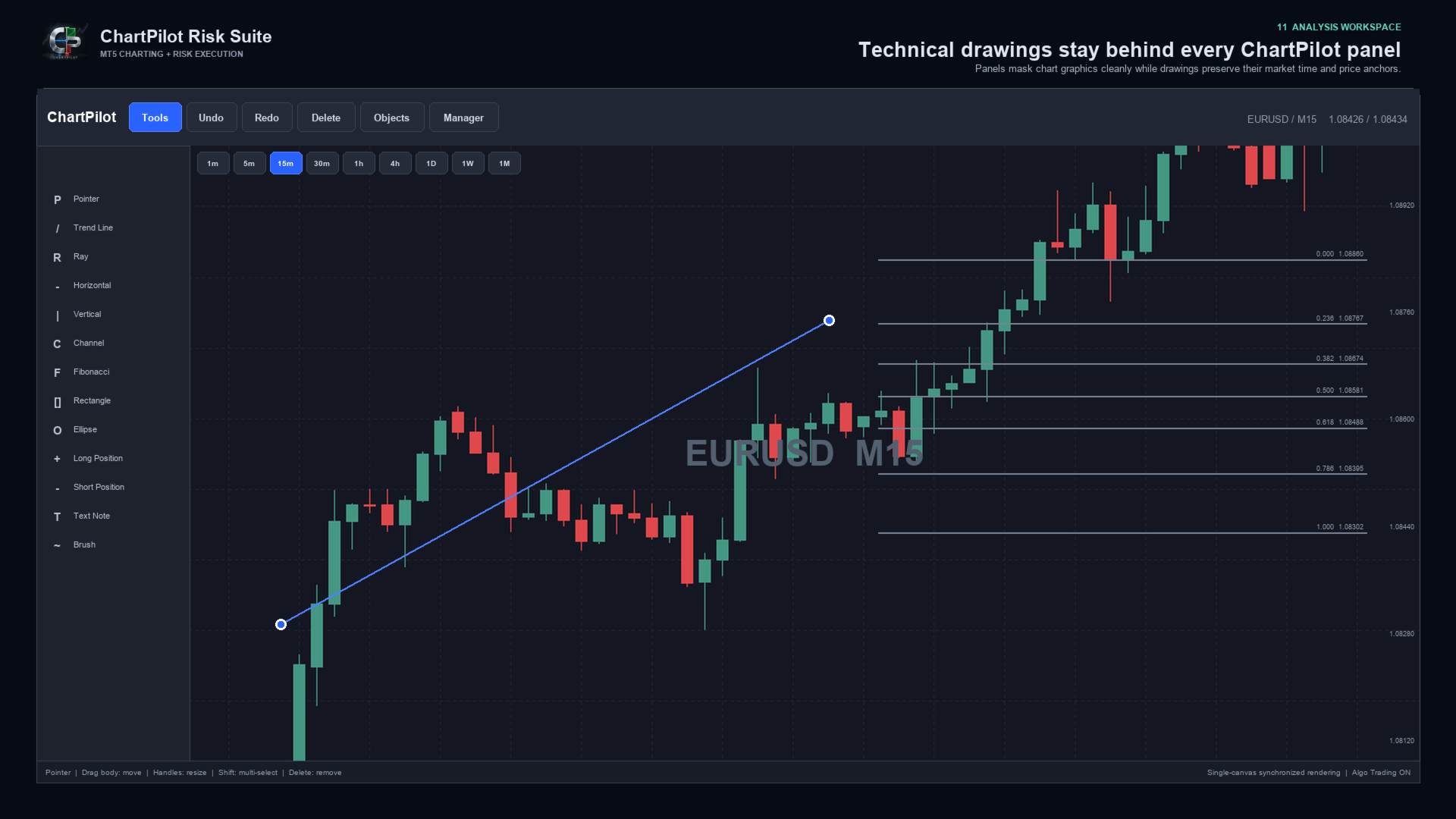
Included tool groups cover:
- Pointer and crosshair
- Trend line, ray, extended line and horizontal/vertical lines
- Arrow and double-arrow lines
- Parallel channel, regression channel and standard-error channel
- Fibonacci retracement, extension, fan, arc and time tools
- Gann fan and Gann box
- Rectangle, ellipse and triangle
- Bezier, ABCD and XABCD patterns
- Elliott impulse and correction tools
- Long and short position tools
- Ruler, price range, date range and date/price range
- Text note and price note
- Brush, highlighter and polyline
Drawings use chart time and price coordinates. Panning, zooming or changing the visible chart range changes their screen position in the same way as normal market-anchored drawings, but it does not rewrite their stored market anchors.
POSITION AND LOT-SIZE MANAGER
ChartPilot calculates volume from the selected setup and symbol specifications. Choose one sizing method:
1. Risk percentage: volume is based on the selected percentage of current account equity.
2. Fixed risk: enter a cash amount in the account currency. A non-zero fixed amount takes priority over percentage risk.
3. Manual lots: enter a manual volume when an exact size is required.
The calculated volume is normalized to the broker's minimum volume, maximum volume and lot step. If the requested staged percentages cannot produce valid partial volumes, ChartPilot rejects the plan instead of silently increasing the risk.
Commission is an estimate supplied by the user. It is not automatically read from the broker. Swap, slippage, price gaps and execution differences can change the final result.
HOW MULTI-TARGET MANAGEMENT WORKS
1. Draw or select a Long Position or Short Position.
2. Open Manager, then TP1-4.
3. Enable Multi-Target and select two, three or four stages.
4. Enter the target prices and closing percentages.
5. Ensure the active percentages total exactly 100%.
6. Return to Setup and press EXECUTE - REVIEW.
7. Check the entry, stop, final TP and rounded lot allocation.
8. Press CONFIRM / SEND.
Intermediate stages are managed by the EA as partial market exits. The final target is placed at the broker. For example, a four-stage plan can close 25% at TP1, 25% at TP2, 25% at TP3 and leave the final 25% for the broker-side TP4.
Automatic staged exits apply only to positions linked to a confirmed ChartPilot entry plan. Creating a drawing does not authorize automatic trading, and ChartPilot does not attach a staged schedule to an unrelated manual trade or another EA's position.
MetaTrader 5 must remain open, connected and permitted to use Algo Trading for intermediate partial exits. The broker-side stop loss and final take profit can remain active when the terminal is closed, subject to the broker's normal execution rules.
If price gaps through several targets, ChartPilot advances confirmed partial exits sequentially. If price reaches or gaps through the final broker target, the broker may close all remaining volume before every intermediate stage is filled.
Do not manually change the volume, direction, opening price or final TP of a managed position unless you intend to take control. An external position change causes ChartPilot to suspend the original percentage schedule for safety.
QUICK START
1. Test the EA on a demo account before live use.
2. Attach one ChartPilot instance to the chart and symbol you want to manage.
3. Enable Allow Algo Trading in the EA properties.
4. Enable the main Algo Trading button in MetaTrader 5.
5. Choose a risk percentage, fixed cash risk or manual lot size.
6. Select Long Position or Short Position and place the setup on the chart.
7. Drag the body to move the complete setup or drag a handle to resize it.
8. Configure TP1-TP4 if staged exits are required.
9. Press EXECUTE - REVIEW and inspect the complete request.
10. Confirm only when the direction, size, stop and targets are correct.
11. Open Manager > Live to monitor the TP engine and selected position.
Use only one managing ChartPilot chart for the same account, broker server, symbol and magic number. This prevents two chart instances from attempting to manage the same confirmed plan.
WINDOWS INSTALLATION AND DISPLAY SETUP
Installation:
1. Open the desktop MetaTrader 5 terminal and sign in to the MQL5 account used for the purchase.
2. Open Market > Purchased and install ChartPilot Risk Suite.
3. Find ChartPilot Risk Suite under Expert Advisors in the Navigator.
4. Drag the EA onto the chart and symbol you want to manage.
5. Enable Allow Algo Trading in the EA properties if execution or staged exits will be used.
6. Enable the main Algo Trading control in MetaTrader 5.
Recommended Windows layout:
- Start with a maximized chart window.
- Recommended interface scale: 90% to 100%.
- Recommended Windows display scaling: 100% or 125% when possible.
- Keep Start Tools Expanded disabled for an icon-only toolbar at launch.
- Keep Show Manager disabled so the chart opens at maximum width.
- Open Manager only when sizing, executing or managing a trade.
- Keep Auto Compact Panels enabled.
- Set Minimum Chart Percent to 66 when maximum chart space is preferred.
Recommended compact input values:
- Interface Scale: 90
- Start Tools Expanded: false
- Show Manager: false
- Expanded Tools Width: 170
- Manager Width: 272
- Minimum Chart Percent: 66
- Auto Compact Panels: true
- Right Space: 14
If you have the optional ChartPilot_Windows_Compact.set developer preset, open EA Properties > Inputs > Load and select it. Market installation itself supplies only the compiled product, so the same values can be entered manually when the preset is not present.
At Windows display scaling of 150% or higher, start with Interface Scale at 80% to 90%. MetaTrader uses pixel-based chart dimensions, so Windows DPI scaling and the EA interface scale can compound. If the chart becomes crowded, reduce Interface Scale, close the Manager panel or collapse the Tools panel.
These compact values change only EA inputs. They do not alter account, broker or MetaTrader installation settings.
MACOS INSTALLATION AND DISPLAY SETUP
MetaTrader 5 for macOS runs through the compatibility environment supplied with the terminal installation. Install Market products from inside MetaTrader. Do not copy product files into the visible application bundle in Finder.
Installation:
1. Start the desktop MetaTrader 5 application and sign in to the MQL5 account used for the purchase.
2. Open Market > Purchased and install ChartPilot Risk Suite.
3. Find it under Expert Advisors in the Navigator.
4. Attach it to the chart and symbol you want to manage.
5. Enable Allow Algo Trading in the EA properties and the terminal's Algo Trading control when execution is required.
6. If Navigator does not refresh, restart MetaTrader 5 and check the Purchased section again.
For a separately supplied developer MQ5 file, use File > Open Data Folder, then place the source in MQL5 > Experts and compile it in MetaEditor. This manual process is not required for the normal Market version.
Recommended macOS layout:
- Begin with Interface Scale at 100%.
- On a high-resolution Retina display, 110% to 125% may be comfortable.
- Use a maximized chart before increasing the interface size.
- Keep the Manager hidden until it is needed.
- If the compatibility environment applies additional scaling, reduce Interface Scale in 10% steps.
- The Windows Compact preset can also be loaded on macOS, but it is normally necessary only on a small window or a heavily scaled display.
Font weight and edge smoothing can look slightly different between Windows and macOS because MetaTrader and the compatibility layer use different system text and display-rendering paths. This is visual only and does not change price, volume or trade-management calculations.
IMPORTANT OPERATING NOTES
- ChartPilot manages the current chart symbol.
- Use a unique magic number when separating different ChartPilot strategies or workspaces.
- Deleting a drawing never closes a broker position.
- Hiding a drawing does not pause a confirmed TP schedule.
- Use Manager > Live to pause or resume a linked staged schedule.
- Manual partial closes suspend the original staged allocation.
- Do not delete the ChartPilot plan journal from MQL5/Files while a managed position is open.
- If TP ENGINE reports an Algo Trading or connection warning, intermediate partial exits cannot be sent.
- Pending orders remain subject to the broker's supported order types, filling policies, stop distance and expiration rules.
- The EA rejects unsupported or invalid requests when broker checks fail.
- Broker execution, spreads and symbol specifications differ. Test every symbol and account type on demo first.
RISK NOTICE
Trading foreign exchange, CFDs and other leveraged products involves substantial risk. Position-size and risk-to-reward figures are estimates based on the information available when calculated. Gaps, slippage, spread changes, commissions, swaps, partial fills, broker rules and connection failures can produce a different result.
ChartPilot Risk Suite is an execution and chart-management utility. It does not provide trading signals, investment advice or any guarantee of profit. The user remains responsible for every setup, confirmation, broker setting and trade decision. Use a demo account first and never risk funds you cannot afford to lose.