
Advanced Market Maker Dashboard by G Labs mt5
- Indicatori
- Garry James Goodchild
- Versione: 1.3
- Aggiornato: 6 marzo 2026
- Attivazioni: 5
Advanced Market Maker Dashboard by G-Labs — Beat The Market Maker multi-pair scanner for MetaTrader 5. Seventeen-column ADR dashboard with price formation, breaker blocks, TDI SharkFin, RSI divergence, stop hunt, daily candle confirmation, currency strength, and chart overlays from one panel.
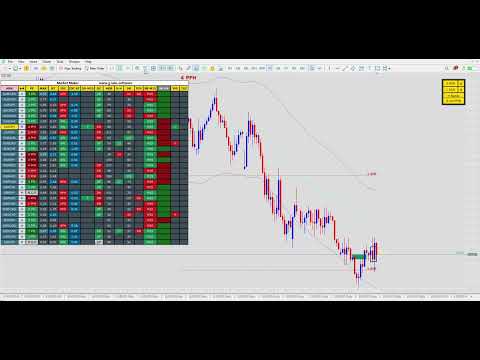
The full BTMM workflow dashboard for traders who have outgrown a basic scanner. Monitor 28 or more pairs in real time: trend direction, peak formation side (PFH/PFL), ADR expansion in MAX and real-time columns, intraday confirmation on M15, daily candle bias, stop-hunt proximity, breaker status on M15 and H4, divergence, TDI SharkFin signals, and yesterday high-low touches. A currency strength strip ranks the eight major currencies from H1 trend across your watchlist. Click any symbol row to switch the active chart.
What the dashboard shows
SYMBOL and TREND — pair name with H1 fast/slow MA crossover direction. PF — price formation high or low with days since formation. MAX and RT — peak and live move expressed in average daily range multiples. IDC and IDC RT — M15 intraday pivot confirmation and live ADR multiple. 50-M15 — flags when price touches the 50 EMA on M15. DC — yesterday daily candle close bias with trend confluence. ADR — average daily range in pips. S-H — stop hunt distance from the session range. DR — today range versus ADR with day-structure colour. DIV — regular and hidden RSI divergence when ADR threshold is met. BR M15 and BR H4 — buy and sell breaker block status on two timeframes. YHL — proximity to yesterday high or low. TDI — SharkFin reversal signals with optional trend filter.
Chart overlays on the active symbol
ATR channel bands, projected ADR level lines, optional ADR boxes, breaker block rectangles with key level, RSI divergence trendlines, and a live candle countdown timer.
Dashboard features
Colour-coded cells for fast scanning. Click-to-switch symbols. Toggle breaker columns from the panel header. Minimise button to reduce footprint. Screen alerts and mobile push notifications for ADR thresholds, stop hunts, divergence, breakers, TDI, and yesterday high-low events. Fully configurable symbol lists with broker suffix support.
Please note: MQL5 adds a demo version to all Market products by default. The demo runs on a single symbol and single timeframe on one chart. This product’s scanner reads multiple currency pairs and multiple timeframes at the same time, so the scanner and scanner-driven features are not compatible with the demo build and will not display or run. In the demo you will typically see basic chart objects only, such as EMAs and session overlays — that is expected behaviour, not a fault with the product. The full multi-pair scanner, dashboard, and all scanner logic are included in the purchased licence and are shown in the product video on the Screenshots tab. Analytical indicator only; it does not place trades for you. Past signal behaviour does not guarantee future results.
Quick start
Attach to any chart. Allow a few seconds on first load while history downloads for each pair and timeframe. Set SymbolStr1 and SymbolStr2 to match your broker naming. Adjust ADR period, MA periods, breaker timeframes, TDI settings, and alert options to match your method. Click a symbol row to load that pair on the chart.
Requirements
MetaTrader 5 build 3000 or later. Works on forex and metals where data is available in Market Watch. Analytical indicator only — does not place or manage trades automatically.
Product ladder
Entry-level BTMM scanning: G-Labs Market Maker Dashboard. Full daily-cycle system: BTMM State Engine Pro on the G-Labs MQL5 profile.
Keywords
BTMM, beat the market maker, market maker dashboard, ADR scanner, peak formation, PFH, PFL, breaker blocks, TDI SharkFin, RSI divergence, stop hunt, currency strength, multi pair scanner, G-Labs
Advanced Market Maker Dashboard is an analytical tool. It does not provide financial advice. Trading involves substantial risk of loss and past performance does not guarantee future results. Always use proper risk management.
What's New — Version 1.3
Seventeen-column advanced panel with dual-timeframe breaker detection on M15 and H4.
TDI SharkFin column with embedded Traders Dynamic Index and optional trend-filter confluence.
RSI divergence scanning with regular and hidden bullish and bearish labels when ADR expansion threshold is met.
Currency strength footer ranking USD, EUR, GBP, JPY, AUD, NZD, CAD, and CHF from H1 trend across watched pairs.
Intraday confirmation columns (IDC), daily candle bias (DC), 50-M15 MA touch, and yesterday high-low proximity alerts.
Chart overlays for ATR bands, ADR lines and boxes, breaker zones, and divergence lines on the active symbol.
Push notifications and screen alerts for key dashboard events. Click-to-switch symbol navigation.


































L'utente non ha lasciato alcun commento sulla valutazione.