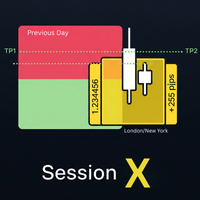
Session X
- Indicatori
- Versione: 1.0

Master the market sessions and trade breakouts with confidence. Session X is a complete, all-in-one trading assistant for MetaTrader 5, designed to give you a clear edge in today's markets.
This powerful tool automatically identifies the most critical price ranges—key market sessions and the Previous Day Range —and equips you with a professional suite of tools to trade them. Go beyond simple boxes and get high-quality, confirmed breakout alerts, automatic profit targets, and all the essential information you need, displayed cleanly on your chart.
Whether you are a day trader or a scalper, Session X provides the structure and automation you need to trade key levels with confidence.
Key Features
-
Intelligent Custom Session Box: Pinpoint the most volatile market sessions with a fully customizable box. See the range of the London, New York, or Asian sessions with ease.
-
One-Click Session Presets: No more converting timezones! Use the convenient dropdown menu to instantly select major overlaps like the London/New York Overlap, the Tokyo/London Overlap, or a Full New York Day, pre-configured for a standard UTC+3 broker. A manual option gives you full control.
-
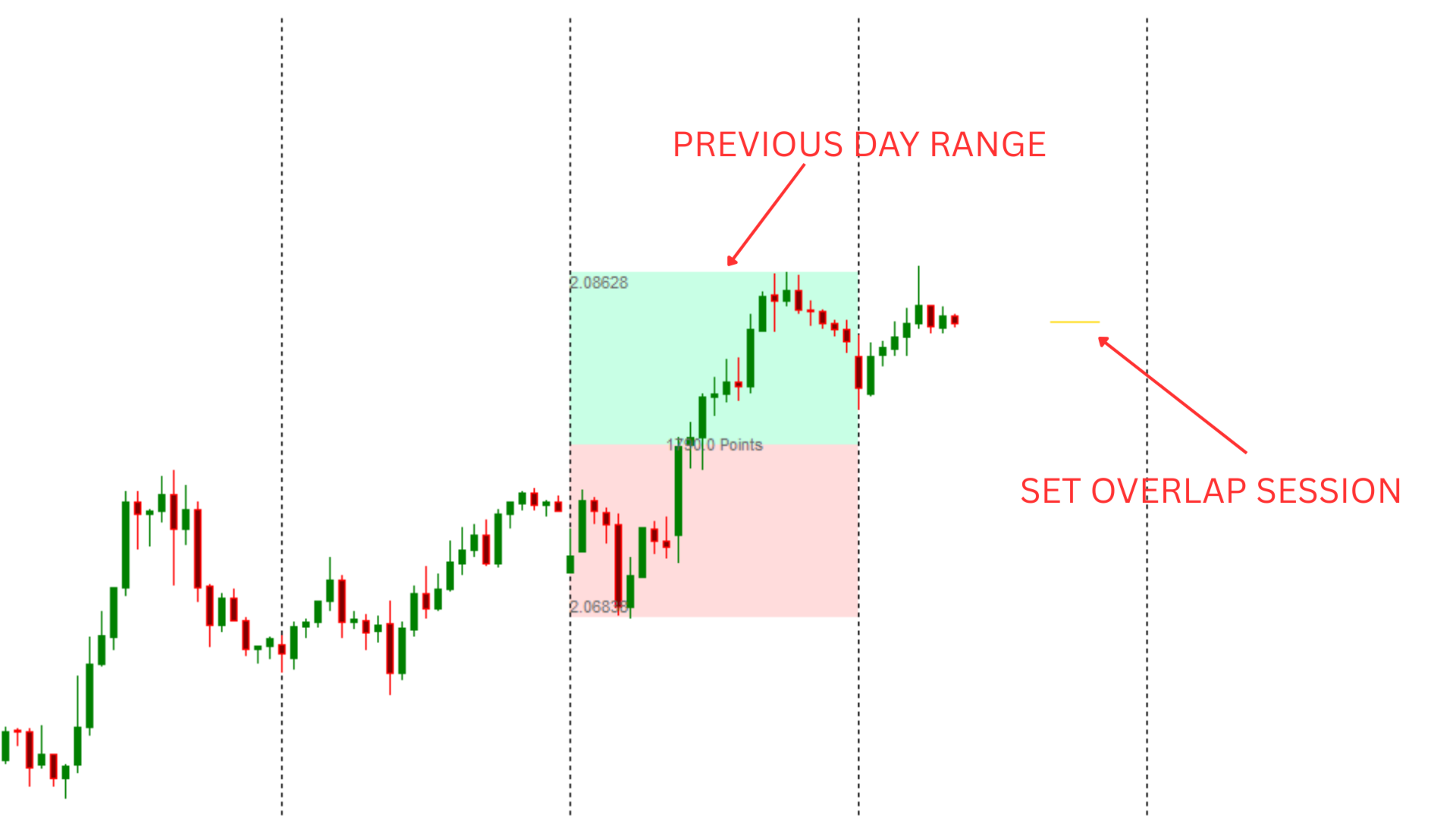
Pre-Session Placeholder: Never miss a session start again. Our unique placeholder feature draws a thin line marking the time range of an upcoming session before it begins, so you can visually prepare.
-
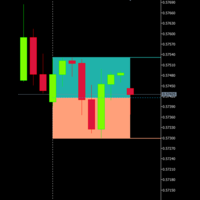
Automatic Previous Day Range (PDR) Box: In addition to sessions, instantly see the most important support and resistance levels for the current trading day. The PDR high and low are automatically drawn and updated daily.
-
"At-a-Glance" Information: Dynamic labels automatically display the exact High and Low prices of each range, as well as the total volatility in points. No more using the crosshair tool!
-
SMART Breakout Alerts: This is not your average alert system. Get notified of high-probability breakouts with our crucial "On Bar Close" confirmation setting, designed to filter out false signals from wicks. Alerts can be sent via Pop-up, Push Notification to your phone, or Email.
-
AUTOMATIC Profit Targets: The ultimate smart feature. On a confirmed breakout, the indicator automatically calculates and draws projected profit target levels (TP1 and TP2) on your chart using the "Measured Move" technique. This removes the guesswork from your exit strategy.
-
Lightweight & Fully Customizable: Clean, efficient code that doesn't slow down your terminal. Customize every color, label, and setting to match your personal trading style.
How to Use Session X: Trading Strategies
Session X is designed to support two primary trading strategies:
Strategy 1: The Intraday Session Momentum This strategy focuses on capturing momentum during the most liquid parts of the day.
-
Setup: Set the Session Preset to SESSION_LONDON_NEW_YORK . Then, set Box to Monitor for Alerts to ALERT_SOURCE_SESSION_BOX .
-
Wait for the Signal: The indicator will first wait for the London/New York overlap session to establish a range. It will then monitor for a breakout of that specific session's range.
-
Execute: A breakout of the session range often signals a strong continuation move. Use the automatically drawn, session-based profit targets to plan your exit. This strategy is perfect for traders looking for faster moves on lower timeframes.
Strategy 2: The Daily PDR Breakout This is a classic strategy for determining the bias for the entire trading day.
-
Setup: In the indicator settings, go to "Breakout Alerts". Set Box to Monitor for Alerts to ALERT_SOURCE_PDR and Alert Condition to ON_BAR_CLOSE .
-
Wait for the Signal: The indicator will now watch for a candle to close above the PDR high or below the PDR low. You will get an alert when this happens.
-
Execute: When you receive a confirmed breakout alert, your trade plan is already on the chart. The projected TP1 and TP2 lines give you logical exit points. You can visually assess the risk-to-reward by comparing the distance to your stop-loss (e.g., the PDR's midpoint) with the distance to TP1.
Settings and Parameters Guide
-
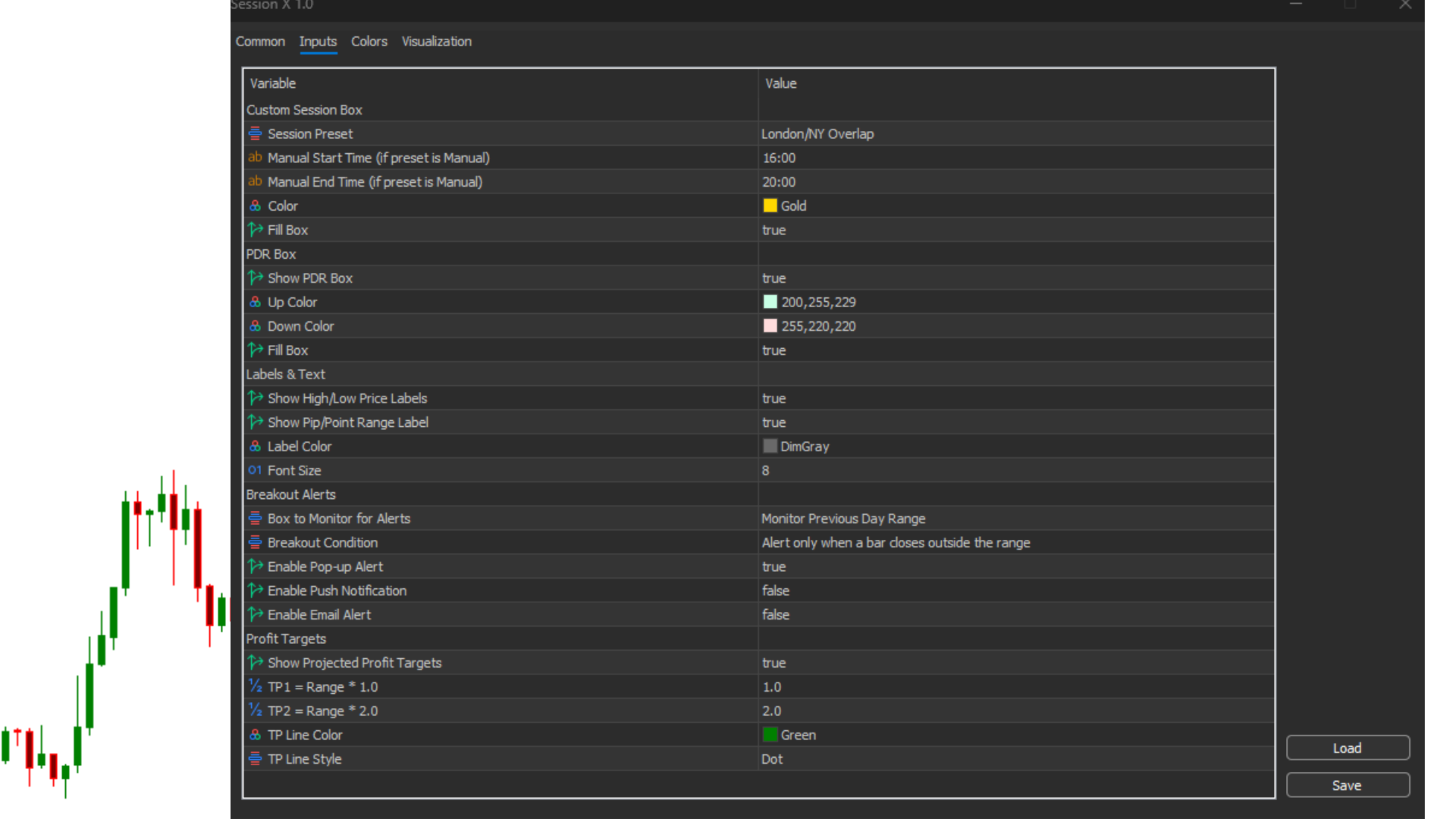
[Custom Session Box] This section gives you full control over the session box. Use the main dropdown to select from popular pre-configured sessions like the London/New York overlap, or choose 'Manual' to define your own custom time window using the start and end time inputs. You can also customize the box's color and choose whether it should be filled or just an outline.
-
[PDR Box] Here, you can enable or disable the Previous Day Range box. Customize the colors for the upper (premium) and lower (discount) halves of the range and decide if the boxes should be filled with color.
-
[Labels & Text] Control all the on-chart information. You can individually enable or disable the price labels for the high/low and the range size label (in points). You also have full control over the color and font size of all text labels displayed by the indicator.
-
[Breakout Alerts] This is the control center for the smart alert system. First, use the dropdown to select which range you want to monitor for breakouts—either the PDR or the Custom Session Box. Next, choose your confirmation type: 'On Bar Close' for a high-quality, confirmed signal, or 'On Price Touch' for an instant notification. Finally, select your preferred alert methods by enabling on-screen pop-ups, push notifications to your mobile device, or email alerts.
-
[Profit Targets] Activate and configure the automatic profit target feature. You can turn the projected TP lines on or off completely. Adjust the multipliers to control how far the targets are projected from the breakout level (e.g., a multiplier of 1.0 projects 100% of the range's size). You can also customize the color and style (dotted, dashed, solid, etc.) of the target lines to fit your chart theme.
## An Important Note on Timezones
This indicator is designed to work perfectly for any user, anywhere in the world, with any broker. The key is to understand the difference between your local time and your broker's server time.
Your Personal Timezone 🌎
Your personal, local timezone (where you live) does not affect how the indicator works or how you should set it up.
All time-based settings in the indicator are based purely on your Broker's Server Time. This is the time you see ticking in your MT5 "Market Watch" window. As long as you configure the sessions relative to that clock, the indicator will be perfectly synchronized with the market's movements.
Your Broker's Timezone (The Important Part)
The one-click Session Presets (like London/NY Overlap) are pre-configured for brokers that use a UTC+3 timezone. This is a very common server time for brokers who align their daily candle close with the 5 PM New York close.
If your broker uses a different timezone (like UTC+2 or GMT), the presets will be off. But you can easily adjust this in seconds.
Here’s how:
Step 1: Find Your Broker's Timezone
Compare your broker's time in the Market Watch with a universal UTC clock (you can google "UTC time"). The difference is your broker's offset (e.g., UTC+2).
Step 2: Calculate the Correct Times
Use these standard UTC times for the key sessions to calculate the correct time for your broker.
-
London/NY Overlap: 13:00 to 17:00 UTC
-
Tokyo/London Overlap: 07:00 to 09:00 UTC
-
New York Day Close: 21:00 UTC
Step 3: Use the Manual Setting
In the indicator inputs, simply select SESSION_MANUAL from the dropdown and enter the correct times you just calculated.
Example:
-
Let's say your broker uses a UTC+2 timezone.
-
The London/NY Overlap starts at 13:00 UTC. For your broker, this is 13:00 + 2 hours = 15:00 .
-
You would set the manual inputs to:
-
Start Time: "15:00"
-
End Time: "19:00"
-
By following these simple steps, any user can ensure the session boxes are drawn with perfect accuracy, no matter their location or broker.
-