 MetaTrader 5
 Experts
 Indicatori
 librerie
 Utilità
 Widget
 Regole
Guarda i video tutorial del Market su YouTube
Come acquistare un Robot di Trading o un indicatore
Esegui il tuo EA
hosting virtuale
hosting virtuale
Prova un indicatore/robot di trading prima di acquistarlo
Vuoi guadagnare nel Market?
Come presentare un prodotto per venderlo con successo

Sfortunatamente, "Golden Ratio Rule" non è più disponibile per l'acquisto.
Se hai già acquistato questo prodotto in precedenza, puoi continuare a utilizzarlo senza alcuna limitazione e installare nuove copie finché hai ancora attivazioni:
- Apri il tuo terminale Metatrader 4.
- Specifica le credenziali dell'account MQL5.community nelle impostazioni: menu Strumenti\Opzioni\Community.
- Vai alla scheda "Market" e poi alla scheda "Acquistati".
- Fai clic sul pulsante "Installa" situato a destra del nome del prodotto.
Per maggiori informazioni, consultare la documentazione.
Scopri altre app MetaTrader 4

PUNTELLO AZIENDA PRONTO! ( scarica SETFILE ) PROMOZIONE LANCIO: Sono rimaste solo poche copie al prezzo attuale! Prezzo finale: 990$ Ottieni 1 EA gratis (per 2 account commerciali) -> contattami dopo l'acquisto Ultimate Combo Deal -> click here JOIN PUBLIC GROUP: Click here Live Signal LATEST MANUAL
Benvenuti al Mietitore d'Oro! Basato sul Goldtrade Pro di grande successo, questo EA è stato progettato per funzionare su più intervalli di tempo contemporaneamente e ha la possibilit

8+ years of live track record with +12,000% account growth: Live performance MT 5 version can be found here Waka Waka is the advanced grid system which already works on real accounts for years. Instead of fitting the system to reflect historical data (like most people do) it was designed to exploit existing market inefficiencies. Therefore it is not a simple "hit and miss" system which only survives by using grid. Instead it uses real market mechanics to its advantage to make profit Supported cu

We proudly present our cutting-edge robot, the Big Forex Players EA designed to maximize your trading potential, minimize emotional trading, and make smarter decisions powered by cutting-edge technology. The whole system in this EA took us many months to build, and then we spent a lot of time testing it. This unique EA includes three distinct strategies that can be used independently or in together. The robot receives the positions of the biggest Banks (positions are sent from our database t

Trend Sniper X è un indicatore di trend-following multi-timeframe per MetaTrader 5 che aiuta i trader a identificare la direzione del trend e i potenziali punti di inversione con chiarezza e precisione. Per MT5: https://www.mql5.com/en/market/product/181101 Informazioni sul prezzo: Il prezzo attuale è promozionale ed è soggetto a modifiche con il rilascio dei prossimi aggiornamenti e nuove funzionalità. Canale Code2Profit Domina il mercato con l'analisi multi-timeframe! Come massimizzare il tuo

Trend Radar — Expert Advisor for MetaTrader 4 Overview Trend Radar is an Expert Advisor (EA) for MetaTrader 4 that opens trades based on a proprietary price-channel analysis model, filtered by slope angle and corridor width. The EA combines clear signal logic with flexible risk management and full control over every stage of trade management — from entry to trailing stop. How It Works Channel analysis. The EA builds a price channel from the last SignalBarCount bars and determines its overall dir

UN INGRESSO DEBOLE NON DOVREBBE ESSERE SALVATO DA UNO STOP LOSS ENORME.
GHOST XAU è stato creato in modo diverso: niente grid, niente mediazione delle posizioni, TP = SL — un rapporto reale di 1:1.
L'EA è stato sviluppato con una forte attenzione alla logica broker-neutral , affinché le sue decisioni dipendano dal mercato e non dalle caratteristiche specifiche di un singolo broker.
Ogni ingresso viene valutato da 3 modelli, 620 alberi decisionali e oltre 120 caratteristiche di mercato.
Se no

Apex Gold Advisor: Accuracy and Efficiency for MT4
In the fast-paced world of forex trading, where every second and every pip counts, Apex Gold Advisor stands out as a tool designed to provide high accuracy of market entries. Designed specifically for the MetaTrader 4 (MT4) platform, this advisor is a powerful solution for traders looking to maximize their profitability while minimizing risk. the full list for your convenience is available https://www.mql5.com/ru/users/pants-dmi/seller
Apex G

Expert Advisor Sailing Gold is a fully automated Expert Advisor designed exclusively for trading Gold (XAUUSD) on MetaTrader 4. The EA combines momentum analysis, volatility-based market modeling, and an advanced scalping algorithm to identify high-probability trading opportunities while applying intelligent position management for consistent execution and disciplined risk control. To improve trade quality, Sailing Gold includes an optional Moving Average (MA) trend filter, enabling the EA to tr

Scalping Robot Pro is a professional trading system designed specifically for fast and precise scalping on XAUUSD using the M1 timeframe. The system is built to capture short term market movements with accurate execution and controlled risk management. It focuses on real time price behavior, momentum shifts, short term volatility, and selective grid based trade management techniques to identify high probability trading opportunities in the gold market. Scalping Robot Pro is optimized for tra

SCOPRI BTCUSD CONSENSUS
IL MIO NUOVO PROGETTO PER BITCOIN
Volevo creare per BTCUSD qualcosa di più serio rispetto all’ennesimo EA costruito intorno a un paio di indicatori.
Per questo qui non c’è una sola strategia e non c’è un solo segnale.
All’interno di BTCUSD Consensus lavorano 5 modelli addestrati separatamente e 1360 alberi decisionali .
D LONG • D SHORT • U LONG • U SHORT • SELL META
Ogni modello ha il proprio compito, il proprio addestramento e la propria ottimizzazione.
Prima di entr

ZORYK — Sistema avanzato di segnali e pianificazione per XAUUSD su MetaTrader 4
Conosci sicuramente questa situazione.
Analizzi l’oro, aspetti l’ingresso e finalmente apri la posizione. Il prezzo si muove immediatamente contro di te. Chiudi troppo presto, sposti lo Stop Loss oppure esiti per alcuni secondi. Poco dopo, il mercato raggiunge esattamente la direzione e l’obiettivo che avevi previsto, ma senza di te.
Il problema non era sempre la direzione.
Il vero problema era l’incertezza.
No

L'Expert Advisor è un sistema pensato per recuperare posizioni non redditizie. L'algoritmo dell'autore blocca una posizione perdente, la divide in molte parti separate e chiude ciascuna di esse separatamente. La facile configurazione, il lancio ritardato in caso di drawdown, il blocco, la disabilitazione di altri Expert Advisor, la media con il filtraggio delle tendenze e la chiusura parziale di una posizione in perdita sono integrati in un unico strumento. È l'uso della chiusura delle perdite

Real Trading Account LIVE SIGNAL 100K: https://www.mql5.com/en/signals/2388151
Real Trading Account LIVE SIGNAL 3K: https://www.mql5.com/en/signals/2363526 Check Out All Our Products : Click Here
Fortune is an automated breakout Expert Advisor for MetaTrader 4 & 5, developed primarily for XAUUSD. The EA identifies potential breakout and breakdown zones based on recent market structure, then manages each trade according to the risk percentage set by the user. Every position is opened wit

Quantum Scalper GOLD v2.00 High-Precision Scalping for XAUUSD (Gold)
Quantum Scalper GOLD is an advanced and fully automated Expert Advisor designed exclusively for trading XAUUSD (Gold) on the M5 timeframe.
Key Features: Intelligent Hybrid Strategy: Combines RSI signals (overbought/overbold detection), Envelopes (volatility filter), and a real-time trained MLP Neural Network using price, EMA, MACD, and ATR features. Dynamic Risk Management: Adaptive Stop Loss based on ATR, intelligent traili

Local Trade Copier EA MT4 è un trade copier rapido e flessibile per copiare e gestire operazioni tra più conti MetaTrader 4 sullo stesso computer Windows o Windows VPS. Combina la sincronizzazione locale delle operazioni con controlli lato Receiver per dimensione del lotto, gestione del rischio, filtraggio delle operazioni, mappatura dei simboli, gestione delle operazioni e protezione del conto. Configura i terminali Transmitter e Receiver in circa 1 minuto e copia operazioni manuali o aperte d
DESCRIZIONE Con l'utilizzo del CHAOS ALGO TRADING EA, trading automatico, non dovrai piu' indovinare la direzione dei prezzi , ma potrai prendere profitto dalle oscillazioni, in qualsiasi direzione esse avverranno. Il CHAOS ALGO TRADING EA e' stato creato per AUTOMATIZZARE il TRADING CON LA STRATEGIA DEL CHAOS , lasciando al TRADER solo la decisione di quando attivare la STRATEGIA e quando scollegare l'AUTOTRADING. Questo EA funziona in AUTOLEARNING , quindi puo' andare avanti da solo senza int

Il Tokyo EA è un sistema di trading di tipo "trend-following" progettato per individuare i cambiamenti di direzione del mercato ed eseguire operazioni automatiche basate su segnali rialzisti e ribassisti confermati. L'EA entra a mercato all'apertura della candela successiva alla comparsa di una freccia di acquisto o vendita generata dall'indicatore Tokyo e opera utilizzando una strategia a griglia (grid) o di tipo Martingala. Sebbene sia adatto a qualsiasi coppia di valute e a qualsiasi timefram

SR Liquidity è un indicatore di trading progettato per individuare le zone nascoste in cui si concentra la liquidità di mercato e dove il prezzo reagisce con maggiore intensità. Queste aree di liquidità agiscono come potenti livelli di supporto e resistenza, offrendo una mappa chiara dei punti in cui è più probabile che il mercato inverta la propria direzione. Invece di tracciare le classiche linee di supporto e resistenza, SR Liquidity analizza l'effettivo comportamento dei prezzi per individua

AGGIORNAMENTO — DICEMBRE 2025 Alla fine di novembre 2024, l’Expert Advisor Aurum è stato ufficialmente messo in vendita.
Da allora ha operato in condizioni reali di mercato — senza filtro news, senza protezioni aggiuntive e senza limitazioni complesse — mantenendo una stabilità costante. Live Signal (launch April 14, 2026)
Un anno completo di trading reale ha dimostrato chiaramente l’affidabilità del sistema di trading.
E solo dopo questa esperienza, basandoci su dati reali e statistiche concr

Il Tokyo Indicator offre una chiara panoramica visiva della direzione del trend, dei potenziali segnali di trading e delle condizioni di mercato. La sua linea di trend a gradini, codificata a colori, distingue le fasi rialziste (in blu) da quelle ribassiste (in magenta). Frecce direzionali dedicate evidenziano potenziali opportunità di acquisto e vendita al variare del trend visualizzato. Una dashboard integrata riunisce in un'unica visualizzazione pratica il segnale corrente, il bias di mercato

Gann Made Easy è un sistema di trading Forex professionale e facile da usare che si basa sui migliori principi del trading utilizzando la teoria di mr. WD Gann. L'indicatore fornisce segnali ACQUISTA e VENDI accurati, inclusi i livelli di Stop Loss e Take Profit. Puoi fare trading anche in movimento utilizzando le notifiche PUSH. CONTATTAMI DOPO L'ACQUISTO PER RICEVERE GRATUITAMENTE LE ISTRUZIONI DI TRADING E OTTIMI INDICATORI EXTRA! Probabilmente hai già sentito parlare molte volte dei metodi d

Benvenuto a Trade Manager EA, lo strumento definitivo per la gestione del rischio , progettato per rendere il trading più intuitivo, preciso ed efficiente. Non è solo uno strumento per l'esecuzione degli ordini, ma una soluzione completa per la pianificazione delle operazioni, la gestione delle posizioni e il controllo del rischio. Che tu sia un principiante, un trader avanzato o uno scalper che necessita di esecuzioni rapide, Trade Manager EA si adatta alle tue esigenze, offrendo flessibilità s

FOREX MEGA SALE! 50% OFF!
Buy Infinity Trader EA with a huge –50% discount ! Promo Price: $267
(Regular Price: $547 — You Save $280! ) Act now before this deal ends! Infinity Trader EA Live Results: https://www.mql5.com/en/signals/2290275 Infinity Trader EA seamlessly integrates the strengths of Chat GPT and Gemini AI, providing unparalleled market insights and in-depth fundamental analysis. It actively adapts to ever-changing market conditions, identifying statistically significant price pa

Quantum King EA: potenza intelligente, raffinata per ogni trader
IMPORTANT! After the purchase please send me a private message to receive the installation manual and the setup instructions.
Prezzo di lancio speciale Segnale in diretta: CLICCA QUI
Versione MT5: CLICCA QUI
Canale Quantum King: Clicca qui
***Acquista Quantum King MT4 e potresti ottenere Quantum StarMan gratis!*** Chiedi in privato per maggiori dettagli!
Regola il tuo trading con precisione e discipli

Miraculous Indicator Binary & Forex v3 StrategySafe Miraculous Indicator Binary & Forex v3 StrategySafe è un indicatore professionale progettato per trader che cercano segnali chiari, strumenti di conferma avanzati e un metodo strutturato per operare sui mercati Binary e Forex. La versione v3 include MIR Dashboard, Miraculous Confirmation Dashboard, GANN Law, livelli Square of 9, angoli GANN e una modalità Forex più completa per un’analisi di mercato più precisa. Caratteristiche principali Modal
Attenzione alle truffe: SCIPIO EA e' distribuito solo su questo sito web: MQL5.com SCIPIO AI è il mio BOT di trading Automatico creato dopo oltre 20 anni di esperienza sui mercati finanziari, automatizza al 100% l'attività di TRADING, entrata, gestione, stop loss, giorno dopo giorno il TRADER non deve fare nulla.
Questo EA apre 1 solo TRADE alla volta ed imposta subito lo STOP LOSS molto vicino, non usa grid o martingala, un trade alla volta così evita grandi DRAW DONW.
Utilizza l'intelligenz
L'Oscillatore dell'Indice di Precisione (Pi-Osc) di Roger Medcalf di Precision Trading Systems
La Versione 2 è stata attentamente rielaborata per essere estremamente veloce nel caricarsi sul tuo grafico e sono state apportate alcune altre migliorie tecniche per migliorare l'esperienza.
Il Pi-Osc è stato creato per fornire segnali di sincronizzazione del trading accurati progettati per individuare punti di esaurimento estremi, i punti ai quali i mercati vengono costretti a recarsi solo per eli
It helps to calculate the risk per trade, the easy installation of a new order, order management with partial closing functions, trailing stop of 7 types and other useful functions.
Additional materials and instructions
Installation instructions - Application instructions - Trial version of the application for a demo account
Line function - shows on the chart the Opening line, Stop Loss, Take Profit. With this function it is easy to set a new order and see its additional characteris

Trade Indicator Assistant is a powerful MT4 utility designed to turn indicators into automated trading systems. Its main feature is the ability to automatically detect an indicator’s BUY and SELL signal buffers , without requiring you to know the buffer numbers, search through indicator settings, or modify the indicator source code. Bonus Indicator: After purchasing Trade Indicator Assistant, contact me to receive Trade Signal Pro completely free as a bonus indicator.
[Download Demo Version]

Robot di trading (Expert Advisor) per MetaTrader , che combina l'apertura di posizioni in direzione del trend, il rafforzamento durante i ritracciamenti, il passaggio automatico in break-even, il trailing stop e la chiusura della serie di operazioni con un profitto minimo controllato. VR Proton non è un semplice «Expert Advisor basato sui segnali». È un sistema completo di gestione di una serie di posizioni che decide automaticamente quando aggiungere un'operazione, quando proteggere il profitto

Copiatore professionale di operazioni per MetaTrader 4 Un copiatore di operazioni veloce, affidabile e professionale per MetaTrader 4 . COPYLOT consente di copiare operazioni Forex tra i terminali MetaTrader 4 e MetaTrader 5 , offrendo una sincronizzazione flessibile per diversi tipi di conto e modalità operative. La versione COPYLOT MT4 supporta: MetaTrader 4 → MetaTrader 4 MetaTrader 5 Hedge → MetaTrader 4 MetaTrader 5 Netting → MetaTrader 4 Versione MT5 Descrizione completa + DEMO + PDF Com

Vortex - il vostro investimento nel futuro
L'expert advisor Vortex Gold EA è stato creato appositamente per il trading sull'oro (XAU/USD) sulla piattaforma Metatrader. Costruito utilizzando indicatori proprietari e algoritmi segreti dell'autore, questo EA impiega una strategia di trading completa progettata per catturare movimenti redditizi nel mercato dell'oro. I componenti chiave della sua strategia includono indicatori classici come il CCI e l'indicatore parabolico, che lavorano insieme per

Currency Strength Wizard è un indicatore molto potente che ti fornisce una soluzione all-in-one per un trading di successo. L'indicatore calcola la potenza di questa o quella coppia forex utilizzando i dati di tutte le valute su più intervalli di tempo. Questi dati sono rappresentati in una forma di indice di valuta facile da usare e linee elettriche di valuta che puoi utilizzare per vedere il potere di questa o quella valuta. Tutto ciò di cui hai bisogno è collegare l'indicatore al grafico che

Promo lancio! Sono rimaste solo poche copie a 449$! Prossimo prezzo: 599$ Prezzo finale: 999$ Ottieni 1 EA gratis (per 2 account commerciali) -> contattami dopo l'acquisto Ultimate Combo Deal -> click here
New live signal: https://www.mql5.com/en/signals/2084890 Live Signal high risk : https://www.mql5.com/en/signals/2242498
Live Signal Set Prop Firm Set JOIN PUBLIC GROUP: Click here Parameter overview
Gold Trade Pro si unisce al club degli EA che commerciano oro, ma con una grand

PolyGold Scalper è un sistema di scalping a breve termine per XAUUSD che può prendere decisioni di trading basandosi sull'integrazione con l'API di Polymarket. Segnale in tempo reale: CLICCA QUI Tutte le operazioni di trading vengono effettuate all'interno di MetaTrader e non richiedono chiavi API né un account Polymarket. Il grafico include un pannello che rispecchia il flusso di dati di Polymarket e si aggiorna ogni pochi secondi.
L'EA apre esclusivamente posizioni singole e le gestisce senza

CRT Candle Range Theory HTF MT4 - Ultimate CRT Indicator: Concetti ICT avanzati e sistema di trading Malaysian SnR Padroneggia le orme dei Market Maker con l'indicatore Candle Range Theory più avanzato. Sblocca il vero potere degli Smart Money Concepts (SMC) e fai trading con la stessa precisione delle istituzioni grazie all'Ultimate CRT Indicator. Costruito esclusivamente per i trader seri, questo indicatore automatizza la teoria CRT, un pilastro centrale dei Concetti ICT (Inner Circle Trader),

M1 SNIPER è un sistema di indicatori di trading facile da usare. Si tratta di un indicatore a freccia progettato per l'intervallo temporale M1. L'indicatore può essere utilizzato come sistema autonomo per lo scalping sull'intervallo temporale M1 e come parte del tuo sistema di trading esistente. Sebbene questo sistema di trading sia stato progettato specificamente per il trading sull'intervallo temporale M1, può comunque essere utilizzato anche con altri intervalli temporali. Inizialmente ho pro

PRO Renko System è un sistema di trading altamente accurato appositamente progettato per il trading di grafici RENKO.
Questo è un sistema universale che può essere applicato a vari strumenti di trading. Il sistema neutralizza efficacemente il cosiddetto rumore di mercato che consente di accedere a segnali di inversione accurati.
L'indicatore è molto facile da usare e ha un solo parametro responsabile della generazione del segnale. Puoi facilmente adattare lo strumento a qualsiasi strumento di

An advanced Expert Advisor powered by artificial intelligence and machine learning, specifically designed for analyzing Gold (XAU/USD). It adapts to price movements and market fluctuations to detect potential trading opportunities. Discounted price . The price will increase by $50 with every 5 purchases.
No Risky Strategies – Does not use martingale or grid methods Artificial Intelligence Integration: At the heart of this EA les a sophisticated AI engine capable of recognizing complex pat

Scalper Vault è un sistema di scalping professionale che ti fornisce tutto il necessario per scalping di successo. Questo indicatore è un sistema di trading completo che può essere utilizzato dai trader di forex e opzioni binarie. L'intervallo di tempo consigliato è M5. Il sistema fornisce segnali di freccia accurati nella direzione della tendenza. Ti fornisce anche i segnali più alti e più bassi e i livelli di mercato di Gann. Gli indicatori forniscono tutti i tipi di avvisi, comprese le notifi

ATTUALMENTE SCONTATO DEL 40%!
La soluzione migliore per ogni principiante o trader esperto!
Questo indicatore è uno strumento di trading unico, di alta qualità e conveniente perché abbiamo incorporato una serie di caratteristiche proprietarie e una formula segreta. Con un solo grafico fornisce avvisi per tutte le 28 coppie di valute. Immaginate come migliorerà il vostro trading perché sarete in grado di individuare l'esatto punto di innesco di una nuova tendenza o opportunità di scalping!
Co

PROMOZIONE DI LANCIO: Ne sono rimaste solo poche copie al prezzo attuale! Prezzo finale: 990$ NOVITÀ: acquista Goldbot One e scegli 1 EA gratis!! (per 2 account commerciali)
UNISCITI AL GRUPPO PUBBLICO: Clicca qui Offerta Combo Ultimate -> clicca qui LIVE SIGNAL
Vi presentiamo Goldbot One , un robot di trading altamente sofisticato progettato per il mercato dell'oro. Concentrandosi sul breakout trading, Goldbot One sfrutta sia i livelli di supporto che quelli di resistenza p
Protect against whipsaws: revolutionize your swing trading approach Swing Trading is the first indicator designed to detect swings in the direction of the trend and possible reversal swings. It uses the baseline swing trading approach, widely described in trading literature. The indicator studies several price and time vectors to track the aggregate trend direction and detects situations in which the market is oversold or overbought and ready to correct. [ Installation Guide | Update Guide | Tro

Introduction to Fractal Pattern Scanner Fractal Indicator refers to the technical indicator that makes use of the fractal geometry found in the financial market. Fractal Pattern Scanner is the advanced Fractal Indicator that brings the latest trading technology after the extensive research and development work in the fractal geometry in the financial market. The most important feature in Fractal Pattern Scanner is the ability to measure the turning point probability as well as the trend probabi

This is a professional chart indicator designed for traders focused on stability and clear price action. It helps filter market noise and provides clear visual entry and exit zones for your trading decisions. Core Features: Strictly Non-Repainting: The system is built with strict non-repaint logic. What you see on the chart is the true historical performance. Confirmed Signals: Signals are triggered and confirmed only after the candle closes . Once a trading arrow appears on a closed candle, it

ONE OF THE FEW ROBOTS WITH A SIGNAL HISTORY OF MORE THAN 3 YEARS AND AMONG THE TOP 10. LINK TO MY ROBOTS AND SIGNAL PRESETS: In my profile there is a link to download the PRESETS that I use in my SIGNALS, you can download and Backtest for free, there are explanations in the my WebSite. https://www.mql5.com/en/users/tec_daniel LINK TO OTHER ROBOT VERSIONS: MT4: https://www.mql5.com/en/market/product/97963 MT5: https://www.mql5.com/en/market/product/97962 SOME EXAMPLES OF SIGNALS ON “mql5.

Apollo SR Master è un indicatore di Supporto/Resistenza con caratteristiche speciali che rendono il trading con le zone di Supporto/Resistenza più semplice e affidabile. L'indicatore calcola le zone di Supporto/Resistenza in tempo reale senza alcun ritardo, rilevando i massimi e i minimi dei prezzi locali. Quindi, per confermare la nuova area SR formata, l'indicatore mostra un segnale speciale che segnala che la zona SR può essere presa in considerazione e utilizzata come un vero e proprio segna

INDICATORE TREND CATCHER
L'indicatore Trend Catcher analizza i movimenti dei prezzi di mercato, utilizzando una combinazione di indicatori di analisi del trend proprietari dell'autore e personalizzati. Identifica la vera direzione del mercato filtrando il rumore a breve termine e concentrandosi sulla forza del momentum sottostante, sull'espansione della volatilità e sul comportamento della struttura dei prezzi. Utilizza inoltre una combinazione di indicatori personalizzati di smoothing e filtr

DayTrader PRO MT5: https://www.mql5.com/en/market/product/186222 DayTrader PRO è un indicatore di trading avanzato che combina il filtro Laguerre di John Ehlers con un potente motore di auto-ottimizzazione. Invece di utilizzare parametri fissi, l'indicatore ricerca automaticamente le migliori impostazioni in base alle condizioni recenti del mercato, aiutandoti ad adattarti alla volatilità variabile senza costanti aggiustamenti manuali. L'indicatore genera segnali chiari di ACQUISTO (BUY) e VEND

PHANTOM is a high-performance automated trading system specifically engineered for Gold (XAUUSD) . Unlike retail grid or martingale bots, PHANTOM operates on the principles of Institutional Order Flow and Liquidity Engineering . It is designed to identify "The Footprint" of large market participants, entering trades only when high-probability liquidity sweeps occur during the most volatile market sessions. Core Trading Logic Liquidity Sweep Detection: PHANTOM identifies "Internal Range Liquidity

Trade Copier è un'utilità professionale progettata per copiare e sincronizzare le transazioni tra conti di trading. La copiatura avviene dal conto/terminale del fornitore al conto/terminale del destinatario, che sono installati sullo stesso computer o vps. Prima di acquistare, puoi testare la versione demo su un account demo. Versione demo qui . Istruzioni complete qui . Funzionalità e vantaggi principali: Supporta la copia degli ordini: MT4> MT4, MT4> MT5, MT5> MT4, inclusi i conti di compensaz

Smart Trend Trading System è un indicatore per MetaTrader 4 che riunisce informazioni sul trend, segnali di entrata e uscita e livelli di prezzo in un unico grafico. Combina più di 10 strumenti di trading in un unico sistema, inclusi rilevamento del trend, zone di inversione, Smart Cloud, logica di trailing stop, supporto e resistenza, colorazione delle candele, avvisi e analisi multi-timeframe. Il sistema è progettato per aiutarti a operare in diverse condizioni di mercato: Mercati in trend:
I

FOREX MEGA SALE! 50% OFF!
Buy WallStreet GOLD Trader with a huge –50% discount ! Promo Price: $217
(Regular Price: $447 — You Save $230!) Act now before this deal ends! WallStreet GOLD Trader Live Results: https://www.mql5.com/en/signals/2389404 WallStreet GOLD Trader is a professional Expert Advisor designed specifically for trading Gold (XAUUSD) . Its trading concept is based on the core principles behind the WallStreet trading technology — a straightforward but powerful approach focused o

Panoramica "Shiranui" è un EA che effettua operazioni di trading a breve termine sulla principale coppia di valute EURUSD. L'EURUSD è la coppia di valute con il maggior volume di scambi al mondo, ma mentre durante la sessione di Tokyo rimane relativamente calma, con l'apertura della sessione di Londra o in occasione di indicatori economici europei e statunitensi diventa improvvisamente molto volatile. Cogliere questo passaggio tra calma e volatilità è, sorprendentemente, piuttosto difficile. La

Trade Panel è un assistente commerciale multifunzionale. L'applicazione contiene più di 50 funzioni di trading per il trading manuale e permette di automatizzare la maggior parte delle attività commerciali. Istruzioni per l'applicazione : https://www.mql5.com/it/blogs/post/762331 Versione di prova dell'applicazione per un conto demo: https://www.mql5.com/it/blogs/post/762419 Come installare l'applicazione: https://www.mql5.com/it/blogs/post/762362 Come testare l'applicazione in modalità visuale:

Take a Break pauses your Expert Advisors when trading is a bad idea: before news, after a daily loss, outside your trading hours, or when a rule you wrote yourself says so. When the pause is over, your EAs simply continue. Account protection for all your EAs in one tool: news filter, drawdown and equity protection, time filter and custom rules. One EA on one chart protects the whole account, the free indicator gives every chart its own rules on top. Free demo | What is new in 26.09 | Support Ass

IL MERCATO CAMBIA. EUR MACHINE PRO CAMBIA CON LUI. Non una sola strategia per ogni situazione. Non un solo segnale. Non un unico insieme fisso di regole. EUR MACHINE PRO determina prima quale tipo di mercato si trova davanti e solo dopo decide quale logica di trading utilizzare. Range? Trend? Mercato tranquillo? Alta volatilità?
Condizioni di mercato diverse attivano modelli diversi, condizioni di ingresso diverse e una gestione della posizione diversa. È proprio questo che manca a molti Expert
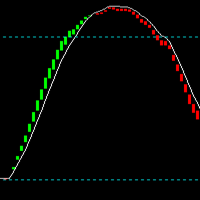
Top Bottom Tracker è un indicatore basato su sofisticati algoritmi che analizza l'andamento del mercato ed è in grado di rilevare i massimi e i minimi del trend / Versione MT5 .
Il prezzo aumenterà progressivamente fino a raggiungere i 500$. Prossimo prezzo --> 99$
Caratteristiche Nessuna riverniciatura
Questo indicatore non cambia i suoi valori all'arrivo di nuovi dati Coppie di trading
Tutte le coppie forex
Timeframe
Tutti i timeframe
Parametri ==== Configurazione dell'indicatore ====

KURAMA GOLD SIGNAL PRO (MT4) — Filtro a 7 livelli · TP/SL automatico · Punteggio di qualità · Salvataggio dello storico dei segnali | Sistema di trading completo per XAUUSD
Nessun ridisegno (repaint) in tempo reale. Nell'istante in cui appare un segnale, freccia, ingresso, TP e SL vengono bloccati sul posto e non si spostano mai più. Ciò che fai tradare è proprio questo segnale in tempo reale. E nella v7.20, ogni segnale realmente inviato viene salvato automaticamente e ripristinato con esattez
Presentazione Quantum Breakout PRO , l'innovativo indicatore MQL5 che sta trasformando il modo in cui scambi le zone di breakout! Sviluppato da un team di trader esperti con un'esperienza di trading di oltre 13 anni, Quantum Breakout PRO è progettato per spingere il tuo viaggio di trading a nuovi livelli con la sua strategia innovativa e dinamica della zona di breakout.
Quantum Breakout Indicator ti fornirà frecce di segnalazione sulle zone di breakout con 5 zone target di profitt

Trade Manager per aiutarti a entrare e uscire rapidamente dalle operazioni calcolando automaticamente il tuo rischio. Incluse funzionalità che ti aiutano a prevenire l'eccessivo trading, il vendetta trading e il trading emotivo. Le operazioni possono essere gestite automaticamente e i parametri di performance del conto possono essere visualizzati in un grafico. Queste caratteristiche rendono questo pannello ideale per tutti i trader manuali e aiuta a migliorare la piattaforma MetaTrader 4. Suppo

EA Gold Stuff è un Expert Advisor progettato specificamente per il trading di oro. L'operazione si basa sull'apertura degli ordini utilizzando l'indicatore Gold Stuff, quindi l'EA lavora secondo la strategia "Trend Follow", che significa seguire la tendenza.
I risultati in tempo reale possono essere visualizzati qui. Puoi ottenere una copia gratuita del nostro indicatore Strong Support e Trend Scanner, per favore scrivi in privato. M Contattami subito dopo l'acquisto per avere le impostazio

XGen Scalper MT4 - Sistema di trading automatico professionale
XGen Scalper è un Expert Advisor all'avanguardia che combina un'analisi tecnica comprovata con una struttura algoritmica avanzata per offrire risultati coerenti su tutti i mercati. Questo potente sistema di trading funziona senza problemi su coppie forex, metalli preziosi come oro e argento, criptovalute e indici delle materie prime.
Tecnologia algoritmica avanzata
L'algoritmo di scansione delle onde brevettato elabora i dati di

TickSniper per MetaTrader 4 — scalper ad alta velocità con adattamento automatico dei parametri Un Expert Advisor completamente automatico, progettato per adattare i propri parametri operativi a ogni coppia di valute senza richiedere configurazioni manuali complesse. TickSniper per MetaTrader 4 è stato creato per i trader che desiderano un sistema veloce, intelligente e praticamente pronto all’uso, senza perdere tempo nell’ottimizzazione manuale di decine di impostazioni per ogni strumento. L’E