Ultra Charts Trader
- Utilità
- Versione: 2.0
- Aggiornato: 29 gennaio 2026

Interactive Trader - Advanced Visual Trading Panel for MT5
Interactive Trader is a comprehensive visual trading solution that enables traders to execute and manage trades directly from the chart using an intuitive graphical interface. This Expert Advisor combines one-click trading with advanced order management capabilities, making professional trading tools accessible through simple mouse and keyboard controls.
Core Features
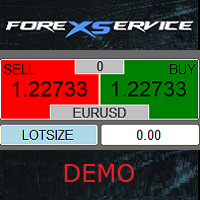
Visual Trading Interface - Clean, customizable trading panel with real-time bid and ask price display overlaid directly on trading buttons for instant market awareness.
One-Click Market Execution - Execute market buy and sell orders instantly with pre-configured stop loss and take profit levels based on ATR calculations.
Interactive Order Lines - Visual representation of all pending orders and open positions directly on the chart with drag-and-drop adjustment capabilities.
Keyboard Shortcuts - Quick order placement using hotkeys for limit and stop orders at current mouse position, plus panel visibility toggle for distraction-free chart analysis.
Intelligent Symbol Detection - Automatically identifies and trades on the correct broker symbol, even when using custom chart symbols, ensuring seamless compatibility with alternative chart types.
Real-Time Order Monitoring - Continuous synchronization with account status, automatically detecting filled pending orders, closed positions, and externally modified trades.
Trading Capabilities
Market Orders - Instant buy and sell execution with automatic stop loss and take profit placement based on customizable ATR multiplier settings.
Pending Orders - Place stop and limit orders at any price level using keyboard shortcuts or visual interface, with automatic price validation and adjustment.
Position Management - Modify stop loss and take profit levels for both pending orders and open positions by dragging visual lines on the chart.
External Trade Sync - Automatically detects and displays positions and pending orders opened from other charts or platforms, enabling centralized visual management.
Duplicate Prevention - Smart validation prevents accidental duplicate orders, maintaining clean order management.
Visual Order Management
Interactive Line System - Each order displays three draggable lines representing entry price, stop loss, and take profit levels with color-coded visualization.
Selective Editing - Click any line to enter edit mode with confirmation and cancellation buttons, allowing precise adjustments before committing changes.
Real-Time Validation - Automatic price validation ensures stop loss and take profit levels remain on the correct side of entry price during modifications.
Visual Feedback - Different line styles distinguish between pending orders (dashed) and open positions (solid), with color coding for buy (blue) and sell (red) trades.
Order Placement Methods
Mouse-Based Placement - Click trading buttons for instant market execution, or use keyboard shortcuts to place pending orders at current mouse position.
Limit Orders - Press L key to place a buy limit below current price or sell limit above current price at exact mouse cursor location.
Stop Orders - Press S key to place a buy stop above current price or sell stop below current price at exact mouse cursor location.
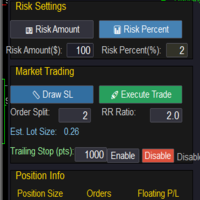
Lot Size Control - Adjustable lot size input with arrow buttons or direct keyboard entry, with automatic validation against broker limits.
Risk Management
ATR-Based Levels - Automatic stop loss and take profit calculation using Average True Range indicator with customizable multiplier for dynamic risk adjustment.
Visual Distance Display - Clear visualization of risk-reward ratio through color-coded stop loss (red) and take profit (green) lines.
Broker Compliance - Automatic validation and adjustment of price levels to meet broker stop level requirements, preventing order rejection.
Flexible Modification - Independent adjustment of stop loss and take profit for each position, supporting various trading strategies.
User Interface
Customizable Colors - Full color customization for all interface elements including background, text, buttons, and order lines to match personal preferences.
Compact Design - Minimal screen space usage with strategically positioned controls that do not obstruct chart analysis.
Price Overlay - Real-time bid and ask prices displayed directly on sell and buy buttons for instant price awareness without chart distraction.
Toggle Visibility - Press T key to hide or show the entire trading panel, enabling focused chart analysis when needed.
Advanced Functionality
Order Type Auto-Detection - Pending order type automatically adjusts when dragging entry line across current market price, converting between stop and limit orders intelligently.
Multi-Order Management - Support for multiple simultaneous pending orders and positions with independent visual controls for each.
Fill Detection - Automatic conversion of pending order lines to position lines when orders trigger, maintaining continuous visual tracking.
Close Position Feature - Click position entry line to access quick close button, enabling fast position closure directly from chart.
Technical Implementation
Symbol Compatibility - Works seamlessly with standard broker symbols and custom symbols created by other tools, automatically mapping to tradable instruments.
Filling Mode Detection - Automatically detects and uses the correct order filling mode supported by the broker, ensuring reliable order execution.
Price Normalization - Automatic price and volume normalization to broker specifications, preventing order rejection due to invalid tick sizes.
Error Handling - Comprehensive error checking with detailed logging for troubleshooting and trade verification.
Usage Instructions
Attach the Expert Advisor to any chart in MetaTrader 5. The trading panel appears in the top-left corner by default. Click buy or sell buttons for instant market execution. Press L or S keys while hovering over desired price levels to place pending orders. Click any order line to enter edit mode, drag to adjust prices, then click the green checkmark to confirm or red X to cancel changes. Press T key to toggle panel visibility.
Keyboard Controls
T - Toggle trading panel visibility
L - Place limit order at mouse position
S - Place stop order at mouse position
Enter - Confirm lot size input
Escape - Cancel lot size input
Customization Options
The Expert Advisor provides extensive customization through input parameters including GUI colors, order line colors and widths, ATR period and multiplier, button positions, and font sizes. All visual elements can be adjusted to create a personalized trading environment.
Support
Product support is provided through the comments section. All questions regarding functionality, configuration, and technical assistance will be addressed promptly to ensure optimal trading experience.