
Market Scanner Workshop checks your signals on many symbols at once and lists the ones where a signal fires right now. You put symbols and signals together in a bucket ("H4 RSI under 30, on my 30 pairs"), and the scanner keeps the list current as bars close: one row per symbol and bucket where a signal fires, with the signals, the broker group and the time it started. A click on a symbol opens its chart. A signal that starts firing can alert you through the Alert window, a sound, a push notification or an email. It places no orders.
Video tutorial: https://youtu.be/nZBGVRwlCh0
The signals are the same signal files and condition cards as in Multi Timeframe Signal Workshop. Everything about the rule language, every name a rule can read, every number it takes and what each one means, is in Multi Timeframe Signal Workshop: rule language and indicator reference. This guide covers the scanner. The companion post, Market Scanner Workshop: scan examples and bucket files, has ready-to-use scans.
The walkthrough follows the nine chapters of the tutorial, from the first start to editing a signal file. The reference sections after it cover buckets, timing, history, inputs and the tester.
Contents
- The first start
- Reading the table
- A bucket of your own
- Choosing symbols
- Building a signal
- Adding a trend filter
- Alerts
- Signal files
- MT4 differences
- Bucket reference
- When a signal fires
- Market Watch and history
- How much the scanner can watch
- Inputs
- The Strategy Tester
- Troubleshooting
Install, attach and remove
After you get the program from the MQL5 Market, it installs under Indicators, Market, in the Navigator (View, Navigator, or Ctrl+N). Drag it onto a chart and click OK in the window that opens.
The scanner takes the whole chart. It hides the candles, the grid and the scales and fills the window with its own screen. Use a chart you do not need for anything else, or open one for it with File, New Chart. Which symbol and timeframe that chart has makes no difference to what the scanner watches, but changing them restarts the scanner (section 11).
To remove it, press Ctrl+I for the Indicators list, pick Market Scanner Workshop and click Delete. The chart's own settings come back. Closing the terminal puts them back too, and the scanner takes the chart again at the next start. If the terminal stopped without closing properly, removing the scanner later still puts the chart's own settings back.
1. The first start
On its first start in a terminal, the scanner writes its own files (section 8):
- Example signals: H4 RSI under 30, H4 RSI over 70 and H4 RSI pullback in daily uptrend (the H4 RSI under 30 while the daily close holds above its 50 SMA).
- Standard signals: H4 price above 21 SMA, H4 price under 21 SMA, H4 MACD cross up and H4 MACD cross down (the MACD line crossing its signal line in the last 3 bars).
- The starter signals Multi Timeframe Signal Workshop ships, such as RSI dip in uptrend and Squeeze breakdown with bearish structure. They are written to read H4, because a scanner has no chart timeframe. To use one on your own timeframe, load it in the signal editor, change each condition's Timeframe to the one you trade and save it under a new name (section 5).
- One example bucket, RSI extremes: the first 100 symbols of your broker's list (all of them on a broker with fewer) with the example signals. When the broker's list has not loaded yet at that first start, the bucket appears as soon as it has.
They are written once per terminal. A signal you edit or delete stays the way you left it.
Market Watch is the list of symbols on the left of the terminal (View, Market Watch, or Ctrl+M), and the terminal downloads prices only for the symbols in it. The example bucket's symbols are mostly not in Market Watch on a fresh terminal, so the scanner adds them there itself and the scan starts on all of the example bucket's symbols (section 12).
Out of the box, alerts go only to the Alert window. With 100 symbols, a state signal such as H4 RSI under 30 can start on several symbols at the same H4 close, each with its own line and sound in the Alert window. Section 7 changes that.
The scanner reads none of Multi Timeframe Signal Workshop's files, and the Workshop reads none of the scanner's. Section 8 says how to move a signal from one to the other.
In the video, the broker offers 94 symbols, so RSI extremes starts with all 94. Your broker's names and the rows that fire will differ.
2. Reading the table
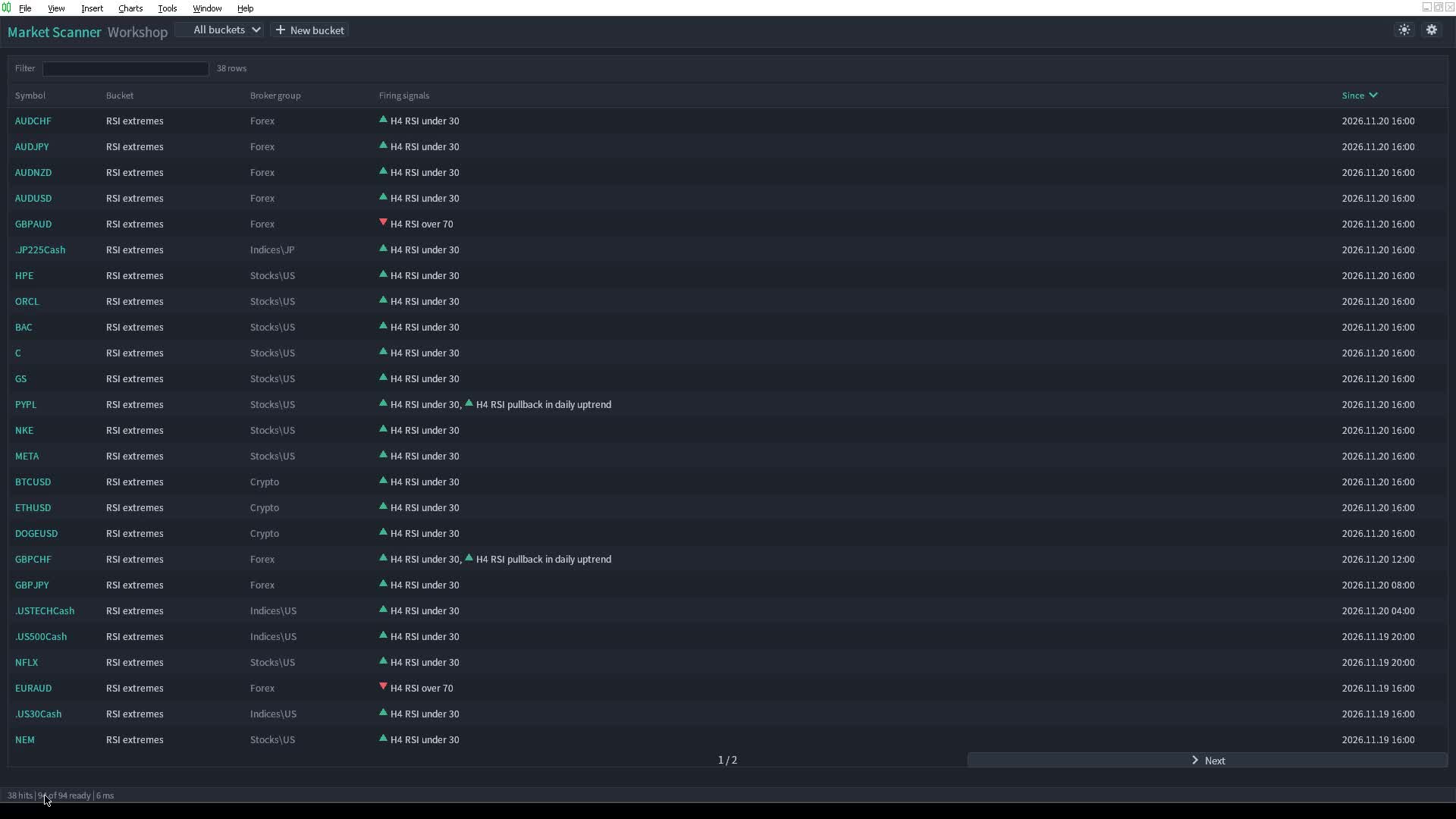
The toolbar runs along the top:
- Market Scanner Workshop, the title.
- The bucket dropdown. It reads All buckets or the name of the picked bucket. It lists All buckets, every bucket, and every bucket file with an error, marked "(does not read)"; picking one of those shows the error in the status line. Type in the open list to filter it; long lists page with Prev and Next.
- New bucket, and Edit and Delete while one bucket is picked.
- A sun or a moon, just left of the cog, which switches between the dark and the light theme.
- The cog at the right end, which opens Settings (section 7).
The table fills the rest of the window, one row per symbol and bucket where at least one of the bucket's signals fires:
| Column | What it shows |
|---|---|
| Symbol | The symbol. A click opens it in a new chart window, on the fastest timeframe of the signals that fire on it, so an M5 signal opens the M5 chart. |
| Bucket | The bucket the row belongs to. A symbol in two buckets can have two rows. |
| Broker group | The symbol's group at your broker, such as Forex\Majors or Metals. |
| Firing signals | The signals that fire, newest first, each after its arrow: up and green for a bullish signal, down and red for a bearish one. Past two it says "+N more". |
| Since | The open time of the bar the newest firing started on, on that signal's fastest timeframe, in server time: your broker's clock, the time Market Watch shows. |
With no bucket the table says "No bucket yet. Click New bucket to make one."; with buckets and no firing signal, "Nothing fires right now."
All buckets shows the rows of every bucket. Picking a bucket shows only its rows; every bucket keeps scanning and alerting whatever you pick.
A click on a column header sorts by it, and a second click flips the order; the sorted header has a chevron pointing the way it sorts. The table starts sorted by Since, newest first. The Filter box above the headers keeps the rows where any column holds the text you type, ignoring case, once you press Enter or click outside the box, and the count beside it says how many it kept ("2 of 14 rows"). It matches the text each cell shows, so in Firing signals it finds the first two signal names, not one hidden behind "+N more". Rows that do not fit go on pages, with Prev and Next under the table. The table fits itself to the window when you resize it.
The status line at the bottom counts hits and symbols: how many are ready, how many are still loading their history, how many failed (section 16). It ends with the time the last pass over every symbol took, in milliseconds, which is usually small and jumps when a bar closes and the signals are worked out. Until the broker's symbol list has loaded, it reads "Waiting for the broker's symbol list" instead. When something needs telling, a note takes the place of the counts until the next pick, save or chart open, such as "Could not open ...", "Majors H4 dips does not read: ...", "Could not delete ...", "Not scanning EURUSD: ...", "Scan not running: ..." or "Settings not saved: ...". A bucket that cannot be saved says so in the bucket dialog instead, which stays open.
The scanner remembers the sort, the picked bucket and the theme between starts.
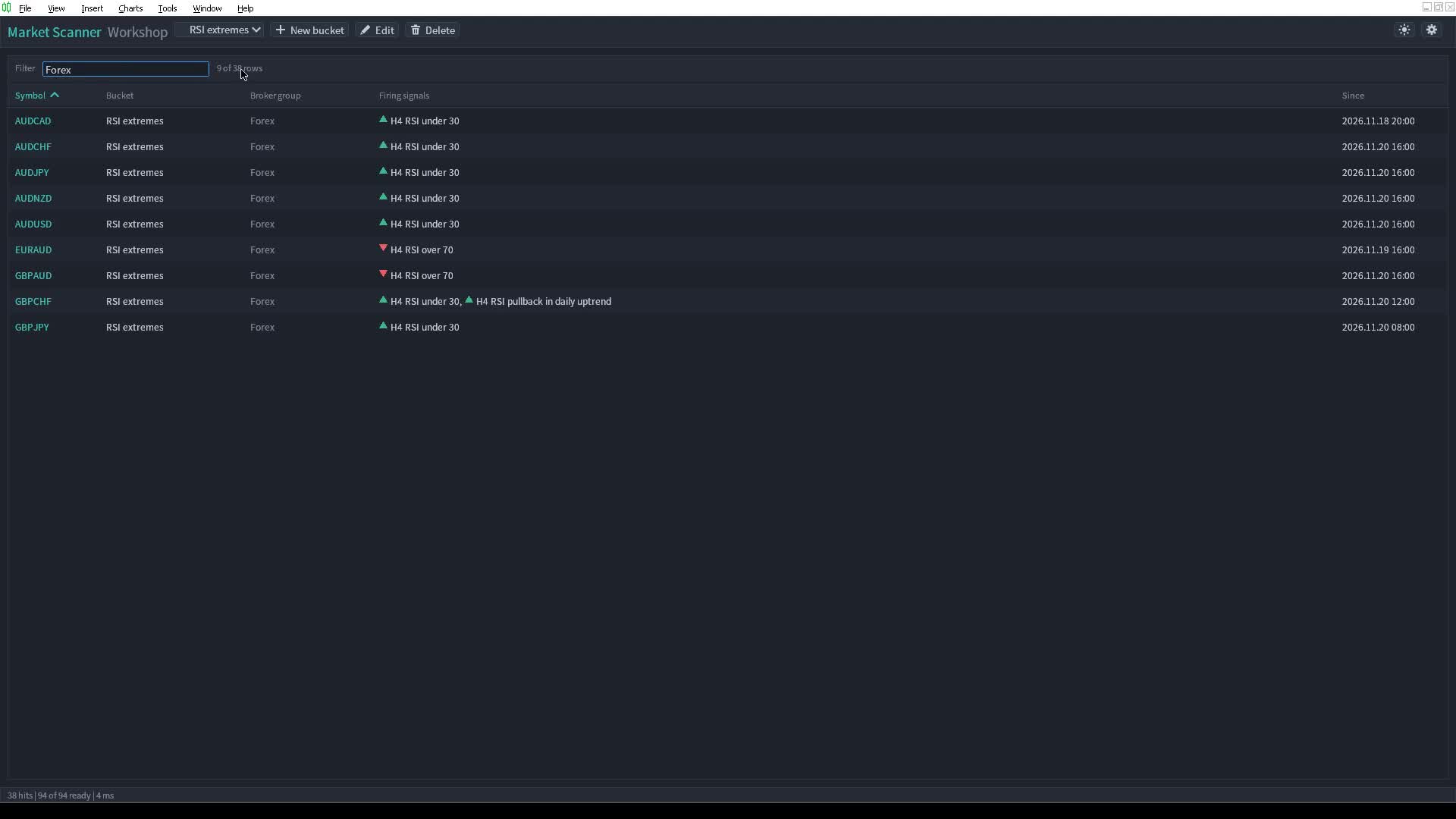
In the video, I pick RSI extremes, sort by Symbol, then type Forex into Filter and press Enter. Only rows containing that text remain.
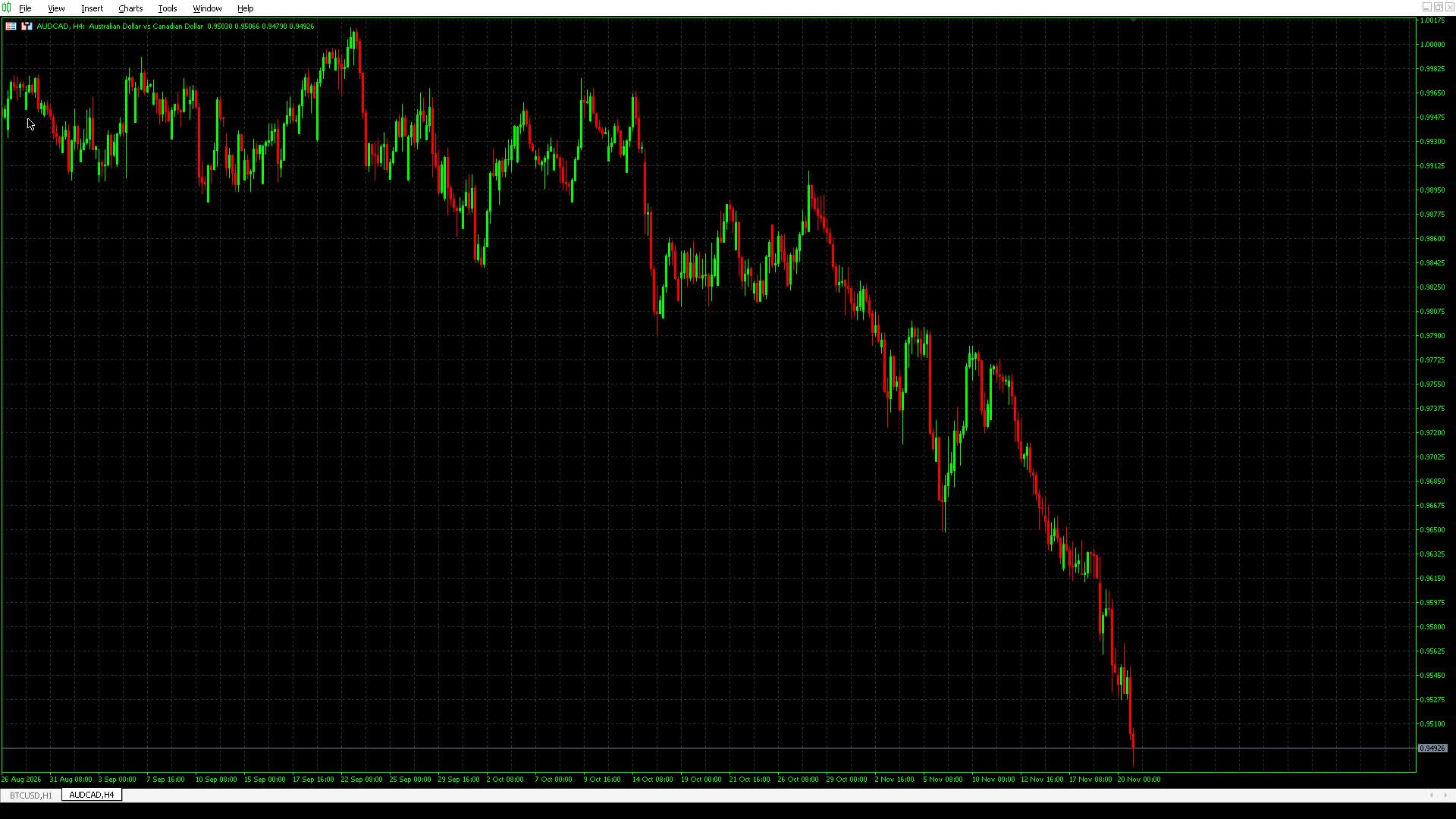
I click a symbol to open its H4 chart. Close that chart with its window close button to return to the scanner, then clear Filter.
3. A bucket of your own
In the video I make Forex pullbacks, using the ready-made rule that checks whether the H4 close is under its 21 SMA.
- Click New bucket on the toolbar and type Forex pullbacks in Name.
- Click Choose symbols. Switch on Forex to pick the whole group. This broker has 28 pairs in it; your broker's groups may differ.

Click Save to return to the bucket. Symbols now says Forex. Click Add signal, type SMA in Load from file, and pick H4 price under 21 SMA. Its bearish marker and H4 price-below-SMA condition appear in the editor.

Click Save at the bottom of the signal editor, then Save in the bucket dialog. The first Save writes the signal and puts it in the bucket. Save to file, beside the name, only writes the signal file and leaves the bucket as it was.
Forex pullbacks is now picked in the toolbar. Its rows show pairs whose last H4 close is below the 21 SMA, each with a red arrow. The rule checks only that relationship; the bucket's name does not add an uptrend test.

The status line counts the scanned symbols as their history loads. An empty table with every symbol ready means the signal fires nowhere right now.
4. Choosing symbols
With Forex pullbacks picked, click Edit, then Choose symbols. In the video I open Forex with +, type USDJPY in Find, switch that pair off and clear Find. Forex now says 27 of 28, and its switch is off because only part of it is picked.
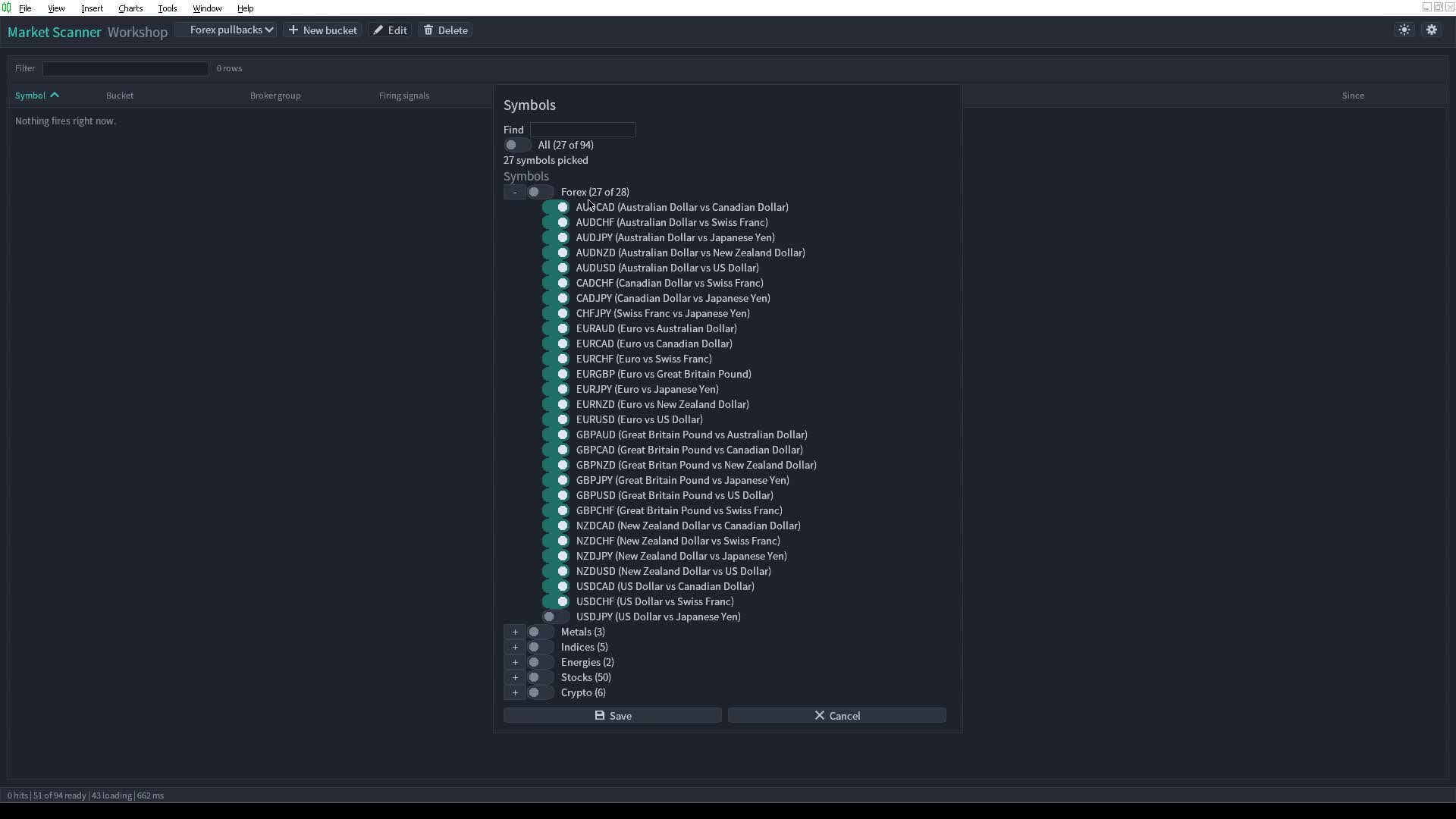
Click Save. The bucket's Symbols line now lists the selected pairs by name, because the whole Forex group is no longer picked. Save the bucket to scan those 27 pairs.

Choose symbols opens the symbol picker in the same window, laid out like MetaTrader's Symbols window:
- Find: type part of a name or a description and the list shows the matching symbols.
- All: every symbol your broker offers. Switching it on picks everything; switching it off empties the list.
- The broker's groups as a tree. + opens a group and - closes it. An open group lists its subgroups and then its symbols, each as "NVDA (Nvidia)" with its own switch.
Every switch shows what is picked:
- A group's switch takes everything under it, on or off.
- A group, and All, show on only when every symbol under them is picked. Switch off one symbol and its group and All turn off.
- A group with some symbols picked shows off and says how many: "Forex (12 of 40)".
A line under the switches counts the symbols picked and how many of them are not in Market Watch yet.
Save returns to the bucket dialog with the picks. It refuses an empty list. Cancel or Escape returns without them.
The bucket keeps the list of symbol names you picked. The groups and All are only how the picker shows that list; they are not saved. So:
- When the broker drops a symbol, the scanner skips it in every bucket and the Symbols line no longer counts it. Its name stays in the bucket file until you save that bucket again.
- When the broker adds a symbol to a group you picked whole, the bucket does not get it. Open Choose symbols and switch it on.
There is no cap on the number of symbols a bucket follows. Past 100 symbols, a red line under All warns that MetaTrader may slow down or freeze, and Save asks first on a page in the same window: Save anyway keeps the picks, Back returns to them. Section 13 says why.
5. Building a signal
Next I add a second signal to Forex pullbacks. Click Edit, then Add signal, and name it M5 stochastic cross up. Leave Marker on Bullish.
Click + Add condition. Set Timeframe to M5, Indicator to Stoch, and the test to %K crosses %D up. Set When to In the last N bars and Bars to 10. The Reads line describes the condition before you add it.
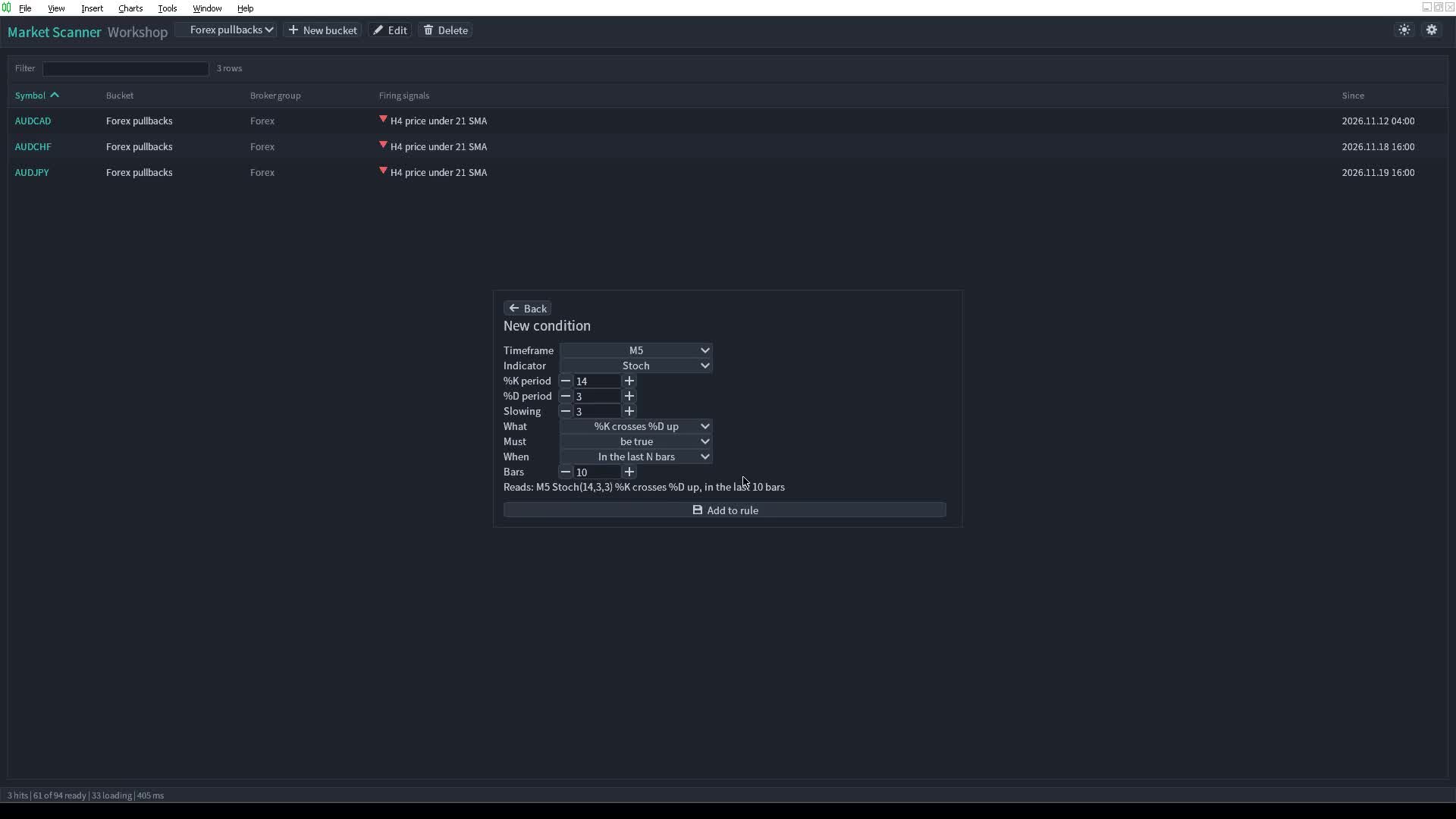
Click Add to rule. The new card sits under All of these. There is one condition so far: the stochastic cross remains valid for 10 M5 bars, including the bar of the cross.
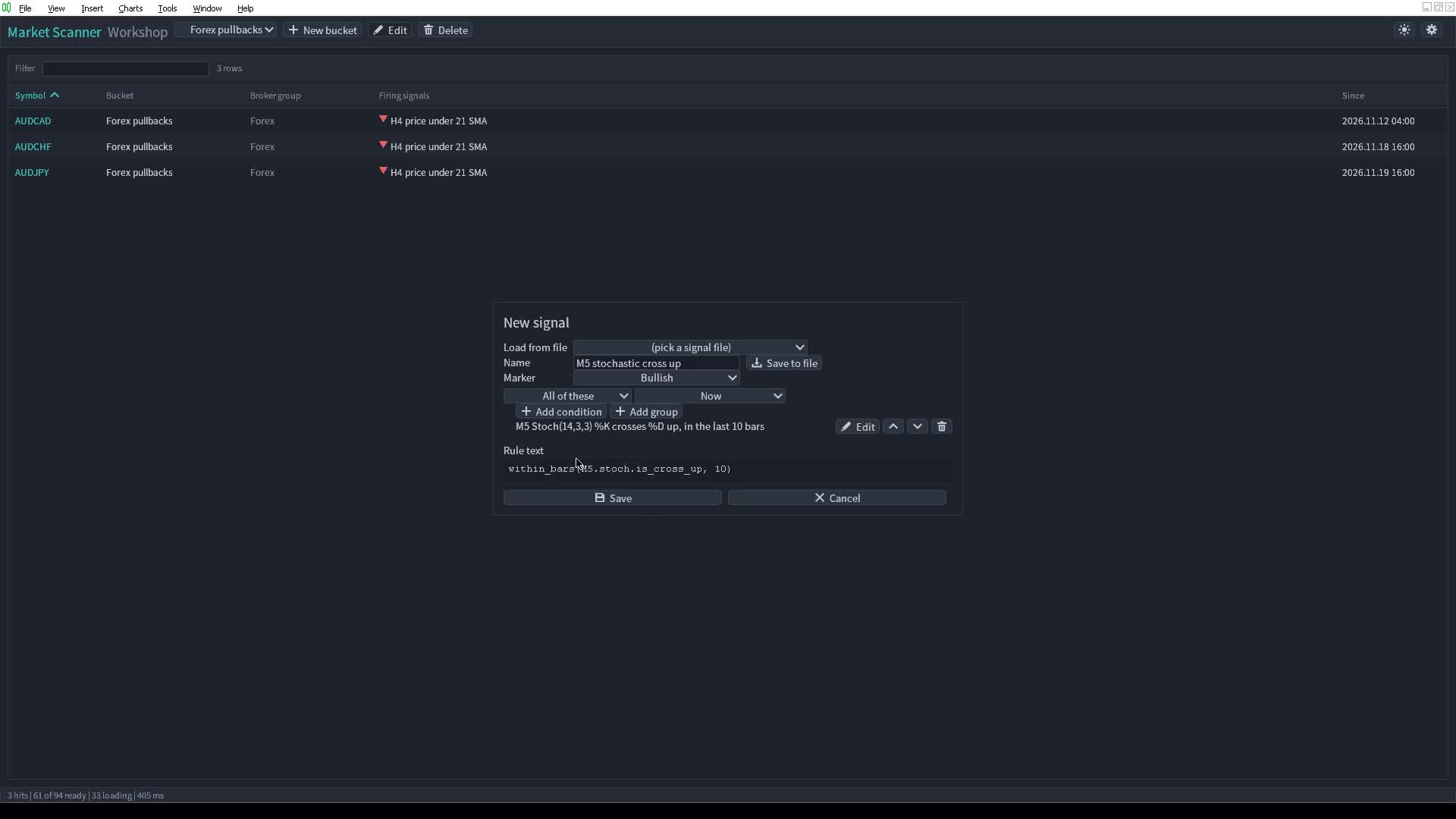
Click Save, then save the bucket. Green-arrow stochastic hits now appear alongside the red-arrow H4 SMA hits. A row can contain both signals.

Signal editor reference
Add signal opens the signal editor of Multi Timeframe Signal Workshop in the same window:
- Load from file: a list of your signal files. Picking one loads its name, its marker and its rule as cards.
- Name, with Save to file beside it, and Delete file while the name is one of your signal files. Save to file writes the file at once. Delete file asks first: click Confirm delete. Every bucket that uses a deleted file then marks the signal "(its signal file is missing)", and it stops firing.
- Marker: Bullish, an up arrow in the table, or Bearish, a down arrow.
- The rule as cards: + Add condition, + Add group, and the condition editor that opens from them.
To build a condition, click + Add condition, pick a Timeframe, an Indicator and a test ("H4", "RSI(14)", "Oversold", 30), and click Add to rule. Cards under All of these must all hold; cards in an Any of these group need one. The condition editor works as in Multi Timeframe Signal Workshop, and that program's user guide walks through it, sections 4 and 5: Multi Timeframe Signal Workshop: user guide for MT5 and MT4.
Two things differ in the scanner:
- Every condition names its timeframe. The Timeframe list runs from M1 to MN1 and starts on H4. There is no Chart, because a scanner has no chart timeframe. Save refuses a signal that reads Chart. A signal file written by hand with Chart in it never runs, and the Experts tab says why (section 16).
- There is no Min bars between signals and no Alerts tab. A scanner signal fires while its rule holds (section 11), and every signal alerts through Settings (section 7).
Save at the bottom writes the signal file and puts the signal in the bucket. It refuses a name another signal file already has, unless that is the signal you opened or the file you just loaded or saved, so it never overwrites a signal you did not open. It also refuses a second signal of the same name in one bucket, and a 21st signal. Saving a signal under a new name writes a new file and leaves the old one in place.
Edit on a card opens the same editor on that signal. A signal file can sit in several buckets; when it does, the editor says that saving changes it in those buckets too.
A signal you saved in the editor stays saved even if you then cancel the bucket dialog: its file was written when you clicked Save, and every bucket that uses it gets the change.
Escape in the signal editor goes back to the bucket dialog without the editor's changes. On the condition editor page it goes back one step, to the signal; with a dropdown open, it first closes the dropdown.
Mixing timeframes in one signal is what a scanner is for. within_bars(M5.stoch.is_cross_up, 2) and H1.ema200.is_above lists every symbol where the M5 stochastic crossed up in the last two M5 bars while the last closed hour sits above its 200 EMA, on all the symbols of the bucket at once. The companion post has more scans written out.
6. Adding a trend filter
Edit Forex pullbacks again, then click Edit beside M5 stochastic cross up. Add a second condition: Timeframe H1, Indicator EMA, Period 200, and Price above. This reads the last closed hourly bar against its 200-period EMA.

Click Add to rule. All of these now requires both cards: a stochastic cross up in the last 10 M5 bars and the last H1 close above its 200 EMA.
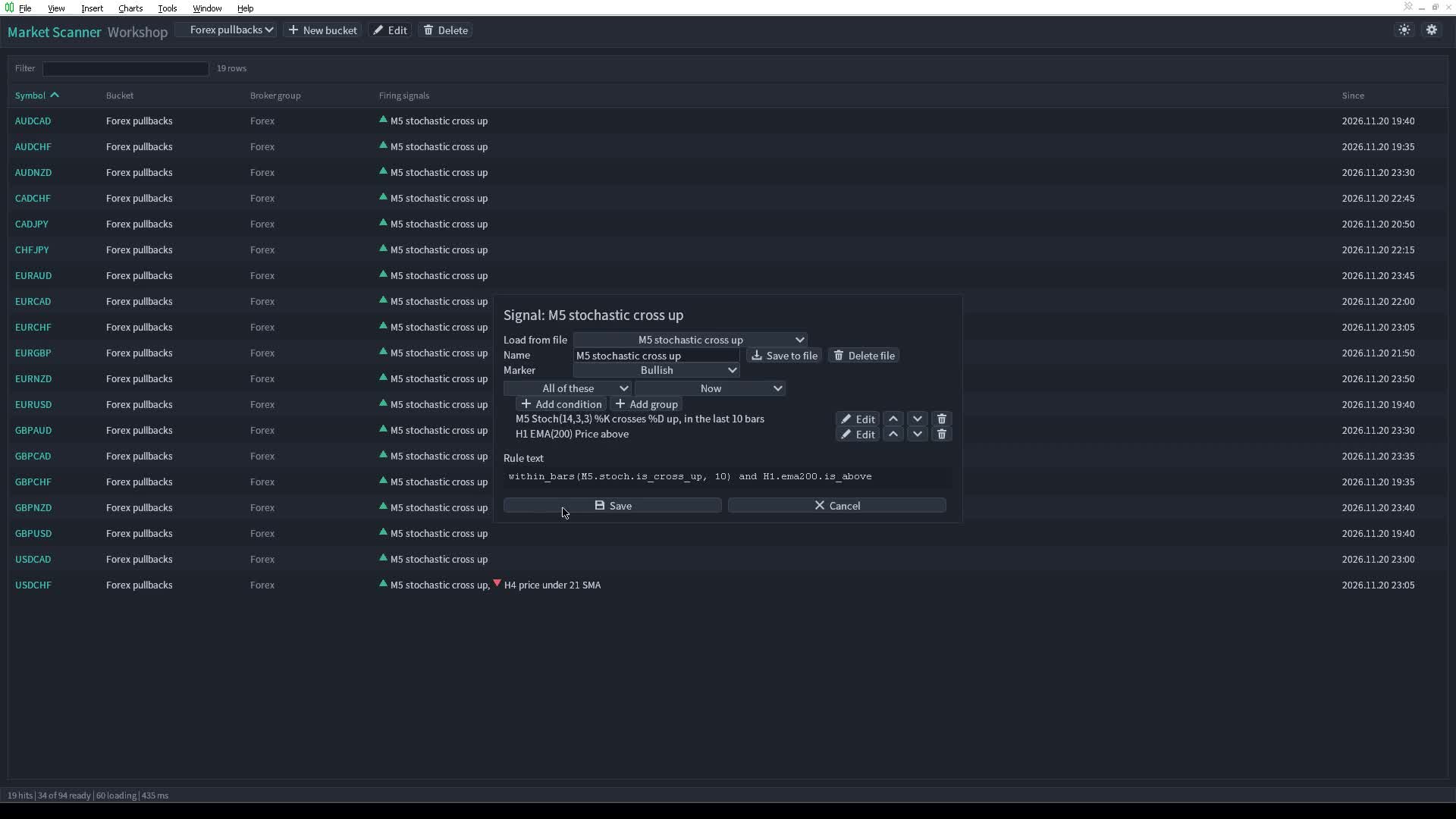
Save the signal and the bucket. Fewer stochastic matches remain. The separate H4 price under 21 SMA signal still runs, so its red-arrow rows can remain even where the stochastic rule no longer holds.

The scanner checks the combined rule at each M5 close. Its H1 part uses the last closed hour. The row holds only while both cards are true; the cross alone lasts 10 M5 bars, normally 50 minutes during continuous trading, unless another cross extends the window. The companion cookbook gives more combinations of timeframes.
7. Alerts
The cog opens Settings with one tab, Alerts, which sets how every signal alerts:
- Alert window: the terminal's Alert window with its sound. On by default.
- Sound: a sound without the window.
- Push notification: to the MetaTrader app on your phone. Set it up in Tools, Options, Notifications, with the MetaQuotes ID the phone app shows.
- Email: to the address set up in Tools, Options, Email.
In the video I switch Sound on, leaving Alert window on and Push notification and Email off.

When you switch push or email on and it is not set up in the terminal, the tab says so. Save applies the channels at once. If writing the settings file fails, the dialog stays open with "Settings not saved: <reason>". The previous alert channels stay active, and you can retry Save. A failed settings write after changing the theme, sort or picked bucket appears in the status line.
A failure from your current action appears in its dialog or the status line. A relevant failure during startup or a reload, such as the scan failing to start or a symbol that cannot be added to Market Watch, appears in the Alert window once for that cause, whatever the Log level. An alert delivery failure also appears there once per channel and cause, with each channel's own reason. This includes a queued push refused later or dropped when the queue fills. Failures that retry without changing what you receive stay in the log.
MetaTrader sends at most 2 push notifications a second and 10 a minute. When more signals start at once, the rest wait, and past 20 waiting the oldest is dropped. Saving Settings keeps pushes already waiting in the queue, including when you turn push off for future alerts. The Alert window, the sound and email have no such limit.
A big bucket with a state signal can start on many symbols at the same close. To keep it quiet, switch the Alert window off and Sound on, or move that signal to a smaller bucket of the symbols you would act on.
When you get an alert
An alert goes out when a signal starts firing on a symbol: on the bar close where its rule turns true after being false on the bar before, on that symbol's own bars of the signal's fastest timeframe.
- While the signal keeps firing, no further alert goes out, however many bars it holds.
- It alerts again only after it stopped firing and started again. On a fast timeframe an event can repeat every few bars; inside within_bars(event, N), a new event while the last one is still within its N bars does not alert again.
- An H4 signal alerts at most once per H4 close on each symbol, an M5 signal once per M5 close.
- Nothing alerts for a signal that was already firing when the scanner read the symbol from scratch (section 11). Those rows show up without an alert, and the next new start alerts.
- When the bar before could not be worked out, because the history was still loading, the first bar that reads as firing does not alert either.
- The same signal in two buckets alerts twice for one symbol, once for each bucket.
The Alert window and a push notification read "Market Scanner Workshop: EURUSD: H4 RSI under 30 fires (RSI extremes)": the symbol, the signal and its bucket. An email has "Market Scanner Workshop" as its subject and "EURUSD: H4 RSI under 30 fires (RSI extremes)" as its text.
8. Signal files
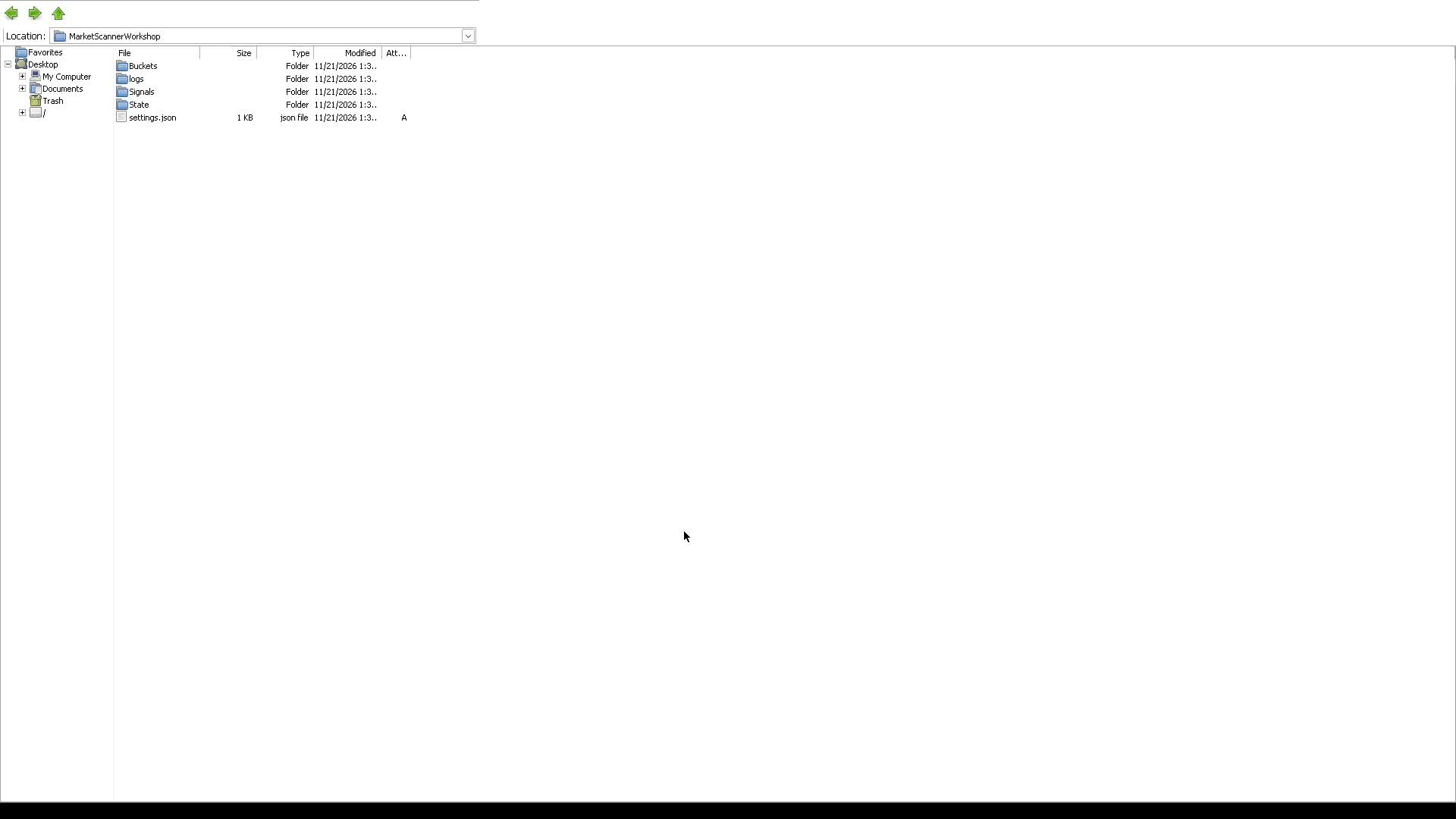
Everything the scanner keeps is text you can read and edit, in the terminal's data directory (File, Open Data Folder), under MQL5\Files\MarketScannerWorkshop\ on MT5 and MQL4\Files\MarketScannerWorkshop\ on MT4:
- Buckets\<name>.json: one file per bucket.
- Signals\<name>.txt: the signal files, every timeframe fixed.
- settings.json: the alert channels, the sort, the picked bucket and the theme.
- State\: what the scanner keeps for itself, the chart settings it changed and the symbols it added to Market Watch. Leave it alone.
- logs\: the daily log files (section 14).
The video opens that directory in the file explorer.
Open Signals, then M5 stochastic cross up.txt in Notepad. This is the signal just built in the editor: marker: bullish, the cross within 10 M5 bars, and the H1 close above its 200 EMA.

Change 10 to 20 and press Ctrl+S. Return to the scanner. The cross now stays valid for 20 M5 bars while the hourly condition holds. The scanner reloads the file without a restart, and its stochastic hits reappear.

Everything the scanner writes is in that one directory. To start over from scratch, remove the scanner and delete the directory; the next start writes the example signals and the RSI extremes bucket again.
The scanner checks the bucket and signal files every 2 seconds and reloads them when one was added, removed or changed, so a file saved in a text editor shows up within a few seconds. It skips the check while one of its dialogs is open, and picks the change up once you close it. A bucket file with an error is listed in the dropdown marked "(does not read)", and picking it shows the reason in the status line; the scanner cannot edit or delete it, so fix it in a text editor or delete it from Buckets. settings.json is read at the start only, and the scanner rewrites it whenever you sort, pick a bucket, switch the theme, save or delete a bucket, or save Settings. A settings file with a JSON error is reported in the Alert window and the defaults are used; a settings file the terminal cannot read at all, or one that is not UTF-8, stops the scanner at the start with the reason in the Alert window.
A signal file is plain text. # lines are comments, marker: bullish or marker: bearish sets the arrow, and the rest is the rule. This is the example signal H4 RSI pullback in daily uptrend:
marker: bullish

# The H4 RSI(14) under 30 while the daily close holds above its 50 SMA.
H4.rsi.is_oversold(30)
and D1.sma50.is_above
A bucket file names its symbols and its signals:
{
  "name": "Majors H4 dips",
  "symbols": ["EURUSD", "GBPUSD", "USDJPY", "XAUUSD"],
  "signals": [
    {"signal": "H4 RSI pullback in daily uptrend"}
  ]
}
A symbol name your broker does not have is left out without a message. The companion post explains both formats and how to write them in Notepad without the file getting the wrong extension.
A signal file from Multi Timeframe Signal Workshop works in the scanner once every Chart. in it is replaced with a timeframe (Chart.rsi.value becomes H4.rsi.value). Copy it into the scanner's Signals directory and it appears in Load from file. A scanner signal file works in the Workshop as it is.
9. MT4 differences
- Reading a symbol takes about four times as long on MT4 as on MT5 (section 13).
- The MT4 Strategy Tester reads only the tested symbol, so there the scanner follows only that symbol of the bucket.
- MT4 can refuse to take a symbol out of Market Watch right after its history was used, so some symbols the scanner added may stay there after you remove it (section 12).
10. Bucket reference
A bucket is a name, the symbols it scans and up to 20 signals it checks them against. Make as many as you like: "Majors H4 dips", "Indices daily breakouts", "M5 entries".
New bucket, or Edit with a bucket picked, opens the bucket dialog:
- Name: the bucket's name, which is also its file's name. At most 64 characters, none of \ / : * ? " < > |, and not starting with a dot. A name another bucket already has is refused, whatever its capitals.
- Symbols: what the bucket scans, then Choose symbols (section 4). A new bucket scans nothing and says "Symbols: No symbols yet".
- Signals: a card per signal with its name, its rule, Edit and Remove, then Add signal (section 5). Remove takes the signal out of the bucket and keeps its file.
The Symbols line shows the picks the way the symbol picker does: "Symbols: All" when every symbol of the broker is picked, a group by name when every symbol in it is picked ("Symbols: Stocks/US, Forex/Majors"), and otherwise the fully picked subgroups and then the picked symbols by name. Pick 49 of 50 stocks and you see 49 names. It takes at most two lines, then says "and N more".
Save writes the bucket. It refuses a bucket with no name, no symbols or no signal, a name longer than 64 characters, starting with a dot or holding a character the list above forbids, and the name of another bucket in any mix of capitals. It says which while the dialog stays open, so nothing you typed is lost. Cancel closes without saving the bucket, and so does Escape.
Delete on the toolbar asks first, with Confirm and Cancel, then removes the picked bucket's file and goes back to All buckets. Its signal files stay, since other buckets may use them.
11. When a signal fires
A signal fires on a symbol while its rule holds on the last closed bar of every timeframe it reads. It never reads a bar that is still open: at 10:35, an H1 part reads the 09:00 to 10:00 bar.
Each signal is checked at every close of the fastest timeframe its rule reads. An M5 signal is checked every five minutes, an H4 signal every four hours, a D1 signal once a day. within_bars(M5.stoch.is_cross_up, 2) and H1.ema200.is_above is checked at every M5 close, with the H1 part taken from the last closed hour; the scanner fetches the H1 bars again only after an hour has closed.
MetaTrader opens a symbol's new bar with that symbol's first tick after the close, and the scanner looks every second, so a row shows soon after the new bar's first tick. A symbol with no ticks right after the close, such as an index outside its session, shows when its next tick comes.
A state holds on every bar it is true, so H4.rsi.value < 30 fires from the H4 close under 30 and stops at the next H4 close at or above 30. An event is true only on the bar it happens, such as M5.stoch.is_cross_up or H4.supertrend.is_flip_up, so a signal made of events alone fires for one bar. Wrap the event in within_bars(..., N), or set When to "In the last N bars" on its card, and it keeps firing for N bars, the event's own bar included: within_bars(M5.stoch.is_cross_up, 3) covers three M5 bars, and within_bars(H4.bb.is_break_up, 3) covers three H4 bars. Those are normally 15 minutes and 12 hours during continuous trading; session gaps extend the elapsed time. The rule language post explains states, events and within_bars in full.
The scanner reads every symbol from scratch at a start and when you change the scanner chart's symbol or timeframe. A rewrite of the source history also makes the affected scan read its history again. A change to a bucket or a signal (a Save, a Delete, a Remove, a file changed in a text editor) keeps what it can. Symbols new to a bucket load on their own while the rest keep their results. A signal added, changed or removed starts over only the signals on its fastest timeframe, in every bucket that has one there. Adding, renaming or deleting a bucket can start a timeframe over the same way when it changes which signals run there or their order. A Save in Settings starts nothing over. The first read covers the last 50 closed bars of each signal's fastest timeframe: about 4 hours of trading on M5, 12 and a half hours on M15, 8 trading days on H4, longer in calendar time over a weekend. A signal that held through all of them shows the oldest of those bars in Since, so the real start can be earlier.
12. Market Watch and history
The terminal loads a symbol's history only while the symbol is in Market Watch. When a bucket has symbols that are not there, the scanner adds them, without asking. A symbol you take out of a bucket, or whose bucket you delete, stays in Market Watch.
The symbols the scanner added are taken out of Market Watch when you remove the scanner from its chart (closing the chart or the terminal keeps them, and the next removal takes them out). The terminal refuses for a symbol whose chart is open, such as one you opened from the table, or one with an open position or order; the scanner does not try again for those. MT4 can also refuse for a symbol whose history was used a moment ago.
13. How much the scanner can watch
The scanner works on a one-second timer and targets a 50 ms scan budget per pass. It checks that budget between symbols, so a symbol already being processed can take longer. A round that needs more time continues on later passes. In a benchmark with RSI and moving average rules over 25 and 50 symbols, a symbol took about 0.3 ms on MT5 and 1.2 ms on MT4; heavier signals take longer. Most passes have no new bar to read and cost much less.
Faster timeframes need fresh calculations more often, and more complex rules can cost more per symbol. Large symbol lists also cost the terminal: it loads and keeps the history of every symbol in Market Watch. That is why the picker warns past 100 symbols, whatever the timeframes.
14. Inputs
Press Ctrl+I, pick Market Scanner Workshop and click Edit to change them.
| Input | Default | What it does |
|---|---|---|
| Log level | Warning | Warning logs only what went wrong, such as why a signal does not run. Information also logs start, stop, saved and deleted buckets, Market Watch changes and opened charts. Debug also logs every symbol's state and every read, for troubleshooting. Error and Fatal log less than Warning. The level changes only what is logged; what goes to the Alert window goes there at any level. |
| Log retention (days, 0 keeps all) | 7 | Days of log files kept, in MarketScannerWorkshop\logs\ (section 8): one .log file per day, named by the server date, one JSON line per message. The Experts tab of the Toolbox (View, Toolbox, or Ctrl+T) shows the same messages while the scanner runs, each as its level in brackets and the message, such as [WARNING] scanner symbol not added symbol="EURUSD" .... |
| --- | --- STRATEGY TESTER --- | A heading for the input below, nothing to set. |
| Bucket in Common\Files (empty: the tester's own files) | empty | Strategy Tester only (section 15). Any name here makes the tester read the buckets and signals from Common\Files and scan every bucket there; the name picks the bucket the table shows. On a chart it is ignored. |
15. The Strategy Tester
The Strategy Tester shows where a bucket's signals would have fired in the past, bar by bar.
- Open the Strategy Tester: View, Strategy Tester, or Ctrl+R.
- Set the program type to Indicators and pick Market Scanner Workshop.
- Pick the symbol, the timeframe and the dates. On MT5 use the Inputs tab; on MT4 open Indicator Properties, then Inputs. Type the bucket's name, without .json, in Bucket in Common\Files. Every bucket you copied there is scanned; the name picks the one the table shows, and a name that matches none shows them all.
- Pick 1 minute OHLC or Every tick as the model on MT5, Control points or Every tick on MT4. On MT5, Open prices only restricts access to lower timeframes and higher timeframes that are not multiples of the tested one, so it is unsuitable for many mixed-timeframe scans.
- Click Start. An indicator test always runs in the visual mode, so the scanner's table shows on the test chart.
The tester runs the indicator in a sandbox that cannot see the terminal's own Files directory. To share your chart's bucket and signal files with it, use the Files directory every terminal on the computer shares:
C:\Users\<your Windows user>\AppData\Roaming\MetaQuotes\Terminal\Common\Files
Paste %APPDATA%\MetaQuotes\Terminal\Common\Files into the address bar of the Windows file explorer to get there. Copy the scanner's Buckets and Signals directories into it, under the same names:
Common\Files\
    MarketScannerWorkshop\
        Buckets\
            Majors H4 dips.json
        Signals\
            H4 RSI pullback in daily uptrend.txt
Copy them again after you change a bucket or a signal on a chart. The tester sends an indicator no clicks, so get the buckets ready on a chart first. With the input empty, the tester reads the files in its own sandbox, where the scanner writes the example signals and the RSI extremes bucket at its first start there, not yours.
In the tester nothing alerts; the alerts go to the tester's Journal. The scanner checks its signals on every tick there, since the tester sends an indicator no timer events.
The MT5 tester loads each other symbol's history from the terminal the first time the scanner reads it. Open those symbols' charts in the terminal first so their history is there.
16. Troubleshooting
The status line gives counts, not names. To see which symbol is loading or failed, set Log level to Debug (section 14) and look in the Experts tab for scan symbol processed lines, which name each symbol and its state on every pass, and scan symbol waiting lines for a symbol whose history is not there yet.
A symbol stays at loading. Its history is not there yet, or not enough of it: the scanner needs 50 closed bars on the signal's fastest timeframe, and waits at loading until they are there. Check that it is in Market Watch. The scanner adds it there, and when the terminal refuses, the Experts log has a line starting [WARNING] scanner symbol not added. Opening the symbol's chart once makes the terminal fetch its history. A bucket whose signals all cannot run because their file is missing, they read Chart or they name no timeframe (see A signal never fires) also leaves its symbols at loading.
A symbol shows as failed. Either the broker has too little history for that symbol on one of the signal's timeframes, for example a newly listed symbol with fewer daily bars than a 200-period average needs, or the terminal refused its data. The other symbols scan normally. Leave that symbol out of the bucket, or keep it and wait until it has enough bars. Keep the signal as it is: its file is shared by every symbol of the bucket.
A signal never fires. The bucket dialog marks a signal whose file is missing. The Experts tab says why a signal does not run, at the default log level: its file is missing, it reads Chart, it names no timeframe, or its rule does not compile. The editor refuses most of these, but a file written by hand can still hold one.
A bucket shows "(does not read)" in the dropdown. Its file has an error. Pick it and the status line gives the reason, such as a missing comma. Fix the file in a text editor, or delete it from Buckets.
A bucket has fewer symbols than you picked, or none. The broker does not have some of the names (renamed, dropped, or a different suffix such as .m), and the scanner skips them. Click Edit: the Symbols line shows what the bucket scans. Pick the symbols again in Choose symbols.
No alerts come. Check the channels in Settings. An alert goes out only when a signal starts firing on a new closed bar (section 7), so a signal that was already firing when the scanner read the symbol stays quiet until it stops and fires again.
A click on a symbol opens no chart. The status line says why, such as the terminal's limit on open charts. Close a few charts and click again.
MetaTrader gets slow. Look at the time at the end of the status line. The reported scan time covers the scan pass, not every cost in the terminal. The terminal itself slows with the number of symbols in Market Watch, since it keeps prices and history for each one, and while it downloads history after many symbols were added. Leave out the symbols you would never trade. Keep your signals and their timeframes as they are.
The Strategy Tester shows nothing. Check that the bucket and its signals are in Common\Files\MarketScannerWorkshop\ and that the input is not empty; with it empty the tester reads its own files instead. On MT4 only the tested symbol is followed.


