Trend Line EA User's guide
Trend Line PRO indicator: https://www.mql5.com/en/market/product/42399
Optimizer Utility: https://www.mql5.com/en/market/product/62574
Manual control, one automatic trading cycle or continuous signal execution — from one MetaTrader 5 panel.
INFINITY Trend Line EA brings Trend Line signals and position management together. Choose your level of involvement, configure up to three take-profit targets and monitor the remaining positions directly on the chart.
This overview describes the MT5 EA version 3.4. Illustrations are explanatory schematics with example values, not live trading results.
One strategy, three ways to trade
You may want to choose every entry yourself, automate a single opportunity or let the EA process subsequent eligible signals. TL EA provides a separate mode for each workflow.
Manual — you choose the entry
Select Manual, enter the order volume in the panel and click BUY or SELL. Each click sends one trading request. The EA continues to apply its protective levels and programmed exit logic, including opposite-signal exits.
The first three successful entries in a manual sequence use the TP1, TP2 and TP3 coefficients respectively. Additional entries have no assigned TP. The sequence resets after all the EA's positions have closed.
SemiAuto — one cycle at a time
Select SemiAuto to let the EA handle one signal cycle automatically. Once all its positions have closed, new entries pause. Click Resume entries when you want to prepare for the next new signal.
AutoTrade — process new signals automatically
Select AutoTrade to process eligible new signals while entries are enabled. Entries still depend on the selected direction, time and higher-timeframe filters, trading permissions and broker conditions.
Automatic entries use closed signal candles. On normal startup, the EA waits for a new signal rather than immediately following an old signal already visible on the chart.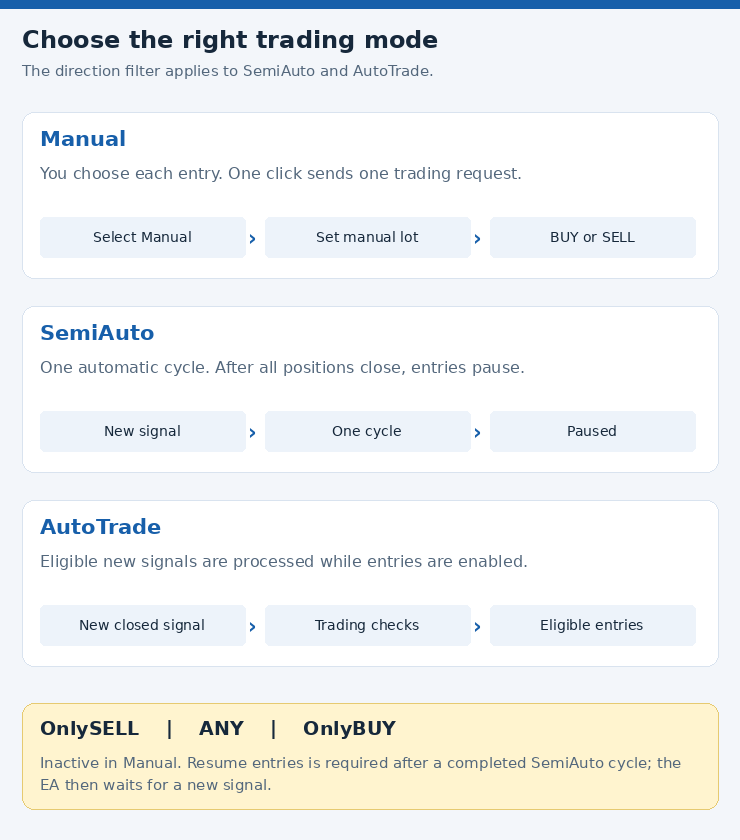
Keep position management on the chart
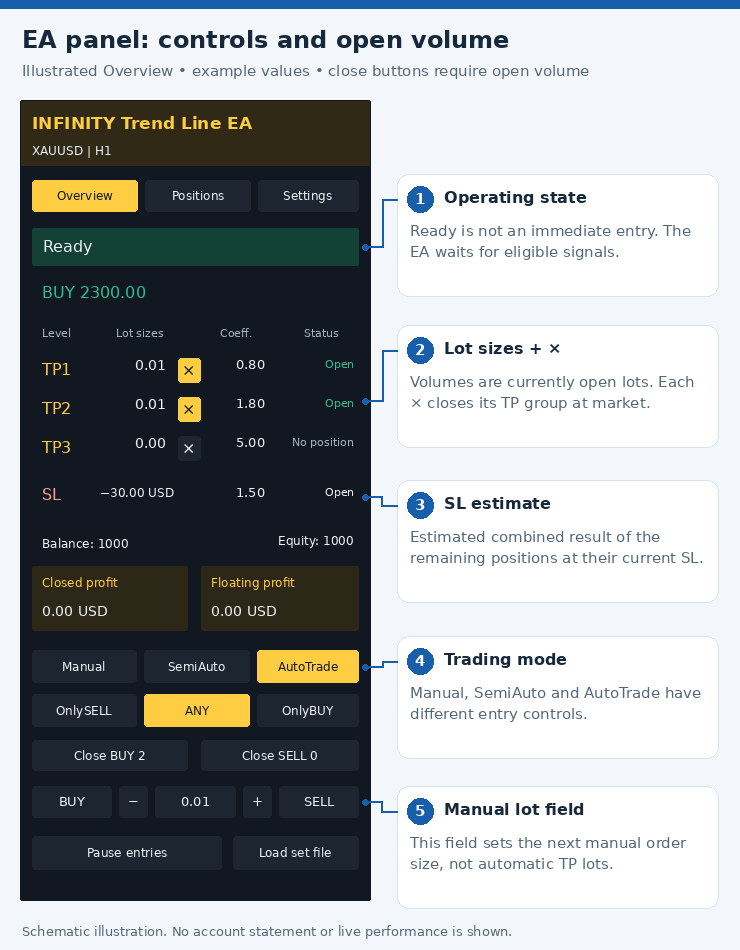
The Overview tab shows the operating state, open TP volumes, target coefficients and position status. The Positions tab provides entry and protective-level details. Settings identifies the active parameters and profile.
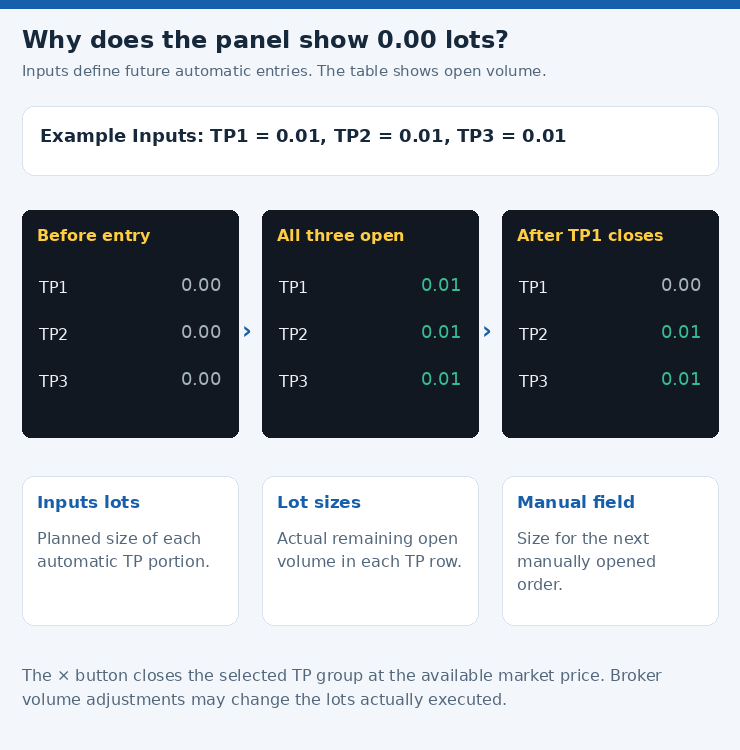
The TP rows show the volume that remains open. A value of 0.00 means that no volume is currently assigned to that target; it does not mean that your configured lot setting has disappeared.
The SL row estimates the combined monetary outcome of the remaining positions if they close at their current SL prices. This value changes as TP portions close. It excludes future commission and slippage; an unavailable calculation may appear as --.
Three targets, separate volume settings
For SemiAuto and AutoTrade, configure Lot size TP1, Lot size TP2 and Lot size TP3 separately. A zero TP coefficient disables that automatic entry portion.
The lot field between − and + serves a different purpose: it sets the volume of the next manually opened order. It does not edit the three automatic lot settings.
Broker minimums, maximums and volume steps still apply. With automatic volume fitting enabled, a requested size below the broker minimum may be raised to the minimum permitted lot.
Close a target group when you choose
Use the × button beside TP1, TP2 or TP3 to close the open volume assigned to that target group for the EA's symbol and Magic number. If several positions belong to the group, the button closes that group. It becomes inactive when there is no open volume.
Close BUY and Close SELL close the EA's positions in the selected direction. These actions use the available market price; they do not wait for a TP level.
Use Pause entries to stop new entries while the existing position-management logic continues. It does not close positions. Resume entries allows new entries again.
Choose the direction and working timeframe
In SemiAuto and AutoTrade, use OnlySELL, ANY or OnlyBUY to control the permitted entry direction. These buttons are inactive in Manual mode because you choose the direction with BUY or SELL.
The default Working timeframe = current follows the chart timeframe. You can also select a specific working timeframe in Inputs. There is no forced H1 restriction.
Optional entry-time and higher-timeframe filters help define which signals are eligible. Entry times use the broker server clock; the time window does not force existing positions to close at its end.
From optimization to execution
TL EA works alongside Trend Line PRO and Optimizer Utility:
- Trend Line PRO provides a visual view of signals, levels and calculated historical statistics.
- Optimizer Utility searches the selected parameter ranges and exports a chosen profile.
- TL EA applies the selected parameters to trading and manages its positions.
The EA has its own embedded calculation module. The main indicator does not need to be attached to the chart for the EA to receive signals.
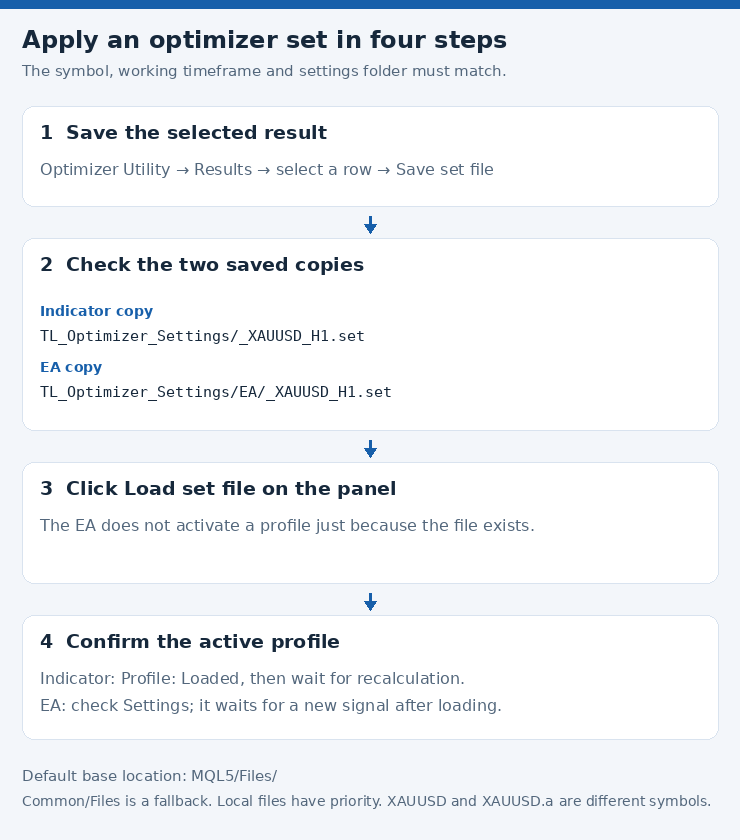
To apply an optimizer result:
- Optimize the required symbol and working timeframe.
- Select the desired result and click Save set file.
- Confirm that the optimizer and EA use the same settings folder.
- Click Load set file on the EA panel.
- Check the applied profile and parameters on Settings.
A saved file is applied only after you click Load set file. Until then, the EA uses its Inputs. Match the symbol exactly, including broker suffixes, and match the EA's working timeframe. After a restart or Inputs change, verify the active profile and load it again if necessary.
Loading a profile retains the levels of existing positions. The EA waits for a new signal for subsequent entries.
Before your first trading session
Attach the EA to the required chart, review TP/SL and volumes, enable Algo Trading, select the trading mode and check that entries are not paused. Use distinct Magic numbers for independent EA instances on the same symbol.
On netting accounts, TP portions are tracked virtually: the EA and terminal must remain running with trading enabled for those target exits to work. The common protective SL is held by the broker.
Test the chosen configuration on a demo account before live use. Optimization and indicator statistics are historical calculations; actual trading results depend on execution prices and costs, and profitability is not guaranteed.
Explore the Trend Line tools
- Trend Line EA for MetaTrader 5
- Trend Line PRO for MetaTrader 5
- Optimizer Utility for MetaTrader 5
- Contact the author on MQL5