

Installation and testing
SmartGoldSniper EA - https://www.mql5.com/en/market/product/206514
Live trading monitoring: https://www.mql5.com/ru/users/bebikovi/seller
Attach the EA to one XAUUSD chart; it runs all systems of both blocks by itself. By default only Block 1 (systems L1–L8) is enabled; Block 2 (systems L9–L18) is switched on in the inputs. Before trading on a real account, test the EA in the Strategy Tester on your broker's quotes.
Installation
- Open your broker's gold chart (XAUUSD, XAUUSD+, XAUUSDm, etc.). Any timeframe works; H1 is the most convenient.
- Drag SmartGoldSniper from the Navigator (Expert Advisors → Market) onto the chart.
- On the Common tab, enable "Allow Algo Trading". The Algo Trading button on the terminal toolbar must be green.
- On the Inputs tab, check the server time zone, the lot and which blocks are enabled (see the sections below).
- A panel appears in the top left corner. The Status line should show trading or the reason for a pause (news, weekend, time before the start of Block 1). Below it, each enabled system (L1, L2 …) is shown with its open positions (Pos), pending orders at the broker (Ord) and today's result.
A VPS close to the broker's server is recommended: the EA watches the price on every tick and manages pending orders and the trailing stop itself, so the terminal must run all the time.
If you run a second copy on the same account, give it a different Magic number. Each copy uses 18 numbers in a row (magic … magic+17), so the ranges must not overlap: for example, 45645 and 46000.
Testing in the Strategy Tester
| Tester setting | Value |
|---|---|
| Symbol | gold of the broker you will trade with |
| Modeling | "Every tick based on real ticks". With "1 minute OHLC" and "Open prices only" the trailing stop is calculated incorrectly |
| Deposit and leverage | as on your account |
| Delays | first "Zero latency, ideal execution", then 200 ms — a slippage check |
| Inputs | the same as for the real account, especially the server GMT offset and summer time |
- The panel is shown in the tester only in visual mode; in normal mode it is turned off for speed.
- The news filter also works in the tester: the news dates are built into the EA.
- Test Block 1 alone first. Enable Block 2 only after a separate test, and then test both blocks together.
Server time zone
All trading times of the EA are set for GMT+2 in winter and GMT+3 in summer, switching by US rules. Most brokers work this way (IC Markets, Vantage, VT Markets, Tickmill, etc.). On such a server the day ends at 17:00 New York time, and news at 8:30 New York time comes out at 15:30 server time.
On a server with another time zone you do not need to change any times: set the server GMT offset and summer time, and the EA converts all times automatically.
What depends on time
- Start time (01:15) and the built-in times of the Block 1 systems: they are set in GMT+2 / GMT+3 and converted to server time.
- The trading day: "Today" on the panel and the daily levels of the systems follow the GMT+2 / GMT+3 day.
- News: FOMC, NFP, CPI and PCE dates are stored in New York time and converted to server time.
All of this uses two inputs: Broker server: GMT offset in winter and Broker server: summer time. A mistake here shifts both the trading times and the news pause.
How to find your broker's time zone
- Look at the time in Market Watch on a working day and compare it with the current UTC time. The difference in hours is the server offset now.
- Ask your broker whether the server time changes in summer and by which rules: US (second Sunday of March — first Sunday of November) or Europe (last Sundays of March and October).
- Pick your row in the table below.
| Server in winter | Server in summer | Broker server: GMT offset in winter | Broker server: summer time |
|---|---|---|---|
| GMT+2 | GMT+3, US switch | 2 | US summer time (default) |
| GMT+2 | GMT+3, EU switch | 2 | EU summer time |
| GMT+3 | GMT+3 | 3 | No summer time |
| GMT+2 | GMT+2 | 2 | No summer time |
| GMT+0 | GMT+1, EU switch | 0 | EU summer time |
| GMT+0 | GMT+0 | 0 | No summer time |
Check
- On a real or demo account the panel compares the setting with the actual server time. If the Server line shows an orange "real GMT+X!", the setting is wrong.
- If the server is not GMT+2 / GMT+3, the panel also shows a Times line with the current GMT+2 / GMT+3 time, and the bottom line shows the start time converted to server time, for example "Trading from 01:15 GMT+2 = 02:15 server".
- The tester has no such check. Run a visual test on a Friday with NFP: on a GMT+2 / GMT+3 server the status should change to "paused: NFP" at 15:00 and return at 16:30. At the same time the M1 chart should show a large news candle at 15:30.
If the server is not GMT+2 / GMT+3
- Set the GMT offset and summer time from the table: the trading times, the trading day and the news are converted automatically.
- Daily and H4 candles depend on the server time zone, so some levels and results will differ from tests on GMT+2 / GMT+3 servers. Be sure to test on this broker's quotes.
Risk management
Risk is set by one parameter, the lot calculation, and it applies to all systems of both blocks. The default is 0.01 lot per each 400 $ of balance; for the first start 0.01 per 1000 $ is safer.
Lot modes (Lot calculation)
- Lot per each N $ of balance (default): lot = Lot × whole number of (balance / N $), not less than Lot. It grows and shrinks in steps with the balance.
- Fixed lot: always Lot.
- Risk % of balance per trade: the lot is calculated from the Stop Loss of each system so that a loss at the stop equals Risk per trade % of the balance. If the result is below the broker's minimum lot, the minimum lot is used and the risk is higher than set. Example: balance 1000 $, risk 0.25 % = 2.5 $, stop 9 $ → lot 0.003 is needed, 0.01 will be used.
| Balance | Lot: 0.01 per 400 $ | Lot: 0.01 per 1000 $ |
|---|---|---|
| 400 $ | 0.01 | 0.01 |
| 1 000 $ | 0.02 | 0.01 |
| 2 000 $ | 0.05 | 0.02 |
| 5 000 $ | 0.12 | 0.05 |
| 10 000 $ | 0.25 | 0.10 |
How many positions at once
- Each system has its own positions, so the risk adds up.
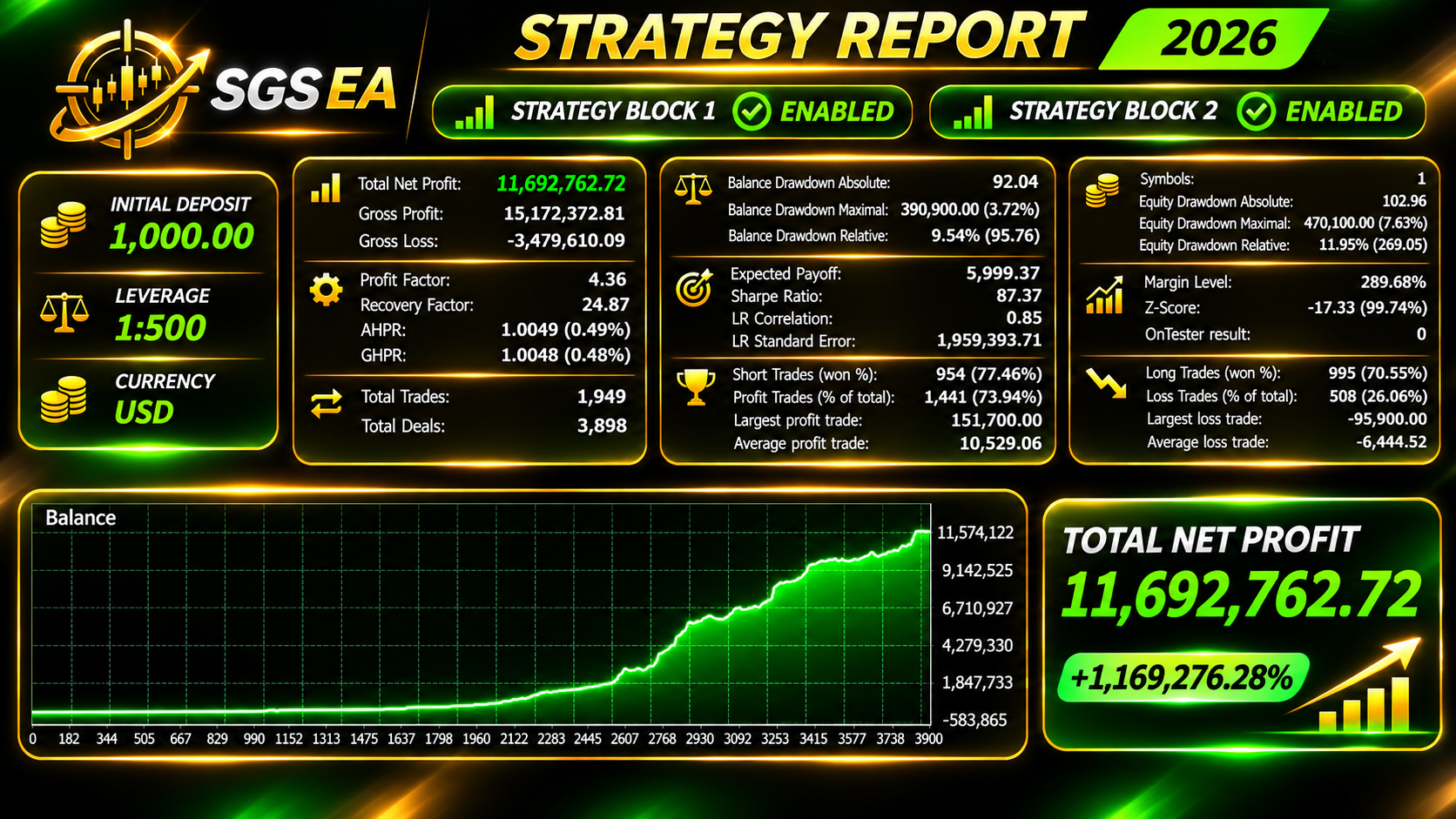
- Block 1 in the 2025–2026 test: usually 1 position was open, 10 % of the time 3 or more, at most 6. The maximum balance drawdown was about 8 % at 0.01 per 1000 $ and about 27 % at 0.01 per 400 $. This is history, not a forecast: on a real account the drawdown can be larger.
- Block 2 adds systems L9–L18. They trade at the same time as Block 1, sometimes near the same price level, so with both blocks enabled there are more open positions and the drawdown is larger. Check it in the tester before enabling Block 2, and consider a smaller lot.
Leverage and margin
- 0.01 lot of gold is 1 ounce. At a price of about 4000 $ the margin for 0.01 lot is: 1:500 — 8 $, 1:100 — 40 $, 1:30 — about 133 $.
- With 1:30 leverage and 0.01 per 400 $, one position takes a third of the balance. Use 0.01 per 1000 $ or less.
- The EA makes sure there is enough margin even if all its orders in one direction trigger: used margin plus the EA's pending orders of that side (both blocks together) stay within 90 % of equity. If a new order does not fit, its lot is reduced; if even the minimum lot does not fit, the order is skipped. Extra pending orders are deleted right after each entry. This is protection against errors, not a substitute for a reasonable lot.
Other risk levers
- News: on a real account keep FOMC and NFP on: at the release the spread and slippage are much larger than in the tester. CPI and PCE are optional. "Also close open positions before the release" closes open positions before the news.
- Block 2: keep it off until you have tested it. The tester report by magic number shows how much each system contributes (L1 = magic, L2 = magic+1 … L18 = magic+17).
- BuyStopShift / SellStopShift: plus means earlier and more frequent entries, minus means later and fewer. They apply to all systems of both blocks. Change them only after testing, in steps of 0.1–0.2 $.
Input parameters
The defaults are for XAUUSD and a GMT+2 / GMT+3 server. Distances are in dollars of the gold price: 1.00 $ = 100 points with two decimal places.
| Parameter | Default | What it does |
|---|---|---|
| General | ||
| Trading enabled | true | when off, the EA places no new orders and only manages open positions |
| Magic number | 45645 | base number: L1 = magic, L2 = magic+1 … L18 = magic+17 |
| Broker server: GMT offset in winter | 2 | server offset from GMT in winter |
| Broker server: summer time | US summer time | server summer time rules: US, Europe or none |
| Info panel | true | panel on the chart |
| Risk management | ||
| Lot calculation | Lot per each N $ of balance | lot mode, see "Risk management" |
| Lot | 0.01 | fixed lot, or lot per each N $ |
| N $ of balance per lot | 400 | balance step for the "per each N $" mode |
| Risk per trade, % | 0.25 | risk per trade for the "risk %" mode, from the system's Stop Loss |
| News filter | ||
| News filter | true | the whole news filter |
| FOMC | true | Fed rate decision, 14:00 New York time |
| NFP | true | NonFarm Payrolls, 8:30 New York time |
| CPI | false | US inflation, 8:30 New York time |
| PCE | false | personal income and outlays, 8:30 New York time, from 2025 |
| Delete pending orders N minutes before the release | 30 | how many minutes before the news to delete all pending orders of the EA |
| Re-place orders N minutes after the release | 60 | how many minutes after the news to place them again |
| Also close open positions before the release | false | also close open positions before the news |
| Entry shift | ||
| BuyStopShift, $ | 0.0 | added to the offset of all Buy Stops of both blocks: + earlier entry, − later |
| SellStopShift, $ | 0.0 | the same for all Sell Stops |
| Block 1 (L1–L8) | ||
| Block 1 enabled | true | systems L1–L8 on/off |
| Start time | 01:15 | from this time (GMT+2 / US summer time) Block 1 places new orders for the day |
| Block 2 (L9–L18) | ||
| Block 2 enabled | false | systems L9–L18 on/off |
- SL and TP are set from the entry price. If the broker's stop level is larger, the EA moves them to the allowed distance.
- The EA does not add comments to orders and does not write messages to the journal; each system is identified by its magic number.
- Each copy of the EA uses 18 magic numbers in a row. If you run several copies on one account, their ranges must not overlap.
- On other symbols all $ distances are scaled by price, but the EA is designed and tested only for XAUUSD.