NEWS TRADE ASSISTANT
A chart panel for MetaTrader 5 that puts the next news event, a live countdown, and the trade buttons you need on one screen.
You can use News Trade Assistant on a demo account in live market conditions for free. Prices, spreads, and the economic calendar move the same way they do on a live account, while the orders stay on the demo. That gives you time to learn the panel, try each window, and see how the product feels before you decide to purchase it.
Open a demo in your MetaTrader 5 terminal, attach the assistant to the chart you want to trade, and work through this guide on that account.
Introduction
News Trade Assistant is an Expert Advisor for MetaTrader 5. It sits on the chart of one symbol and shows the economic events that matter for that market, with the time left until the next release.
The news list is the top half of the panel. The trade tools stay pinned at the bottom, so you do not have to scroll away from the countdown to open a ticket, place a breakout, manage open trades, or save a profit and loss rule.
The assistant sends real orders. On a demo account those orders are practice. On a live account they are real. Turn on Algo Trading in the terminal before you expect a button to trade.
Features
- Live news. Read the calendar from the MQL5 economic calendar, or from Forex Factory when you allow its web addresses.
- Filters. Limit the list by currency, impact, and how far ahead you want to look.
- Next event and countdown. The panel names the next event and updates the time remaining every second. A badge marks high, medium, or low impact.
- Light and dark theme. Choose the theme in the inputs, or switch it from the header while the panel is open. You can also collapse the panel.
- Trade Window. See bid, ask, and spread, then send an instant buy or sell, or a buy stop, sell stop, buy limit, or sell limit, with lot size, distance, stop loss, and take profit.
- Break Out. Place a buy stop and a sell stop together, at the distance and lot you set.
- Manage Position. See buy, sell, and total profit on this symbol, close trades, move stops to break even, or turn on a trailing stop.
- Money Management. Save a profit target and a loss limit in dollars for each symbol. The saved rules close the open trades on that symbol when the floating result reaches the amount.
- Clear notes. Actions report the result in a message box. Close buttons ask Yes or No, unless you turn on immediate action in Manage Position.
Set up and start on MT5
- Install News Trade Assistant so it appears under Expert Advisors in the Navigator.
- Log in to a demo account if you are testing, or to the account you intend to trade.
- Open the chart of the symbol you want. The assistant works on the symbol of the chart it is attached to. EURUSD and GBPUSD are two separate charts.
- Drag News Trade Assistant onto that chart.
- On the Common tab, allow algo trading for this expert.
- On the Inputs tab, set the options in the table below, then press OK.
- Turn on the Algo Trading button in the MetaTrader toolbar. If it is off, the panel still shows news, and trade buttons reply that algo trading must be on.
| Input | What it does |
|---|---|
| Theme | Light or dark when the panel first opens. You can switch it later from the header. |
| News source | MQL5 calendar, or Forex Factory. You can also switch the source on the panel. |
| Panel X and Panel Y | Where the panel opens on the chart. You can drag it after that. |
| Lot size | Starting lot for Trade Window and Break Out. The plus and minus buttons follow the symbol's volume step. |
| Distance in points | Starting distance for pending orders, stop loss, take profit, and the trailing stop. One point is the symbol's point size. |
| Magic number | The number written on orders this assistant sends. Close and manage buttons still act on every open position of the chart symbol. |
After you attach it, the countdown starts moving. Drag the panel by its header. Drag each extra window by its title bar, and close it with the X.
If you compile or replace the file, remove the expert from the chart and attach it again so MetaTrader loads the new build.
The main panel
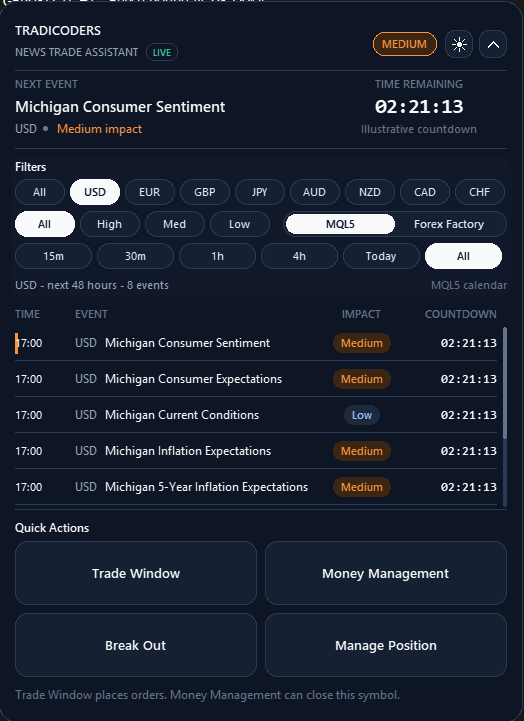
The header shows TRADICODERS and the product name, a live or sample marker when a feed is connected, and the impact badge for the next visible event. The sun and moon button switches the theme. The other header button collapses the panel.
The hero block names the next event and centers the time remaining. Under that, three filter rows narrow the list:
- Currency: All, USD, EUR, GBP, JPY, AUD, NZD, CAD, or CHF.
- Impact: All, High, Med, or Low. The news source switch, MQL5 or Forex Factory, sits on this row.
- Time window: 15m, 30m, 1h, 4h, Today, or All. All looks about 48 hours ahead. The panel opens on the next 30 minutes.
A quiet half hour can show "No events" even when the feed is live. Widen the time window or set the currency and impact to All.
The table columns are TIME, EVENT, IMPACT, and COUNTDOWN. Scroll the list with the mouse wheel while the pointer is over the panel. The status line under the filters tells you which source is active and how many events match.
Quick Actions
Four buttons stay at the bottom of the panel:
- Trade Window opens the order pad.
- Money Management opens the profit and loss rules.
- Break Out opens the two-pending-order window.
- Manage Position opens the position window for this symbol.
The note under the buttons is a short reminder of what Trade Window and Money Management do. Each window floats on the chart. Click a window to bring it to the front. Lot size and distance are shared by Trade Window and Break Out. If both are open, the one in front is the one that is read.
Trade Window
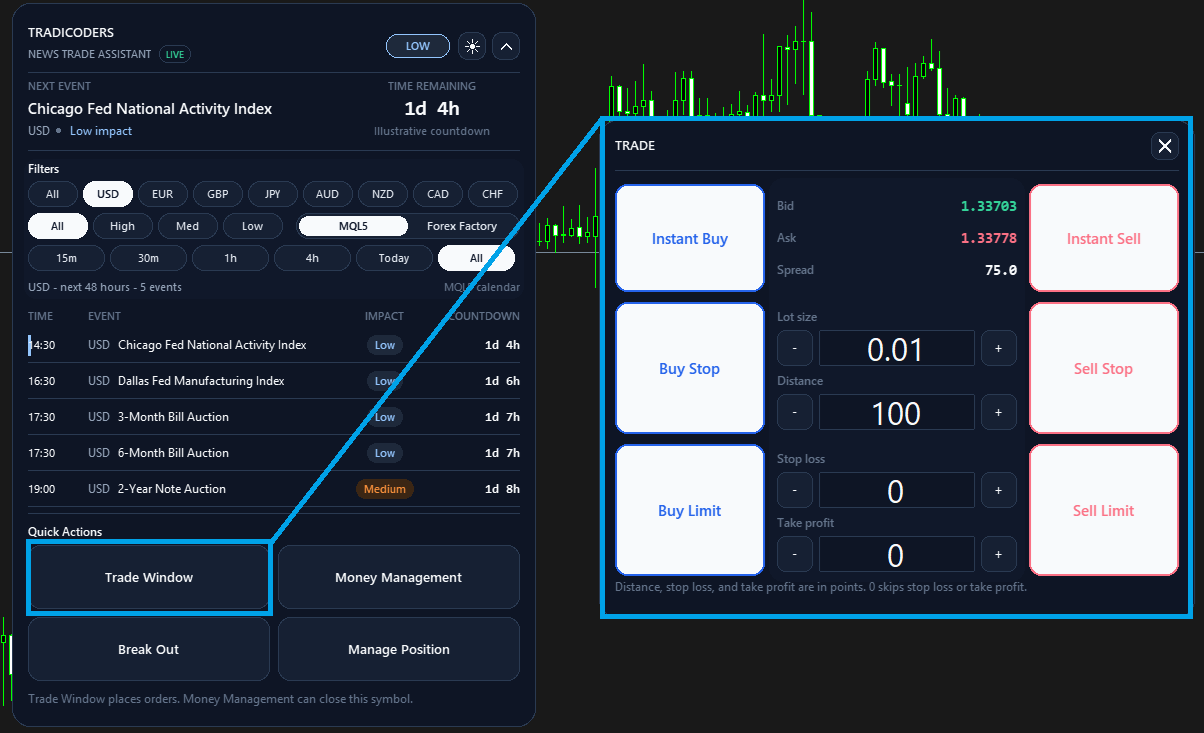
The center shows Bid, Ask, and Spread. Under those are four fields, each with minus and plus:
- Lot size
- Distance, in points. Each click changes it by 10, and it cannot go below 1.
- Stop loss, in points. 0 means no stop loss. Each click changes it by 10.
- Take profit, in points. 0 means no take profit.
You can also type a value in the box. The new value is used after you finish editing.
Around the center:
- Instant Buy and Instant Sell open a market position at the current ask or bid.
- Buy Stop is placed above the ask by the distance. Sell Stop is placed below the bid by the distance.
- Buy Limit is placed below the ask by the distance. Sell Limit is placed above the bid by the distance.
These buttons act immediately and then show a message box with the result. They do not ask Yes or No first. If the broker's stop level rejects the price, the message explains that the order is inside the stop level. Increase the distance and try again.
The note under the window reminds you that distance, stop loss, and take profit are in points, and that 0 skips stop loss or take profit.
Break Out
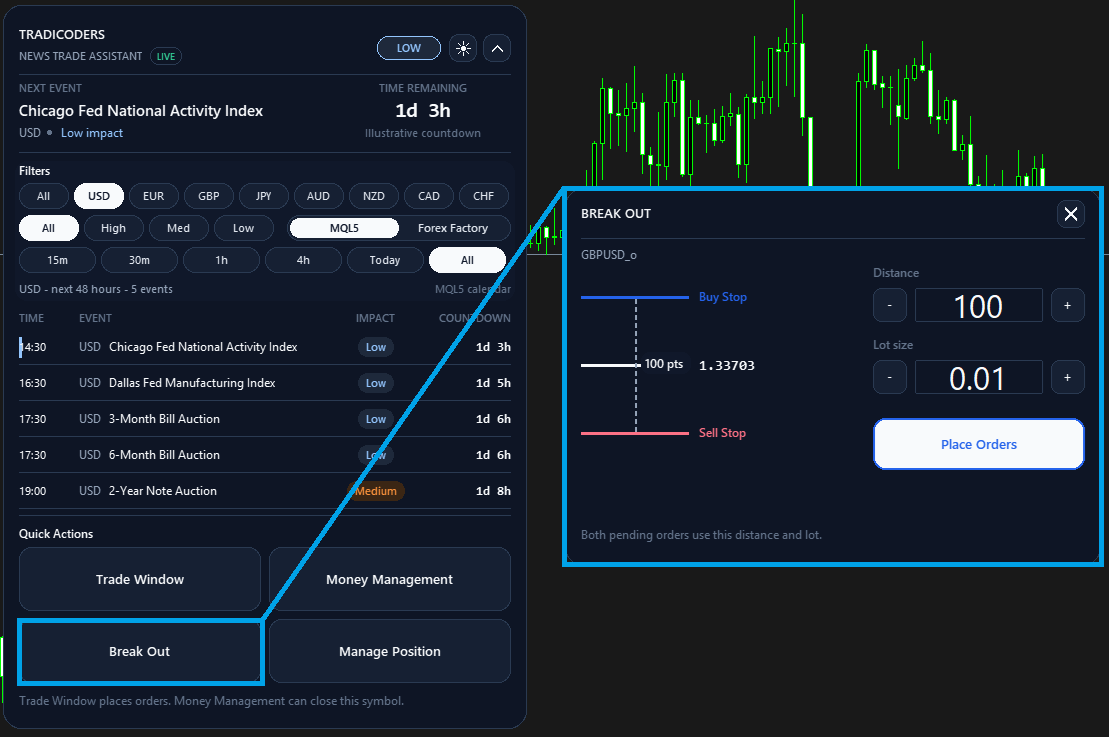
The left side is a fixed diagram. A blue line is labeled Buy Stop, a red line is labeled Sell Stop, and the middle line is the current bid. The text beside the dashed line shows the distance you have set. Changing the distance updates that label. The lines themselves stay in place.
On the right, set Distance and Lot size with the minus and plus buttons, or type the value. Place Orders sends both pending orders: a buy stop above the market and a sell stop below it, using that distance and lot.
Place Orders is immediate. A message box tells you what was sent. The note under the window says that both pending orders use this distance and lot.
Manage Position
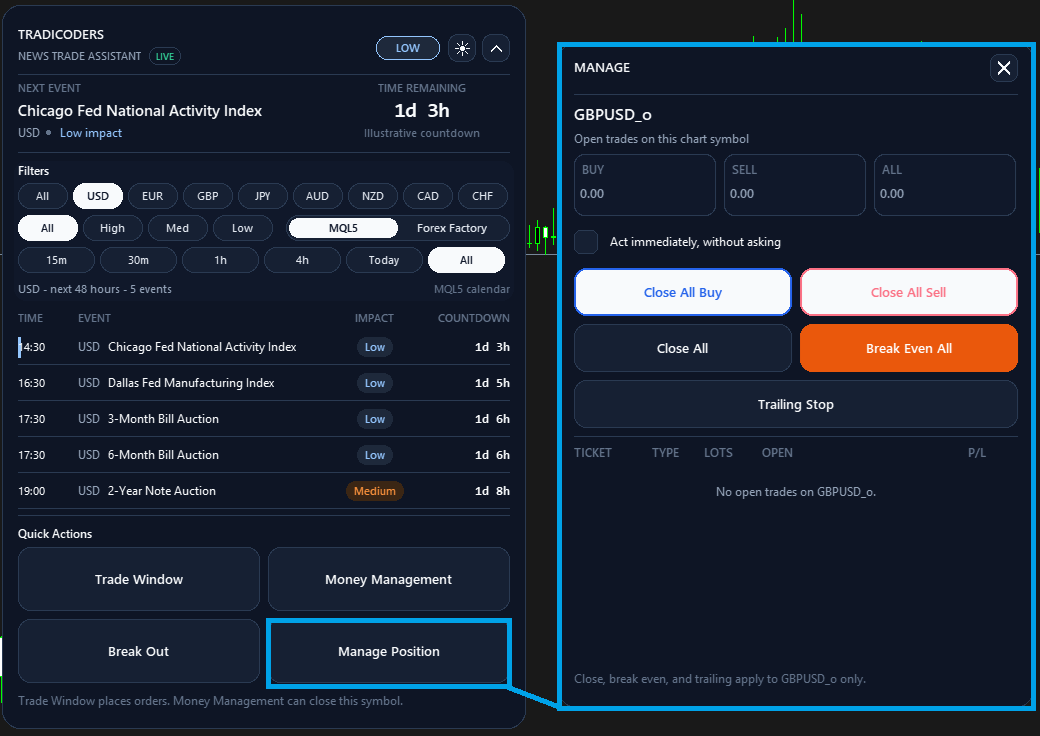
This window manages open positions on the chart symbol only. It shows the symbol, then three cards for BUY, SELL, and ALL floating profit, including swap.
Above the buttons is the checkbox Act immediately, without asking.
- When it is off, Close All Buy, Close All Sell, Close All, and the close mark on a single row ask Yes or No before they close anything.
- When it is on, those close buttons act at once. No question box appears.
Break Even All moves the stop loss to the open price when a trade is in profit and the broker allows that stop. Trailing Stop follows price by the current distance in points and only tightens a stop that locks profit. Break even and trailing always act immediately, then show a result message. The trailing label shows the distance it is using. Press it again to turn trailing off.
The table lists ticket, type, lots, open price, and profit. The X on a row closes that ticket. Close All closes open positions. It does not cancel pending orders.
The checkbox is for this session. It is not written into the money file. The note under the window says that close, break even, and trailing apply to this symbol only.
Money Management
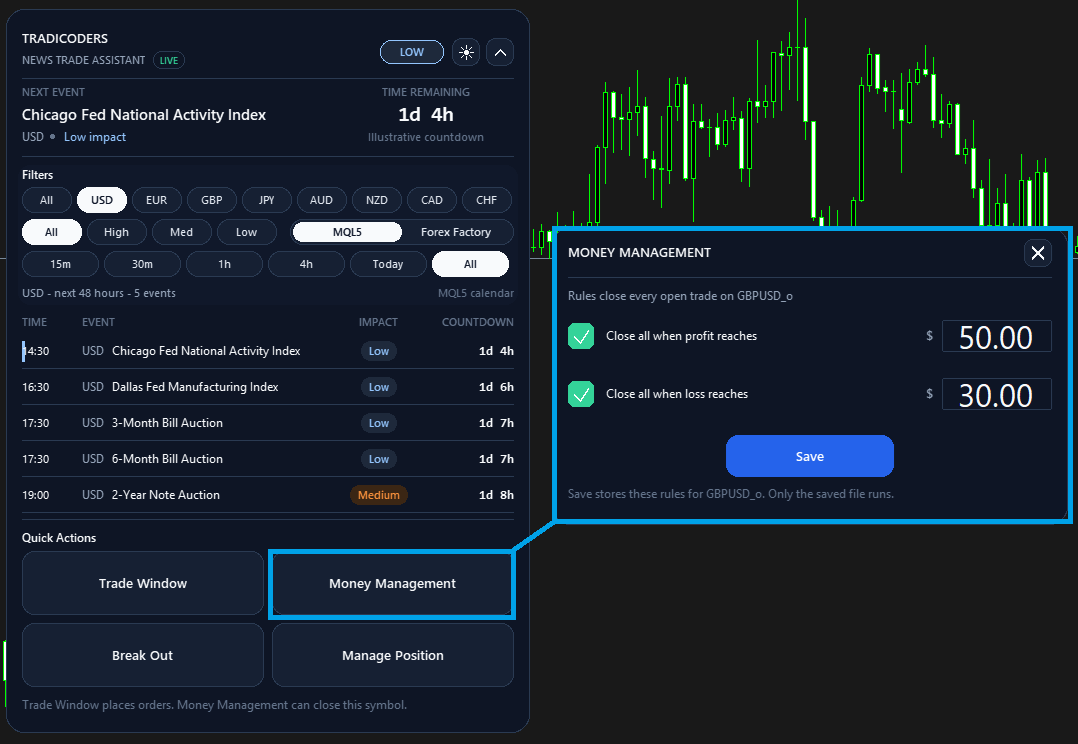
Two rules sit on this window. Each has a checkbox and a dollar amount:
- Close all when profit reaches the amount you type.
- Close all when loss reaches the amount you type.
Press the blue Save button. Saving writes the rules for the current symbol and leaves the rules of other symbols as they are. The file is MQL5/Files/NTA_Money.txt, one line per symbol. A checkbox that you have not saved does nothing.
After a rule is saved, the assistant watches the floating result of open trades on that symbol. If profit reaches the saved amount, it closes them. If the result falls to the saved loss, written as a loss of that many dollars, it closes them. You get a message box when a rule fires.
The note under the window says that Save stores these rules for the symbol, and that only the saved file runs.
News sources
MQL5 calendar
This is the default. The assistant reads the economic calendar built into MetaTrader, from a couple of minutes ago through the next 48 hours. When the feed is connected, the status line says MQL5 calendar and the live marker is shown. If the calendar is not ready yet, the status says it is waiting, and the panel tries again.
Forex Factory
Choose Forex Factory on the impact row. MetaTrader only downloads a website that you have allowed. The first time you choose this source, a message box tells you the result.
If the address is not allowed yet, open Tools, Options, Expert Advisors, tick Allow WebRequest for listed URL, and add both of these lines:
The calendar page itself does not download cleanly into MetaTrader, so the panel reads Forex Factory's weekly calendar file from the second address. After both addresses are allowed, choose Forex Factory again. When the file loads, the message confirms that forexfactory.com is already allowed and the calendar is loaded.
A short practice path
- Attach the assistant to a demo chart and leave the source on MQL5.
- Set the time window to 4h or All so you can see events, then switch back to 30m when you want the near list.
- Open Trade Window, set a small lot, leave stop loss and take profit at 0 or at a distance your broker accepts, and send one instant order.
- Open Manage Position, look at the profit cards, and close that practice trade.
- Open Break Out, set the distance, and place the two pending orders. Delete those pending orders from the MetaTrader toolbox when you are finished. Close All does not remove them.
- Open Money Management, set a small profit amount, tick the profit rule, and press Save. Watch it on the demo before you use it on a live account.
News Trade Assistant is a tool for placing and managing orders. It does not predict the news. Test every button on a demo account before you use it with real money. Trading leveraged products can result in the loss of your capital.
TRADICODERS · News Trade Assistant