Array Breakout — Broker, account and VPS: get it right from day one
30 September 2026, 14:32

0
13
Array Breakout — Broker, account and VPS: get it right from day one
However good an EA is, it can only do what the account allows. This page tells you what the account needs and how to check that it is set up correctly.
---
1. What the account needs
| | Must be |
|---|---|
| Platform | MetaTrader 5 |
| Account type | Hedging (not Netting) |
| Pricing type | ECN / RAW / Low Spread |
| Leverage on gold | 1:500 recommended |
| Symbol | your broker's gold, whatever it is called |
| Cent account | supported |
About symbol names: the EA reads the symbol's own currencies rather than guessing from the name. XAUUSD, XAUUSD.a, XAUUSDm, XAUUSD#, GOLD and Gold_i all work.
Chart timeframe: attach it to an H1 chart, as tested.
---
2. Leverage — the thing that matters most
Ask your broker for 1:500 on gold before anything else.
Many brokers set gold leverage separately from the account leverage. The account may say 1:500 while gold actually gets less. The EA measures the gold leverage the broker really gives, from the margin the broker requires, and prints it in the Experts tab at start-up. If it is below about 1:450 there is a warning (the system still works).
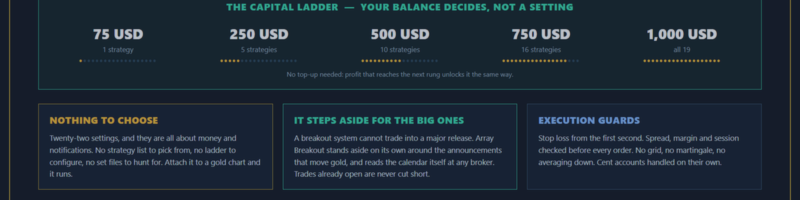
Below 1:500 the system still works, but every rung of the capital ladder needs proportionally more money, so a small account stays on the first rungs for longer.
If leverage is very low, one input limits how many positions are held at once according to account size. The details are in the manual.
---
3. Cent accounts
The EA detects by itself whether the account is a cent account and converts every figure for you — the capital ladder, the panel and the log messages. Nothing to set.
Worth knowing: a cent account does not lower the risk. 50,000 cents is 500 dollars all the same.
If your broker offers lots finer than 0.01 on a cent account, the EA supports it, and the capital needed to open each rung falls in proportion. The details are in the manual.
---
4. VPS
Any VPS anywhere. A 200–300 ms ping is fine.
Why: entries are pending stop orders placed on the broker's server in advance, and the stop loss and take profit sit on the broker's server too. VPS speed only affects trailing-stop moves, which tolerate several hundred milliseconds of latency.
What a VPS really gives you is uninterrupted operation, 24/5 — if the computer is switched off, the EA stops; open trades still have their stop and target on the server, but the trailing stop no longer moves.
Before long runs on your own PC: set Windows Update so it cannot restart the machine midway.
---
5. Installation
1. Open a gold chart on H1
2. Drag Array Breakout from the Navigator onto the chart
3. On the Common tab tick Allow Algo Trading and press OK
4. Check that the Algo Trading button on the toolbar is green
5. Check the Experts tab shows all the start-up lines (page 2, section 1). The version number is also shown on the chart panel.
The defaults are the recommended settings. Nothing needs changing.
When you stop or remove the EA, remove it from the chart while the Algo Trading button is still on. The EA withdraws all of its own pending orders in under a second. Open trades are not touched and keep their SL/TP; you decide whether to close them yourself or let them finish at SL/TP.
One chart, one copy, per account. All the strategies are inside one EA. Do not attach two copies to the same account.
---
6. Telegram (optional)
The EA can send its report to Telegram. First the terminal has to be allowed to send messages out:
Tools → Options → Expert Advisors → Allow WebRequest for listed URL, then add `https://api.telegram.org`
This permission is per terminal. If you move to a new machine or a new VPS, you have to do it again.
Once it is set up correctly, one Connected message arrives as soon as you attach the EA. If it does not, the Experts tab tells you why.
---
7. If something looks wrong
The EA loads but never places a trade — check the Algo Trading button on the toolbar, and the Allow Algo Trading tick on the EA's Common tab. If the button is off, the EA has loaded successfully and is waiting; the moment you switch the button on it places its orders. No need to remove and re-attach.
The EA was removed with the Algo Trading button off and pending orders were left behind — with the button off, MT5 does not let the EA send any request, including the request to cancel pending orders. The EA raises an alert telling you the fix: Trade tab → right-click → Bulk Operations → Delete All Pending Orders removes them all in one click (this command deletes every pending order on the account).
The log says the account is not allowed to trade — logged in with the Investor password, an expired demo, or an account the broker has closed. Try New Order by hand: if the Buy/Sell buttons cannot be pressed, it is the account, not the EA.
The log says the balance has not reached the first rung — the EA sends no orders until the capital is enough, and says every hour how much is missing. That is protection of the account, not an error.
Some trades, but fewer than expected — look at the panel. Rows showing UNLOCK BALANCE are strategies your balance has not reached yet.
Still unsure — send the Experts and Journal logs for that day in a private message.
---
8. Next
- Read before judging the results: the "Start here" comment above
- Public chat: https://www.mql5.com/en/messages/039ba4cf484bdd01
- After purchase, send a private message to receive every test report file in full, and the manual
---
*Trading gold on margin carries a high level of risk and is not suitable for everyone. Past performance does not guarantee future results. Array Breakout is a software product, not investment advice.*