WallStreet GOLD Trader MT4 product page: https://www.mql5.com/en/market/product/150143
WallStreet GOLD Trader MT5 product page: https://www.mql5.com/en/market/product/150144
WallStreet GOLD Trader Live results: https://www.mql5.com/en/signals/2389404
WallStreet GOLD Trader — Professional XAUUSD Expert Advisor
WallStreet GOLD Trader is a professional Expert Advisor designed specifically for trading Gold (XAUUSD). Its trading concept is based on the core principles behind the WallStreet trading technology — a straightforward but powerful approach focused on identifying high-probability opportunities in the direction of the prevailing market impulse.
The strategy is built around a fundamental market principle: price tends to move with the dominant market momentum. Instead of trying to predict every market movement, WallStreet GOLD Trader analyzes market conditions and looks for opportunities aligned with the current impulse.
This approach is based on market behavior and trading psychology that have remained relevant throughout different market cycles. Over the years, the WallStreet trading technology has been continuously improved, tested, and refined.
With the latest update, WallStreet GOLD Trader has evolved into a complete professional trading solution, combining its core trading strategy with a comprehensive set of advanced tools for risk management, trade protection, recovery, news filtering, time management, and broker execution monitoring.
Whether you are a beginner looking for an automated trading solution or an experienced trader looking for greater control over an algorithmic system, WallStreet GOLD Trader offers a powerful combination of automation and professional trading features.
Why Traders Choose WallStreet GOLD Trader
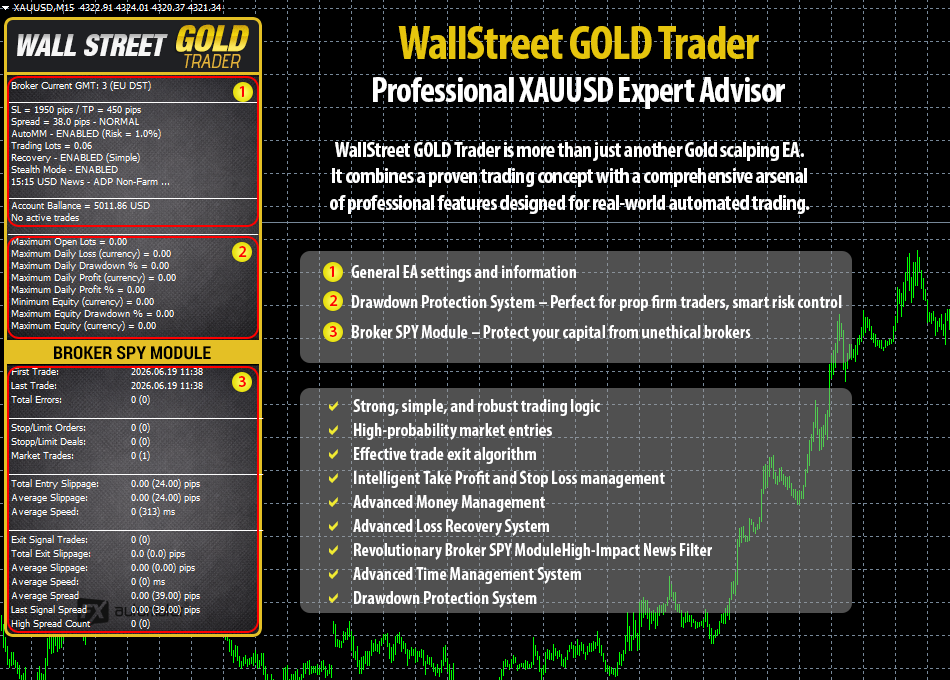
WallStreet GOLD Trader is more than just another Gold scalping EA. It combines a proven trading concept with a comprehensive arsenal of professional features designed for real-world automated trading.
The objective is simple: identify quality trading opportunities, manage risk intelligently, and provide traders with greater control over how the EA operates.
Core Trading Features
- Strong, simple, and robust trading logic
- High-probability market entries
- Effective trade exit algorithm
- Advanced slippage and spread protection
- 24/5 automated trading
- Intelligent Take Profit and Stop Loss management
- StealthMode option to hide Stop Loss levels from the broker
- Drawdown control
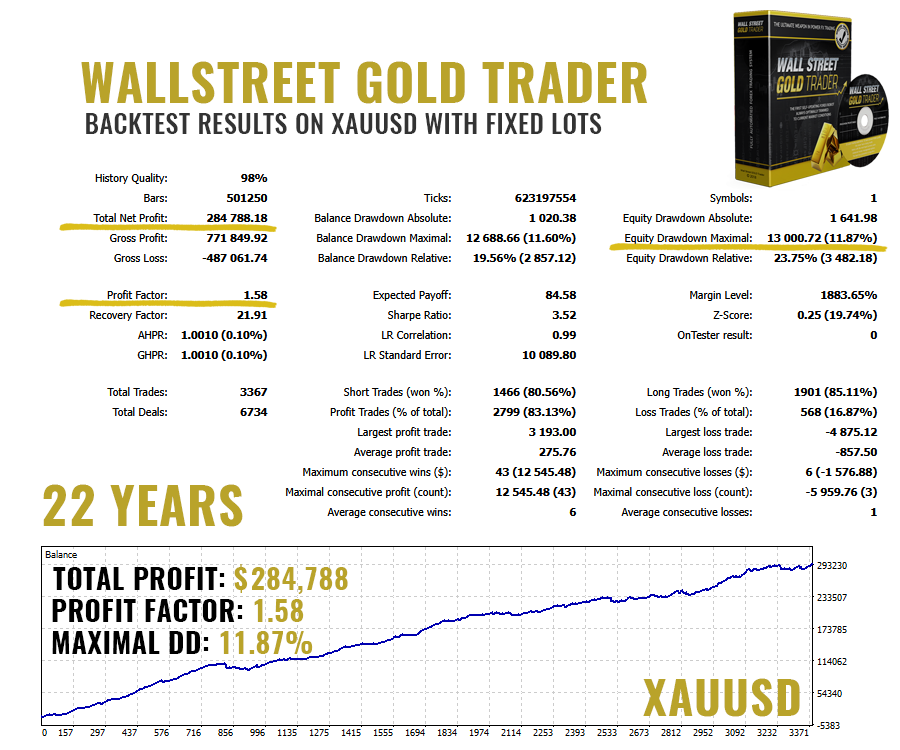
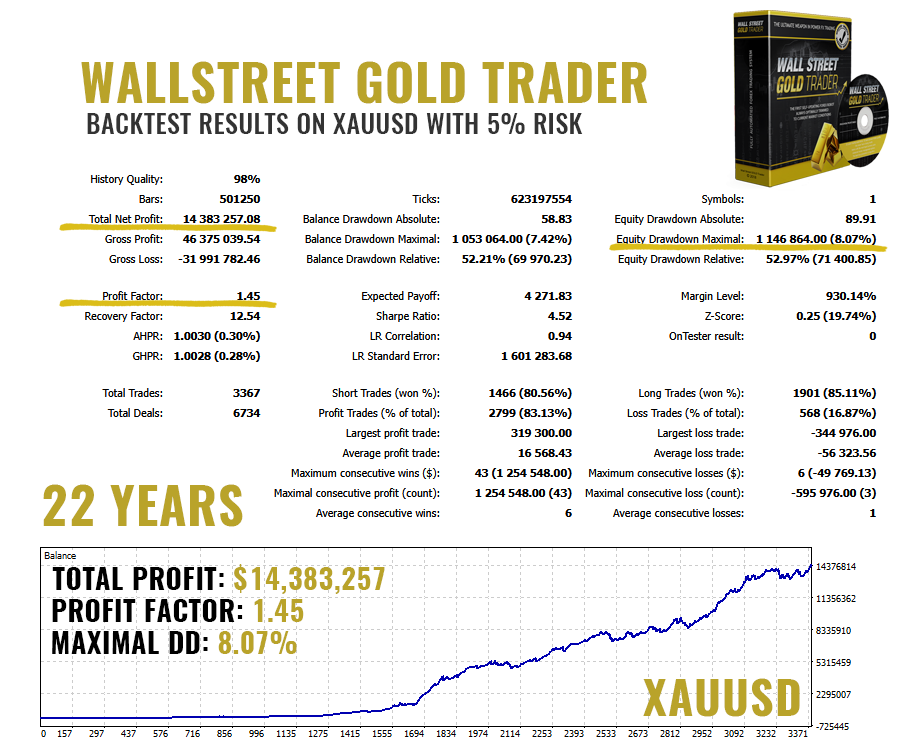
- Solid historical backtesting performance
Professional Trading Tools
WallStreet GOLD Trader also includes a comprehensive collection of advanced systems designed to provide greater flexibility and control:
- Advanced Money Management
- Advanced Loss Recovery System
- Revolutionary Broker SPY Module
- High-Impact News Filter
- Advanced Time Management System
- Email & Push Notification System
- Friday Exit System
- Drawdown Protection System
All of these components are integrated into a single Expert Advisor, creating a complete automated trading environment for XAUUSD.
Each system has been developed and tested as part of the overall WallStreet GOLD Trader architecture, allowing the EA to automatically manage many aspects of the trading process while giving the user extensive configuration options.
Advanced Money Management
Effective risk management is one of the most important components of any automated trading system.
WallStreet GOLD Trader includes an Advanced Money Management System that allows you to precisely configure the risk used by the EA.
The system can automatically calculate trading volume according to your selected risk parameters, helping you adapt the EA to different account sizes and risk profiles.
This makes it possible to use WallStreet GOLD Trader with conservative, moderate, or more aggressive risk configurations according to your individual trading preferences.
Advanced Loss Recovery System
WallStreet GOLD Trader features an innovative Advanced Loss Recovery System designed to intelligently manage recovery after losing trades.
The system includes two separate recovery methods, giving traders additional flexibility when configuring how the EA should respond to previous losses.
Instead of treating every losing trade independently, the recovery system can analyze previous trading results and apply the selected recovery approach according to the configured parameters.
This advanced functionality is designed to provide a more structured approach to loss recovery while keeping the process fully automated.
Revolutionary Broker SPY Module
One of the unique features of WallStreet GOLD Trader is the Broker SPY Module.
The module compares the price requested by the EA when opening or closing a trade with the actual execution price provided by the broker. The difference between these two prices represents the actual execution slippage.
Under normal market conditions, slippage can be either positive or negative. Over a sufficiently large number of trades, the average result would generally be expected to remain relatively close to zero when execution conditions are fair.
However, execution quality can vary significantly between brokers and market conditions. This is why WallStreet GOLD Trader includes the Broker SPY Module — giving traders valuable insight into how their broker is executing the EA's orders.
The module continuously collects execution statistics from trades performed by the EA.
The collected information is stored in an external file, meaning that the statistics are preserved even if you restart the Expert Advisor or your MetaTrader terminal.
This provides traders with a practical way to monitor broker execution quality over time.
High-Impact News Filter
Major economic announcements can cause sudden increases in volatility, spreads, and market movement.
WallStreet GOLD Trader includes an Advanced News Filter that can be used to avoid trading around important economic events.
You can configure the filter according to your preferences and select which types of high-impact events should be avoided.
The News Filter can help reduce exposure to unpredictable market conditions surrounding major announcements and may also improve the overall stability of the trading process.
The News Filter is disabled by default, allowing experienced users to decide whether and how they want to use it.
Advanced Time Management System
Not every trading hour provides the same market conditions.
The Advanced Time Management System allows you to precisely control when WallStreet GOLD Trader is permitted to trade.
You can configure specific trading hours and exclude periods that you consider unfavorable.
The system also allows individual weekdays to be enabled or disabled, giving you complete control over the EA's weekly trading schedule.
This functionality can be particularly useful for traders who want to focus the EA on specific market sessions or avoid periods with historically less favorable conditions.
Friday Exit System
Trading before the weekend can introduce additional risks, particularly when positions remain open while the market is closed.
WallStreet GOLD Trader includes a dedicated Friday Exit System that allows you to control the EA's behavior at the end of the trading week.
You can configure a specific Friday time at which the EA should:
- Close existing trades
- Stop opening new trades
- Prepare the account for the weekend
This gives traders greater control over weekend exposure and helps avoid carrying positions through potentially volatile market openings on Monday.
Email & Push Notification System
Stay informed about your automated trading activity even when you are away from your computer.
WallStreet GOLD Trader can send email and push notifications directly to your mobile device, keeping you updated about important trading activity.
Depending on your configuration, you can receive notifications related to the EA's trading operations and stay informed without constantly monitoring MetaTrader.
Drawdown Protection System
Risk control is an essential part of automated trading.
WallStreet GOLD Trader includes a dedicated Drawdown Protection System designed to monitor account drawdown and control trading activity when predefined risk conditions are reached.
This allows you to establish additional safety parameters beyond the standard Stop Loss and Money Management settings.
The system can be especially useful for traders who operate under strict risk-management rules, including proprietary trading and funded-account environments.
Compatible with Brokers and Prop Firms
WallStreet GOLD Trader is designed to work with a wide range of trading environments, including:
- ECN/STP brokers
- Standard Forex accounts
- Different account sizes
- Proprietary trading firms
- Funded trading accounts
The combination of Advanced Money Management, Drawdown Protection, News Filtering, Time Management, and execution monitoring provides traders with extensive control over the EA's behavior.
However, broker and prop-firm conditions can vary, so traders should always verify that automated trading, the selected symbol, and their chosen risk settings comply with the specific rules of their provider.
Instructions & Recommendations
Recommended Timeframe: M15
Supported Symbol: XAUUSD (GOLD)
Recommended Backtest Method: M15 + Every Tick
Fast Backtest Method: M1 + Open Price
Settings: The default parameters are fully optimized and ready to use. No additional .set files are required.
For the most accurate historical testing results, we recommend using high-quality historical data and the Every Tick modeling method.
A Complete Gold Trading Solution
WallStreet GOLD Trader brings together a powerful trading strategy and a comprehensive set of professional trading tools in one Expert Advisor.
From entry and exit management to money management, loss recovery, broker execution monitoring, news filtering, time management, drawdown protection, and notifications, every major aspect of the automated trading process can be managed from a single EA.
If you are looking for a professional XAUUSD Expert Advisor with advanced risk-management and trading-control features, WallStreet GOLD Trader is designed to give you the tools and flexibility needed to build your own automated Gold trading approach.
Install WallStreet GOLD Trader, configure your preferred risk level, and let the EA handle the trading process automatically.
WallStreet GOLD Trader Settings
==== Risk Management ====
- FixedLots: the extent of the fixed trading volume. If you use AutoMM>0, the value of the FixedLots parameter does not matter.
- AutoMM: automatic risk management activates at values greater than zero:
- Example 1: at AutoMM = 2, WallStreet GOLD Trader opens positions equal to 0.2 lots (20,000) given account extent of 10,000. This places 2 percent of the account extent at risk per individual transaction at a loss of 100 pips.
- Example 2: at AutoMM = 10, WallStreet GOLD Trader opens positions equal to 1 lot (100,000) given account extent of 10,000. This places 10 percent of the account extent at risk per individual transaction at a loss of 100 pips.
==== Recovery Settings ====
- Recovery true/false: enable/disable the recovery system of WallStreet GOLD Trader.
- RecoveryMethod: There are two available recovery methods: Simple and Advanced.
If you select Simple Recovery, WallStreet GOLD Trader will use the settings defined under “--- Simple Recovery Settings ---”.
If you select Advanced Recovery, WallStreet GOLD Trader will use the settings defined under “--- Advanced Recovery Settings ---”.
The main difference between the two methods is how they handle previous losses:
- Simple Recovery aims to recover previous losses more quickly by using a higher level of risk and allowing a few successful trades to compensate for the loss.
- Advanced Recovery uses a more gradual and controlled approach. When a loss occurs, the lot size is increased by smaller increments on subsequent trades. This allows the EA to recover previous losses more smoothly, but the recovery process may take longer.
In short, Simple Recovery focuses on faster recovery with higher risk, while Advanced Recovery focuses on a smoother recovery process with more gradual lot-size increases.
--- Simple Recovery Settings ---
- RecoveryRiskMultiplier: Determines the risk level used for recovery trades based on the regular risk setting configured in the EA.
- RecoveryTradeCount: Specifies the maximum number of trades the EA can use during the recovery process.
--- Advanced Recovery Settings ---
- RecoveryMaxRisk: Defines the maximum risk level the EA is allowed to use during the recovery process.
- CheckHistoryTrades: Specifies how many previous trades from the trading history the EA will analyze to identify losses that need to be recovered.
- RecoveryFactor: Determines the overall recovery factor used by the EA when calculating the recovery process.
==== General Settings ====
- WinLargeFonts true/false: use "true" to adjust the robot information box display in case you are using the Windows Large Fonts.
- LongTrades true/false: enable/disable Long trades.
- ShortTrades true/false: enable/disable Short trades.
- Magic: a unique identifier through which WallStreet GOLD Trader recognises and manages its own positions. If you use other expert advisors on the same account, please ensure that each of them has a distinct unique identifier.
- EA_Comment: you can type here a comment, if you wish to mark the WallStreet GOLD Trader trades.
- MaxSpread: maximum allowed spread.
- MaxSpreadExit: maximum allowed spread when closing the trades. Value 0 (zero) disable the parameter.
- Slippage: maximum allowed slippage.
- StealthMode true/false: a mode which conceals stoploss and takeprofit levels in program logic, making them invisible to brokers. If you use this mode, the stoploss and takeprofit orders are not located in the trading server. In this case, if your trading terminal is not connected, or the robot is not working, your orders would not be protected. However, we are strongly encouraging using the StealthMode, because in some cases the visible StopLoss levels could be attacked tendentiously by algorithms that some unethical brokers could use.
- EmergencyStopDist: this parameter ensures a second level of protection, when StealthMode is used. At values greater than zero it activates a second level of true (Emergency) StopLoss on a greater distance then the virtual hidden StopLoss is located. In such case the value of the new emergency StopLoss will be the sum of the EmergencyStopDist value plus the value of the hidden StopLoss.
As an example if StealthMode is used and the hidden “system” StopLoss is 60 pips and the EmergencyStopDist is 100 pips, then the emergency StopLoss will be placed 160 pips away from the trade entry price. The only purpose of this is to protect you from some extremely rare circumstances in which the market moves excessively and the EA does not manage to close by a market order on the actual “hidden” StopLoss level.
- CloseOnlyOnProfit true/false: when this mode is enabled, positions close to system signals only, when they are in profit, or where stoploss may be reached. If CloseOnlyOnProfit= false /default/, positions close to system logic even it is on a loss.
- NFA true/false: use "true" if your broker is NFA regulated.
- No_Hedge true/false: use "true" if you wish to cancel all hedge trades.
==== Custom Settings ====
- PendingOrderDist: this value manages the new Pending (Stop/Limit) Orders functionality:
- If the value is greater than zero (a positive value) the robot will use “Limit” orders with a distance from the market price equal to the PendingOrderDist value in pips.
- If the value is lower than zero (a negative value) the robot will use “Stop” orders with a distance from the market price equal to the PendingOrderDist value in pips.
Generally, we recommend using market orders, but we’ve designed this functionality to provide an additional flexibility to those our users, which would be interested to experiment. As an example, if you notice that your broker executes the market orders with a great slippage, you can try using Limit, or Stop orders. The Limit orders would help to open the trade on a most favourable price, but you can miss some of the trades. We recommend this functionality only for advanced traders, which are capable to make their own backtests and optimisations.
- StopLimitExpire: this value (in minutes) manages the pending orders expiration in case you are using the Pending Orders functionality.
- StopLoss: distance to stoploss levels in standard (4 digits) pips.
- TakeProfit: distance to takeprofit levels in standard (4 digits) pips.
- SecureProfit: minimum profit to be guaranteed where the position’s current profit is equal to the value of the SecureProfitTrigger parameter.
- SecureProfitTrigger: the position’s current profit (in pips) which would guarantee minimum profits equal to value of the SecureProfit parameter.
==== Monday-Friday Rules ====
- MondayStartHour: The robot will start trading after this hour on Monday. If you want to set any custom value it must be between 0 and 23. To completely disable trading on Monday set MondayStartHour=24.
- FridayExit true/false: if you wish to close all trades on Friday, you should use FridayExit=true
- LastTradeHour: the robot can trade until the end of this hour on Friday (including this hour).
- ExitHour: the robot will close all open positions at this hour on Friday.
If you decide to use the "FridayExit" option you should set "LastTradeHour" and "ExitHour" several hours before the market closing of your broker on Friday.
==== GMT Settings ====
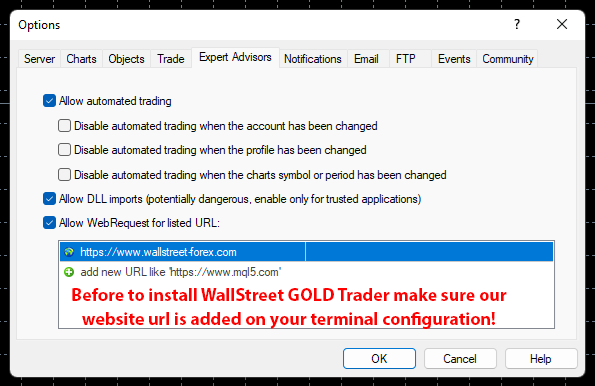
- AutoGMT_Offset – true/false: Change to false only if you want to use the ManualGMT_Offset in your live trading. In this case, please ensure that you have used the correct ManualGMT_Offset for your broker. Auto GMT works only if our website url is added on your terminal "Allow WebRequest for listed URL" configuration. To configure this: Go to MT4/MT5 Terminal → Tools → Options → Expert Advisors tab → "Allow WebRequests for listed URL" and add: https://www.wallstreet-forex.com
- ManualGMT_Offset: For this parameter you have to set the winter GMT offset of your broker. This parameter is very important in case that you have disabled the AutoGMT_Offset=false and when you backtest the WallStreet GOLD Trader. If you set wrong value, then you may get unexpected results.
- DST_Usage: This parameter is one of the most important parameters because it tells to WallStreet GOLD Trader how to deal with the GMT offset. You can set 3 different values on this parameter. Actually, it is a drop-down list and you only need to choose the correct value for your broker. Check below:
- If your broker has one GMT offset year-round (your broker never switches to summer/winter time) you must select DST_Usage=NONE.
- If your broker switch to summer/winter time based on EU DST (summer time from last Sunday of March till last Sunday of October) then set it DST_Usage=EU_DST.
- If your broker switch to summer/winter time based on US DST (summer time from second Sunday of March till first Sunday of November) then set it DST_Usage=US_DST.
Auto GMT works only if our website url is added on your terminal "Allow WebRequest for listed URL" configuration. To configure this: Go to MT4/MT5 Terminal → Tools → Options → Expert Advisors tab → "Allow WebRequests for listed URL" and add: https://www.wallstreet-forex.com
==== News Filter Settings ====
- Avoid_News true/false: if you wish to use the news filter function, you should set Avoid_News=true
- Include_Medium_News true/false: if you also wish to avoid the medium impact news, you should set Include_Medium_News=true
- Wait_Before_News: the number of minutes before the news event, during which trading will be switched off
- Wait_After_News: the number of minutes after the news event, during which trading will be switched off
The News Filter can work only if our website url is added on your terminal configuration. Please check the Automatic GMT Offset section above!
==== Time Management Settings ====
These settings have been specially developed to help traders avoid certain hour periods during the trading week when the Forex market behaves more unpredictable.
- MondayTrading true/false: enables trading on Monday.
- MondayHoursForbidden: sets forbidden trading hours for Monday (applies only when MondayTrading is enabled). You can set several values between 0 and 23 separated with commas. For example, if you set MondayHoursForbidden=9,10,11 the EA will not trade from 9:00 till 11:59. The hour values for this parameter are related to your broker’s server time (the Market Watch)!
- TuesdayTrading true/false: enables trading on Tuesday.
- TuesdayHoursForbidden: same as MondayHoursForbidden with the difference that you set forbidden hours for Tuesday.
- WednesdayTrading true/false: enables trading on Wednesday.
- WednesdayHoursForbidden: same as MondayHoursForbidden with the difference that you set forbidden hours for Wednesday.
- ThursdayTrading true/false: enables trading on Thursday.
- ThursdayHoursForbidden: same as MondayHoursForbidden with the difference that you set forbidden hours for Thursday.
- FridayTrading true/false: enables trading on Friday.
- FridayHoursForbidden: same as MondayHoursForbidden with the difference that you set forbidden hours for Friday.
- SaturdayTrading and SundayTrading true/false: enables trading during Saturday and Sunday respectively. Due to big GMT offset, some brokers trade during weekends and for that reason we added these parameters as well.
==== Notifications ====
- EMAIL_Notification: true/false: enable/disable email notifications.
- PUSH_Notification: true/false: enable/disable push notifications to mobile phones
==== Protection Settings ====
- Max open lots: The total allowed lot size for all open trades.
- Maximum daily loss (currency): Set a maximum limit on the amount you can lose in a single day to protect your capital.
- Maximum daily drawdown %: Define the maximum percentage of your balance that can be lost in one day.
- Daily reset hour (terminal): Daily reset hour. This is usually 00:00 but if your broker has different reset hour then you can set any hour. Have in mind that if you change the hour directly on the control panel it will be effective after the new hour is reached!
- Maximum daily profit (currency): If you set a value greater than 0 the EA will stop trading and close all open trades when daily profit in money reaches the amount you entered.
- Maximum daily profit %: If you set a value greater than 0 the EA will stop trading and close all open trades when daily profit in percent according to your account balance reaches the amount you entered.
- Minimum Equity (currency): Establish a minimum equity level that, when reached, triggers protective measures.
- Maximum Equity drawdown %: Limit the maximum percentage drawdown of your total equity to prevent significant losses.
- Maximum Equity (currency): Set an upper limit on your equity to help manage gains and protect from volatile shifts.
- MaxAccountTrades: using this parameter you could limit the number of simultaneously opened trades in your account. The default value is zero, which means that by default this option is disabled.
The default values (zero) mean that the respective protection is not active.
Some traders need such protections in “Prop Firm” challenges.
We will refrain from recommending specific values. It is the responsibility of the traders to set these parameters correctly based on their broker restrictions.
We are obliged to inform you, that using such protections could decrease the overall profit in long-term.
Each trader must decide for himself whether to use these protections and at what values.
==== Broker Spy Module Settings ====
- BSM_Alerts true/false: use True, if you want to activate the Broker Spy Module alerts.
- BSM_Alert_Open_Delay: the maximum allowed delay in milliseconds (ms) for opening new trades, above which the BSM will display an alert.
- BSM_Alert_Open_Slippage: the maximum allowed slippage (in standard 4 digit pips) for opening new trades, above which the BSM will display an alert.
- BSM_Alert_StopLimit_Delay: the maximum allowed delay in milliseconds (ms) for accepting pending (Stop/Limit) orders, above which the BSM will display an alert.
- BSM_Alert_StopLimit_Slippage: the maximum allowed slippage (in standard 4 digit pips) for activating pending (Stop/Limit) orders, above which the BSM will display an alert.
- BSM_Alert_Close_Delay: the maximum allowed delay in milliseconds (ms) for closing trades, above which the BSM will display an alert. .
- BSM_Alert_Close_Slippage: the maximum allowed slippage (in standard 4 digit pips) for closing trades, above which the BSM will display an alert.
WallStreet GOLD Trader Backtest Results