Broker server time, GMT, and why your MT5 sessions are an hour out

If a London-session box is an hour away from the candles you expected, the first thing to check is the clock behind the chart. MetaTrader 5 does not stamp bars in your laptop's local time. It stamps them in the broker's server time.
That choice affects session indicators, opening ranges, killzones, pivots, daily highs and lows, and anything else that resets at a particular hour. The setup can be correct for months, shift after a daylight-saving weekend, and still be following exactly the times it was given.
The three clocks in MT5
It helps to separate three clocks that often happen to show different hours.
- PC local time is the time configured in Windows. In MQL5, TimeLocal() reads it. Changing the PC clock does not rewrite the chart's bar times.
- Broker server time is the clock used by the trading server. TimeCurrent() returns the last known server time: in an OnTick handler it is the time of that tick, and elsewhere it is the time of the latest quote received for a symbol in Market Watch.
- GMT or UTC is the common reference clock. TimeGMT() returns GMT calculated from the computer's time and timezone settings.
For ordinary session work, GMT and UTC can be treated as the same clock. GMT is the name used in the MQL5 function and in many indicator inputs; UTC is the modern time standard.
The important part is simple: MT5 bars carry broker server timestamps. An H1 bar labelled 08:00 is the broker's 08:00 bar. Your PC might show 06:00, 07:00 or 16:00 at the same instant. Changing Windows to another timezone changes your local display clock, not the history supplied by the broker.
Why GMT+2 and GMT+3 are common
Forex trades through the working week without a single central exchange defining an official daily candle. Brokers therefore have to choose where one D1 bar ends and the next begins.
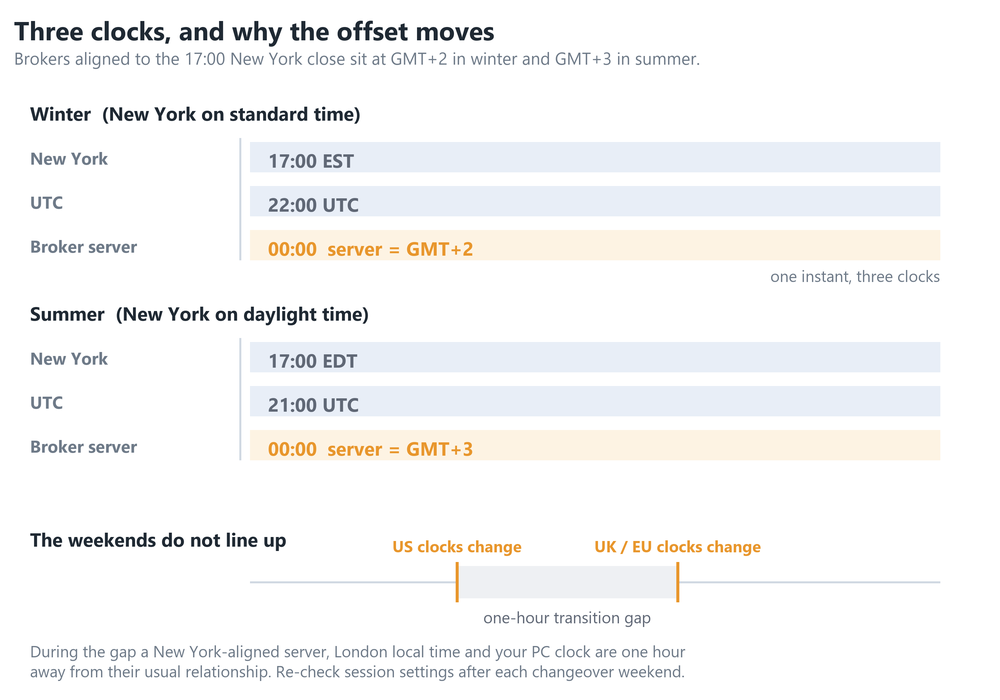
Many choose a server clock that puts midnight at 17:00 New York, the conventional end of the forex trading day. In the New York winter, 17:00 Eastern Standard Time is 22:00 UTC. A GMT+2 server reads midnight then. In the New York summer, 17:00 Eastern Daylight Time is 21:00 UTC, so a GMT+3 server reads midnight.
This arrangement places the Sunday-evening forex open at the start of Monday's server day and the Friday close at the end of Friday's server day. The D1 chart then contains five substantial weekday bars instead of a sixth, short Sunday bar.
GMT+2/GMT+3 is a common convention, not an MT5 requirement. Some brokers use UTC, a fixed offset or another timezone. Demo and live servers from the same firm can also differ, so use the clock on the account you are actually connected to.
Why it was right last week
A broker offset is often seasonal. Brokers aligned to the New York close commonly change from GMT+2 to GMT+3 when the United States enters daylight saving time, then return to GMT+2 when New York leaves it.
The United States and Europe change their clocks on different Sundays. The US normally changes in March before the UK and Europe, then changes back in the autumn after them. During the gap, the difference between a New York-aligned server, London local time and your PC can be one hour away from its usual value.
That produces the familiar pattern: a London box was correct on Friday and appears one candle out on Monday. The indicator has continued drawing the same server hours while one of the real-world clocks moved. There can be another adjustment when the other region reaches its own changeover weekend.
The dates themselves also matter. Adding a fixed two hours to UTC throughout the year is not the same as following a timezone with daylight-saving rules. A session setting needs a defined basis: fixed server hours, fixed UTC hours, or the local civil time of the market concerned.
A two-minute check without code
- Run the check while the market is receiving ticks. Press Ctrl+M to open Market Watch and note the displayed broker-server time.
- Open a reliable UTC clock on your phone or browser. In Britain, do not use the ordinary local clock during BST and call it GMT; select UTC explicitly.
- Subtract UTC from the Market Watch time. If Market Watch shows 15:42 while UTC shows 13:42, the server is currently GMT+2. If it shows 16:42, it is GMT+3.
- Record the date and the account server name with the result. Repeat the check after the spring and autumn clock changes.
A quote can be a few seconds behind when the symbol is quiet. Compare the hour and minute, not a tiny difference in seconds. If the market is closed, repeat when live quotes resume because TimeCurrent() is documented as the time of the latest quote received for a symbol in Market Watch, rather than a free-running wall clock.
A scheduled event gives a second check. Choose an event whose published time is explicitly shown in UTC. When it is released, compare that UTC time with the timestamp of the corresponding tick or one-minute bar in MT5. The difference is the server offset at that date.
The programmer's check
In a live terminal, compare TimeCurrent() with TimeGMT() and divide the difference by 3,600 to express the offset in hours. For example, a difference of 7,200 seconds is GMT+2.
Run the comparison while prices are updating and keep the PC timezone configuration correct, because TimeGMT() is calculated from the computer's local settings. In the Strategy Tester, TimeGMT() is equal to TimeTradeServer() - local, GMT and server time all coincide there - so subtracting the two does not recover the broker's historical GMT offset. Historical tests need an offset or timezone rule supplied separately.
Setting session tools correctly
If an indicator expects server time, convert the session hours into the server offset you just measured. For a session beginning at 08:00 UTC, enter 10:00 while the server is GMT+2 and 11:00 while it is GMT+3.
If the indicator expects GMT, enter the session's GMT or UTC hours and set its broker-offset input as designed. Read the input description carefully: an input labelled GMT offset might mean server minus GMT, while another tool might ask for GMT minus server. The signs are opposite.
Check the setup in both clock-change seasons and pay particular attention to the weeks when the US and Europe are out of step. For sessions defined by local market time, remember that London and New York have their own daylight-saving calendars. Save the working values with the broker server name rather than assuming one setting fits every account.
Midnight is not always the instrument's daily open
Server midnight is a boundary on the broker's chart. It is not automatically the start of every symbol's trading session.
Metals and index CFDs often follow the hours of an underlying venue or broker liquidity schedule. They can pause each day, reopen after midnight server time, close before it, or use a separate settlement boundary. The first tradable quote after the break can therefore be different from the open of the broker's D1 bar.
Decide what daily open means for the job. A forex day separator may reasonably use the D1 bar open. A US index cash-session tool should use the cash exchange open. A metal session range may need the first quote after its daily maintenance break.
Right-click the symbol in Market Watch and inspect Specification for its quoted and trading sessions. In MQL5, SymbolInfoSessionTrade() returns the broker's trading windows for a symbol and weekday. This symbol-level schedule takes priority over a general assumption about the server day.
Putting the clocks onto the chart
BrioQuant Trading Sessions is a free MT5 indicator that draws the Asia, London and New York ranges. Its hours can be set in broker time or GMT, with broker-offset handling, which makes the time basis explicit rather than hiding it.
BrioQuant Session Volume Profile builds the profile around defined trading sessions. That makes the same clock check essential: the profile can only group the intended trades when its session boundaries match the symbol and server you are using.


