
User Guide — Table of Contents
How the system works, how your broker affects the result and how to test it are covered separately: Helios Gold Edge — How it works
1. Before you start
Helios Gold Edge is a XAUUSD trading system for MetaTrader 5. It consists of nine independent strategies that can be enabled and disabled in any combination.
Before you start, there are a few things to understand about what this system does and does not do.
It trades slowly
Depending on the configuration you choose, days can pass without a single trade. This is not a defect and it does not mean something is broken. The low frequency strategies make about one trade per week.
If you expect a chart where something is always happening, this system is not that.
Losing periods are part of it
The system can be in loss for several months in a row. This has happened in the past and it will happen again.
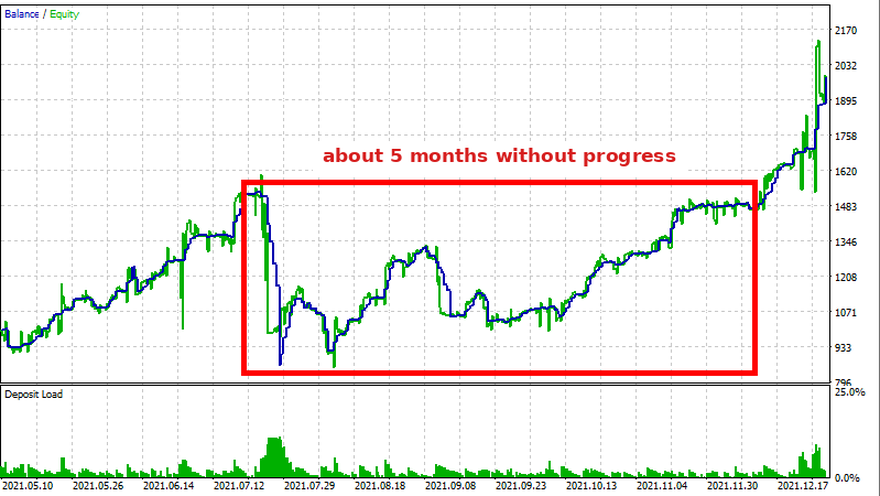
Figure 1: A flat period in the equity curve
The image shows one such period. Nothing is broken there. The EA is trading, and for a while the trades simply do not add up to anything.
It is important to know this before, not after. Most people who lose money with automated systems do so not because the system was bad, but because they switched it off during a drawdown and switched it back on after the recovery.
No martingale and no grid
The lot size does not increase after losses. Positions are not opened in order to average a losing position. Every position has its own stop loss from the moment it opens.
Several positions can be open at the same time at different levels, but these are independent trades, not a connected series.
You will see your risk before you start
The panel has an indicator that shows the largest historical drawdown for your specific configuration. It is recalculated immediately when you change the settings.
Use it. It is the only way to know what you are signing up for before you start trading with real money.
The default settings are not a recommended configuration
When you first attach the EA to a chart, all nine strategies are enabled. That is a considerably riskier configuration than most users will want, and the risk indicator will show this immediately.
Choose your own configuration. How to do that is described in section 6, and if you do not want to spend time on it, there is also a short version there with two rules.
What this guide contains
The first part is reference: every setting, every panel field, and what they mean.
The second part is about why things are the way they are: how the strategies interact, how your broker affects the result, and why testing and reality differ.
If you only want to get started, sections 2 and 3 are enough. The rest is for when questions come up, and they will.
If English is not your first language
This guide is only in English. If it is difficult to read, give it to any AI chatbot and ask it to explain in your own language. This works better than a normal translator, and you can also ask it questions.
One note: chatbots sometimes invent things that are not in the document. If an answer contains specific numbers or recommendations, check whether they are really here. If you cannot find them, write to me.
2. Requirements and installation
What you need
| Item | Value |
|---|---|
| Platform | MetaTrader 5 |
| Account type | Hedging |
| Symbol | XAUUSD |
| Timeframe | Does not matter |
| Deposit | From 1000 USD; for a smaller account see the section on cent accounts |
The account type is a mandatory requirement. MetaTrader 5 accounts have two modes: hedging and netting. This EA requires hedging.
The reason: the nine strategies work independently and can hold several positions at the same time, including in opposite directions. On a netting account they would all merge into a single position, and managing each strategy separately would become impossible.
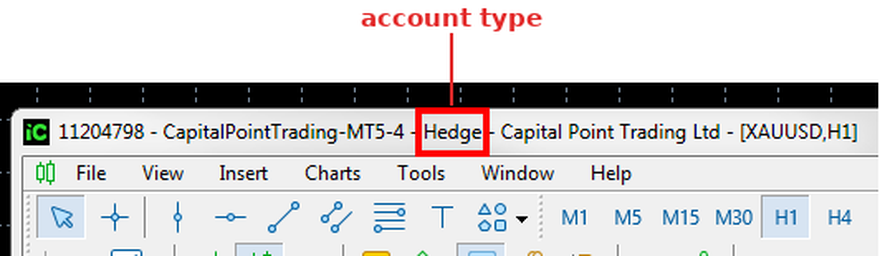
Figure 1: Where the account type is shown
The account type is shown in the MetaTrader window title, after the server name. If it says "Hedge", everything is fine. If it says "Netting", ask your broker about opening a hedging account. Most brokers offer both.
The choice of broker affects the result more than many people think. This is covered in Part 2.
Installation
After purchase or rent, the EA appears in the MetaTrader 5 Navigator window, under Expert Advisors. If it is not there, restart the terminal.
Attach it to a XAUUSD chart.
Make sure both permissions are enabled:

Figure 2: The two Algo Trading permissions
- The "Algo Trading" button in the terminal toolbar is active.
- In the EA properties window, on the Common tab, "Allow Algo Trading" is ticked.
If either of them is off, the EA will not trade, and the panel field "Trading:" will show DISABLED.
Before you start trading
The default settings are not a recommended configuration. All nine strategies are enabled. Choose your own configuration before the EA starts working with real money. How to do that is described in section 6.
Several charts
Do not run several instances of this EA with the same Magic number. If you want to run two different configurations on one account, each needs its own Magic, with a gap of at least ten units. For example 5555 and 5600.
But consider whether this is really necessary. A single instance can already run nine strategies with different lot sizes, and then the risk indicator shows the complete picture. With two instances, each one shows only its own part.
3. Input settings
This section describes every parameter you see in the EA settings window. The parameters are grouped the same way as in the dialog.
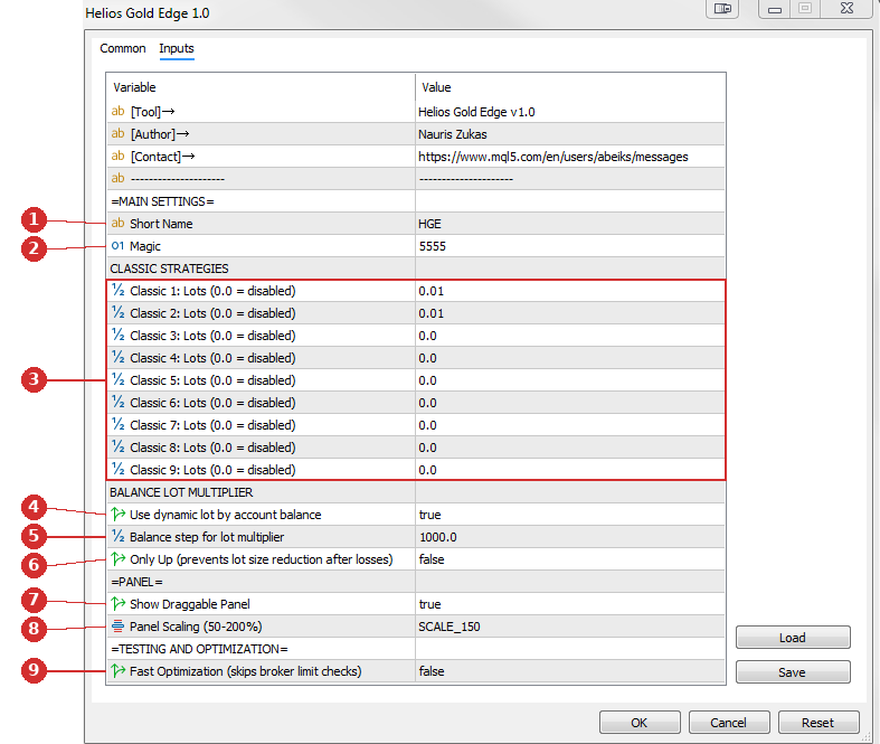
Figure 3: The EA input settings
= MAIN SETTINGS =
- Short Name
The name the EA shows on the panel. It does not affect trading. I use it to tell which set of settings is currently running, for example when one terminal has several charts with different settings. - Magic
The number by which the EA recognises its own positions. The EA never touches positions that belong to another number.
Important: the EA does not use only one number. Each strategy has its own. With the default value of 5555, the EA occupies the numbers up to 5565.
= CLASSIC STRATEGIES =
- Classic 1: Lots ... Classic 9: Lots
Nine independent strategies. Each one trades separately and with its own Magic number.
The value sets the lot size for that strategy. A value of 0.0 disables the strategy completely, and it will not open any position.
By default all nine are enabled with 0.01. This is not a recommended starting point. Read the section on combining strategies before you start trading.
= BALANCE LOT MULTIPLIER =
These three parameters work together, so they should be read together.
- Use dynamic lot by account balance
If enabled, the lot size grows together with the account balance. If disabled, the lot size stays exactly as entered for the strategy. - Balance step for lot multiplier
The balance at which the lot size entered for the strategy is used exactly as it is. The calculation is a division:
multiplier = balance / this value
If the result is below 1.0, then 1.0 is used. This means the lot size never becomes smaller than the value you entered.
Example with Classic 1 = 0.01 and this value set to 1000:Balance Multiplier Calculated Actual lot 800 1.0 0.010 0.01 1000 1.0 0.010 0.01 1400 1.4 0.014 0.01 1500 1.5 0.015 0.02 2500 2.5 0.025 0.03 Note that the lot size does not change at round thousands. The calculated value is rounded to the broker lot step, so the increase happens at 1500, 2500 and so on.
- Only Up (prevents lot size reduction after losses)
When the balance falls after losses, the calculation above reduces the lot size. If this parameter is enabled, the new lot size will never be smaller than the lot size of the last position opened by that same strategy.
This means the risk does not decrease after a series of losses. Enable it only if you understand what that does to an account.
= PANEL =
- Show Draggable Panel
Turns the chart panel on or off. The panel does not affect trading. - Panel Scaling (50-200%)
The size of the panel. Choose according to your screen resolution.
= TESTING AND OPTIMIZATION =
- Fast Optimization (skips broker limit checks)
This is intended for optimisation in the Strategy Tester.
Before sending an order, the EA normally checks whether the broker would accept it at all: whether there is enough free margin and whether the volume limits are exceeded. These checks are computationally expensive because they go through all open positions and orders.
If this is enabled, the EA skips them and sends the order immediately.
The results are practically identical. If there is not enough margin, the order is rejected by the server and the position does not open, exactly as it would with the checks. The only difference is that the order is sent and rejected instead of not being sent at all. Optimisation runs faster this way.
In live trading it is better to keep this disabled, so that orders the broker will reject are not sent, and so that the journal does not fill up with rejections.
4. The panel
The panel shows the state of the EA directly on the chart. It does not affect trading. You can turn it off with "Show Draggable Panel" and the EA will work exactly the same.
The panel can be moved by dragging it with the mouse. The size is changed with "Panel Scaling (50-200%)" or with the "+" and "?" buttons in the top right corner of the panel. The buttons change the size in the same fixed steps that are available in the settings. A change made with the buttons is not saved: after a terminal restart, the panel returns to the size given in the settings.
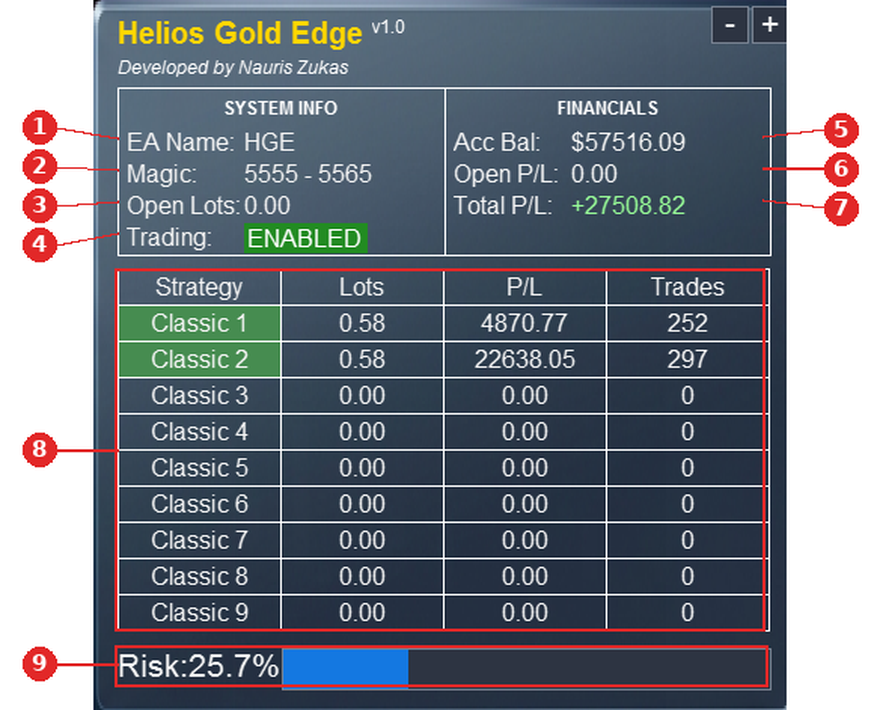
Figure 4: The panel
SYSTEM INFO
- EA Name
The value from "Short Name". It is only a label and does not affect trading.
I use it as the name of a settings set. When I save a set file, it gets the same name that is shown on the panel. So when several charts with different sets are running in one terminal, it is immediately clear which is which. - Magic
The range of Magic numbers used by the EA. - Open Lots
The total volume of open positions. Shows 0.00 when no position is open. - Trading
The operating state of the EA. There are three values:- ENABLED (green) — everything is fine, the EA can trade
- DISABLED (red) — trading is switched off
- MARGIN (yellow) — trading is allowed, but there is not enough free margin even for one minimum position
DISABLED appears in two cases: when the terminal "Algo Trading" button is off, or when "Allow Algo Trading" is not ticked on the Common tab of the EA properties window.
If trading is switched off and at the same time there is not enough margin, DISABLED is shown, because that is the more fundamental restriction.
FINANCIALS
- Acc Bal
The account balance. - Open P/L
The profit or loss of the currently open positions. It changes with every tick. - Total P/L
The net profit of all closed trades, including swap and commission. This is a summary of this EA's trades over the entire account history, not only the current session.
Strategy table
- Strategy table
Each of the nine strategies has its own row.
A green background means the strategy is enabled, that is, its "Classic N: Lots" value is above zero.- Strategy — the name of the strategy
- Lots — the lot size this strategy will use for its next trade
- P/L — the net profit of this strategy's closed trades
- Trades — the number of this strategy's closed trades
Important about the Lots column. It does not show the open volume. It shows the calculated lot size for the next trade. That is why "Open Lots" can be 0.00 while the Lots column shows 0.58. There is no position right now, but if the strategy opens one, it will be 0.58.
This value already includes the balance multiplier. In the image the balance is 57516, and with a step of 1000 this gives a multiplier of 57.5, so 0.01 becomes 0.58.
P/L and Trades count only closed trades, and only those that belong to this EA. Trades from other sources are not included.
- Risk
The risk indicator in percent with a coloured bar. It has its own section below.
5. Understanding the Risk indicator
At the bottom of the panel there is an indicator "Risk:" with a percentage and a coloured bar.
The number answers one question: how much of the account would have been lost if the largest historical drawdown happened again with the current settings.
Risk % = expected drawdown in money / account balance ? 100
The indicator is recalculated immediately when you change the settings.
One limitation to know. The measurements behind this number were made on gold. If you attach the EA to another symbol, the panel will still show a number, but it will not mean anything there.
How to read the bar
The bar fills in proportion to the percentage, and the colour changes together with the length. Blue means low, green means medium, orange and red mean high.
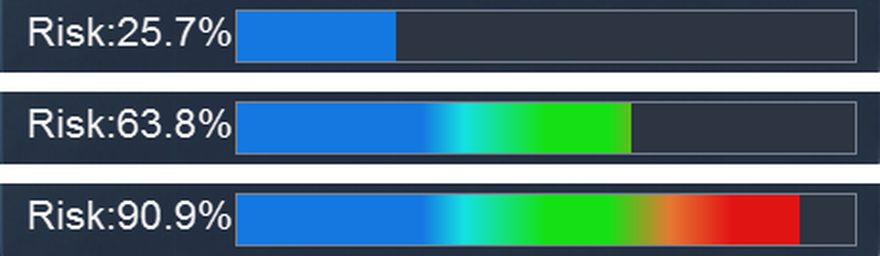
Figure 5: The risk bar at three different levels
The colours have no sharp boundaries. It is a smooth transition, meant for quick visual orientation.
Where the number comes from
Nine strategies give 512 possible combinations, and each one can also be given any lot size. The number of real configurations is therefore practically unlimited, and nobody can test them all in advance. So the indicator works in two steps.
First, what was measured. All 512 combinations were tested separately, and for each one the real historical drawdown was measured. Not the sum of the individual drawdowns, but what actually happened to the account when those strategies ran together.
Second, the conversion to your lot sizes. The measured drawdown of the combination is divided among the enabled strategies in proportion to their individual contribution, and each part is converted to the lot size that strategy actually uses. The base is 1000 USD per 0.01 lot.
This means the indicator is based on real measured data even when your configuration has never been tested in exactly that form.
Why the percentages do not add up
This is the most important point in this section.
Classic 1 on its own shows about 19%. Classic 2 on its own shows about 14%. When both are enabled, the indicator does not show 33%, but about 25%.
The reason: the strategies do not fall at the same time. While one is in a losing period, the other is often in profit, and the combined drawdown is smaller than the sum of the two. This is exactly why every combination was measured separately instead of being added up.
The practical consequence: more strategies does not mean proportionally more risk. The risk does grow, but more slowly than the sum. This is why combining strategies is a way to improve the relationship between profit and drawdown, and the indicator is what lets you check that before you start trading.
What changes the indicator
The choice of strategies and the lot sizes. Enabling or disabling a strategy, or changing a lot size, changes the expected drawdown in money.
The account balance. This is the denominator in the formula.
There is a relationship here that is worth understanding. If "Use dynamic lot by account balance" is enabled, the lot size grows together with the balance, so the expected drawdown in money grows as well, and the percentage stays roughly the same as the account grows. If it is disabled, the lot size stays fixed, and the percentage decreases over time, because the balance grows while the drawdown in money does not.
What the indicator is not
It is not a forecast and it is not a guarantee. It shows what has happened in the past with this configuration. A future drawdown can be larger, because history does not contain every possible market condition.
So use it for comparing configurations with each other, not as a safety limit.
6. Combining strategies
First, what the risk number means
The risk indicator shows the largest drawdown that occurred over 16 years. That is one event, not everyday life.
If a configuration shows 30%, that could mean the account stayed below 10% for fifteen years and then had one bad period. It could also mean drawdowns of about 25% every second year. The indicator shows both the same way, because it answers the question "how bad has it been at the worst moment", not "how bad is it normally".
So do not choose a configuration only because the number looks small, and do not reject one only because it looks large. The number is for comparing configurations with each other, and for knowing what the account should be able to withstand.
How many variants there are
Nine strategies can be enabled in 512 different ways. But each one can also be given its own lot size, and the lot size can be changed freely, so the number of real configurations is unlimited.
No table can cover that. This is why there is no list of ready recommendations here. Instead, the panel shows the risk of your specific configuration, and you can change it and see the result immediately.
One note in advance, because it applies to every image in this section: the lot size shown on the panel is not the one you enter in the settings. It already includes the balance multiplier, so on an account with 49 000 USD and a step of 1000, an entered 0.01 appears on the panel as 0.49. How this is calculated is described in section 3.
If you do not want to spend time on settings
Some users simply want to attach it and let it run. For that, two rules are enough:
- Keep Classic 9 disabled.
- Keep the Risk indicator below 30%.
Once the number is where you want it, there is nothing more to do.
How to reduce the risk
There are three ways.
- Disable a strategy. This always works, on any account.
- Increase "Balance step for lot multiplier". This value determines how large the lot size will be relative to your account. Increasing it makes the lot smaller and the risk lower.
But there is a limit. The lot size never becomes smaller than what you entered for the strategy. If that is 0.01, then 0.01 is the lowest possible value.
An example. The account has 700 USD and the lot size is already 0.01. If you increase the step from 1000 to 2000, the lot size still stays at 0.01, because it cannot go lower. The risk does not change.
The same account with 10000 USD: at a step of 1000 the lot is 0.10 and the risk is 28%, at a step of 2000 the lot is 0.05 and the risk is 14%. Here the control works fully.
A simple check: increase the step and look at the Risk number. If it did not change, then this method does not work for your account. Use the first or the third one.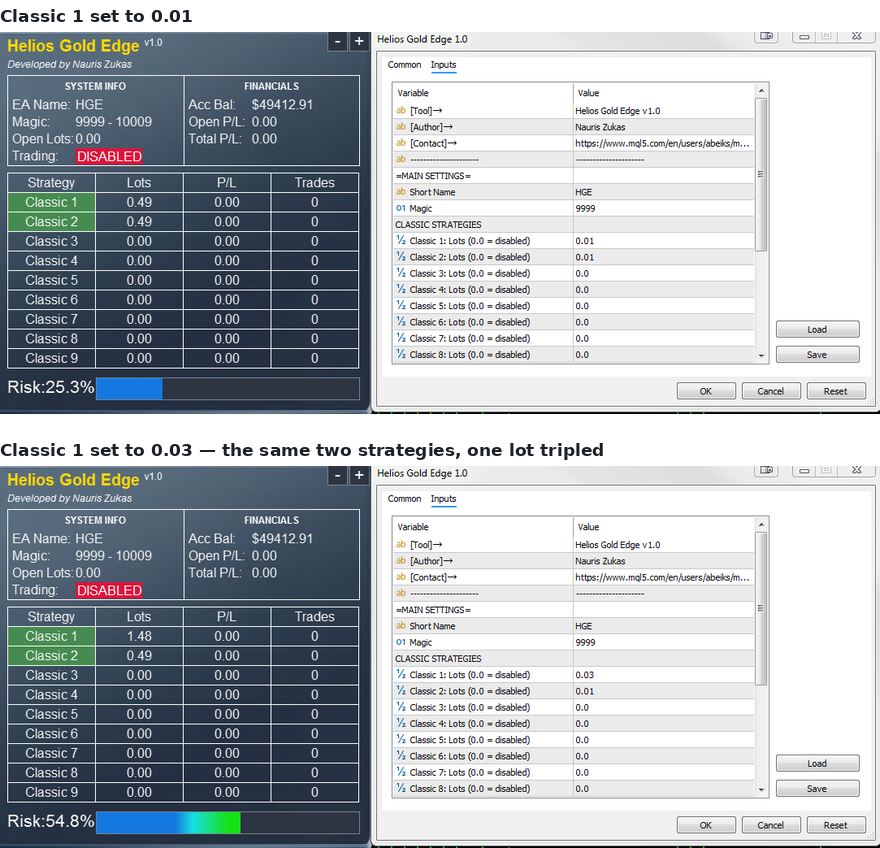
Figure 6: The same two strategies with one lot size tripledThe same thing works in the other direction. In the image, the lot size of Classic 1 has been changed in the settings from 0.01 to 0.03, and the indicator has gone from 25.3% to 54.8%. The strategies are the same in both cases.
If you look at the panel lot sizes, they are not exactly three times apart: 0.49 and 1.48, not 0.49 and 1.47. The reason is rounding. The multiplier here is 49.41, so 0.01 gives 0.494 and 0.03 gives 1.482, and each of them is rounded to the broker lot step separately. More about this below.
- Add funds to the account. If the lot size is already at its lowest value and does not grow, then the risk falls as the account grows.
On a 700 USD account the risk can be 40%. With the same configuration and 1400 USD it is already 20%. The lot size stayed the same, but the account is twice as large.
Why the Risk number sometimes jumps up
As the account grows, the Risk indicator does not fall evenly. It decreases gradually and then suddenly jumps back up.
The reason is the increase in lot size. When the account has grown enough, the calculation moves to the next lot size, and this does not happen gradually. The lot size can only change by the broker lot step, usually 0.01, so the volume increases by a whole step at once.
While the lot size stays the same, the risk falls as the account grows. At the moment the lot size increases, the risk jumps back.
An example with one configuration at a step of 1000:
| Account | Lot | Risk |
|---|---|---|
| 1000 | 0.01 | 28% |
| 1400 | 0.01 | 20% |
| 1500 | 0.02 | 38% |
| 2000 | 0.02 | 28% |
This is not a defect. It is a consequence of the minimum lot size, and it affects any system that measures volume against account size.
The larger the account, the smaller each jump, because one lot step is a smaller part of the total volume. On large accounts the indicator settles down. In this example it stays at about 28% whether the account holds 5000 or 50000, because the lot size grows in proportion.
Why combining is worth it at all
The strategies do not lose at the same time, so the combined drawdown is smaller than the sum of the individual drawdowns. Some examples of how large this difference is:
| Enabled | Real drawdown | If added up |
|---|---|---|
| 1 + 2 | 25.5% | 33.7% |
| 1 + 2 + 3 + 4 | 28.4% | 54.1% |
| 1 to 8 | 86.2% | 160.7% |
The row 1 + 2 + 3 + 4 is instructive. Four strategies together give 28.4%, while Classic 1 alone gives 19.5%. The drawdown has grown by less than nine percentage points, even though the number of trades has grown almost five times.
These numbers illustrate the principle. They are not a recommendation, and your configuration will most likely be a different one.
If you want finer control
The same rounding also limits how precisely you can divide lot sizes between strategies.
Suppose you enter 0.04 for one strategy and 0.01 for another, with a step of 1000. The ratio is 4:1. At an account of 1300 the values become 0.05 and 0.01, so the ratio is now 5:1. At an account of 13000 they become 0.52 and 0.13, which is exactly 4:1.
The practical consequence: with a small account it is better to enable fewer strategies with equal lot sizes than many with different ones.
A small account: consider a cent account
If your deposit is about 2000 USD or less and your broker offers a cent account, that gives considerably more freedom.
On a cent account the same deposit is expressed as a number a hundred times larger. This means the minimum lot size is no longer a limitation. You can enable more strategies, divide lot sizes between them more precisely, and keep the risk low without reducing the number of strategies. The jumps described above also become so small that they are practically unnoticeable.
The trading itself works exactly the same. Only the scale differs.
If your broker does not offer a cent account, everything else works the same. You will simply need to be more conservative in choosing strategies, and fine tuning of lot proportions will not give the result you want while the account is small.
7. Troubleshooting
For this EA the main diagnostic tool is the panel. Almost every problem can be found by looking at it.
The EA does not open any trades
First look at the panel field "Trading:".
If it shows DISABLED
Trading is switched off. Check both permissions as described in section 2: the "Algo Trading" button in the terminal toolbar, and "Allow Algo Trading" on the Common tab of the EA properties window.
The first one is the most common cause of all.
If it shows MARGIN
There is not enough free margin even for one minimum position. Possible reasons:
- The account is too small for the chosen configuration
- The leverage is lower than you thought. Check it with your broker
- Other open positions are already using the margin
Solutions: disable some strategies, increase "Balance step for lot multiplier", or add funds to the account.
If it shows ENABLED but there are no trades
Then the EA is working and the reason is elsewhere.
Look at the strategy table. If no row is green, all strategies are disabled, which means every "Classic N: Lots" value is 0.0. Enable at least one.
If the rows are green, the EA is waiting for a signal. This is normal. The low frequency strategies make about one trade per week, so several days without a trade is not a problem.
Also check that the chart is XAUUSD and that the market is open.
The panel is not visible
Check "Show Draggable Panel". It must be true.
If it is true and the panel is still not there, it may have been dragged outside the visible area. Remove the EA from the chart and attach it again.
If the panel is too large or too small, change "Panel Scaling (50-200%)".
Error message at startup
If this appears in the journal:
Helios Gold Edge: initialization failed. Please contact the author.
the EA has not started. Write to me and we will solve it.
The panel shows strange values
The Lots column shows a number but Open Lots is 0.00. This is not an error. The Lots column shows the lot size the strategy will use for its next trade, not the currently open volume.
The Risk number suddenly increased. This happens when the lot size moves to the next step. It is explained in section 6.
Total P/L, P/L or Trades show more than you expected. There are two possible reasons.
First: these fields sum up the entire account history, not only the current session.
Second: the EA recognises its own trades by Magic number. If another EA has previously run on the same account with a Magic number from the same range, which with the default is 5555 to 5565, its trades will be counted here. If that has happened, change "Magic" to a value that is not inside any range used before.
Results do not match the test
This is described in Part 2. In short: slippage, different tick history, different spread. If the difference seems too large, measure the slippage with Slippage Auditor. That will show whether the reason is there.
If none of this helps
Write to me. To make it faster to help, include:
- A screenshot of the panel
- A screenshot of the EA settings
- The name of your broker and the symbol you use
- A short description of what you expected and what happened
https://www.mql5.com/en/users/abeiks/messages
8. Frequently asked questions
Can it be used on a prop firm account?
There are currently no special settings for prop firm rules. If there is enough demand, I will consider adding them.
I cannot recommend it. I have had my own experience with prop firms that did not pay out what was earned and then disappeared, and the reason is structural: these companies mostly earn from participation fees, not from trading. When the payouts start to exceed the income, the rules tend to be applied in a way that avoids paying out.
I will write about this separately on the blog.
Does it work with other symbols?
Technically yes. The EA has no restrictions by symbol or by date. You can both test it and trade it on any symbol.
But it was built, tested and tuned for XAUUSD. On other symbols it will most likely lose. Not because something blocks it, but because every parameter is adapted to how gold behaves.The risk indicator is based on measurements made on gold, so on other symbols the number it shows does not apply.
What is the minimum deposit?
There is no formal minimum. The EA will work with whatever is in the account, as long as there is enough margin for one position.
In practice I recommend starting with 1000 USD and keeping the Risk indicator below 30%. If your deposit is smaller, consider a cent account. This is covered in section 6.
It is also worth remembering that the risk percentage applies to the trading account, not to all of your funds. If the trading account is part of a larger portfolio, your actual risk is correspondingly smaller.
Do I need a VPS?
That depends on your situation, not on the EA.
This EA works with pending orders, and those are already on the broker server. When price reaches them, the execution happens on the server regardless of how fast your connection is. Milliseconds decide nothing here.
The only thing that is really needed is for the terminal to run without interruption on working days. If you have a computer that can stay on 24/5 and a stable internet connection, that is enough. I run my own EAs on a cheap separate computer, which in the long term costs considerably less than renting a VPS. If your internet or electricity is not reliable, a VPS solves that.
One technical note: the MQL5 virtual hosting does not use an activation. A normal VPS does use one, just like any other computer.
Can it be used on several accounts?
Yes. Activations are counted per computer, not per account. On one computer you can run as many accounts and terminals as you want, and it will use one activation.
An activation is used up when you move to another computer. It is also tied to the operating system, so a major Windows update or a hardware change can consume one.
The number of activations is shown on the product page.
How often does it trade?
It depends on which strategies you have enabled. The low frequency strategies make about 30 to 50 trades per year, the more active ones 150 to 250, and Classic 9 more than a thousand. The exact numbers are in the strategy table in Part 2.
These are averages. Trades are not spread evenly. There can be weeks without a single one, and days when one signal opens several positions.
Can it be used together with another EA?
Yes. The only thing to check is the Magic numbers.
This EA occupies ten numbers starting from the one you enter. With the default of 5555 that is 5555 to 5565. Make sure the other EA does not use anything from this range, otherwise both will try to manage the same positions.
Does it use martingale or grid?
No. The lot size does not increase after losses, and positions are not opened in order to average a losing position. Every position has its own stop loss from the moment it opens, and each one is managed separately.
Several positions can be open at the same time at different levels, because each strategy places its order at a different distance from the signal. These are independent trades, not a connected series.
The only thing that changes the lot size is the account balance, if "Use dynamic lot by account balance" is enabled. See section 3.
Can I change the strategy parameters?
No. The entry levels, stop loss, take profit and exit mechanisms are tuned and tested as a single whole. You choose which strategies run and with what lot size, but not how each of them trades.
This is a deliberate decision. If the strategy parameters could be changed, the risk indicator would no longer show anything meaningful, because it is based on measurements made with exactly these parameters.
This does not rule out other kinds of settings. For example, the daily and total loss limits required by prop firms can be added, because they do not change how the strategies work. They set the boundaries within which the system operates.
A tool for building strategies would be a different product, one where you set the entry conditions, exit mechanisms and filters yourself. I have been thinking about it. If that would interest you, write to me and tell me what exactly you would want to control.
How do I stop trading?
Open the EA properties window, untick "Allow Algo Trading" on the Common tab and confirm. The EA stays on the chart and keeps showing the panel, but it will not open new positions.
Note that positions that are already open stay open.
Are updates free?
Yes, all future updates are included in the purchase.
How quickly do you reply?
I keep separate time for writing code and for support, because switching between the two constantly would mean doing neither properly. I go through messages once or twice a day and answer all of them, usually on the same day.
If you need an answer immediately, this guide is the best place to look. It was written precisely so that you would not have to wait. But if the answer is not there, or something is unclear, do write.
9. Support
Where to write
By private message on MQL5:
https://www.mql5.com/en/users/abeiks/messages
What to include in your message and how quickly I reply are covered in sections 7 and 8.
About the Helios Gold Edge channel
The channel is for updates, settings and questions this guide does not answer.
Before you ask, check here first. Most questions that come up in the first weeks are already answered in this guide, and you will get your answer faster by reading than by waiting for me.
What does not belong in the channel: advertising of any kind, including signals and other products. Requests for anything that is not mine. Conversations that are not about this EA.
I moderate the channel and I will remove anything from that list without discussion.
What you get in addition to the EA
Slippage Auditor. A tool that shows the real slippage of every one of your trades. It costs 50 USD, but I send it free of charge to Helios Gold Edge users. Write to me. Why it matters here is described in Part 2.
https://www.mql5.com/en/market/product/138636
Educational EAs. The Market is full of EAs whose results look impossible. I write about how those results are produced, one technique at a time, and each article comes with a working EA you can run in the Strategy Tester and see for yourself. These will be free for my customers, and each one will be announced on the blog.
Updates. All future updates are included in the purchase and arrive automatically through the Market.
Where to follow
Pulse of Market blog — the project description and announcements of new EAs:
https://www.mql5.com/en/blogs/post/749088
Helios Gold Edge MQL5 channel — news and questions about this EA:
https://www.mql5.com/en/messages/015844b1d02bdd01
Pulse of Market Telegram channel — shorter updates:



