Trade Export Manager — Complete Setup Guide for Reports, Telegram Alerts and Scheduled Summaries

Trade Export Manager MT5
MT5 product version - https://www.mql5.com/en/market/product/181943
Detailed Setup and Usage Guide
Trade Export Manager MT5 is an advanced MetaTrader 5 utility for highly customizable trade and account exports, structured CSV/HTML/TSV/JSON/XML reports, Telegram report delivery, live trade notifications, and scheduled daily, weekly, or monthly trading summaries from one dashboard.
This guide explains the main workflow, panel structure, export settings, filters, Telegram delivery, live notifications, scheduled reports, and troubleshooting.
-
What the product is designed for
Trade Export Manager MT5 is designed for traders who need a cleaner way to export and monitor account activity from MetaTrader 5.
The utility can help with:
· exporting closed trades and account history
· creating CSV, HTML, TSV, JSON and XML report files
· choosing only the fields and columns required for a report
· filtering reports by period, symbol, side, magic number and close reason
· sending report files to Telegram
· receiving live trade notifications
· sending daily, weekly or monthly Telegram summaries
· keeping structured account activity records for analysis, backup or client reporting
The product does not open trades, close trades, copy trades or modify positions. It reads account and history data available inside MetaTrader 5 and creates reports or notifications from that data.
-
Main workflow
A typical workflow is:
-
Attach Trade Export Manager MT5 to any chart.
-
Open the Summary tab and check account information.
-
Open the Include tab and choose which data sources and fields should be included.
-
Open the Filters tab and choose the report period, symbol scope, side, magic number or close reason if needed.
-
Open the Export tab and choose file formats and file location.
-
Configure Telegram if you want to send files, summaries or live notifications.
-
Use Export Now, Export + Send, Send Report Files or Send Summary.
-
Configure Schedule if you want automatic interval, daily, weekly or monthly reports.
-
Installation
3. Install the product from the MQL5 Market in MetaTrader 5.
-
Open MetaTrader 5.
-
Open the Navigator panel.
-
Find the product under Market / your purchased products.
-
Drag it onto any chart.
-
Allow the product to run.
-
If you want Telegram delivery, configure WebRequest access and Telegram credentials.
The product can be attached to any chart. It is not linked to the chart symbol for report exports unless you specifically select chart-symbol filtering.
-
First launch and dashboard layout
On first launch, the product creates an on-chart dashboard.
The main modules are:
· Summary - main control center and account/report status
· Include - data sources, fields and report-column options
· Filters - date range, symbol, side, magic and close reason filters
· Export - file formats, HTML options, file location and file name
· Telegram - report Telegram setup and file delivery
· Live Alerts - live trade notification settings
· Schedule - automatic export, file sending and Telegram summary schedule
· Settings - theme, language and panel options
You do not need to configure every panel immediately. A simple first test can be done from Summary, Filters and Export.
-
Summary tab
The Summary tab is the main page of the utility.
It shows:
· Account number
· Server
· Account currency
· Symbol filter
· Date range
· Active export formats
· Scheduled report status
· Report Telegram status
· Live Alerts Telegram status
· Last export
· Last Telegram summary
· Last live notification
The Summary tab also contains quick action buttons:
· Export Now - creates the selected report files
· Export + Send - creates files and sends them to Telegram
· Send Summary - sends a plain-text Telegram trading summary
Use the Summary tab to quickly check whether the product is ready, whether Telegram is configured, and what report settings are currently active.
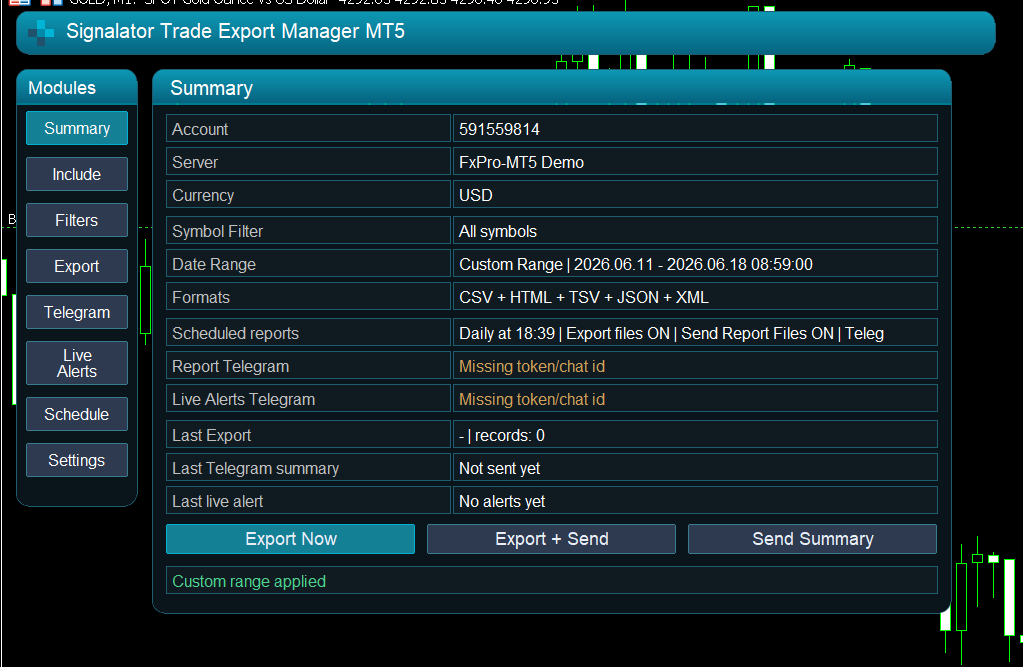
Figure 1. Summary page with current account and reporting status.
-
Include tab - choosing what to export
The Include tab controls what data is included in the export.
This is where you decide whether the report should be a simple closed-trade summary or a more detailed audit-style export.
Typical options can include:
· closed trade summary
· history deals
· account information
· positions
· orders
· symbol data
· derived/performance fields
· fees and commissions
· price and result fields
· chart symbol data
The exact report depends on the selected data sources and field matrix.
For normal closed-trade reporting, use closed-trade summary fields. This gives a user-friendly report with open time, close time, symbol, side, volume, price and result.
For deeper checking or external analysis, use detailed history and audit-style fields.
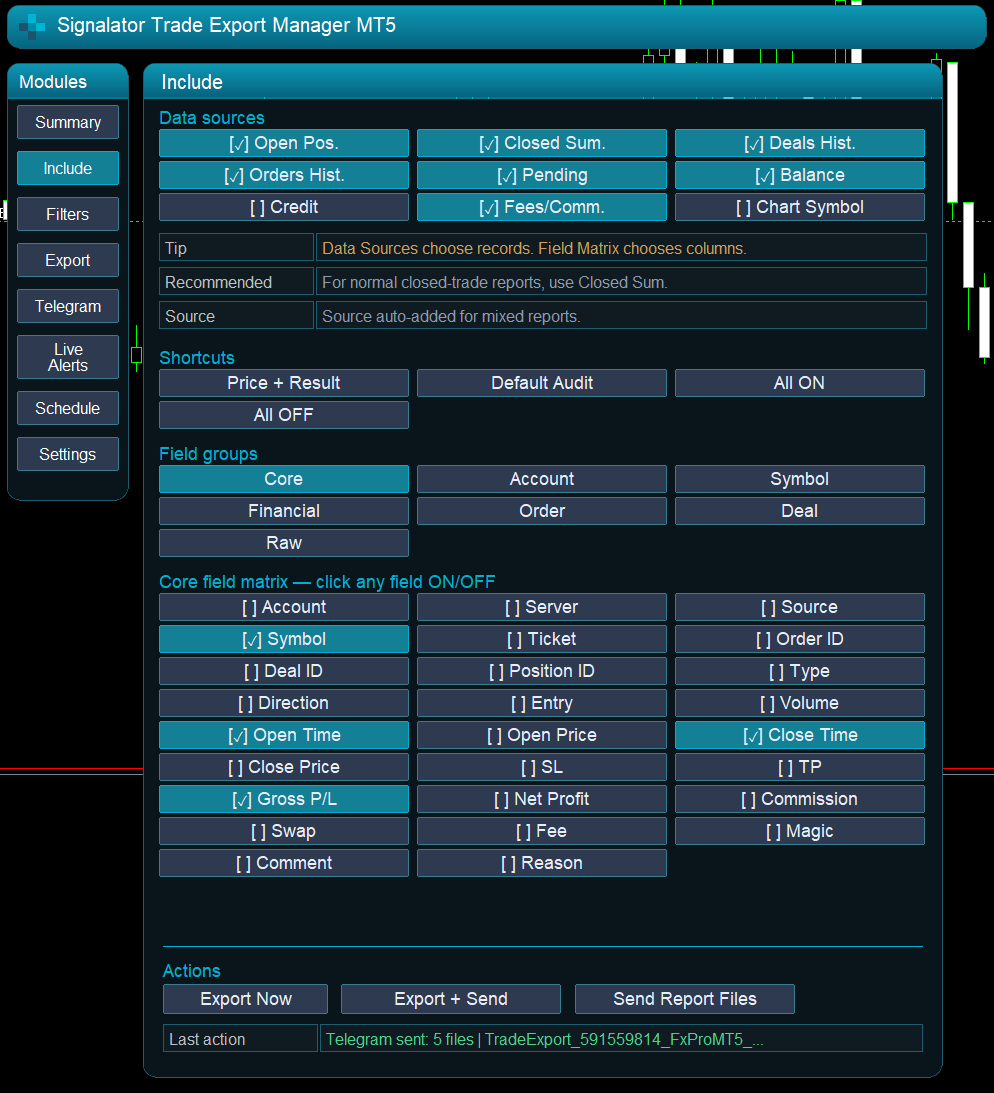
Figure 2. Include tab: selecting report data sources, fields and shortcuts.
-
Chosen fields and report result
Trade Export Manager MT5 is designed to create only the report you need.
You can choose required columns instead of exporting unnecessary data. This is useful when preparing different report types, for example:
· simple client statement
· closed-trade performance table
· audit-style account history
· spreadsheet analysis file
· developer/debug export
· backup of account activity
The selected fields define what appears in the exported files.
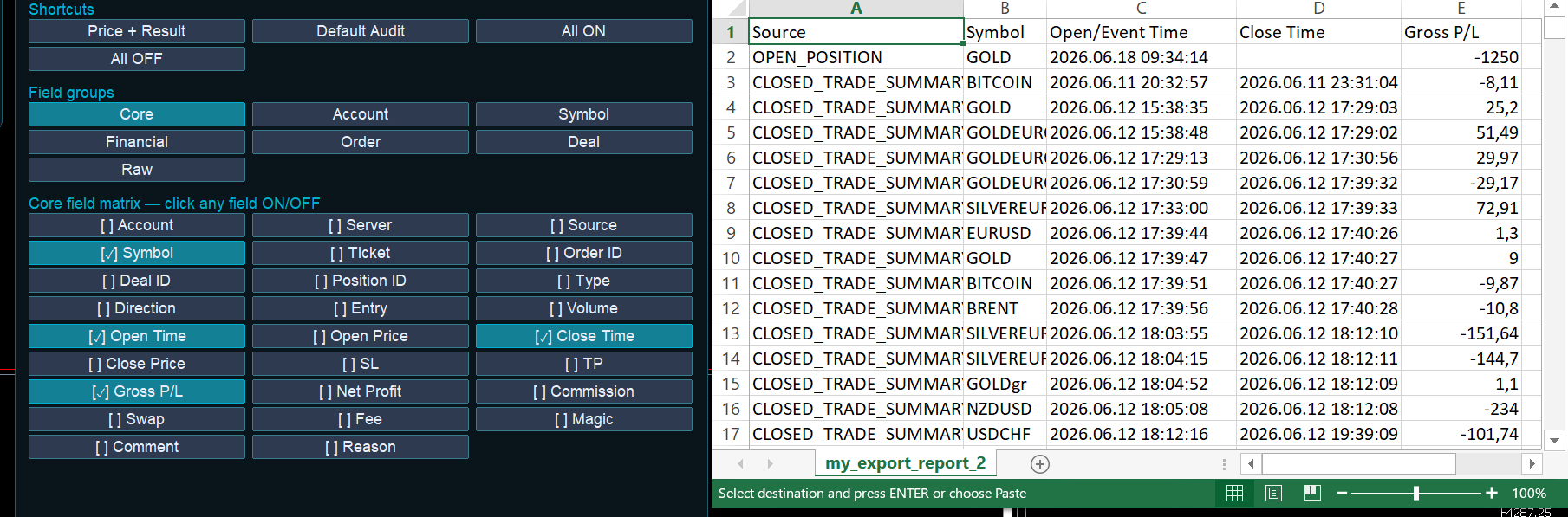
Figure 3. Example of selected options and generated result.
-
Filters tab
The Filters tab controls which records are included in the export.
Available filter groups include:
· date presets
· custom date range
· side
· symbol
· magic number
· close reason
The date presets include:
· Today
· Yesterday
· This Week
· This Month
· Last 7 Days
· Last 30 Days
· All History
· Custom Range
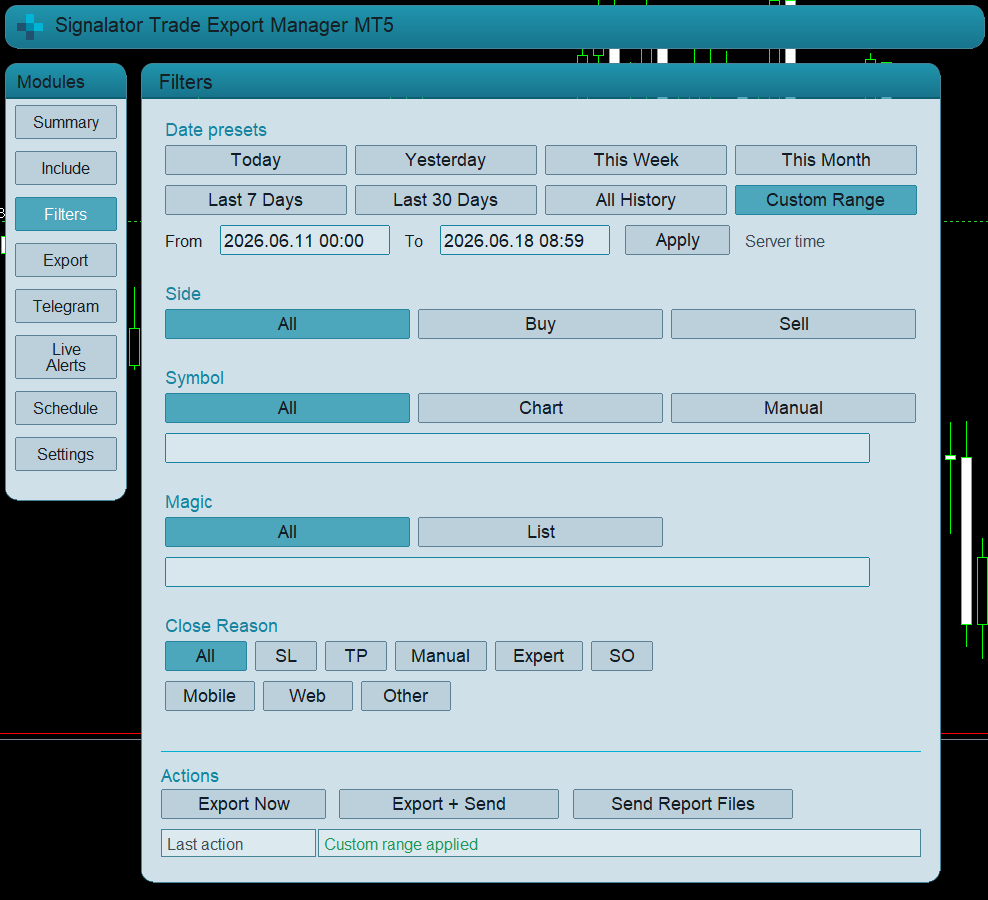
Figure 4. Filters tab with date presets and custom date range.
-
Custom date range
Custom Range allows you to set a manual start and end date.
This is useful for reports such as:
· a specific client period
· a prop challenge phase
· a weekly review
· a monthly report
· an audit window
· a custom trading campaign
The custom date range uses account/history server time, because MT5 history is stored by broker server time.
If the date range is invalid, adjust the start and end values and apply the range again.
-
Side, symbol, magic and close reason filters
Side filter:
· All
· Buy
· Sell
Symbol filter:
· All
· Chart
· Manual list
Magic filter:
· All
· List
Close Reason filter:
· All
· SL
· TP
· Manual
· Expert
· Stop Out
· Mobile
· Web
· Other
If a filter mode is set to All, the corresponding list field is ignored.
Example: if Magic is set to All, the text in the magic list field is not used.
Use filters only when you need a narrower report. For full account reporting, keep filters on All.
-
Export tab
The Export tab controls file formats, HTML options, folder location and file name.
Available formats:
· CSV
· HTML
· TSV
· JSON
· XML
CSV and TSV are useful for spreadsheets.
HTML is useful for readable reports and quick preview.
JSON and XML are useful for structured external processing.
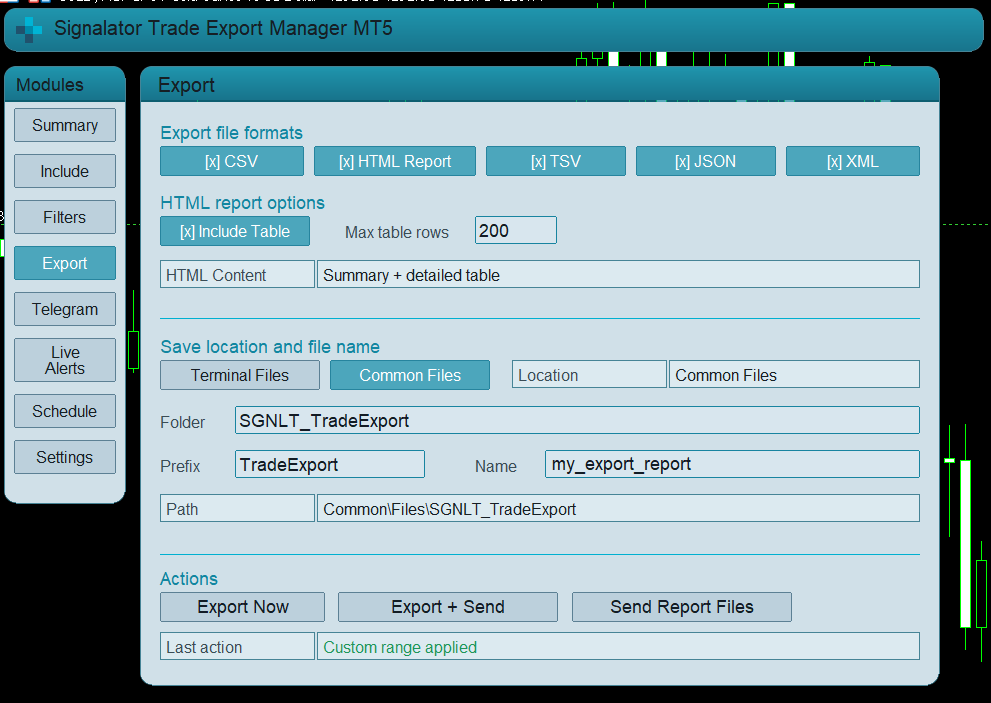
Figure 5. Export tab: file formats, HTML settings, folder and file name.
-
HTML report options
The HTML report can include a readable table and summary information.
Use HTML when you want a clean report that can be opened directly in a browser.
You can also set a maximum number of rows for the HTML table, which helps keep large reports readable.
-
File location and file names
The Export tab allows you to choose where files are saved.
You can use terminal files or common files depending on the selected option.
The product can also use:
· folder name
· file prefix
· custom file name
· generated report name
The path row shows where the report files are saved.
-
Export actions
The main export actions are:
· Export Now - generate report files
· Export + Send - generate files and send them to Telegram
· Send Report Files - send already generated files to Telegram
If Telegram is not configured, file sending will not work until the bot token, chat ID and WebRequest settings are correct.
-
Telegram tab - report delivery
The Telegram tab controls report file delivery.
It includes:
· Telegram enabled
· setup status
· WebRequest URL reminder
· maximum file size
· test message
· Send Report Now / Export + Send actions
· last export status
Required Telegram API URL for MT5 WebRequest:
-
Telegram setup
To use Telegram delivery, you need:
· Telegram bot token
· Telegram chat ID
· WebRequest permission in MetaTrader 5
· Telegram enabled in the product
Basic setup:
-
Create a Telegram bot using BotFather. (detailed instruction on how to create the bot)
-
Copy the bot token.
-
Find your chat ID.
-
Open MetaTrader 5.
-
Go to Tools -> Options -> Expert Advisors.
-
Enable WebRequest for listed URL.
-
Add:
-
Enter the bot token and chat ID in the product.
-
Press the test button.
If the test message arrives, Telegram delivery is working.
-
Live Alerts tab
The Live Alerts tab controls real-time trade notifications.
Live notifications can be sent through:
· Telegram
· popup
· push notification
The panel can track:
· open positions
· pending orders
· opened trades
· closed trades
· partial closes
· SL/TP changes
· pending order creation
· pending order modification
· pending order removal
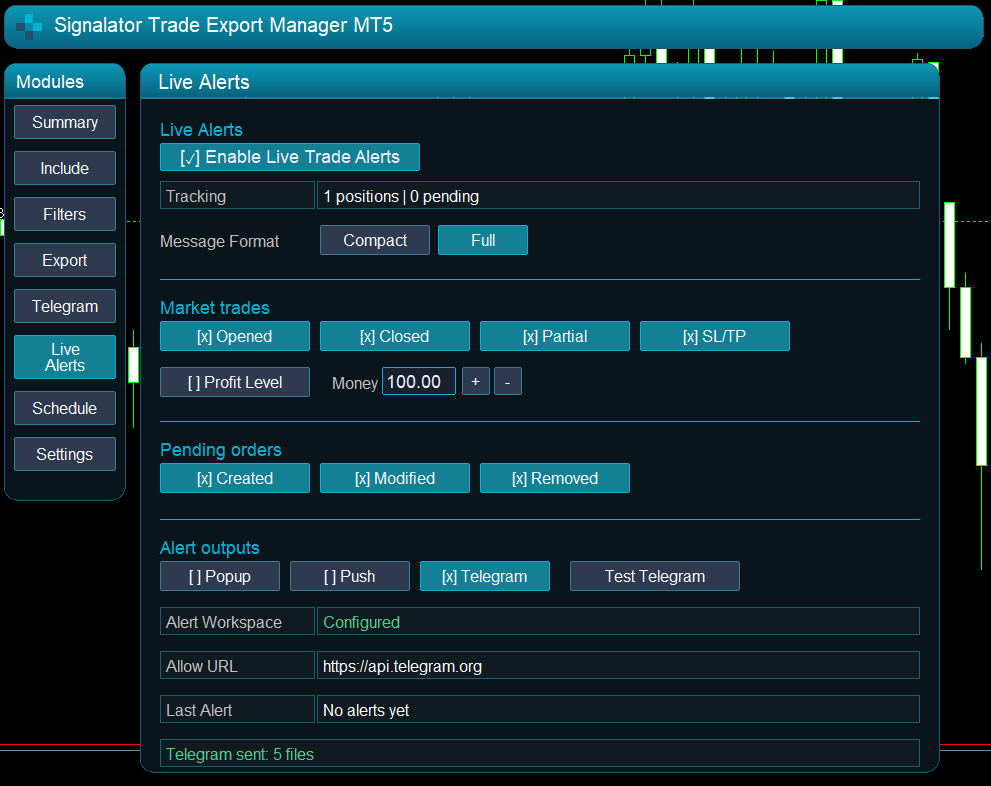
Figure 6. Live Alerts tab: trade event notifications and delivery channels.
-
Live alert message formats
There are two message formats:
· Compact
· Full
Compact format is short and useful for quick Telegram notifications.
Full format contains more details and is useful when you want complete trade information.
Example compact notification:
[My Account] Trade Opened
GOLD BUY 0.10 | Open 4329.75 | SL - | TP - | #123456789
Account: 591559814
Example full notification:
My Account
Trade Closed
Account: 591559814
Server: FxPro-MT5 Demo
Symbol: GOLD
Side: BUY
Lots: 0.10
Net Result: +45.20 USD
Ticket: 123456789
Time: 2026.06.18 12:30:00
-
Received Telegram alerts and reports
When Telegram is configured, the product can deliver both live notifications and reporting messages.
Telegram can be used for:
· report file delivery
· live trade events
· daily summaries
· weekly summaries
· monthly summaries
-
Schedule tab
The Schedule tab controls automatic report actions.
Scheduled actions:
· Export files
· Send Report Files
· Telegram summary
Schedule modes:
· Interval
· Daily
· Weekly
· Monthly
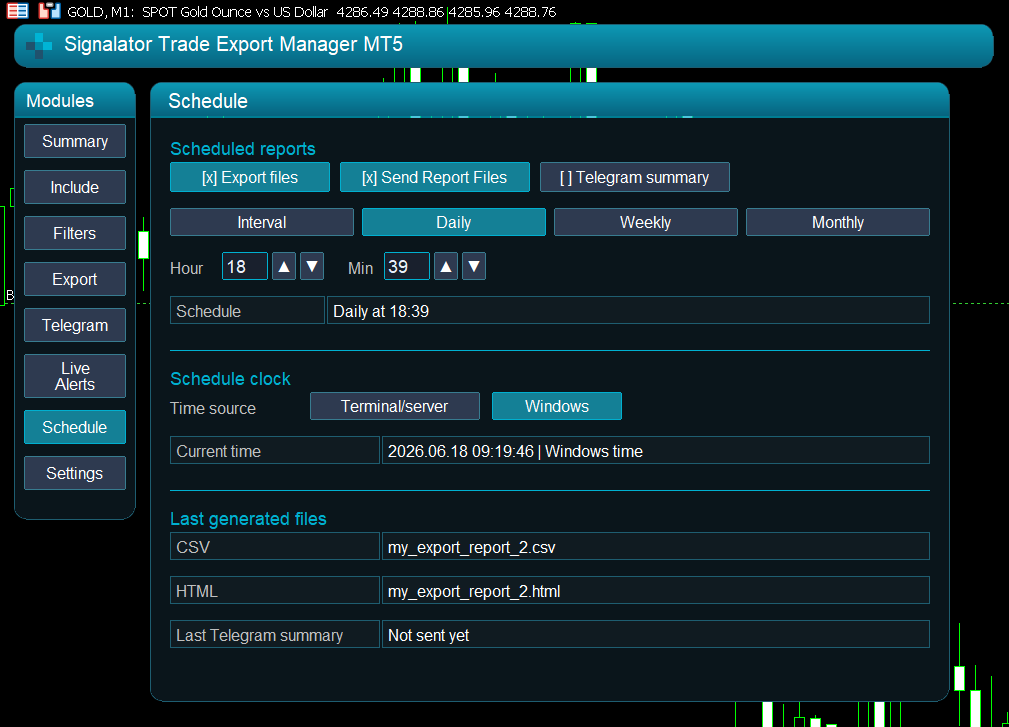
Figure 10. Schedule tab: automatic report files and Telegram summaries.
-
Schedule modes explained
Interval
Runs the selected actions every N hours.
Example: Repeat every 24 hours.
Daily
Runs once per day at the selected hour and minute.
Example: Daily at 18:30.
Weekly
Runs once per week on the selected weekday at the selected hour and minute.
Example: Friday at 18:30.
Monthly
Runs once per month on the selected day at the selected hour and minute.
Example: day 1 of each month at 18:30.
-
Schedule clock and report period time
The schedule clock controls when the product runs automatic actions.
Trade history periods are based on broker/account history time, because MT5 history is stored by broker server time.
This means:
· schedule trigger time controls when reports are generated
· report period time controls which history records are included
If your Windows time and broker server time are different, use the displayed report period to understand the actual history window.
-
Telegram trading summaries
Telegram summaries are plain-text report messages.
They can include:
· closed trades
· wins and losses
· win rate
· lots
· net result
· gross profit
· gross loss
· costs
· best trade
· worst trade
· best symbol
· worst symbol
Example:
[My Account] Daily Summary
Period: 2026.06.18 00:00:00 - 2026.06.18 18:30:00 server time
Account: 591559814
Server: FxPro-MT5 Demo
Closed trades: 24
Wins / Losses: 14 / 10
Win rate: 58.3%
Lots: 5.20
Net result: +245.80 USD
Gross profit: +620.40 USD
Gross loss: -374.60 USD
Costs: -12.30 USD
Best trade: GOLD +120.50 USD
Worst trade: EURUSD -45.20 USD
Top symbol: GOLD +180.30 USD
Worst symbol: EURUSD -85.10 USD
-
Settings tab
The Settings tab controls visual and interface options.
Available settings can include:
· language
· theme
· layout / panel options
· visual style
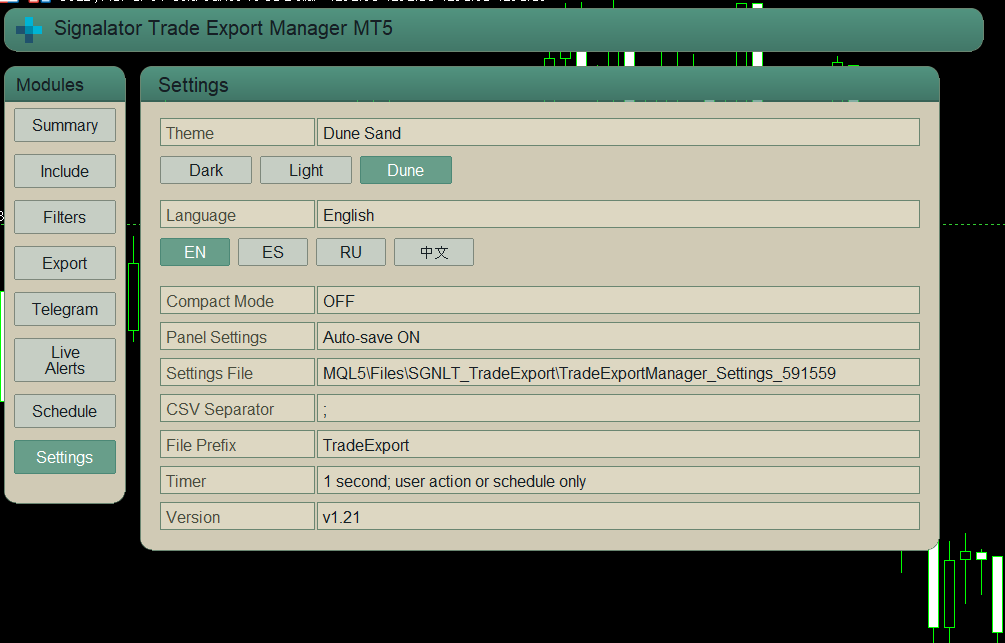
Figure 11. Settings tab: language and visual options.
-
Languages
The interface supports:
· English
· Spanish
· Russian
· Chinese
Language can be changed from the product settings.
-
Themes
Available themes:
· Dark
· Light
· Dune
Use the theme that best fits your chart background and workspace.
-
Practical examples
Example 1 - Simple closed-trade export
-
Open Filters.
-
Select Last 30 Days.
-
Keep Symbol, Magic and Close Reason set to All.
-
Open Include.
-
Select closed-trade summary fields.
-
Open Export.
-
Enable CSV and HTML.
-
Press Export Now.
Example 2 - Custom period report
-
Open Filters.
-
Select Custom Range.
-
Set From and To dates.
-
Apply the range.
-
Export the report.
Example 3 - Send report files to Telegram
-
Configure Telegram token and chat ID.
-
Add WebRequest URL in MT5.
-
Generate a report.
-
Press Send Report Files.
Example 4 - Daily Telegram summary
-
Open Schedule.
-
Enable Telegram summary.
-
Select Daily.
-
Set hour and minute.
-
Keep the EA running on the chart.
Example 5 - Live trade notifications
-
Open Live Alerts.
-
Enable live trade alerts.
-
Enable Telegram or popup/push output.
-
Choose opened/closed/partial/SLTP/pending events.
-
Press Test Telegram.
-
Troubleshooting
Telegram message not sent
Check:
· Telegram enabled in the product
· correct bot token
· correct chat ID
· bot chat started
· WebRequest URL added in MetaTrader 5
· internet connection
· Experts / Journal logs
Report file not sent
Check:
· Telegram report setup
· generated files exist
· file size is under the maximum file limit
· WebRequest is allowed
· bot token and chat ID are correct
No trades in summary
Check:
· selected report period
· broker server time
· filters
· symbol mode
· magic filter
· close reason filter
· whether there are closed trades in MT5 history for the selected period
Report has too many rows
Use:
· shorter date period
· symbol filter
· magic filter
· close reason filter
· fewer data sources
HTML report too large
Reduce:
· HTML max rows
· date period
· number of selected fields
· number of data sources
Telegram says token/chat ID missing
Enter the correct bot token and chat ID in the Telegram settings and press the test button.
-
Important note
Trade Export Manager MT5 is a reporting, export and notification utility.
It does not open trades, close trades, modify positions, copy trades or generate buy/sell signals.
It reads account/history data available inside MetaTrader 5 and creates report files, Telegram messages and live notifications from that data.
No trading result or profit is promised or implied.
-
Part of the Signalator ecosystem
Trade Export Manager MT5 is part of the Signalator trading utility ecosystem.
Our tools are built to improve MetaTrader workflows with cleaner dashboards, reporting tools, Telegram notifications, symbol scanning, account monitoring and practical trading-process utilities.
You may also be interested in Multi TF Symbol Scanner Alerts, a Signalator tool for scanning selected symbols, comparing trend direction across multiple timeframes and receiving market-condition alerts.




