How to Check Indicator Status in MetaTrader?
Before troubleshooting, it’s important to understand how to verify whether an indicator is working or has failed.
In the MetaTrader platform:
- Open the Terminal window (press Ctrl + T)
- Go to the “Experts” tab
This tab shows all activity related to indicators and EAs.
- If the indicator loads correctly → you will see normal initialization messages

- If there is a problem → you will see error logs such as “uninit reason”, file errors, or other warnings

👉 This is the first place you should always check when an indicator does not behave as expected.
Indicator Not Loading on Chart (Error: uninit reason 8)
You may see an error like this in the Experts tab of the Terminal window:
uninit reason 8
This issue usually occurs due to:
- Temporary internet/network instability
- Data mismatch between the indicator and your broker server
✅ Basic Fix (Recommended)
Follow these steps carefully:
- Remove the chart where you tried to add the indicator
- Close your MetaTrader platform completely
- Check your internet connection and reconnect if needed
- Reopen MetaTrader
- Open a new fresh chart
- Add the indicator again
⚠️ Important Note (Very Common Issue)
Sometimes, when an indicator fails to load properly, some parts of it remain stuck on the chart.
If you try to add the indicator again on the same chart, you may see errors like:
- “Indicator already exists on the chart”
- Indicator not loading properly
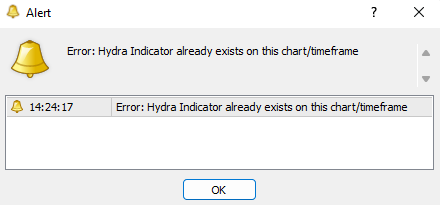
👉 That’s why it is strongly recommended to always use a fresh clean chart
🧹 Alternative Fix (Manual Chart Cleanup)
If you prefer not to open a new chart, you can clean the existing chart manually:
Method 1 (Quick Shortcut)
- Press Ctrl + B on your keyboard
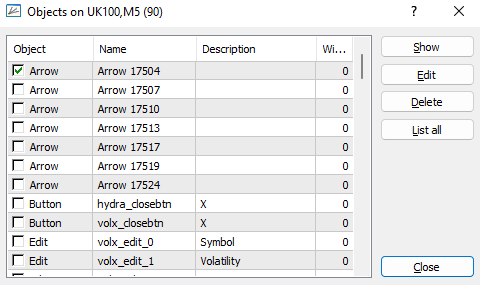
Method 2 (Manual Way)
- Right-click on the chart
- Click Objects List
- Click List All
- Select and delete all leftover objects
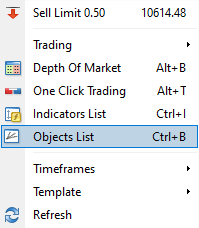
This will remove any remaining parts of the old indicator.
🛠️ One-Click Solution
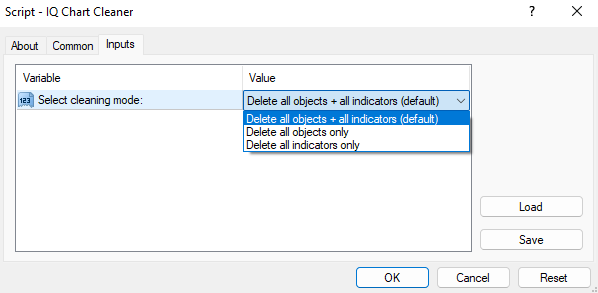
You can also use the IQ Chart Cleaner Tool to remove all leftover objects instantly with a single click. Simply drag and drop the tool on the chart, select the option you prefer and click ‘Ok’.
Download Links: MT4 | MT5
📩 Still Facing Issues?
If the problem with our purchased indicator is not resolved after trying the above steps, feel free to contact us directly on MQL5 - we’re happy to help.
If you're new here, click here to join our Official MQL5 Channel for daily market analysis, updates and offers on our indicators.
Also Check out: Seller Page | Welcome PostDisclaimer:
• Trading involves financial risk. Know all the risks before investing. Read all the Terms & conditions of each of the product pages before purchasing indicators.
• Our products are available only on mql5.com.
• We never contact anyone or sell our products privately.
• We do not provide any personal trading advice.
• We do not sell any of the Intraquotes products on Telegram or any other platform or website.
©intraquotes | DO NOT COPY THIS CONTENT
RISK DISCLOSURE
Trading financial markets carries inherent risks and may not be suitable for every investor. This indicator is designed as a tool to assist in trading decisions but does not guarantee profits or prevent losses, which could exceed your initial investment. Past performance is not a reliable indicator of future outcomes. Users are encouraged to fully understand the risks and seek independent financial advice if needed. Any trading decisions made using this indicator are at the user's discretion and responsibility.