This article provides a detailed overview of Symbol Screener — an application for MetaTrader 5 that gathers signals from five indicators across multiple symbols and timeframes into a single compact table. You will learn how to set up market monitoring, work with mini-charts, and use multi-symbol analysis to find trading opportunities.
If you need a version without indicator signal analytics, see Chart Manager by the same author.
Contents
1. Introduction
Imagine this: you trade several currency pairs and want to know what the indicators are showing on each of them right now. The usual approach is to switch charts one by one, open indicator sub-windows, compare values in your head. It takes time, and the market doesn't wait.
Symbol Screener solves this problem. It is an application for MetaTrader 5 that gathers indicator signals across multiple symbols and timeframes in a single compact window. You see the full picture at once: which indicator on which symbol and timeframe is giving a BUY or SELL signal, how many bars have passed since the signal, and how many times the signal has repeated consecutively.
The application supports five of the most popular indicators:
- Moving Average — trend direction based on price crossing the moving average line.
- MACD — signals based on MACD line and signal line crossover.
- RSI — identifying overbought and oversold zones.
- Stochastic — analysis of %K and %D line crossovers in extreme zones.
- CCI — detecting cyclical price deviations.
Oscillator-type indicators (MACD, RSI, Stochastic, CCI) are implemented to work in two modes: classic — in a chart sub-window, as in the standard delivery, and extended — directly on the main chart. In both modes, signal arrows are displayed next to the indicator lines on each new bar. In the main chart mode, BUY/SELL arrows are additionally placed at the opening price of the new bar, and dashed levels are drawn at the prices where signals were generated. This allows you to visually evaluate signal profitability without extra chart manipulations and significantly speeds up the selection of optimal indicator parameters through the application's GUI.
All of them work simultaneously: in single-symbol mode (Single Symbol) — table rows represent indicators and columns represent timeframes. In multi-symbol mode (Multi-Symbol) — rows become symbols, and you see the signals of the selected indicator across all tracked instruments.
Beyond the signal table, Symbol Screener allows you to open sub-windows with charts for multiple symbols, configure indicator parameters through a convenient interface, change chart color schemes, and display signal labels directly on top of mini-charts.
The application features a polished graphical interface built on a custom GUI engine:
- Dark and Light themes — switch with one click, all interface elements adapt automatically.
- Resizable windows — window sizes can be changed, and elements inside automatically adapt to the new dimensions.
- Grab-and-scroll — scroll elements by grabbing anywhere in the frame, like on smartphones, not just through a narrow scrollbar.
- High-quality graphics — canvas rendering of all controls with fast drawing and rounded forms.
- DPI-aware scaling — the interface scales correctly relative to the DPI set in the operating system and looks crisp on screens of any resolution.
- Color-coded tables — table cells are colored according to signal direction, enabling instant information reading.
In this article, I will show all the capabilities of Symbol Screener in detail and explain how to use it for daily market analysis.
2. Tool Description
The Symbol Screener application consists of several windows, each responsible for its own functional area. All windows share a unified design style and work together: changes in one window are instantly reflected in others. Let's examine each of them in detail.
2.1. Main Window
When you launch Symbol Screener, a compact main window appears on the chart, serving as the application's control center.
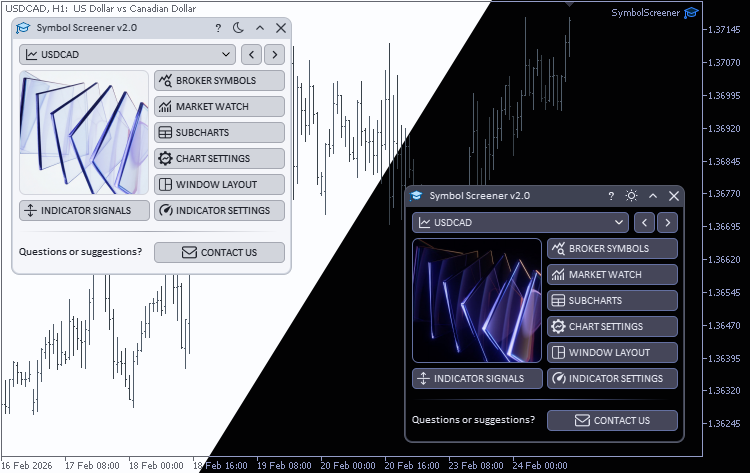
Symbol Screener main window in light and dark themes
At the top of the window is a symbol dropdown list with a chart icon. It contains all symbols from the terminal's Market Watch window. To the right of the list are navigation buttons (left/right arrows) that allow quick switching between symbols — the terminal's main chart updates automatically.
Below is an image that adapts to the current theme (dark or light). To its right is a block of quick access buttons to the application's main features:
- BROKER SYMBOLS — opens the window with all available broker symbols.
- MARKET WATCH — opens the window for managing the list of tracked symbols and chart sub-windows.
- SUBCHARTS — opens the mini-chart management and display settings window.
- WINDOW LAYOUT — opens the automatic detached chart window arrangement settings.
- INDICATOR SETTINGS — opens the indicator parameter settings window.
- INDICATOR SIGNALS — opens the window with the indicator signal table.
Each button is accompanied by a themed icon that automatically recolors to match the current theme's text color.
2.2. Broker Symbols Window
The BROKER SYMBOLS window provides access to all trading instruments available from the current broker.

Broker Symbols window
At the top of the window is a control panel:
- Category filter (Path) — a dropdown list with a checkbox that allows filtering symbols by broker groups (e.g., Forex\Major, Crypto, Stocks, etc.). The number of symbols in each group is shown in parentheses next to the group name.
- SPECIFICATION — button to open the specification window for the selected symbol, displaying all trading conditions (contract size, price step, margin, etc.).
- MARKET WATCH — quick navigation button to the Market Watch window.
- Add to Market Watch toggle — allows adding the selected symbol to the terminal's Market Watch or removing it.
The SPECIFICATION button opens the SYMBOL SPECIFICATIONS window with the full specification of the selected trading instrument. At the top of the window are two buttons:
- OPEN CHART — opens a new chart window with this symbol in the terminal (the chart style is copied from the current one).
- EXPORT CSV — exports all symbol specification data to a CSV file. The file is saved to the terminal's common folder, and a notification with the file path is displayed after export.
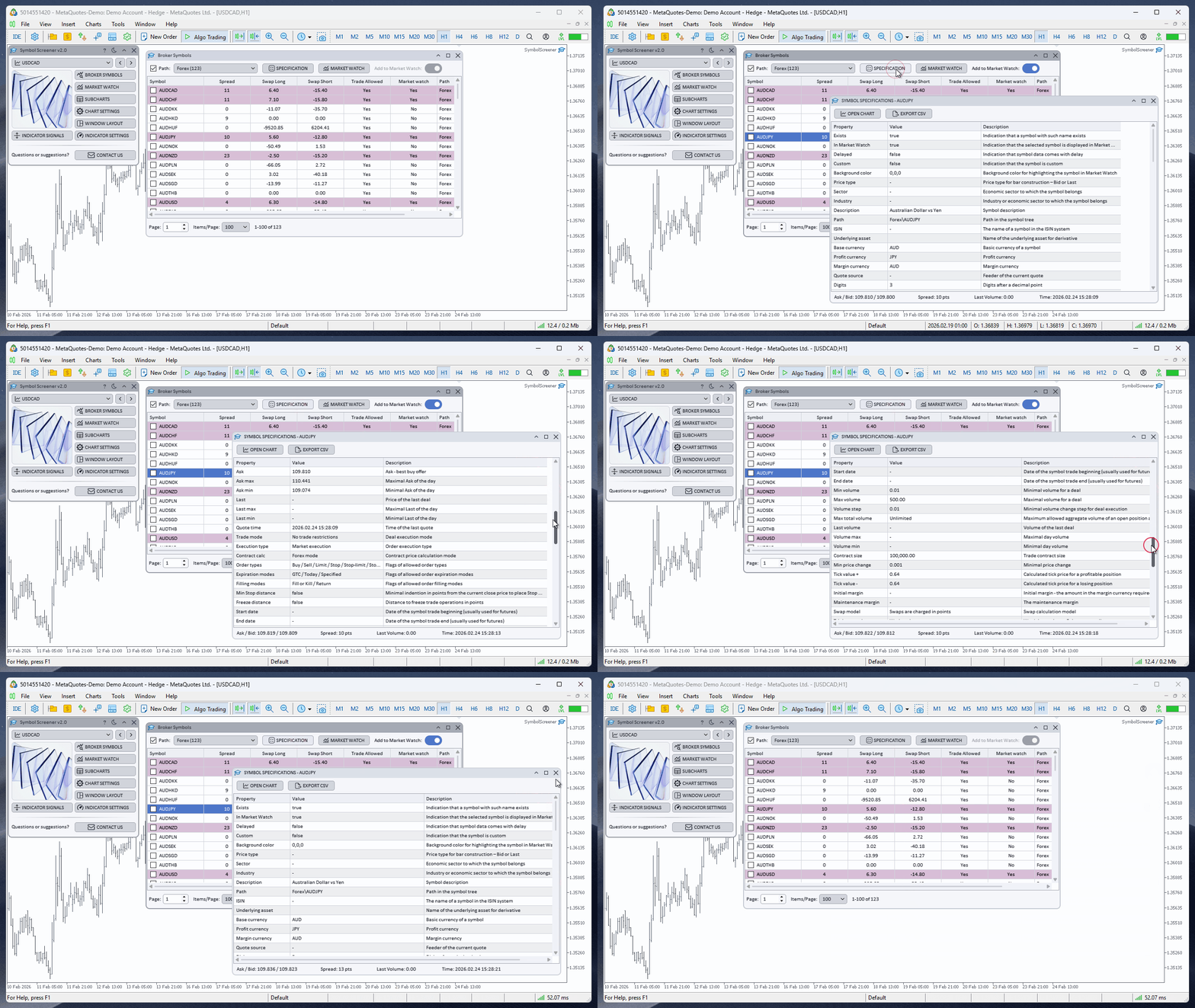
Trading symbol specification window
The main part of the BROKER SYMBOLS window is a table with the following columns:
- Symbol — symbol name with a checkbox for multiple selection.
- Spread — current spread.
- Swap Long / Swap Short — swap values.
- Trade Allowed — whether trading is allowed for the symbol.
- Market Watch — whether the symbol is in Market Watch.
- Path — the symbol's broker category.
Symbols already added to Market Watch are highlighted with a separate color in the table for quick visual identification. The table supports sorting by any column, column width adjustment, and pagination via the Pagination element at the bottom of the window.
For bulk adding symbols to Market Watch, you can check the desired rows and use the toggle — all checked symbols will be added or removed simultaneously.
2.3. Market Watch Window
The MARKET WATCH window is the central place for managing the list of tracked symbols, selecting timeframes, and creating sub-windows with mini-charts.
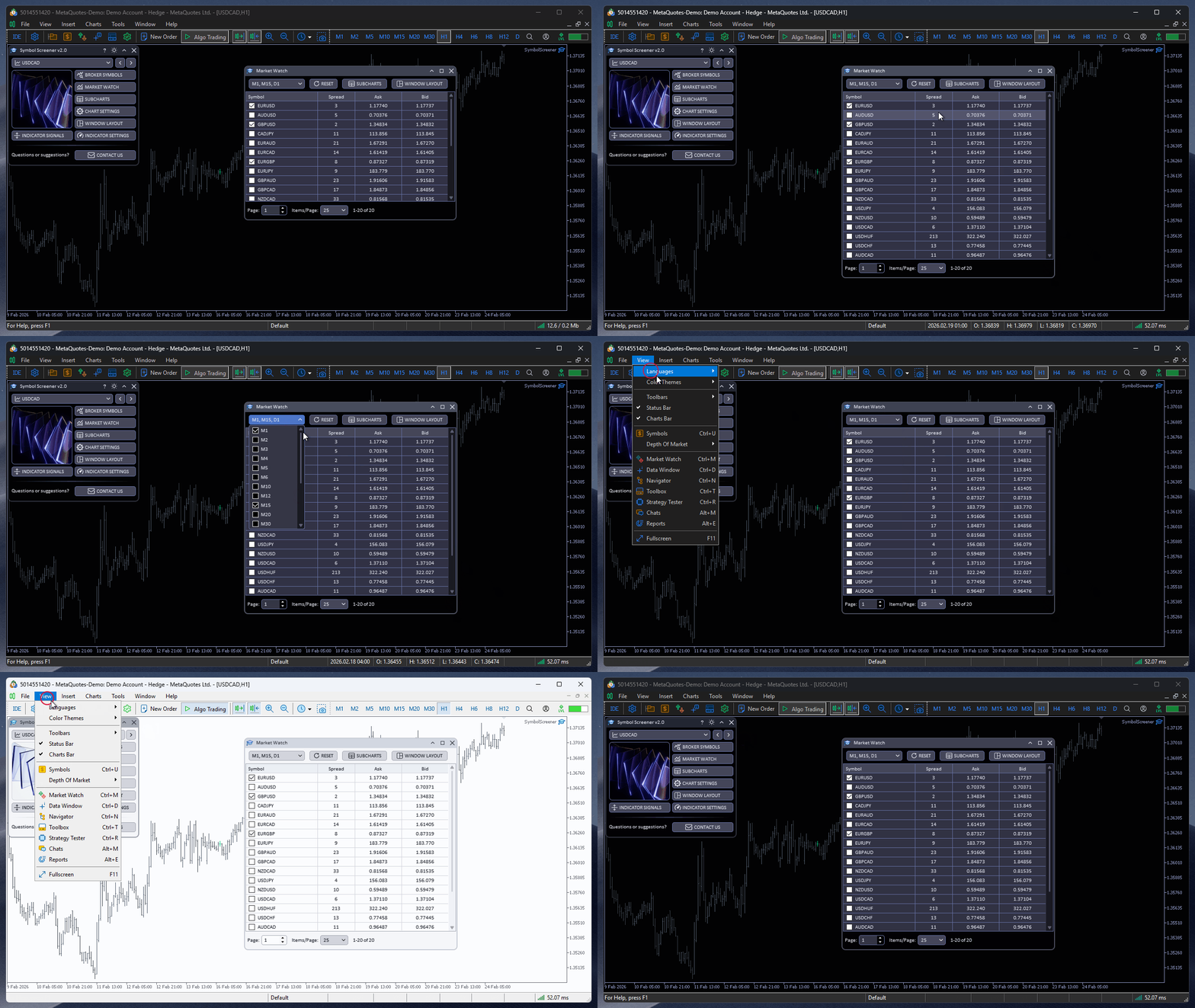
Market Watch window
The top panel contains the following elements:
- Timeframes — a dropdown list with checkboxes for selecting timeframes. M5, H1, and D1 are selected by default. You can enable any number of timeframes — a separate mini-chart will be created for each one in the symbol's sub-window.
- RESET — clears all checked symbol checkboxes and removes created sub-windows.
- SUBCHARTS — quick access to mini-chart display settings.
- WINDOW LAYOUT — quick access to detached chart window arrangement settings.
The main part of the window is a table of symbols from the terminal's Market Watch with columns:
- Symbol — symbol name with a checkbox.
- Spread — current spread.
- Ask / Bid — current prices.
The table supports two sub-window modes:
- Row selection mode — clicking a row creates a sub-window with mini-charts for the selected symbol. When selecting another symbol, the previous sub-window is replaced with a new one.
- Checkbox mode — checking multiple symbols creates a separate sub-window for each one. All sub-windows are displayed simultaneously, allowing you to see charts for multiple instruments on one screen.
Each sub-window creates mini-charts for all timeframes selected in the Timeframes dropdown. When the timeframe set changes, mini-charts in all sub-windows are updated automatically.
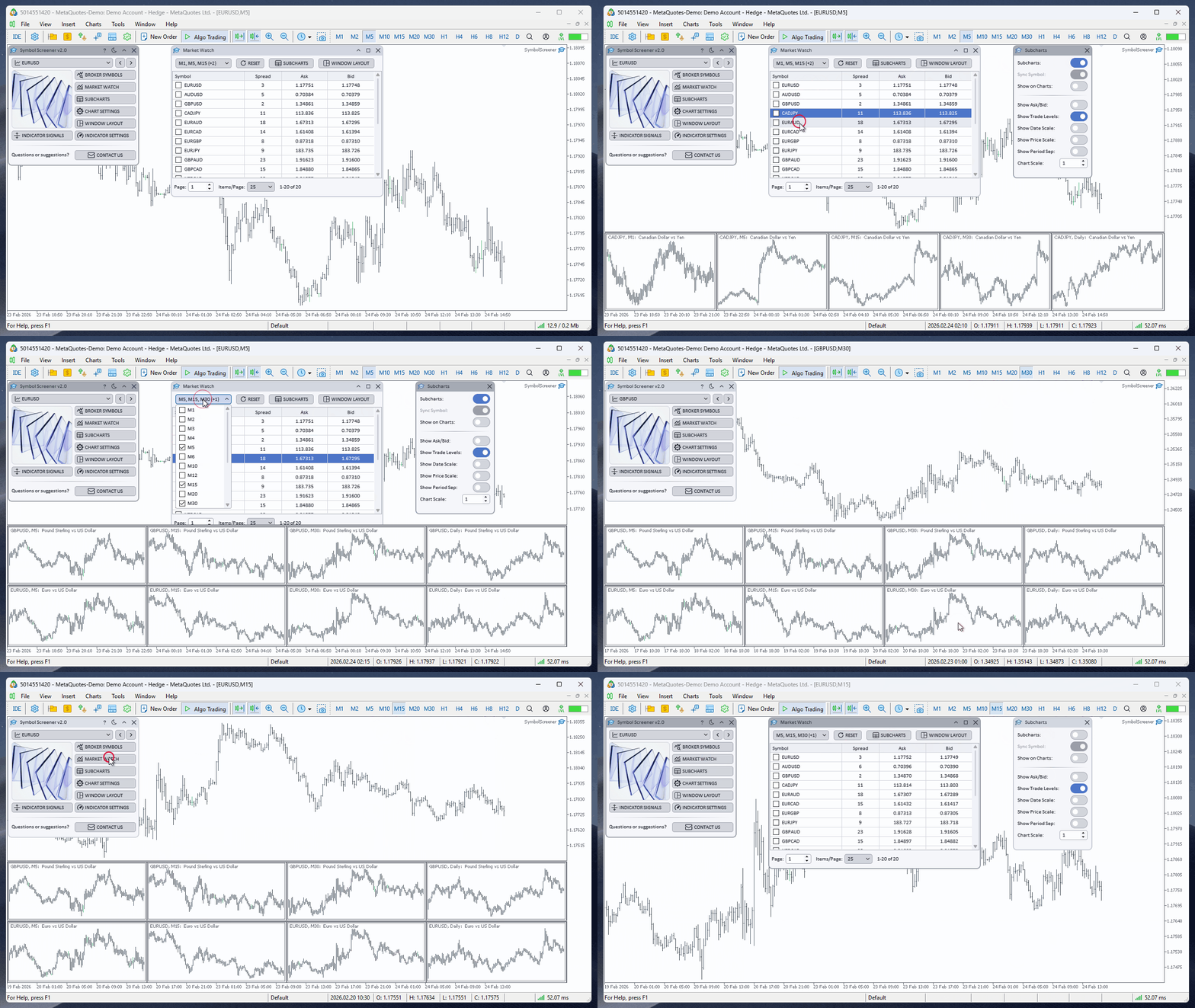
Managing mini-charts in sub-windows
Clicking any mini-chart switches the terminal's main chart to the corresponding symbol and timeframe. This provides fast navigation: you see the overall picture across all instruments in sub-windows and switch to detailed analysis or trade execution on the desired symbol with a single click.
At the bottom of the window is a Pagination element with page navigation, allowing more convenient work with a large number of symbols.
2.4. SUBCHARTS Window
The SUBCHARTS window allows you to control how elements are displayed on mini-charts in sub-windows and detached chart windows.
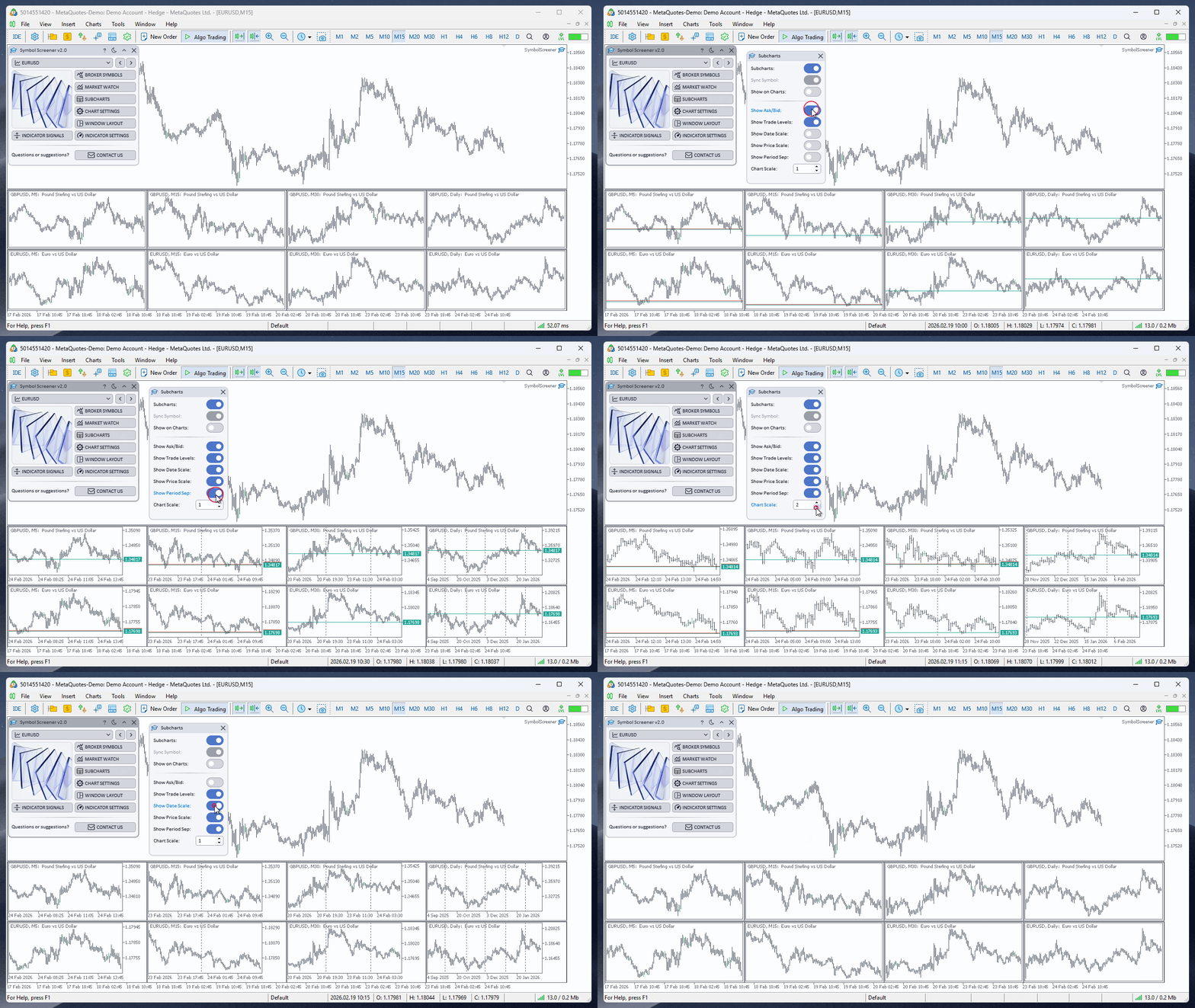
SUBCHARTS window
All settings are presented as toggles and a slider:
- Show Ask/Bid — display Ask and Bid lines on mini-charts.
- Show Trade Levels — display levels for open positions and pending orders.
- Show Date Scale — show the date scale at the bottom of mini-charts.
- Show Price Scale — show the price scale on the right side of mini-charts.
- Show Period Sep — show period separators.
- Chart Scale — mini-chart scale.
Changes are applied instantly to all mini-charts across all sub-windows. Settings are saved automatically and restored on the next application launch.
2.5. WINDOW LAYOUT Window
The WINDOW LAYOUT window controls automatic detached chart window arrangement around the terminal. This allows you to combine table-based signal analysis with visual monitoring of multiple charts at once.
Key controls:
- Chart Window Mode — master switch for automatic window layout.
- Use Table Symbols — creates windows only for symbols checked in the MARKET WATCH table.
- Close on Exit — choose whether to close windows or leave them on screen when Chart Window Mode is turned off.
- Snap Side — terminal snap side (Right / Left / Top / Bottom).
- Grid Cols and Grid Rows — grid structure.
- Gap X and Gap Y — horizontal and vertical gaps between windows.
- Grid Margin and Perp Margin — grid margins relative to the terminal.
- Snap Size — size of the area occupied by detached windows.
Parameter changes are applied instantly, so you can quickly adapt the workspace to your current trading scenario — from a compact screening grid to a wider multi-timeframe overview layout.
2.6. Indicator Settings Window
The INDICATOR SETTINGS window allows you to configure parameters for all five supported indicators in one place. This list can be supplemented with any other indicators for which signal generation conditions can be formalized.
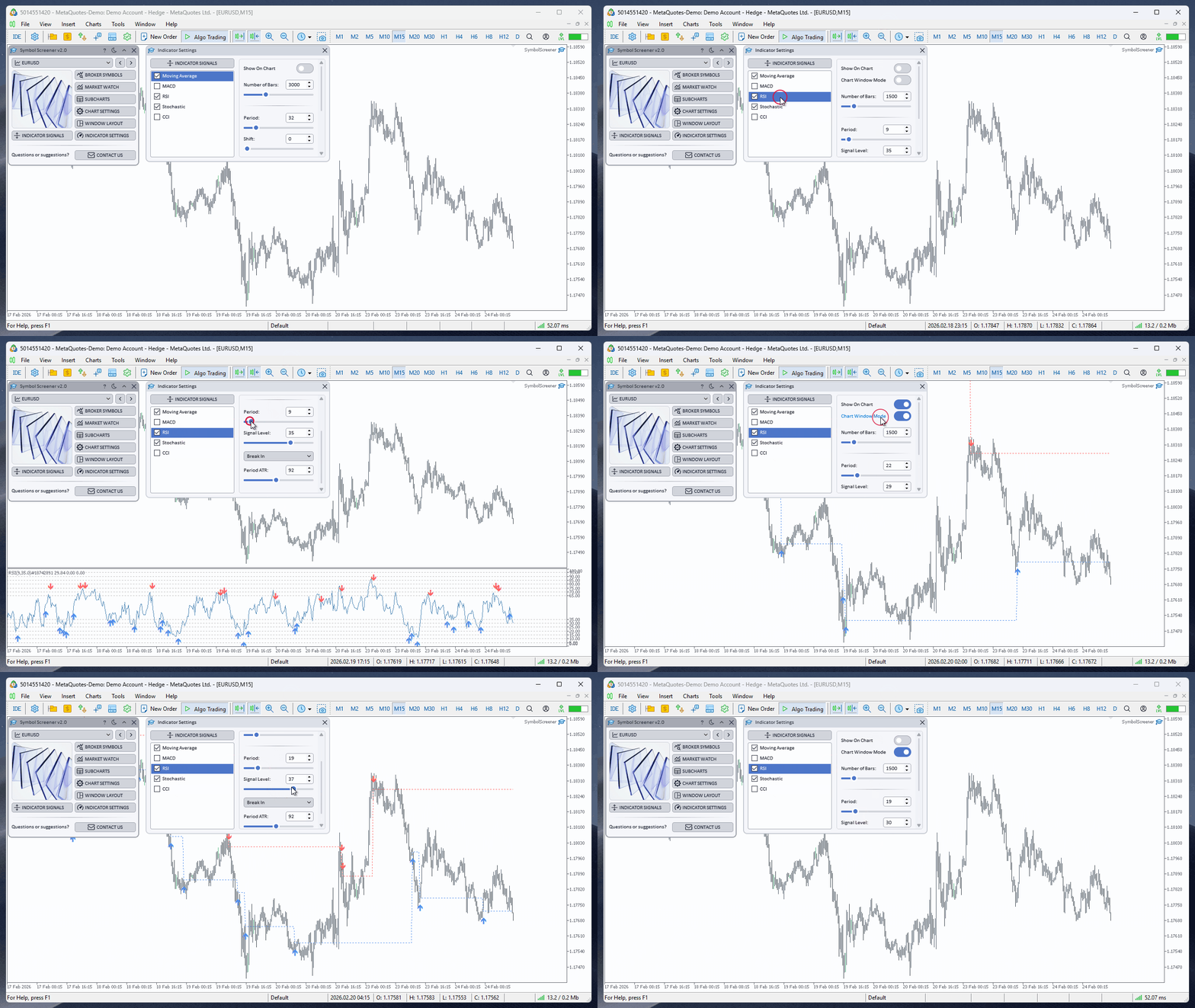
Indicator settings window
At the top of the window is the INDICATOR SIGNALS button — quick access to the signal table window.
The main part of the window is divided into two areas:
- Indicator list (left) — contains five items with checkboxes: Moving Average, MACD, RSI, Stochastic, and CCI. Checkboxes determine which indicators are active in the signal table. Simultaneously, the list works as tabs: selecting an indicator displays its settings panel on the right.
- Parameter panel (right) — a scrollable frame with controls for the selected indicator. All settings are configured through sliders, toggles, dropdown lists, and color picker buttons.
The following common elements are available for each indicator:
- Show On Chart — a toggle that adds or removes the indicator from the terminal's main chart. This allows you to visually monitor the indicator on the current symbol without leaving the application.
- Chart Window Mode — a display mode toggle (available for oscillators: MACD, RSI, Stochastic, CCI). When off — the indicator is displayed in a separate chart sub-window (classic mode). When on — the indicator is drawn directly on the main chart, with BUY/SELL signal arrows placed at the opening price of the new bar, and dashed levels at signal formation prices.
- Number of Bars — the number of bars on which the indicator is calculated (0 — all available bars).
- Period — moving average period.
- Shift — line shift.
- Method — calculation method: Simple, Exponential, Smoothed, Linear Weighted, JMA.
- Apply To — price for calculation: Close, Open, High, Low, Median Price, Typical Price, Weighted Close.
- Line Width — line thickness.
- Line Color — line color (via color picker window).
- Fast EMA Period — fast EMA period.
- Slow EMA Period — slow EMA period.
- Signal Period — signal line period.
- Apply To — price for calculation.
- Use Signal Levels — enables adaptive signal levels based on volatility. When activated, additional parameters become available:
- Volatility Source — volatility source: ATR or StDev.
- Volatility Period — volatility calculation period.
- Front Period / Back Period — periods for level calculation.
- Volatility Mult. — volatility multiplier.
- Min Sensitivity — minimum sensitivity.
- Period — RSI period.
- Signal Level — signal level (defines overbought/oversold zones).
- Break Mode — signal generation mode: Break In, Break In Reverse, Break Out, Break Out Reverse.
- Period ATR — ATR period for signal filtering (0 — disabled).
- %K Period — %K line period.
- %D Period — %D line period.
- Slowing — slowing.
- Buy Level / Sell Level — signal generation levels for buy and sell.
- Main Color / Signal Color — main and signal line colors.
- Period — CCI period.
- Apply To — price for calculation.
- Break Mode — signal generation mode.
- Bottom Level / Top Level — lower and upper signal levels.
- Line Width — line thickness.
- Line Color — line color.
All parameter changes are applied in real-time: when moving a slider, the value updates on mouse button release, providing smooth control without unnecessary recalculations. Settings are automatically saved and restored on the next application launch.
2.7. Indicator Signals Window
The INDICATOR SIGNALS window is the application's main analytical tool. It presents signals from all active indicators across selected timeframes in a table format. The window supports resizing, allowing you to conveniently adjust it to the amount of displayed data.
At the top of the window are toggles that control the cell contents:
- Consecutive Signals — displays the count of consecutive signals in one direction.
- Bars Since Signal — displays the number of bars that have passed since the last signal.
- Signals on Charts — displays text labels with signal directions directly on top of mini-charts in sub-windows (more details below).
At the bottom of the window are additional controls:
- Indicator — a dropdown list for selecting an indicator (used in multi-symbol mode). The list shows only active indicators checked in the INDICATOR SETTINGS window.
- Multi-Symbol Mode — multi-symbol mode toggle.
- Plot Indicators — a toggle that copies indicators to all open mini-charts in sub-windows.
Clicking any table cell switches the terminal's main chart to the corresponding symbol and timeframe. This provides instant navigation to the signal of interest for detailed analysis.
Each table cell is colored according to the signal direction: blue for BUY and red for SELL. This allows instant reading of the overall market picture — a single glance is enough to see which indicators on which timeframes point in the same direction.
2.7.1. Single Symbol Mode
In single-symbol mode, the table shows signals from all active indicators for the current symbol on the main chart. Table structure:
- Rows — active indicators (MA, MACD, RSI, Stochastic, CCI).
- Columns — timeframes selected in the Market Watch window.
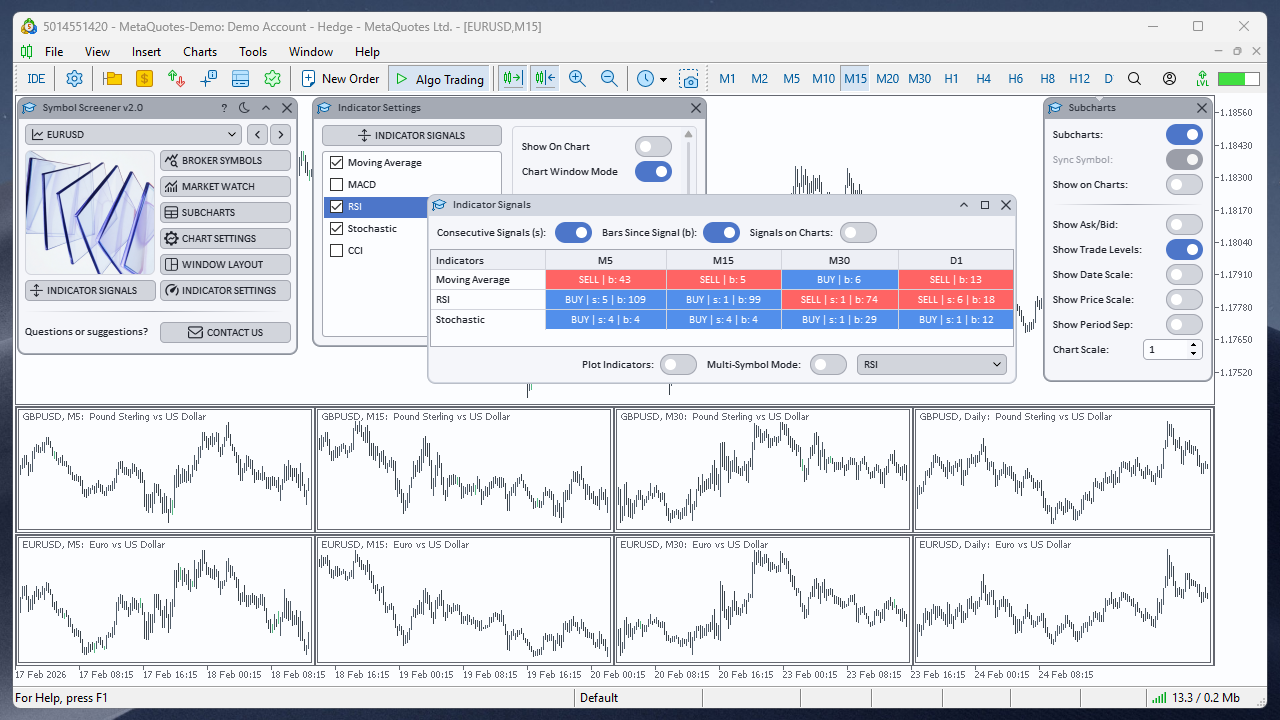
Signal table in single-symbol mode
Each cell displays the signal direction (BUY/SELL) and, depending on the enabled toggles, the counter and number of bars. This mode is convenient for quick analysis of a single instrument across multiple indicators and timeframes.
When switching the symbol on the main chart (or via navigation in the application's main window), the table is automatically recalculated for the new symbol.
2.7.2. Multi-Symbol Mode
When the Multi-Symbol Mode toggle is enabled, the table is restructured: rows become symbols and columns become timeframes. Signals are displayed for one selected indicator from the Indicator dropdown list.
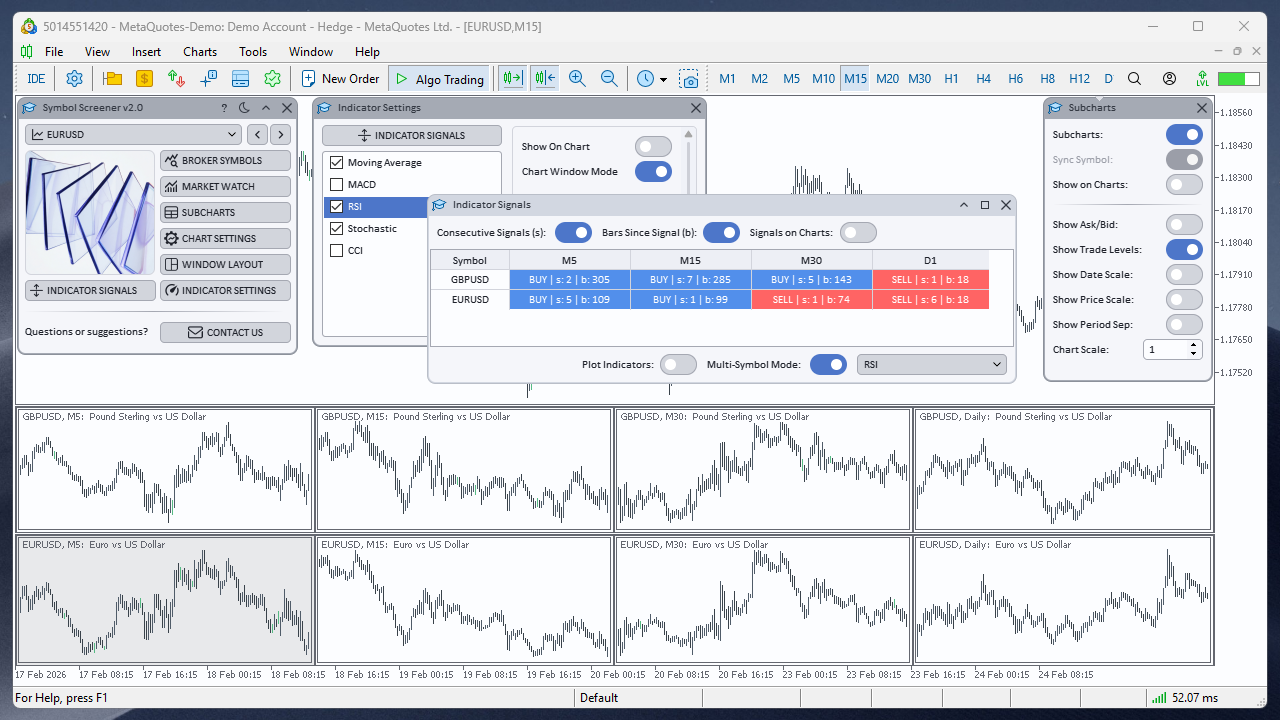
Signal table in multi-symbol mode
The symbol list is formed automatically from those for which sub-windows with mini-charts have been created. Timeframes are also taken from the Market Watch settings.
This mode allows you to assess the state of the selected indicator across all tracked instruments at a glance: find signal matches, identify instruments with a sustained trend, or determine potential entry points.
2.7.3. Signals on Charts
When the Signals on Charts toggle is enabled, text labels with indicator signal directions appear on each mini-chart in sub-windows. They display the same data as the table but directly on the charts, eliminating the need to switch between windows. Additionally, in this mode, a green circle indicator appears in the upper right corner of one of the mini-charts, indicating that this particular symbol and timeframe are currently set on the main chart.

Indicator signal labels on mini-charts
Labels are updated automatically when a new bar appears, indicator parameters change, or timeframes are switched. The label color coding matches the signal direction.
Additionally, the Plot Indicators toggle allows copying indicators to all mini-charts in sub-windows. This shows indicator lines and signal arrows directly on mini-charts, providing comprehensive visual analysis without the need to open each symbol separately.
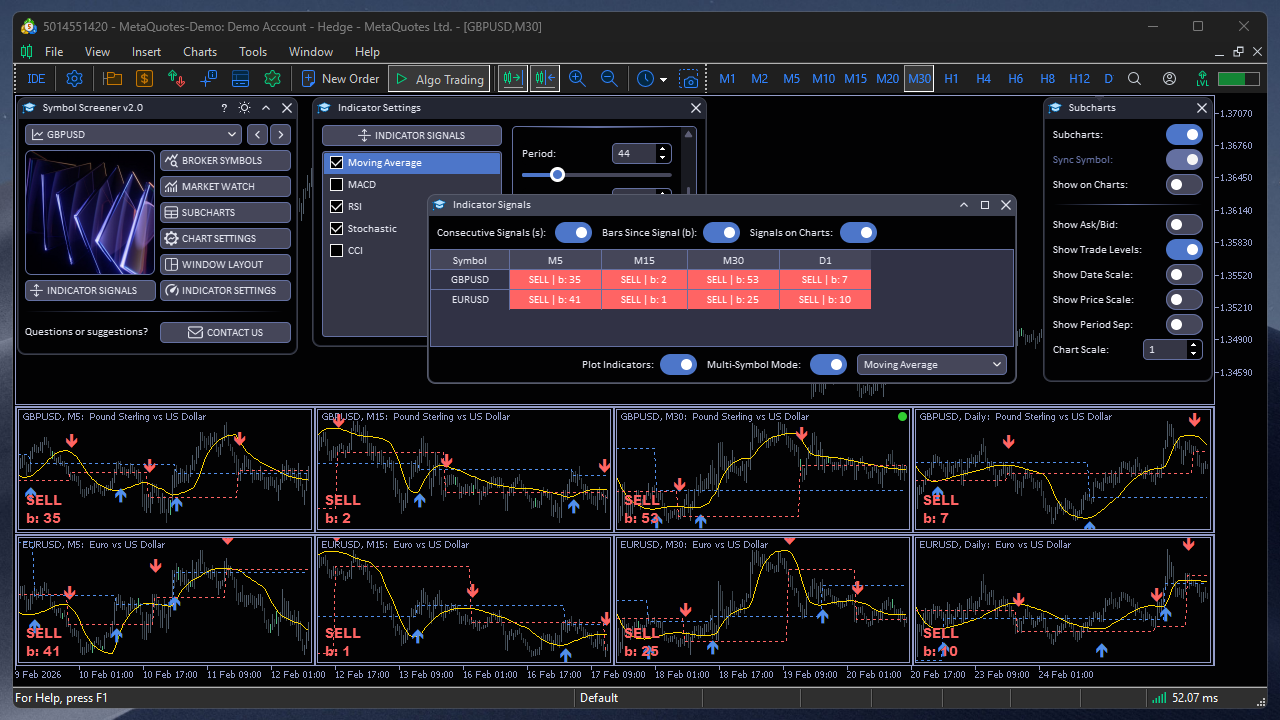
Indicators on charts
Thus, the combination of Signals on Charts and Plot Indicators turns sub-windows into full-fledged analytical panels: you simultaneously see price action, indicator lines, and resulting signals — all in a single workspace.
3. How to Use the Tool?
This section describes the typical workflow — from the first launch to full-fledged market monitoring. Each step can be performed in any order, but the sequence below allows you to get started as quickly as possible.
3.1. Installation and Launch
The application is available in the MQL5 Market store: Symbol Screener. After downloading, Symbol Screener will automatically appear in the terminal's navigator: Navigator → Expert Advisors → Market. Drag SymbolScreener onto any chart or double-click it. The application's main window will appear on the chart, ready to use.
3.2. Basic Usage Scenario
- Add symbols. Open the BROKER SYMBOLS window, filter the desired group (e.g., Forex/Major ), and add the instruments of interest by double-clicking or selecting multiple rows.
- Configure timeframes. In the MARKET WATCH window, check the desired timeframes (e.g., M15, H1, H4, D1).
- Create sub-windows. Choose the sub-window creation mode: click a symbol row for a single sub-window, or check multiple symbols with checkboxes.
- Configure window layout. Open WINDOW LAYOUT, enable Chart Window Mode, then set side, grid, gaps, and snap size. If needed, enable Use Table Symbols so windows are created automatically only for checked symbols.
- Open the signal table. Click the INDICATOR SIGNALS button in the main window. The table will show signals from all active indicators for the current symbol across selected timeframes.
- Navigate. Click any table cell — the main chart will switch to the corresponding symbol and timeframe for detailed analysis.
3.3. Working in Multi-Symbol Mode
- Make sure several sub-windows with different symbols have been created.
- In the INDICATOR SIGNALS window, enable the Multi-Symbol Mode toggle.
- Select an indicator from the Indicator dropdown list (e.g., RSI).
- The table will restructure: rows — symbols, columns — timeframes. Now you see the selected indicator's signal across all tracked instruments simultaneously.
- Switch the indicator in the dropdown list to quickly compare the picture across different indicators.
3.4. Using Signals on Charts
- In the INDICATOR SIGNALS window, enable the Signals on Charts toggle.
- Text labels with signal directions (BUY/SELL) for each active indicator will appear on every mini-chart in the sub-windows.
- A green circle in the upper right corner of one of the mini-charts indicates which symbol and timeframe are currently set on the main chart.
- Additionally, enable Plot Indicators to display indicator lines and signal arrows on the mini-charts.
- The combination of both modes provides a complete analytical picture without the need to open each symbol separately.
4. Practical Usage Examples
Below are several scenarios that demonstrate how Symbol Screener helps in everyday trading.
4.1. Finding Matching Signals Across Indicators
One of the most effective filters is the coincidence of signals from multiple indicators on the same timeframe. Open the signal table in single-symbol mode and find the timeframe column where most indicators show the same direction (e.g., BUY on MA, MACD, and RSI simultaneously). Such a coincidence increases the probability of a sustained move and can serve as confirmation for entering a trade.
Pay attention to the Consecutive Signals column — the higher the value, the more sustained the current trend for that indicator. If several indicators simultaneously show high counter values in one direction, this is a strong signal.
4.2. Multi-Timeframe Analysis
The classic approach is confirming a signal on a higher timeframe before entering on a lower one. In the signal table, this is done at a glance: find a symbol where D1 and H4 show BUY, then wait for a similar signal on H1 or M15.
Enable Multi-Symbol Mode and select, for example, RSI. You will see RSI signals across all symbols and timeframes. Look for a row where higher timeframes already indicate direction and lower timeframes are beginning to confirm — this is a potential entry point.
4.3. Quick Market Screening
Before the start of a trading session, enable Multi-Symbol Mode and sequentially switch indicators in the dropdown list. In just a few seconds, you'll get the full picture: which instruments are trending, where a reversal is beginning, where signals are contradictory. This allows you to identify 2–3 of the most promising instruments for trading in a minute, instead of manually reviewing dozens of charts.
Additionally, enable Signals on Charts and Plot Indicators — the mini-charts in sub-windows will show not only signals but also indicator lines, allowing you to visually assess trend strength and proximity to key levels.
5. Conclusion
Symbol Screener is a tool that saves time and structures the market analysis process. Instead of manually switching between charts and indicators, you get a unified workspace where signals from five indicators across all selected symbols and timeframes are gathered in a clear table.
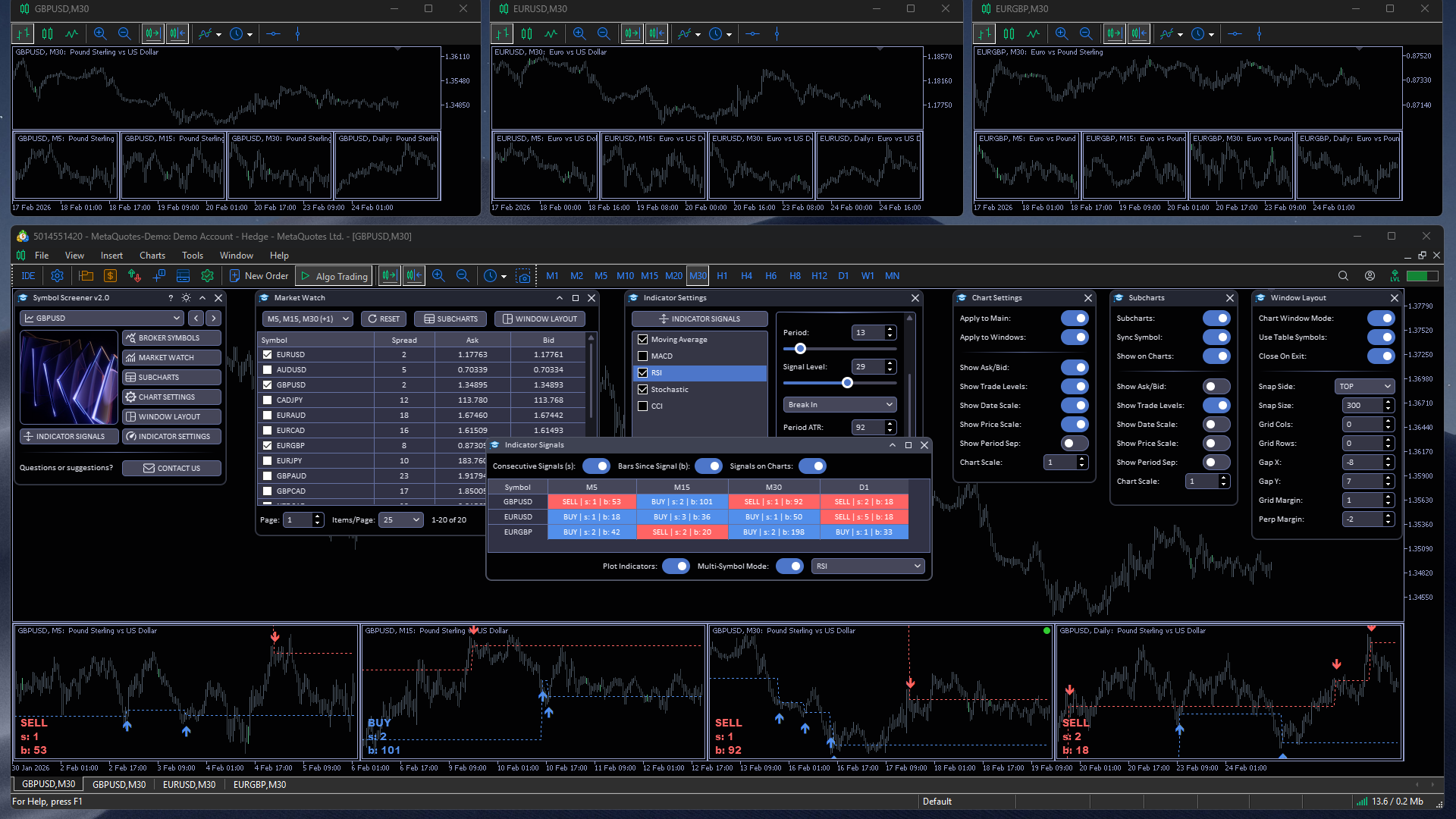
Symbol Screener — all application windows on the chart
Key capabilities that make your work more efficient:
- Multi-symbol monitoring — simultaneous control of dozens of instruments.
- Multi-timeframe analysis — all timeframes on one screen.
- Automatic window layout — detached chart windows are arranged around the terminal via WINDOW LAYOUT.
- Flexible indicator configuration — each indicator's parameters are customizable to your trading strategy.
- Chart visualization — signals and indicator lines directly on mini-charts.
- Instant navigation — one click switches the main chart to the desired symbol and timeframe.
The list of supported indicators can be supplemented with any others for which signal generation conditions can be formalized. The application delivers high-quality graphics, scalability, and convenient interaction.
If you have questions, suggestions, or found a bug — contact me.
Happy trading!