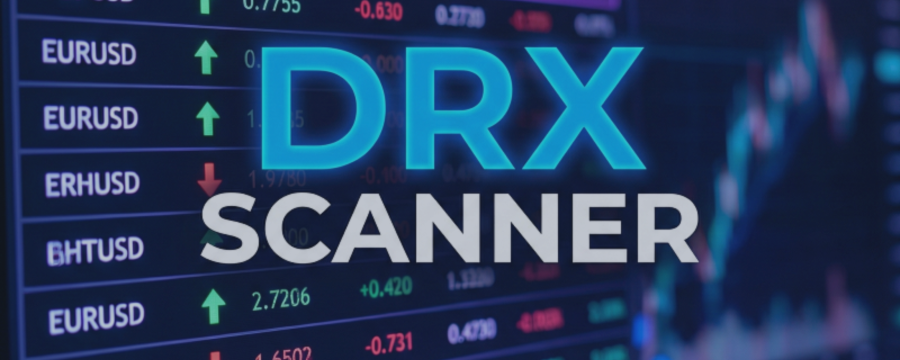

In today's trading environment, information is everything. However, too much information across too many windows leads to chaos. The DRX Scanner Dashboard (v7.01) was designed to solve this problem. It is a professional Market Monitor that transforms raw technical data into a clear, structured matrix.
This article explains the exact functions of the software and how to use the interface to organize your workspace efficiently—without having to calculate technical analysis yourself.
1. The Data Matrix: What Am I Looking At?
The dashboard aggregates up to 20 symbols (currencies, indices, commodities) into a list and displays seven technical parameters for each asset in real-time. You no longer need to open 20 charts just to check these values.
The columns in detail:
-
SYMBOL: The name of the asset (e.g., EURUSD, DAX40). The list can be loaded from your presets or the "Market Watch" window.
-
PRICE: The current Bid price in real-time.
-
TREND (Supertrend): The system uses an ATR-based Supertrend algorithm in the background.
-
Arrow Up/Green: The algorithm calculates a technical upward phase.
-
Arrow Down/Red: The algorithm calculates a technical downward phase.
-
Function: This serves to quickly categorize the current market phase.
-
-
RSI (Relative Strength Index): Displays the current RSI value.
-
Visual Aid: Values above 70 or below 30 are highlighted in color to make extreme mathematical values immediately visible.
-
-
CHG% (Daily Change): Shows the percentage change in price since today's open. A tool to identify the "movers" of the day.
-
VOL (Volume): The current tick volume.
-
VOL% (ADR / Volatility): A special feature of this dashboard. It compares the current movement against the Average Daily Range (ADR). A high percentage indicates that the asset has already covered a significant distance today.
-
SPREAD: The current trading costs in points. Important for monitoring liquidity (e.g., during news events).
2. One-Click Navigation (Workflow Optimization)
The dashboard is not just a display; it is a remote control for your MetaTrader.
-
The Function: When you click on a symbol's name in the list (e.g., "XAUUSD"), the current chart window immediately switches to that symbol.
-
The Benefit: You save time searching and dragging-and-dropping from the Market Watch. You can "zap" through your list in seconds to check the detailed chart situation.
3. On-Screen Management (The GUI)
Version 7.01 offers full control directly on the chart, without needing to dive into the indicator's deep input settings.
-
☰ Asset Panel (Manage List): Click the menu icon to open asset management. Here you can toggle individual symbols on or off (activate/deactivate) with a single click. The list updates immediately.
-
⚙ Settings Panel: Click the gear icon to open an overlay window.
-
Columns: Hide columns you don't need (e.g., Spread or Volume) to save space.
-
Design: Adjust the transparency and color intensity of the rows.
-
-
▼ Minimize: Need space on the chart? A click on the arrow collapses the entire dashboard so that only the header remains visible.
4. Visual Logic and Color Coding
The dashboard uses a "Smart Coloring" logic ( GetTrendRowColor in the system). The background color of an entire row can adapt slightly based on the technical direction of the Supertrend. This allows the eye to quickly grasp which assets are behaving similarly in technical terms when scanning the list, without having to read the numbers.
Conclusion: Order Instead of Chaos
The DRX Scanner Dashboard does not make decisions for you, but it handles the organizational work. It is a tool for traders who:
-
Want to monitor many markets simultaneously.
-
Need to keep an eye on key metrics (like Spread or Volatility).
-
Want to speed up their chart switching.
Get clarity on the market's status quo.
👉 Get the DRX Scanner Dashboard in the MQL5 Market




