MML Data Bridge User Set Up Manual
The purpose of this program is to deliver machine learning predictions directly into the MetaTrader 5 trading platform. MML Bridge is a developer-focused tool that provides a simple API for ingesting machine learning predictions (or any external data) into MT5 for backtesting, optimization, and live trading. It is designed to integrate seamlessly into existing workflows without introducing performance overhead or impacting development speed. The program can be set up in just eight steps.
Purchase MML Data Bridge here: https://www.mql5.com/en/market/product/152143?source=Site+Market+Product+Page#
Required Files: https://www.mql5.com/en/blogs/post/766519
Functions overview
void initializeBridge("eaName")
- Initializes the data bridge system by reading the configuration file, preparing binary data files, and setting up the internal registry for data retrieval. Must be called once during Expert Advisor initialization (typically in OnInit()).
- Accepts a string to name directories and configuration files
void shutDownBridge()
- Properly shuts down the data bridge system and cleans up resources. Should be called during Expert Advisor deinitialization (typically in OnDeinit()).
- Templated function to retrieve the latest data record from a specified CSV/TSV file and maps it into a provided struct. Works in both live trading (returns most recent record appended to a file) and backtesting modes (returns next record based on current time). Automatically validates struct size matches the data schema during live trading.
- Accepts the filename of the CSV/TSV file to read from (must match a name of a file listed in the configuration) and reference to a struct of type T where the data will be populated
- Converts a character array (from struct char fields) to a string for display or string operations. Used to extract text data from struct fields that are stored as fixed-width character arrays.
- Accepts a reference to a character array as an arguments
- Returns a string - the converted string value from the character array
❖ 1. After downloading the executable code "MML Data Bridge.exe" from the marketplace, find the downloaded path by navigating to journal (most commonly in MQL5\Services\Market\)
➢ Move the executable code into the library directory and rename the file to "MMLDataBridge.exe". This step is important so the header file can proper import the library

❖ 2. Create and move MMLUtility.mqh and MMLDataStructs.mqh into MT5’s include directory. (Files Here: https://www.mql5.com/en/blogs/post/766519)
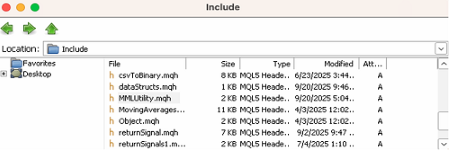
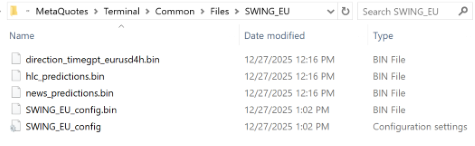
❖ 3. Move data to be ingested into MT5’s common files directory.
C:\Users\userName\AppData\Roaming\MetaQuotes\Terminal\Common\Files>
❖ 4. Initialize the MML Data Bridge
Create an EA you would like to bridge external CSV/TSV data with and add #include <MMLUtility.mqh> and <dataStructs.mqh>
Next call initializeBridge("EA Bridge Name") inside the OnInit() function and shutDownBridge() inside OnDeinit function.
//+------------------------------------------------------------------+
//|                                                         SWING_EU.mq5 |
//|                               Copyright 2025, MML Data Bridge |
//+------------------------------------------------------------------+

#property copyright "Copyright 2025, MML Data Bridge "
#property link      "https://www.mql5.com/en/market/product/152143/controlpanel#!tab=description"
#property version   "1.00"

#include <Trade/Trade.mqh>
#include <MMLUtility.mqh>
#include <dataStructs.mqh>


//----------------------------------------------+
//| Expert initialization                        |
//----------------------------------------------+
int OnInit() {
    initializeBridge("ES_final");
    return INIT_SUCCEEDED;
}

//----------------------------------------------+
//| Expert deinitialization                      |
//----------------------------------------------+
void OnDeinit(const int reason) {
    shutDownBridge();
}

//----------------------------------------------+
//| Expert tick                                  |
//----------------------------------------------+
void OnTick() {
}
❖ 4.1. Calling initializeBridge("EA Bridge Name") inside OnInit creates a directory that acts as a bridge and creates a config.ini file to input files to be ingested into the platform.
❖ 4.2. Running the program for the first time gives the following messages in the expert console. These messages indicate the config file has been created successfully and we can now input data.
➢ MML Bridge: Config file not found — creating new config file: ES_final\ES_final.ini
➢ MML Data Bridge: Created new config file. Please add input files and rerun.
❖ 5. Open the config.ini file, and input files to be ingested into the EA. Acceptable data includes CSV/TSV files.
[Settings]
File1 = direction_timegpt_eurusd4h.csv
File2 = hlc_predictions.csv
File3 = news_predictions.tsv

[Schema]
❖ 5. 1. Once inputs are added to the config.ini file, the next program run will scan all data in the files and generate a data type schema. This schema verifies data type consistency so that data may be ingested into the platform.
Note that some IDEs or text editors will automatically refresh while others may require the file to be closed and reopened.
[Settings]
File1 = direction_timegpt_eurusd4h.csv
File2 = hlc_predictions.csv
File3 = news_predictions.tsv

[Schema]
File1 = direction_timegpt_eurusd
DataType = DateTime, Int

File2 = hlc_predictions.csv
DataType = DateTime, Char, Char, Double, Double, Double, Double, Double, Double

File3 = news_predictions.tsv
DataType = DateTime, Char, Char, Char, Int, Int, Int
❖ 6. Using the schema generated, declare objects inside dataStructs.mqh
#ifndef dataStructs
#define dataStructs

//input a defined length for char array
#define CHAR_FIELD_WIDTH 128 //leave name as is, used as char field width for the bridge

struct DIRECTION {
    datetime time;
    int signal;
};

struct HLC {
    datetime time;
    char currency[CHAR_FIELD_WIDTH];
    char timeframe[CHAR_FIELD_WIDTH];
    double predicted_high;
    double confidence_high;
    double predicted_low;
    double confidence_low;
    double predicted_close;
    double confidence_close;
};

struct NEWS {
    datetime time;
    char event[CHAR_FIELD_WIDTH];
    char impact[CHAR_FIELD_WIDTH];
    char currency[CHAR_FIELD_WIDTH];
    int actual;
    int forecast;
    int previous;
};

#endif
❖ 7. Declare an instance of each object above the OnTick() function. And call returnData<STRUCTURE>("fileName", structure) to return data
//Declare object instances to populate
DIRECTION direction;  // Direction signal data structure
HLC hlc;              // High/Low/Close predictions data structure
NEWS news;            // News data structure


//populate objects in OnTick()
void OnTick() {

if (returnData<DIRECTION>("direction_timegpt_eurusd4h.csv", direction))
        PrintDirectionData(direction);

if (returnData<HLC>("hlc_predictions.csv", hlc))
        PrintHLCData(hlc);

if (returnData<NEWS>("news_predictions.tsv", news))
        PrintNewsData(news);

}
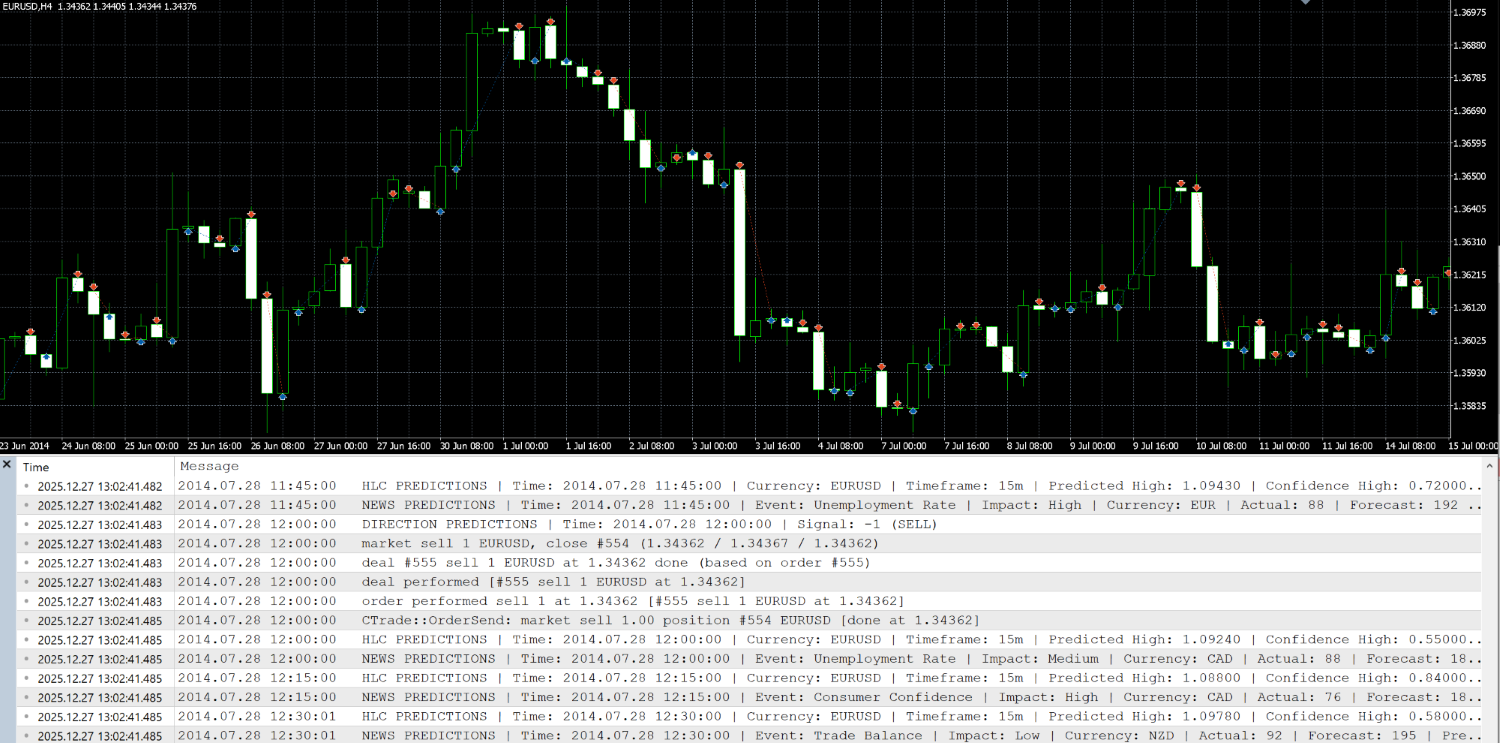
❖ 8. Develop, trade and test your machine learning predictions