Trade Copier Ultimate v7 - Start HereThis MQL5 post is the short setup overview. The latest full guide, updated screenshots, NTS Super Bridge download, troubleshooting steps, and advanced feature explanations are maintained on the official Navigator Algo website. Recommended first step: open the complete setup guide below, follow it in order, and test one simple trade on a demo account before using live or prop accounts.
Important: Use MQL5 messages or the product comments area for support related to your MQL5 purchase. |
Trade Copier Ultimate v7 — Setup Guide
This guide is written to help you get Trade Copier Ultimate running as quickly and safely as possible. The goal is simple: connect your source, test it on demo, and confirm one clean trade before using any advanced features.
Important: Always start on a demo account first. Trade Copier Ultimate can open, modify, and close trades automatically depending on your settings.
Before You Start
Trade Copier Ultimate can work in 3 main ways:
- Telegram Bot API — best when you can add a bot to the Telegram group or channel.
- Bridge Mode — best for private Telegram channels, private bot chats, Discord-compatible workflows, and advanced routing.
- Local Copier — best for copying trades between MT5 terminals on the same PC or VPS.
If you are not sure which mode to use:
- Use Telegram Bot API for normal Telegram setups where bot access is possible.
- Use Bridge Mode for private channels, restricted sources, private bot chats, or multi-source routing.
- Use Local Copier for MT5-to-MT5 copying on the same machine.
Download Bridge here
Step 1 — Attach the EA
- Open MetaTrader 5.
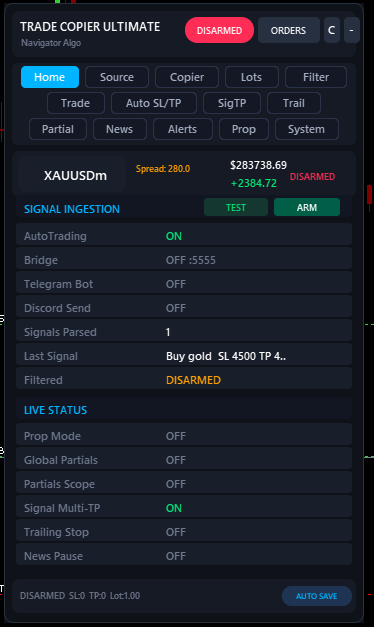
- Drag Trade Copier Ultimate onto any chart.
- Make sure the on-chart panel appears.
- Leave the EA DISARMED for now.
Step 2 — Enable WebRequest
- In MT5, go to Tools > Options > Expert Advisors.
- Tick Allow WebRequest for listed URL.
- Add these URLs:
- Click OK.
These URLs are required for:
- Telegram Bot API
- Bridge Mode

Step 3 — Choose Your Mode
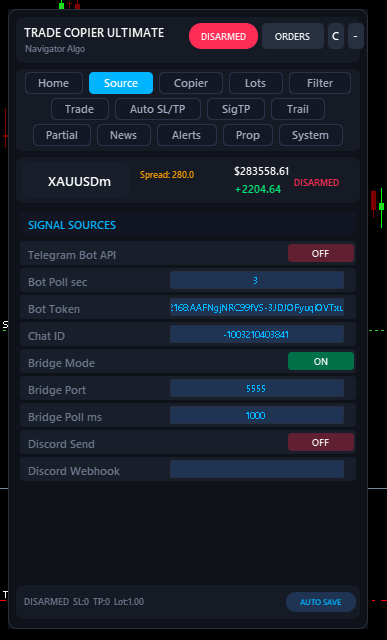
Open the Source tab in the EA.
Choose one of these modes or all if you going to use all:
- Telegram Bot API — use this when your bot can access the signal source.
- Bridge Mode — use this for private Telegram channels, private bot chats, Discord-compatible workflows, or multi-source routing.
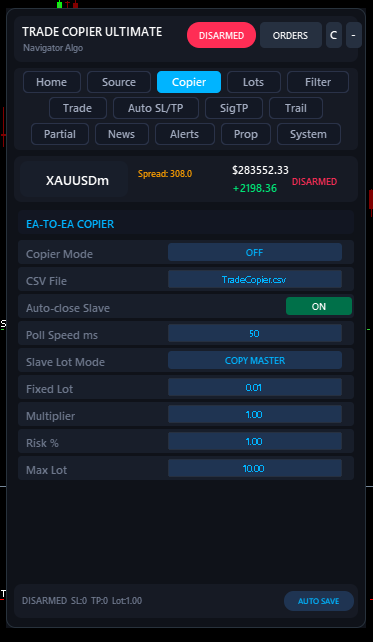
- Local Copier — use this to copy trades between MT5 terminals on the same PC or VPS.
Telegram Bot API Setup
Step 4A — Create or Prepare Your Telegram Bot
- Open Telegram.
- Search for @BotFather.
- Create a new bot or use an existing one.
- Copy the Bot Token.
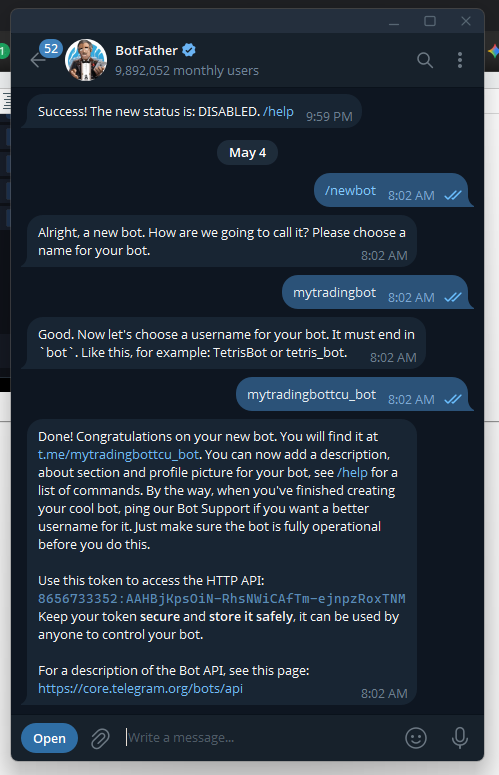
You also need the Chat ID of the group, channel, or chat you want the EA to read, you can use the @GetMyChatID_Bot for find your chat id.
Step 5A — Add the Bot to the Signal Source
- Add your bot to the Telegram group or channel.
- Make sure the bot has the permissions it needs.
- Send at least one message in that source so the bot can detect it.
Step 6A — Add the Bot Details to the EA
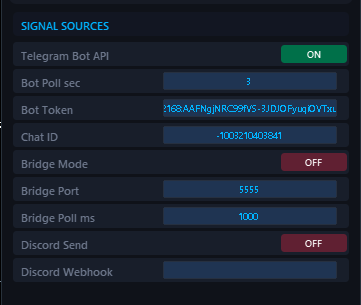
- Open the EA Source tab.
- Enable Telegram Bot API.
- Paste your Bot Token.
- Paste your Chat ID.
- Click TEST.
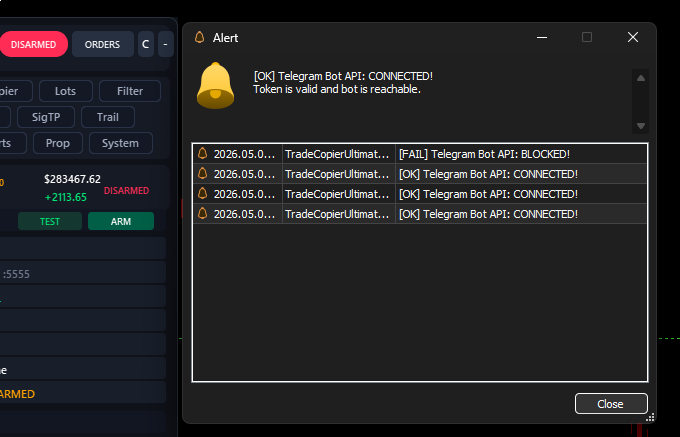
If the setup is correct, the EA should confirm that Telegram Bot API is reachable.
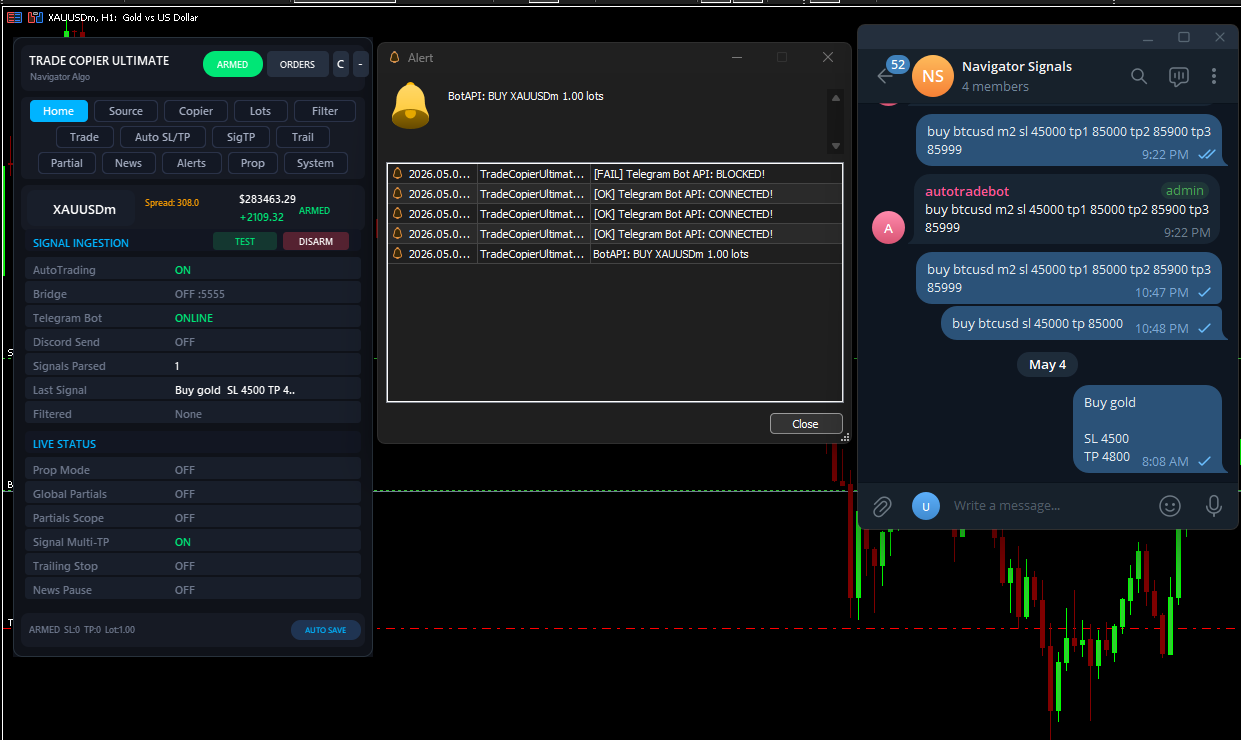
Step 7A — ARM and Test
- Keep the first test simple.
- Click ARM.
- Send one test signal from your Telegram source.
- Confirm the EA receives and executes it on demo.
Bridge Mode Setup
When to Use Bridge Mode
Bridge Mode is the best choice when:
- your Telegram source is private
- you cannot add a bot to the source
- you want to read private bot chats such as @GmailBot
- you want Discord-compatible workflows
- you want one PC to route multiple sources to multiple MT5 terminals
Step 4B — Install and Open Bridge
- Download and open Navigator Command Center Bridge.
- Keep Bridge and MetaTrader 5 on the same PC or VPS.
Windows SmartScreen Warning
On some PCs or VPS setups, Windows may show a “Windows protected your PC” SmartScreen warning the first time you open Bridge. This happens because the app is not yet widely recognised by Microsoft SmartScreen. It does not mean the app is infected.
If you see this screen:
- Click More info.
- Then click Run anyway.
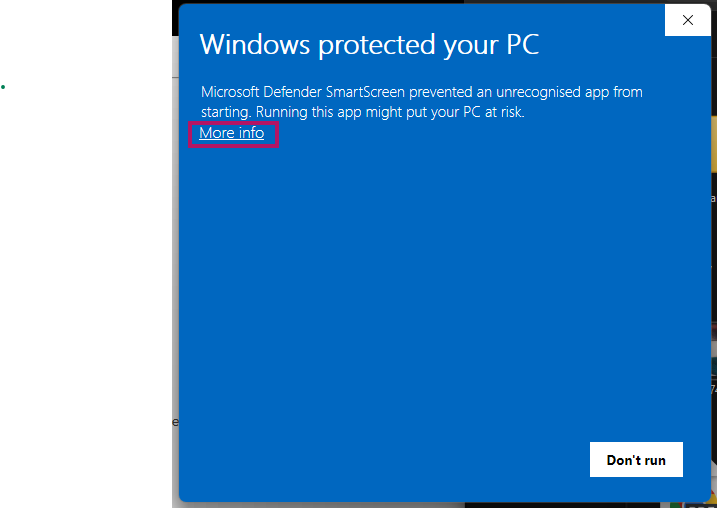
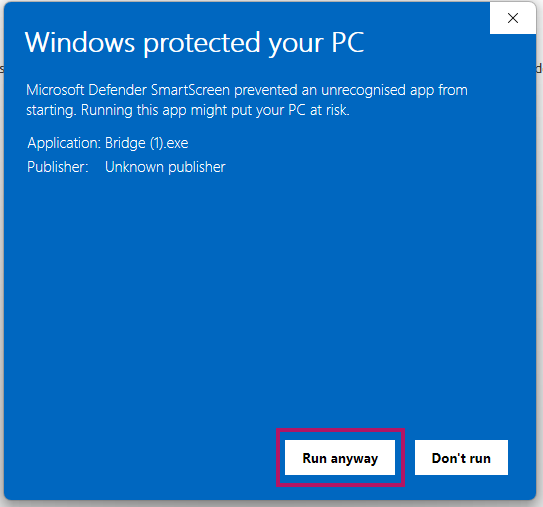
After that, Bridge should open normally.
Important: Only do this if you downloaded the Bridge from the official link in this guide or from my official product page / contact links.
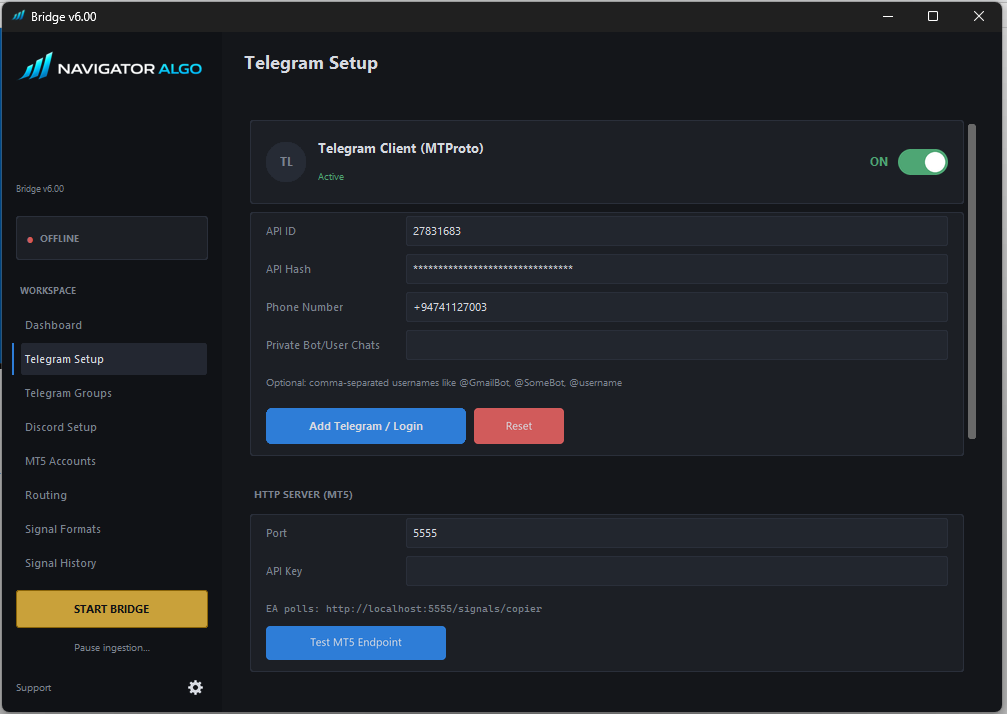
Step 5B — Connect Your Telegram Account to Bridge
- Open the Bridge Telegram Setup page.
- Enter your API ID.
- Enter your API Hash.
- Enter your Phone Number.
- Click Add Telegram / Login.
- Enter the Telegram confirmation code when prompted.
- If your Telegram account uses 2FA, enter that password too.
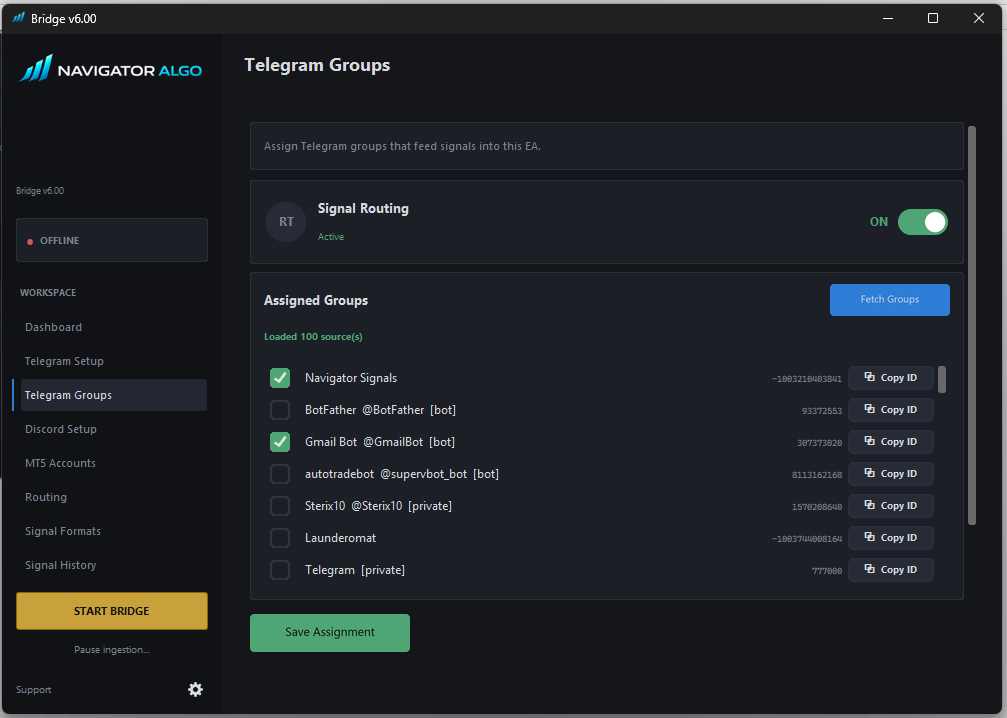
Step 6B — Select the Telegram Sources
- Open the Bridge Telegram Groups page.
- Click Fetch Groups.
- Tick the channels, groups, or private bot chats you want Bridge to read.
- Click Save Assignment.
Step 7B — Make MT5 Appear in Bridge
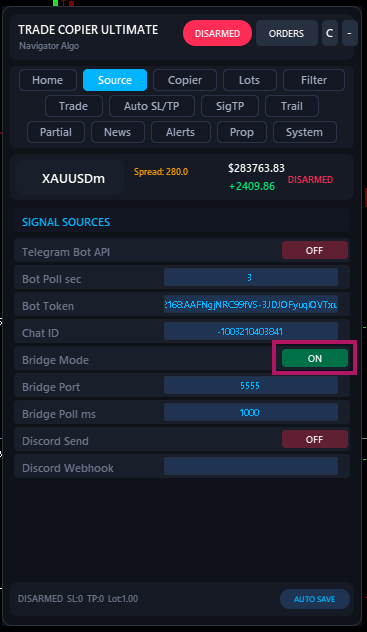
- Go back to the EA Source tab.
- Enable Bridge Mode.
- Make sure the Bridge Port matches the Bridge app.
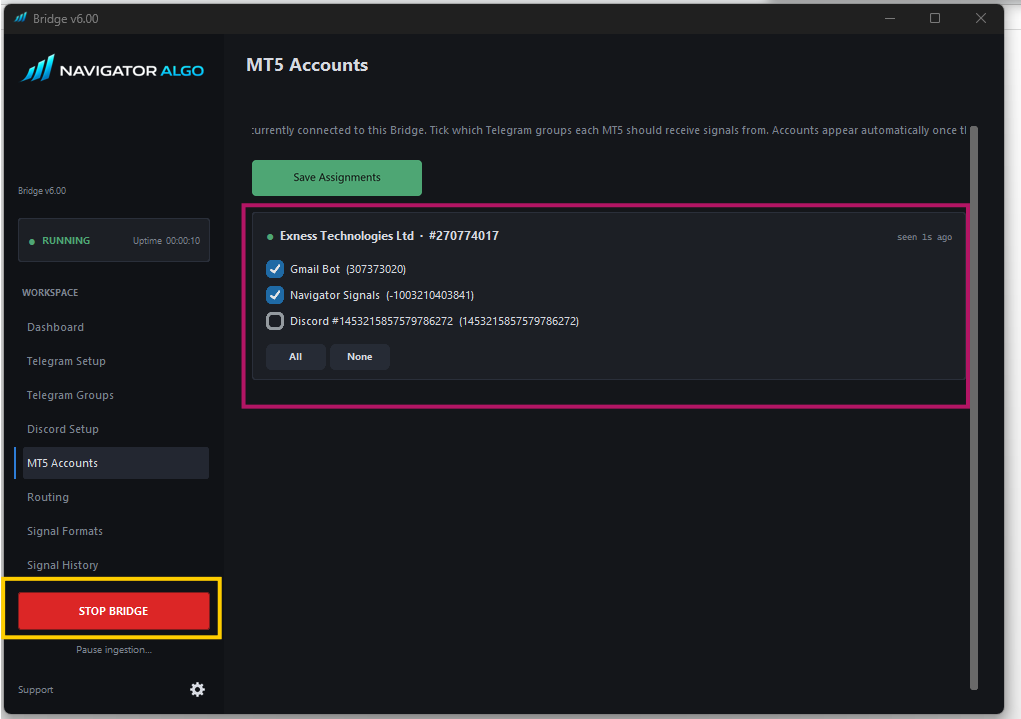
- Now click Start Bridge inside the Bridge app.
- Wait a few seconds.
- Open the Bridge MT5 Accounts page.
- Your MT5 terminal should now appear there automatically.
If the MT5 account does not appear, check these first:
- Bridge Mode is enabled in the EA
- Bridge is running
- The Bridge port matches in both the EA and Bridge app
- http://127.0.0.1 was added to MT5 WebRequest settings
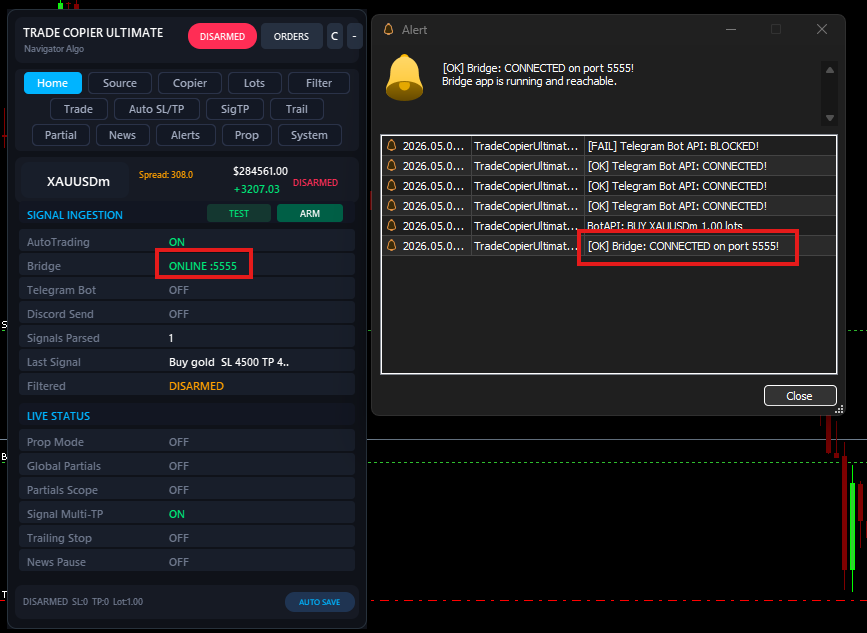
If everything is correct, the EA should confirm the Bridge connection.
Step 8B — ARM and Test
- Click ARM in the EA.
- Send one test signal through the Bridge source.
- Confirm the EA receives and executes it on demo.
Local Copier Setup
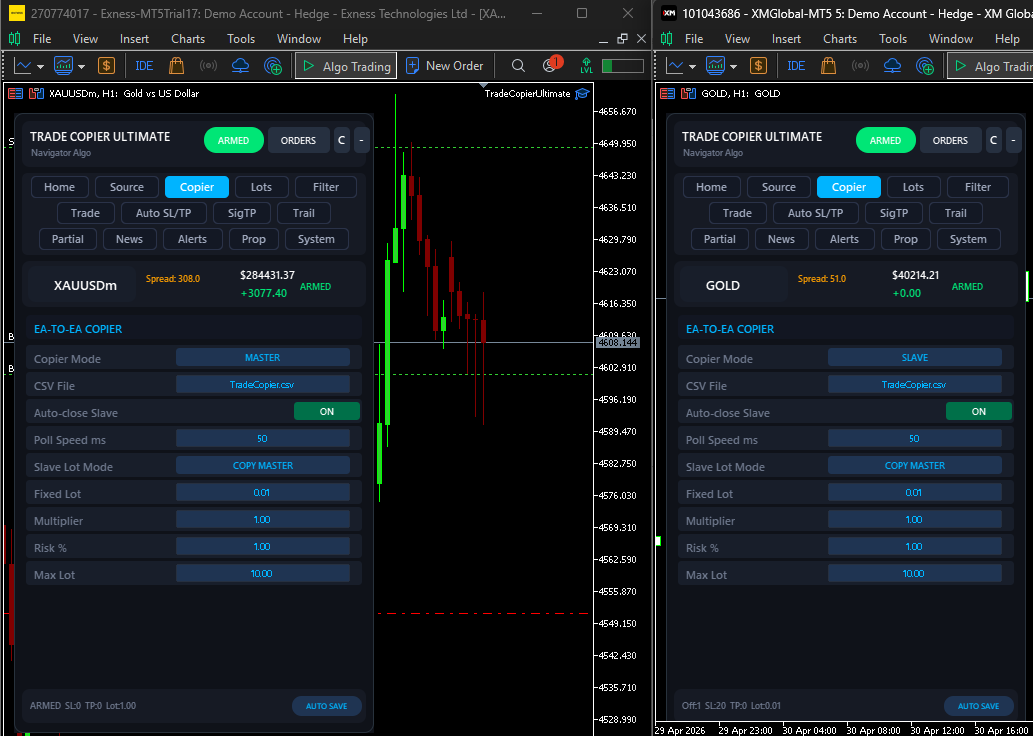
Step 4C — Set the Master Terminal
- On the first MT5 terminal, attach the EA.
- Set CopierMode = MASTER.
- Choose the copier file name.
Step 5C — Set the Slave Terminal
- On the second MT5 terminal, attach the EA.
- Set CopierMode = SLAVE.
- Use the exact same copier file name as the Master.
Step 6C — Test the Copy
- Open one small test trade on the Master.
- Confirm the Slave copies it.
- Then test close, SL/TP update, and partial behaviour on demo.
First Test Signal
For your first test, use one simple signal on a demo account.
Example:
BUY XAUUSD SL 3300 TP 3350
Once that works correctly, you can move on to testing:
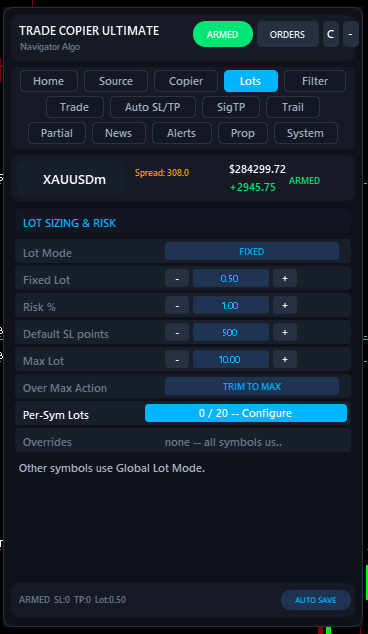
Step 4 — Choose Your Lot Mode
Before you arm the EA, decide how trade size should be calculated. This is one of the most important settings in the whole setup.
Trade Copier Ultimate supports these common lot modes:
- Fixed Lot — uses one fixed lot size for every trade. Best for first-time setup and simple demo testing.
- Multiplier — multiplies the source lot by your selected factor.
- Risk Percent — calculates lot size from your account balance and stop-loss distance.
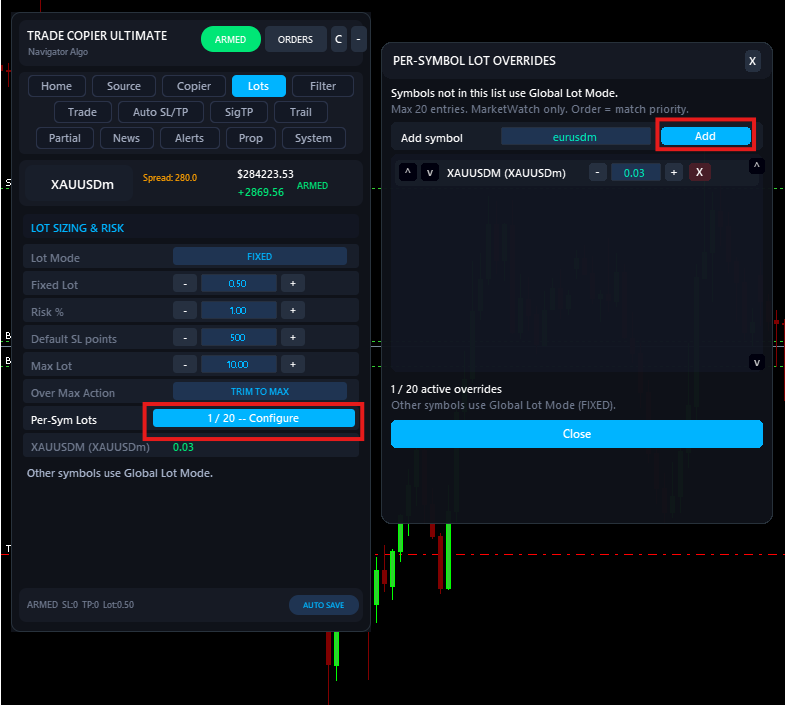
- Per-Symbol Lots — assigns different fixed lot sizes to selected symbols such as EURUSD, GBPUSD, XAUUSD, BTCUSD, or broker-specific symbols.
Recommended for your first demo test:
- Use Fixed Lot
- Start with a small value such as 0.01
Important notes:
- If you use Risk Percent, the signal should include a valid stop loss so the EA can calculate the correct lot size.
- If you use Per-Symbol Lots, listed symbols use their assigned lot and all other symbols continue using the global lot mode.
- If you are not sure which lot mode to use, start with Fixed Lot on demo first.
If It Does Not Work
Check these first:
- Is the EA still DISARMED?
- Is AutoTrading enabled in MT5?
- Did you add the correct WebRequest URLs?
- Is the correct source mode enabled?
- Is the token, chat ID, or Bridge port correct?
- Is the symbol available in your broker’s Market Watch?
- Is the signal being blocked by spread, cooldown, duplicate filter, or another safety filter?
Important Safety Notes
- Trade Copier Ultimate can open, modify, and close trades automatically depending on your settings.
- Always start on a demo account.
- Test one source at a time before enabling advanced features.
- Confirm one simple signal works correctly before testing pending orders, multi-TP, or advanced management.
Need Help?
If you need help with setup, broker symbols, Telegram Bot API, Bridge routing, private channels, private bot chats, VPS setup, or Local Copier setup, send me a message and I will help you configure it correctly.
Documentation and full user manual : Open Documentation
Discussion / Contact: Open Contact Thread
(c) 2026 Navigator Trading Systems
We have massive, fully illustrated guides on our website that explain every single button and feature in the EA and Bridge!
• Read the Advanced Features Guide