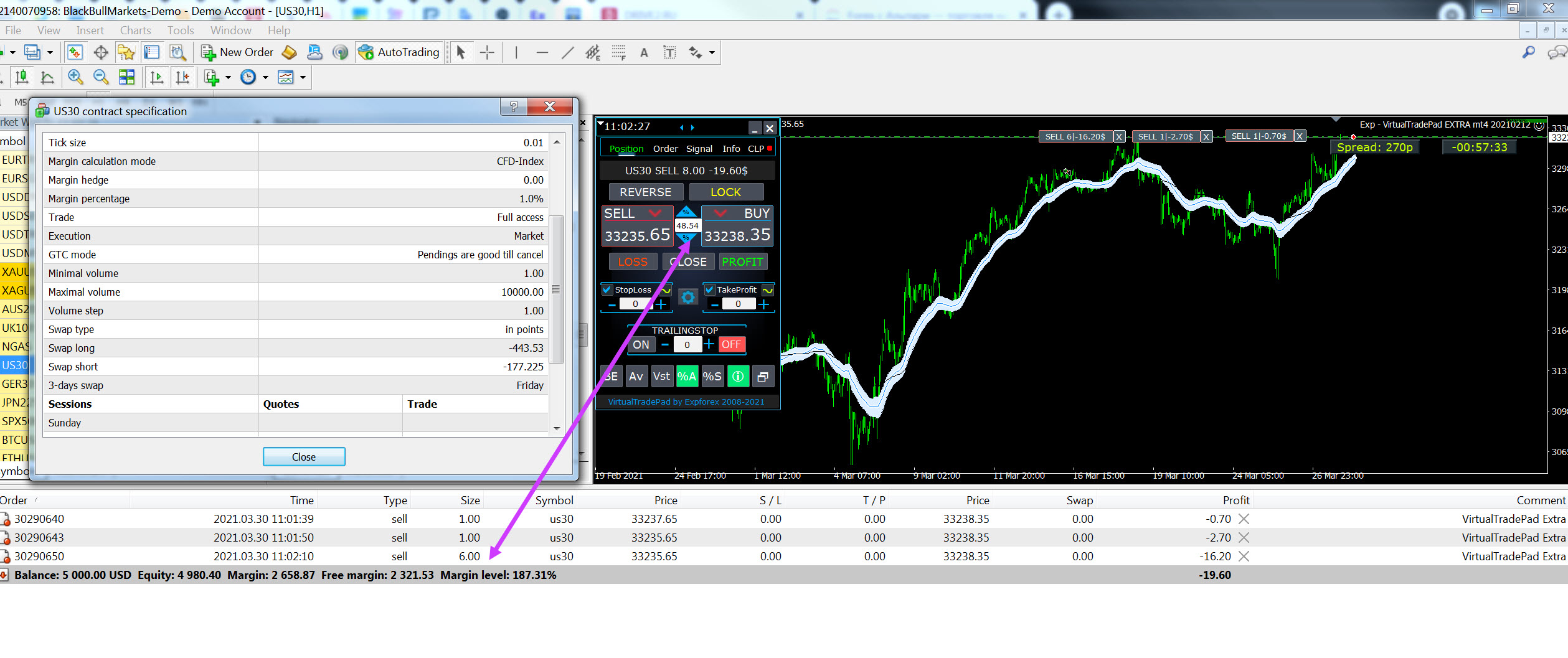
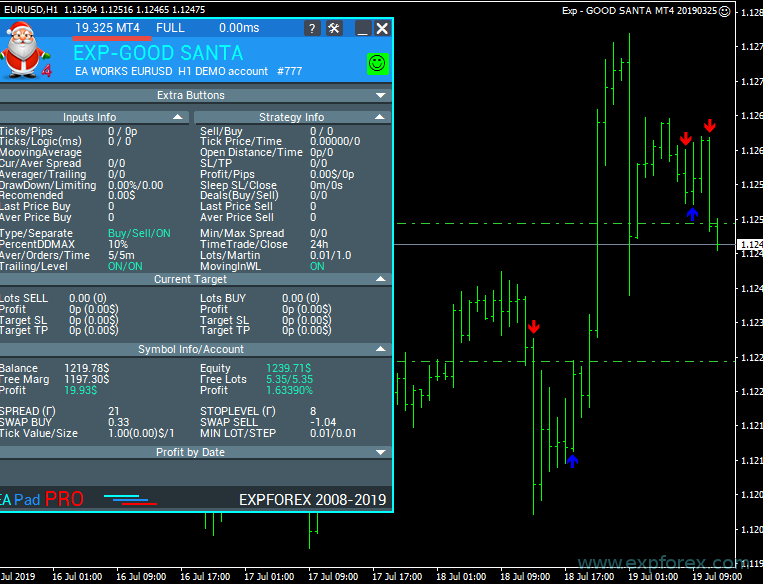
| 🎛 VirtualTradePad for MetaTrader 4 & MetaTrader 5 Professional one-click trading panel for manual trading, scalping, chart trading, keyboard trading, order management, position control and risk management in MetaTrader. VirtualTradePad turns the MetaTrader chart into a fast, practical and visual trading workspace for traders who want more control than the standard terminal buttons can provide. |
[Русский] - [English] - [Español] - [Português] - [Deutsch] - [Français] - [한국어] - [日本語] - [中文] - [Türkçe] - [Italiano]
| 💎 VirtualTradePad MT4 | 💎 VirtualTradePad MT5 |
| ⬇ Download Demo + PDF | 📘 Full Instruction |
| ▶ Watch Video | 🛒 All Expforex Products |
| 🏠 Main | 🎓 Documentation | ⚙ Settings |
| ❓ FAQ | ⭐ Reviews | 💬 Comments |
🎬 Watch VirtualTradePad in ActionThe video shows how VirtualTradePad helps trade directly from the chart, manage positions, place pending orders, use MagicTarget, work with signals, monitor information and control profit/loss closing. |
🖥 VirtualTradePad — Professional Trading Panel VirtualTradePad is a complete manual trading control panel for MetaTrader 4 and MetaTrader 5. |
🚀 What is VirtualTradePad?
VirtualTradePad, also known as VTP, is a professional trading panel for MetaTrader 4 and MetaTrader 5. It allows you to open, close, modify and manage positions and pending orders directly from the chart.
The standard MetaTrader interface is powerful, but for fast manual trading, scalping and active position management it is not always comfortable. VirtualTradePad solves this problem by placing the most important trading functions directly on the chart.
With VTP, you can trade with one click, trade from the keyboard, manage Stop Loss and Take Profit, open pending orders, create grids, reverse positions, lock exposure, use virtual stops, close by total profit or loss, trail profit and analyze the current trading situation from one compact panel.
⚡ One-Click TradingOpen BUY and SELL positions, close trades, reverse, lock and modify orders directly from the chart. | 🎯 Chart TradingUse MagicTarget, future lines, target Stop Loss / Take Profit and visual order placement on the chart. |
⌨ Keyboard TradingOpen, close, reverse, lock and activate MagicTarget using configured hotkeys. | 🛡 Risk ControlUse real and virtual stops, trailing, breakeven, CLP and closing by total profit or loss. |
⭐ Why Traders Use VirtualTradePad
- Trade in one click directly from the MetaTrader chart
- Open BUY and SELL positions faster than using the standard order window
- Place Buy Stop, Sell Stop, Buy Limit and Sell Limit orders
- Create pending order grids with customizable distance and lot logic
- Modify Stop Loss and Take Profit quickly from the panel or chart
- Use MagicTarget to place orders and levels visually with the cursor
- Trade from the keyboard using configured hotkeys
- Reverse or lock positions when market conditions change
- Close only profitable or only losing positions
- Close by total profit or loss in money, points or percent
- Use Trailing Profit for floating profit protection
- Analyze signals from standard indicators across several timeframes
- View account and symbol information in the Info tab
- Use virtual Stop Loss and Take Profit when you want hidden levels
| ⚠ Important: VirtualTradePad is a professional manual trading tool. It gives fast control, but it does not remove trading risk. One-click trading, keyboard trading, reverse, lock, grids and CLP functions must be used carefully and tested before real trading. |
🧩 Main Working Tabs
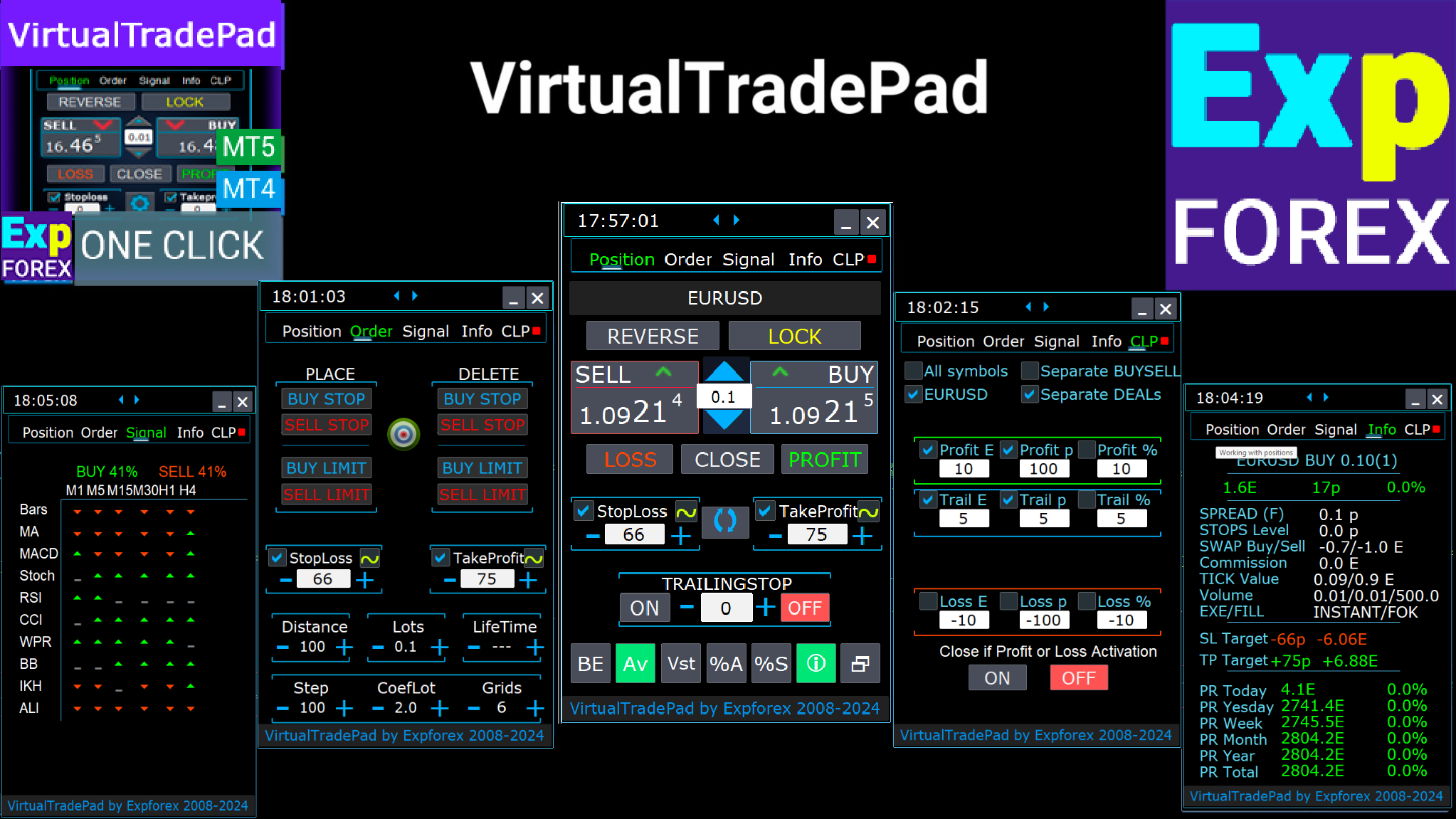
VirtualTradePad is organized into working tabs. Each tab solves a specific trading task and helps the trader avoid switching between many MetaTrader windows.
| Tab | Main Purpose | Typical Use |
| Positions | Open, close, reverse, lock and modify positions. | Manual trading, scalping, fast position control. |
| Orders | Place, delete and manage pending orders and grids. | Pending order trading and order grid creation. |
| MagicTarget | Set positions or pending orders visually from the chart. | Chart trading with cursor-defined SL / TP / entry levels. |
| Signals | Show indicator signals across several timeframes. | Market direction analysis and optional signal-based automation. |
| Info | Display symbol, position, spread, profit and account information. | Quick trading diagnostics and account overview. |
| CLP | Close positions by total profit or loss. | Virtual TP / SL, basket closing and trailing profit. |
📌 Position Tab — Fast Manual Trading
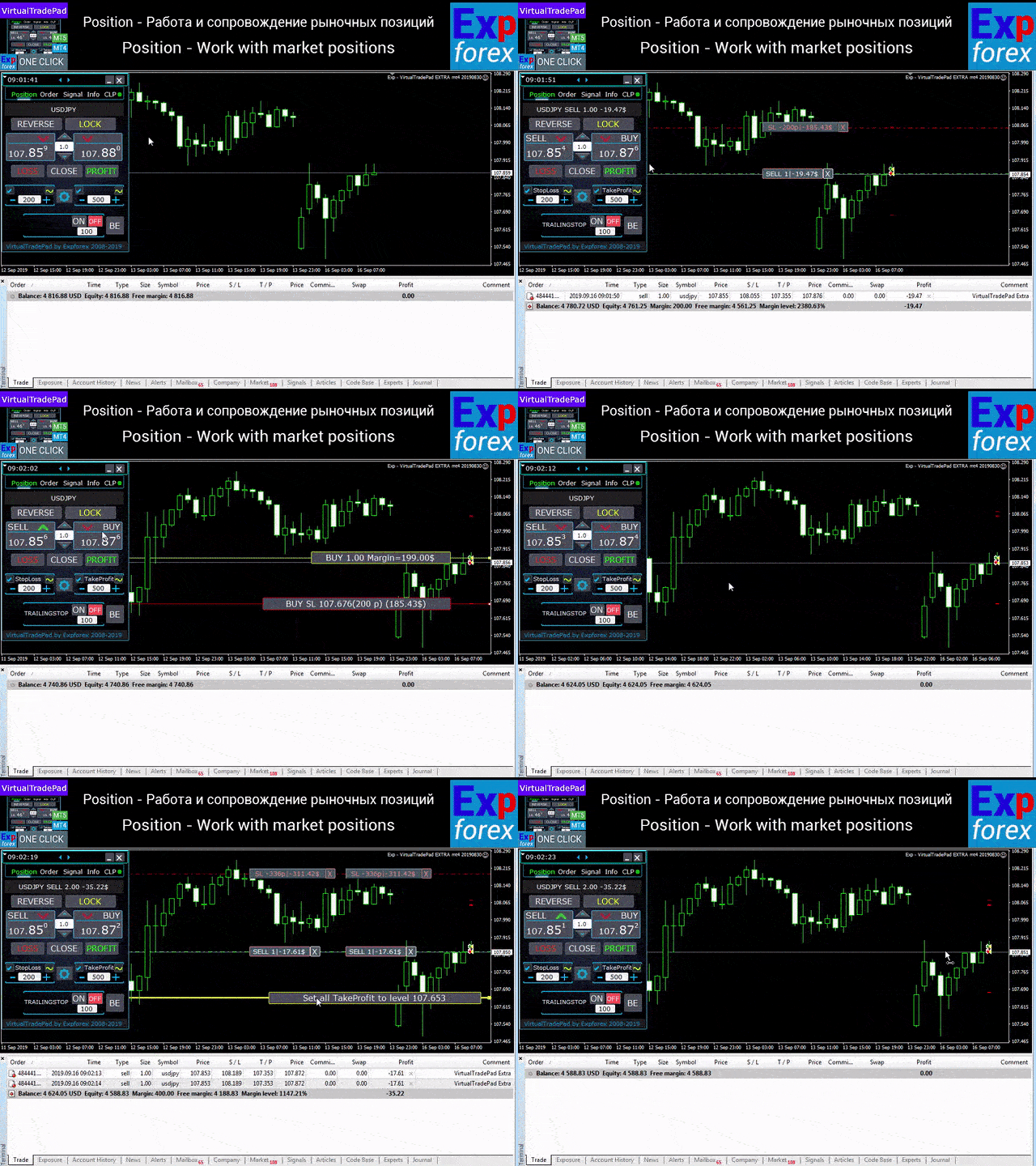
The Position tab is the core of VirtualTradePad. It is created for opening and managing market positions: BUY, SELL, Close, Reverse, Lock, Stop Loss, Take Profit, Trailing Stop, Breakeven, Profit Close and Loss Close.
Position Tab Overview The Position tab allows fast work with BUY, SELL, Close, Reverse, Lock, Trailing Stop, Stop Loss and Take Profit. |
Modern Position Tab Layout |
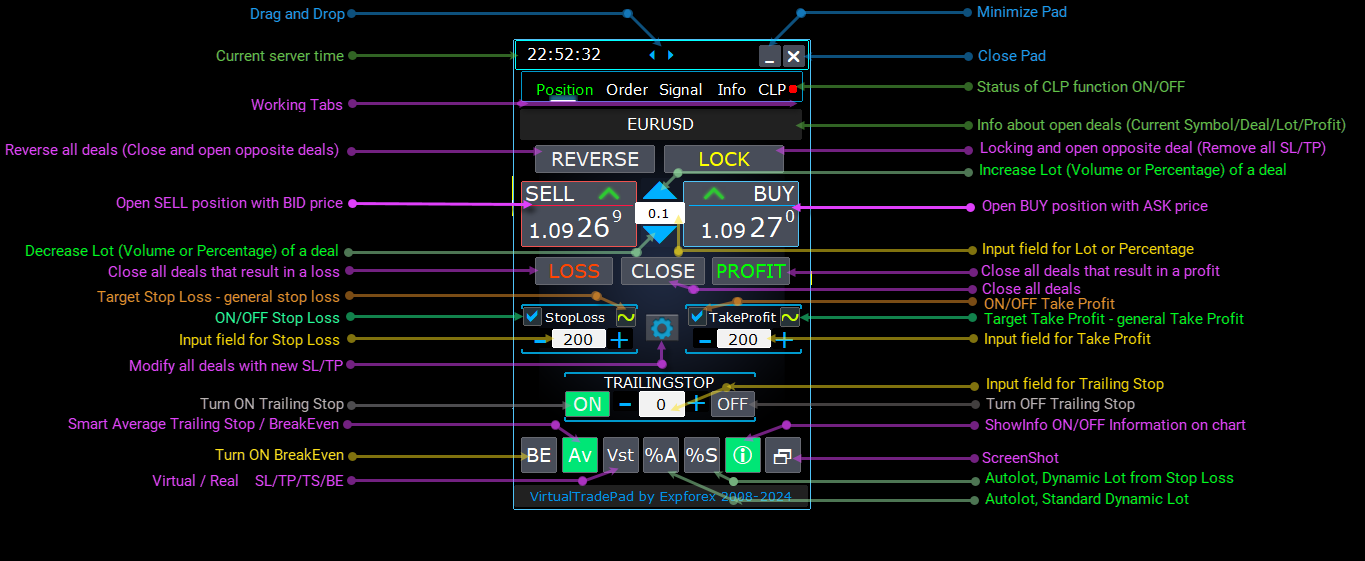
What You Can Do in the Position Tab
- BUY / SELL: open a position instantly from the chart
- Lots: change trading volume using plus/minus controls
- Stop Loss / Take Profit: set, modify or reset protection levels
- Trailing Stop: enable position trailing for the selected symbol
- BE: move profitable positions to breakeven
- Reverse: close current direction and open the opposite direction
- Lock: balance opposite exposure by opening the missing opposite lot
- Close: close the current symbol positions
- Profit / Loss: close only profitable or only losing positions
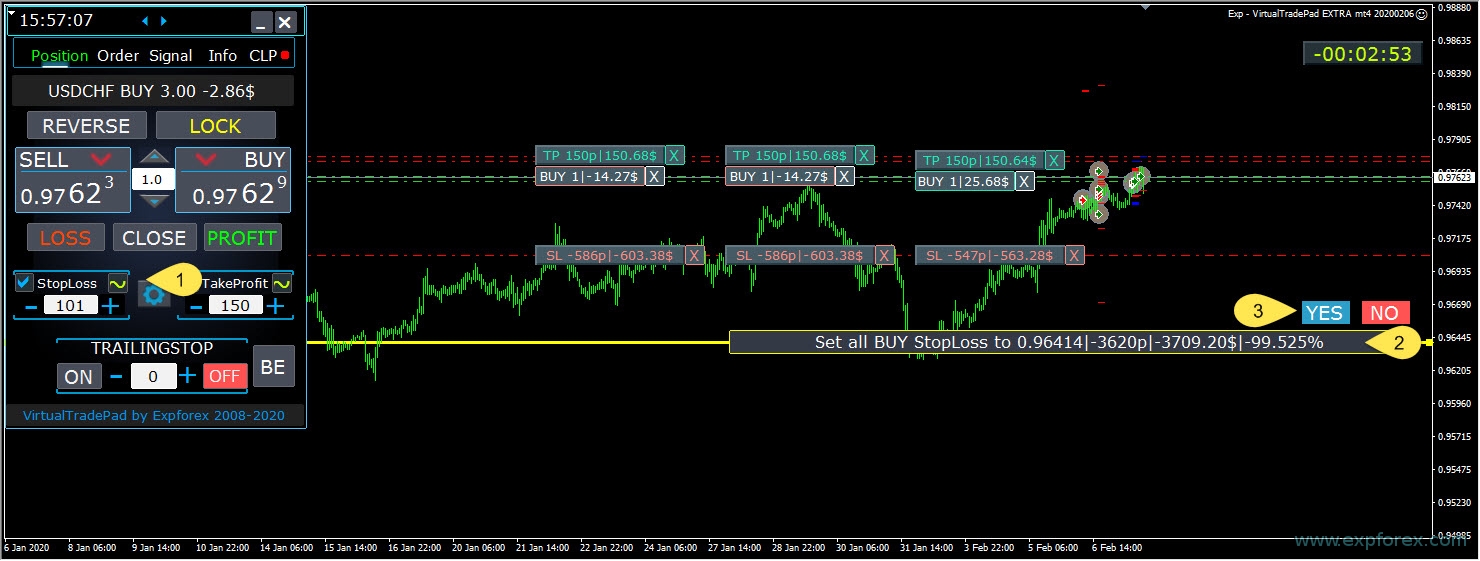
Target Stop Loss and Take Profit Target Stop Loss and Target Take Profit help set general levels visually on the chart. |
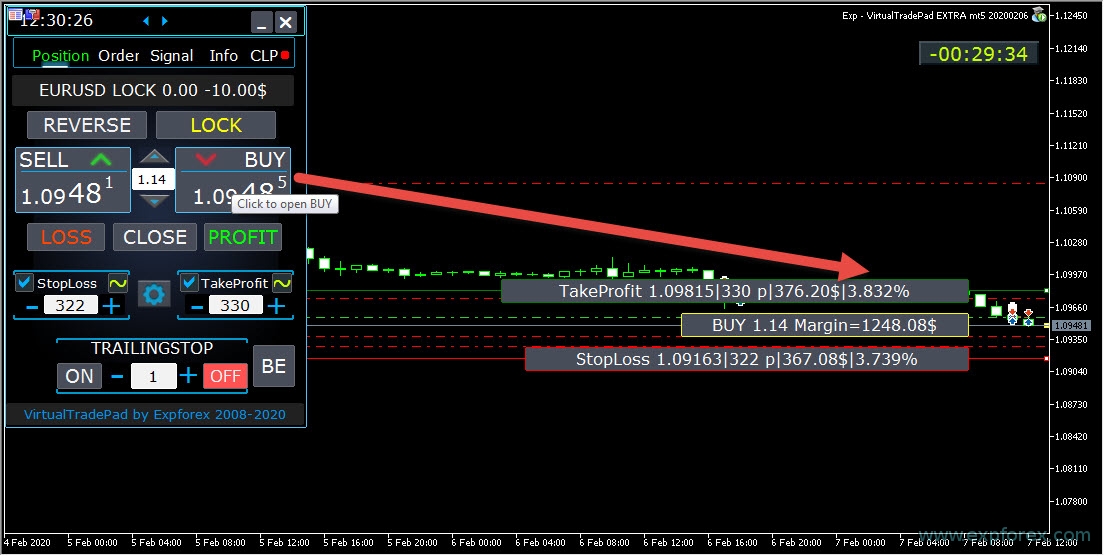
Future Lines Before Opening When Show_Future_Line is enabled, the panel can display future opening price, Stop Loss, Take Profit and risk information before you open the position. |
📦 Orders Tab — Pending Orders and Grids
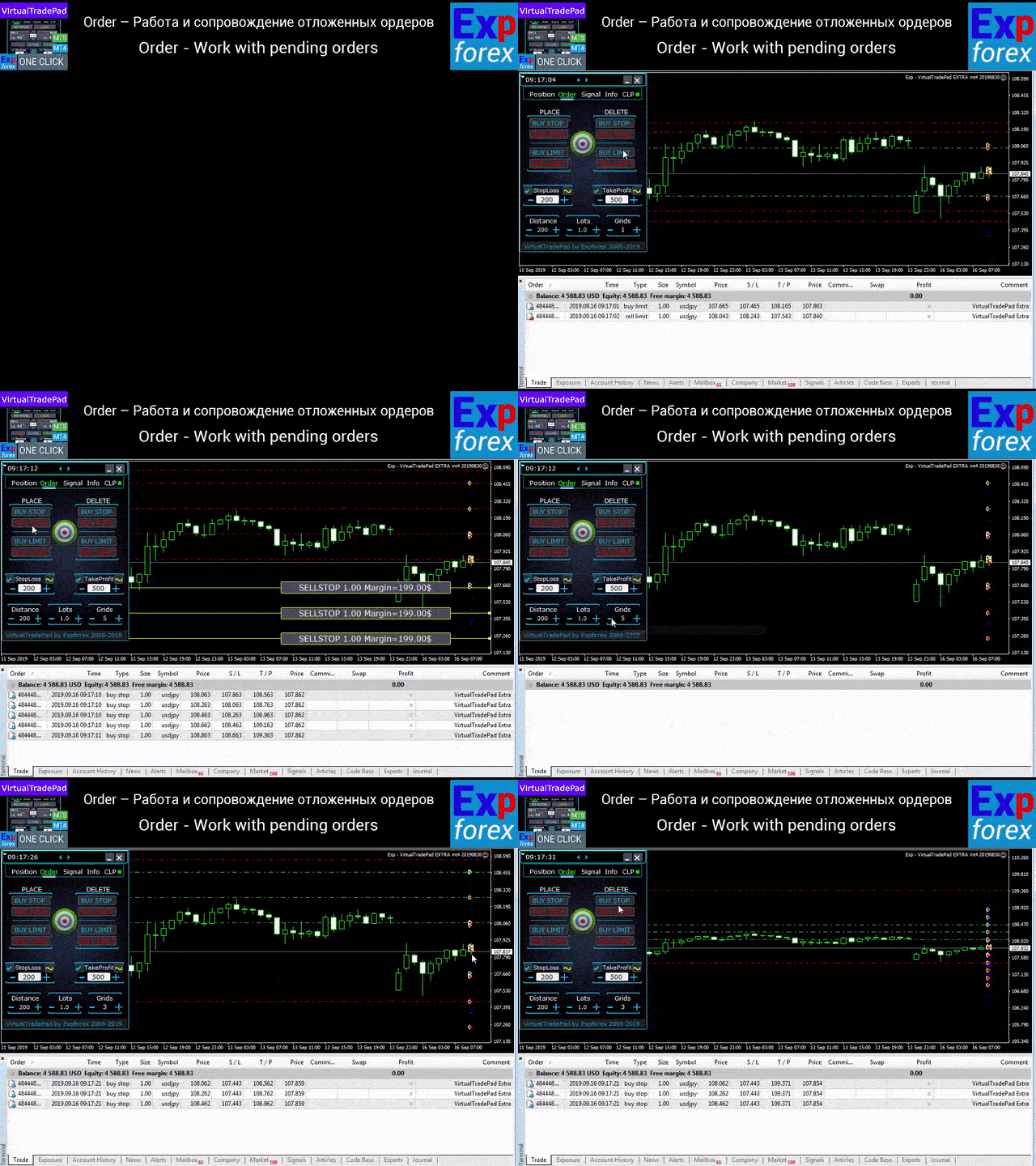
The Orders tab is designed for working with Buy Stop, Sell Stop, Buy Limit and Sell Limit orders. You can set distance, lot, Stop Loss, Take Profit and create a grid of pending orders directly from the panel.
Orders Tab Animation The Orders tab helps place, delete and manage pending orders and order grids. |
Orders Tab Functions
- Distance: distance in points for pending order placement
- TakeProfit: Take Profit indent for pending orders
- StopLoss: Stop Loss indent for pending orders
- Lots: trading volume for the pending order
- PLACE: Buy Stop, Sell Stop, Buy Limit, Sell Limit
- DELETE: delete selected pending order types
- GRIDs: create several pending orders at configured distance
🎯 MagicTarget — Trading from the Chart with Cursor Levels
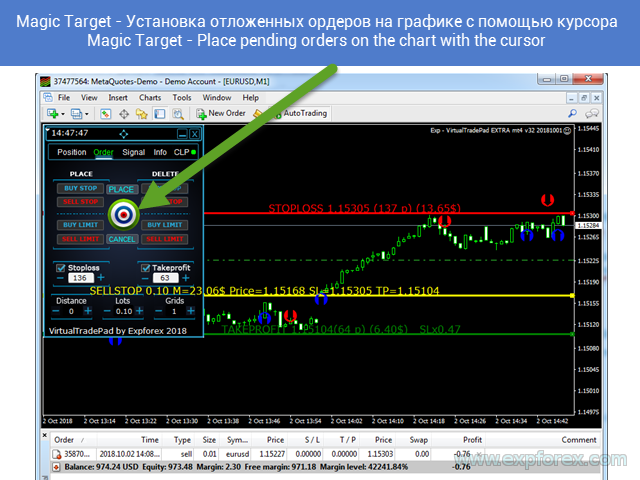
MagicTarget is one of the most powerful functions of VirtualTradePad. It allows you to set a pending order or market position directly from the chart by selecting levels with the cursor.
This is especially useful when you want to place an order visually: entry, Stop Loss and Take Profit levels can be selected on the chart before execution.
MagicTarget Visual Placement MagicTarget allows visual order placement by selecting levels directly on the chart. |
MagicTarget in Action You can drag levels, adjust the setup and confirm the order directly from the chart. |

MagicTarget Logic
- If the cursor is above the current price, the panel can place Buy Stop or Sell Limit depending on SL / TP logic.
- If the cursor is below the current price, the panel can place Sell Stop or Buy Limit depending on SL / TP logic.
- If no Stop Loss and Take Profit are selected, the panel can place Buy Stop above price or Sell Stop below price.
- If the cursor is moved into the future area of the chart, the panel can open BUY or SELL with chart-defined SL / TP lines.
- If Grid is greater than 1, MagicTarget can create a grid of pending orders from the selected chart level.
- MagicTarget can be activated and controlled with keyboard hotkeys.
⌨ Keyboard Trading
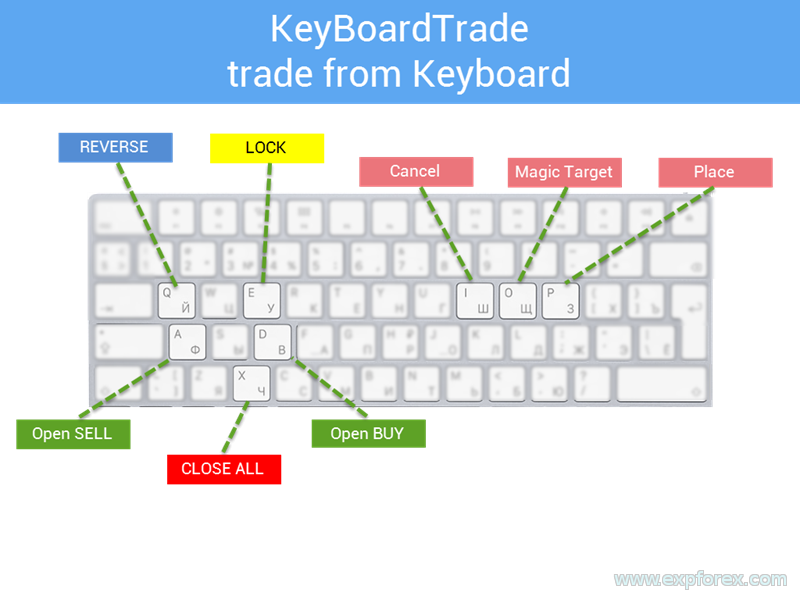
For active traders and scalpers, keyboard trading can be faster than using the mouse. VirtualTradePad can open and manage trades with configurable hotkeys.
| Function | Default Key |
| Open BUY | BUTTON_D |
| Open SELL | BUTTON_A |
| Close Positions | BUTTON_X |
| Reverse | BUTTON_Q |
| Lock | BUTTON_E |
| MagicTarget | BUTTON_O |
| Place MagicTarget Order | BUTTON_P |
| Cancel MagicTarget | BUTTON_I |
| ⚠ Keyboard trading warning: The deal will be opened from the panel whose chart window is active. Always check the active chart before using keyboard trading. |
Keyboard Trading Settings |
📡 Signals Tab — Standard Indicator Overview
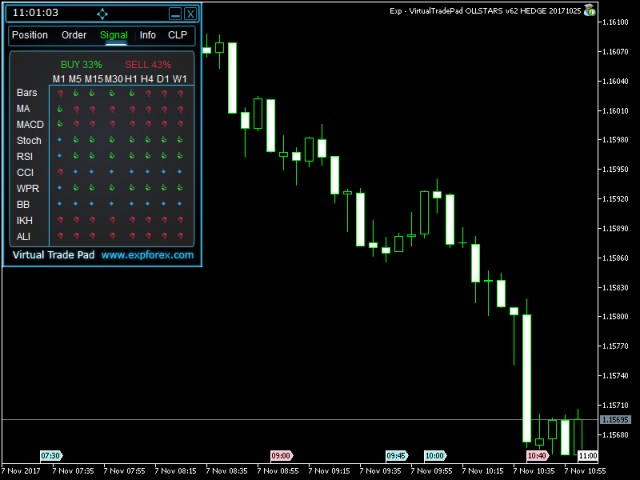
The Signals tab displays information from standard MetaTrader indicators across multiple timeframes. It is mainly informational, but it can also be used for alerts or automatic opening when the total signal percentage exceeds configured levels.
Signals Tab The tab displays BUY and SELL signals from standard indicators and shows the total signal percentage. |
Signals Tab Features
- Signal view across multiple timeframes
- BUY / SELL direction arrows
- Percentage of total signal strength
- Optional alerts when signal conditions are reached
- Optional automatic opening by signal percentage
- MT5-specific indicator and timeframe interaction features
ℹ Info Tab — Symbol, Position and Account Data
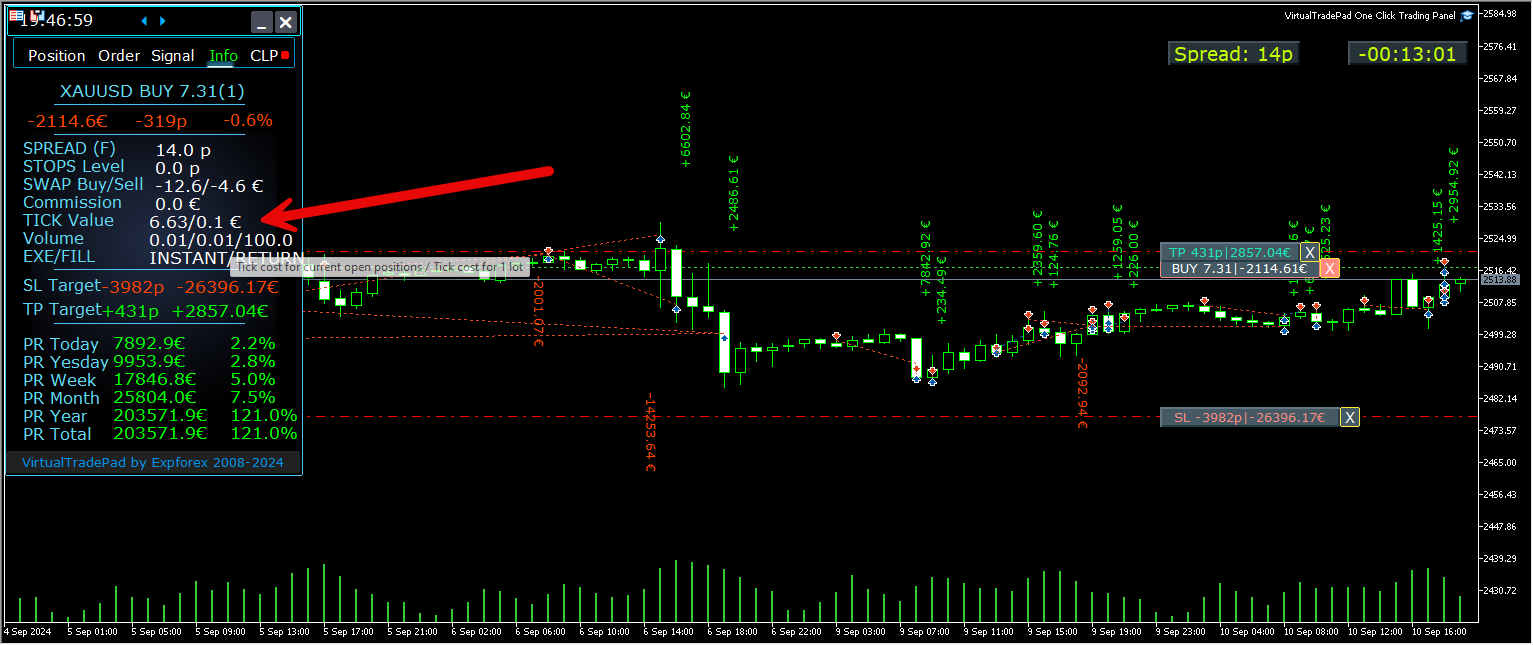
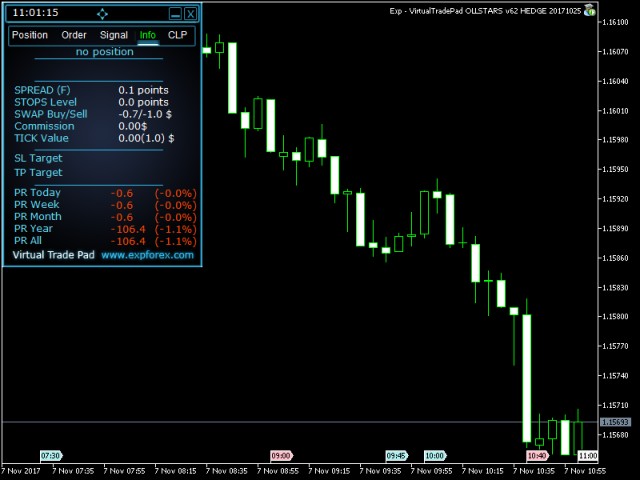
The Info tab shows important information about the selected symbol and current trading situation. It helps the trader understand spread, stop levels, swap, execution type, point value, position result and historical profit data.
Info Tab |
Info Tab Shows
- Current symbol name and open position information
- Position type and lot size
- Current profit in money, points and percent
- Current spread and floating spread mark
- Minimum stop level and pending order distance
- Swap for long and short positions
- Execution type
- Cost of one point in deposit currency
- Distance to Stop Loss and Take Profit
- Profit for today, yesterday, week, month, year and all history
💰 CLP Tab — Close by Total Profit or Loss
The CLP tab is one of the strongest parts of VirtualTradePad. It allows closing positions by total profit or loss in deposit currency, points or percent of balance.
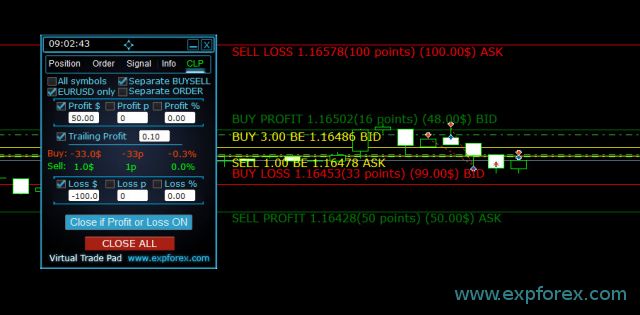
This function can work as a virtual Take Profit or virtual Stop Loss for one symbol, all symbols, separate BUY / SELL directions or each position separately.
CLP Tab CLP can close positions by total profit or total loss and includes emergency Close All functionality. |
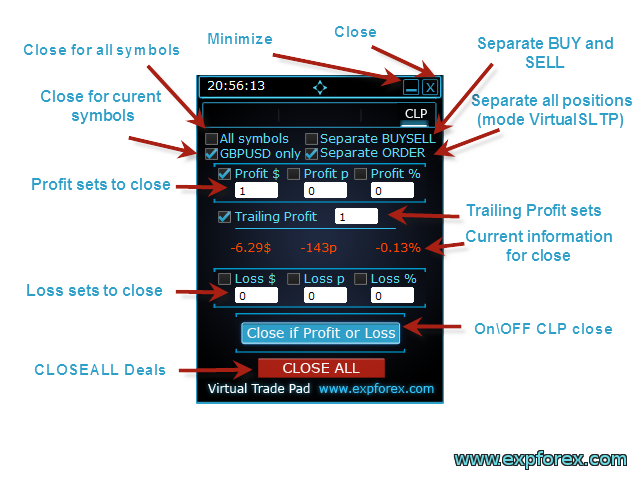
CLP Can Work With
- All Symbols: close positions across the account
- Current Symbol: close only the symbol where the panel is attached
- Separate BUY / SELL: calculate BUY and SELL directions separately
- Separate Order: treat each position separately
- Profit $ / Profit p / Profit %: close by total profit
- Loss $ / Loss p / Loss %: close by total loss
- Close All: emergency closing function
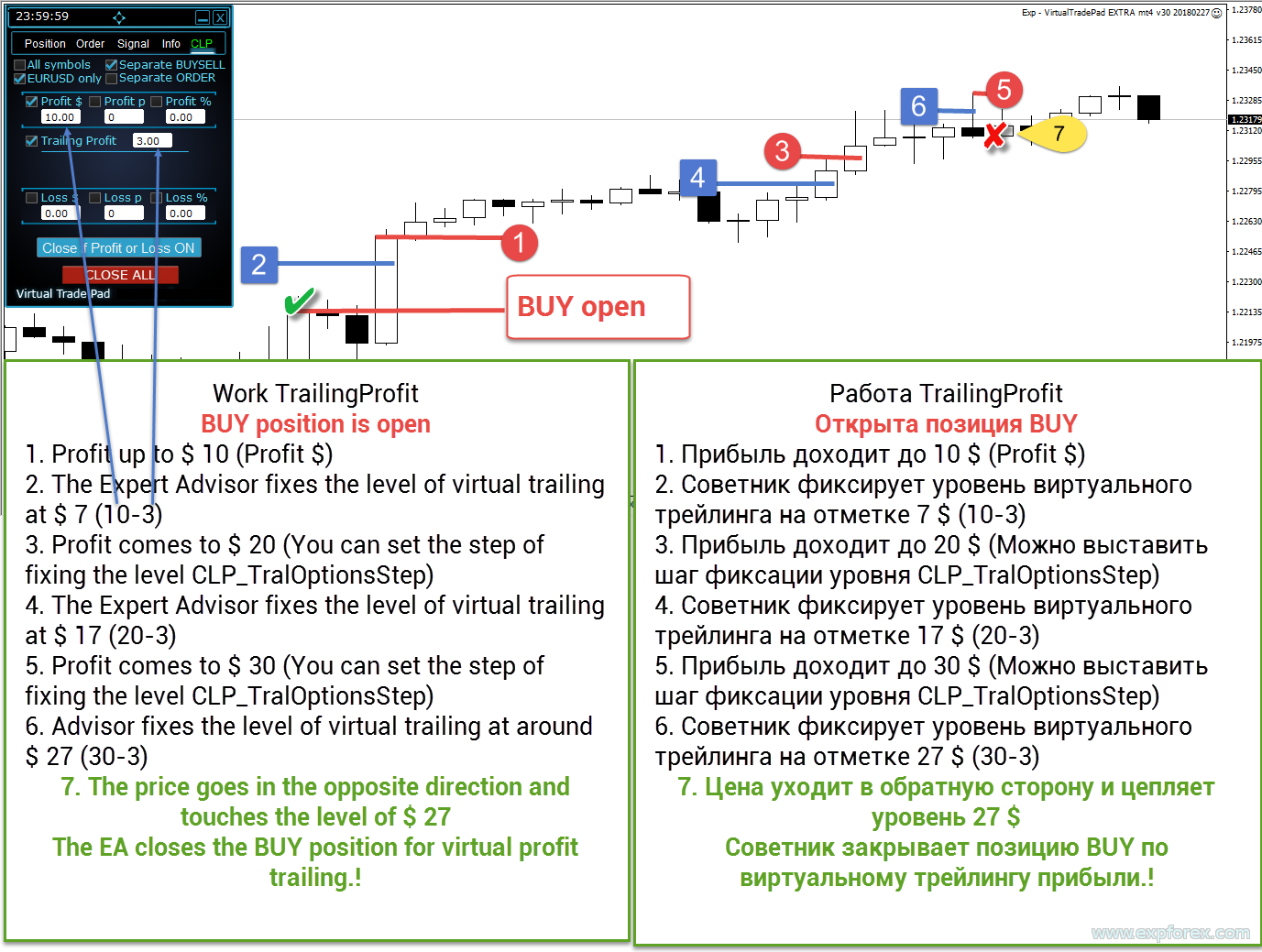
📈 Trailing Profit
Trailing Profit allows VirtualTradePad to close not at the first fixed profit level, but after trailing the floating profit. When the profit reaches the configured level, the panel remembers the current profit and then follows it.
If profit falls back by the configured trailing distance, VirtualTradePad can close the selected positions according to the CLP mode.
Trailing Profit Example |
Future CLP Closing Lines The panel can show approximate future closing prices for total profit or loss when the mode supports it. |
⚙ Main Settings You Should Understand
VirtualTradePad has many settings because it combines trading panel, chart trading, keyboard trading, signal tools, CLP, grids, virtual stops and information functions. The full list is available in the complete documentation. Below are the most important setting groups.
| Setting Group | Why it matters |
| GeneralSize | Changes the panel size to fit your screen and trading style. |
| SymbolToTradeCustom | Allows the panel to trade a specified symbol, including offline charts such as Renko or tick charts. |
| Show_Future_Line | Shows future position levels, Stop Loss, Take Profit and risk information before opening. |
| UseAllMagicFromAllAccount | Defines whether the panel works with all positions on the symbol or only with its own Magic number. |
| VirtualSLTPUse | Enables virtual Stop Loss and Take Profit levels hidden from the broker. |
| KeyBoardTrade | Enables trading from the keyboard using configured hotkeys. |
| DynamicLotStopLoss | Calculates lot size based on risk and Stop Loss distance. |
| Step_Lots / Step_StopLoss / Step_TrailingStop | Controls how values change when using plus/minus controls. |
| MovingInWLUSE | Enables breakeven logic after the position reaches a defined profit level. |
| CLP settings | Controls closing by total profit or loss, trailing profit, alerts, push notifications and auto-off behavior. |
| Signals settings | Controls signal display, signal percentage, alerts and optional signal-based auto trading. |
| TypeFilling | Important for MT5 order execution. AUTO mode tries to detect the correct filling type. |
| 📘 Want the full parameter list? Open the complete VirtualTradePad Settings documentation before using advanced modes such as virtual stops, keyboard trading, CLP, MagicTarget, signals or dynamic lot calculation. |
✅ When VirtualTradePad Is Especially Useful
- You trade manually and need faster execution from the chart.
- You scalp and want one-click trading with visible risk levels.
- You often modify Stop Loss and Take Profit manually.
- You want to reverse or lock positions quickly.
- You need to close only profit positions or only losing positions.
- You use pending orders and want to place them visually.
- You build grids of pending orders from the chart.
- You want to trade with keyboard shortcuts.
- You need virtual Stop Loss and Take Profit.
- You want to close positions by total profit or loss.
- You want a compact information panel for symbol and account data.
- You want a complete manual trading workstation inside MetaTrader.
⚠ When You Must Be Careful
|
🌐 Broker, Account and VPS Recommendations
VirtualTradePad works with market orders, pending orders, order modification, chart objects, virtual levels and continuous monitoring functions. Broker rules and terminal stability matter.
✅ Recommended
| ⚠ Check Carefully
|
🛠 How to Install VirtualTradePad
Installation is standard for MQL5 Market products. After installation, attach the panel to the chart where you want to trade and configure basic settings before using real money.
| Step | Action |
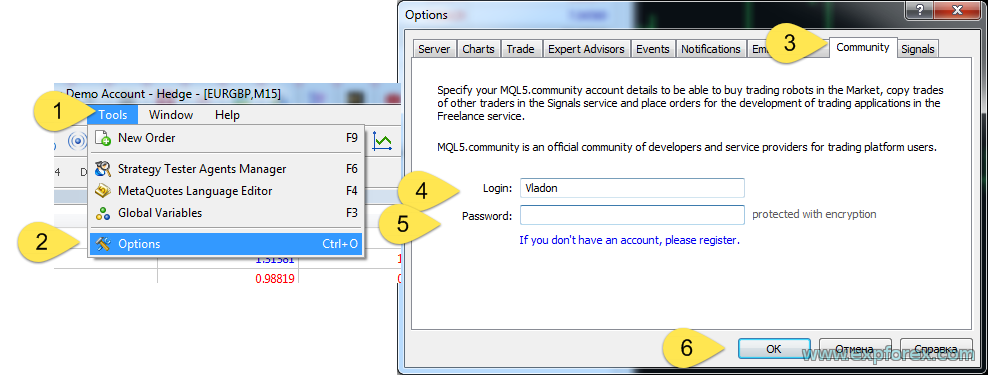
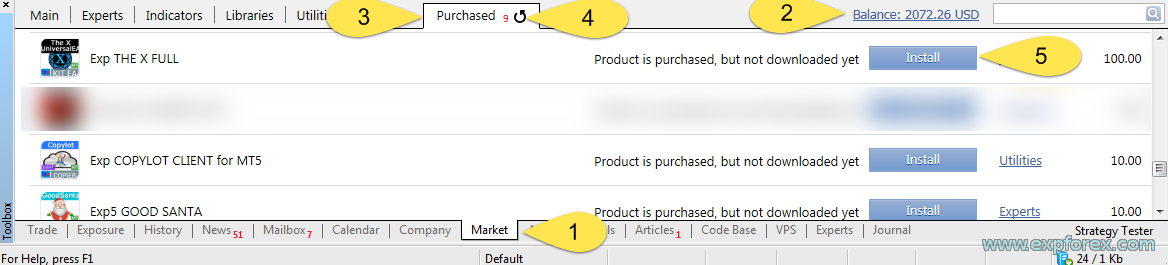
| 1 | Open MetaTrader 4 or MetaTrader 5 and log in to your MQL5 account. |
| 2 | Install VirtualTradePad from the MQL5 Market or download the demo version. |
| 3 | Open the chart of the symbol you want to trade. |
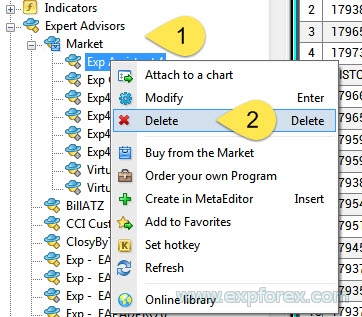
| 4 | Attach VirtualTradePad to the chart from Navigator → Expert Advisors. |
| 5 | Enable Algo Trading / Auto Trading in the terminal. |
| 6 | Allow automated trading in the EA settings window. |
| 7 | Set lot size, Stop Loss, Take Profit, distance and Magic number behavior. |
| 8 | Test BUY, SELL, Close, Modify and MagicTarget on demo first. |
| 9 | Configure keyboard trading only after you are comfortable with the panel. |
| 10 | Use CLP, virtual stops, trailing profit and grid functions only after testing their behavior. |
🔗 Useful Links🔹 How to Buy and Install a Market Advisor 🔹 Download VirtualTradePad Demo + PDF 🔹 Read FAQ |
🆚 VirtualTradePad vs Standard MetaTrader Trading
The standard MetaTrader trading window is useful, but it is not designed as a full one-click manual trading workstation. VirtualTradePad brings the most important actions directly to the chart.
| Standard MetaTrader | VirtualTradePad |
| Trade window must be opened manually | BUY and SELL buttons are directly on the chart |
| Chart-level order placement is limited | MagicTarget allows visual entry, SL and TP levels |
| Several actions require multiple windows and clicks | Close, reverse, lock, modify, trail and CLP are available from one panel |
| No built-in CLP basket control | Close by total profit or loss is available in money, points and percent |
| No integrated multi-tab trading dashboard | Positions, Orders, Signals, Info and CLP are combined in one workspace |
📌 Practical Recommendations Before You Start
- Start on a demo account.
- Check lot size before using one-click trading.
- Test BUY, SELL, Close, Reverse and Lock functions carefully.
- Use MagicTarget first on demo to understand chart-level placement.
- Do not enable keyboard trading until you know all hotkeys.
- Use virtual stops only when your terminal and VPS are stable.
- Do not use grid functions without calculating distance and lot growth.
- Use CLP carefully because it can close many positions at once.
- Check broker stop levels before setting SL / TP or pending orders.
- Read the full documentation before enabling advanced settings.
⚠ Risk Warning
| Trading Forex and CFDs involves risk. VirtualTradePad is a professional trading panel, not a guarantee of profit. Fast trading tools, keyboard trading, grids, reverse, lock, CLP, virtual stops and trailing functions must be used responsibly. Always test the panel on demo before using real money. |
🏁 Final Thoughts
VirtualTradePad is created for traders who want a serious manual trading workstation inside MetaTrader. It is especially useful for scalpers, manual traders, active traders, chart traders and users who want faster control over positions and orders.
If you want one-click trading, keyboard trading, chart trading, MagicTarget, pending order grids, virtual stops, CLP, trailing profit and account information in one panel, VirtualTradePad can become one of the most important tools in your MetaTrader terminal.
Use it carefully, test all functions on demo, configure your risk settings and turn your MetaTrader chart into a professional trading control center.
🚀 Start with VirtualTradePad TodayWatch the video, download the demo, read the full instruction, test the panel on your broker and decide whether VirtualTradePad fits your manual trading workflow. |
| ▶ Watch Video | ⬇ Download Demo + PDF |
| 📘 Read Documentation | ⚙ Open Settings |
| 💎 Buy VirtualTradePad MT5 | 💎 Buy VirtualTradePad MT4 |
SEO Tags
VirtualTradePad, VTP, Exp VirtualTradePad, MetaTrader trading panel, MT4 trading panel, MT5 trading panel, one click trading, chart trading, keyboard trading, Forex trading panel, manual trading tool, scalping panel, MetaTrader trade pad, MagicTarget, pending order grid, close by profit or loss, CLP, Trailing Profit, virtual Stop Loss, virtual Take Profit, breakeven, reverse positions, lock positions, Forex utility, Forex position manager, order manager, trading dashboard, MQL5 Market Expert Advisor, Expforex VirtualTradePad