IC Trade Manager
- Yardımcı programlar
- Sürüm: 1.1
- Etkinleştirmeler: 5

IC Risk Manager: Risk Calculator and Trade Manager for MT5
IC Risk Manager lets you plan a trade on the chart before you place it. You drag a colored box to set your stop loss and take profit, and the lot size is calculated for you from your risk. Nothing is sent to the broker until you press EXECUTE.
How it works
- Set your risk. Enter a risk percentage of your balance, or switch to a money amount by clicking the “Risk %” button. You can also type a fixed lot size and the panel will show the risk it implies.
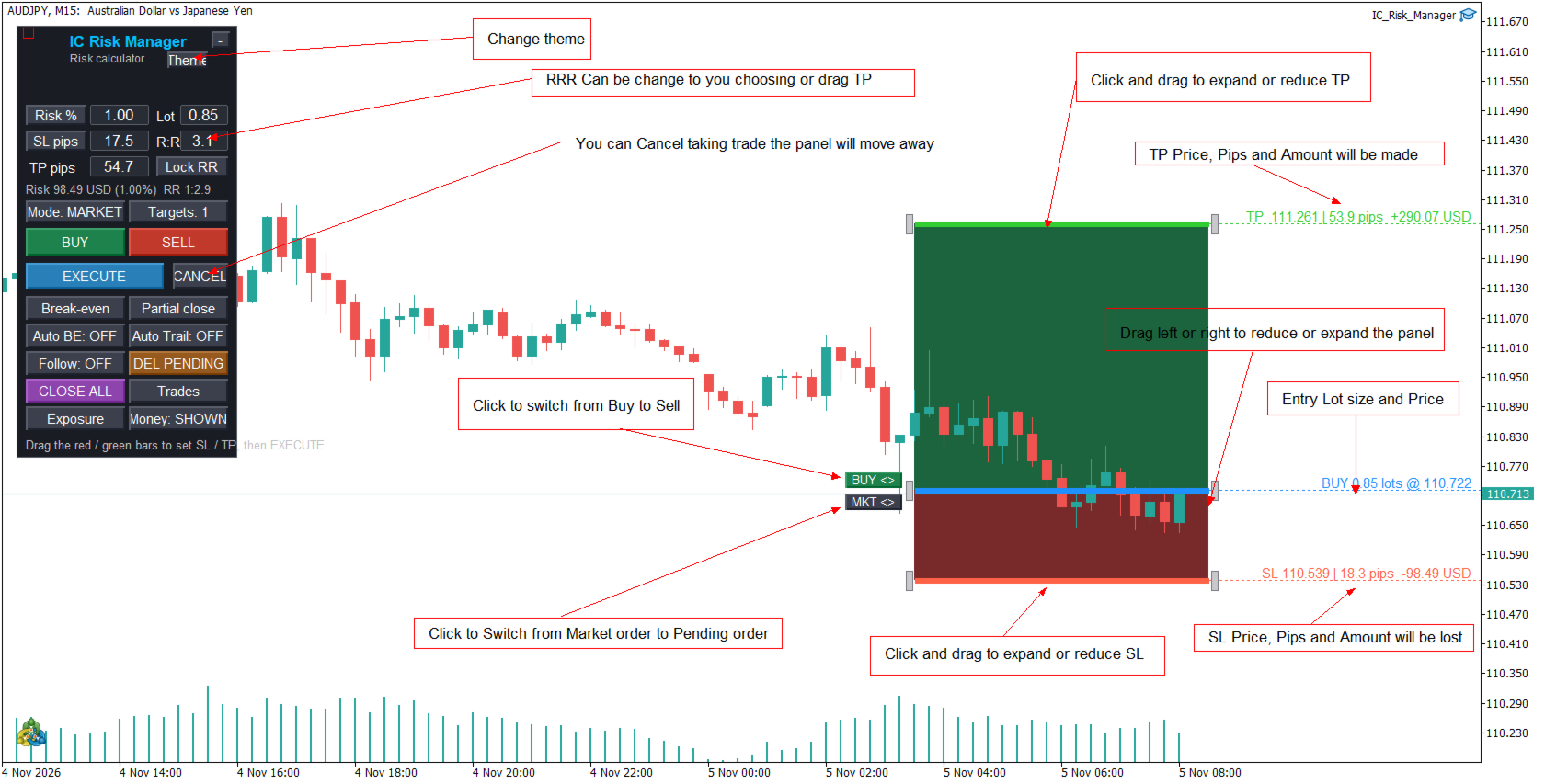
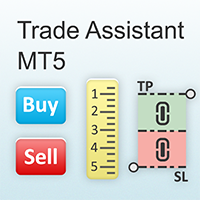
- Click BUY or SELL. A trade plan appears at the latest candle: a green box for the take-profit zone, a red box for the stop-loss zone, and a blue bar at the entry price.
- Adjust it. Drag the red or green bar up or down to move SL or TP. The lot size, money at risk, money to gain and the reward-to-risk ratio update as you drag, and tags on the chart show the figures.
- Press EXECUTE. The EA sends the order at the exact levels you set. Use CANCEL to discard the plan.
Order types
- Market mode: the entry follows the live price.
- Pending mode: the entry stays where you put it, and the EA automatically picks a buy limit, buy stop, sell limit or sell stop from where it sits relative to the price. You can set an expiry time.
- The BUY/SELL and MKT/PEND switches next to the entry price flip the plan without losing your SL and TP distances.
- Follow keeps SL and TP at the same distance as the live price moves.
Moving and resizing the plan
- The red, green and blue bars are always flat and exactly as wide as the boxes.
- Drag the strip beside either side edge to widen or narrow the whole plan. Everything resizes together, so the two boxes never overlap.
- In pending mode, press and drag anywhere inside the boxes to move the whole plan to any price and any candle.
- Thin dotted price lines run from the panel to the right side of the chart at entry, SL and TP.
Risk tools
- Lot size from risk, or risk from a typed lot.
- A reward-to-risk field, with a Lock button that keeps the ratio fixed as you drag.
- Distances in pips or points.
- Up to 3 targets: the take profit is split into stages, and your lot is divided between them using percentages you choose. This needs a hedging account.
- The EA warns you if the smallest lot your broker allows would risk more than you asked for, or if SL or TP is on the wrong side.
Managing open trades
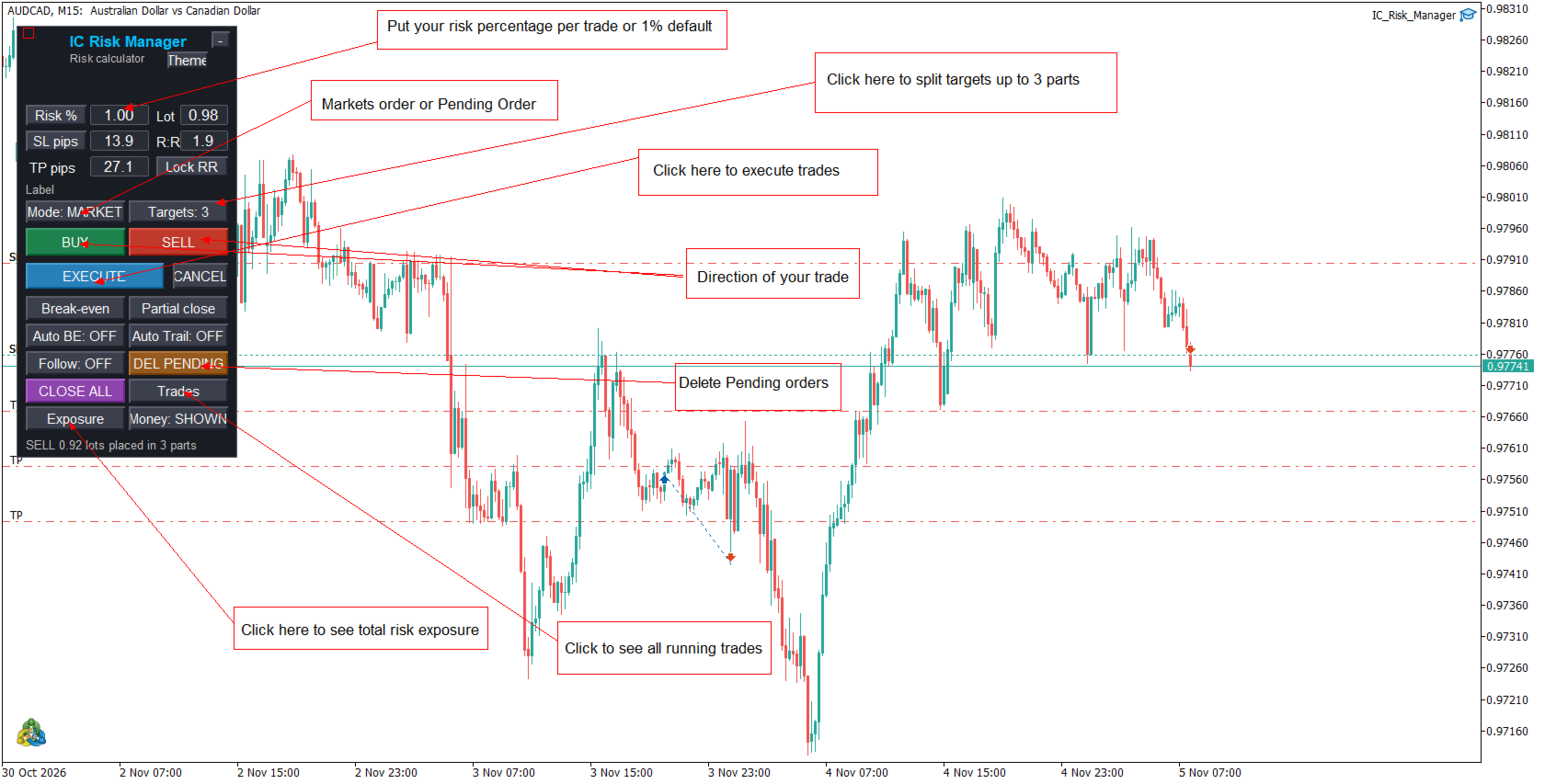
- Break-even and partial close buttons.
- Auto Break-Even: moves SL to entry after a set amount of profit.
- Auto Trail: trailing stop with its own start and distance.
- Close All and Delete Pending buttons.
- A Trades window lists open trades with a Close and a partial-close button for each.
- An Exposure window shows long, short, net, profit and loss, and the amount you’d lose if every SL is hit, per symbol.
Hotkeys (click on the chart first)
| Key | Action |
| Esc | Show or hide the plan |
| Shift+Esc | Flip buy and sell |
| Ctrl+1 / 2 / 3 | Set the number of targets |
| Shift+E | Execute |
| Shift+M | Open the Trades window |
| Shift+X | Open the Exposure window |
Interface
Dark and light themes, a compact mode, a hide-money option, and windows you can move by dragging their background.
Main settings
Magic number, default risk, default SL, TP and R:R, number of targets and lot split, break-even and trailing values, partial-close percentage, slippage, pip size override (for example 10 points per pip on gold), pending-order distance and expiry, box width, and panel position.
Important notes
- Test on a demo account first.
- Trading involves risk. The panel helps you size and place trades but does not predict the market or guarantee results.
- Enable Algo Trading on the toolbar and tick “Allow Algo Trading” in the EA’s settings.
- Hotkeys only work while the chart has focus.