Manual ATR Grid Manager for Gold
- Утилиты
- Версия: 1.60

Manual ATR Grid Manager is a manual trading system for gold (XAUUSD) that lets you choose your entry and then hands the ongoing trade management to the EA.
Place a market buy or sell, or a buy/sell limit or stop order, directly from the chart. Set your lot size and entry price, with on-screen instructions guiding each step.
Once the position opens, the EA manages its profit target. If price moves against you, an adjustable ATR-based grid can add positions at intervals that respond to market volatility. The profit target adapts to the combined basket as entries are added.
Designed for a measured approach to grid trading, it gives you control over starting lots, spacing, lot progression and exposure limits. Sensible sizing is essential: the opening trade should leave enough room for the full potential basket and the drawdown it may carry.
Main features
- Manual market, limit and stop entries from the chart.
- Automatic management after your first trade opens.
- Volatility-based grid spacing and adjustable lot progression.
- Basket profit targets that account for grid depth.
- Optional forced next entry, followed by normal grid management.
- Chart display of ATR, moving averages, current target and expected grid levels.
- Controls to stop further additions or close the basket.
- Configurable position limits, total-lot limits and basket-loss controls.
Start small and leave room for the grid
For initial demo testing on gold, 0.01 starting lots per USD 2,000 of account balance is a useful sizing reference—not a guarantee of safety. Check your broker’s contract size and test your chosen settings before trading live.
Size the first trade for the potential full basket, not just the opening position. Each additional entry increases exposure, and a sustained move against the basket can produce substantial drawdown. Loss and exposure limits must be configured deliberately; disabled limits provide no protection.
You choose the direction and timing. The EA handles the subsequent management while your MT5 terminal remains running and connected.
Installation and setup
- Install the EA in MT5.
Sign in under Tools → Options → Community, then install the product from Market. For direct installation, copy the compiled .ex5 into File → Open Data Folder → MQL5 → Experts, then refresh the Navigator. - Open your broker’s gold chart.
Select XAUUSD, or your broker’s equivalent symbol, and open an M15 chart. - Attach the EA.
Drag it from Navigator → Expert Advisors onto the chart. Enable Allow Algo Trading in its settings and switch on the main Algo Trading button in MT5. - Check your settings.
Review starting lot size, grid spacing, lot progression, maximum positions and any loss or exposure limits under Inputs. A limit set to zero may be disabled—check the manual. Message me for a detailed user manual explaining each setting and the chart controls. - Place your first trade through the EA’s panel.
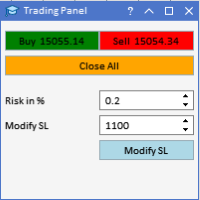
Choose BUY or SELL, select MARKET, LIMIT or STOP, and enter your lot size and entry price where required. Follow the on-screen instructions to submit the order. Once filled, the EA manages the position and subsequent grid according to your settings.
Run MT5 on a VPS for continuous operation
For reliable management while your own computer is switched off, install and run MT5 on an always-on Windows VPS. MT5 must remain running, connected to your broker and enabled for algorithmic trading.
- Keep MT5 open with the EA attached to its chart.
- Disable sleep and hibernation on the VPS.
- When leaving Remote Desktop, disconnect the session; do not sign out of Windows or shut down the VPS.
- Check MT5 after Windows updates or VPS restarts.
- Avoid running a second copy managing the same account, symbol and magic number.
If MT5 stops or loses connection, EA-managed exits and grid additions cannot operate. Existing positions remain open, and pending orders already held by the broker may still fill. A VPS reduces interruptions but does not eliminate them.
Test the setup on a demo account before using it live.