Notification Spy Protector
- ユーティリティ
- バージョン: 1.31
- アップデート済み: 19 6月 2026
- アクティベーション: 20

Notification Spy Protector is a MetaTrader 5 Expert Advisor (Utility) that monitors your trading activity and sends real-time alerts to your mobile device (via MT5 Push) and/or Telegram. Equipped with a solid and reliable Account Protector, this utility is fully compatible and highly recommended for Prop Firm trading to safeguard your accounts from violating drawdown limits. It also provides advanced transaction filters and a clean on-chart dashboard.
Never miss a trade. Protect your account from anywhere.
Trial & User Manual : download from blog
Key Advantages
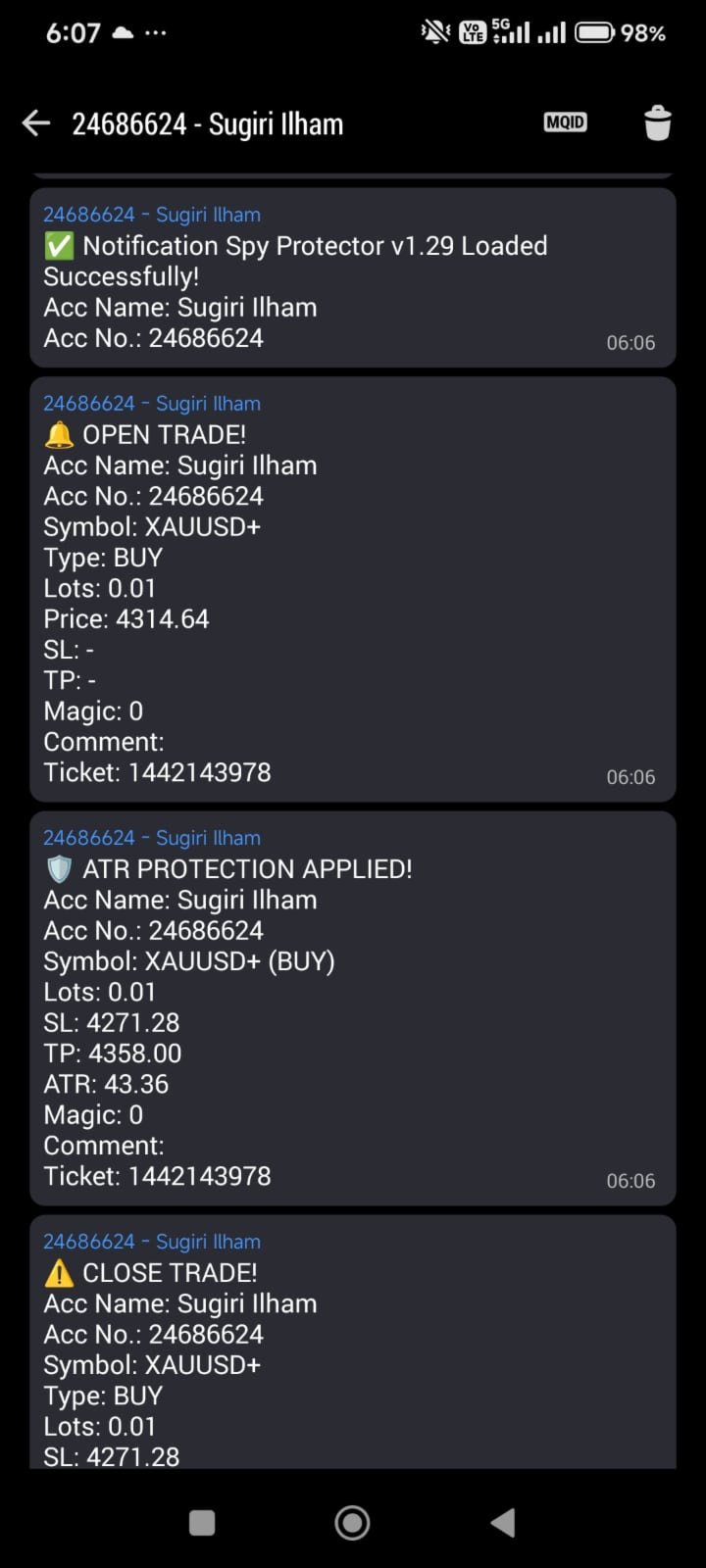
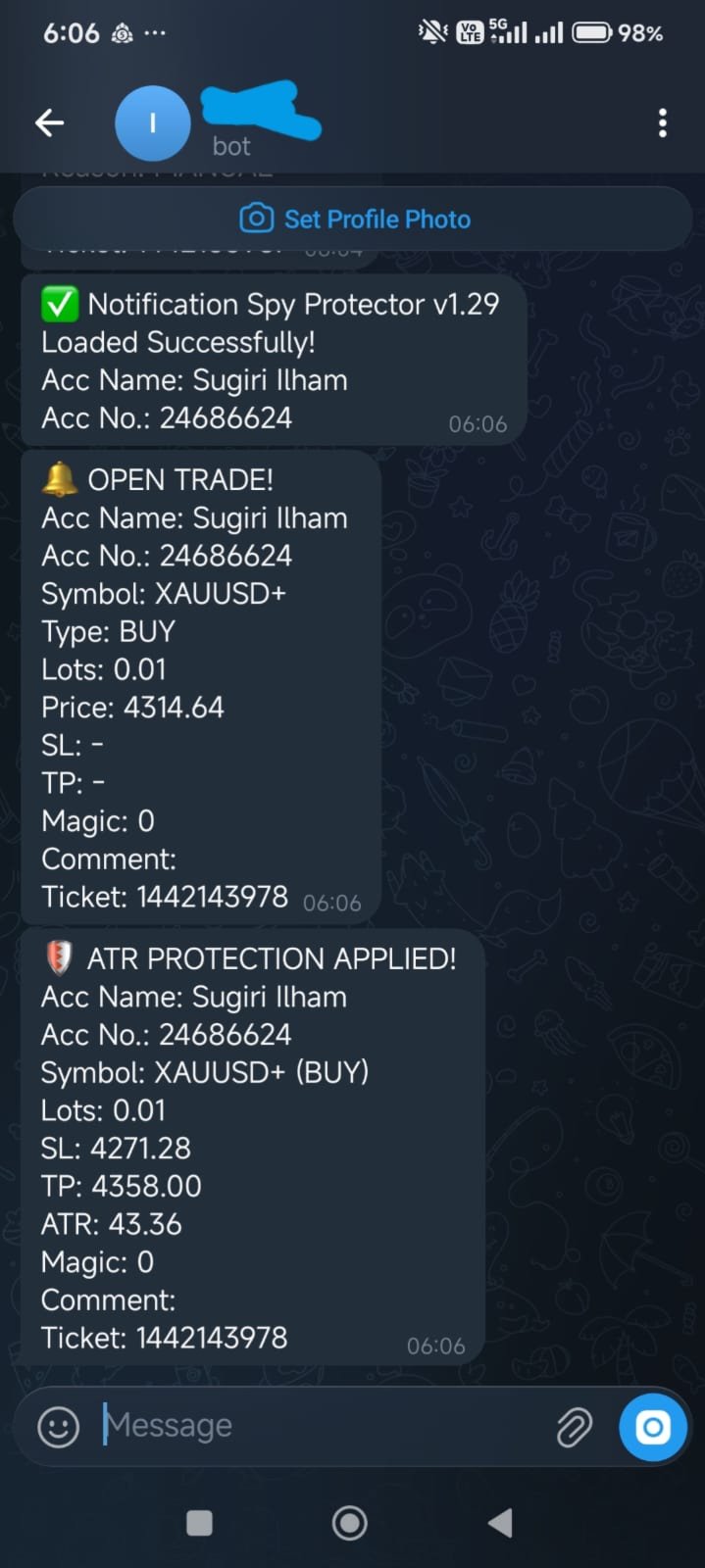
- Dual-Channel Delivery: Get instant notifications via MT5 Mobile Push and automated Telegram messages simultaneously or independently.
- Prop Firm Ready Safeguard: Features a rock-solid account protector with emergency drawdown warnings and automated global close-all panic buttons, making it the perfect utility to strictly protect Prop Firm challenges and funded accounts from breaching maximum loss limits.
- Pro-Level Formatting: Message headers are automatically compiled with bold HTML tags for fast, crystal-clear reading on your phone while on the move.
- Low-Latency Architecture: Critical operations are optimized via a smart throttle system to minimize VPS CPU load.
Detailed Parameter Guide
1. Mobile App Notification
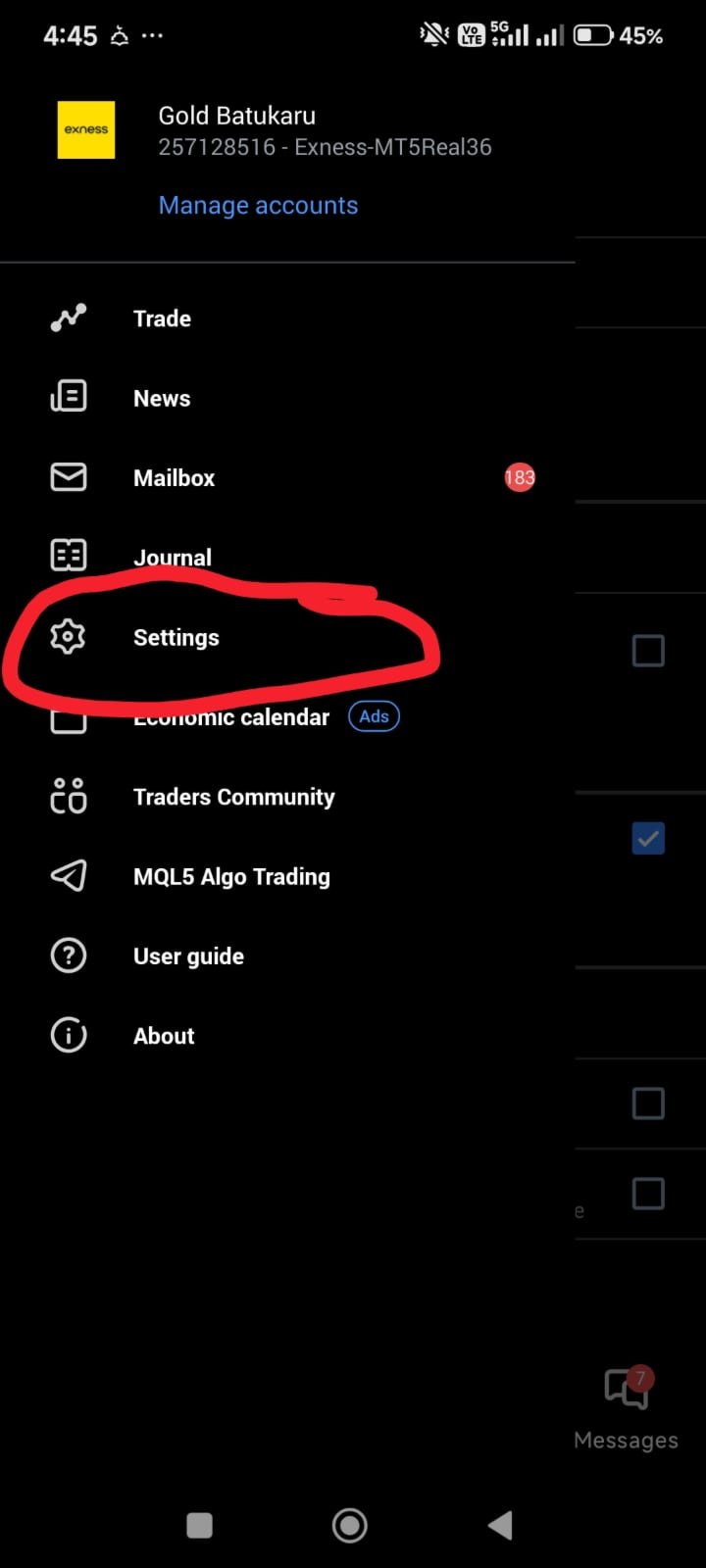
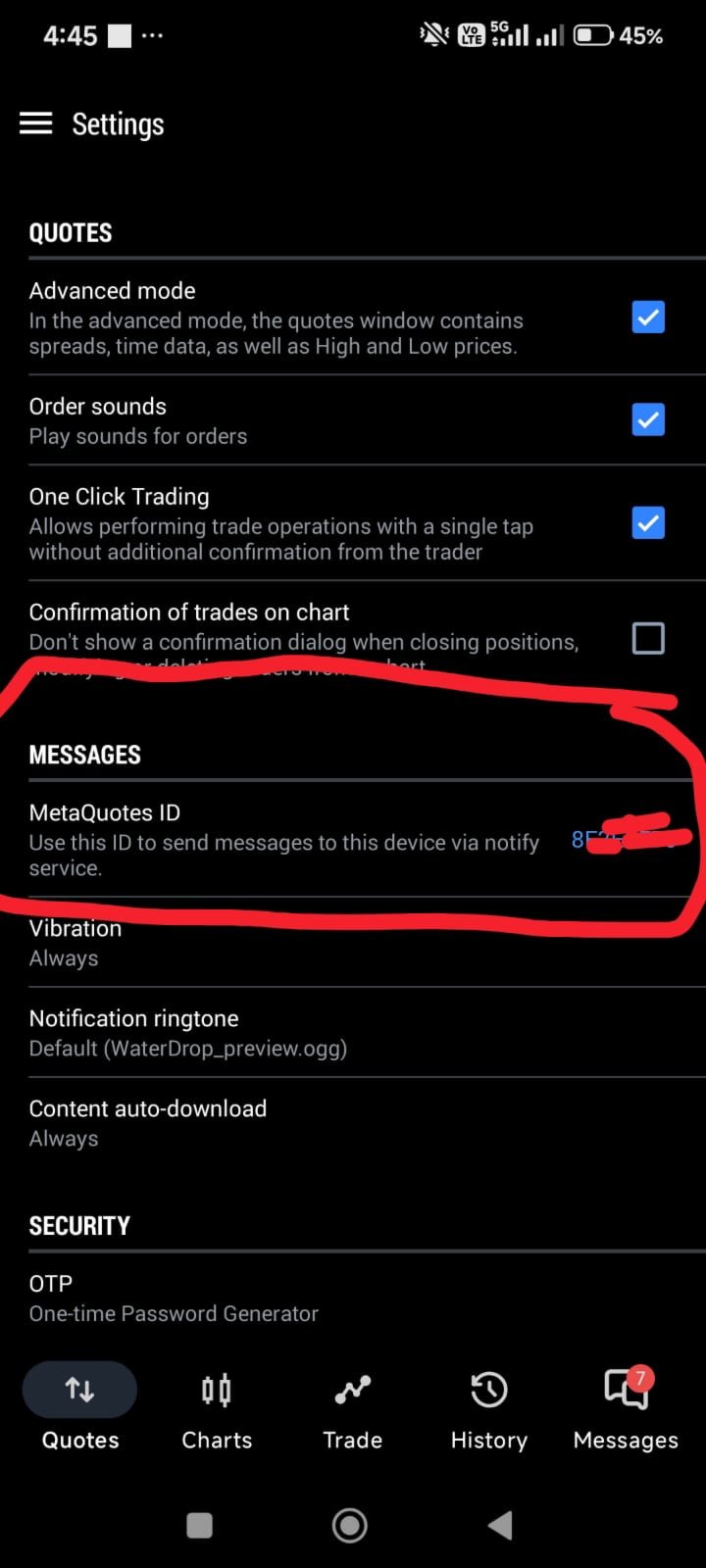
- Step 1: Get MetaQuotes ID from MT5 Mobile App (Settings → Messages).
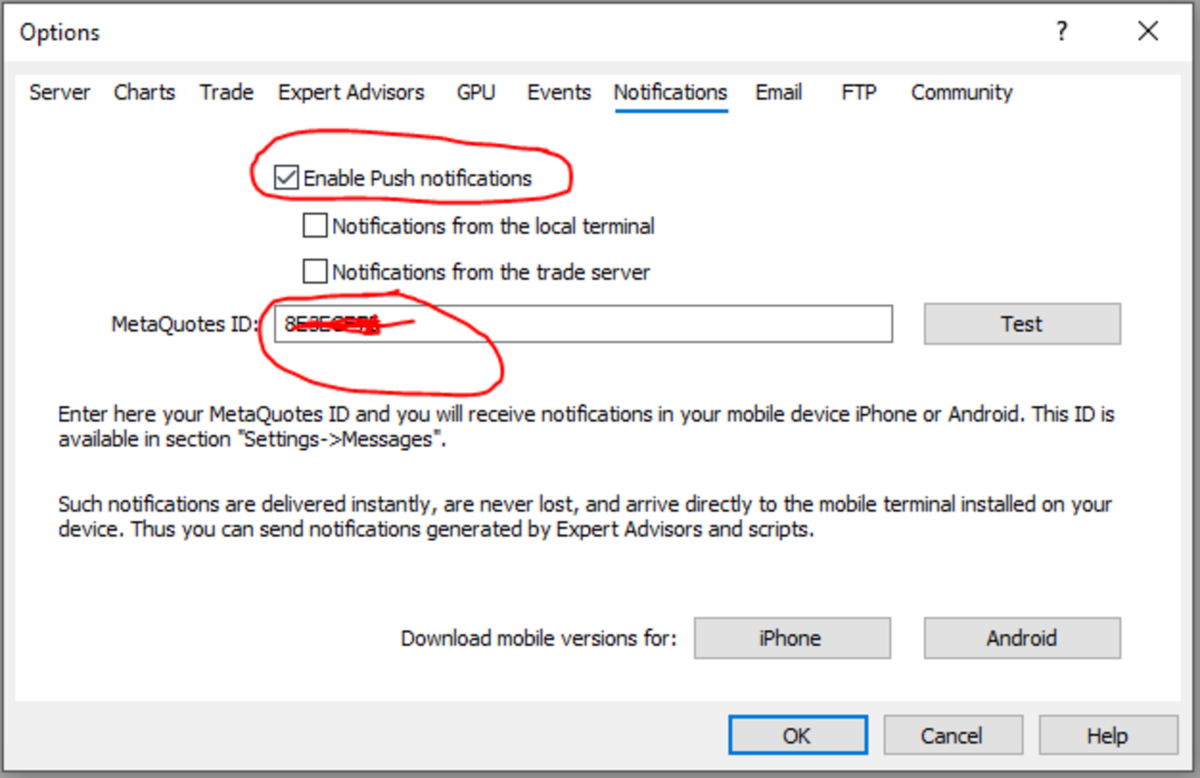
- Step 2: On MT5 PC, go to Tools → Options → Notifications menu.
- Step 3: Check "Enable Push Notifications" and enter your MetaQuotes ID there.
2. Telegram Notification
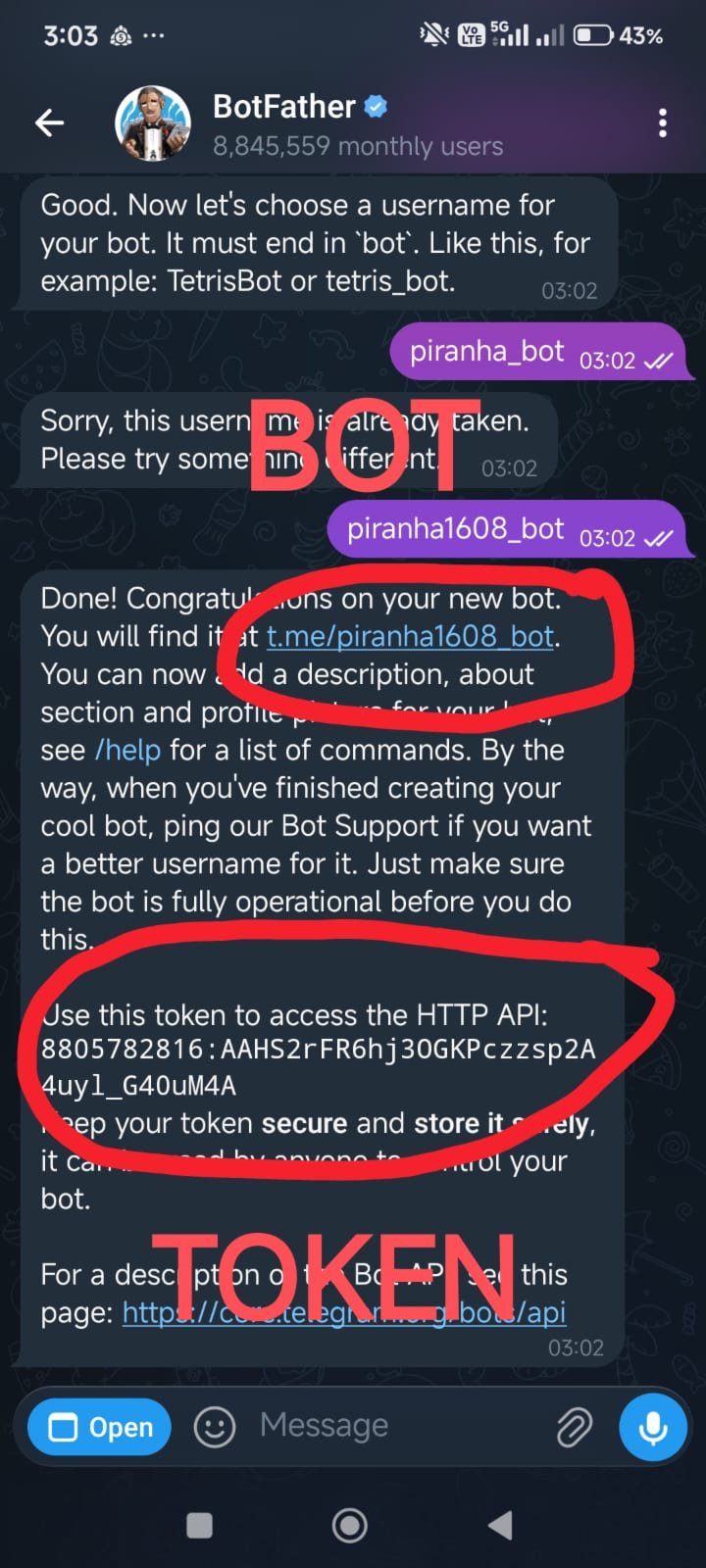
- Step 1: Create a Bot & get Token — go to @BotFather on Telegram and type /newbot to get your Token and Bot username.
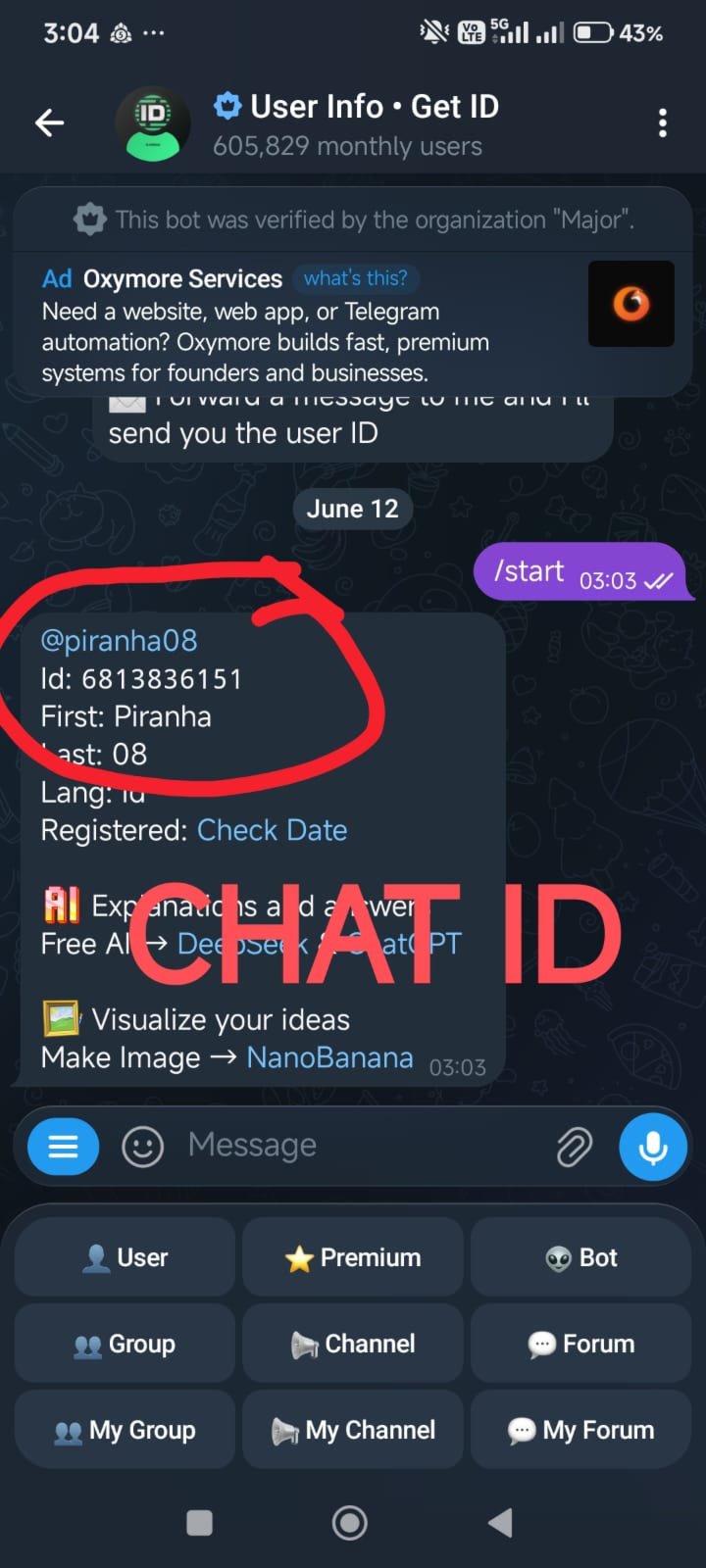
- Step 2: Start Bot — open your new bot from @BotFather in Telegram and send /start (REQUIRED before the bot can message you).
- Step 3: Get Chat ID — go to @userinfobot to get your personal or group Chat ID.
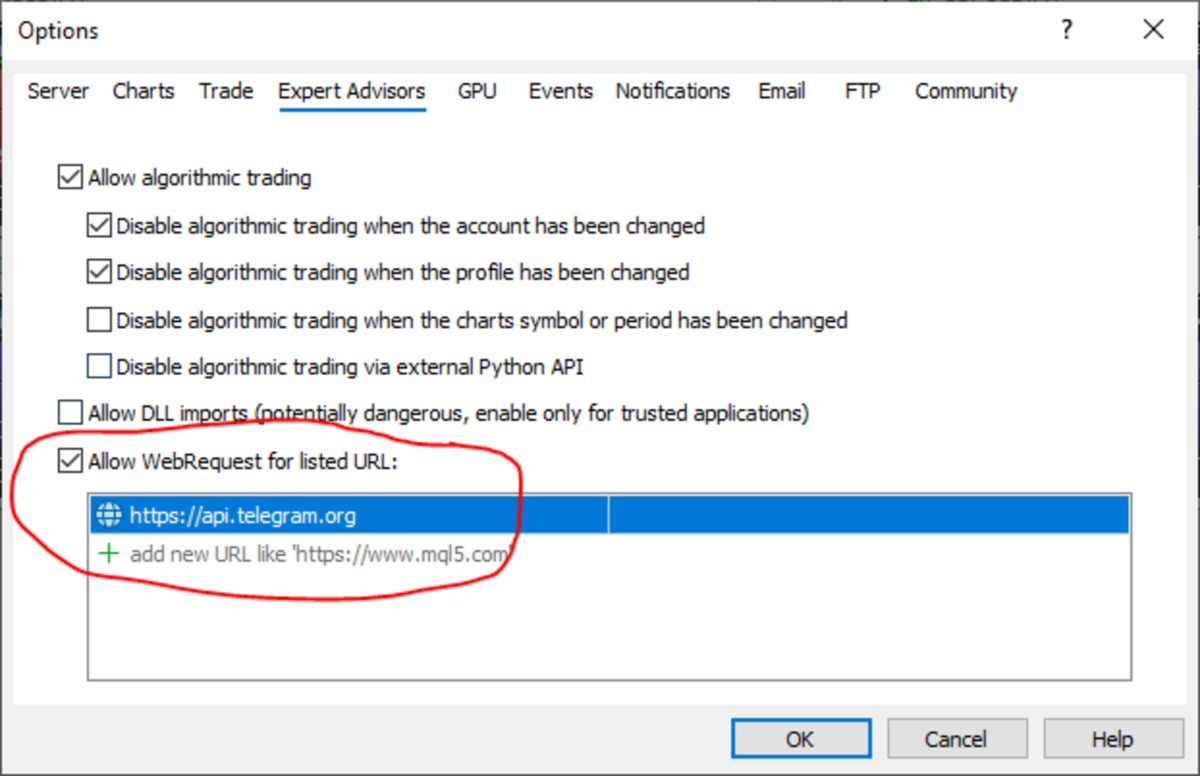
- Step 4: MT5 Security — go to Tools → Options → Expert Advisors → Allow WebRequest.
- Step 5: Add URL — add api.telegram.org to the allowed WebRequest URL list (use "https://" ).
- Use Telegram Notification: Master toggle (true/false) to activate or sleep the entire Telegram automated broadcasting engine.
- Telegram Bot Token: Secure input field to paste your cryptographic Bot Token (from @BotFather).
- Telegram Chat ID: Input field to enter your verified destination Chat ID (from @userinfobot) for message routing.
3. Core Push Notification
- Magic Number: The primary tracking ID for filtering orders.
- Only for this Magic Number: If true, the EA only reports trades matching your exact Magic Number.
- Only this Pair: Restricts reporting exclusively to the asset chart the EA is currently running on.
4. Transaction & Comment Filters
- Notify Open Trade / Close Trade: Pings on entries and exits, featuring smart close reasons (Manual, SL, TP, or Stop-Out).
- Notify Modification: Alerts you whenever a Stop Loss, Take Profit, or trade lot changes.
- Ignore Partial Close: Silences modification alerts if a position is scaled down without altering SL/TP.
- Notify Pending Place/Modify/Cancel: Full state-tracking coverage for Limit and Stop orders.
- Use Comment Filter: Toggles the notification filter based on specific trade commentary strings.
- Comment Match: Type the target phrase (e.g., "Notification Spy Protector") to look for.
- Comment Exact Match: Set true for a perfect string match; set false for a substring search.
5. Protections & Reports
- Daily Report / Daily Report Time (HH:MM): Sends a daily summary featuring balance, equity, realized P&L, floating loss, win rate, and max drawdown at your chosen time.
- Drawdown Warning: Activates the equity safeguard alert system.
- Warning more than ($) / (%): Triggers an immediate emergency notification if drawdown drops past your specified cash or percentage limit.
- Execute Close All on ($) / (%) Hit: Automated Panic Button that closes all open positions instantly to preserve your balance.
- Close All Cooldown (Hours): Locks the safeguard engine post-sweep to prevent rogue trades during market chaos.
6. Protection SL & TP ATR
- Use SL & TP ATR: Applies protective Stop Loss and Take Profit levels calculated from market volatility for unprotected trades.
- Use only empty SL & TP: Set true to only protect trades with zero SL/TP; set false to override existing values.
- Atr Only This Magic Number / Pair: Granular filters to restrict the automated ATR protection engine.
- Timeframe ATR / Period ATR: Select the reference chart period (default H1) and candle cycle (default 14) for calculation.
- SL / TP Multiplier ATR: The mathematical coefficient multiplied by ATR to set your dynamic safety distance.
7. Dashboard
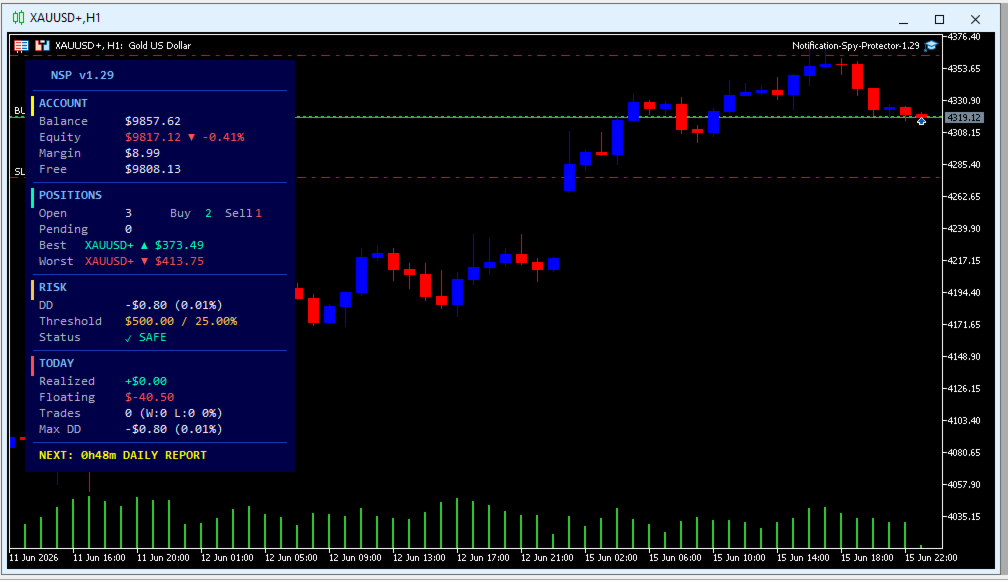
- Show Dashboard: Toggles the professional Master Blue Visual Interface on your chart.
- Corner / X Offset / Y Offset / Font Size: Placement variables to adjust the panel layout on any monitor resolution.
- Panel Width / Line Height: Geometric constraints to ensure the custom metric panel stays sharp and neat.