1. Introduction
RiskPad Pro isn't a tool designed to help you win more trades. It's built to help you stick to your own rules — protecting you from rule violations,
emotional decisions, and risk management mistakes.
In this guide, you'll learn:
- What each setting does, and how to configure it for your own trading rules- How to read the panel (what the colors mean, how to understand the lock messages)
- How to place orders (entering Lot/SL/TP, using the +/- buttons)
- The important things you need to know before you start trading
2-1. DD Settings
DD Settings define the core drawdown (DD) rules for your account.
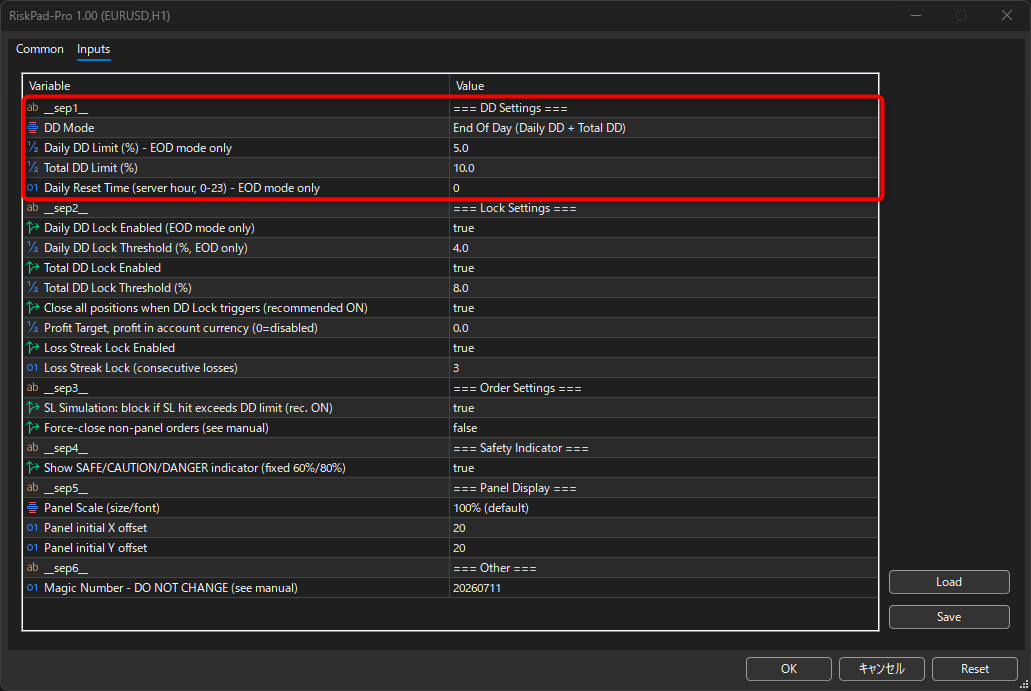
■ DD Mode

There are two modes to choose from:
- EOD (End Of Day): Tracks both Daily DD and Total DD. This matches how most prop firm rules are structured.
- Static: Tracks Total DD only.
■ Daily DD Limit / Total DD Limit

firm challenge you're taking on, or to your own personal risk targets.
■ Daily Reset Time

The server-time hour at which your Daily DD baseline resets.
■ Initial Balance Override (Important)

If you're installing RiskPad Pro on an account that already has trading history (i.e., it already shows a floating
profit or loss), you must enter your true starting balance here.If you skip this step, the balance at the moment
you attach RiskPad Pro will be mistakenly recorded as your "initial balance," and your Total DDwill be calculated
incorrectly from that point on.Leave this at 0 if you're starting on a brand-new account — RiskPad Pro will
automatically use your current balance as the initial balance thefirst time it runs.
2-2. Lock Settings
Lock Settings control the automatic protection features that stop new orders when your risk crosses a line you've set.
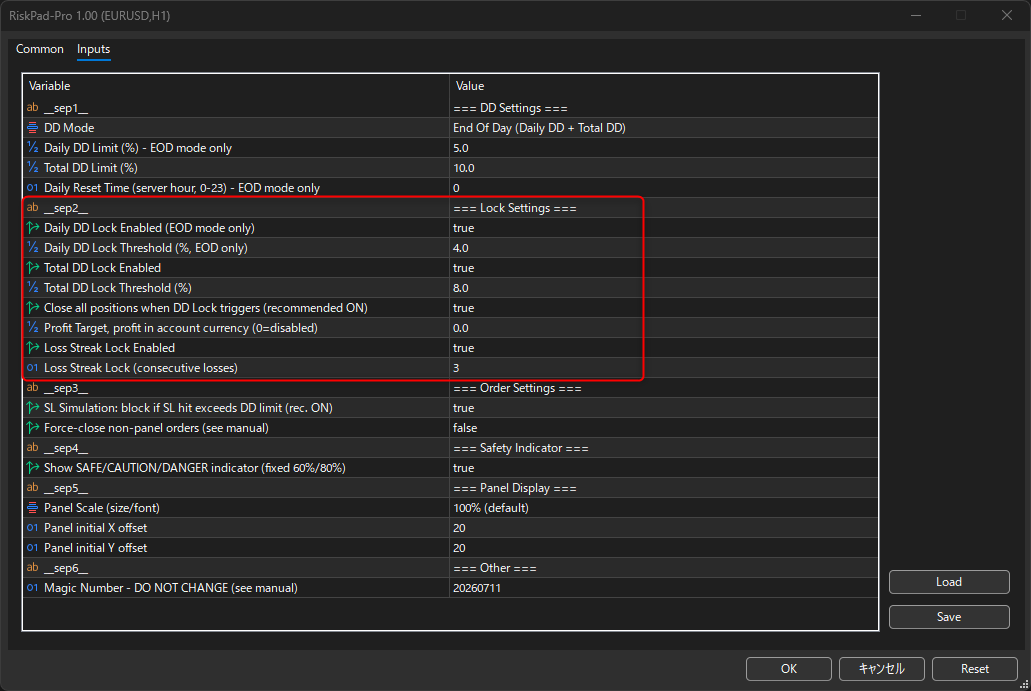
■ Daily DD Lock Enabled / Threshold
■ Total DD Lock Enabled / Threshold
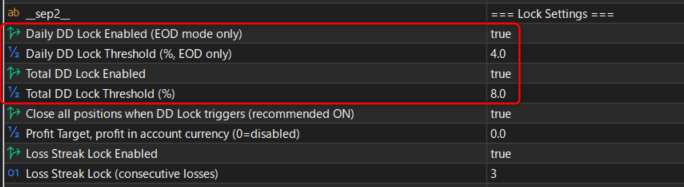
When enabled, new orders are automatically locked once your DD reaches the threshold you've set.
Set the threshold lower than your actual DD Limit,so the lock kicks in before you reach the real breach line.
■ Close all positions when DD Lock triggers
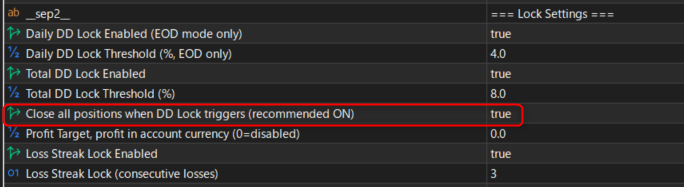
When this is ON (recommended), all open positions are closed automatically the moment
a lock triggers — so you're not left holding a losing position while new orders are blocked.
■ Profit Target
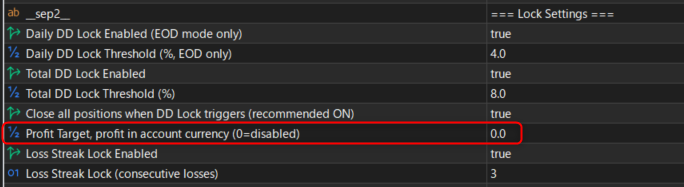
Once your account profit reaches this amount, all positions are closed and new orders are locked.
This can be used as a challenge pass target, a daily profit target, or both — it's entirely up to you.
■ Loss Streak Lock
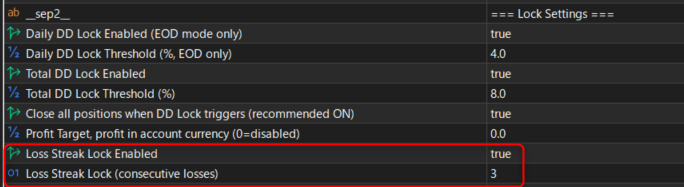
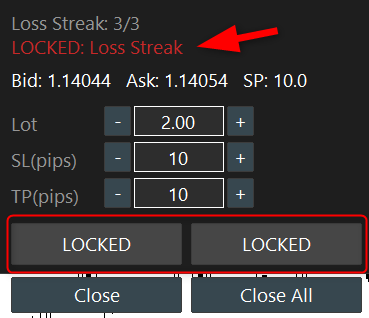
Locks new orders after a set number of consecutive losses (see the "Reading the Panel" section for how losses are counted).
※ If Total DD Lock won't release
Because Total DD is measured against your account's original balance,
Total DD Lock can, in some situations, keep re-triggering day after day
even once you'd expect it to release. If you ever need to release a
Total DD Lock — or if you'd simply prefer to rely on the visual
Daily/Total DD display and make your own judgment calls instead — set
Total DD Lock Enabled to false. This takes effect immediately; you don't
need to remove and reattach the EA.
2-3. Order Settings
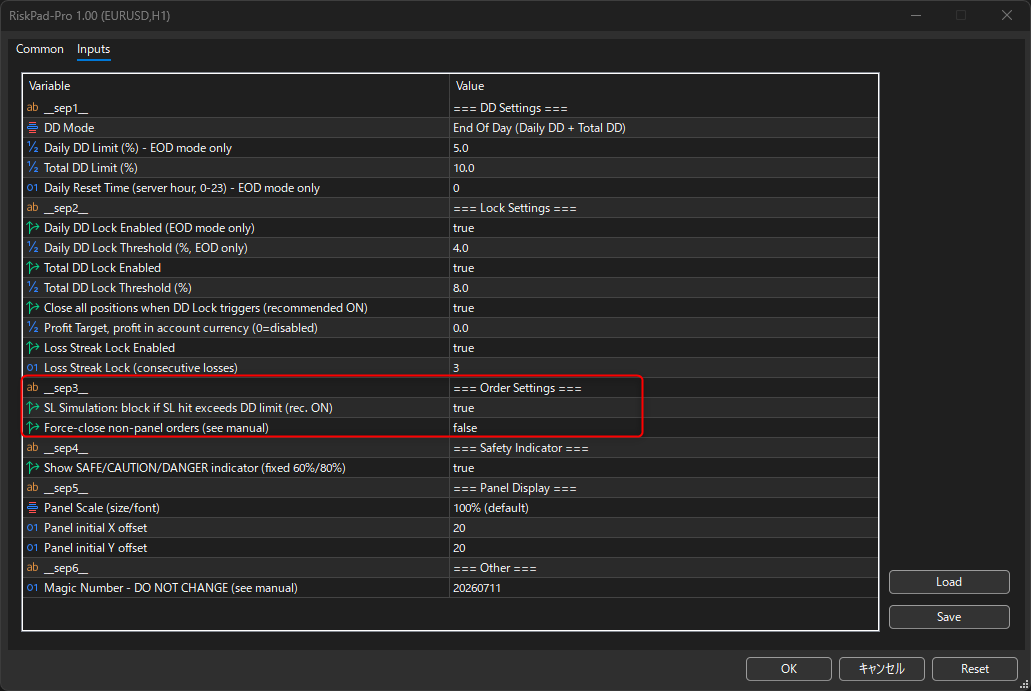
Order Settings control how RiskPad Pro handles order execution and its safety checks before placing a trade.
■ SL Simulation

Before placing a trade, RiskPad Pro checks whether hitting your Stop Loss would push you past your Daily or Total DD limit. If it would, the
trade is blocked before it's ever sent. This is your last line of defense — even a single trade shouldn't be able to breach your limit.
This is a projected/estimated calculation, so treat it as a safety guideline rather than an exact guarantee.
■ Force-close non-panel orders

If a trade is placed through MT5's native order window or one-click trading (not through the RiskPad Pro panel), it's detected
and a warning appears on the panel — this happens regardless of this setting.
If you turn this setting ON, that trade will also be closed automatically. Before enabling this,
please check your prop firm's rules — some firms require a minimum holding time for each
position, and force-closing a trade immediately could violate that requirement.
2-4. Safety Indicator / Panel Display / Other
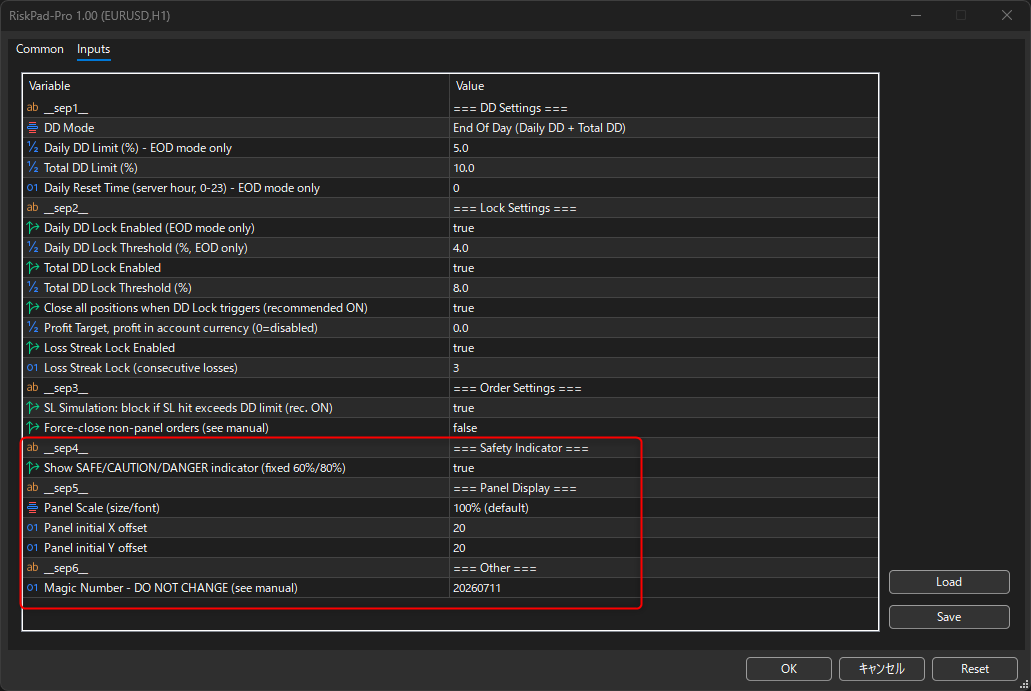
These remaining settings control the panel's appearance and a few account-safety details.
■ Show Safety Indicator
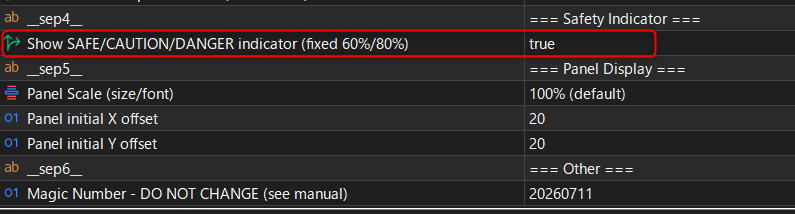
Toggles the SAFE / CAUTION / DANGER status bar at the top of the panel on or off. Turn this off if you'd prefer a more
compact panel without the color-coded status display.
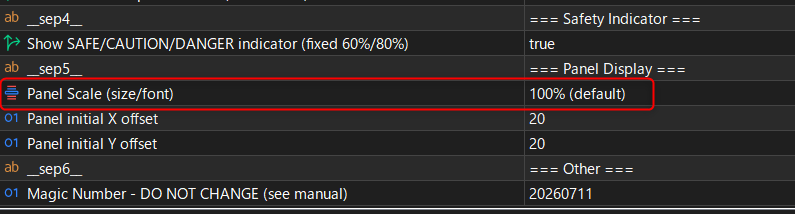
■ Panel Scale
Adjusts the overall size of the panel (80% / 100% / 120% / 150%), including text and buttons.
Choose whichever size is easiest to read on your screen.

■ Panel initial X offset / Y offset
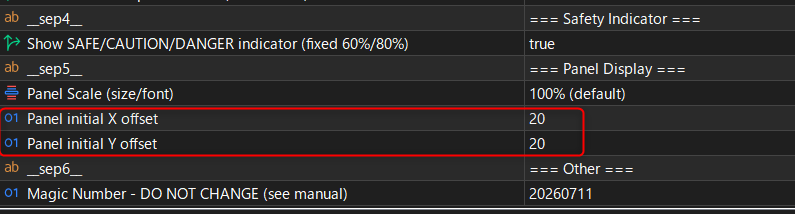
Sets where the panel appears on the chart. Note: RiskPad Pro's panel cannot be dragged to a new position — if you want to move it,
adjust these values and reattach the EA.
■ Magic Number
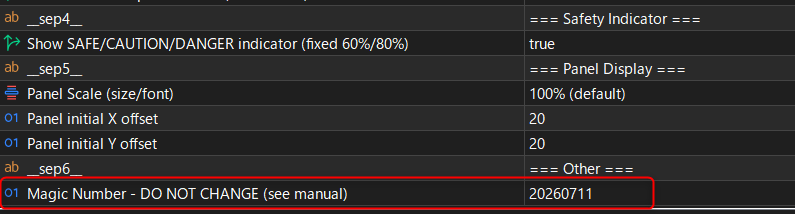
Do not change this value. RiskPad Pro uses it internally to identify its own orders, track your loss streak, and detect trades
placed outside the panel. Changing it will break these features.
3. Reading the Panel
This section explains what each element on the panel means, so you can read your risk status at a glance.
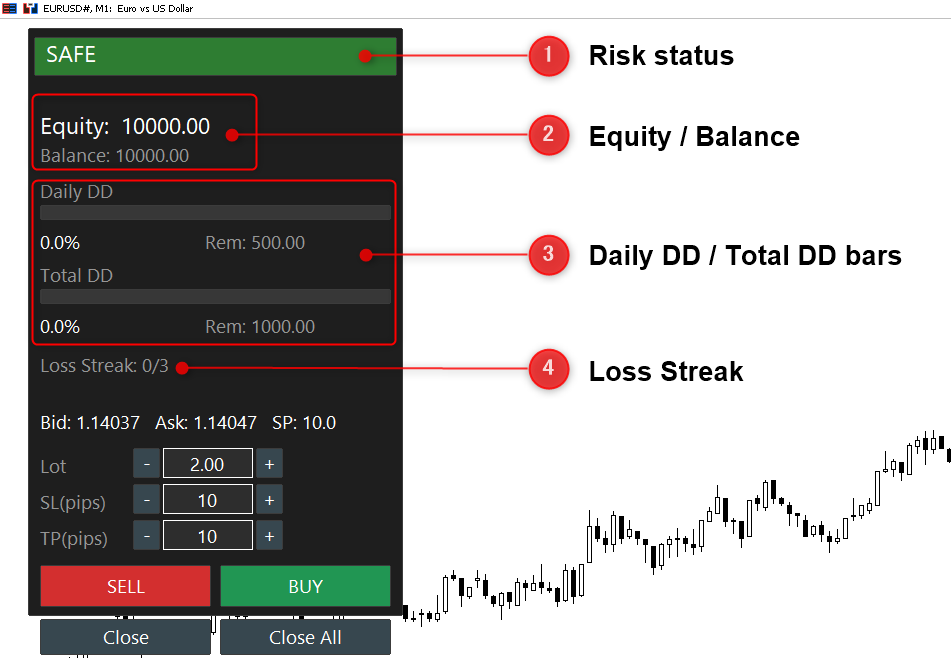
1. Risk status
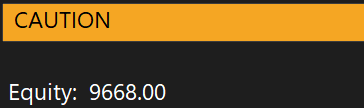
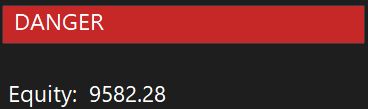
The status bar at the top changes color based on how much of your DD limit you've used:
- Green (SAFE): below 60% of your limit
- Yellow (CAUTION): 60–80% of your limit
- Red (DANGER): 80% or more of your limit
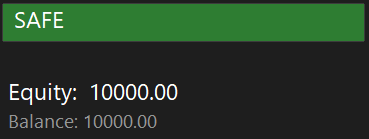
2. Equity / Balance
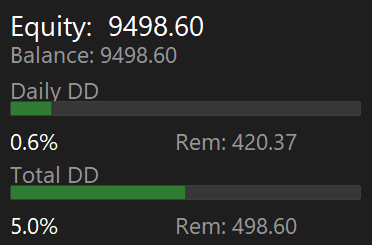
Equity is your account value including any floating profit or loss — this is the number RiskPad Pro uses for all its DD calculations.
Balance is your confirmed account value (unaffected by open positions), shown underneath for reference
3. Daily DD / Total DD bars
These bars show how much of your Daily DD Limit / Total DD Limit has been used,
along with the remaining amount ("Rem") before you'd hit that limit.
4. Loss Streak
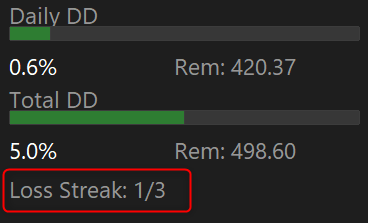
Counts how many losing trades you've had in a row, placed through the panel. A trade that closes at breakeven, or a partial close,
doesn't count toward this streak. If you close several positions at once (e.g. with Close All), they're counted together as a single result, not one per position.
■ LOCKED
When any lock condition is triggered, the BUY and SELL buttons switch to a "LOCKED" state and stop accepting new orders.
The reason for the lock (e.g. "Loss Streak", "Daily DD Lock", "Total DD Lock") is shown just above the Bid/Ask line. Close and Close All remain available even while locked.
4. Placing Orders
This section explains how to enter your trade parameters and place orders using the panel.
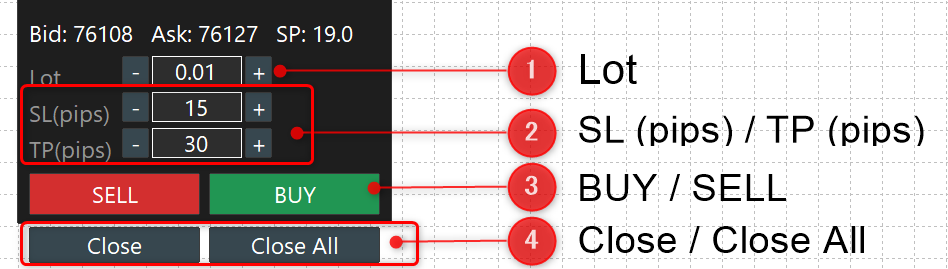
1. Lot
Enter your position size. Use the +/- buttons to adjust in steps of 0.01, or type a value directly into the field.
2. SL (pips) / TP (pips)
Stop Loss and Take Profit are entered in pips, not price or currency amounts. Use the +/- buttons to adjust in steps of 1 pip, or type a value directly.
Enter 0 for either field if you don't want to set a Stop Loss or Take Profit.
RiskPad Pro remembers the last Lot, SL, and TP values you used, so you won't need to re-enter them every time you reattach the EA.
3. BUY / SELL
Places a market order in the corresponding direction, using the Lot, SL, and TP values currently entered.
4. Close / Close All
Close closes all open positions on the current chart's symbol.
Close All closes every open position across your entire account, regardless of which chart or symbol they belong to.
5. Important Notes
Please read these carefully before you start trading with RiskPad Pro.■ RiskPad Pro cannot block MT5's native order window or one-click trading MT5 does not allow any EA to prevent orders placed through its built-in order window, one-click trading buttons, or the Depth of Market.
RiskPad Pro detects these orders after they're placed and shows a warning on the panel (and can force-close them if you enable that setting — see the Order Settings section above), but it cannot stop them from being placed in the first place.
■ Protection features only work while MT5 and the EA are running Daily/Total DD monitoring, lock features, and order detection all require RiskPad Pro to be actively running.
If MT5 is closed, none of these protections are active (your broker-side Stop Loss / Take Profit orders will still work as normal, since those are managed by the broker's server, not by RiskPad Pro). If you need protection around the clock, consider running MT5 on a VPS.
■ A new chart window may not display the panel right away on some brokers On certain broker platforms, attaching RiskPad Pro to a brand-new chart window can occasionally fail to display the panel. If this happens, simply restart MT5 — the panel will then display correctly.
■ Settings aren't shared automatically between charts Each chart you attach RiskPad Pro to has its own independent settings.
If you use RiskPad Pro on multiple charts and want them to share the same configuration, save your settings as a preset (.set file) after configuring one chart, then load that same file when setting up the others.
6. FAQ
Q: The BUY/SELL buttons don't seem to do anything — why?
A: Check that "Allow Algo Trading" is checked in the EA's Common tab, and that the "Algo Trading" button on the MT5 toolbar is also enabled. Both need to be on for RiskPad Pro to place trades.
Q: My Total DD Lock won't go away — what do I do?
A: Set Total DD Lock Enabled to false. This releases the lock immediately — you don't need to remove and reattach the EA.
Q: The panel looks see-through, and I can see candles behind it — why?
A: Open the chart's Properties, go to the Common tab, and uncheck "Chart on foreground." This setting causes the chart to render in front of indicator/EA objects, including the RiskPad Pro panel.