Velora FX
- Experts
- Versione: 3.32
- Attivazioni: 5

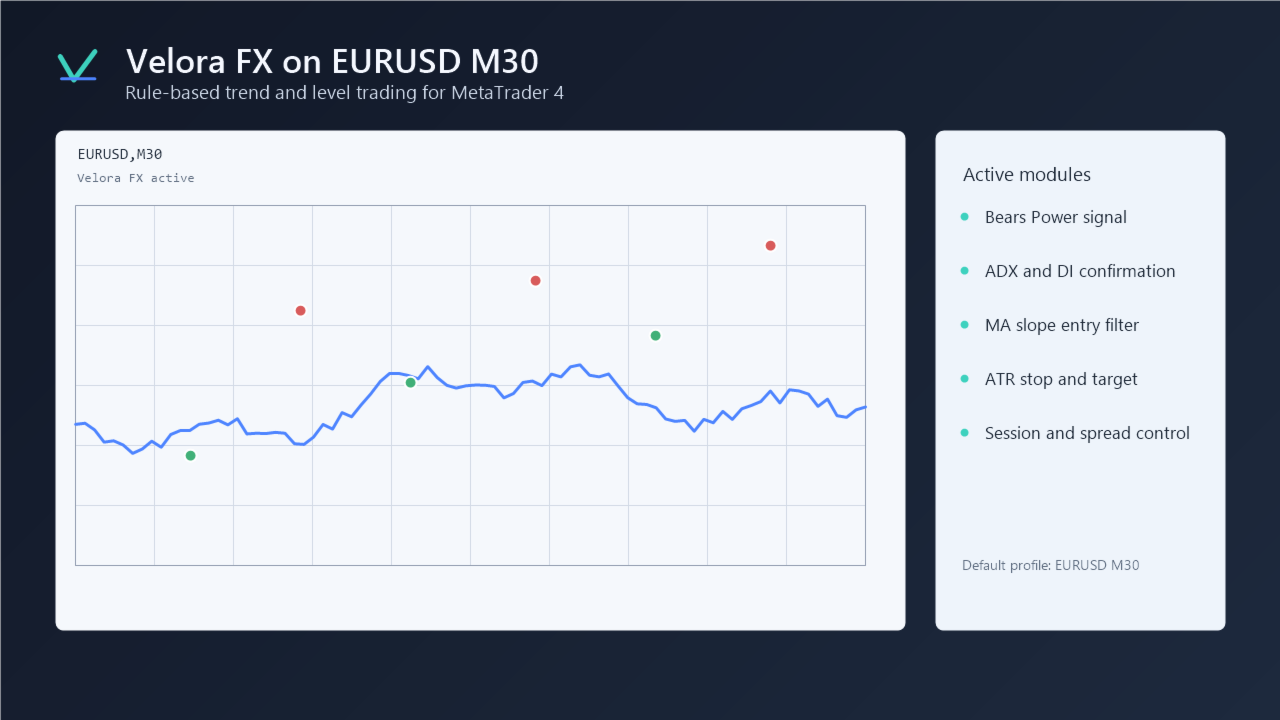
Velora FX è un Expert Advisor per MetaTrader 4 progettato per la coppia EURUSD sul timeframe M30.
Profilo tecnico:
- Simbolo: EURUSD
- Timeframe consigliato: M30
- Piattaforma: MetaTrader 4
- Tipo di Expert Advisor: Trend, trading sui livelli
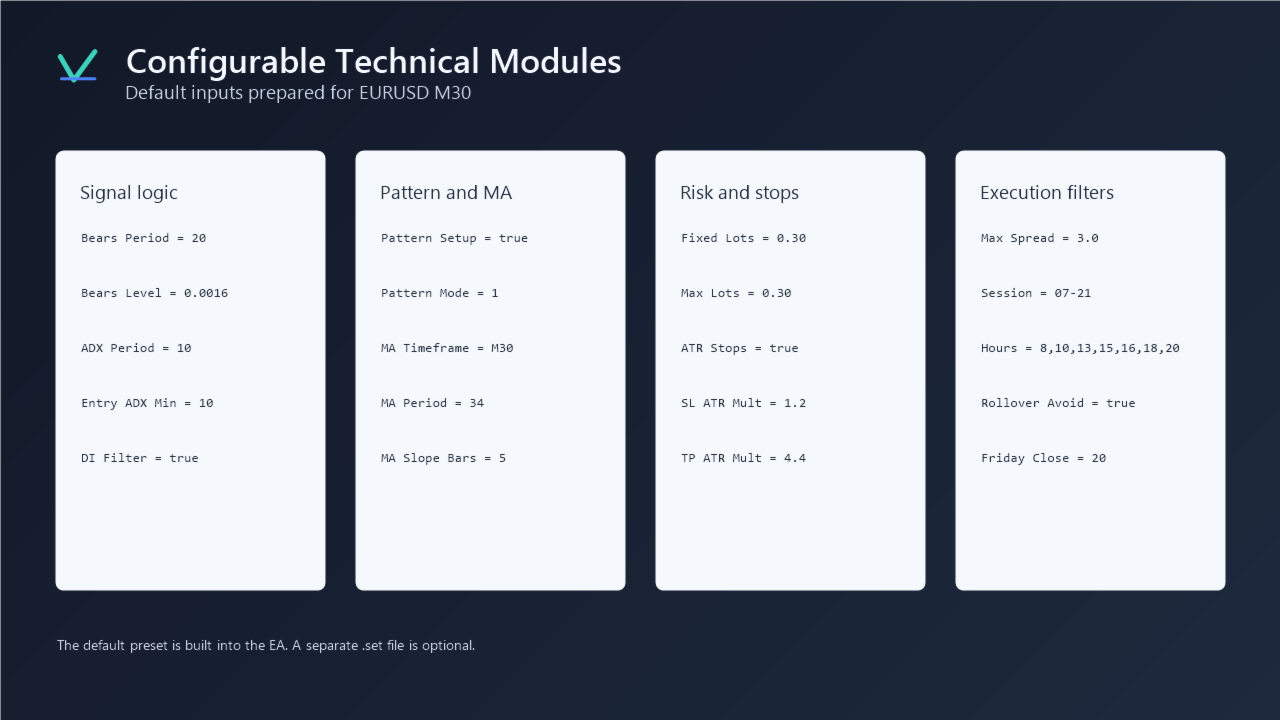
- Gestione dei lotti: Lotto fisso predefinito
- Lotto predefinito: 0.30
- Lotto massimo predefinito: 0.30
- Filtro spread: Massimo 3.0 pips
- Stile di esecuzione principale: Trading tecnico basato su regole rigide
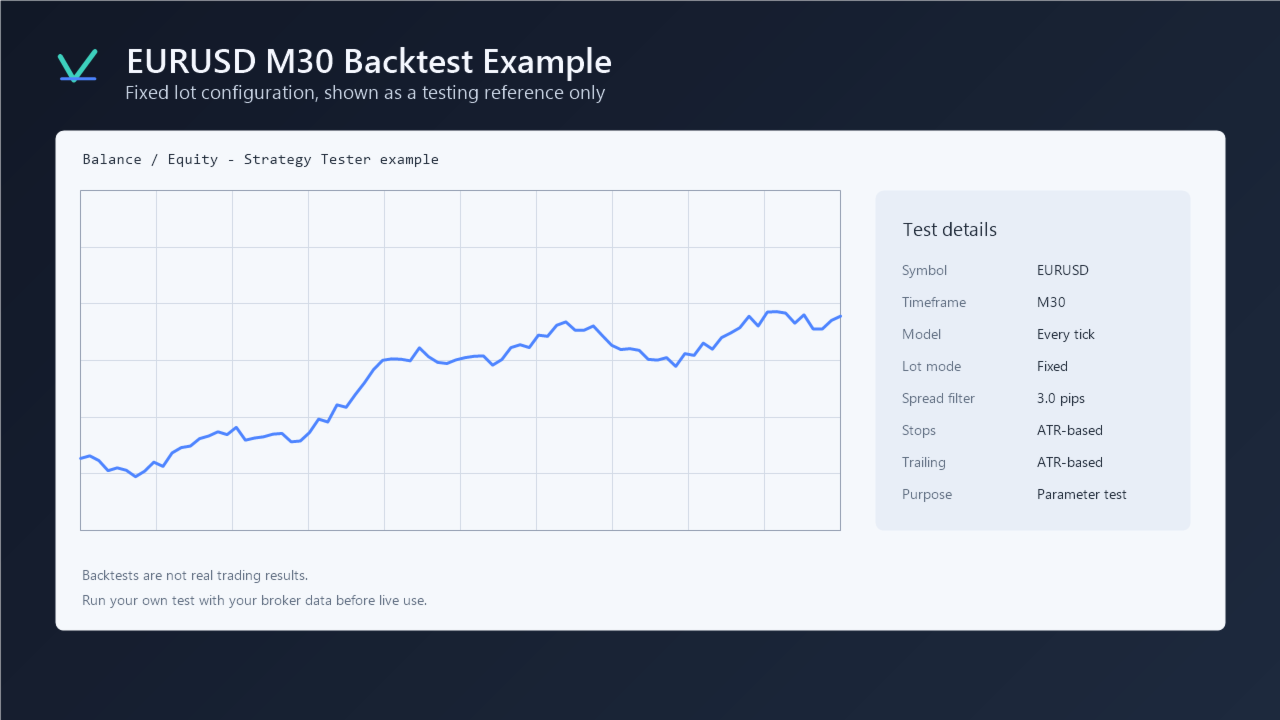
- Modalità di test consigliata: Ogni tick (Every tick)
- Deposito iniziale consigliato per i test: 5000 USD
- Tipo di conto consigliato: ECN o conto con spread ridotto
- Condizioni del broker consigliate: Esecuzione stabile, basso slippage, spread su EURUSD vicino o inferiore a 3 pips
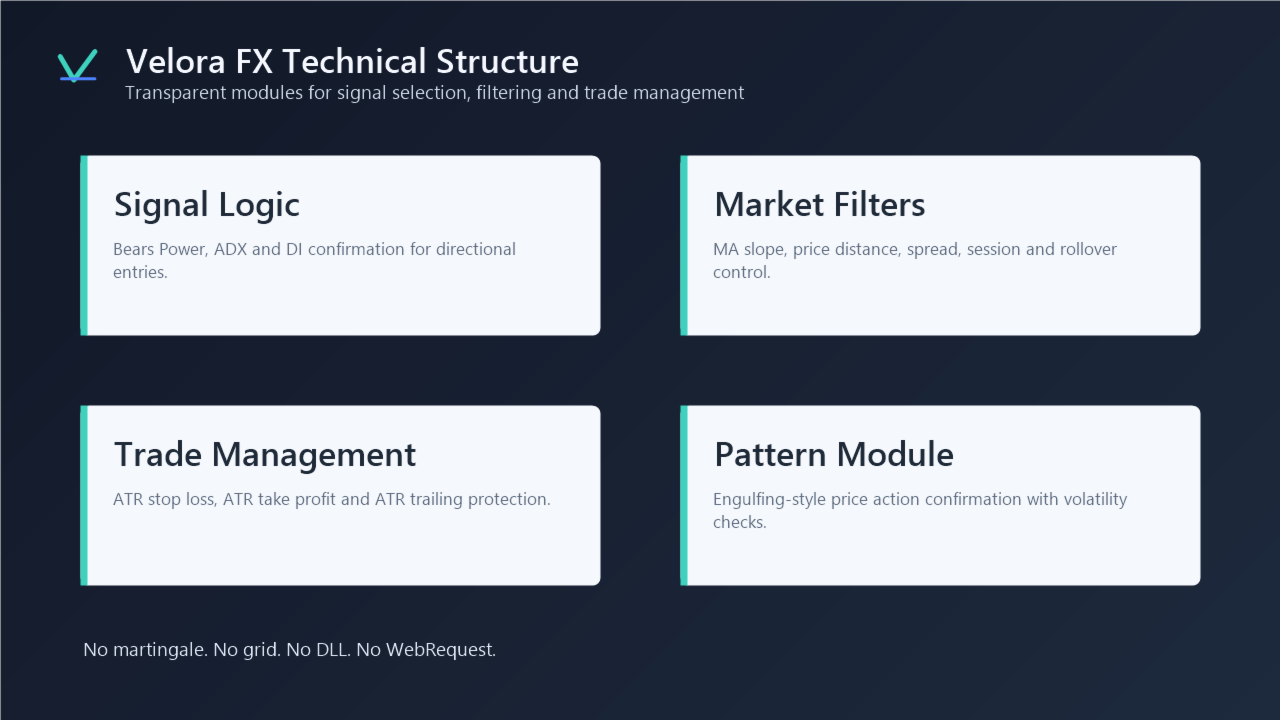
Velora FX è un Expert Advisor tecnico basato su una combinazione strutturata di analisi del trend, volatilità, rottura del range (range breakout), ripiegamento (pullback), filtraggio tramite medie mobili e riconoscimento dei pattern di Price Action. Il sistema non utilizza martingala, griglie (grid), arbitraggio, file DLL, richieste esterne o servizi di segnali esterni. Le decisioni operative vengono prese direttamente analizzando i dati di mercato disponibili all'interno di MetaTrader 4.
La configurazione predefinita è ottimizzata per EURUSD M30. L'EA può essere applicato ad altri simboli o timeframe, ma la logica e il bilanciamento dei parametri inclusi sono orientati all'ambiente EURUSD M30. Prima di utilizzare un simbolo o un timeframe differente, l'utente deve eseguire un test separato nel Strategy Tester e regolare i parametri in base alle condizioni del proprio broker.
Panoramica della strategia
Velora FX utilizza diversi moduli tecnici che lavorano in sinergia. L'obiettivo non è aprire una posizione a ogni segnale, ma accettare solo i segnali che superano un insieme di filtri sulle condizioni di mercato.
La strategia combina:
- Logica di segnale basata su Bears Power
- Filtraggio della forza del trend tramite ADX
- Filtraggio direzionale tramite DI
- Rilevamento della rottura del range (Range Breakout)
- Logica di pullback basata su EMA e MACD
- Filtraggio degli ingressi tramite media mobile
- Stop Loss e Take Profit basati sull'ATR
- Protezione tramite Trailing Stop basato sull'ATR
- Riconoscimento dei pattern di Price Action
- Filtro dello spread
- Filtro di sessione
- Filtro orario
- Evitamento del rollover
- Protezione con chiusura il venerdì
- Parametri di protezione del conto
Ogni modulo svolge un ruolo specifico: identificare la direzione del mercato, valutare la volatilità, filtrare gli ingressi deboli e gestire il rischio di esecuzione.
Logica principale del segnale
Il segnale principale utilizza il Bears Power insieme al filtraggio ADX e DI. Il Bears Power aiuta a rilevare le variazioni della pressione rialzista o ribassista attorno a un livello definito. L'ADX viene utilizzato per valutare se il mercato possiede una forza di movimento sufficiente. Il filtraggio DI verifica che il movimento direzionale coincida con la direzione pianificata per l'operazione.
Questa struttura aiuta l'EA a evitare ingressi nei momenti in cui il mercato è privo di una direzione chiara. L'EA non si basa su un singolo indicatore; un'operazione viene aperta solo dopo la conferma di diverse condizioni tecniche.
Modulo di rottura del range (Range Breakout)
Questo modulo verifica se il prezzo si è mosso all'interno di un intervallo limitato per poi rompere all'esterno con adeguate condizioni di supporto.
Il modulo di range utilizza:
- Periodo ADX del range
- ADX massimo durante le condizioni di range
- Candole di storico per il range (Lookback bars)
- Ampiezza massima del range in pips
- ATR minimo in pips
- Margine di rottura (Break buffer) in pips
- Conferma tramite RSI
- Conferma tramite DI
- Limite di lotto opzionale per le operazioni di breakout
- Pausa di raffreddamento (Cooldown) dopo perdite consecutive
Questo modulo è utile quando il mercato trascorre del tempo in fase di consolidamento e successivamente avvia un movimento direzionale. È progettato per evitare ingressi troppo precoci all'interno di zone laterali. Il margine di rottura assicura che il prezzo superi il range prima di aprire una posizione.
Modulo di pullback
Il modulo di pullback basato su MACD ed EMA cerca ingressi dopo che il prezzo ha completato una correzione all'interno di un movimento più ampio.
Il modulo controlla:
- EMA veloce
- EMA lenta
- Periodo dell'RSI
- Intervalli di acquisto e vendita dell'RSI
- EMA veloce del MACD
- EMA lenta del MACD
- Linea di segnale del MACD
- ATR minimo in pips
Lo scopo di questo modulo è evitare di rincorrere il prezzo dopo un movimento esteso, cercando invece un ingresso strutturato dopo un ripiegamento controllato.
Filtro di ingresso tramite media mobile
Velora FX include un filtro basato sulla media mobile applicato a gruppi di segnali selezionati: segnali principali, di range, di pullback e di pattern.
Il filtro utilizza:
- Timeframe della MA: M30
- Periodo della MA: 34
- Metodo della MA: EMA
- Candele per l'inclinazione della MA: 5
- Inclinazione minima della MA: 1.2 pips
- Distanza massima del prezzo dalla MA: 80 pips
Questo filtro verifica che la media mobile abbia un'inclinazione sufficiente e che il prezzo non sia troppo distante da essa, riducendo gli ingressi ritardati dopo un forte impulso.
Riconoscimento dei pattern (Pattern Recognition)
Velora FX include un modulo di pattern di Price Action. La modalità predefinita si concentra sulla rilevazione dei pattern di tipo Engulfing.
Il modulo dei pattern utilizza:
- Modalità del pattern
- ATR minimo in pips
- Dimensione minima del corpo della candela in pips
- Rapporto delle ombre (Wick ratio)
- Forza di chiusura della candela
- Filtro ADX opzionale
- Filtro DI
- Filtro di trend opzionale
Il modulo dei pattern non viene utilizzato da solo come trigger cieco, ma è collegato a filtri di volatilità e direzione per identificare strutture pulite nel giusto contesto di mercato.
Protezione adattiva basata sull'ATR
L'EA utilizza di default Stop Loss e Take Profit basati sull'ATR per adeguare la distanza di protezione alle variazioni della volatilità del mercato.
Logica di protezione predefinita:
- Periodo ATR: 14
- Moltiplicatore ATR per Stop Loss: 1.2
- Moltiplicatore ATR per Take Profit: 4.4
- Stop Loss minimo: 40 pips
- Stop Loss massimo: 120 pips
- Take Profit minimo: 30 pips
- Take Profit massimo: 160 pips
Logica di Trailing Stop basata sull'ATR:
- ATR Trailing: Attivato
- Avvio del trailing (Trail start): 60 pips
- Moltiplicatore ATR per Trailing: 1.8
L'inseguimento si attiva solo quando la posizione accumula un profitto sufficiente, evitando di spostare lo stop troppo presto durante le normali fluttuazioni del prezzo.
Gestione del rischio e dei lotti
La configurazione predefinita utilizza una dimensione del lotto fissa.
Valori predefiniti:
- Uso della percentuale di rischio (Use risk percent): false
- Lotti fissi: 0.30
- Lotti massimi: 0.30
- Scalatura dei lotti in base al capitale (Equity step lots): Disattivato
- Ripristino dei lotti dopo una perdita: Disattivato
L'EA non utilizza la martingala e non aumenta la dimensione del lotto dopo le perdite, mantenendo una gestione trasparente e facile da testare nei backtest.
Filtri di esecuzione
Velora FX include diversi filtri progettati per evitare condizioni di mercato svantaggiose.
Filtro spread:
Spread massimo impostato a 3.0 pips.
Filtro di sessione:
Sessione di trading attiva dalle 07:00 alle 21:00 ora del server del broker.
Filtro per elenco orario:
Ore consentite per l'apertura delle posizioni: 8, 10, 13, 15, 16, 18, 20.
Filtro rollover:
Periodo di evitamento del rollover: dalle 23:00 alle 01:00 ora del server.
Protezione del venerdì:
Chiusura o restrizione delle posizioni il venerdì alle 20:00 ora del server.
Protezione del conto
L'EA include parametri opzionali per la salvaguardia del capitale:
- Perdita massima giornaliera (%)
- Perdita massima settimanale (%)
- Perdita mensile per disattivazione del rischio (Risk-off %)
- Perdita massima mensile (%)
- Numero massimo di perdite consecutive
Nelle impostazioni predefinite, questi limiti sono disattivati o impostati in modo permissivo per consentire il test della logica base senza restrizioni esterne.
Procedura di test consigliata
- Aprire MetaTrader 4.
- Aprire lo Strategy Tester (Ctrl + R).
- Selezionare l'Expert Advisor: Velora FX.
- Selezionare il simbolo: EURUSD.
- Selezionare il timeframe: M30.
- Selezionare il modello: Ogni tick (Every tick).
- Impostare lo spread in base alle condizioni del proprio broker (consigliato vicino o inferiore a 3 pips).
- Impostare un deposito iniziale adeguato al lotto selezionato.
- Eseguire il test su un periodo di diversi mesi.
- Analizzare il risultato netto, il drawdown, il profit factor e la curva del capitale.
Guida all'installazione
- Aprire MetaTrader 4.
- Andare su File -> Apri scheda data.
- Aprire la cartella MQL4 e successivamente la cartella Experts.
- Copiare il file dell'EA all'interno della cartella Experts.
- Riavviare MetaTrader 4 o fare clic con il pulsante destro del mouse su Consiglieri Esperti nella finestra Navigatore e selezionare Aggiorna.
- Aprire un grafico EURUSD M30.
- Trascinare Velora FX dal Navigatore sul grafico.
- Spuntare l'opzione Permetti trading reale (Allow live trading).
- Assicurarsi che il pulsante AutoTrading sia attivo nella barra superiore.
Configurazione consigliata del grafico:
- Simbolo: EURUSD
- Timeframe: M30
- AutoTrading: Attivo
- Permetti trading reale: Attivo
- Importazione DLL: Non richiesta
- WebRequest: Non richiesto
Profilo dei parametri predefiniti
I parametri predefiniti sono integrati direttamente nel codice dell'EA, pertanto non è necessario caricare un file preset separato per il normale funzionamento. Se l'EA non apre posizioni immediatamente, verificare le schede Esperti e Diario in MetaTrader 4 per verificare eventuali messaggi relativi allo spread, ai filtri orari o ai permessi di esecuzione del broker.