Prop Firm Lot Size Calculator
- Utilità
-
Christian Paul Anasco
 I love trading and making trading and utility bots. If you have any ideas on new products or any suggestions on my current products, let me know and see how I can help.
 - Versione: 1.14
- Aggiornato: 1 febbraio 2026
- Attivazioni: 5
Now, you have your very own PROP FIRM LOT SIZE CALCULATOR! It now has BREAKEVEN and PARTIAL CLOSURE features!
There's no need to go to other websites just to compute for the exact lot size. It also opens the trade with a click of a button.
All inputs on the calculator can be edited. So if you want to change the SL or TP or the lot size, you can do so before placing an order.
==========================================
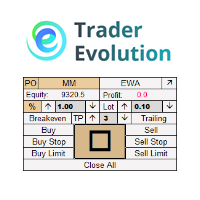
INPUTS (Please see screenshot for reference):
1. SL PRICE TEXT. This is clickable and the color changes from red to green or green to red. Green means that the SL will be added to the order and no SL if it is red.
2. TP PRICE TEXT. This is clickable and the color changes from red to green or green to red. Green means that the TP will be added to the order and no TP if it is red.
3. SL PRICE. Exact stoploss price that you want to add to the order. Also, the SL price will be used for the lot size computation.
4. TP PRICE. Exact take profit price that you want to add to the order.
5. RISK IN USD (or your account currency). Have the option to use a risk percent or a fixed risk amount. Simply click on the text and it will change from RISK IN USD (or your account currency) to RISK %.
- RISK IN USD (or your account currency). It will use the fixed amount for lot size calculation.
- RISK %. It will use the percent that you set which is from 0 to 100. It will use the current account balance for the lot size calculation. Max value should be 100.
6. RISK VALUE. It will use the value specified by the user for the risk computation.
7. LOT SIZE. Lot size that will be used when you open a market or pending order. You can edit the value before placing the order.
- NOTE: Lot size is computed based from the Entry Price (not current market price) and SL Price.
8. TOTAL RISK. It shows the total risk of your account based from the Lot Size and your SL Price.
9. BUY button. Click this button to open a buy order at the market price (ask) with specified SL Price and TP Price.
10. SELL button. Click this button to open a sell order at the market price (bid) with specified SL Price and TP Price.
11. ENTRY PRICE. This will be the exact entry price used when opening pending orders.
12. BREAKEVEN TEXT. This is clickable and the color changes from red to green or green to red. Green serves as a switch indicating it is ON. Once the breakeven price is hit, the order will be set to breakeven. Red means it is OFF.
13. BREAKEVEN PRICE. Exact breakeven price. When this price is hit, all orders will be set to breakeven.
- NOTE: On multiple orders with the same direction, breakeven price should be higher than all buys or lower than all sells.
- If not, it's best to use the new section (3rd area of the calculator) to specify your target price and the exact SL price.
14. BUY LIMIT button. Click this button to open a buy limit order at the specified Entry Price with SL Price and TP Price.
15. SELL LIMIT button. Click this button to open a sell limit order at the specified Entry Price with SL Price and TP Price.
16. BUY STOP button. Click this button to open a buy stop order at the specified Entry Price with SL Price and TP Price.
17. SELL STOP button. Click this button to open a sell stop order at the specified Entry Price with SL Price and TP Price.
18. TARGET PRICE. When there's at least one order, the target price will be the price when hit, the order will be modified with New SL and also a partial if the partial % is not zero.
19. NEW SL PRICE. Exact New SL Price to be used for the open orders when the Target Price is hit.
20. Partial %. When the Target Price is hit, partial closure will take effect to close a % of the volume of each orders for the current symbol.
21. SWITCH button. Serves as the switch. Click it to turn it ON and start the process of hitting the Target Price.
- If the Target Price is higher than the New SL Price, then it will update all buy orders (and partials if it's not 0%) and turn off the switch button.
- If the Target Price is lower than the New SL Price, then it will update all sell orders (and partials if it's not 0%) and turn off the switch button.
==========================================
Add it like an expert advisor on the chart of the market you're trading.
Make sure that automated trading is enabled on these 3 locations.
- Tools >> Options >> Expert Advisors. Make sure that Allow algorithmic trading is checked.
- Algo Trading button on top is enabled.
- After adding the NewCalculator on the chart, under Common tab, make sure that Allow Algo Trading is checked.
==========================================
Please don't hesitate to send me a message for any questions, concerns, or suggestions. Thank you for considering to buy this product.



















































I'm really happy with this purchase and the experience. Easily add it to a pair and you can enter in all your desired values for it to determine the lot size. Then it can place the order for you in a handful of different trade types. When talking with you developer on an improvement he was wonderful to work with and adjusted quickly. Highly recommend.