Version 1.00 | Talenta Trading LLC
Introduction
Second Push Fade for MT5 is an automated Expert Advisor developed for EURUSD.
The strategy identifies a qualifying morning breakout, waits for momentum to weaken and price to make a renewed push, and then enters a position opposite the original breakout direction.
It is a selective, low-frequency strategy. Extended periods without trades can be normal.
This guide explains how to install the EA, configure its main settings, run historical backtests, understand the results, and troubleshoot common issues.
Important Risk Warning
Second Push Fade does not use a conventional protective stop-loss or take-profit. It relies on scheduled exit logic, with additional Friday session protection.
A scheduled exit does not guarantee a maximum loss. Substantial adverse price movements can occur before the position closes.
Always evaluate the EA in the Strategy Tester and on a demo account before considering live trading.
1. Installing Second Push Fade
-
Open MetaTrader 5 on your computer.
-
Sign in to your MQL5.community account.
-
Open the Market or My Purchases section within MetaTrader 5.
-
Find Second Push Fade for MT5.
-
Install the purchased product.
-
Open the Navigator panel by pressing Ctrl+N.
-
Locate Second Push Fade under Expert Advisors, usually in the Market folder.
-
Open a EURUSD chart.
-
Drag the EA onto the chart.
-
Review the Inputs and Common settings before enabling trading.
The EA should appear in the chart's upper-right corner after successful initialization.
The chart's timeframe does not change the EA's internal M5 signal logic. For clarity, EURUSD M5 is recommended.
Note: Only one Expert Advisor can run on an individual MT5 chart. If you also use a risk-monitoring EA, attach it to a separate chart.
2. Recommended Initial Configuration
Before running the EA, review the following settings.
Enable Automated Trading
Controls whether the EA is permitted to submit trades.
For Strategy Tester evaluations intended to generate trades, enable the EA's trading function.
For live or demo operation, MetaTrader 5's platform-level Algo Trading permission must also allow automated trading.
Fixed Lot Size
Determines the requested position size.
Historical tests published with this product used 0.01 lots.
That historical value is not a universal recommendation. Choose a volume appropriate for the account, instrument specifications, and trading risk.
Magic Number
Identifies positions associated with Second Push Fade.
Use a Magic Number that does not conflict with other Expert Advisors operating on the same account.
Maximum Deviation in Points
Controls the permitted execution deviation for trade requests.
Minimum Free Margin After Entry
Provides an optional safeguard requiring sufficient remaining free margin before opening a new position.
Time Settings
Control how the EA interprets broker server time relative to the strategy's U.S. Eastern reference clock.
Diagnostic Settings
Allow optional audit CSV output and detailed journal logging.
The strategy's internal entry thresholds are fixed rather than exposed as optimization parameters.
3. Understanding the Trading Schedule
Second Push Fade evaluates a defined U.S. Eastern morning trading range.
The principal strategy schedule is:
-
Morning range begins: 06:30 Eastern Time
-
Morning range ends: 09:15 Eastern Time
-
Qualifying range size: 20–40 pips
-
Initial qualifying breakout window: Through 11:00 Eastern Time
-
Standard scheduled exit: 17:00 Eastern Time
Friday trades are subject to separate broker-session-aware exit protection.
The EA uses completed M5 candles when evaluating its trading signals.
A breakout by itself does not trigger a trade. The complete sequence of qualifying breakout, price behavior, momentum decay, and renewed price expansion must be satisfied.
Consequently, many trading sessions will produce no position.
4. Broker Time Configuration
The strategy's schedule is based on U.S. Eastern Time, not simply the time displayed on your computer.
Different brokers may operate their MetaTrader servers using different time zones.
Second Push Fade includes server-time normalization settings.
For normal live operation, automatic server UTC-offset detection is enabled by default.
Manual clock controls are available for unusual broker configurations and for historical testing.
Before using the EA, verify that the selected clock settings are appropriate for your broker.
This is particularly important when testing historical periods containing changes between Eastern Standard Time and Eastern Daylight Time.
Incorrect time normalization can materially change the morning range, breakout detection, trading signals, and scheduled exits.
5. Running a Historical Backtest
MetaTrader 5 includes a Strategy Tester for evaluating Expert Advisors against historical market data.
To open it, press Ctrl+R in MetaTrader 5.
Select the single-test mode rather than optimization.
For an initial comparison with the published historical results, use the following configuration.
Historical Test Configuration
| Setting | Value |
|---|---|
| Expert Advisor | Second Push Fade for MT5 |
| Symbol | EURUSD |
| Period | M5 |
| Start date | 2022.01.01 |
| End date | 2024.12.31 |
| Modeling | Every tick based on real ticks |
| Initial deposit | 1,000 USD |
| Deposit currency | USD |
| Fixed lot size | 0.01 |
| Optimization | Disabled |
| Forward testing split | Disabled |
These settings describe the principal published test configuration. Other broker and execution settings, including historical clock configuration, can affect the result.
Starting the Test
-
Open the Strategy Tester.
-
Select Second Push Fade for MT5 as the Expert Advisor.
-
Select EURUSD and M5.
-
Specify the historical testing dates.
-
Select Every tick based on real ticks.
-
Configure the initial deposit and currency.
-
Open the Inputs tab and verify the requested lot size.
-
Review the time-normalization inputs for the selected broker and historical period.
-
Confirm that automated trading is enabled in the EA's testing inputs.
-
Click Start.
MetaTrader 5 may need to download historical tick data before testing begins.
The availability and quality of historical data depend on the broker and trading server.
Optional Visual Testing
To watch the strategy operate, enable Visual mode before starting the test.
Visual testing can help show when the EA enters and closes positions.
Because Second Push Fade trades infrequently, a visual test covering several years may require substantial time. A shorter visual test can be useful for examining a specific trading period.
6. Understanding the Historical Results
The following results were obtained from the published historical tests using the production strategy logic.
Trading.com
-
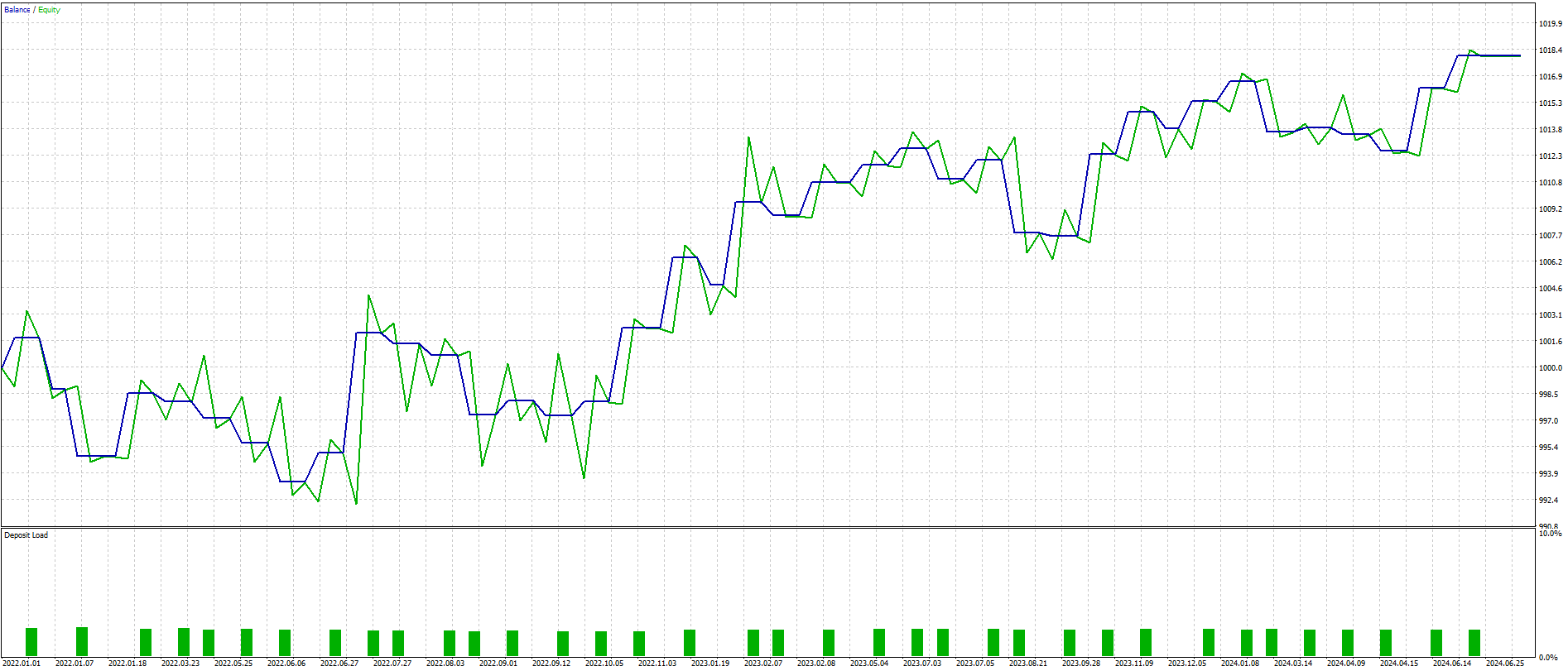
Period: January 2022 through December 2024
-
Model: Every tick based on real ticks
-
Initial deposit: $1,000
-
Position size: 0.01 lots
-
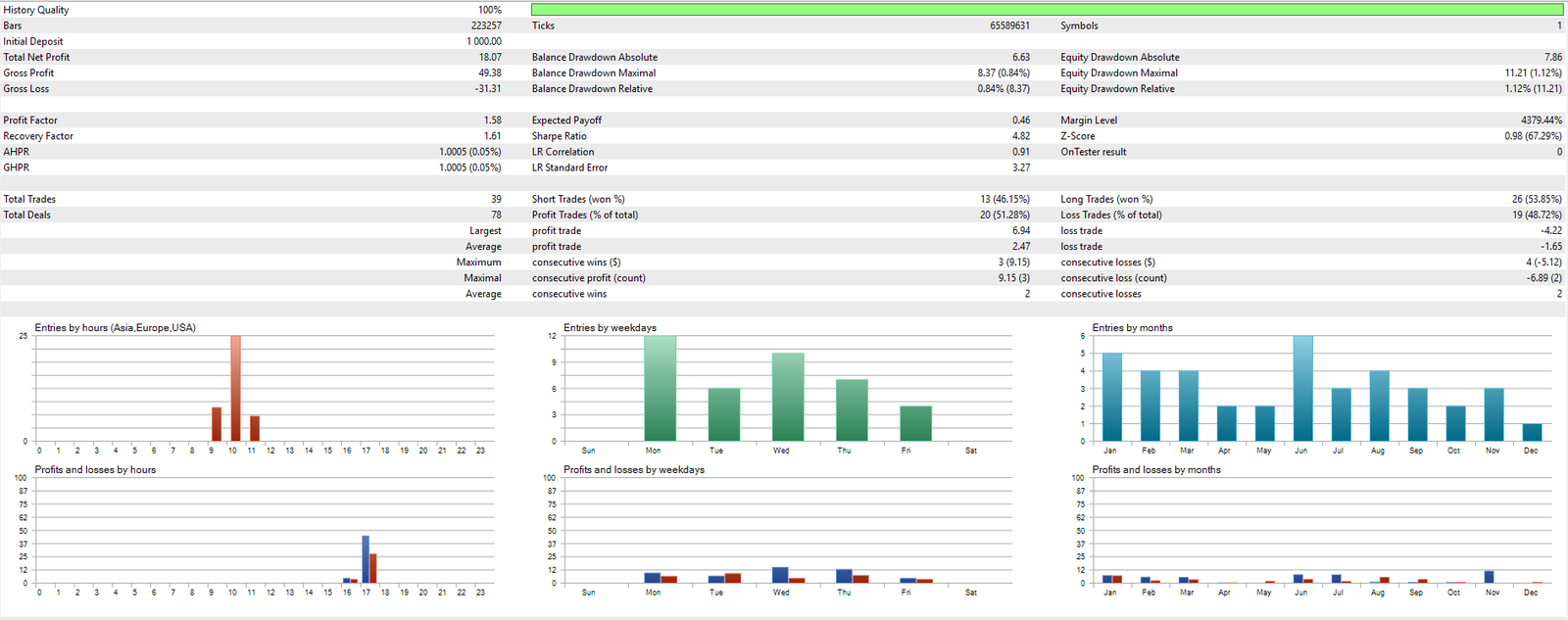
Total trades: 39
-
Net profit: $18.07
-
Profit factor: 1.58
-
Maximum equity drawdown: $11.21 / 1.12%
-
History quality: 100%
MetaQuotes-Demo
-
Period: January 2022 through December 2024
-
Model: Every tick based on real ticks
-
Initial deposit: $1,000
-
Position size: 0.01 lots
-
Total trades: 39
-
Net profit: $17.23
-
Profit factor: 1.57
-
Maximum equity drawdown: $9.90 / 0.98%
-
History quality: 99%
Why Your Results May Differ
Running the same EA on another broker does not guarantee identical trades or results.
Differences may arise from:
-
Historical tick availability and quality
-
Broker spreads and quote prices
-
Server time and time normalization
-
Contract and volume specifications
-
Execution delays and slippage
-
Trading-session restrictions
-
Account and margin settings
The published tests were conducted on two specific historical data environments. Users should independently evaluate the strategy using their own broker's data.
These are historical Strategy Tester results, not verified live performance.
The relatively small sample of 39 trades in each test limits the conclusions that can be drawn about the strategy's future performance.
7. Understanding the Strategy Tester Report
After completing a backtest, examine the following results.
Total Trades
The number of positions completed during the test period.
A low trade count is consistent with the strategy's selective design.
Net Profit
The aggregate financial outcome of the simulated trading activity after the costs accounted for in the tester.
Profit Factor
The ratio of gross profit to gross loss.
A value above 1 indicates that gross winning amounts exceeded gross losing amounts in that particular test.
It does not guarantee future profitability.
Maximum Drawdown
Measures the historical decline in account balance or equity during the test, depending on the reported metric.
Trade History
Shows individual entries, exits, times, and financial outcomes.
Journal
Displays messages about initialization, trading conditions, errors, and diagnostic events.
All of these sections should be reviewed together rather than relying on one headline statistic.
8. Why the EA May Not Open Trades
A lack of trading activity does not automatically mean the EA is malfunctioning.
Second Push Fade requires a complete and relatively uncommon sequence of price conditions.
Possible explanations for no trades include:
No Qualifying Morning Range
The measured range may not satisfy the strategy's fixed size requirements.
No Qualifying Breakout
Price may remain inside the morning range or fail to meet the breakout conditions.
No Complete Second-Push Sequence
An initial breakout may occur without the required subsequent momentum and price behavior.
Trading Disabled
The EA's trading input or terminal trading permissions may prevent order placement.
Incorrect Historical Clock Settings
Broker time normalization may be inappropriate for the test environment.
Existing Position or Order Restrictions
Another position or active order may prevent the EA from opening a new strategy trade.
Insufficient Margin or Invalid Volume
Broker trading requirements or margin constraints may prevent order execution.
Missing Historical Data
Incomplete or unsuitable historical data can affect the test.
Troubleshooting Steps
-
Confirm EURUSD is selected.
-
Verify the M5 testing period.
-
Check that sufficient historical data are available.
-
Review the EA's trading-enabled input.
-
Check the historical time-normalization settings.
-
Review the Strategy Tester Journal.
-
Enable detailed diagnostics if needed.
-
Verify broker volume and margin requirements.
If the EA produces no trades over a short period, try a longer historical interval before concluding that an error exists.
9. Demo Account Testing
After evaluating historical results, test the purchased EA on a demo account before considering live deployment.
Use a broker and account configuration similar to the intended trading environment.
Verify that:
-
The EA initializes successfully.
-
The strategy clock is interpreted correctly.
-
Trading permissions are configured as intended.
-
Position sizing is appropriate.
-
Scheduled exit behavior operates as expected.
-
Friday broker-session protection works as designed.
-
No unexpected conflicts occur with other positions or Expert Advisors.
Because Second Push Fade trades infrequently, short forward-testing periods may not produce meaningful observations.
A demo test should be monitored for operational behavior as well as financial results.
10. Important Risk Limitations
Second Push Fade is an automated trading system and can lose money.
It does not use a conventional protective stop-loss.
Scheduled exits may be delayed or prevented by trading-session restrictions, market conditions, loss of connectivity, terminal interruptions, VPS failures, or broker execution problems.
Consequently, actual losses may differ materially from historical outcomes.
The strategy does not use martingale, grid trading, or averaging into losing positions, but the absence of those techniques does not eliminate trading risk.
Historical results do not establish future profitability.
Always use appropriate position sizing and understand how leverage affects account exposure.
11. Product Support
Second Push Fade for MT5 is developed by Talenta Trading LLC and distributed through the MQL5 Market.
For installation questions, configuration assistance, or technical support, use the product Comments section or MQL5's internal messaging system.
Product page:
https://www.mql5.com/en/market/product/207521
Strategy explanation:
https://www.mql5.com/en/blogs/post/780019
Developer: Talenta Trading LLC
Version: 1.00
Educational information only. Foreign exchange and leveraged trading involve substantial risk of loss. Historical testing is not a guarantee of future trading results.