This manual describes VRD Terminal Health version 1.01 (shown as version 1.1 on the MQL5 Market page), a read-only MetaTrader 5 utility from Virtual Risk Desk. It is the Expert Advisor listed as MQL5 product 205568.
It runs on one chart and shows whether this terminal is ready to run your EAs. After every restart it compares a saved snapshot of your EA charts, positions and orders and tells you if anything is missing. It places no orders and changes no terminal settings.
1. What it checks
The panel has twelve rows, updated on a timer (every 5 seconds by default):
- Connection — connected or disconnected, last ping, and how many drops have been counted in this session.
- Algo trading — the toolbar Algo Trading button, and, when connected, whether the account allows trading and EA trading.
- Max bars — the terminal's "Max bars in chart" value, with a warning when it is above your threshold or treated as Unlimited.
- Terminal up — how long the terminal has been running at least, counted from the first time this panel loaded in this terminal session, with a weekly restart reminder.
- Windows uptime — time since Windows started, with a warning after a set number of days.
- Charts — how many charts are open, and how many have no EA, script or indicator attached.
- EAs attached — how many charts have an Expert Advisor, listed by name.
- Memory — terminal memory used, machine RAM, and free virtual memory.
- Disk — free disk space on the terminal's disk.
- Trades — open positions (with a count of manual positions, magic number 0), pending orders, and floating result (profit plus swap) in the account currency. This row is information only; it never raises a warning or an alert.
- Restart check — the result of the last comparison, or a waiting / first-run message.
- Terminal — terminal build, CPU cores, whether it is running on an MQL5 VPS, and demo, contest or real account. A build change after a restart is noted. An optional minimum-build warning can be turned on in the inputs.
2. Installation
- In MetaTrader 5, sign in to MQL5 under Tools > Options > Community, open the Market tab in the Toolbox, and install VRD Terminal Health (buy, rent, or the Market demo in the Strategy Tester).
- It appears under Navigator > Expert Advisors > Market. The shipped file name is VRD_TerminalHealth.
- Open any chart in the terminal that already runs your EAs (any symbol or timeframe; the panel reads the whole terminal, not only that chart).
- Drag VRD Terminal Health onto the chart. On the Common tab, leave Allow DLL imports and Allow WebRequest unticked; this product does not use them. It places no orders, so it does not need Algo Trading for its own work. The toolbar Algo Trading button still matters, because that is what the panel reports for your other EAs.
- On the Inputs tab, leave the defaults for a first run, or turn on push or email alerts if you already use MetaTrader's Notifications or Email settings (see Inputs below). Press OK.
- Attach it to one chart per terminal. Extra copies show the same panel and do not send duplicate alerts or write a second snapshot.
The first run saves a baseline. From then on, each restart is checked automatically.
3. Every input
Labels below are the ones shown on the Inputs tab. Re-open inputs with F7 on the chart, or right-click the chart and choose Expert Advisors > Properties.
Manual
| Input label | Default | Meaning |
|---|---|---|
| [Link to Manual] | a pre-filled text string | A reminder field only. The panel does not read or open this value and makes no web request. This blog post is the buyer-facing manual. |
Thresholds
| Input label | Default | Meaning |
|---|---|---|
| Max bars in chart: warn above | 100000 | Warning when "Max bars in chart" is above this value. A value of 10,000,000 or more is shown as Unlimited and always warns. |
| Ping: warn above (ms) | 150 | Warning when the last ping to the trade server is above this, in milliseconds. |
| Ping: critical above (ms) | 400 | Critical when ping is above this. |
| Disconnected: alert after (seconds) | 30 | A disconnect is shown on the panel at once. It becomes critical, and can raise an alert, only after it has lasted this long. Shorter blips stay on the panel and are not alerted. |
| Terminal up: weekly restart due after (days) | 7.0 | Warning when the panel's session clock reaches this many days ("weekly restart due"). |
| Windows uptime: warn above (days) | 35.0 | Warning when time since Windows started is above this. |
| Open charts: warn above | 30 | Warning when the number of open charts is above this. |
| Unused charts (no EA, indicator or script): warn above | 5 | Warning when unused charts are above this. The charts row warns if either this or the open-charts threshold is crossed. |
| Terminal memory used: warn above (MB) | 1500 | Warning when the terminal's own memory use is above this, in megabytes. |
| Free disk: warn below (MB) | 5120 | Warning when free disk space is below this (5,120 MB is 5 GB). |
| Free disk: critical below (MB) | 1024 | Critical when free disk space is below this (1,024 MB is 1 GB). |
| Minimum terminal build (0 = off) | 0 | If you set a number greater than 0, the Terminal row warns when the terminal build is lower than that. 0 leaves the check off. |
Restart check
| Input label | Default | Meaning |
|---|---|---|
| Wait after terminal start before comparing (seconds) | 60 | After a new terminal session, the panel waits this long (and for a connection) before comparing with the last snapshot. If the terminal is still disconnected, it will wait up to three times this value, then compare anyway. |
| Save snapshot every (seconds) | 60 | While the terminal is running, the primary copy saves a fresh snapshot this often, and also when the terminal closes (see Restart check). |
Alerts
| Input label | Default | Meaning |
|---|---|---|
| Pop-up alert | true | MetaTrader pop-up (the Alert window). |
| MT5 push notification | false | Sends a push through MetaTrader's own Notifications settings (Tools > Options > Notifications). Off by default. Messages longer than 255 characters are trimmed. |
| Email (uses Tools > Options > Email) | false | Sends an email through MetaTrader's own Email settings. Off by default. |
| Also alert when a warning clears | true | A grouped message when a previously alerted warning or critical row returns to a clear state. |
| Repeat the same alert at most every (minutes) | 30 | Cooldown for the same check. A higher severity can still be recorded; the message is sent when the cooldown allows. |
| Alert when the terminal comes back clean after a restart | true | A pop-up, push or email (whichever you enabled) when the restart check is Clean, including the case where charts and trades are back but Algo Trading was already off before the restart. |
Alert text is prefixed with "VRD Terminal Health" and, when a login is present, the account number in square brackets. Mask that number before you share a screenshot.
Panel
| Input label | Default | Meaning |
|---|---|---|
| Check every (seconds) | 5 | How often the rows are refreshed. The timer is never set lower than 1 second. |
| Panel corner | Left upper | Which chart corner the panel is anchored to. |
| Panel X offset | 12 | Horizontal offset, in pixels, from that corner. |
| Panel Y offset | 24 | Vertical offset, in pixels, from that corner. |
| Font size | 9 | Base font size. The panel scales with the terminal's screen DPI. The smallest size used is 7. |
4. Reading the panel
The header shows Virtual Risk Desk | Terminal Health and a status word:
- ALL CLEAR — no row is at warning or critical (information-only rows, such as Trades, do not change this).
- N WARNING(S) — at least one row is a warning, and none is critical.
- ACTION NEEDED — at least one row is critical (for example a long disconnect, Algo Trading switched off after it had been on, a missing EA chart after a restart, or free disk below the critical threshold).
Each row has a colour: green for clear, orange for a warning, red for critical, and grey for information or a waiting state. The footer shows the last check time and the line "read-only, places no orders".
Click the title or the + / − control at the right of the header to collapse or expand the panel. The panel is not a trading ticket: it has no buttons that place or close orders.
The existing listing screenshot below is a first run, with the baseline already saved. In this shot the Algo Trading button is off, so the header shows 1 WARNING(S) rather than ALL CLEAR. The restart line reads "First run: baseline saved".
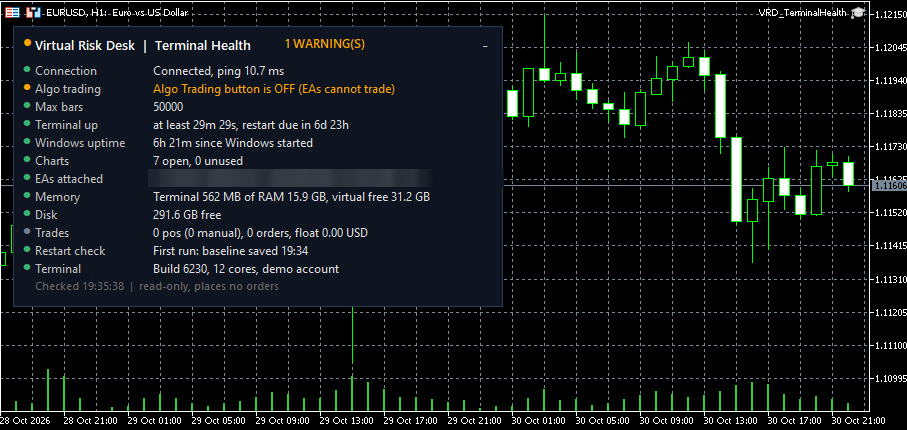
First run. Header shows 1 WARNING(S) because Algo Trading is off. Restart line: "First run: baseline saved".
5. The restart check
Every minute (default), and when the terminal is closing, the primary copy writes a small snapshot of:
- the time and terminal build
- the account login
- the number of open charts
- whether Algo Trading was on
- each chart that has an EA, as symbol, timeframe and EA name
- each open position and pending order, by ticket and symbol
The files are written only in this terminal's MQL5\Files\VRD_TerminalHealth\ folder (snapshot.txt and, for the last result text, result.txt). They are not shared with any other terminal or any website.
A snapshot is not rewritten when you only change inputs, change the chart timeframe, recompile, or load a template. That avoids replacing a good snapshot with a half-unloaded one.
After the next terminal start the panel waits for the delay above. Then it compares:
- Clean — every saved EA chart is back (each saved chart is matched to a different open chart, so two identical EAs on the same symbol and timeframe are counted separately), every saved position and order ticket is still there, and Algo Trading is on. A note is added if the terminal build or the account login changed, or if fewer charts are open than before.
- Warning — the EA charts are back, but some saved positions or orders are gone ("trades changed while down"), or Algo Trading was already off before the restart and is still off. The second of those is shown as Clean on the charts-and-trades test, with "Algo still OFF" on the same line, and the row is a warning.
- NOT clean — at least one saved EA chart did not come back, or Algo Trading was on before the restart (or was not recorded as off) and is off now. The alert lists up to three missing charts as "symbol timeframe EA name".
If there is no snapshot yet, the line reads that this is the first run and a baseline will be saved, then "First run: baseline saved" with the time. If a snapshot cannot be read, the line warns "Snapshot unreadable, new baseline saved" and the next restart is the first comparison.
The panel does not restart the terminal, does not turn Algo Trading back on, and does not restore missing charts or trades.
The existing listing screenshot below was taken after a restart in which all seven EA charts came back and no positions or orders were missing, but Algo Trading was still off. The header therefore shows 2 WARNING(S), and the restart line reads "Clean: 7/7 EA charts, 0/0 pos, 0/0 orders; Algo still OFF". The Alert window is the restart-check pop-up; the account number in that message is blurred in this file.
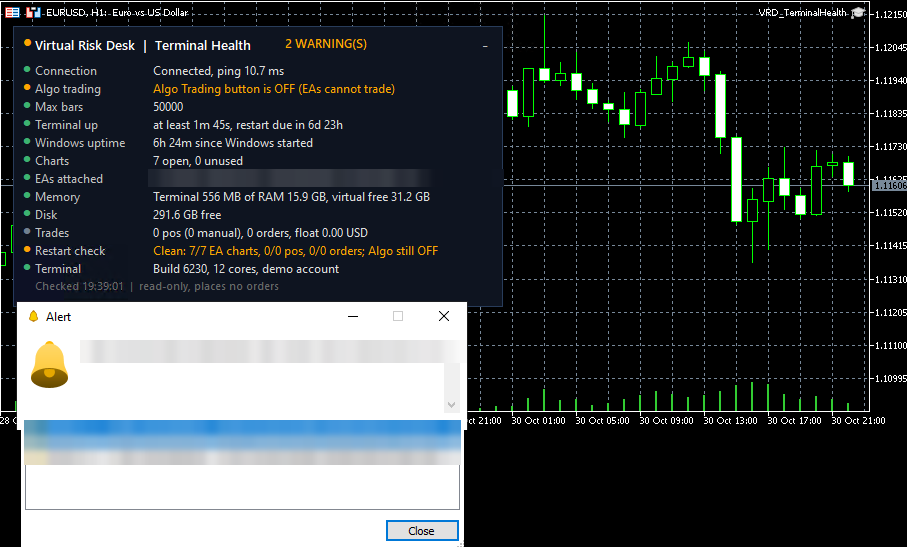
Restart check after a start where the EA charts came back but Algo Trading is still off. Header: 2 WARNING(S). Restart line: "Clean: 7/7 EA charts, 0/0 pos, 0/0 orders; Algo still OFF", with the pop-up alert.
The Inputs tab of the shipped 1.01 build looks like this (the [Link to Manual] value is blurred in the file). Defaults match the table above.
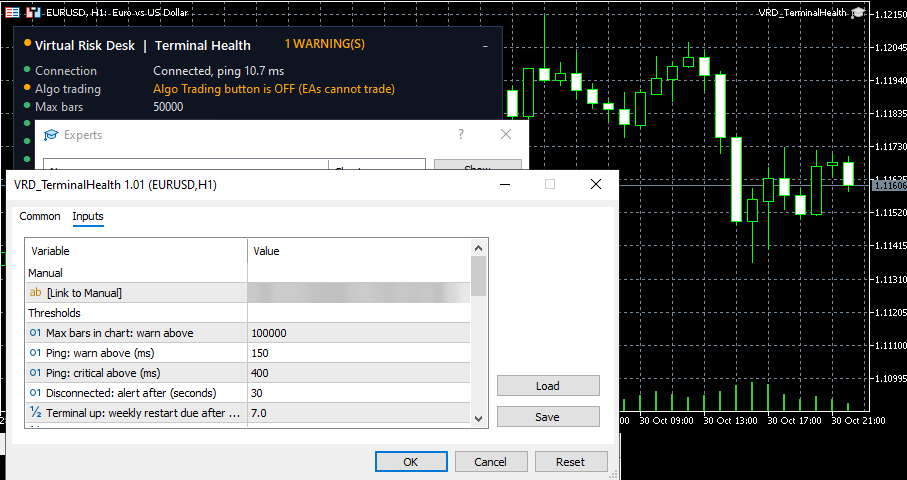
Inputs tab of VRD Terminal Health 1.01, showing the Manual group and the first threshold defaults.
6. Warnings and what to do
The panel reports; it does not fix the underlying condition. Suggested checks:
- Connected, but ping is a warning or critical. This is the last ping to the trade server. It usually points at the network or the VPS location, not at a setting the panel can change.
- DISCONNECTED. Short blips appear on the panel and are not alerted. If a drop lasts longer than your limit (30 seconds by default), the row becomes critical and can alert. Check the VPS, the local network, and the broker's server status. The panel cannot reconnect the terminal.
- Algo Trading button is OFF. Turn the toolbar button on if you want your EAs to trade. If it is off at the first load, this is a warning ("EAs cannot trade"). If it had been on earlier in this session, or was on in the last snapshot, and is off now, this is critical ("Algo Trading button switched OFF"). The panel will not switch it back on for you.
- Account does not allow trading or Broker disables EA trading. These come from the account, only while the terminal is connected and the Algo Trading button is on. The panel cannot grant those permissions.
- Max bars above your threshold, or Unlimited. In Tools > Options > Charts, set "Max bars in chart" to what your EAs actually need (the default warning is 100,000). A lower value reduces memory use on long-running terminals. This is a terminal option, not a panel input.
- Terminal up: weekly restart due. Plan a terminal restart in a quiet window, then wait for the restart check to finish. The clock is "at least" this long: it starts when the panel first loaded in this session, because MQL5 does not expose the terminal's own start time.
- Windows uptime warning. Consider restarting Windows in a quiet window. The figure is time since the operating system started. The panel does not restart Windows and does not know whether updates are waiting.
- Too many open charts, or too many unused charts. Close charts that have no EA, script or indicator, and save a profile of the layout you want back after a restart.
- Terminal memory warning. Lower max bars, close unused charts, and use the weekly terminal restart. The panel does not free memory itself.
- Free disk warning or critical. Free space on the terminal's disk (old logs and tester caches are common). If the disk is full, the terminal may be unable to write history, logs or the snapshot files.
- Minimum terminal build. Only appears if you set a minimum in the inputs. Update MetaTrader 5 if the build is lower than the value you chose.
- Restart check: trades changed while down. EA charts came back, but some saved position or order tickets are gone. Review the account history. They may have been closed or filled while the terminal was down. The panel does not restore them.
- Restart check: NOT clean. Reattach any missing EA charts from Navigator, and turn Algo Trading on if the message says it was switched off. Then let the next snapshot run (or restart again in a quiet window) so the following check starts from a complete baseline.
- Account changed or Build … updated from … on the restart or Terminal row. These are notes only, unless you also have a missing-chart or Algo Trading problem. "Account changed" means the login is different from the one in the last snapshot.
- First run / baseline saved. There is nothing to compare yet. The next restart is the first check.
- Snapshot unreadable, new baseline saved. The previous file could not be read. The next restart is the first comparison.
Alerts (other than the restart check, which has its own message) are grouped into one message per pass, start 60 seconds after the panel loads so the connection can settle, and follow the cooldown above. Only the primary copy sends them. In the Strategy Tester, the restart check and alerts are switched off.
7. What it does not do
- It does not restart the terminal or Windows, and it does not turn the Algo Trading button on.
- It does not place, modify or close orders, and it does not change terminal options such as max bars.
- It does not reconnect a dropped trade server.
- It does not check or alert while the terminal, the VPS, or this Expert Advisor is not running. If everything is down, you will see the restart result on the next start.
- It does not know why a position or order ticket disappeared, and it does not judge an EA's trading strategy.
- The floating result is profit plus swap only; commission is not added.
- "MQL5 VPS" is shown only when MetaTrader reports that this terminal is an MQL5 VPS. Other VPS providers are not detected as such.
- Terminal uptime is counted from the first time the panel loaded in this session, not from the MetaTrader process start.
- The "[Link to Manual]" input is not opened by the panel.
- In the Strategy Tester the panel still draws, but the restart check shows "Not available in the Strategy Tester" and no alerts are sent.
8. Security
Checked in the shipped source of version 1.01:
- No web requests, no network sockets, and no DLL imports. The product does not connect to any website or outside server itself.
- Read-only for trading: there is no order-send or trade-modify code. It only draws its own chart objects (names prefixed VRDTH_), writes its own small files in MQL5\Files\VRD_TerminalHealth\, and uses temporary global variables that last until the terminal closes, so a pending restart check is not lost when you change inputs or move the panel to another chart.
- Push and email, if you turn them on, are sent only through MetaTrader's own Notifications and Email settings. They are off by default. Nothing is sent to Virtual Risk Desk.
Leave Allow DLL imports and Allow WebRequest off.
9. Support
For questions or problems, use the Comments tab on the product page or send an MQL5 private message to the seller.
Please never send passwords, tokens, investor passwords, or full account numbers. If you attach a screenshot, mask the account number (the pop-up alert includes it) and the server name.
Virtual Risk Desk
VRD Terminal Health is a monitoring utility. Alerts can be delayed or missed if the terminal, VPS or network is down, and the panel does not guarantee that your EAs trade as intended. This manual is for the shipped 1.01 / Market 1.1 build. Trading carries a risk of loss. Nothing here is financial advice.