Keeyoo TradeManager — Complete MT5 Trade Manager Guide
Keeyoo TradeManager is a manual trading assistant for MetaTrader 5 that combines order placement, position sizing, risk management, and trade management in a single application.
It supports market and pending orders with three position-sizing methods: percentage risk, fixed monetary risk, and fixed lots. Traders can plan Entry, StopLoss, and TakeProfit levels visually, adjust their reward-to-risk ratio, and review estimated risk, reward, and volume before placing an order. Open positions can then be managed using Breakeven, Partial Close, and individual or bulk closing actions.
Beyond order execution, Keeyoo TradeManager includes trading statistics, a Forex Factory economic calendar, trading session overlays, and optional Prop Guard protection for account-risk limits. It settings allow traders to customize order behavior, risk preferences, and the application's appearance, with reusable presets for different configurations.
This guide follows the main controls in their actual order, explaining how to prepare trades, manage positions, analyze results, and configure Keeyoo TradeManager.
Contents
- Keeyoo TradeManager at a Glance
- Market Watch — Symbol Selection
- Buy & Sell — Market Orders
- Pending — Pending Orders
- Trade — Position Management
- Stats — Trading Statistics
- News — Economic Calendar
- Tools — Trading Sessions
- Settings — Configuration & Presets
1. Keeyoo TradeManager at a Glance
| Feature | Capabilities |
|---|---|
| Market & Pending Orders | Buy, Sell, Buy Limit, Buy Stop, Sell Limit, Sell Stop |
| Position Sizing | Risk Percentage, Fixed Amount, Fixed Lots |
| Visual Trade Planning | Entry, StopLoss, TakeProfit, R/R, estimated risk and reward |
| Trade Management | Breakeven, Partial Close, individual and bulk closing |
| Trading Statistics | Performance overview, detailed metrics, monthly P/L and account history |
| Prop Guard | Drawdown limits, profit goal, combined SL risk, maximum positions |
| Economic Calendar | Forex Factory events, impact and currency filters, chart markers |
| Trading Sessions | Sydney, Tokyo, London, New York session ranges |
| Customization | Themes, dock layouts, interface scaling, order preferences, presets |
| Keeyoo TradeManager operates as an Expert Advisor for manual trading. Orders are initiated by the trader; the application does not generate signals or independently open trades. |
| EXPLORE KEEYOO TRADEMANAGER ON MQL5 MARKET → |
2. Market Watch — Symbol Selection
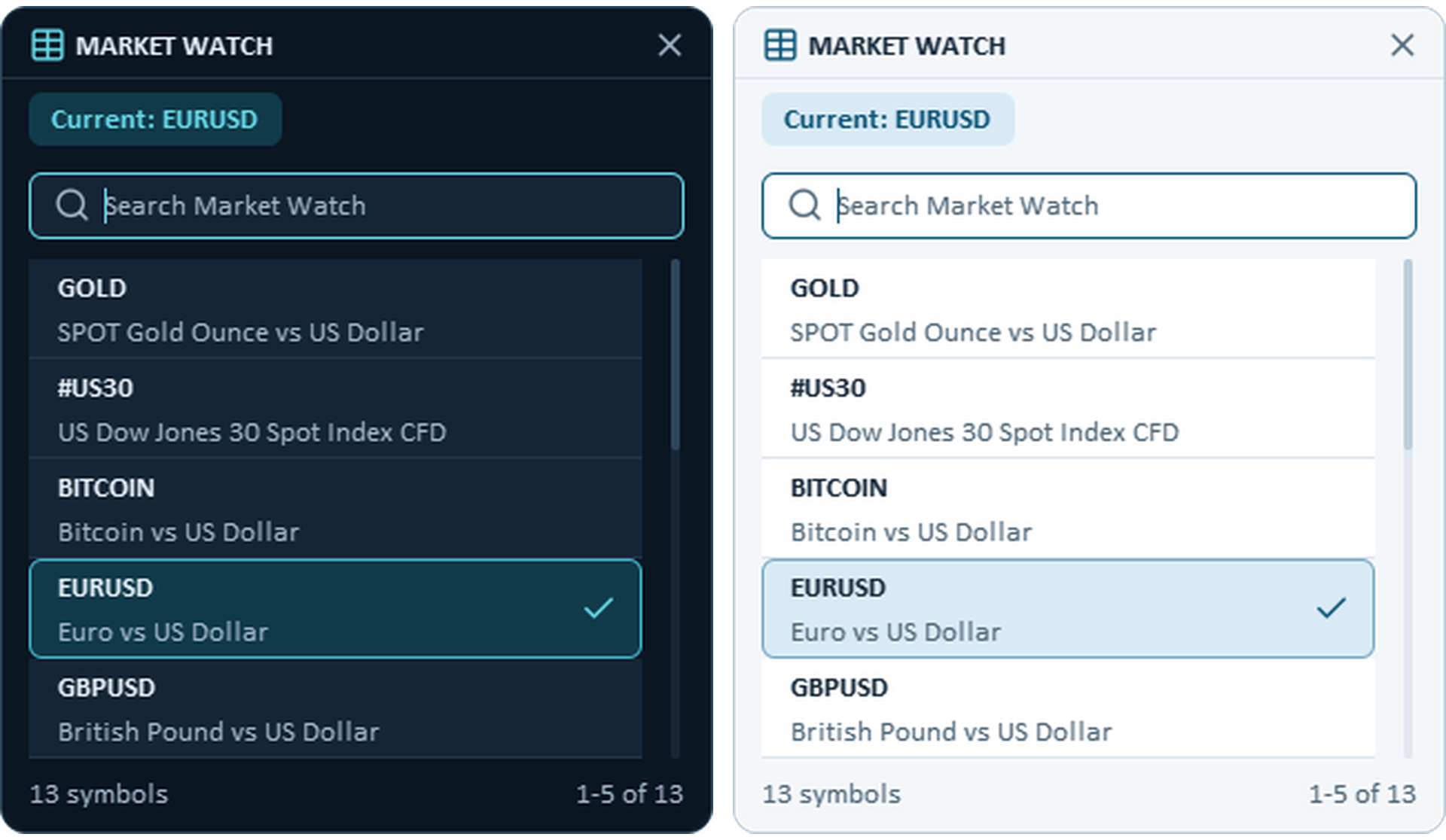
The first button on the dock displays the current trading symbol. Clicking it opens MARKET WATCH, where available instruments can be browsed or found using Search Market Watch.
Select the intended instrument before opening Buy, Sell, or Pending. The selected symbol is used for subsequent order preparation.
3. Buy & Sell — Market Orders
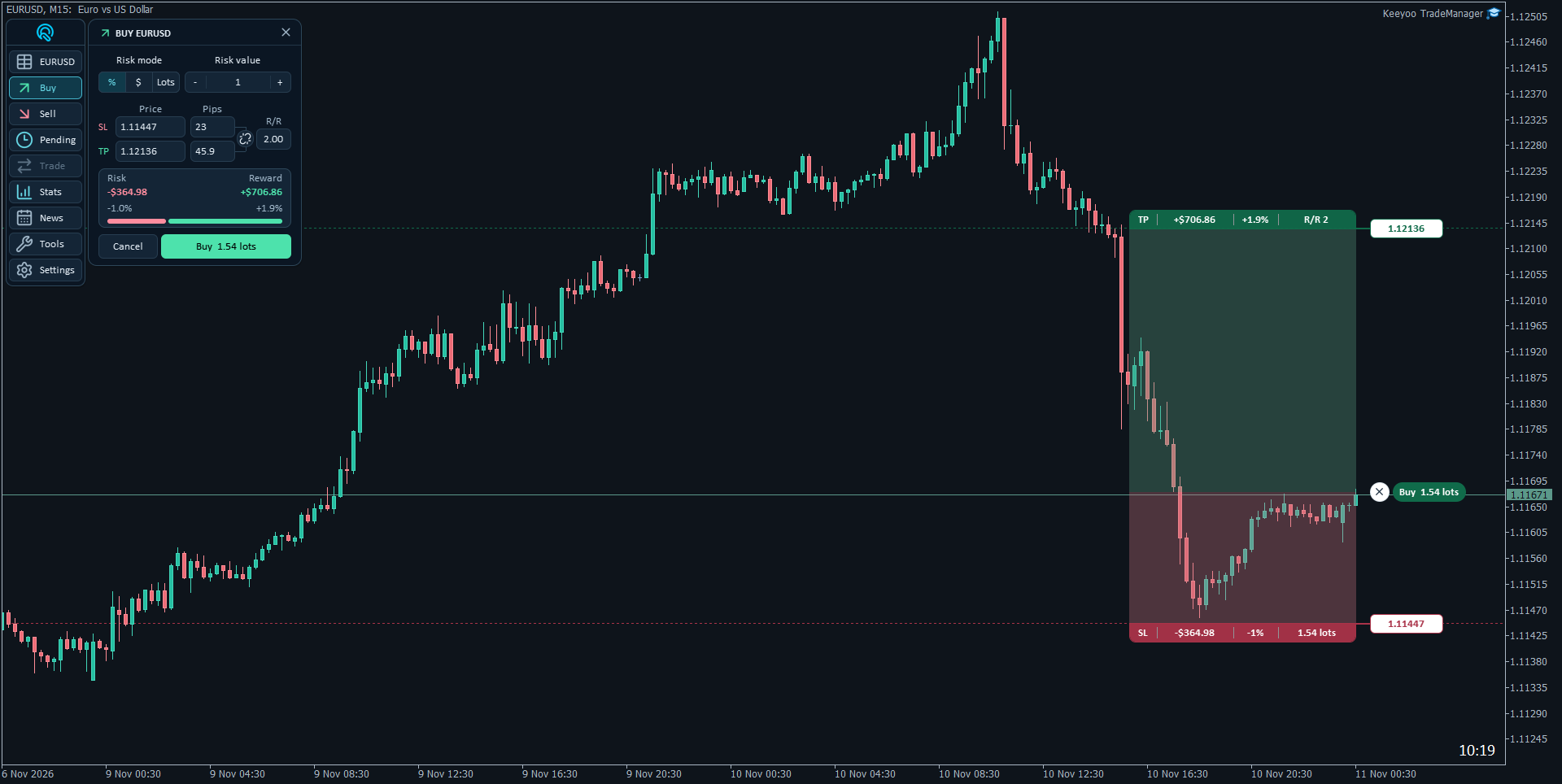
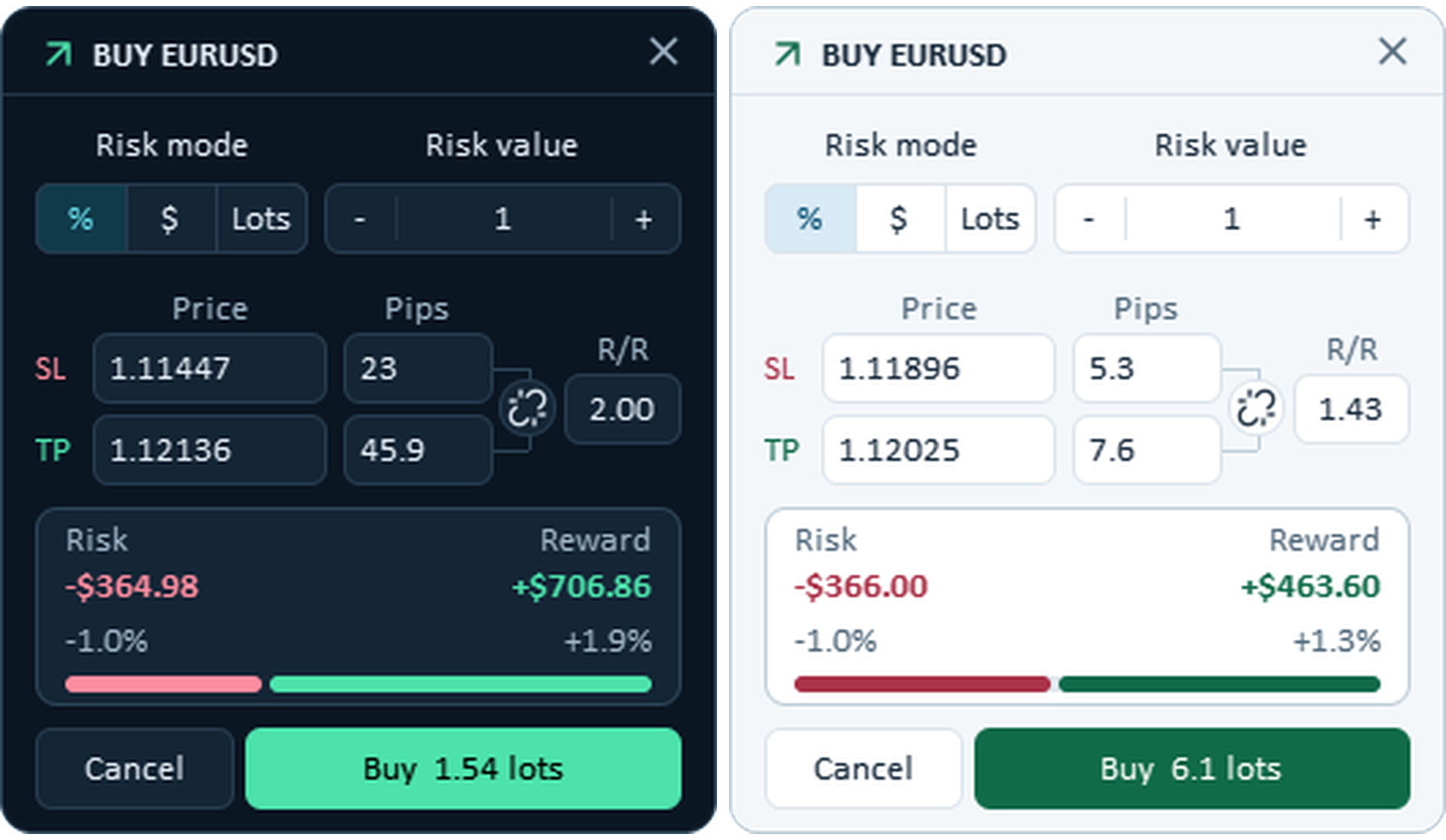
The Buy and Sell buttons open the market-order panels. Both provide position sizing, StopLoss and TakeProfit controls, reward-to-risk calculations, and a visual representation of the planned trade.
| Position Sizing |
The Risk mode selector offers three methods:
- % — Risk Percentage: Calculates volume using a percentage of Balance or Free margin and the StopLoss distance.
- $ — Fixed Amount: Calculates volume using a specified monetary risk and the StopLoss distance.
- Lots — Fixed Lot Size: Uses the entered volume directly and calculates its estimated risk and reward.
Enter the amount in Risk value or adjust it with the plus and minus controls. The calculated volume is displayed on the order execution button.
| StopLoss, TakeProfit & Reward-to-Risk |
The SL and TP fields define the planned exit levels, with corresponding distances shown under Pips.
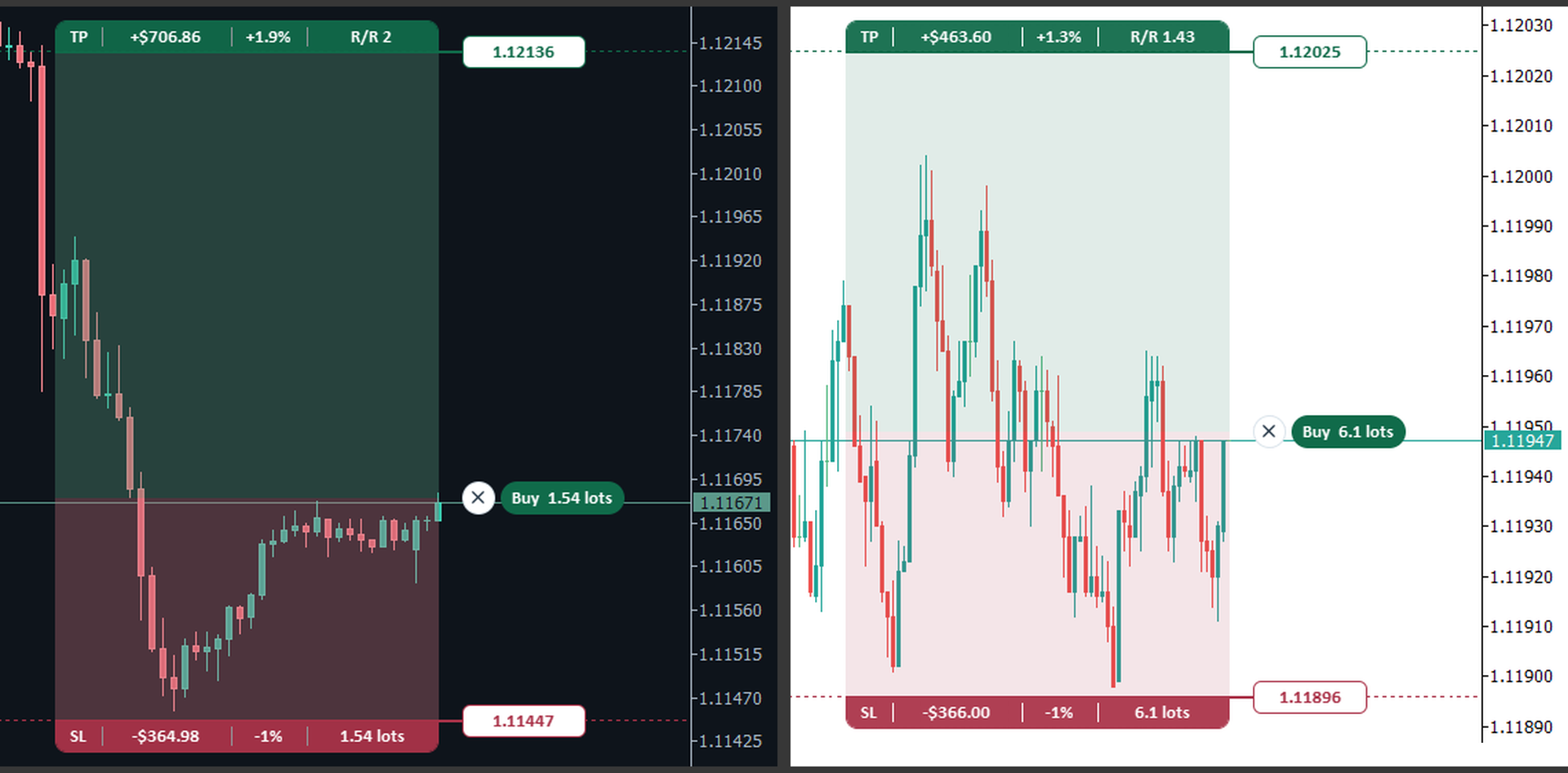
The chart displays the setup with adjustable price levels and colored risk/reward areas. Changes to the trade levels are reflected in the panel's calculations.
The Risk and Reward summary shows the estimated monetary and percentage outcomes, while R/R expresses the potential reward divided by the planned risk.
For example, an R/R of 2.00 represents twice as much potential reward as planned risk. The R/R value must be greater than zero.
| Link SL/TP and R/R Control |
| The link control beside R/R maintains the selected reward-to-risk relationship. |
When the levels are linked:
- Changing the R/R value adjusts TakeProfit.
- Moving StopLoss keeps the R/R constant by adjusting TakeProfit accordingly.
- Manually moving TakeProfit breaks the link, allowing the levels to be adjusted independently.
Link SL/TP makes it possible to maintain a selected R/R while refining StopLoss placement, or to unlock the relationship when the TakeProfit needs to be positioned independently.
| Placing a Market Order |
- Open Buy or Sell.
- Select the risk mode and enter the desired risk value or lot size.
- Adjust StopLoss and TakeProfit using the panel or chart.
- Review the calculated volume, Risk, Reward, and R/R.
- Click the execution button to submit the order.
The chart displays the planned trade before execution, including its price levels, lot size, and estimated outcomes.
4. Pending — Pending Orders
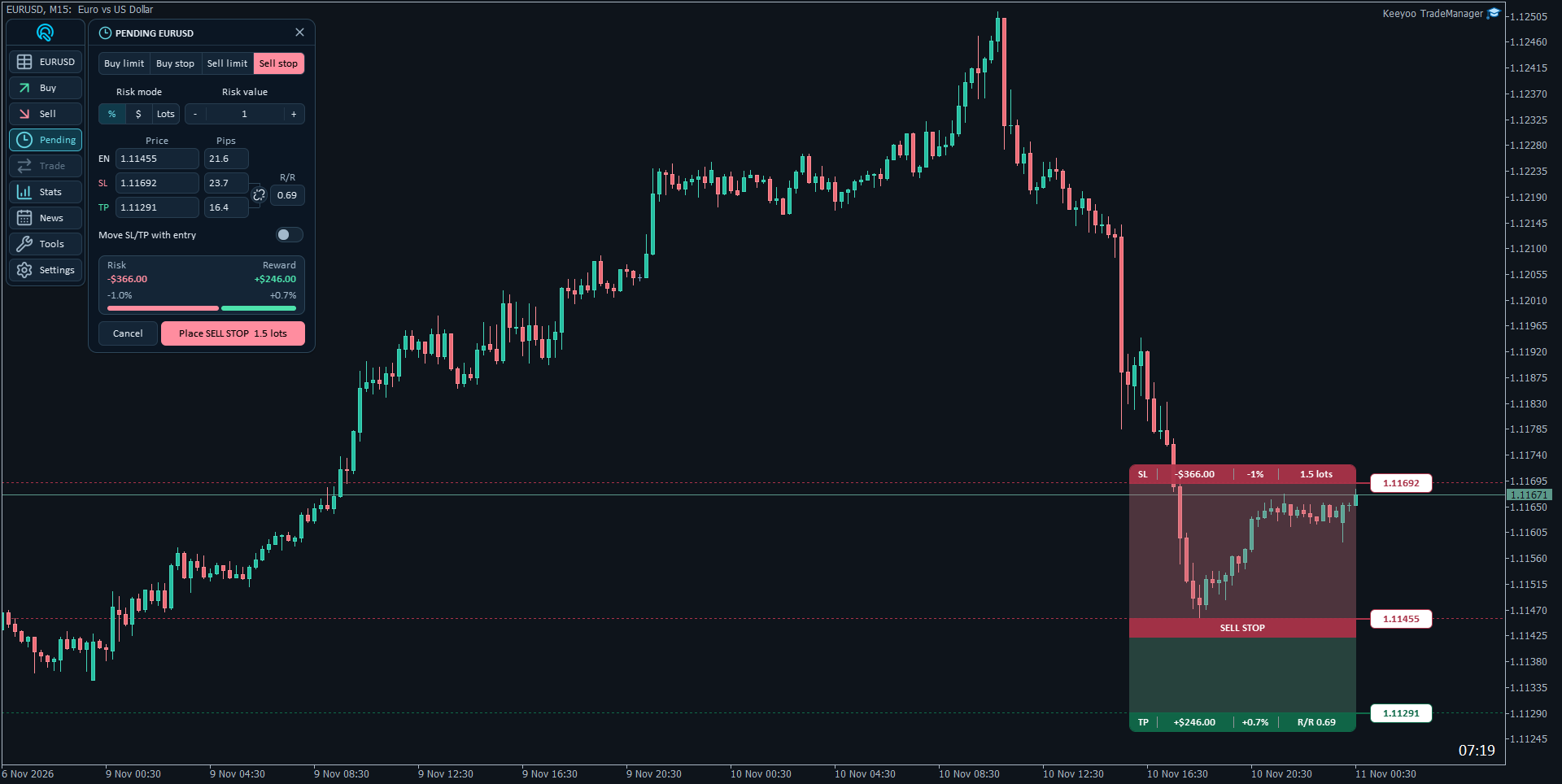
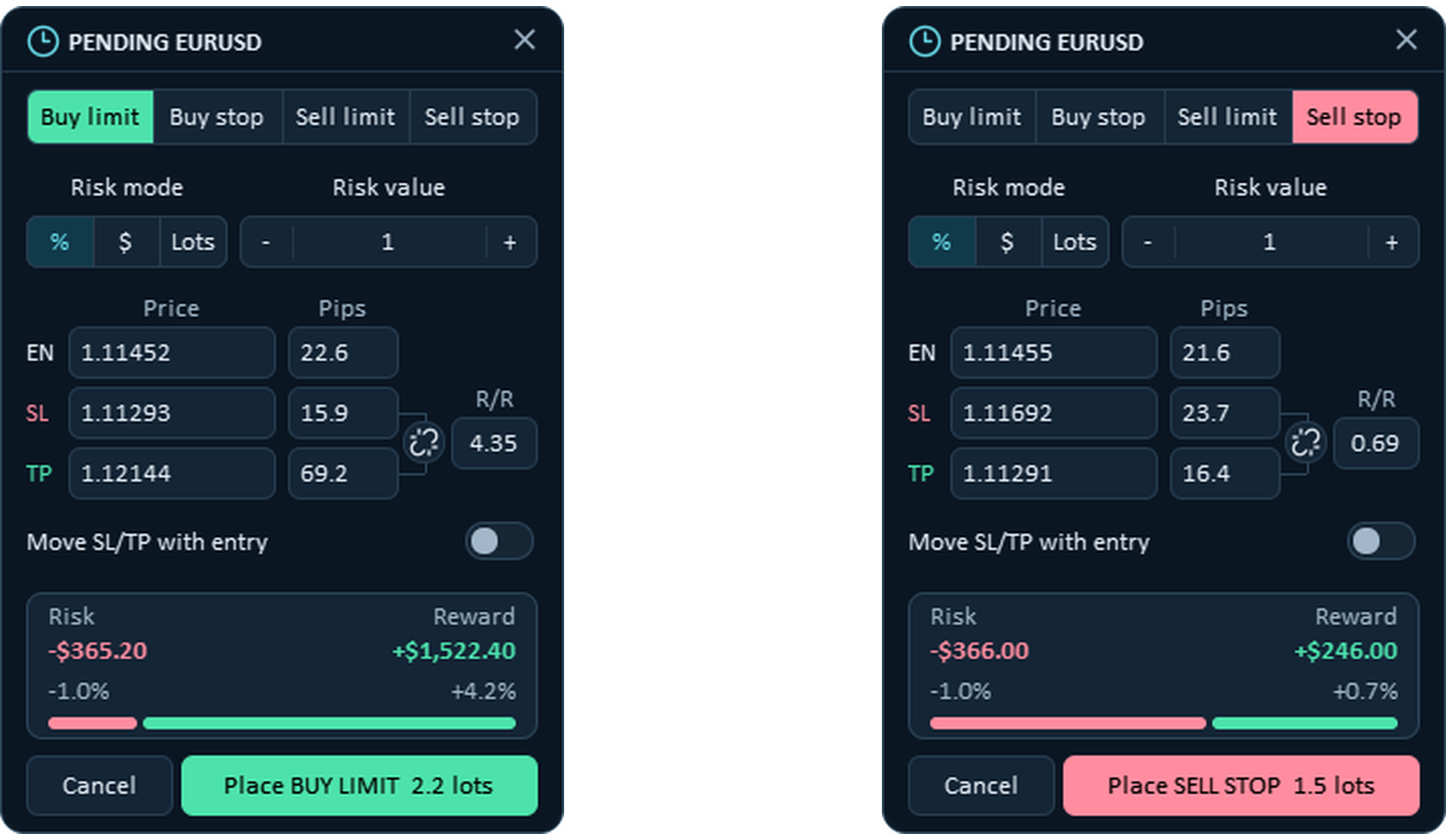
The Pending panel supports four order types:
Buy limit · Buy stop · Sell limit · Sell stop
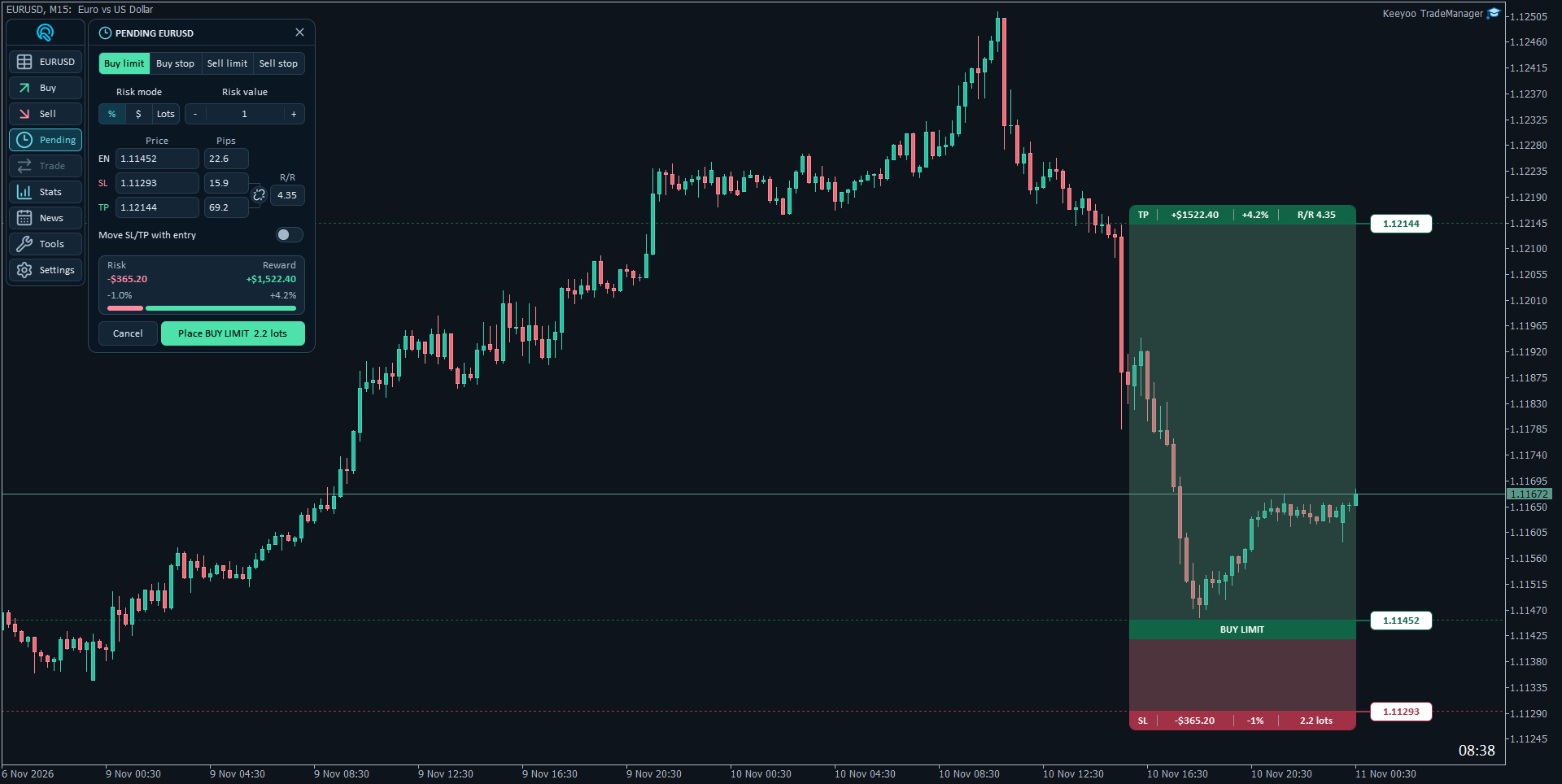
The position-sizing, StopLoss, TakeProfit, and R/R controls work in the same way as in the market-order panels, with an additional EN field for the pending Entry price.
To prepare an order:
- Open Pending and select the order type.
- Set the Entry, StopLoss, and TakeProfit levels.
- Choose the risk mode and review the calculated volume.
- Check the estimated Risk, Reward, and R/R.
- Submit the order using the placement button.
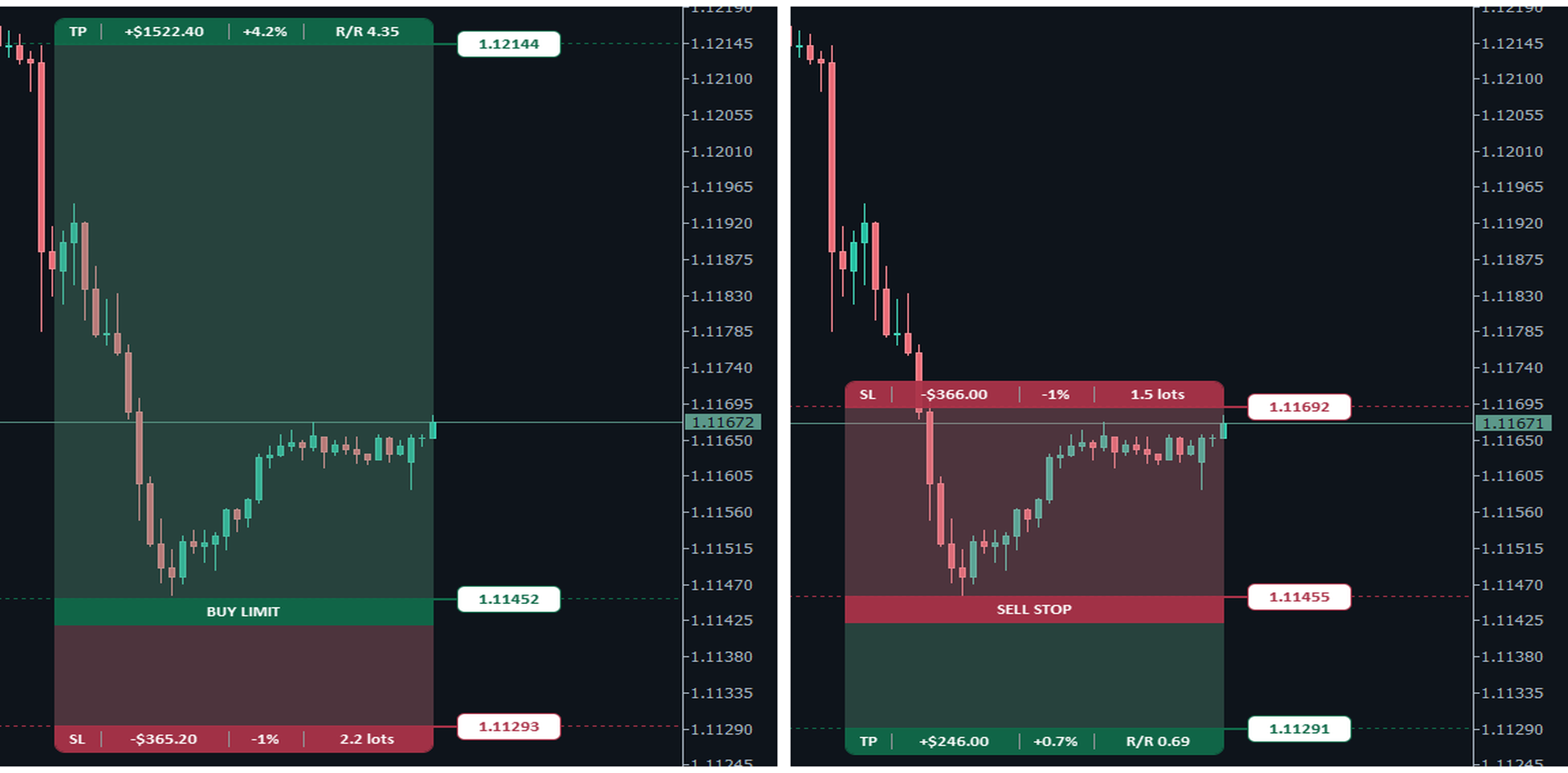
The chart shows the planned Entry and its corresponding risk/reward areas.
| Move SL/TP with Entry |
The Move SL/TP with entry switch keeps the StopLoss and TakeProfit distances unchanged when the pending Entry level is repositioned.
With this option enabled, moving Entry shifts SL and TP by the same price distance, preserving the planned trade structure.
5. Trade — Position Management
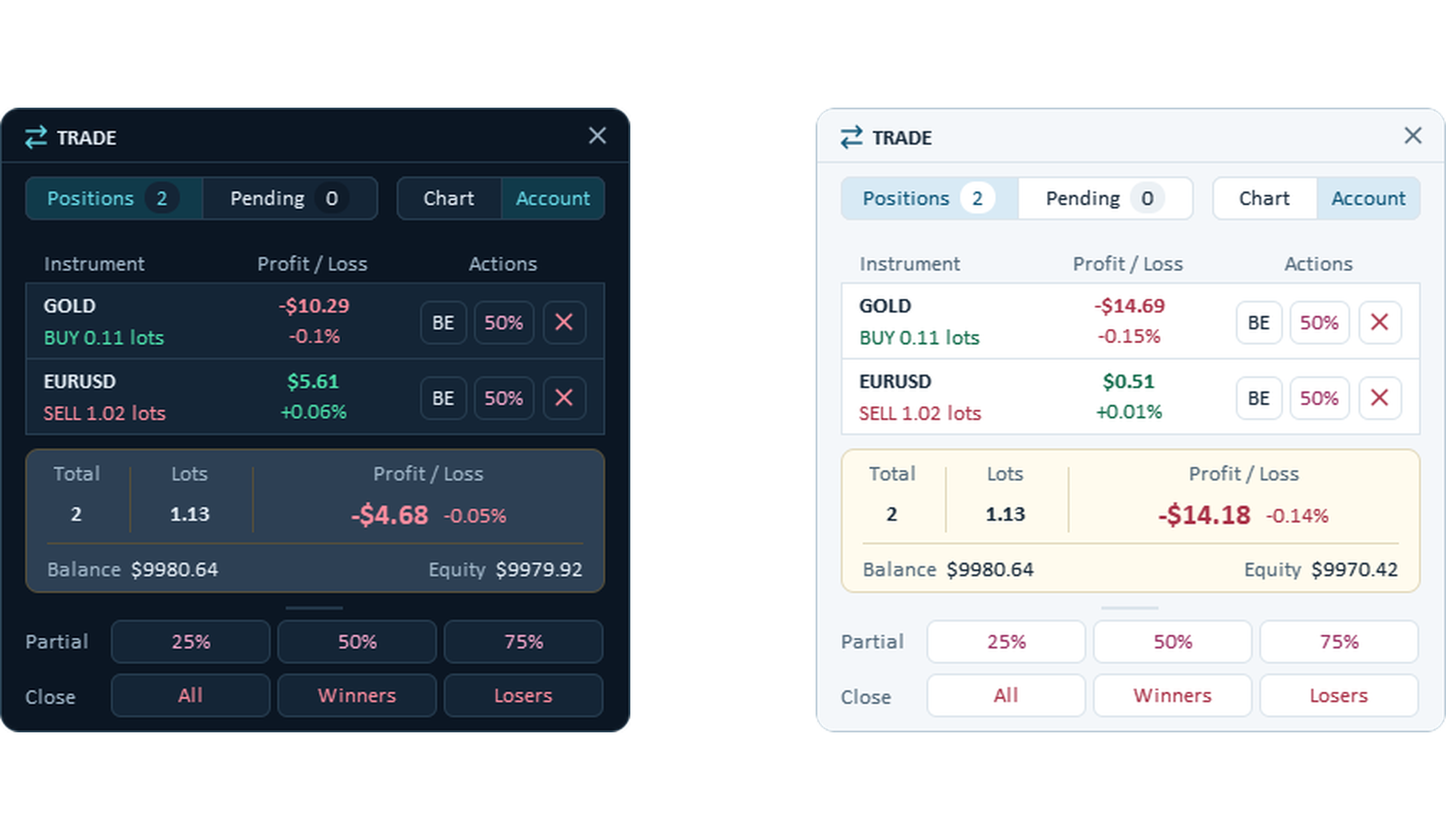
The Trade panel provides access to open positions, pending orders, and trade management actions.
Two tabs separate Positions and Pending, with item counts displayed beside their labels. The panel also offers chart and account views for managing trades within different scopes.
| Managing Individual Positions |
Each position row displays the instrument, direction, volume, and current Profit / Loss, together with its available actions.
- BE: Moves the position's StopLoss to Breakeven.
- Partial Close: Reduces the position volume by a selected percentage.
- X: Closes the individual position.
Breakeven changes the StopLoss level but does not guarantee a zero net result after commissions, swaps, or execution differences.
| Partial Close & Bulk Actions |
The Partial controls provide three percentage shortcuts, shown as 25%, 50%, and 75% in the example screenshot.
The Close controls provide:
- All: Close all positions in the selected scope.
- Winners: Close profitable positions.
- Losers: Close losing positions.
The selected management scope is important when applying bulk actions. Chart symbol limits management to the current instrument, while Entire account includes positions across the account.
The panel also displays aggregate position information, total lots, Profit / Loss, Balance, and Equity.
Explore the MT5 risk management features
Keeyoo TradeManager combines position sizing, visual trade planning, and optional account protection within the same MT5 workspace.
 6. Stats — Trading Statistics
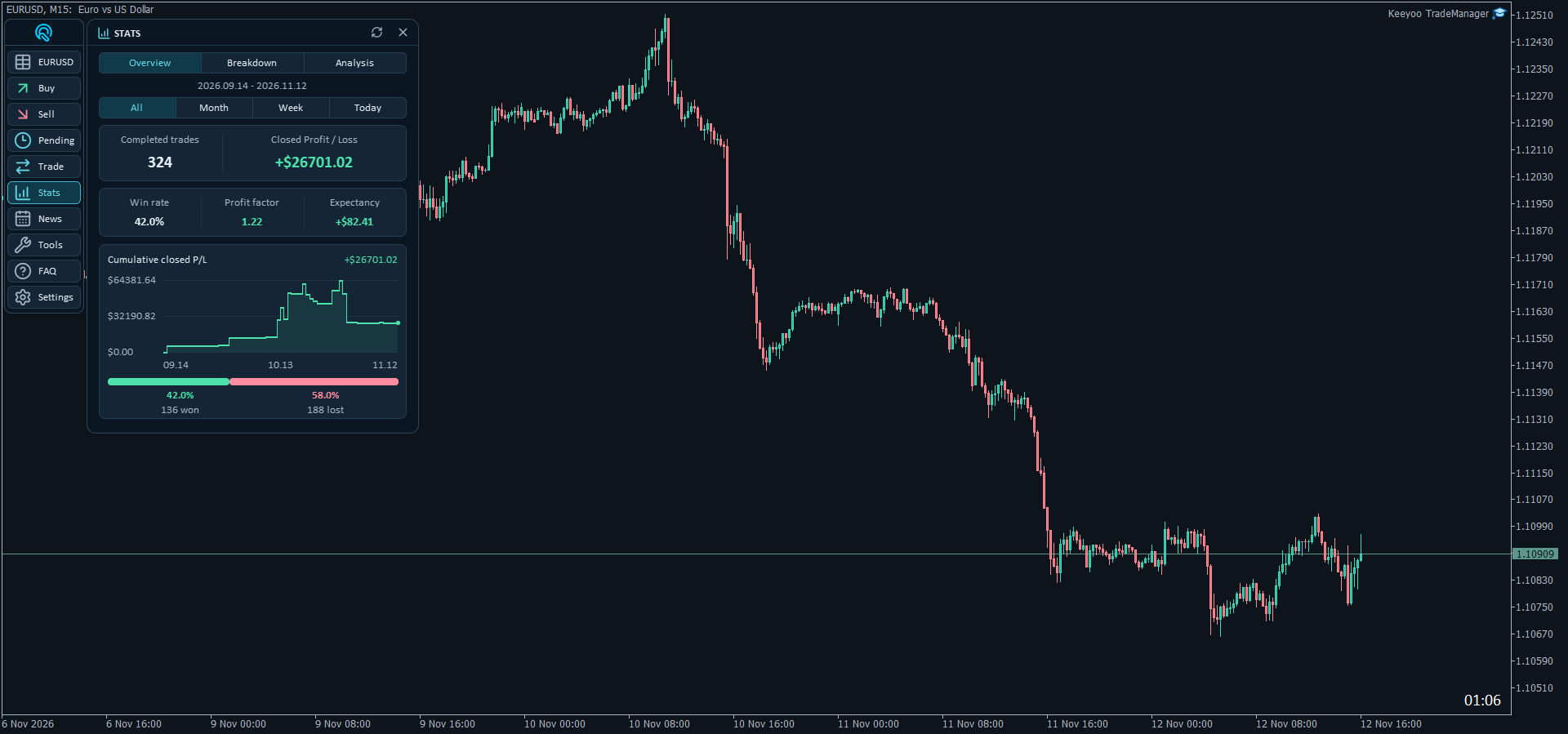
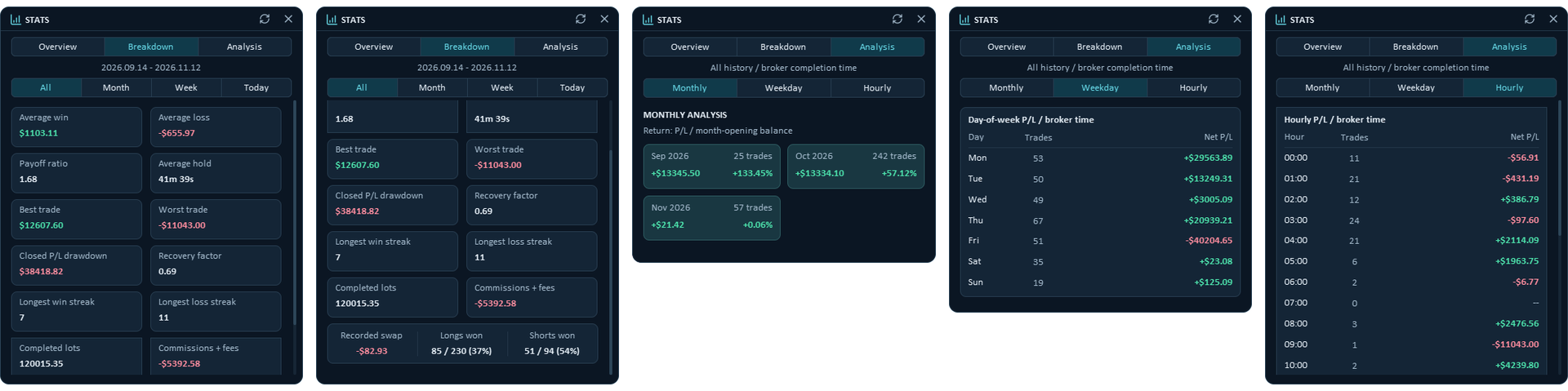
The Stats panel provides account performance analysis across three tabs: Overview, Breakdown, and Analysis.
The Overview and Breakdown tabs include All, Month, Week, and Today period filters.
| Overview |
Overview summarizes completed trades and Closed Profit / Loss, alongside Win rate, Profit factor, and Expectancy.
A Cumulative closed P/L chart tracks realized performance over the selected period, while the winning/losing distribution shows trade counts and percentages.
| Breakdown |
Breakdown provides more detailed statistics, including:
- Average win and Average loss
- Payoff ratio and Average hold
- Best trade and Worst trade
- Closed P/L drawdown and Recovery factor
- Longest win and loss streaks
- Completed lots, Commissions + fees, and Recorded swap
- Longs won and Shorts won
These metrics provide a closer view of trading performance beyond total profit and win rate.
| Analysis |
Analysis breaks down completed trading results by month, day of the week, and hour, helping identify how account performance varies across different periods.
Three analysis views are available:
- Monthly: Displays completed trades, Net P/L, and percentage returns for each month. Returns are calculated relative to the month-opening balance.
- Weekday: Groups completed trades by day of the week, showing trade counts and Net P/L for each day.
- Hourly: Groups completed trades by their completion hour, showing trade counts and Net P/L for each hour.
Weekday and Hourly analysis use broker time, based on when trades were completed.
All three views analyze the available account history, providing a time-based breakdown of trading activity and realized results.
7. News — Economic Calendar
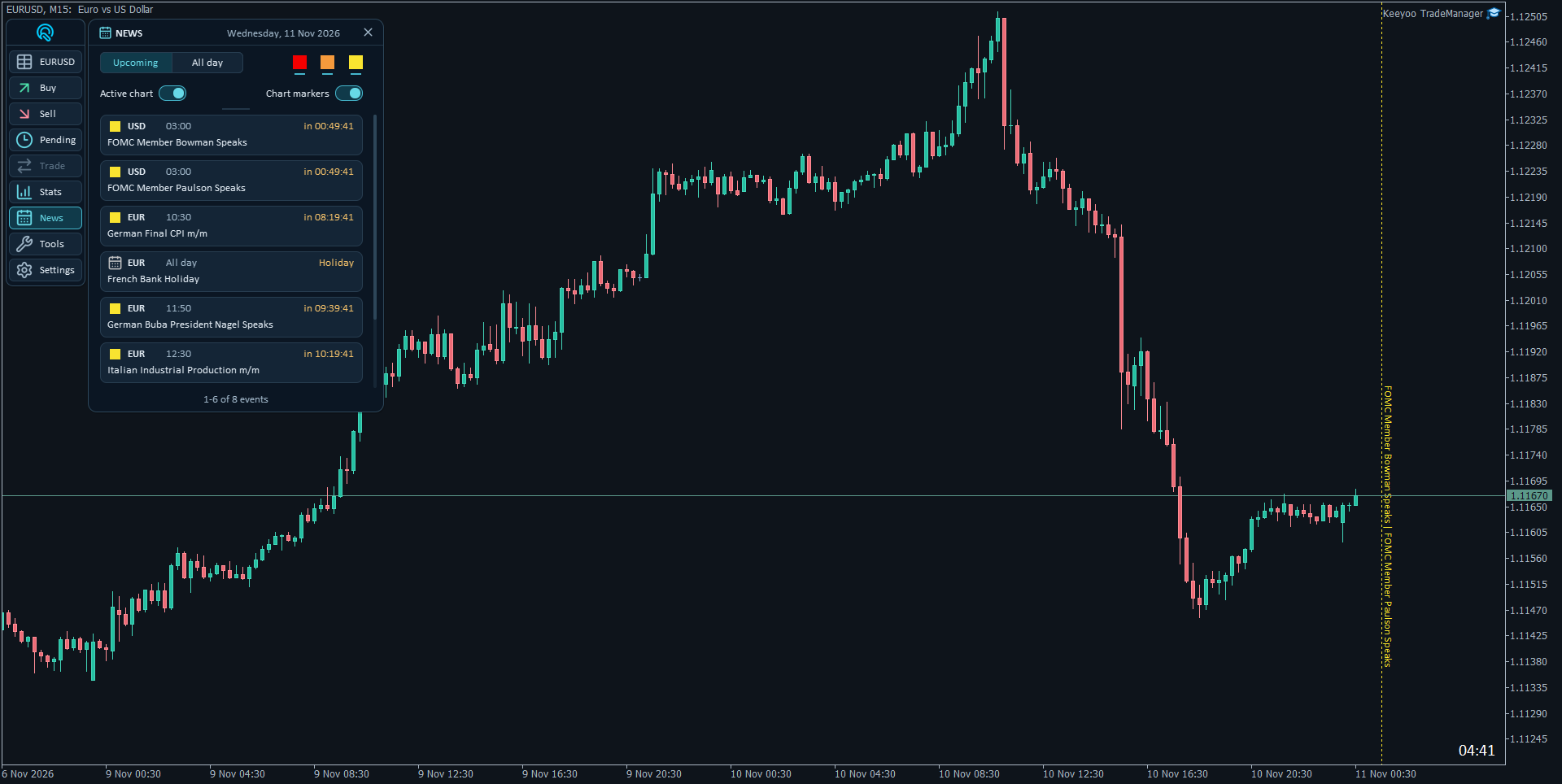
The News panel displays economic calendar events retrieved from Forex Factory.
Two views are available:
- Upcoming: Upcoming economic events.
- All day: Events for the selected day.
High-, medium-, and low-impact filters help narrow the event list. Currency and holiday filters provide further control over which events appear.
The Active chart and Chart markers switches provide additional chart-related filtering and event display options.
Forecast and previous values can be displayed within the News window. Optional chart markers identify events on the chart without displaying their forecast values.
8. Tools — Trading Sessions
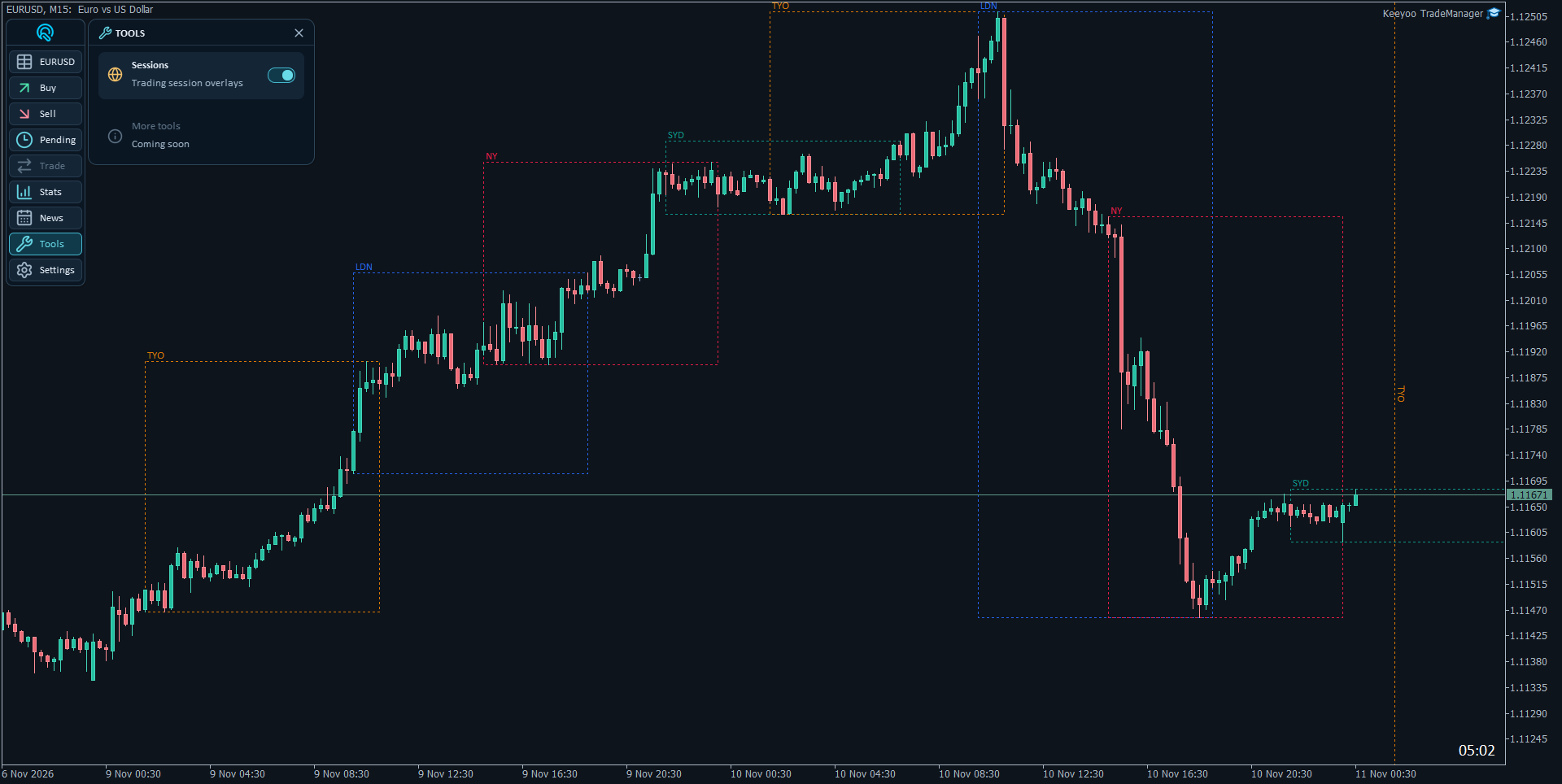
The Tools panel currently includes Sessions, which displays trading-session overlays on the chart.
Four sessions are supported: Sydney, Tokyo, London, and New York.
Session overlays provide a visual reference for each trading period:
- Before a session starts, a vertical marker identifies its upcoming start.
- During the session, a rectangle marks its time interval and developing price range.
- The rectangle's upper and lower boundaries follow the session's high and low as they develop.
Session calculations use broker time. Each session can be enabled or disabled individually.
9. Settings — Configuration & Presets
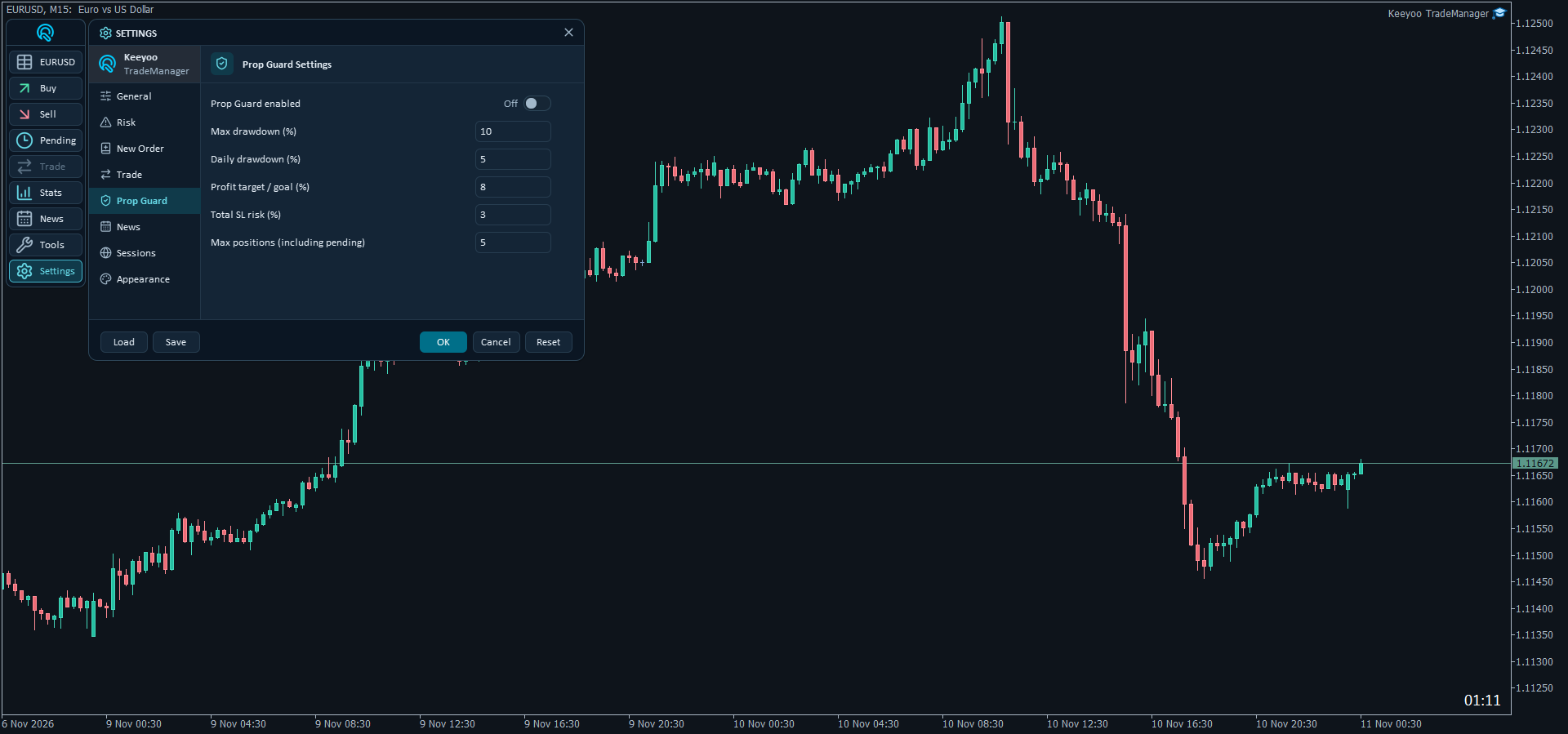
The Settings button opens a visual configuration window covering trading preferences, order behavior, risk controls, and application appearance. Instead of navigating a long list of MT5 input parameters, settings can be adjusted directly through eight organized categories.
| General |
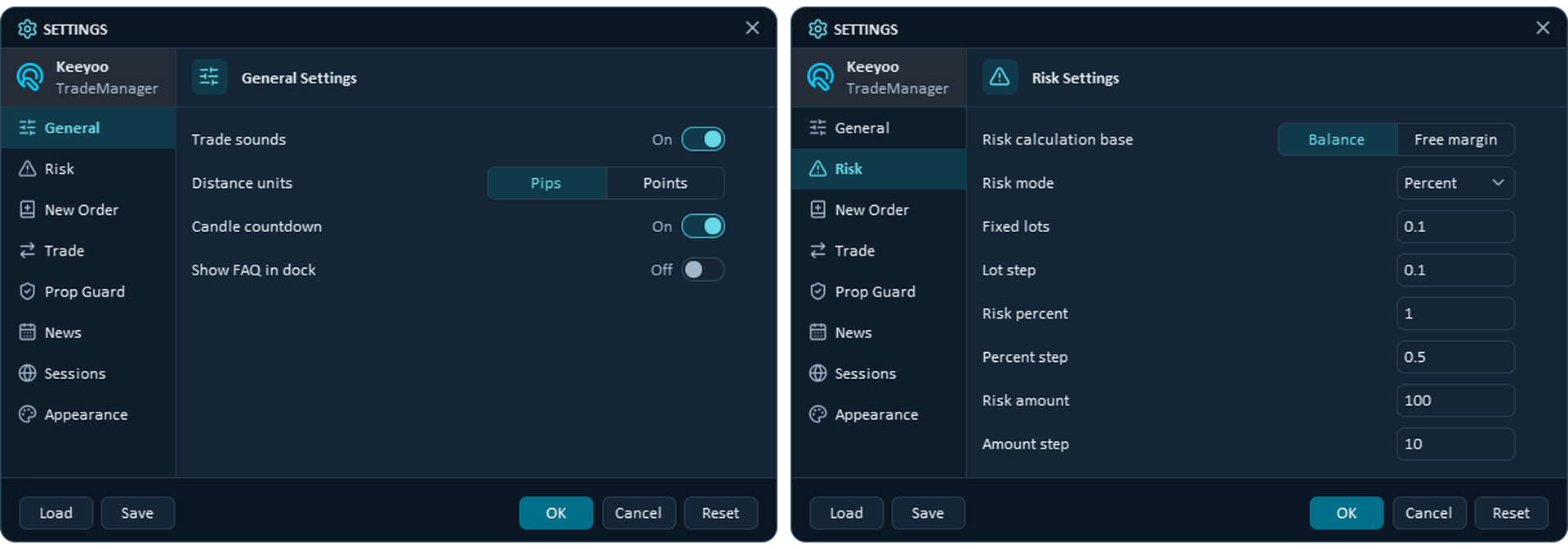
General covers application-wide preferences, including Trade sounds for execution notifications and Distance units for switching between Pips and Points. Candle countdown displays the remaining time for the current candle, while Show FAQ in dock adds or removes access to Keeyoo TradeManager's built-in help and FAQ. These options allow traders to control useful everyday features without changing their trading configuration.
| Risk |
Risk defines the default position-sizing preferences used when preparing orders. Risk mode selects percentage risk, fixed monetary risk, or fixed lots, while Risk calculation base determines whether percentage-based sizing uses Balance or Free margin. The section also provides configurable starting values for Fixed lots, Risk percent, and Risk amount, along with their respective Lot step, Percent step, and Amount step increments. These preferences establish the initial values and adjustment steps in the Buy, Sell, and Pending panels.
| New Order |
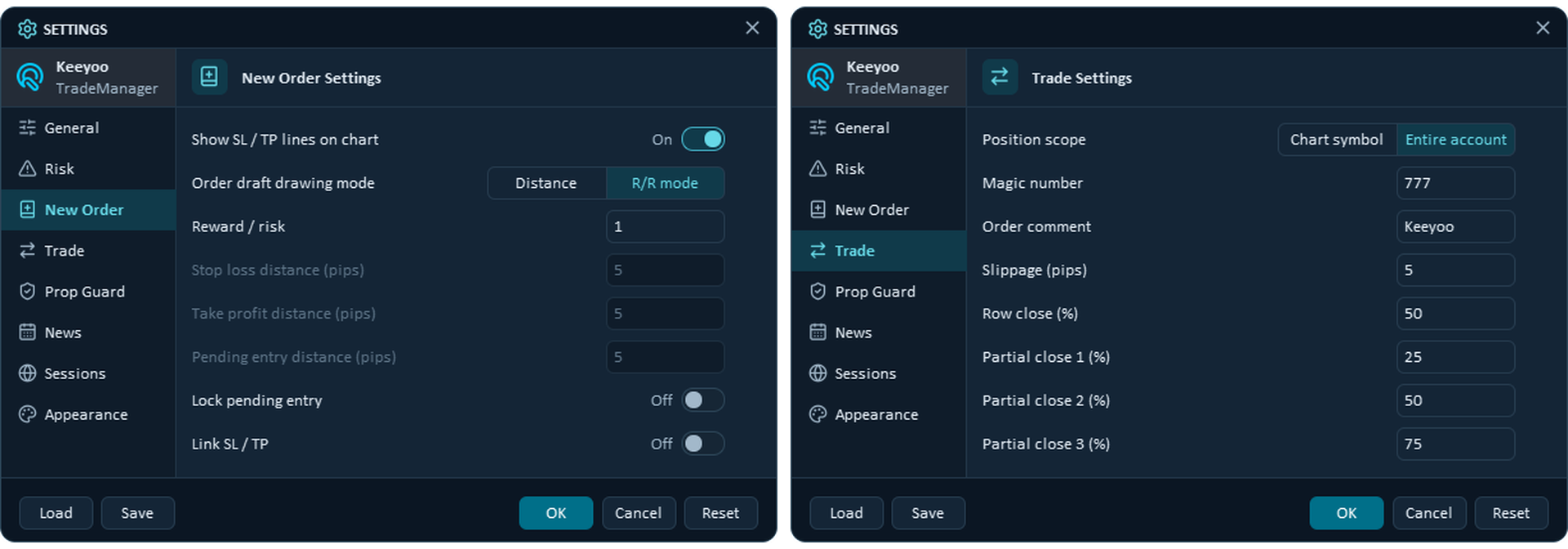
New Order controls how trade levels are initially prepared and displayed. Order draft drawing mode offers Distance and R/R mode, with configurable StopLoss, TakeProfit, and pending Entry distances for distance-based planning. Reward / risk sets the initial R/R value, which must be greater than zero. Show SL / TP lines on chart controls the additional price guides, while Link SL / TP and Lock pending entry configure the default linked-level and pending-entry locking options used during order preparation.
| Trade |
Trade configures position management and order execution preferences. Position scope determines whether management actions apply to the Chart symbol or Entire account, while Magic number and Order comment provide order identification options. Slippage (pips) configures the permitted execution deviation, and Row close (%) sets the percentage used by the row-level partial-close action. Three additional configurable percentages, Partial close 1, Partial close 2, and Partial close 3, define the shortcuts available in the Trade panel.
| Prop Guard |
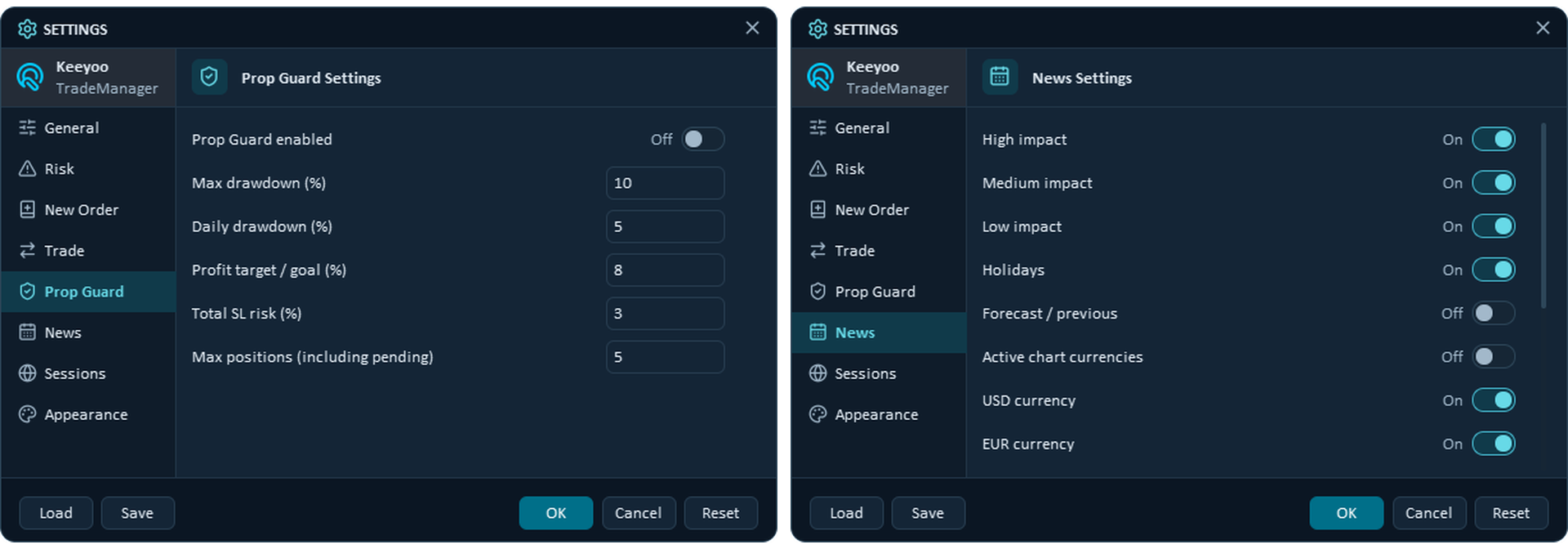
Prop Guard provides optional account protection through five configurable limits. Max drawdown (%) monitors the account against its initial recorded balance, with a violation occurring when either Balance or Equity reaches the threshold. Daily drawdown (%) uses the balance at the start of the broker-defined trading day, while Profit target / goal (%) tracks progress toward a specified profit objective. Total SL risk (%) limits combined StopLoss exposure across open positions and pending orders, and Max positions (including pending) restricts their combined count.
| When Prop Guard enabled is active, the configured protection rules can prevent new orders that exceed the permitted limits. Prop Guard does not automatically close existing positions or guarantee compliance with every prop firm's rules, particularly where drawdown calculations or daily reset times differ. |
| News |
News controls which economic calendar events are displayed and how their information is presented. High-, medium-, and low-impact events and Holidays can be enabled independently, while Forecast / previous controls the visibility of those values in the calendar. Active chart currencies provides chart-related currency filtering, and individual currency switches allow traders to include only the currencies relevant to their trading activity.
| Sessions |
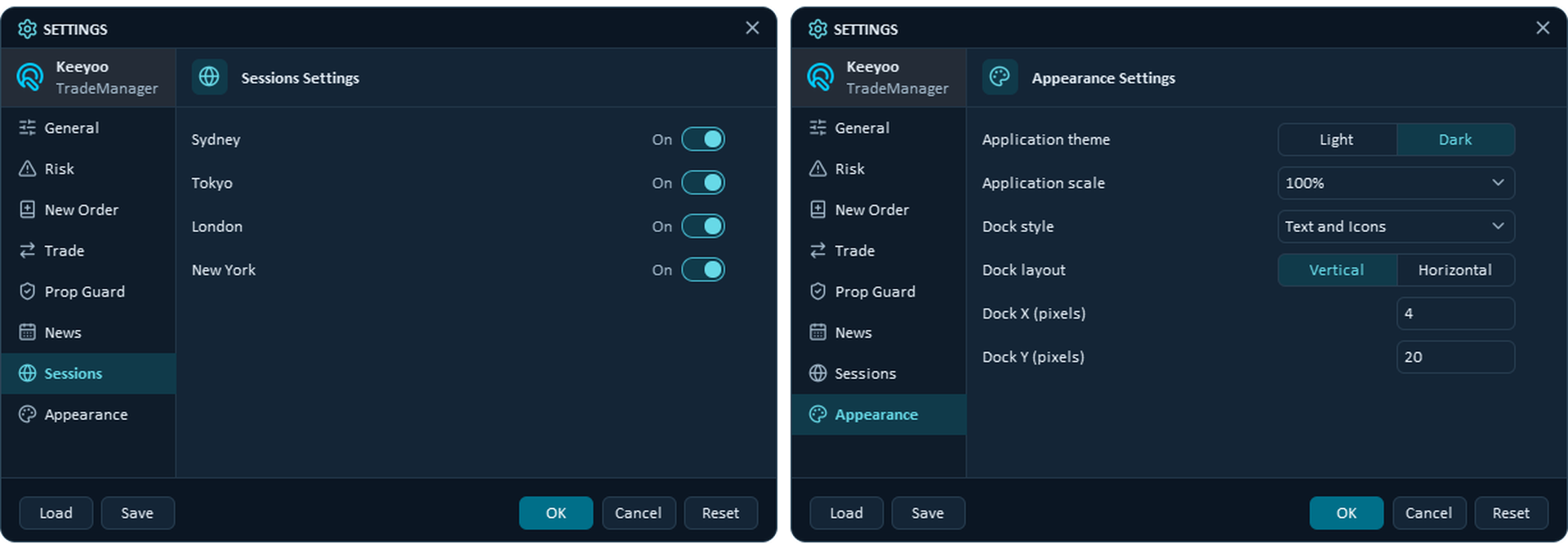
Sessions provides individual visibility controls for the four supported trading sessions: Sydney, Tokyo, London, and New York. Traders can select which sessions appear on the chart when the Sessions feature is enabled from Tools, allowing the overlays to be tailored to their preferred trading hours and markets.
| Appearance |
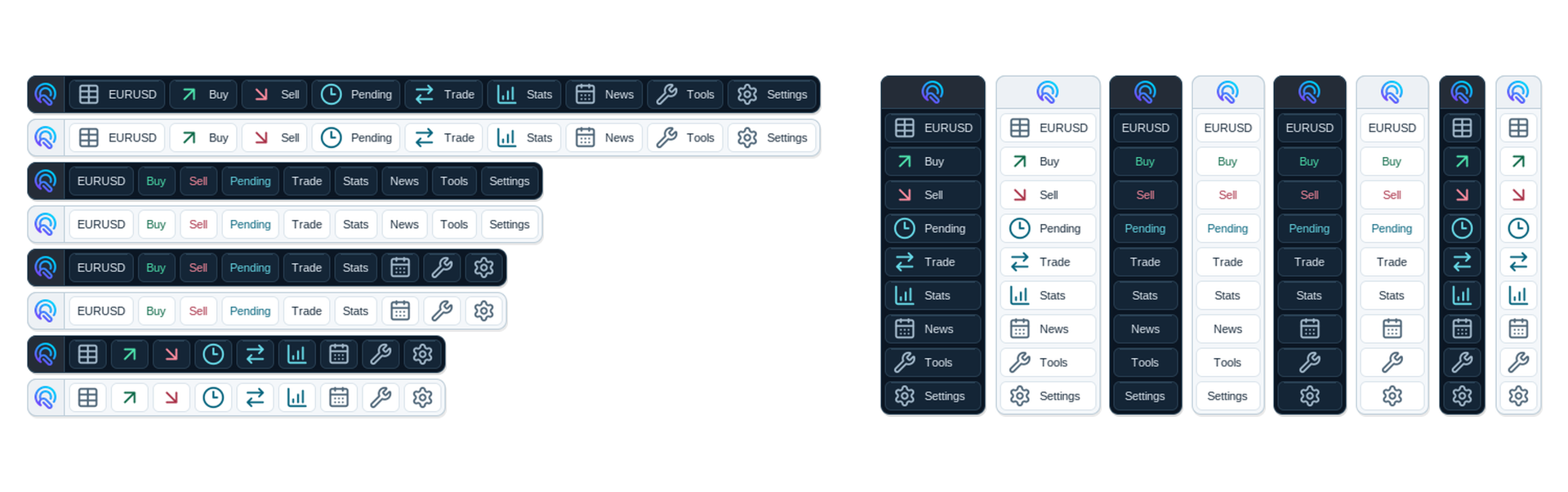
Appearance customizes the application's visual presentation and dock arrangement. Application theme offers Light and Dark modes, while Application scale adjusts the size of panels and controls. Dock style supports Text and Icons, Icons Only, Text Only, and Mixed presentations, and Dock layout switches between Vertical and Horizontal arrangements. The Dock X (pixels) and Dock Y (pixels) fields allow precise positioning on the chart, making it possible to adapt Keeyoo TradeManager to different screen sizes and chart layouts.
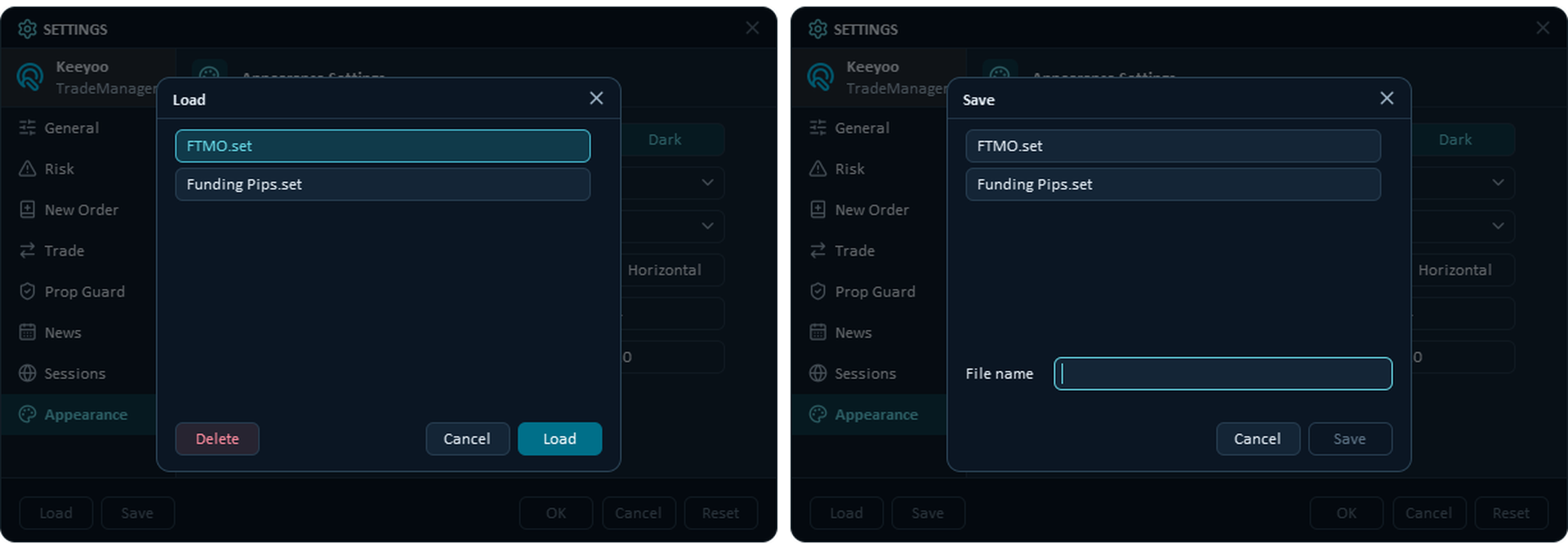
| Saving and Loading Presets |
The Settings window also supports reusable configurations through Save and Load. After configuring trading preferences, risk parameters, and appearance options, Save stores the configuration as a preset that can be restored later using Load. This is useful for maintaining different setups without manually reconfiguring the application each time.
The bottom toolbar also includes OK, Cancel, and Reset for applying, dismissing, or resetting settings changes.
Conclusion
Keeyoo Trade Manager combines visual trade planning, position sizing, market order execution, pending order placement, and position management within a configurable MetaTrader 5 workspace.
Integrated trading statistics, an economic calendar, trading sessions, optional Prop Firm Protection, and reusable settings presets complement the core trade management workflow.
Entry, StopLoss, TakeProfit, estimated risk and reward, order controls, and position management actions are accessible from the chart throughout planning, execution, and ongoing management.
Keeyoo Trade Manager is a manual trading tool with integrated risk management features. All trading decisions remain with the trader, and the software does not provide trading signals.
Get Keeyoo TradeManager for MetaTrader 5
Keeyoo TradeManager brings manual order execution, position sizing, visual trade planning, and position management together with account statistics, economic news, session overlays, and configurable protection limits.
Explore the product on MQL5 Market for its latest features, pricing, and download options.
| View Keeyoo TradeManager on MQL5 Market |
FAQ
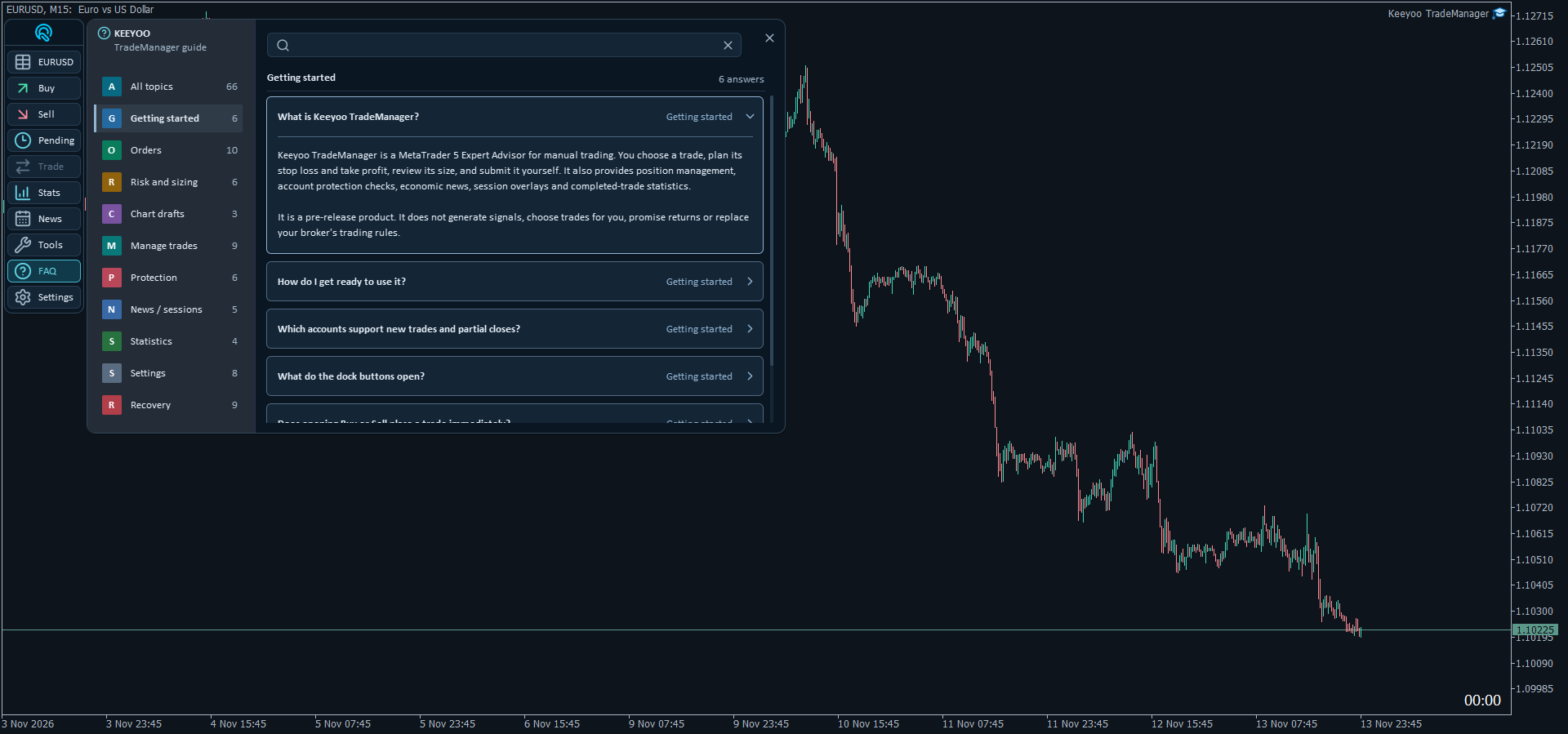
Keeyoo TradeManager also includes a built-in FAQ, giving you quick access to categorized questions and answers without leaving MetaTrader 5.
To access it, enable Show FAQ in Dock under Settings → General. The FAQ tab will then appear in the main dock, where you can browse questions by category or search for specific topics. The guide is also available offline.
| Does Keeyoo Trade Manager automatically open trades? |
No. Orders are prepared and submitted through manual controls. The software supports trade planning, execution, calculations, and position management but does not provide trading signals.
| How does the R/R value work? |
R/R is calculated as Potential Reward ÷ Planned Risk. For example, 2.00 means the potential reward is twice the planned risk, while 0.50 means the potential reward is half the planned risk. The value must be greater than zero.
| Does Link SL/TP adjust StopLoss or TakeProfit? |
The Lock maintains the selected reward-to-risk ratio by automatically adjusting TakeProfit.
| What is the difference between Risk Percentage and Fixed Amount? |
Risk Percentage calculates planned monetary risk from Balance or Free Margin. Fixed Amount uses a specified amount of account currency. Both calculate volume using the selected StopLoss distance.
| Can a fixed lot size be used? |
Yes. Fixed Lot Size accepts a directly entered volume and displays the corresponding estimated risk and reward.
| What happens when Entry Lock is enabled? |
Moving a pending order's Entry also moves StopLoss and TakeProfit, preserving their original distances from Entry.
| Can positions be managed for one symbol only? |
Yes. The Trade panel supports current-symbol and entire-account scopes.
| Can Partial Close percentages be customized? |
Yes. Three configurable percentage shortcuts are available under Settings → Trade.
| Does Breakeven guarantee a zero net result? |
No. Execution differences and trading costs can affect the final outcome even when StopLoss is moved to the entry level.
| Does Prop Guard automatically close positions? |
No. Prop Guard can block new orders that exceed configured limits but does not automatically close existing positions.
| Does Prop Guard guarantee compliance with every prop firm? |
No. Calculation methods and thresholds must be compared with the rules of the relevant firm.
| Can the interface be customized? |
Yes. Light and Dark themes, horizontal and vertical dock layouts, interface scaling, and chart positioning are configurable.
| Can all settings be saved together? |
Yes. Presets store the complete configuration for later reuse.
| Does the economic calendar display forecasts on the chart? |
Forecast values are available within the News window. Optional chart markers provide event information without displaying forecast values.
| Can the FAQ button be hidden? |
Yes. The FAQ button is hidden by default. Show FAQ in Dock can be activated under Settings → General.