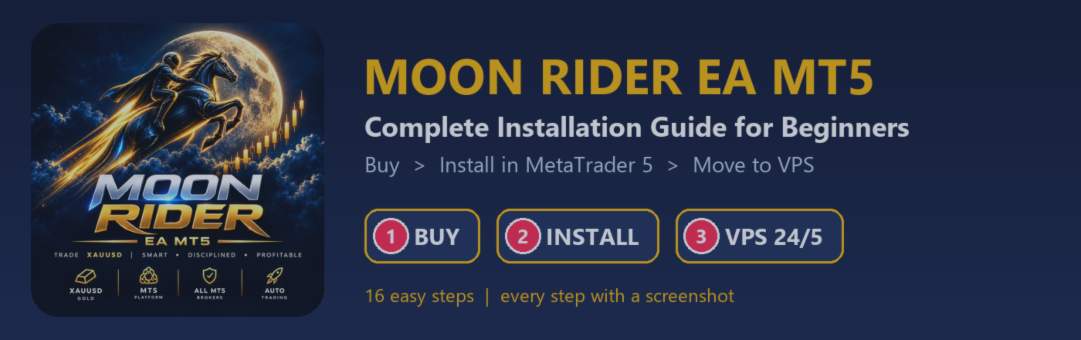
Moon Rider EA MT5 — Complete Installation Guide for Beginners (Buy → Install → VPS)

Thank you for choosing Moon Rider EA MT5! This guide is for complete beginners. You do not need any trading or computer experience. Just follow the steps from top to bottom. Every step has a screenshot.
We will do three things:
- Buy Moon Rider on MQL5.com
- Install it on MetaTrader 5
- Move it to a VPS, so it trades 24 hours a day, 5 days a week, even when your computer is off
🛒 Moon Rider page (buy here): https://www.mql5.com/en/market/product/197154
🎬Prefer video? Watch the full step-by-step video with voice instructions:
https://www.youtube.com/watch?v=j8X_7FNAIa0Quick Facts
| Platform | MetaTrader 5 (MT5) |
| Symbol | XAUUSD (Gold) |
| Timeframe | Any timeframe |
| Account type | Hedging account (recommended), any MT5 broker |
| Recommended balance | $500 or more for 0.01 lot |
| Strategy | Breakout. No grid, no martingale |
| VPS | Recommended, so Moon Rider can trade 24/5 (Part 3) |
Before You Start
Please check that you have these 3 things:
- MetaTrader 5 is installed on your computer, and you are logged in to your broker account. A hedging account is best.
- A free MQL5.com account. You can create one in about one minute (Step 1 shows you where).
- We recommend at least $500 in your trading account for a lot size of 0.01.
PART 1 — 🛒 Buy Moon Rider
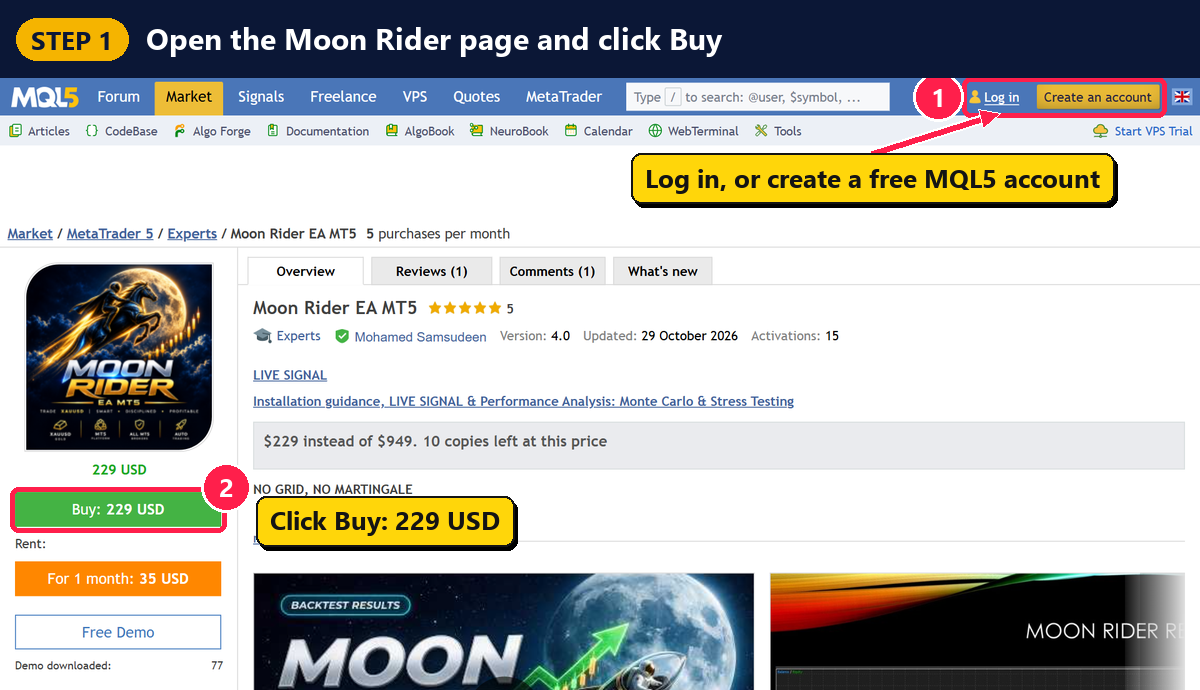
Step 1 — Open the Moon Rider page and click Buy
- Open this link: https://www.mql5.com/en/market/product/197154
- At the top right, click Log in. No account yet? Click Create an account. It is free.
- Click the green Buy button.
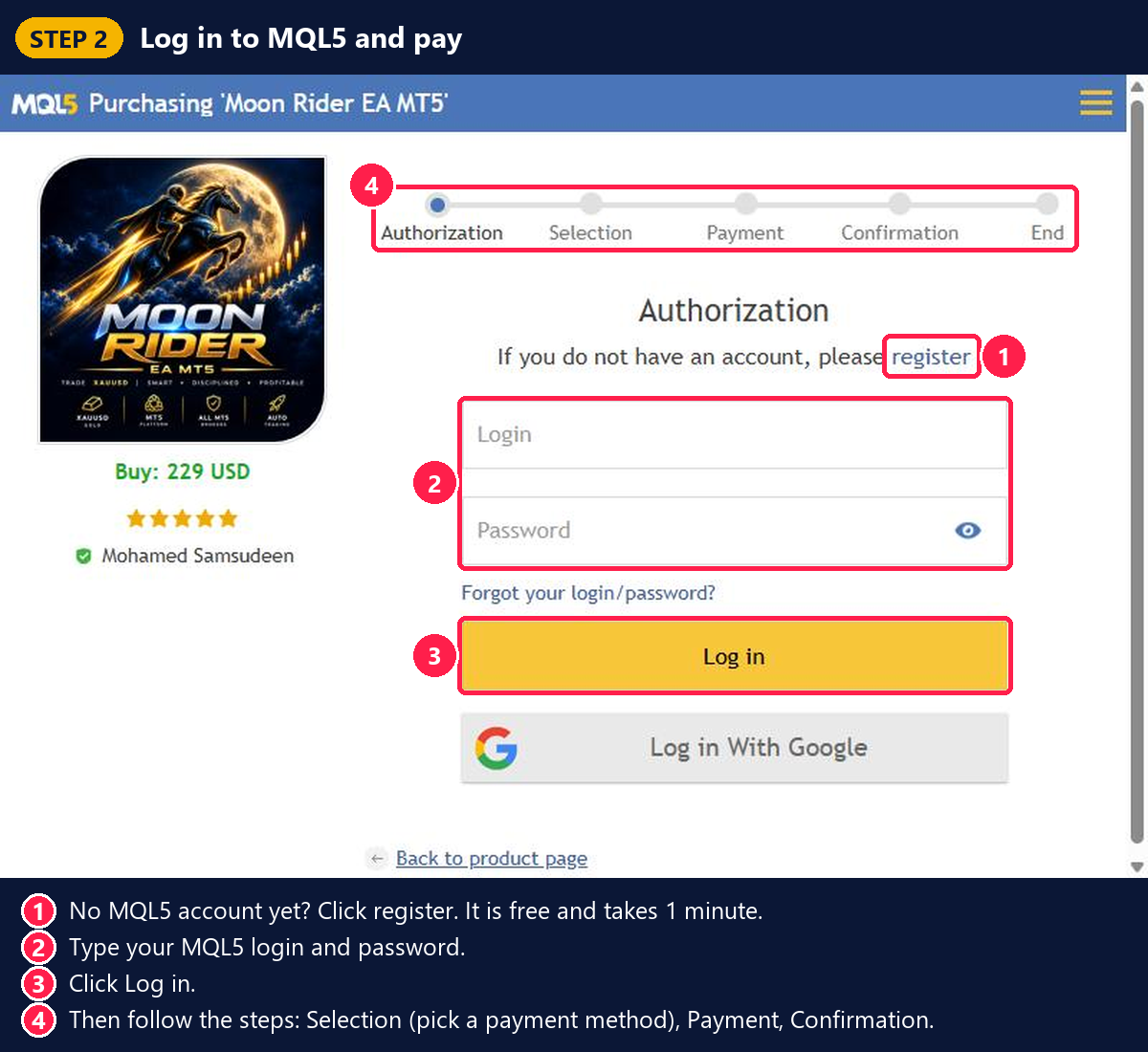
Step 2 — Log in to MQL5 and pay
- No account? Click register.
- Type your MQL5 login and password.
- Click Log in.
- Follow the steps on the screen: Selection (choose how you want to pay) → Payment → Confirmation.
That's it! Moon Rider is now saved in your MQL5 account. You can install it any time.
PART 2 — 💻 Install Moon Rider on MetaTrader 5
⚠️ Important: MetaTrader 5 must be logged in to the same MQL5 account that you used to buy. To check: in MetaTrader 5, click Tools → Options → Community, type your MQL5 login and password, and click OK.
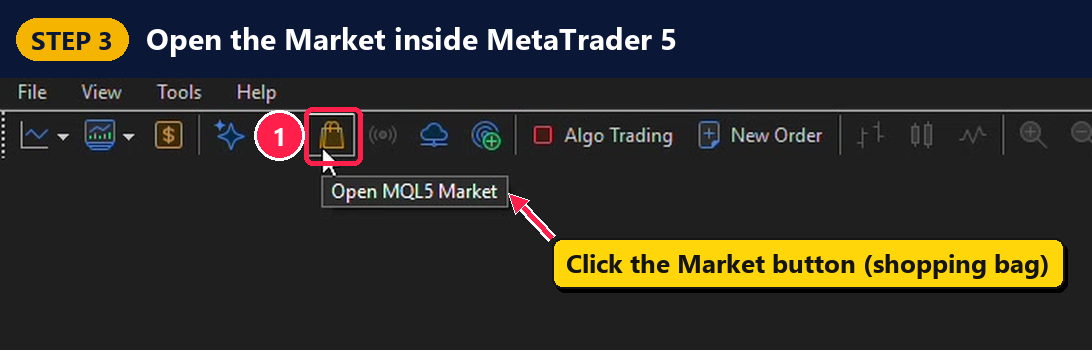
Step 3 — Open the Market inside MetaTrader 5
Open MetaTrader 5. On the toolbar at the top, click the Market button. It looks like a small shopping bag.
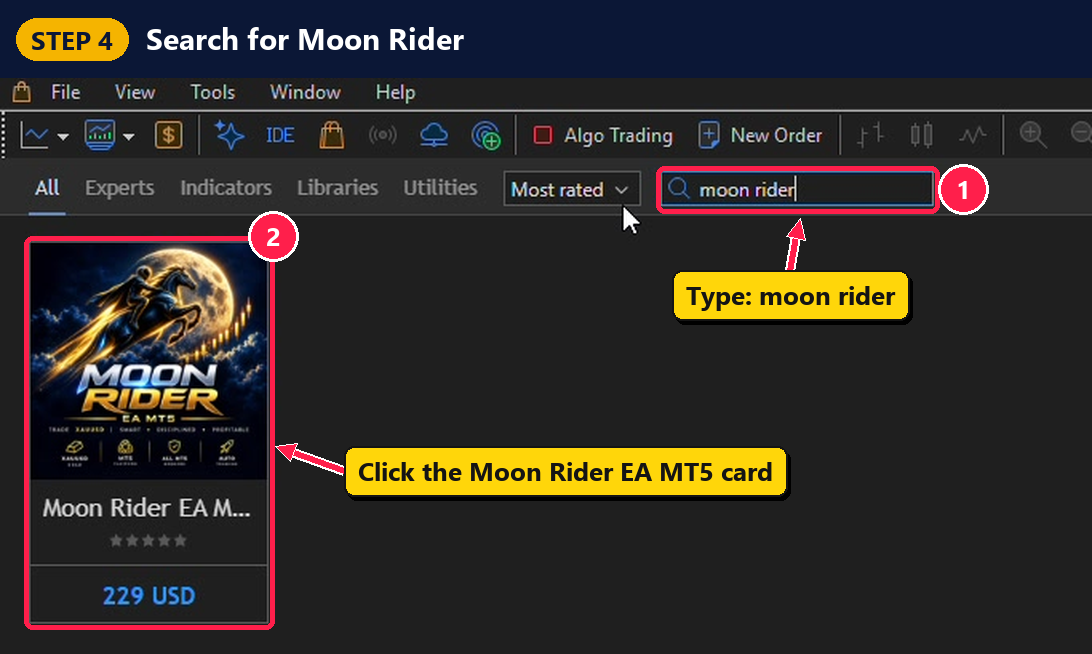
Step 4 — Search for Moon Rider
- Click the search box and type moon rider.
- Click the Moon Rider EA MT5 card.
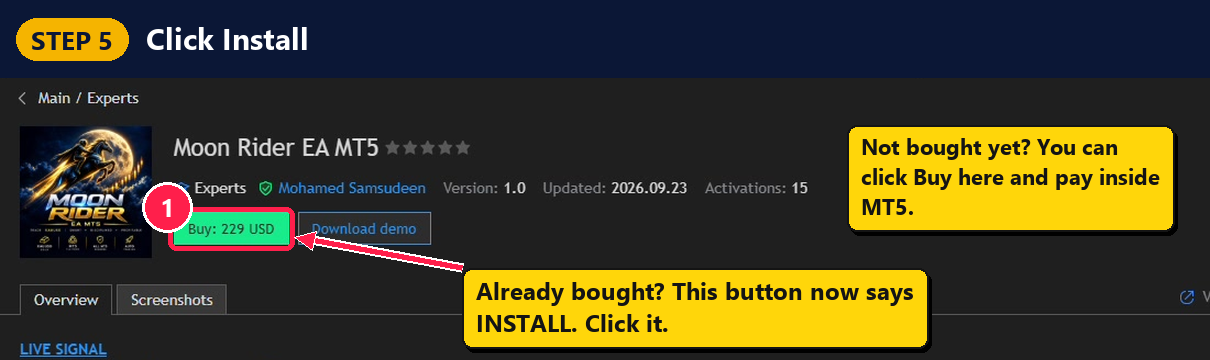
Step 5 — Click Install
You already bought Moon Rider, so the green button now says Install. Click it and wait a few seconds.
Not bought yet? You can also click Buy here and pay inside MetaTrader 5.
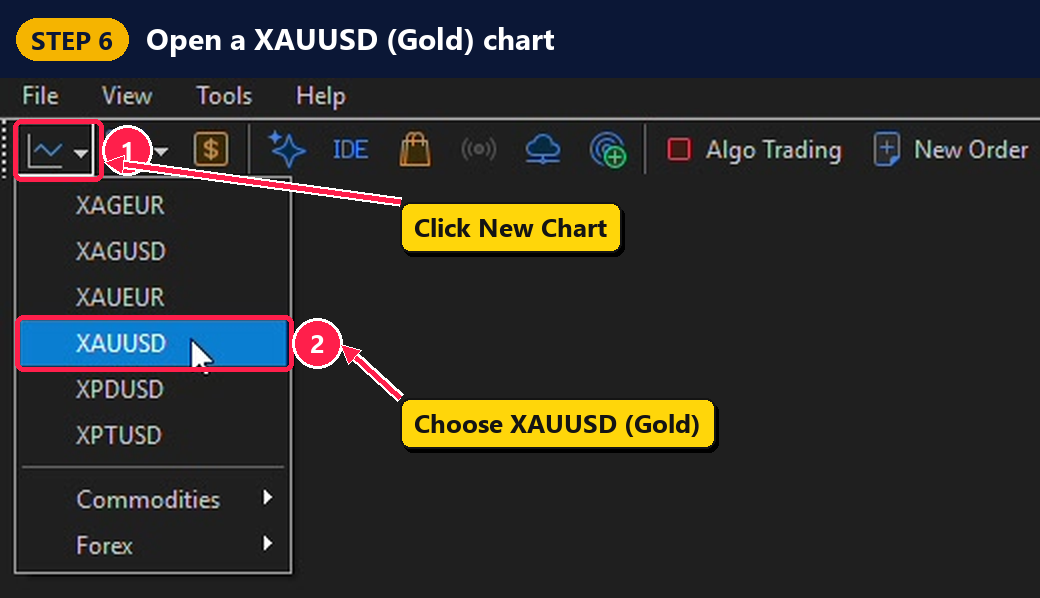
Step 6 — Open a XAUUSD (Gold) chart
- Click the New Chart button at the top left.
- Choose XAUUSD. This is gold.
Tip: some brokers use a different name, like GOLD or XAUUSD.m. That is fine.
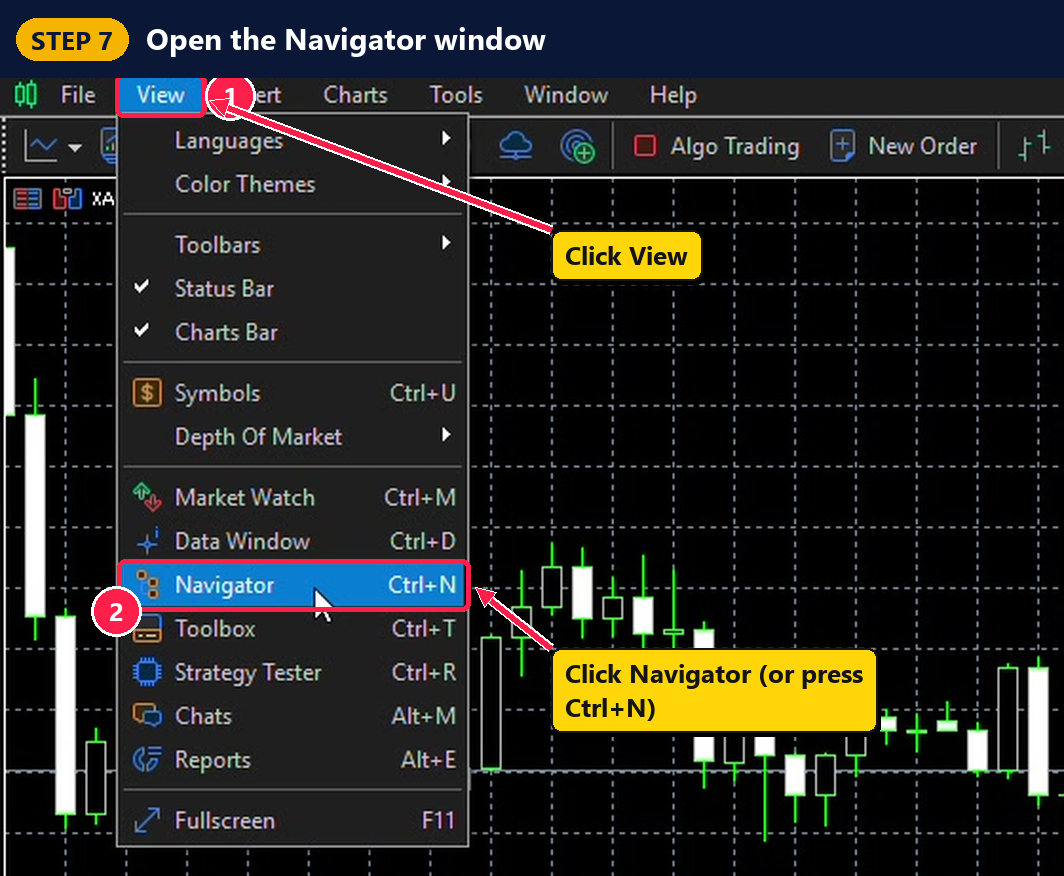
Step 7 — Open the Navigator window
- Click View in the top menu.
- Click Navigator. (Shortcut: press Ctrl + N.)
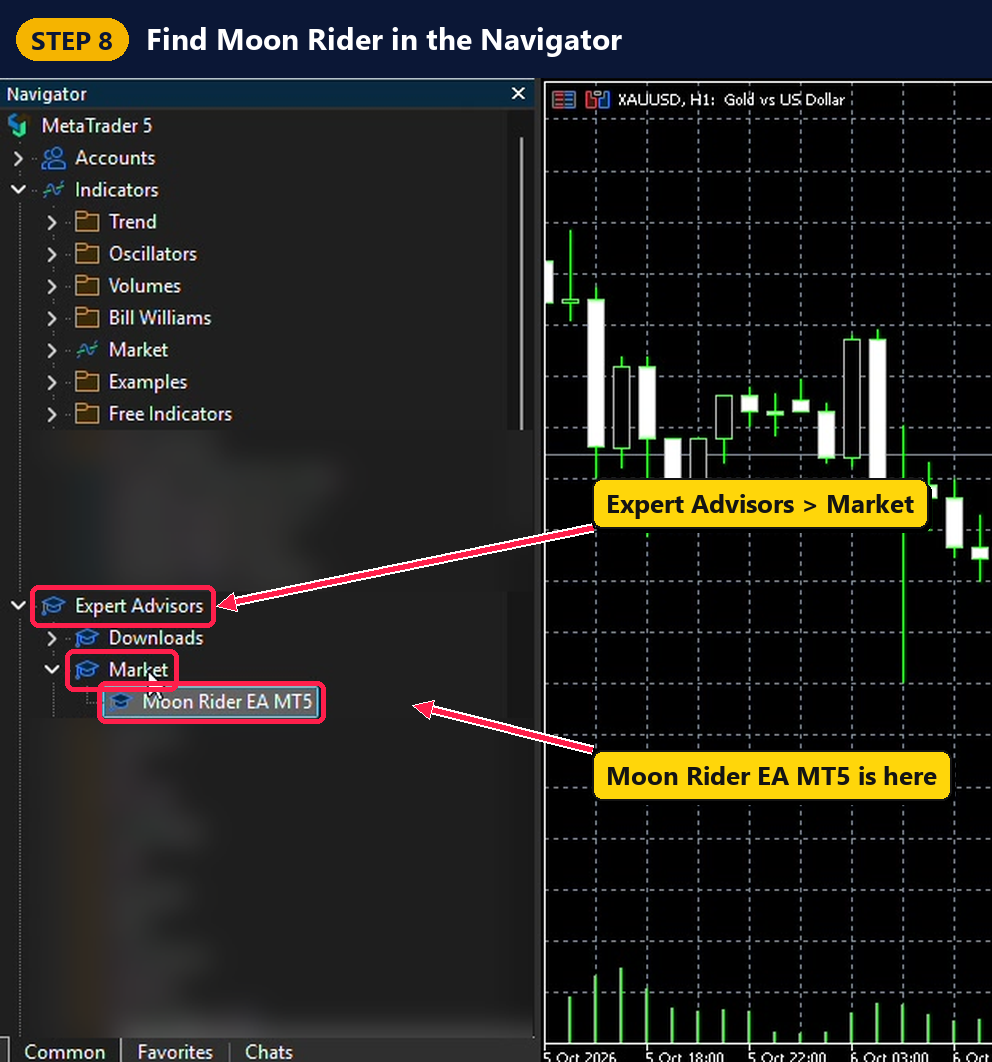
Step 8 — Find Moon Rider in the Navigator
In the Navigator, open Expert Advisors → Market. You will see Moon Rider EA MT5.
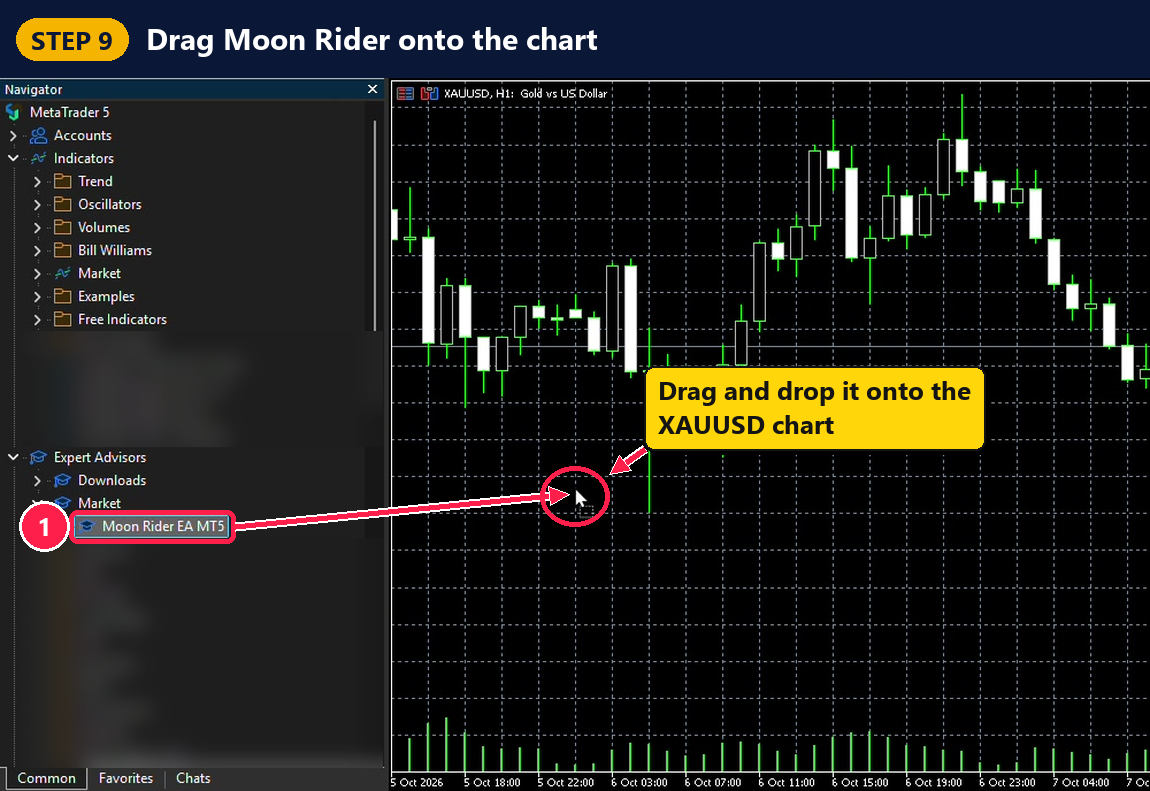
Step 9 — Drag Moon Rider onto the chart
Click Moon Rider EA MT5, hold the mouse button down, drag it onto the XAUUSD chart, and let go. (You can also just double-click it.)
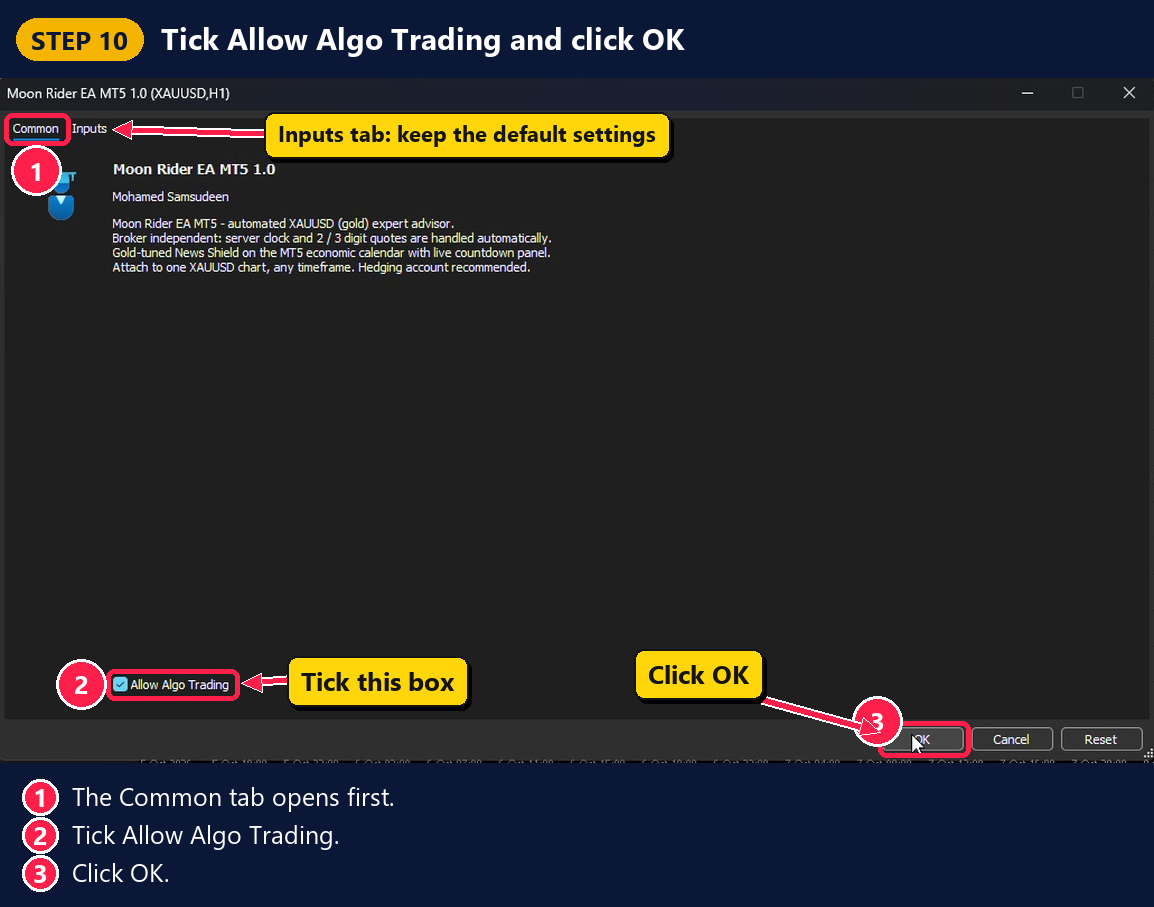
Step 10 — Tick "Allow Algo Trading" and click OK
- A settings window opens on the Common tab.
- Tick ✅ Allow Algo Trading.
- On the Inputs tab you can keep the default settings.
- Click OK.
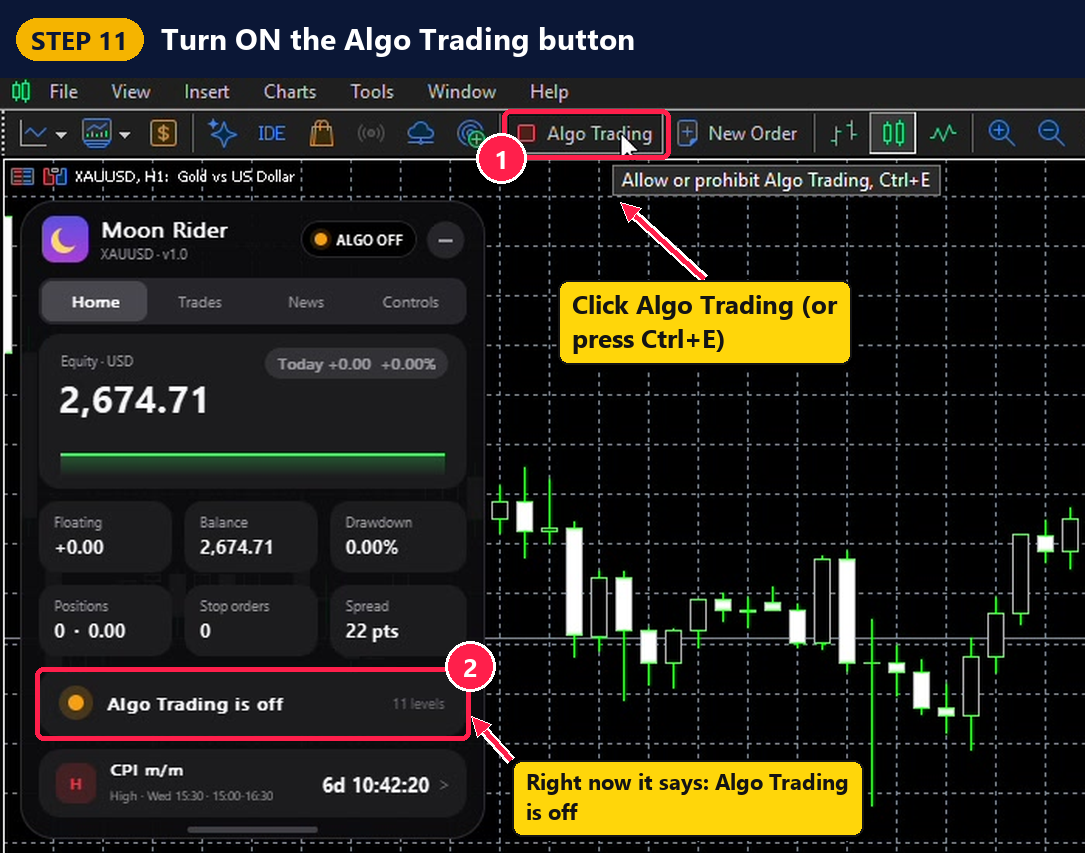
Step 11 — Turn ON the Algo Trading button
Right now the Moon Rider panel says Algo Trading is off. On the toolbar, click the Algo Trading button (shortcut: Ctrl + E).
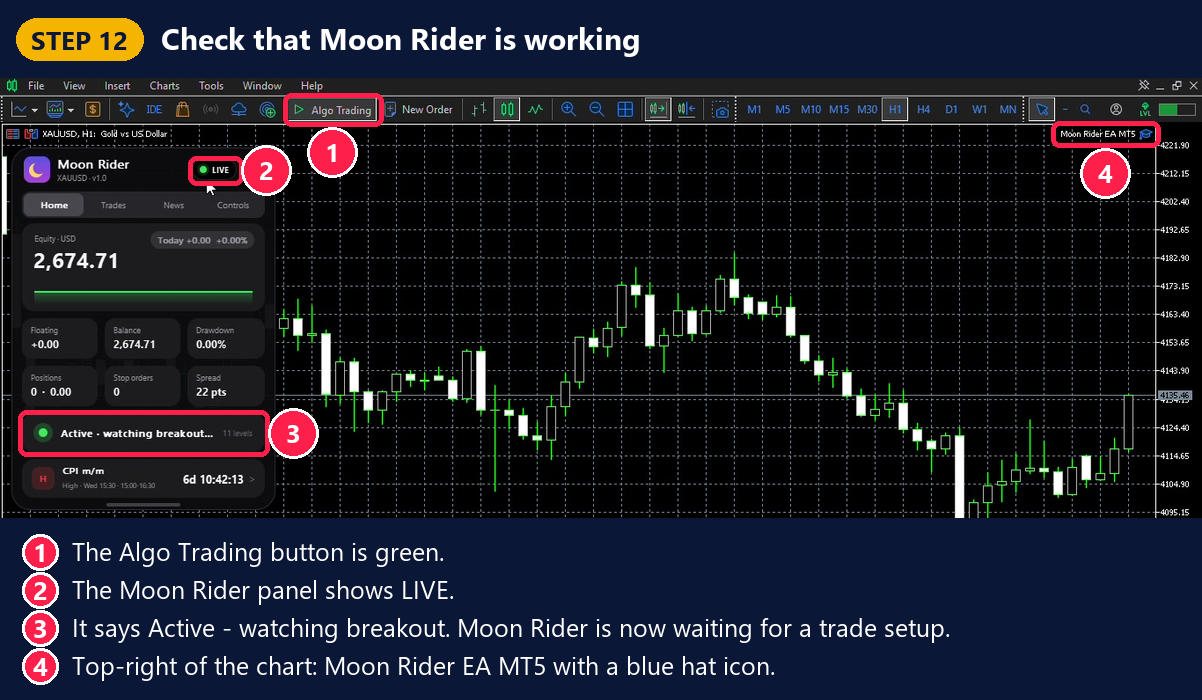
Step 12 — Check that Moon Rider is working
- The Algo Trading button is green.
- The Moon Rider panel shows LIVE.
- It says Active – watching breakout. Moon Rider is now waiting for a good trade setup.
- In the top-right corner of the chart you see Moon Rider EA MT5 with a small blue hat icon.
🎉 Great job! Moon Rider is installed.
PART 3 — ☁️ Move Moon Rider to a VPS (trade 24/5)
Why a VPS? Moon Rider only works while your computer is on and MetaTrader 5 is open. A VPS is a computer in the cloud. It keeps MetaTrader 5 running all the time, even when your own computer is off. The built-in MetaTrader VPS is the easiest choice for beginners.
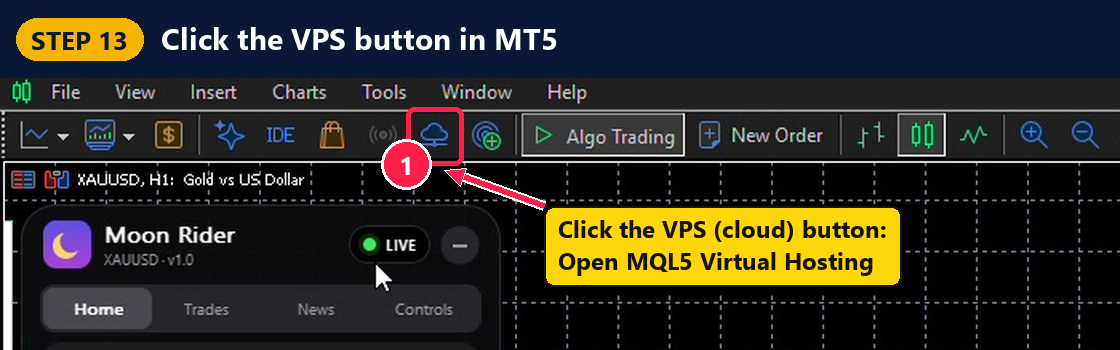
Step 13 — Click the VPS button in MetaTrader 5
On the toolbar, click the VPS button. It looks like a small cloud. When you move your mouse over it, it says Open MQL5 Virtual Hosting.
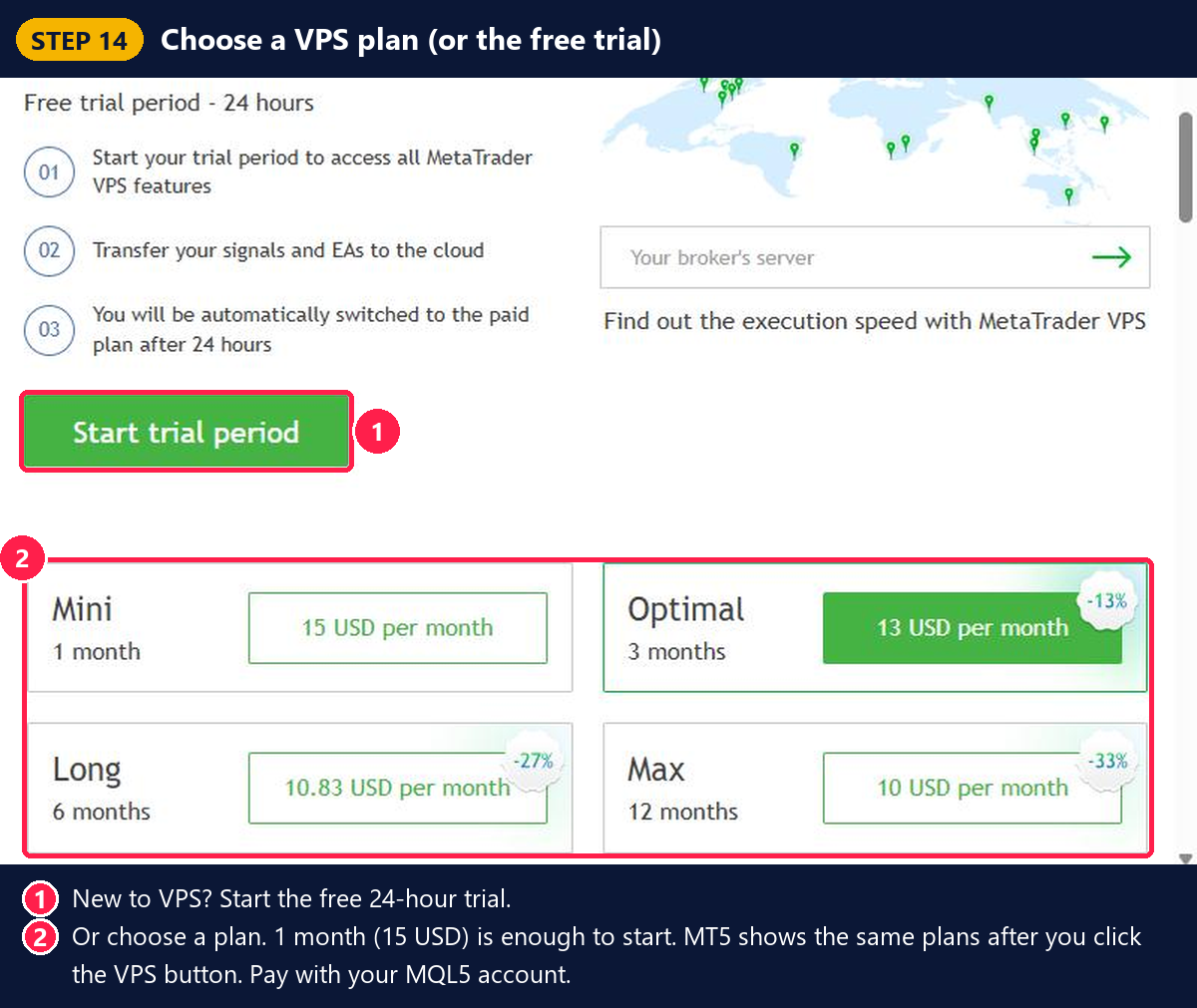
Step 14 — Choose a VPS plan (or the free trial)
- New to VPS? You can start the free 24-hour trial.
- Or choose a plan. 1 month is enough to start. Longer plans cost less per month.
- Pay with your MQL5 account. Your VPS is ready in a few minutes.
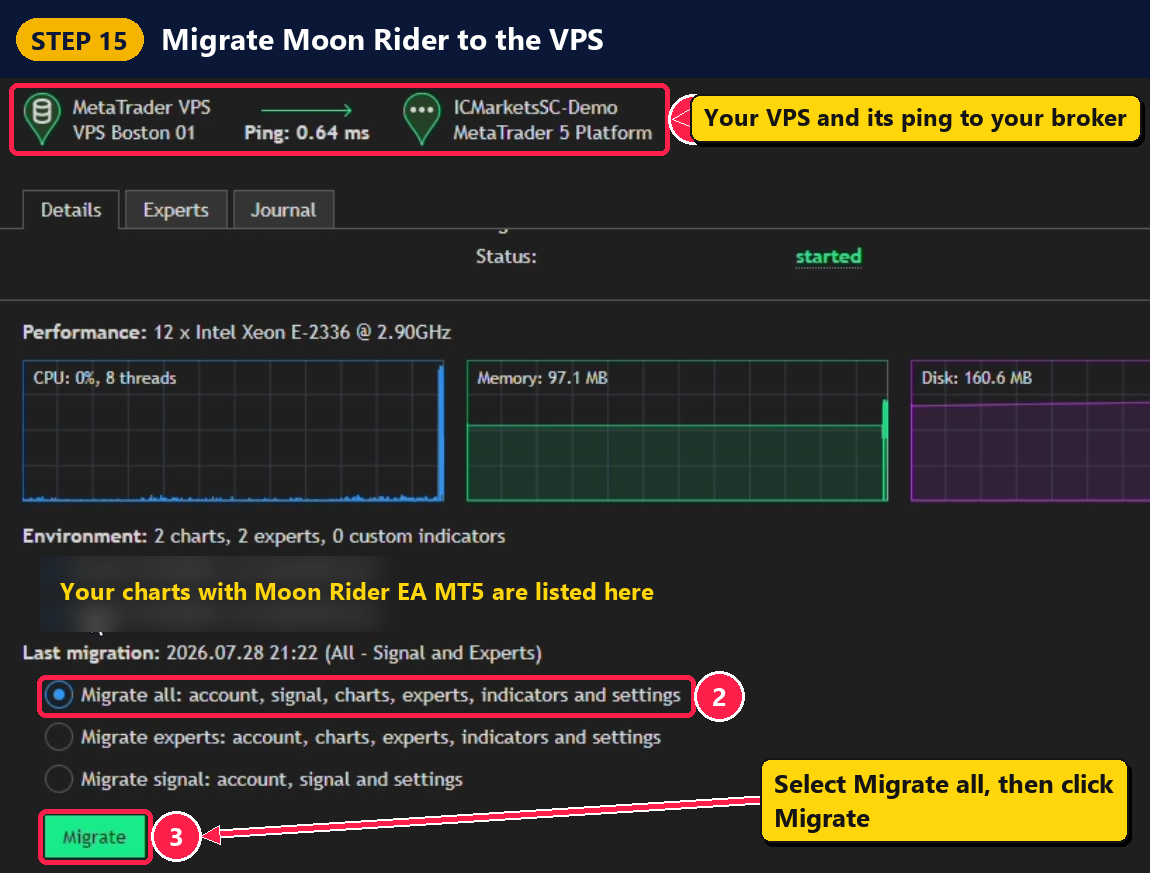
Step 15 — Migrate Moon Rider to the VPS
- At the top you see your VPS server and the ping to your broker. A small number is good.
- Make sure Algo Trading is still ON (green) on your computer.
- Select Migrate all.
- Click the green Migrate button and wait a few seconds.
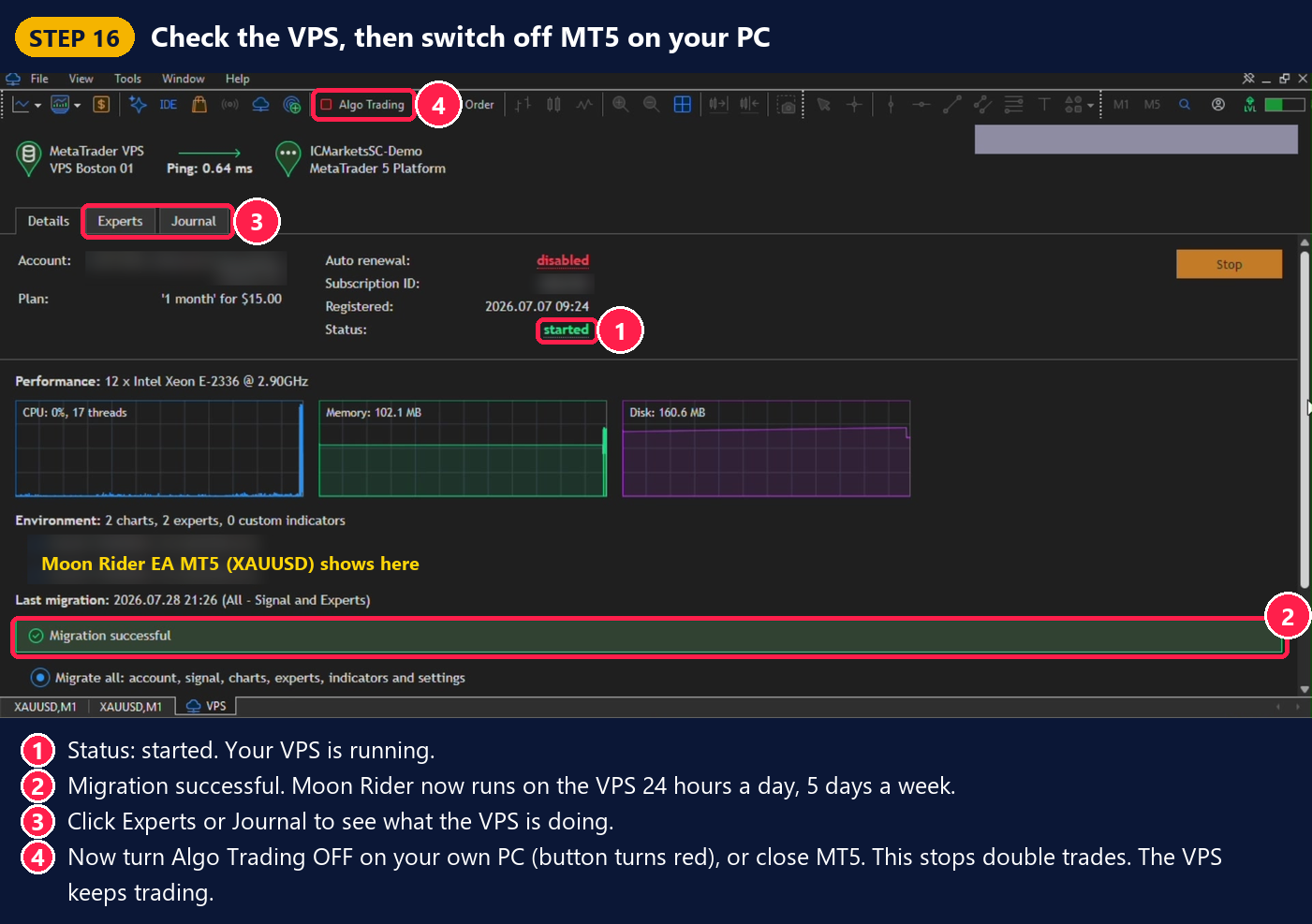
Step 16 — Check the VPS, then switch off MT5 on your computer
- Status: started. Your VPS is running.
- Migration successful. Moon Rider now runs on the VPS.
- Click the Experts or Journal tab to see messages from the VPS.
- Last step: on your own computer, turn Algo Trading OFF (the button turns red), or simply close MetaTrader 5. This stops double trades. The VPS keeps trading for you.
✅ Done! Moon Rider is now trading on the VPS, 24 hours a day, 5 days a week.
💡 Good to Know
- Changed a setting? Change it on your computer, then migrate again (Step 15). The VPS only gets new settings when you migrate.
- New Moon Rider version? Update it in the MetaTrader 5 Market, then migrate again.
- Never run Moon Rider on your computer and on the VPS at the same time on the same account. It can open double trades.
- Activations: each new computer where you install Moon Rider uses one activation. Moving to the MetaTrader VPS does not use an activation.
❓ FAQ & Troubleshooting
I cannot see Moon Rider in the Navigator.
Make sure MetaTrader 5 is logged in to the same MQL5 account you used to buy (Tools → Options → Community). Then open the Market again, search moon rider and click Install. Finally, right-click inside the Navigator and click Refresh.
The panel says "Algo Trading is off".
Click the Algo Trading button on the toolbar so it turns green. Also check Tools → Options → Expert Advisors → Allow algorithmic trading is ticked.
Moon Rider is LIVE but has not opened a trade yet.
This is normal. Moon Rider waits for a good breakout setup. It does not trade all the time. You can see its messages in the Experts tab (bottom of MetaTrader 5, press Ctrl + T to open the Toolbox).
My broker has no "XAUUSD" symbol.
Look for the gold symbol with a different name, like GOLD or XAUUSD.m. In MetaTrader 5, press Ctrl + U (Symbols) and search for "gold".
Do I need to keep my computer on after moving to the VPS?
No. After "Migration successful", the VPS trades for you. You only need your computer to change settings and migrate again.
🤝 Need Help?
If you have any question, leave a comment below or send me a private message on MQL5. I am happy to help you set up Moon Rider.
Moon Rider page: https://www.mql5.com/en/market/product/197154
Moon Rider channel (updates, live signal, performance analysis): https://www.mql5.com/en/channels/moonrider
⚠️ Risk Warning
Trading involves risk of loss. Past results do not guarantee future results. Only trade with money you can afford to lose. Start with the recommended settings and a balance that fits your lot size.




