
Zentriq Trade Manager — Official User Manual & Quick Start Guide

🛒 View on MQL5 Market | ⚡ Download Free Demo Trial
📑 Table of Contents
- Chapter 01: Overview and Quick Start
- Chapter 02: Visual Execution and Smart Lines
- Chapter 03: Risk Engine and Position Sizing
- Chapter 04: Partial Take Profits and Scaling Out
- Chapter 05: Break-Even and Trailing Stop Automation
- Chapter 06: Macroeconomic News Protection Engine
- Chapter 07: Order Management and Time Controls
- Chapter 08: Canvas UI Themes and Ergonomics
- Chapter 09: Full Inputs Reference and Diagnostics
Chapter 1: Overview and Quick Start
1. Introduction
Welcome to Zentriq Trade Manager. Built entirely on a custom, high-DPI vector canvas, this utility replaces clunky Windows dialogs with a sleek, zero-friction trading OS directly on your MetaTrader 5 chart.
The core philosophy behind Zentriq Trade Manager is Anticipatory Workflow. Instead of bombarding you with every setting at once, the interface adapts to your current trade state—presenting the exact risk controls, exit automation, and scaling options you need exactly when you need them.
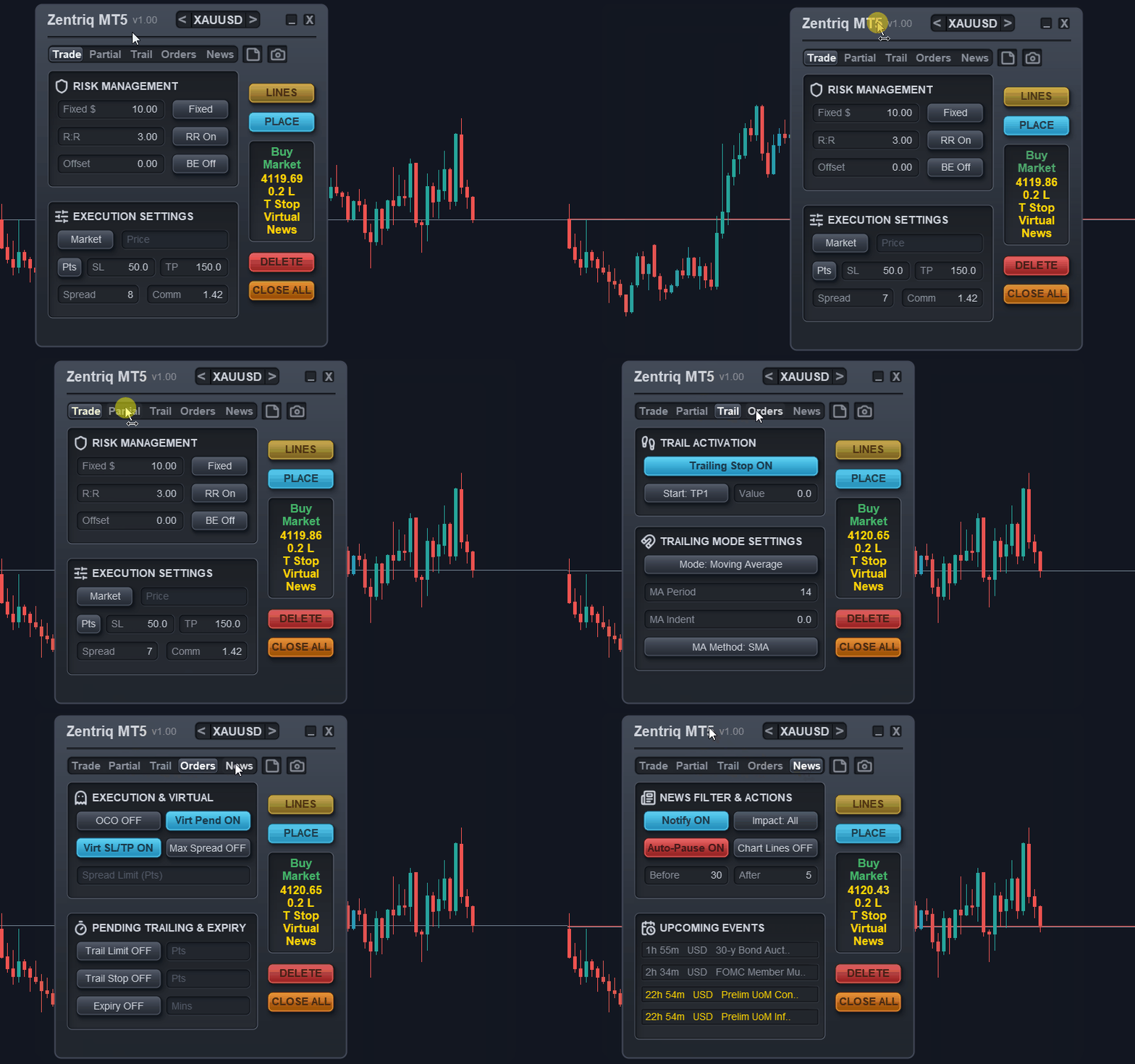
2. Interface Navigation & Key Concepts
Zentriq Trade Manager utilizes a compact design intended to keep your chart completely unobstructed. The GUI uses custom drawn canvas elements rather than native MT5 objects for smooth resizing and interaction.
🍔 The Burger Menu (Minimize / Close UI)
Located in the top right corner of the main panel, the window controls provide essential workspace management:
- Minimize ( - ): Collapses the main panel into a tiny horizontal strip, freeing up screen real estate while keeping your trade management active in the background. Click the maximize button to restore.
- Close ( x ): Removes the Zentriq Trade Manager interface entirely from the chart. This requires a confirmation click to prevent accidental closure.
💡 PRO TIP Try minimizing the panel using the Burger menu after entering a trade. Your automated trailing stops and breakeven rules will continue to run seamlessly in the background!
💱 Symbol List Selector
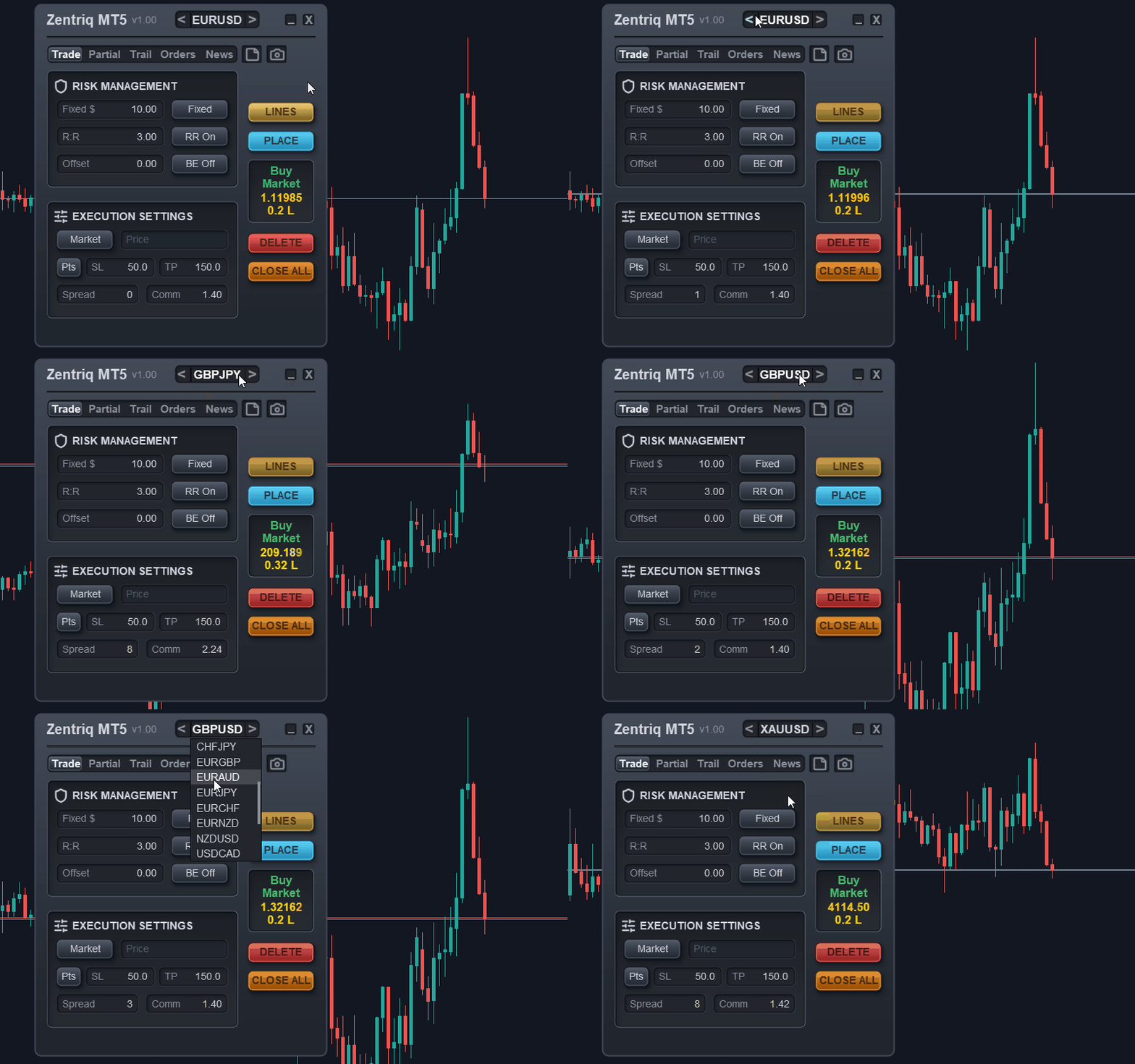
You do not need to open 10 different charts to trade 10 different pairs. The top of the panel features a robust Symbol List Selector:
- Use the Next/Prev ( < / > ) arrows to quickly cycle through symbols.
- Click the Center Symbol Name to open a scrollable dropdown list of available instruments.
- Symbol Source Modes: In the EA settings, you can define the Symbol Source as Market Watch (to pull all visible symbols from your MT5 Market Watch window) or Custom List (to supply a comma-separated list like EURUSD,GBPUSD,XAUUSD ). The EA will seamlessly switch context, updating the news panel and active positions for the newly selected symbol.
🍞 Toast Notification System
Traditional MetaTrader pop-ups freeze your entire platform and prevent you from clicking anything else until you hit "OK". This is catastrophic during fast-moving markets.
Zentriq Trade Manager uses a highly-responsive custom Toast Notification System. Important alerts (like "Order Request Sent", "News Blackout", or "Invalid Stops") slide in gracefully at the bottom of the screen with color-coded accents (e.g. Red for errors, Cyan for info, Gold for warnings) and fade out automatically, never blocking your execution flow.
3. Global Inputs: Identity and Management
Before placing trades, there are two crucial global inputs in the EA settings that dictate how Zentriq Trade Manager tracks your positions:
- Magic Number: This unique identifier (default: 62135 ) is assigned to every trade placed by the panel. It allows Zentriq Trade Manager to manage its own trades without interfering with other EAs running on the same account.
- Manage Manual/Mobile Trades: If enabled, Zentriq Trade Manager will "adopt" trades placed manually (e.g., via the MT5 mobile app or one-click trading). These trades have a Magic Number of 0 . Zentriq Trade Manager will instantly pick them up and apply its trailing stops, break-even rules, and partial exits to these manual trades.
⚠️ IMPORTANT NOTICE If you run multiple instances of Zentriq Trade Manager on different charts for the *same* symbol, ensure they have different Magic Numbers, otherwise they will fight for control over the same positions!
4. Installation & Setup
Installing Zentriq Trade Manager is seamless and instantaneous:
- Automatic Market Installation: When you download or purchase from the MQL5 Market directly within MetaTrader 5, the terminal installs the Expert Advisor automatically into your Expert Advisors\Market\ section.
- Refresh Navigator Panel: In MetaTrader 5, open your Navigator window ( Ctrl+N ) and expand Expert Advisors > Market. If Zentriq Trade Manager does not appear immediately, simply right-click anywhere inside the Navigator panel and click Refresh (or restart MT5).
- Manual Trial Installation (Optional): If using a standalone trial .ex5 file, open MT5, go to File > Open Data Folder > MQL5\Experts\ , paste the file there, and refresh the Navigator.
- Enable WebRequest for News Filter: Go to Tools > Options > Expert Advisors tab. Check "Allow WebRequest for listed URL" and add https://nfs.faireconomy.media .
5. 5-Minute Quick Start Guide
Ready to place your first trade?
- Attach to Chart: Drag and drop Zentriq Trade Manager onto your chart.
- Enable Algo Trading: Ensure the "Algo Trading" button on the top MT5 toolbar is green (enabled).
- Select Risk: On the main panel's Trade tab, click the Risk button to toggle modes and enter a value (e.g., 1.0 for 1%).
- Position Lines: Click the Lines button in the action column. Virtual Entry, Stop Loss (SL), and Take Profit (TP) lines will appear on the chart. Drag the SL to your invalidation point.
- Execute: Click Place to execute the trade.
Chapter 2: Visual Execution and Smart Lines
1. Introduction
A core pillar of Zentriq Trade Manager is keeping your eyes on the chart, not on numbers in a dialog box. By interacting directly with visual price levels, your execution speed and precision are vastly improved. This chapter covers the visual execution layer, including draggable smart lines, hidden virtual orders, keyboard hotkeys, and advanced OCO (One-Cancels-Other) setups.
2. The Action Column
Located on the main panel, the Action Column provides instant access to your essential pre-trade and post-trade execution controls:
- Lines: Spawns the interactive On-Chart Trade Controls (Entry, SL, and TPs) onto your chart.
- Place: Executes the trade based on the current position of your Entry, SL, and TP lines.
- Delete: Removes unexecuted lines from the chart, canceling the setup, and deletes any pending orders that haven't triggered.
- Close All: A master panic button that immediately liquidates all open positions and deletes all pending orders for the active symbol.
3. On-Chart Trade Controls, Dragging & Magnet Mode
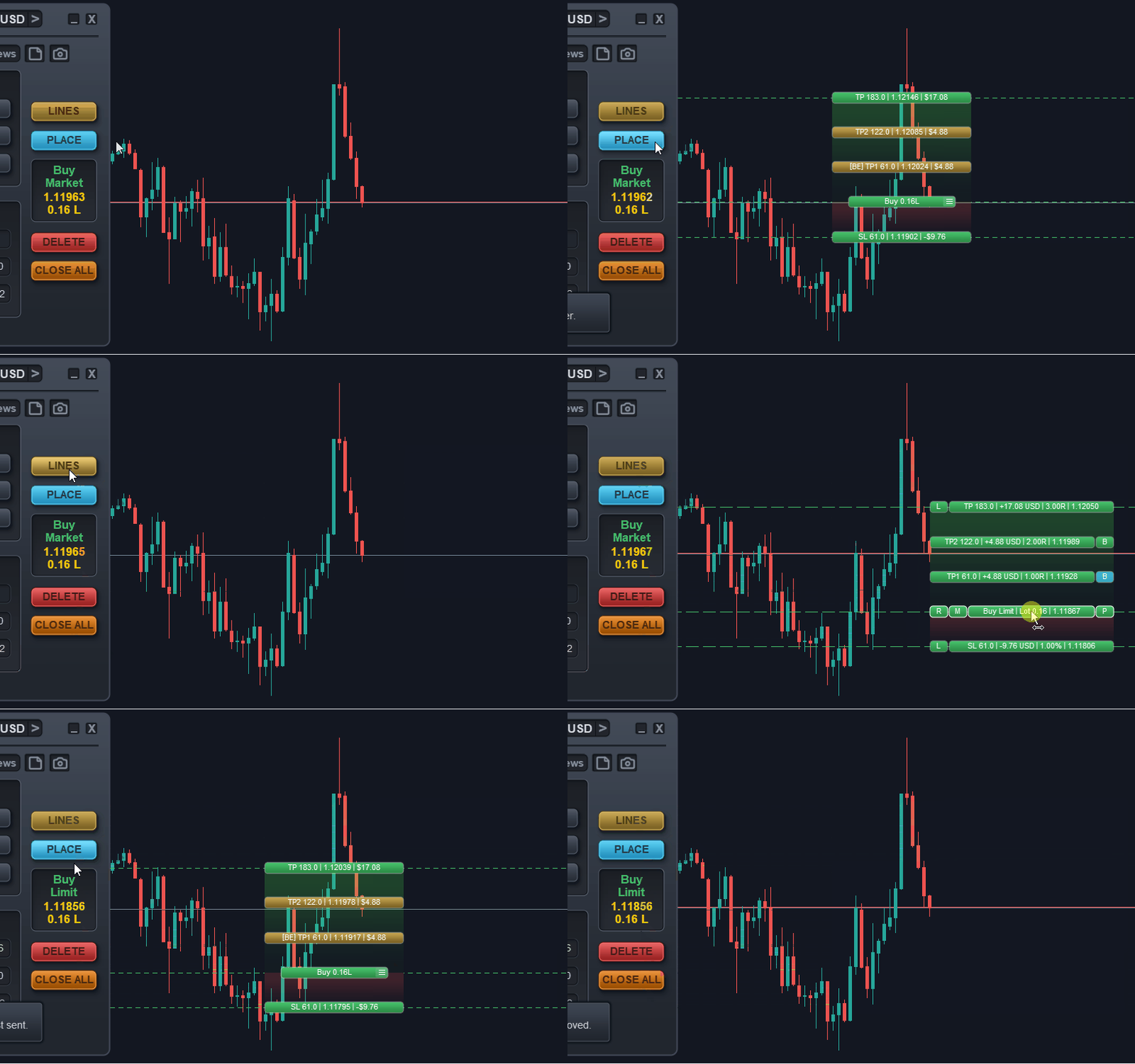
When you click Lines, Zentriq Trade Manager projects horizontal control lines onto your chart. These are not standard MT5 objects, but high-performance canvas lines that update instantly:
- Entry Line (Green for Buy/Red for Sell, depending on trade direction bias)
- Stop Loss (SL) Line (Red zone fill)
- Take Profit (TP) Lines: Includes TP1 through TP5, plus the Final TP (Green zone fill).
Interactive Dragging
Simply click and hold the text box (pill) of any line to drag it to a new price level. As you drag the SL line, the integrated risk engine instantly recalculates the required lot size to maintain your exact risk parameters (e.g., exactly 1% of balance at the new Stop Loss distance).
ℹ️ NOTE Dragging the Entry line above current market price will automatically prepare a Buy Stop or Sell Limit, while dragging it below will prepare a Buy Limit or Sell Stop.
Magnet Mode
When enabled via the 'M' button on the chart's entry line, or by cycling the Pending / Market button under the execution settings section of the Trade tab on the main panel, Magnet Mode snaps your draggable lines (Entry, SL, TP) to the nearest bid or ask price. Toggling between Market and Pending automatically engages or releases Magnet Mode. This ensures perfect market-execution placement. The system enforces a minimum 1-tick distance to prevent execution overlaps and division-by-zero errors in risk calculation.
4. Context Pop-out Menu & Trade Tickets
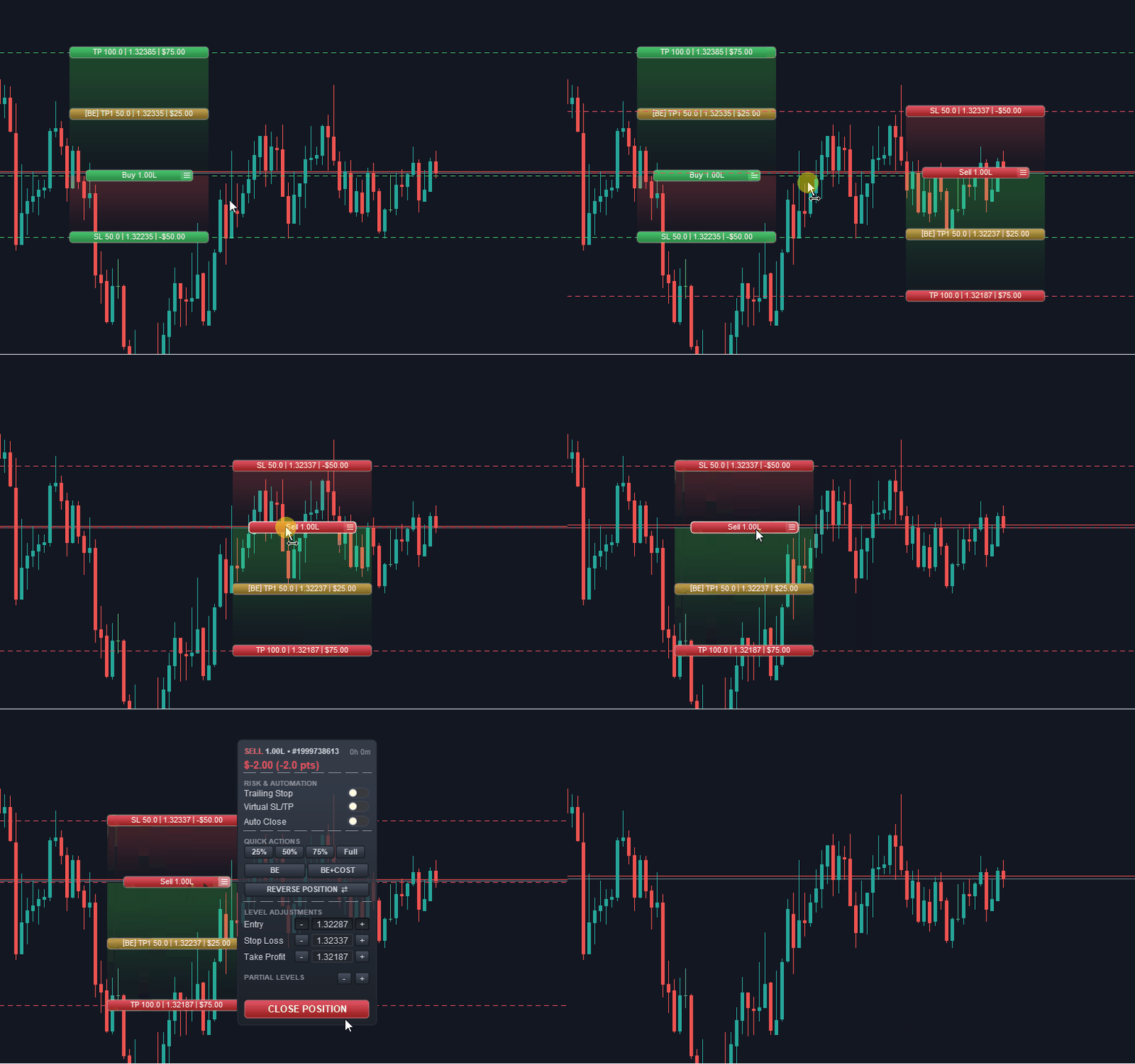
Every open position and pending order placed via Zentriq Trade Manager features an interactive on-chart ticket. Clicking directly on the burger icon (the three horizontal lines on the right edge of the trade ticket / entry line box) of the Trade Control UI reveals the Context Pop-out Menu.
This menu provides rapid access to advanced actions directly from the chart:
- Modify: Opens quick inputs to adjust SL/TP distances.
- One-Click Close: Instantly closes that specific position or deletes that specific pending order.
- One-Click Reverse (R): Closes the current position and instantly opens a new position in the opposite direction with the same risk sizing. Perfect for rapid structural shifts in price action.
- Break-Even (B): Moves the specific partial Take Profit or Stop Loss to your break-even level instantly.
5. Keyboard Hotkeys
For high-speed execution, Zentriq Trade Manager supports a full suite of keyboard hotkeys. In the EA inputs, you can assign a modifier key (None, Shift, or Ctrl) alongside the following default assignments:
- B: Buy at Market
- S: Sell at Market
- C: Close All Trades
- E: Move to Break-Even
- T: Toggle Trade Lines
- L: Toggle Stop Loss Lock
- P: Take Screenshot
- M: Minimize / Maximize Panel
6. Safety: Trade Confirmations
To prevent accidental misclicks during high-stress trading, Zentriq Trade Manager includes a built-in safety net.
In the EA inputs, you can enable Trade Confirmations for Market Orders, Pending Orders, and Close All.
When enabled, triggering one of these actions will spawn a confirmation dialog requiring a second click within a 3-second timeout window to proceed.
7. Virtual Orders and Hidden Levels
Institutional traders often hide their true intentions from the broker to avoid stop hunts or slippage profiling. Zentriq Trade Manager handles this via the Virtual Pending and Virtual SL/TP buttons on the Orders tab.
Virtual Pending Orders
When you place a pending order with "Virtual" enabled, the order is not sent to the broker. Instead, Zentriq Trade Manager holds the order locally in its internal state memory. The moment price touches your virtual Entry line, the EA instantly fires a Market Order to the broker.
Virtual SL/TP
Similarly, you can configure your Stop Loss and Take Profit levels to be Virtual. The broker will see your trade as having no SL or TP. Zentriq Trade Manager monitors the price tick-by-tick and executes a market close the millisecond the price crosses your virtual lines.
⚠️ IMPORTANT NOTICE Virtual Orders and Virtual SL/TP require your MetaTrader 5 terminal to be running and connected to the internet 24/7 (ideally on a VPS). If your terminal shuts down or loses connection, the broker will not execute your virtual exits.
8. OCO (One-Cancels-Other) Pairing Mode
Trading breakouts and high-volatility news events often requires placing both a Buy Stop (above consolidation) and a Sell Stop (below consolidation). OCO (One-Cancels-Other) Pairing Mode ensures that once the market commits to one direction, opposing orders are instantly eliminated to avoid double-exposure and unwanted whipsaws.
Two Ways to Link OCO Orders
- Interactive On-Chart Pairing: Open the Trade Control Pop-out Menu on any existing pending order by clicking its burger icon, and toggle the OCO Order switch. The ticket illuminates in a distinct purple pairing highlight. Simply click the second pending order on your chart to establish an instant bidirectional link. Both orders immediately display a clear [O] tag on their tickets.
- Global OCO Toggle (Orders Tab): Enabling the OCO toggle on the Main Panel's Orders tab automatically pairs opposing pending orders placed for the active symbol.
Preventing Accidental Orders
- Strict Order Validation: Only valid pending orders (Limit/Stop or Virtual Pending) are accepted as valid OCO partners. Active market positions are automatically rejected to prevent accidental interference with live trades.
- Safe Pairing Exit: Clicking the originating ticket again, or clicking empty chart canvas, safely cancels pairing mode immediately with a toast notification, avoiding unintended pairings.
Preventing Orphan Orders & Dangling Links
- Atomic Partner Cancellation: The exact millisecond one leg triggers (whether filled on the broker or triggered via a virtual price breach), the Risk Engine immediately deletes the partner order (canceling broker orders and purging virtual memory), leaving zero risk of double exposure.
- Smart Relationship Dissolution: If you manually delete one pending order, or if one order expires due to Cancel by Price or Cancel by Time, the system automatically dissolves the OCO link and restores the remaining order to a standard standalone pending order. It will never remain trapped with a dead reference or suffer unexpected phantom cancellations later.
Chapter 3: Risk Engine and Position Sizing
1. Introduction
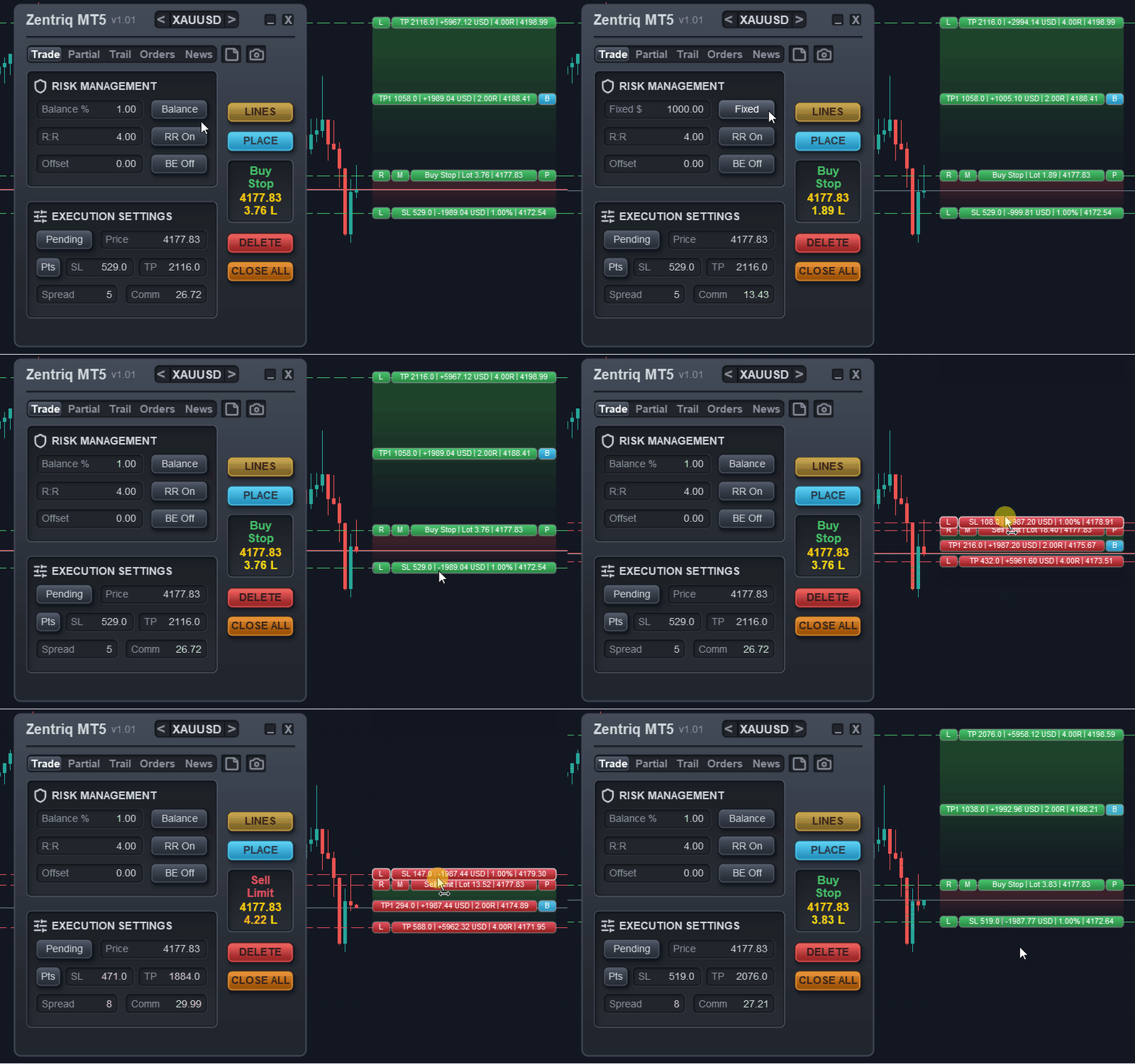
The core philosophy of Zentriq Trade Manager is preservation of capital. To achieve this, the Risk Engine completely removes the need for manual lot size calculations. You simply define your risk tolerance, and the EA automatically calculates the precise lot size for every trade—dynamically adjusting in real-time as you drag your Stop Loss line on the chart.
2. Risk Modes
Zentriq Trade Manager offers five distinct methods for calculating your position size. You can cycle through these modes directly on the Main Panel's Trade tab to suit your trading strategy.
- % Balance: Risks a precise percentage of your account's *current balance*. This is the standard method for compounding your account steadily.
- % Equity: Risks a percentage of your account's *current equity* (which includes floating profits and losses). This is particularly useful if you are scaling into new trades while you already have open, profitable positions.
- Margin %: Sizes the position to consume a specific percentage of your available free margin.
- Fixed $: Risks a fixed monetary amount (e.g., $100 per trade). The lot size will adjust dynamically based on how wide your Stop Loss is.
- Fixed Lots: Bypasses the dynamic calculator entirely. You specify the exact lot size (e.g., 1.00 lots), and the EA will use that size regardless of your Stop Loss distance.
💡 PRO TIP Dynamic Sizing: When using Balance, Equity, or Currency risk modes, dragging your Stop Loss line on the chart will *automatically* recalculate and update your Lot Size and risk value on the SL ticket in real-time.
3. SL/TP Input Modes (Points vs. Price)
The panel allows you to define your Stop Loss (SL) and Take Profit (TP) parameters in two different ways, accommodating different trading styles:
- Points: You specify the distance from your entry price in points (e.g., 200 points). This is highly effective for quick scalping or if you trade with standard fixed distances.
- Price: You input the exact structural price level on the chart (e.g., 1.05500).
ℹ️ NOTE Regardless of which input mode you choose, you can always drag the visual lines on the chart to adjust the values. The panel will automatically sync to match your visual adjustments.
4. Dynamic R:R (Risk:Reward) Target Scaling
The Risk:Reward scaling engine ensures you always maintain a favorable trading profile. When you adjust your Stop Loss distance, the Take Profit line can automatically scale to maintain a fixed Risk:Reward ratio (e.g., 1:2 or 1:3).
- How it works: The engine measures the exact distance of your Stop Loss risk. It then projects the Take Profit target at a multiple of that distance (the rr_main variable).
- Locking the Ratio (RR On / RR Off): Locking the Risk:Reward ratio is achieved directly on the main panel by operating the RR On / RR Off button (located next to the R:R input on the Trade tab). When RR On is active, dragging the Stop Loss line dynamically pushes or pulls the Take Profit line to maintain your exact locked ratio. When toggled to RR Off, dragging the Stop Loss leaves the Take Profit at its existing price level and dynamically recalculates the R:R ratio instead. (Note: Locking the TP line via the 'L' toggle on the chart line is an independent feature for fixing the absolute price of the TP line when moving the entry price, and is not related to ratio scaling.)
5. Commission Per Lot Handling
Accurate risk calculation requires accounting for your broker's transaction costs. Zentriq Trade Manager features an Auto-Detect Commission System that automatically determines your round-turn broker commissions, while giving you full override control:
- Auto-Detection & Manual Override: Commission is auto-detected from your account's trade history unless you explicitly specify a custom commission per lot in the user input settings ( Commission per Lot ). Any user-specified value overrides the auto-detection engine.
- How it works: In the global settings or via history detection, the commission per lot is established. The Risk Engine deducts this estimated commission from your risk limit before calculating the lot size.
- The Calculation: If you decide to risk $100 on a trade, the EA deducts the estimated commission from the risk budget first and calculates the lot size accordingly. It ensures that if your Stop Loss is hit, the money lost from the price movement plus the commission paid will exactly equal your $100 risk limit.
6. Virtual Orders & Broker-Side Safety Nets
When using Virtual Mode, your Pending Orders, Stop Losses, and Take Profits are completely hidden from your broker. The EA manages them locally on your chart and triggers market execution only when the exact price is reached.
However, trading with hidden stops exposes you to the risk of internet disconnection or terminal crashes. To mitigate this, Zentriq Trade Manager employs a Broker-Side Safety Net.
- Safety SL/TP Offsets: Even in Virtual Mode, if Broker-Side Protection is enabled, the EA places a "hard" Stop Loss and Take Profit on the broker's server. These hard stops are placed slightly wider than your virtual levels (configurable via the EA inputs).
- The Result: If your MT5 terminal disconnects, the broker-side hard stops act as a catastrophic fail-safe to protect your account. If your terminal remains connected normally, your tighter virtual stops will always trigger first and close the trade cleanly.
⚠️ IMPORTANT NOTICE Always enable the Broker Safety Net when trading with Virtual Stops, especially if you are not using a VPS or have an unstable internet connection.
7. Max Spread & Slippage Protections
To protect your entries during highly volatile conditions (such as major news events or daily rollover periods), the Risk Engine includes built-in pre-trade validations on the Orders tab.
- Max Spread: If the current spread widens beyond your defined maximum limit, the EA will block the execution of Market and Virtual Pending orders until the spread normalizes. You will receive a Toast notification alerting you of the high spread.
- Execution Safety: The EA protects against executing pending orders in extreme market conditions by strictly adhering to the broker's minimum required distance rules. This ensures your trades and modifications aren't rejected during periods of intense volatility.
💡 PRO TIP If you notice that your trades aren't triggering during volatile times, check the Diagnostics Log (via the panel's Debug Mode). The log will explicitly tell you if a trade was blocked due to the spread exceeding your maximum limit.
Chapter 4: Partial Take Profits and Scaling Out
Welcome to Chapter 4 of the Zentriq Trade Manager User Manual. One of the most powerful ways to secure gains while letting winners run is by scaling out of your positions. Zentriq Trade Manager provides a highly flexible, multi-stage partial profit system that works seamlessly on your chart.
Multi-Stage Partials
Zentriq Trade Manager allows you to define up to 5 Partial Take Profit (TP) stages, plus your Final Take Profit. This means you can slice your trade into up to six separate exits, securing profit incrementally as the market moves in your favor.
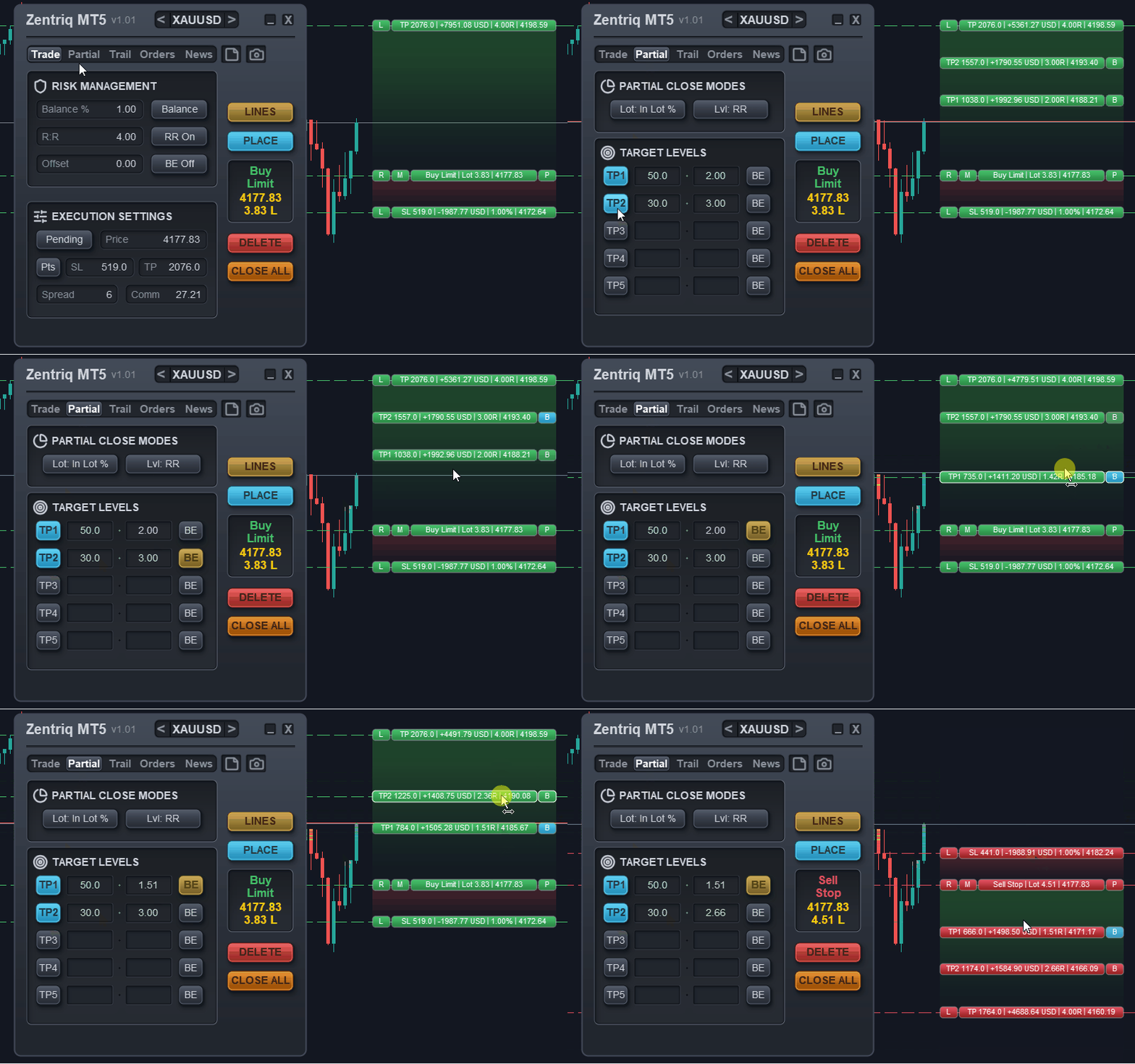
ℹ️ NOTE Each stage can trigger independently. Once a stage is reached, the Expert Advisor (EA) automatically closes the specified portion of your trade.
Partial Lot Sizing Modes
When configuring how much of your position to close at each stage, you have three distinct sizing modes. This flexibility ensures your scaling strategy fits your exact risk management rules:
- % of Initial Lot: Closes a percentage of the *original* trade size. For example, if you opened 1.00 lot and set TP1 to 50%, the EA will close 0.50 lots. If TP2 is also set to 50%, it will close the remaining 0.50 lots.
- % of Current Lot: Closes a percentage of the *remaining* open volume. If you opened 1.00 lot and TP1 closes 50% (0.50 lots), your remaining position is 0.50 lots. If TP2 is set to 50% of the current lot, it will close 0.25 lots (half of what is left).
- Fixed Lot: Closes an exact lot size, regardless of the total position size. For example, you can set TP1 to close exactly 0.10 lots.
💡 PRO TIP If you have an uneven lot size that cannot be divided perfectly according to your broker's minimum lot step, Zentriq Trade Manager will automatically round to the nearest valid lot size to ensure your partial close executes without broker errors.
Partial Level Target Modes
Just as you can choose *how much* to close, you can also define *where* the partial should trigger. Zentriq Trade Manager supports four ways to set your partial profit levels:
- Risk/Reward (R:R) Multiple: Set your partial to trigger at a specific R:R ratio. For instance, an R:R of 1.0 means the partial triggers when your profit equals your initial stop-loss risk. An R:R of 2.0 triggers when profit is double the risk.
- Points Distance: Set the partial to trigger a fixed number of points away from your entry price.
- Exact Price: Define a specific, hardcoded price level on the chart for the partial close to execute.
- Auto Level: Let the EA automatically calculate equal distances for your active TP stages based on your Final Take Profit. The EA will distribute the active partial levels evenly between your entry and the final target.
⚠️ IMPORTANT NOTICE If a sudden price spike (slippage) jumps past your partial level, Zentriq Trade Manager will execute the partial close immediately at the current available market price, ensuring you don't miss your scaling out opportunity.
Interactive TP Lines & UI Boxes
Zentriq Trade Manager brings your partial targets directly to your chart. You don't need to navigate through complex menus once your trade is placed.
- Visual Lines: Each active TP stage is represented by an interactive line on your chart.
- Drag and Drop: You can freely drag the TP lines up or down to adjust your partial levels on the fly. The EA instantly recalculates and updates the backend logic.
- UI Boxes: Attached to each line is a clean UI box displaying the lot size that will be closed and the projected profit for that stage.
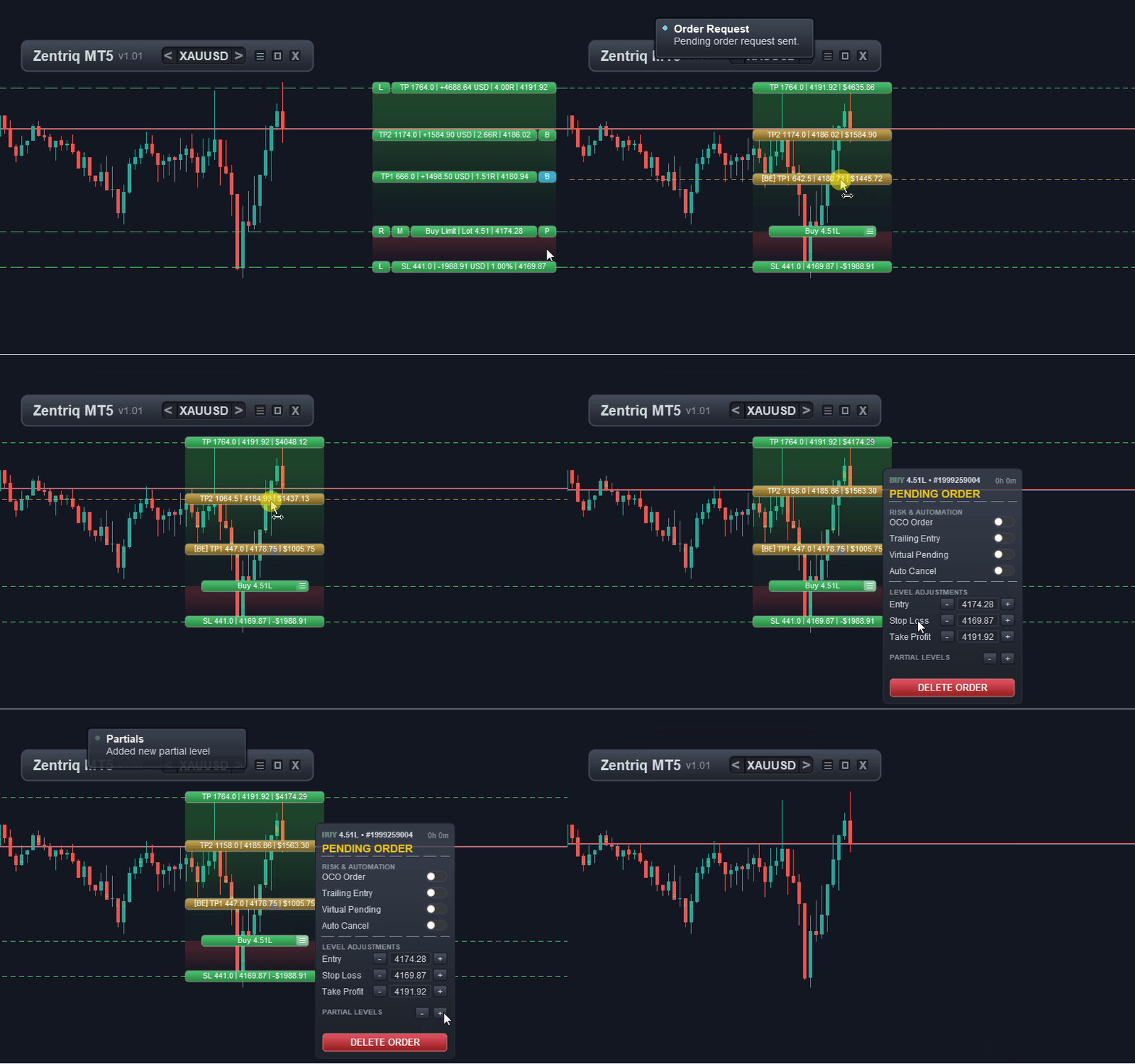
⚠️ IMPORTANT NOTICE While you can drag partial lines freely, ensure they are placed within your broker's minimum Stop Level rules, unless you are using Zentriq Trade Manager's "Virtual" mode, which hides the levels from the broker and executes them internally.
Summary
Scaling out of positions has never been more intuitive. By combining different sizing modes, targeting logic, and interactive chart elements, you maintain complete control over your trade management while removing the emotion of manual exits. In the next chapter, we will explore how to automatically move your Stop Loss to Break-Even as these partials are hit.
Chapter 5: Break-Even and Trailing Stop Automation
Zentriq Trade Manager takes the emotion out of trade management by offering a robust, fully automated suite for protecting your capital and letting your winners run. Whether you want a simple break-even trigger or a complex, volatility-adjusted trailing stop, the Risk Engine handles the calculations and order modifications seamlessly in the background.
1. Break-Even Automation & Manual Controls
The Break-Even (BE) system removes the risk from a position once the market has moved favorably. Zentriq Trade Manager provides two intuitive interfaces to execute Break-Even on demand, alongside automatic stage-linked triggers:
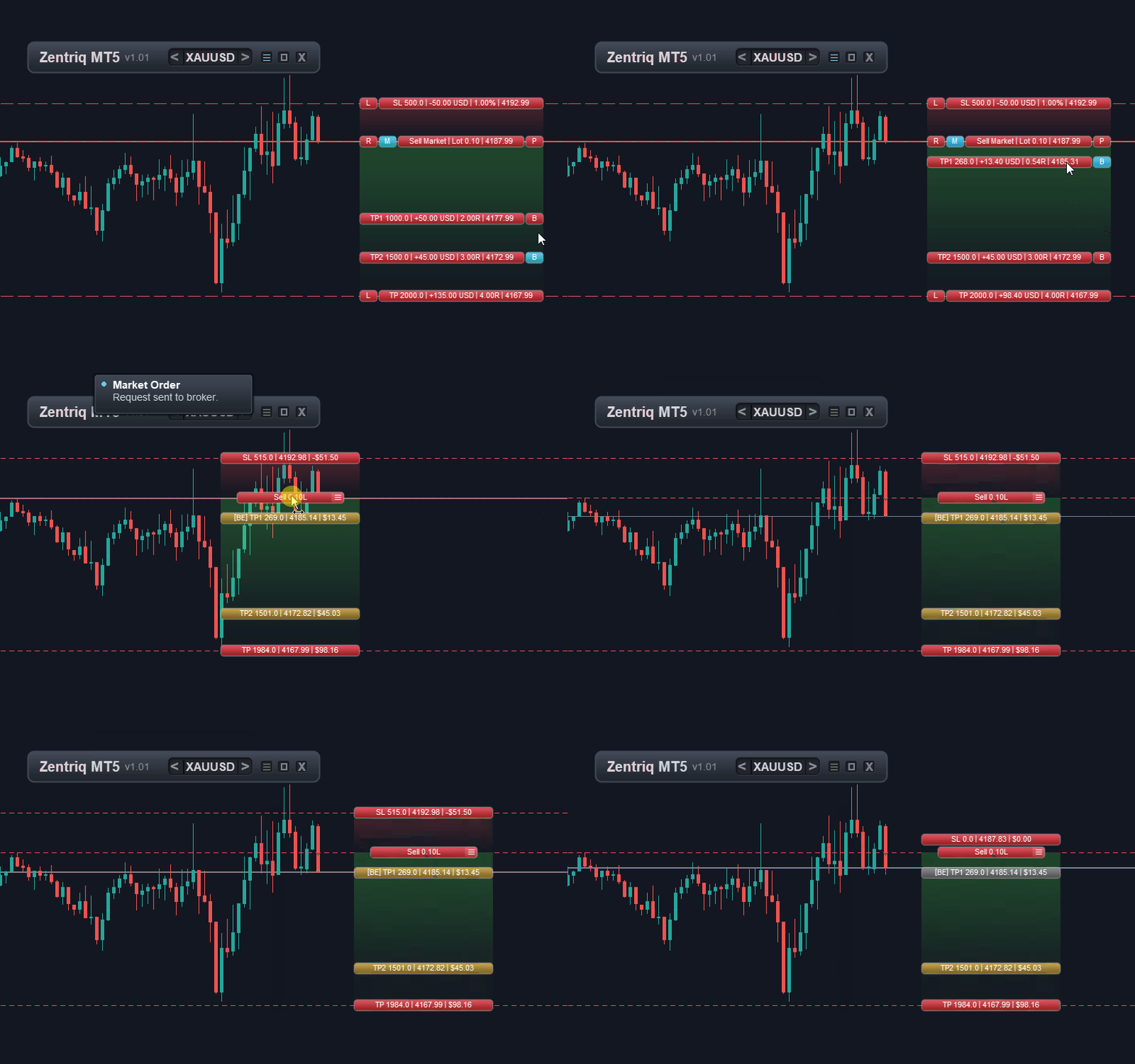
How to Set Break-Even
- Via the Trade Control Pop-Out Menu: Click the burger icon on any active position's on-chart entry box to open its pop-out menu. From there, click BE (Standard Break-Even) or BE+Cost (Cost-Inclusive Break-Even) to immediately update that individual trade.
- On-the-Fly via the Main Panel:
- On the main panel's Trade tab, cycle the BE Button to select your preferred mode ( BE On or BE+Cost ), and configure any desired point offset in the Offset box.
- Selecting BE On or BE+Cost automatically alters the primary action button from PLACE to APPLY.
- Eligibility Check & Protection: If your position is not eligible to be moved to Break-Even yet (e.g. price has not advanced far enough into profit to clear broker minimum stop levels), the APPLY button will be grayed out (disabled) and any click attempt will be rejected with an alert toast ("Position not eligible for BE yet"). Once the position is sufficiently in profit, the button turns active; clicking APPLY shifts the Stop Loss and resets the BE mode back to BE Off and PLACE .
- Stage-Linked Automatic Trigger: On the Partials tab, you can toggle Break-Even on specific partial stages (e.g. automatically moving the Stop Loss to break-even as soon as TP1 is hit).
Break-Even Modes & Offsets
When configuring Break-Even, choose the mode that suits your risk style:
- Standard Break-Even (BE On): Moves the Stop Loss exactly to your original entry price (plus any custom point offset). If the market reverses, the trade exits with zero price loss.
- Cost-Inclusive Break-Even (BE+Cost): A smarter break-even mode. The EA calculates your broker's round-turn commission and accumulated swap fees, placing the break-even line slightly beyond entry to ensure all trading costs are covered. This delivers a true non-negative outcome ($0.00 or small net gain) rather than losing money to transaction fees.
💡 PRO TIP Break-Even Offset: You can add a specific "Indent" or "Offset" in points. For example, setting a 20-point offset means the Stop Loss will be placed 20 points *in profit* from your entry price when Break-Even is triggered.
2. Trailing Stop Triggers
You don't want a trailing stop to activate the second you enter a trade; it needs room to breathe. Zentriq Trade Manager allows you to define exactly when the trailing stop should wake up and start protecting profits.
Trailing Start Conditions
- At TP1: The most popular method. The trailing stop remains dormant until your first Partial Take Profit (TP1) is hit. Perfect for "Secure and Trail" strategies.
- Points Distance: Trailing begins only after the trade is in profit by a specific number of points.
- R:R Multiple: Trailing begins once the trade reaches a specific Risk:Reward ratio (e.g., 1.5R).
- % of Take Profit: Trailing activates when the price travels a specific percentage of the total distance to your Final Take Profit (e.g., activating at 50% of the way to the target).
3. Trailing Stop Methods
Once triggered, *how* the Stop Loss trails the price is highly customizable.
Indicator-Based Trailing
These methods use live market data to adjust your stop loss dynamically:
- Active / ATR Trailing (Average True Range): Uses current market volatility to set the trailing distance. The stop is wider during highly volatile times (preventing premature stop-outs from market noise) and tightens up during quiet periods.
- Parabolic SAR: Uses the classic Parabolic Stop and Reverse indicator dots to trail the stop loss. This offers a tightening, time-based acceleration as the trend continues.
- Moving Average (MA): Trails the stop loss just behind a moving average line (e.g., a 14-period SMA). This keeps you in the trade as long as the short-term trend structure holds.
Price Action Trailing
For traders who prefer structural management over mathematical indicators:
- Step Trailing: Moves the stop loss by a fixed distance only after the price has moved a set amount. This creates a "staircase" trailing effect rather than trailing tick-by-tick, preventing the broker from being spammed with modification requests.
- Swing High/Low Trailing: Automatically trails behind the most recent swing high (for Sell trades) or swing low (for Buy trades) over a specific period. Highly effective for price-action traders who want stops placed securely behind structural support/resistance.
4. Customizing Trailing Parameters
Each trailing method can be fine-tuned via the UI inputs:
- Period: Used for ATR, Moving Average, and Swing High/Low to determine how many candles to look back (e.g., a 14-period MA).
- Multiplier: Used for ATR to expand or contract the distance (e.g., trailing at 1.5x the current ATR).
- Max & Step: Specific to Parabolic SAR to dictate the acceleration factor and maximum limit of the dots.
- Indent: An extra buffer (in points) added beyond the trailing line. For example, trailing a Moving Average but keeping the stop 50 points *behind* the actual MA line to avoid exact touches.
- Distance / Step Size: Used in Step Trailing to define how far the price must move before the SL is shifted, and exactly how far the SL is dragged.
⚠️ IMPORTANT NOTICE Ensure your trailing distance or indent is larger than your broker's STOPS_LEVEL (the minimum distance a stop loss can be placed from current price). If it is too tight, the EA will internally throttle the modifications to prevent broker errors, utilizing Virtual Stops until it is safe to modify the hard stop.
5. Trail Entry (Trailing Pending Orders)
Trailing isn't just for Stop Losses—it's for Entries too.
Zentriq Trade Manager includes a powerful Trail Entry feature for Pending Orders (Buy/Sell Limits and Buy/Sell Stops).
- How it works: If you place a Buy Limit, and the market starts moving away from your limit order (going higher), the EA will automatically drag your Buy Limit order higher along with the price, hunting for a better relative entry.
- Broker Modification & Throttling: Rather than acting fully virtual, the EA actually modifies your pending order on the broker's servers. To prevent your broker from blocking you for "spamming" modifications (e.g., trailing tick-by-tick), Zentriq Trade Manager uses a smart anti-spam throttle. It waits for the price to move a meaningful distance (at least the broker's Stop Level, or 10 points minimum) before jumping the limit order to its new price.
- Virtual Pending Orders: If you are using completely Virtual Pending orders (hidden from the broker), the EA applies the exact same trailing logic internally, dragging the virtual entry level to follow price until the market strikes it.
ℹ️ NOTE Trailing Entries are perfect for breakout traders (trailing a Buy Stop downwards as price consolidates) or pullback traders (trailing a Buy Limit upwards if the pullback doesn't run as deep as expected).
Chapter 6: Macroeconomic News Protection Engine
The News Protection Engine in Zentriq Trade Manager acts as your automated safeguard against high-impact economic events. By automatically pausing trading activities around major news releases, it protects your account from extreme volatility, widened spreads, and slippage.
Unlike standard MT5 calendars, Zentriq Trade Manager pulls live, highly accurate data directly from ForexFactory.
1. Setting Up the Live News Feed (Important)
To allow Zentriq Trade Manager to fetch the live economic calendar, you must give the MetaTrader 5 terminal permission to communicate with the ForexFactory data servers.
How to Enable the WebRequest URL:
- Open your MT5 Terminal.
- Go to Tools > Options (or press Ctrl+O ).
- Select the Expert Advisors tab.
- Check the box that says "Allow WebRequest for listed URL".
- Double-click the green plus icon + and type: https://nfs.faireconomy.media
- Click OK.
⚠️ IMPORTANT NOTICE If you do not add this URL, the EA cannot download the calendar! The News Protection Engine will be disabled, and you may see a warning in the Experts log.
Once enabled, Zentriq Trade Manager automatically downloads the weekly news schedule in the background, keeping a local cache so it remains fast and doesn't constantly request data from the web.
2. Impact Filtering
Not all news events move the market equally. The News Protection Engine allows you to filter out the noise and only pause trading for the events that matter most to you.
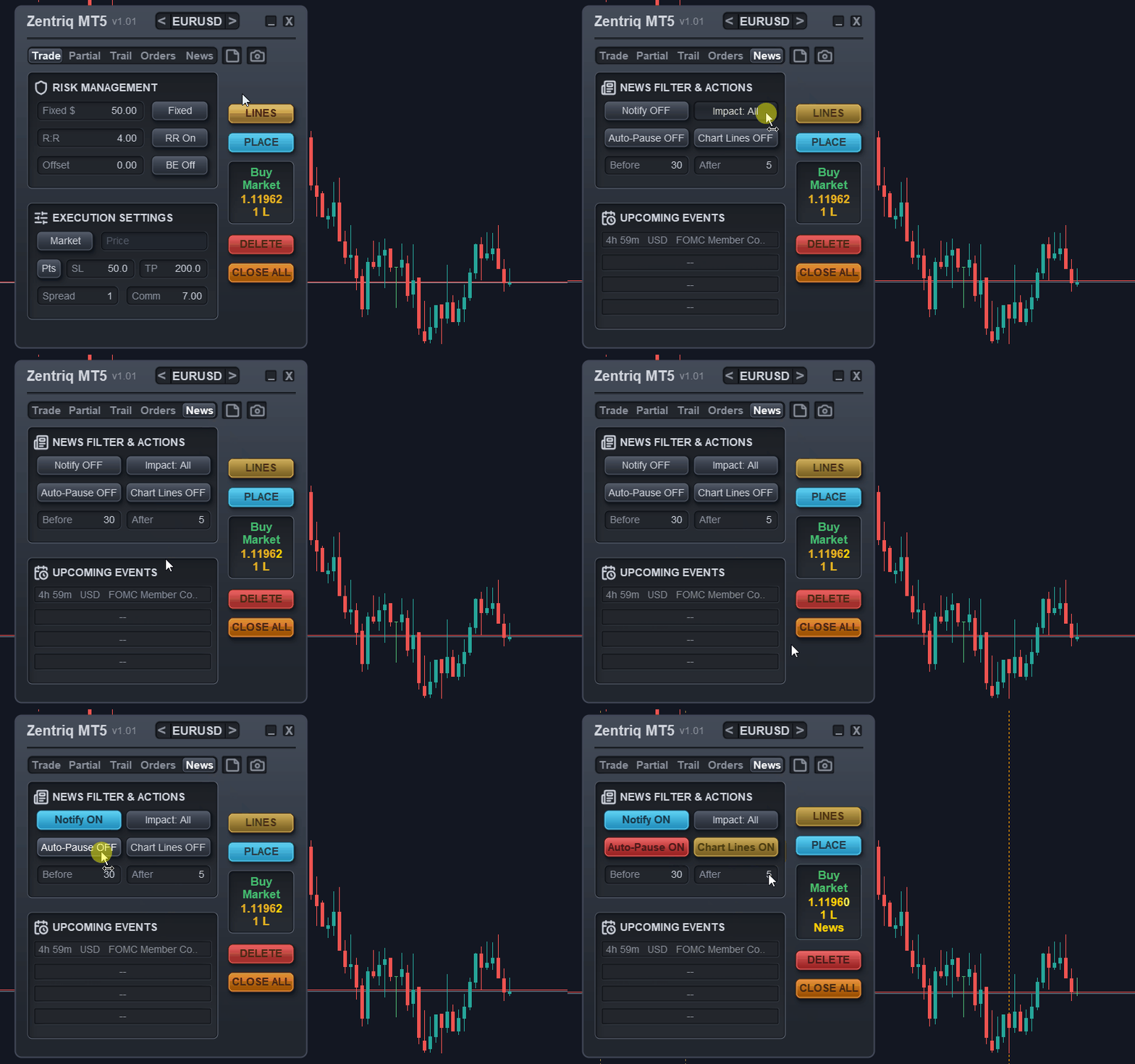
You can select the minimum impact level you wish to avoid:
- High Impact: Only major, market-moving events (e.g., NFP, CPI, Central Bank Rate Decisions) will pause your trading.
- Medium Impact: Blocks trading during both High and Medium impact events.
- Low Impact: Blocks trading for almost all scheduled economic releases (High, Medium, and Low).
The EA automatically detects which currencies belong to the chart you are trading (e.g., on EURUSD, it checks for both EUR and USD news) and applies the block appropriately.
3. Pre-News and Post-News Pause Windows
News events can cause erratic price action minutes before the actual release, and it can take time for the market to settle down afterward.
You can configure exact pause windows:
- Pause Trading Before News: Set the number of minutes (e.g., 30 minutes) prior to an event where opening new trades is blocked.
- Pause Trading After News: Set the number of minutes (e.g., 30 minutes) after the event has passed before normal trading is allowed to resume.
During this window, the EA will block any new market orders or pending order entries that fall into the restricted time zone.
4. The Global USD Shield
The US Dollar is the world's reserve currency. Major USD news events (like the Non-Farm Payrolls or FOMC announcements) don't just affect USD pairs—they cause massive, unpredictable ripples across the entire forex market, including crosses like EURGBP or AUDNZD.
To protect against this, Zentriq Trade Manager includes a Global USD Shield.
💡 PRO TIP Apply USD News to All Symbols: When this input setting is enabled, the EA treats any High Impact USD event as a global blackout period. Trading will be paused across *all* charts running the EA, regardless of whether the pair actually contains the USD.
5. Visual Indicators and Notifications
To keep you fully informed of upcoming economic data, Zentriq Trade Manager includes built-in visual and alert systems directly on your chart.
Chart News Lines
When enabled, the EA will draw vertical lines directly on your chart, indicating exactly when a news event is scheduled to happen.
- It plots historical events up to 1 day in the past, and upcoming events up to 2 days in the future.
- This allows you to visually gauge how much time you have left before a volatile news spike or see how price reacted to a past event.
On-Screen Notifications
If you prefer not to have lines cluttering your chart, or simply want an active warning, the News Notify feature will trigger an on-screen toast notification.
- As soon as an upcoming event enters your defined "Pause Trading Before News" window, a notification pops up, alerting you that the News Protection Engine is active and trading is paused.
6. Automatic Broker Time Calibration
One of the most frustrating aspects of algorithmic news filters is dealing with Broker Server Time (GMT offsets). If your broker is on GMT+2, but the news is released in EST, a poorly coded filter will block trading at the wrong hour.
Zentriq Trade Manager handles this seamlessly:
- Zero Configuration: The engine automatically calculates the exact time difference between your broker's server and the standard UTC time of the news release.
- Daylight Savings Aware: As brokers shift times during DST changes, the EA dynamically recalibrates its internal clock, ensuring that the news pause windows always align perfectly with real-world events.
There are no confusing "Manual GMT Offset" inputs required; everything is handled for you mathematically under the hood.
ℹ️ NOTE In the MT5 Strategy Tester, the News Engine simulates a default GMT+2 environment because live WebRequests are not permitted during backtesting.
Chapter 7: Order Management and Time Controls
Zentriq Trade Manager isn't just about entering trades and setting targets; it also provides advanced automation to manage the *lifecycle* of your orders. The features in this chapter allow you to define conditions under which an order should automatically cancel or close, based on either price action or elapsed time.
These controls are particularly useful for traders who want to set up their trades and walk away, knowing that their exposure will be automatically managed if the market takes too long to play out or moves in a way that invalidates the setup.
All of these features can be accessed directly from the Trade Ticket pop-out menu for individual trades.
1. Cancel by Price Level
Sometimes, a trade setup is only valid as long as price remains within a certain structure. If the market breaks a key level before triggering your pending order, the setup may no longer be viable. The Cancel by Price Level feature allows you to automate the cancellation of a pending order if price hits a specific invalidation level.
How It Works
When enabled on a pending order (Limit or Stop), Zentriq Trade Manager places a special horizontal line on your chart.
- If the market price touches this line *before* your pending order is triggered, the pending order is immediately and automatically deleted.
- This applies to both broker-side pending orders and Virtual Pending orders.
Enabling Cancel by Price
- Open the Trade Ticket for a pending order by clicking on its order line or ticket.
- Locate and toggle the Auto Cancel (by Price) option.
- A horizontal line will appear on the chart, defaulting to a small distance away from the current market price.
- Drag and drop this line to your desired structural invalidation point.
💡 PRO TIP Use this feature for breakout or pullback strategies where a deeper retracement or a structural break completely invalidates your original analysis.
2. Cancel by Time (Pending Order Expiry)
Just as a setup can be invalidated by price, it can also be invalidated by *time*. If you are waiting for momentum during a specific trading session (like the London or New York open), you may not want a pending order to sit active all day or carry over into a low-volume Asian session.
The Cancel by Time feature allows you to set a visual time limit on how long a pending order remains valid.
How It Works
When enabled, Zentriq Trade Manager draws a vertical time line on the chart.
- The EA constantly monitors the current broker time.
- If the time crosses this vertical line and the pending order has not yet been triggered, the order is automatically deleted.
Enabling Cancel by Time
- Open the Trade Ticket for your pending order.
- Toggle the Cancel by Time option.
- A vertical time line will appear on the chart. By default, it is placed 30 candles into the future (relative to your current timeframe).
- Click and drag the vertical line horizontally to the exact future time you want the order to expire.
ℹ️ NOTE This is a visual alternative to the traditional "Expiry Date" field in MetaTrader. Instead of guessing the exact hour and minute in a dropdown menu, you simply drag the line to the candle where your setup expires!
3. Auto-Close Open Trades by Time
While "Cancel by Time" applies to *pending* orders, Auto-Close by Time applies to *active, open trades*.
This feature is designed for time-based exits. For example, day traders often have a strict rule to close all open positions before the weekend gap, before a major news release, or before the end of their trading session—regardless of whether the trade is in profit or drawdown.
How It Works
Similar to the pending order expiry, enabling this feature places a vertical time line on the chart for an active trade.
- Once the broker's server time crosses this vertical line, Zentriq Trade Manager immediately executes a market close to exit the position.
Enabling Auto-Close by Time
- Open the Trade Ticket for an *active* position.
- Toggle the Auto Close option.
- A vertical time line will appear on the chart (defaulting to 30 candles ahead).
- Drag the line to the exact time you want the trade to be forcefully closed.
⚠️ IMPORTANT NOTICE When the Auto-Close time is reached, the EA will close the position at the current market price, unconditionally. Ensure you place this line carefully, especially in highly volatile market conditions.
Visual Order Management
All of these controls—Cancel by Price, Cancel by Time, and Auto-Close by Time—are designed to keep your charts clean while providing immense power.
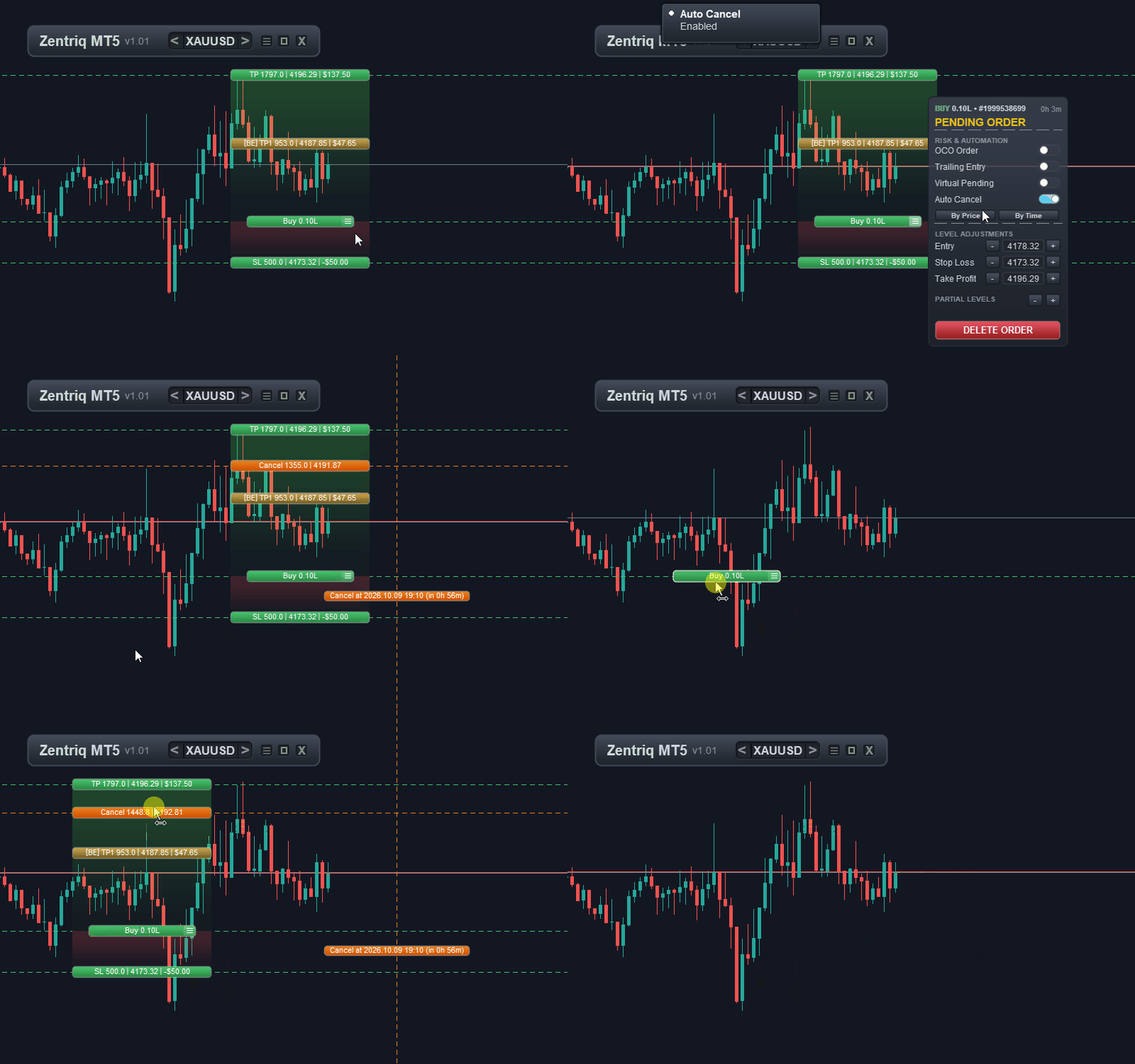
By combining these time and price controls with Partial Take Profits and Trailing Stops (covered in previous chapters), you can build a completely hands-free, set-and-forget management plan for every single trade.
Chapter 8: Canvas UI Themes and Ergonomics
Zentriq Trade Manager was built with a custom-rendered, high-performance Canvas UI. This means it doesn't rely on clunky standard MT5 buttons—everything is drawn smoothly directly on your chart, allowing for rich customizations, drag-and-drop interactivity, and dynamic scaling.
This chapter covers how to personalize the look and feel of the terminal to match your trading environment and workflow.
1. Theme Presets
Whether you trade late at night or need high contrast during the day, Zentriq Trade Manager includes five distinct, professionally designed themes.
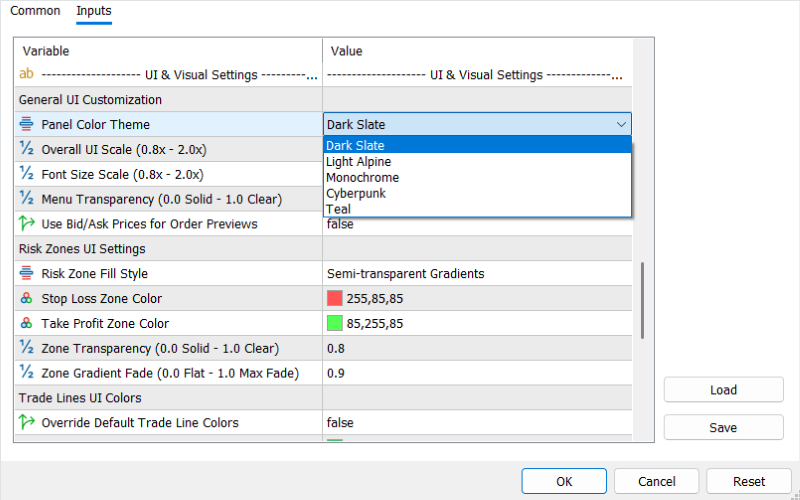
Available Presets:
- Dark Slate (Default): A sleek, modern dark mode that reduces eye strain.
- Light Alpine: A clean, high-contrast white and gray theme perfect for bright environments.
- Monochrome: A minimalist black, white, and gray theme for a distraction-free experience.
- Cyberpunk: A vibrant, neon-infused theme for traders who want their charts to pop.
- Teal: A calm, cool-toned theme offering a balance between dark mode and color.
💡 PRO TIP Changing themes updates the entire panel instantly without requiring a chart refresh or EA restart.
2. Color Customization and Styling
Beyond the overall theme, you have granular control over how the trade lines, risk zones, and UI elements appear on your chart.
Custom Line and Control Colors
You can customize the exact colors of the Bullish (Buy) and Bearish (Sell) buttons, pills, and drag handles, ensuring they match your chart's candlestick colors perfectly.
- Stop Loss (SL) Color: Default is Red.
- Take Profit (TP) Color: Default is Green.
Zone Fill Styles
When you drag your Entry and SL lines, Zentriq Trade Manager draws a shaded "Risk Zone" box. You can change how this box is filled:
- Semi-transparent Gradients: A modern, smooth fade.
- Solid Gradients (Opaque): Solid fills for maximum visibility.
- Sleek Solid Side-Stripes (HUD style): Minimalist vertical stripes instead of full box fills.
- No Fills (Lines only): Hides the shading entirely, leaving only the price lines.
ℹ️ NOTE You can also adjust the Transparency of the menus and the Gradient Strength to ensure the UI never completely blocks the candlesticks behind it.
3. High-DPI UI Scaling and Font Scaling
Zentriq Trade Manager is built for modern monitors. If you use a 4K display, an ultrawide monitor, or a small laptop, the interface scales flawlessly.
- UI Scaling: Enlarges or shrinks the entire panel, buttons, and input fields proportionally.
- Font Scaling: Adjusts only the text size inside the buttons and panels without changing the overall panel size.
💡 PRO TIP If the panel feels too small on your 4K monitor, simply increase the UI Scale multiplier in the global Expert Advisor inputs when attaching the EA to your chart.
4. The Comment Drawer
Journaling is a critical part of trading. Zentriq Trade Manager includes a built-in Comment Drawer that lets you attach notes to your trades *before* you place them.
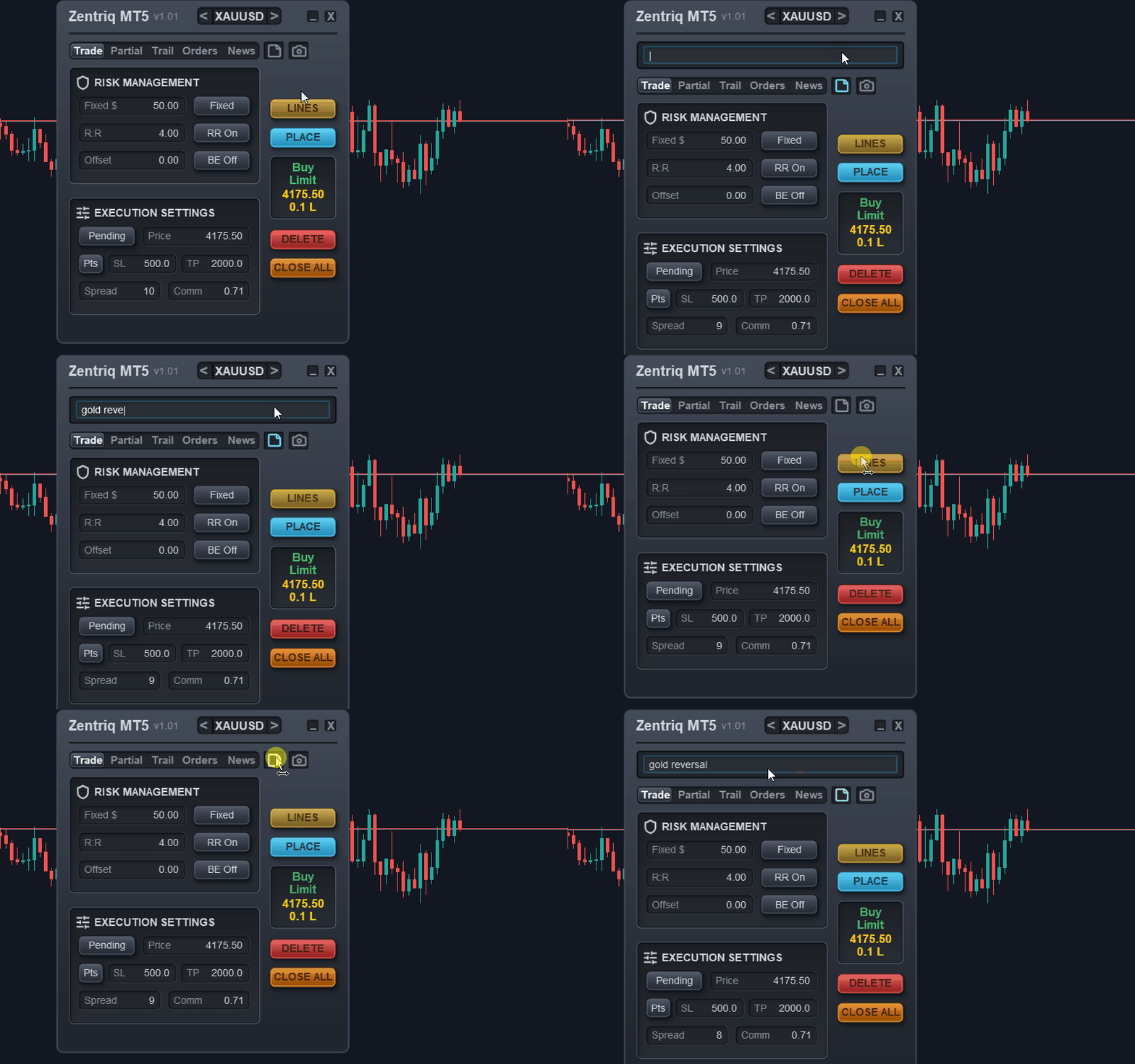
By clicking the comment icon on the top bar of the panel, a sleek drawer pops out.
- Any text you type here will be automatically sent to the broker as the "Order Comment" when you execute the trade.
- This is perfect for tagging trades with strategy names (e.g., "Breakout", "Supply/Demand bounce") for later review in your trading journal.
5. The Screenshot Utility
Want to capture your setup before placing a trade, or take a screenshot of a winning result?
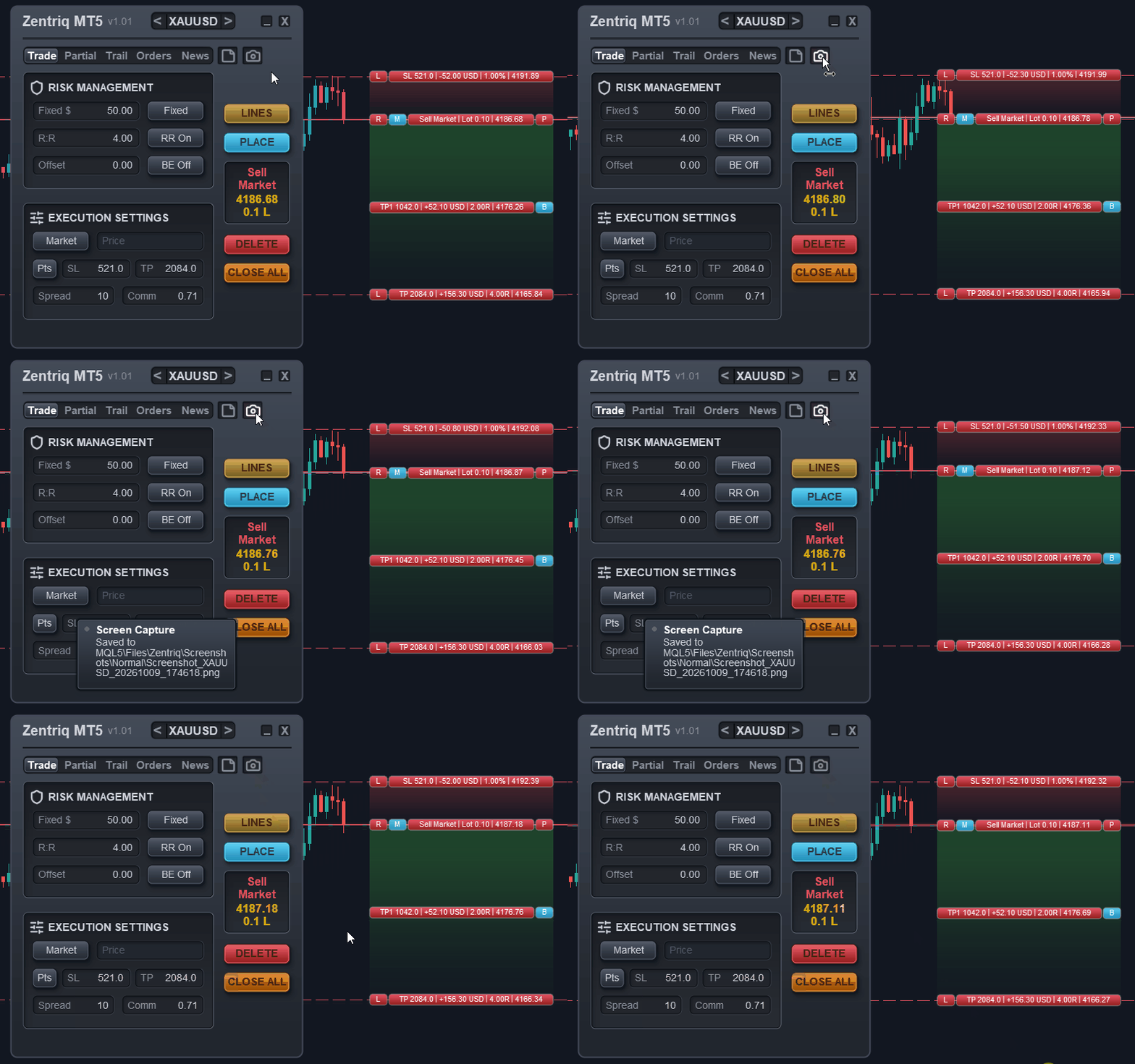
Clicking the Camera Icon on the panel instantly captures a clean, high-resolution screenshot of your current chart.
How it works seamlessly:
- The EA briefly auto-hides the price and time scales to calculate the true chart dimensions.
- It captures the screen without any awkward clipping or stretching.
- It saves the image locally with a precise timestamp.
- A Toast Notification will slide in, confirming the capture was successful!
ℹ️ NOTE Screenshots are automatically saved to your terminal's file folder, specifically in: MQL5\Files\Zentriq\Screenshots\Normal .
Chapter 09: Full Inputs Reference and Diagnostics
Zentriq Trade Manager provides an extensive inputs dictionary and an automated background health monitor:
Core Inputs Dictionary
- Default Lot Size: Fallback volume when dynamic risk modes are disabled.
- Default Risk:Reward Ratio: Default R:R multiplier used when drawing new trade lines.
- Lock Stop Loss Initially: Preserves SL distance when moving the entry line.
- Magic Number (default: 62135): Unique identifier for EA-managed orders.
- Manage Manual/Mobile Trades: Adopts trades placed via mobile/terminal (Magic Number 0).
- Commission per Lot: Broker round-turn cost. Auto-detected from account history if left at 0.0. User values override auto-detection and are deducted from the risk budget.
- Symbol Source Mode: Populates from Market Watch or Custom List (comma-separated).
- News Filter Settings: Minimum impact filter (High/Medium/Low), pre/post-news pause windows, and global USD shield.
- Virtual SL/TP Safety Net: Places catastrophic hard stops on broker servers at a configurable point offset beyond your hidden virtual levels.
- Trade Confirmations: Prompts verification before Market, Pending, or Close All execution.
- Keyboard Hotkeys: Shortcuts ( B , S , X , E , T , L , P , M ) with modifier key support (None, Shift, Ctrl).
- UI Theme & Scaling: Select color palette (Dark Slate, etc.) and scale panel from 0.8x to 2.0x for 4K displays.
Smart Diagnostics & Logs
- Smart Debug Mode: Writes daily operational diagnostics to MQL5\Files\Zentriq\Logs\ .
- Auto Error Screenshots: Automatically preserves chart layout and market state during exceptions in MQL5\Files\Zentriq\Screenshots\Errors\ .
- Log Cleanup Cycle: Safely purges logs and error captures older than N days (default: 7 days).
ℹ️ NOTE: Trial builds operate on Demo accounts only. Ensure https://nfs.faireconomy.media is added to MT5 Allowed WebRequests (Tools > Options > Expert Advisors).
🚀 Elevate Your MetaTrader 5 Execution
Zentriq Trade Manager provides institutional-grade on-chart execution, dynamic lot sizing, and automated macroeconomic news protection.
🛒 Get Full Version on MQL5 Market | ⚡ Download Free Demo Trial (.ex5)


