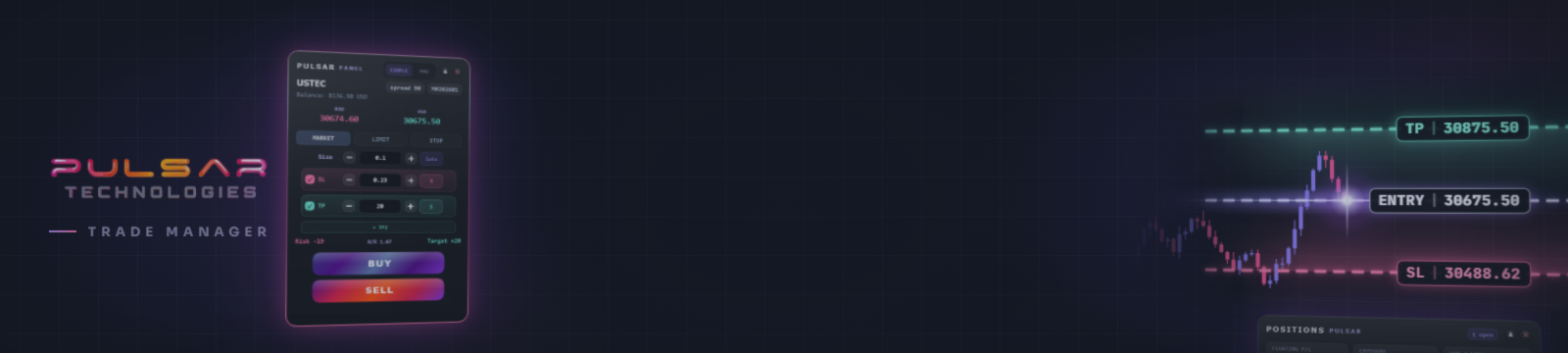
Trade Manager Pulsar MT5 — Complete User Guide (MT5 Trade Panel)

Trade Manager Pulsar MT5 — Complete Guide: How to Use Every Feature

This is a detailed walkthrough of Trade Manager Pulsar MT5, an on-chart trade manager for MetaTrader 5. Whether you scalp, swing trade or manage a prop firm account, it covers what you need to get started: planning and sending orders, managing exits, closing positions, guarding your daily loss and reading your statistics.
Trade Manager Pulsar MT5 is available on the MQL5 Market: Product Page
Table of Contents
- What is Trade Manager Pulsar MT5?
- Installation and First Launch
- Interface Overview
- Simple vs Pro Mode
- Your First Trade
- Position Sizing
- Stop Loss and Take Profit Units
- Up to Four Take Profit Levels
- Chart Planner — Plan the Trade on the Chart
- Pending Orders: Limit and Stop
- Exit Management: Partial TPs, Break-even and Trailing Stop
- Positions Panel
- Risk Guard (Daily Loss Protection)
- Trading Statistics
- Themes and Customization
- Inputs
- Messages You May See
- Trade Manager Pulsar vs MetaTrader 5
- Requirements and Limitations
- Frequently Asked Questions
- Support
1. What is Trade Manager Pulsar MT5?
Trade Manager Pulsar MT5 is an Expert Advisor (EA) for MetaTrader 5 that draws its panels on the chart. Everything runs inside MetaTrader 5: no external application, no Dynamic Link Library (DLL), no WebRequest, no external connection, no data collection. Orders go through MetaTrader 5's standard trade functions.
| Module | What it does |
| Trade panel (PULSAR PANEL) | Market, limit and stop orders with size, Stop Loss (SL), up to 4 Take Profit (TP) levels, break-even and trailing stop. |
| Chart planner | The order on the chart before sending: draggable entry, SL and TP lines, risk and reward zones, money and % of equity per level. |
| Positions | The account's positions and pending orders: filters, row actions (25 / 50 / 75 %, BE, X) and basket buttons. |
| Risk Guard | A daily loss limit and an optional daily profit target; once reached, new orders from the panel are refused (BLOCK or FLATTEN). |
| Stats | Statistics from your account history: key figures, balance curve, trade profile, monthly returns, results per magic number. |
| Navigation rail | Shows or hides each module; holds the display settings (theme, glow, grid, lines, size). |
About the name. On the MQL5 Market and in the Navigator the product is Trade Manager Pulsar MT5. On the chart the EA calls itself Pulsar Panel: in the panel header (PULSAR PANEL), in the comment of every order ("Pulsar Panel") and at the start of its Experts tab messages ("Pulsar Panel: ...").
2. Installation and First Launch
Step 1: Get the Expert Advisor from the MQL5 Market
Purchase it on its MQL5 Market page with the MQL5 account used in MetaTrader 5 (Tools > Options > Community).
Step 2: Install it in MetaTrader 5
After the purchase, install it from the Toolbox: Market tab, section Purchased, Install (a purchase made inside the terminal installs at once). It then appears in the Navigator under Expert Advisors > Market.
Step 3: Enable Algo Trading
Enable the Algo Trading toolbar button. Without it, the panel cannot send orders and the managed exits wait (Section 11).
Step 4: Attach the EA to a chart
Drag the EA from the Navigator onto a chart of the symbol you want to trade (the trade panel trades its chart's symbol; the timeframe does not matter). In the Common tab, tick Allow Algo Trading; the default Inputs are a good start (Section 16). Click OK. The account must also allow automated trading: if anything is missing, BUY or SELL is refused and the status line says what, in red (Section 17).
Step 5: First look
The narrow rail with the purple "P" sits top-left, the trade panel (PULSAR PANEL) next to it, the Positions panel top-right (under the trade panel on a narrow chart) and the planner's dashed ENTRY, SL and TP lines on the right half. Chart colors follow the panel theme, with a quiet grid replacing MetaTrader's dotted one. Risk Guard and Stats start hidden: open them from the rail.
Important. The EA takes the chart's EA slot: run your other EAs on other charts. It works on live and demo charts. It does nothing in the Strategy Tester, so the Market demo cannot show it.
3. Interface Overview

The trade panel holds a header (SIMPLE / PRO, fold and close buttons), info rows (symbol, spread and magic chips, balance, BID, ASK), the order type, size, SL, TP levels, risk line, BUY and SELL buttons, and the status line: last result in green, refusals in red, standing warnings in amber. Risk Guard opens to the right of the trade panel, or below it; Stats opens right of the rail, full or half screen.
The navigation rail
Narrow, the rail shows icons plus Theme, the gear (Size) and the chevron (Collapse). The gear or the chevron unfolds it (labels, chips, Glow, Grid, Lines, Size) until you click Collapse. Drag the rail by its "P" mark. A module opens or closes when you release the mouse on its item; a lit item means it is shown.
| Item | What it does |
| Trade | Shows or hides the trade panel and its planner lines. |
| Positions | Shows or hides the Positions panel. Its badge (a dot when narrow) counts the positions and pending orders matching its filter, beyond the 10 listed rows too. |
| Levels | Marked SOON. It does nothing in this version. |
| Stats / Risk | Shows or hides the Statistics / Risk Guard panel. |
| Theme | Switches between Astral (chip DARK) and Light (chip LIGHT). |
| Glow, Grid, Lines, Size (gear) | Display settings (Section 15). Size sets every panel from 80 % to 200 %. |
| Collapse (chevron) | Folds the unfolded rail back to narrow, or unfolds it. |
Moving, folding and closing panels
- Drag a panel by its header; it remembers its place.
- The round fold button (chevron) folds a panel; the red X closes it. A closed panel reopens from the rail, in the same state.
- Stats does not move: it sits next to the rail and, while open, covers the panels under it and takes their clicks. Close it or switch it to HALF to reach them.
- Panels follow the Windows display scaling; the rail's Size and the Panel size input resize every panel at once.
4. Simple vs Pro Mode
The SIMPLE / PRO switch in the trade panel header sets how many rows you see. Both modes offer market, limit and stop orders, size in Lots, Value or % equity, SL in pips or points, currency, price or % of equity, up to 4 TP levels with split presets, and the chart planner. PRO adds the break-even (BE) and trailing stop (TR) rows.
Note. BE and TR stay active in SIMPLE: only their rows are hidden. To stop them, untick BE and TR in PRO. The mode is saved per symbol, like the other trade panel settings.
5. Your First Trade
- Read the info rows: symbol, spread chip, magic chip (for example "M#202601"), balance, BID (pink) and ASK (green). A tag such as CLOSE ONLY, BUY ONLY, SELL ONLY or TRADING DISABLED appears when the symbol restricts trading.
- Select MARKET.
- Set the size (Lots by default) with "−" and "+", or click the value and type it.
- Keep the SL box ticked and set the SL distance.
- Set one TP.
- Hover BUY (or SELL) without clicking: the planner shows that side's plan. Read the risk line: "Risk", "R/R" and "Target".
- Click BUY once. The status line shows "Sending BUY..." then, in green, for example "BUY 0.10 EURUSD filled".
- The planner hides; MetaTrader 5 draws the position's SL and native TP (the furthest level). Intermediate TP levels are no longer drawn, but the EA still runs them. The position appears in Positions.
- Click MARKET or any control to plan the next trade: the planner returns.
Every order carries the comment "Pulsar Panel" and your magic number (202601 by default); the PULSAR filter of Positions shows these trades.
Click protection (no confirmation dialog)
There is no confirmation window; clicks are protected instead:
| Situation | What happens |
| Press and release | Panel buttons act on release (the planner's +SL, +TP and x act on press). To cancel, move the cursor off the button, onto the chart or an empty part of the panel, before releasing; a release over another panel lying on the same button (for example the unfolded rail) still counts. |
| Repeat click within 700 milliseconds | Ignored: "Order already sent - repeat click ignored". |
| Button held more than 3 seconds | Nothing is sent: "Held too long - nothing sent, click again". |
| Click under 800 milliseconds after a layout change, on a control not under the cursor before | Dropped: "Panel changed under the cursor - click again". |
| Click on BUY or SELL while typing a value | Only the value is applied: "Value set - check it, then click again". |
Checks before sending
The panel checks Algo Trading, the Risk Guard state, that a pending price is on the right side of the market and outside the broker's minimum distance, that SL and TP are valid and outside that distance, that the symbol accepts SL and TP with the order, and the free margin for market orders. If a check fails, nothing is sent and the status line gives the reason in red.
Typing values
Click a value field (Size, Price, SL, TP1 to TP4, BE, TR): it gets a violet border and a "_" cursor. Type digits and a point or comma; Enter or a click elsewhere applies, Escape cancels. The keyboard only types values: there are no trading hotkeys.
6. Position Sizing
The unit chip at the end of the Size row ("lots" by default) sets the sizing mode.
| Mode | Chip | How it works |
| Lots | lots | The volume. "+" and "−" change it by one volume step; a typed value is rounded to the step, within the symbol's minimum and maximum. |
| Value | Account currency sign ($, €, £, ¥) or code | Notional value in account currency, converted to lots rounded down to the volume step. |
| % equity | % | Notional value as a % of equity, up to 5000 % (steppers stop at 0.1 %; smaller values can be typed), converted the same way. |
Money-based sizes are never raised to the minimum lot. Below one minimum lot, the ENTRY label and the status line show for example "Below the minimum lot — 0.01 lot = 1170.00 USD" and the order is refused. The ENTRY label always shows the notional value of the lots really sent.
Important. Value and % equity set the notional value, not the amount at risk: the panel does not size from a risk percentage. "Risk" and the SL label always show the loss at the stop for the current size; to choose that amount, set the SL in currency or % of equity (Section 7).
7. Stop Loss and Take Profit Units
The chip at the end of the SL row sets the SL unit; the TP levels share one unit, set on the TP1 row.
| Unit | Chip | Meaning |
| PIPS or PTS | PIPS / PTS | Distance from the entry: PIPS on 3- and 5-digit symbols (1 pip = 10 points), PTS elsewhere (1 point = one unit of the price's last decimal, for example 0.01 with 2 decimals). |
| Currency | Account currency sign or code | Money lost at the SL for the current size, or gained at a TP level for the lots it closes. |
| Price | PRC | Price of the level. |
| % equity | % | Money at the level as a % of equity. |
The level is always kept as a distance from the entry, so the four readings describe the same level. An SL in currency or % sits where the loss reaches about that amount for the current size, before slippage, gaps and commissions; changing the size then changes the amount at risk.
Untick the SL box to send without SL: "Risk" and "R/R" show "—" and a "+SL" button on the chart brings the SL back. A level inside the broker's minimum distance is refused before sending, for example "Stop loss too close — broker needs at least 30 points".
8. Up to Four Take Profit Levels
The "+ TP2" button under the TP rows adds a level and names the next one, up to TP4 ("+ ADD TAKE PROFIT" with no TP). A new level goes 1.5 times further than the furthest one (a first TP at 1.5 times the SL distance). A TP row's checkbox removes it.
With two levels or more, the split chip on the last TP row shares the volume; click it to cycle the presets:
| Levels | Split presets (TP1 / TP2 / ...) |
| 2 | 50/50, 25/75, 33/67, 75/25 |
| 3 | 34/33/33, 50/25/25, 25/25/50 |
| 4 | 25/25/25/25, 40/30/20/10, 10/20/30/40 |
Adding or removing a level resets the split to the first preset: choose it last. Volumes are rounded down to the lot step and the furthest TP keeps at least the minimum lot. A level too small to close alone merges into the next: its label reads "merged into next" and the panel shows "TP split adjusted: lot too small". With two levels or more, each TP label shows the lots it closes.
The risk line shows "Risk" (money at the SL), "Target" (total money at the TP levels) and "R/R", the reward-to-risk ratio (TP distance / SL distance: 2.00 means a target twice the risk), weighted by each level's volume.
Example: BUY 1.00 lot, three TP levels, split 50/25/25.
| Level | Distance | Close % | Lots | Executed by |
| TP1 | 5 pips | 50 % | 0.50 | The EA (partial close at the market) |
| TP2 | 10 pips | 25 % | 0.25 | The EA (partial close at the market) |
| TP3 | 15 pips | 25 % | 0.25 | Broker (native TP) |
9. Chart Planner — Plan the Trade on the Chart

While you prepare an order, the planner draws on the right half of the chart a dashed ENTRY line, an SL line, one line per TP level, a risk zone (entry to SL), a reward zone (entry to furthest TP) and a label on each line:
| Line | Label |
| ENTRY | Order type (ENTRY, or BUY LIMIT, SELL STOP...), price, distance from the market if pending, lots, notional value, % of equity. |
| SL | Price, distance in pips or points, money, % of equity. |
| TP or TP1 to TP4 | Price, distance, money, % of equity, lots closed (or "merged into next"), R/R. |
Dragging the lines
- Hover a line: it thickens. Drag it: the panel values, "Risk" and the labels follow live, and the chart does not scroll.
- The SL stops one pip (or point) before the entry.
- Dragged away from the market, the ENTRY line makes the order a LIMIT or STOP, depending on the side; dragged back near it, a MARKET order.
On-chart buttons
| Button | Where | Action |
| +TP | Above the ENTRY line, left of its label | Adds a TP level, up to four. |
| +SL | Next to +TP, when the SL is off | Turns the SL back on at its previous distance. |
| x | Right edge, next to a level's label | Removes that TP level, or turns the SL off. |
Preview side
Hovering BUY or SELL shows that side's plan: for a buy, SL below the entry and TP levels above; for a sell, the opposite. After sending, the planner hides (Section 5) until your next edit: MARKET, a stepper or a value field. Hiding the trade panel from the rail also hides it.
10. Pending Orders: Limit and Stop
Choose LIMIT or STOP at the top of the trade panel. A Price row appears ("−", price, "+", distance from the market such as "20 PIPS") and the buttons become BUY LIMIT and SELL LIMIT, or BUY STOP and SELL STOP. Order types the symbol refuses are greyed out (if refused on one side, only that side's button).
| Order Type | Placement | Triggers when |
| Buy Limit | Below the market | The price falls to the level |
| Sell Limit | Above the market | The price rises to the level |
| Buy Stop | Above the market | The price rises to the level |
| Sell Stop | Below the market | The price falls to the level |
How the price is set
- When you click LIMIT or STOP, the panel proposes a price about 20 pips (or points) from the market, further if the spread or the broker's minimum distance requires it, for the side hovered last: hover BUY or SELL before clicking LIMIT or STOP.
- Change it with the steppers, by typing, or by dragging the ENTRY line. SL and TP are measured from this price.
- Hovering the other side keeps the price and turns a LIMIT into a STOP, or the reverse, as the market requires. Always read the button and the ENTRY label before clicking.
- A price dragged or typed too close to the market (within the spread or the broker's minimum distance, 2 pips at least) turns the plan back into a MARKET order: the Price row disappears and the buttons read BUY and SELL. The steppers stop at the closest pending price instead: "Closest pending price - click MARKET to trade at the market".
- Click MARKET to return to a market order.
What is sent
- The status line shows for example "BUY 0.10 EURUSD placed".
- Orders are good till cancelled (GTC); on a symbol that only accepts day orders, they are placed for the day and the status adds "(expires end of day)". Stop-limit orders are not available.
- The partial TP plan is saved with the order and applied to the position when it fills.
- After a pending order is placed, its type and price stay in the panel: another click on the same button, more than 700 milliseconds later, places a second identical order. Click MARKET when done.
- A pending price is never restored after a restart or a change of symbol or inputs: the panel returns to MARKET.
11. Exit Management: Partial TPs, Break-even and Trailing Stop
Exits are shared between the broker and the EA:
| Exit | Runs at | Works with the terminal closed |
| Stop Loss | The broker | Yes |
| Furthest TP (native TP) | The broker | Yes |
| Intermediate TP levels | The EA (partial close at the market) | No |
| Break-even | The EA (moves the SL) | No |
| Trailing stop | The EA (moves the SL) | No |
The EA checks its positions every 250 milliseconds. At an intermediate TP it closes that level's lots at the market; the Experts tab shows for example "Pulsar Panel: TP1 hit — closed 0.50 of #123456".
Break-even (BE)
In PRO mode, the BE row has a checkbox, a trigger distance and an offset chip ("+N"). When the gain reaches the trigger, the EA moves the SL once to the entry plus the offset ("Pulsar Panel: break-even set on #123456"); it never moves back. Click "+N" to type the offset (0 = exactly at the entry); it is kept below the trigger. A position with no SL gets one at the break-even level.
Trailing stop (TR)
The TR row sets a distance. Once the gain reaches it, the EA keeps the SL that far behind the price ("Pulsar Panel: trailing stop moved to ... on #123456"), in steps of at least one pip or a tenth of the distance, at most once per second, never backwards and never below the break-even level. BE and TR distances are always in pips or points (unit shown at the end of the TR row), whatever the SL unit.
Which positions are managed
- BE and TR apply to every position the panel manages on the chart symbol, earlier ones included, within 250 milliseconds of a change: set the values first, then tick the box.
- Each position's partial TP plan is saved when the order is sent; plans and exit settings survive a terminal restart.
- The chart that sent an order keeps managing it, even after a change of chart symbol or magic number. If you remove the EA or close that chart, attach the EA to a chart of the same symbol with the same magic number to take over.
- Manual, mobile and other EAs' trades are listed in Positions but never managed.
- If part of a position is closed elsewhere (for example from MetaTrader's order window), the plan is reduced to match.
- On a netting account, a partial close is an opposite deal naming the position: it never opens a reverse position.
When exits cannot run
- Algo Trading off (toolbar button or the EA's Allow Algo Trading box): nothing is sent, nothing is lost; the plans wait. An amber warning starting with "Exits on hold: Algo Trading is off" shows only on the trade panel's status line, not in the Experts tab: keep the trade panel unfolded and visible. When Algo Trading is back, a level the price is still beyond is executed at once.
- Broker refusal (market closed, requote...): the EA retries at growing intervals, up to once a minute. The Experts tab shows the reason once, ending with "- will retry".
- Terminal closed: only the SL and the native TP at the broker remain active. A Virtual Private Server (VPS) is recommended for positions left open.
12. Positions Panel

The header shows POSITIONS, a count badge ("N open"), a fold button (folded, it shows the floating P/L) and a close button. The list refreshes every 250 milliseconds.
Summary cards
- FLOATING P/L: floating profit and loss (P/L) of the listed positions, also in % of equity.
- EXPOSURE: notional value and total lots.
- WIN / LOSS: number and amount of positions in profit and in loss (exactly 0.00 counts as neither).
Filters
| Filter | Shows |
| ALL | Every position and pending order on the account: manual trades, mobile trades and other EAs included. |
| The chart symbol (for example EURUSD) | Everything on that symbol, any magic number. |
| PULSAR | Trades with this panel's magic number, on any symbol. |
| PENDING | Pending orders only, any symbol and magic number. |
The filter is saved, shared by all charts and followed by the rail badge.
Rows
Each row shows a type pill (BUY, SELL, B-LMT, S-LMT, B-STP, S-STP), symbol, lots, entry price, P/L and a progress track from SL to TP. A pending order shows its distance in points ("pending N pts"; on 3- and 5-digit symbols, 10 points = 1 pip) and only the X button. Up to 10 rows are shown, positions first; beyond, a note reads for example "+4 more — basket actions still cover them".
Row buttons (hover a row)
| Button | Action |
| 25 / 50 / 75 | Closes 25, 50 or 75 % of the remaining volume, rounded down to the lot step; refused if the part or the rest would be below the minimum lot ("Position too small to close 25 %"). The status repeats the percentage asked; the LOTS column shows the volume left. |
| BE | Moves the stop exactly to the entry (the trade panel's BE offset is not used), only when the price is beyond the entry. |
| X | Closes the position, or deletes the pending order. |
While you hold a row button the list is frozen and the action applies to the row pressed; if the list changed meanwhile, nothing is done: "List changed - click again".
Basket buttons
| Button | Action, within the current filter |
| WINS / LOSSES | Closes the positions in profit / in loss. |
| BUYS / SELLS | Closes the buy / sell positions. |
| 50 % | Closes half of each position, rounded down to the lot step. |
| PEND | Deletes the pending orders. |
| CLOSE ALL | Deletes the pending orders first, then closes the positions, oldest first. |
Each acts on exactly what the filter shows, rows beyond the first 10 included, without confirmation (click protection of Section 5).
Warning. With the ALL filter, CLOSE ALL closes every position and deletes every pending order on the account, including manual trades, mobile trades and trades of other EAs. To close only the trades of this panel, select PULSAR first.
13. Risk Guard (Daily Loss Protection)

Risk Guard refuses new orders from the panel once a daily loss limit is reached, for traders who follow a daily loss rule such as a proprietary trading (prop) firm's. It starts hidden and switched off: open it with Risk on the rail, then click ON.
Important. Risk Guard blocks only the orders sent from the panel. It cannot stop manual orders, One Click Trading, mobile trades or other EAs. It works only while the terminal runs, and it does not guarantee compliance with the rules of any prop firm.
Settings
| Setting | Values | Default |
| Daily loss | % of the day's starting balance (starting equity with EQUITY), 0.1 to 100 %, or account currency. Clicking the unit chip switches the unit and converts the value. | 2 % |
| Buffer | 0 to 50 %, steps of 5. The lock trips this much before the limit. | 10 % |
| Profit lock | off, or a daily profit target in % or currency; reaching it also locks the day, with the same On breach action. | off |
| Guard | ON or OFF. | OFF |
| Measure | BALANCE: today's closed P/L plus floating P/L. EQUITY: equity against the equity at the daily reset. | BALANCE |
| On breach | BLOCK or FLATTEN (below). | BLOCK |
| Reset | Hour of the daily reset (HH:00) and its clock: SERVER, UTC or CE(S)T. | 00:00 SERVER |
The guard measures the whole account, not one magic number. Example: 10,000 USD account, default settings, guard ON: the limit is 2 % (200 USD) and the buffer 10 %, so the lock trips at 180 USD of loss; before any loss today, the panel shows "180.00" above "USD LEFT BEFORE LOCK".
What the panel shows
- A large figure: the amount left before the lock ("USD LEFT BEFORE LOCK", in account currency).
- A 12-cell gauge. The cells past the split are the buffer: trading stops when they light up.
- A state banner with the time to the next reset, and TODAY: today's P/L, in money and in %.
- Cards DAY START, CLOSED and OPEN; when locked, DAY START, TRIPPED AT (or TARGET HIT) and RESET IN.
States
| Stage | Indicator | Action |
| OFF | "switch it on below", large "OFF" and "GUARD IS NOT ARMED" | Guard switched off. Orders allowed. |
| SYNCING | "waiting for the account" | Start-up or reconnection: panel orders refused for a few seconds. |
| ARMED | "resets in 23h 10m", for example | Loss below 70 % of the lock level. Orders allowed. |
| WARNING | Amber banner and figure | Loss has reached 70 % of the lock level. Orders allowed. |
| LOCKED | "until Fri 00:00 server", for example. Loss lock: large "0" and "NO ROOM LEFT TODAY". Profit lock: the day's gain (for example "+250.00") and "TARGET REACHED TODAY" | Lock level (limit minus buffer) or profit target reached. Panel orders are refused until the next reset; closing positions is always allowed. |
On breach: BLOCK or FLATTEN
| Mode | When the lock trips |
| BLOCK | New panel orders are refused and the panel's pending orders (its magic number) deleted. Positions stay open: "Open positions untouched." |
| FLATTEN | Every position is closed and every pending order deleted, on the whole account (manual trades and other EAs included), pending orders first. The EA retries every 1.5 seconds for 30 attempts, then every 10 seconds, until the account is flat: "Positions flattened." |
Both modes raise the alert "Pulsar Panel: trading locked. Daily loss limit reached." and refuse new orders with a message such as "Daily loss limit reached - locked until Fri 00:00 server". A lock caused by a settings change (for example a limit typed below today's loss) only blocks, never liquidates, even in FLATTEN mode; the Experts tab says so.
If Algo Trading is off when a FLATTEN starts, nothing is closed and the panel shows "FLATTEN ON HOLD - Algo Trading is off..."; the flatten runs as soon as Algo Trading is back. If a close fails (closed market, for example), it shows "FLATTEN FAILED - 1 open: market closed" and the retries continue.
While locked
- Settings are frozen and greyed until the next reset.
- FLATTEN EVERYTHING closes every position and deletes every pending order on the account, in one click, without confirmation.
- UNLOCK FOR TODAY - HOLD 2s lifts the lock: hold it 2 seconds while "KEEP HOLDING..." fills the button. The panel then reads "UNLOCKED BY HAND TODAY" and the guard does not lock again before the next reset, even if the loss grows.
- The lock lasts until the next reset and survives a restart. Settings and lock are shared by all charts of the same account login; each account has its own.
Reset time and clock
- Set the hour with the Reset stepper; its chip cycles SERVER, UTC and CE(S)T (hover it for a short help).
- SERVER is the broker's clock, with its daylight saving dates. UTC (Coordinated Universal Time) and CE(S)T (Central European Time, summer time included) are read through your computer's clock: keep its Windows time zone correct.
- With UTC or CE(S)T, the banner also gives the reset in server time, for example "resets 03:00 srv, in 5h 12m".
- With the guard OFF, a reset change applies at once; with it ON, from the next day: the chip turns amber and the banner reads "new reset from next day".
- The new day starts with the first quote after the reset time.
Measure EQUITY
EQUITY compares the equity with the equity at the reset time, an anchor taken only if the EA was running and connected then. Otherwise that day is measured on the balance and the first card reads "BAL START" in amber.
14. Trading Statistics

Open Stats from the rail. It reads your account history and covers the whole account, whatever the chart's magic number.
Layout and top bar
- FULL: covers the chart right of the rail, with 8 tiles, account curve, trade profile, monthly returns and results by magic number.
- HALF: the left half of the chart, with 4 tiles (NET P/L, WIN RATE, PROFIT FACTOR, MAX DRAWDOWN), curve, trade profile and results by magic number.
- Fold: only the top bar, with win rate and net P/L.
- Period pills DAY, WEEK, MONTH, YEAR and ALL (D, W, M, Y, A on a narrow bar), on the server clock; a legend gives the start, for example "since 2026.10.05 00:00 server - closed positions".
- A magic filter chip ("MAGIC: ALL"), a unit button (account currency or %) for the curve, and the FULL / HALF pills.
Metrics
| Metric | Description |
| NET P/L | Net result of the period's closed trades, with their number. |
| WIN RATE | Share of winning trades, with wins and losses count. |
| PROFIT FACTOR | Gross profit divided by gross loss. |
| MAX DRAWDOWN | Largest fall of the balance from a peak, in money and %. |
| SHARPE (FULL) | Annualized Sharpe ratio of daily results. Needs 30 days with a closed trade in the period, so DAY and WEEK show a dash. |
| CAGR (FULL) | Compound Annual Growth Rate. Needs 90 days or more between the period's first and last closed trade, so only YEAR or ALL can show it. |
| CALMAR (FULL) | CAGR divided by the maximum drawdown in %. |
| VOLATILITY (FULL) | Annualized volatility of daily results. |
Without enough history, a figure shows a dash and what it needs, for example "needs 30 d, have 12". VOLATILITY shows a dimmed figure marked "low sample" from 2 active days.
Cards
- ACCOUNT CURVE: balance from closed deals, in currency or time-weighted %, with dates on the horizontal axis, zero on a gridline and the maximum drawdown span marked. There is no equity curve.
- TRADE PROFILE: Trades, Wins, Losses, Break-even, Longs, Shorts, Avg win, Avg loss, Expectancy, Best trade, Worst trade, Win streak, Loss streak, Avg hold, Commissions, Fees & other, Swaps, Deposits net. Break-even and Fees & other show only when not zero.
- MONTHLY RETURNS (FULL only): the whole history in time-weighted %, January to December plus YTD (year to date), whatever the period pill.
- BY MAGIC NUMBER: name, net, win %, profit factor, max drawdown, trades and magic, most active first. Magic 0 shows as MANUAL.
Filter and name your strategies
- Click a magic row's figures to filter the whole panel on that magic number ("MAGIC 111", for example); click the row again to return to "MAGIC: ALL".
- Click a row's name field ("click to name") to name the strategy: letters A to Z, digits, space and hyphen, up to 22 characters; Enter saves, Escape cancels. Names are saved in MQL5\Files\PulsarPanel_magics.csv.
How trades are counted
- A trade is a closed position, all its deals grouped; a partly closed position counts once fully closed.
- Deposits and withdrawals are excluded from results; TRADE PROFILE shows them as "Deposits net".
- Account items belonging to no trade count in NET P/L only with "MAGIC: ALL". Periodic commissions go to "Commissions"; charges, interest, dividends and taxes to "Fees & other".
- The panel's size, fold, unit and period are remembered; the magic filter is not.
15. Themes and Customization
Two themes: Astral (dark), dark panels and, with the default chart colors, a near-black chart; Light (white / grey), light panels and, with the default chart colors, a white chart. Switch live with Theme on the rail. The Panel theme input applies on the first run and whenever you change it; otherwise the theme last picked on the rail is kept.
Chart colours
- Match the panel theme (default): chart colors follow the panel theme.
- Pulsar Dark / Pulsar Light: dark or light chart colors, whatever the panel theme.
- Keep my chart colours: your colors stay as they are and no Pulsar grid is drawn, so Grid and Lines on the rail have no visible effect.
The first three draw the Pulsar grid behind the bars and switch off MetaTrader's dotted grid. "Chart on foreground" is always kept off while the EA runs, so the bars never cover the panels. Your chart colors and settings return when the EA is removed.
Display settings on the rail
| Setting | Values | Default |
| Glow | Neon light behind the panels: ROSE, SUNSET, VIOLET, AURORA, OFF. On Light, a faint tinted shadow; OFF leaves a plain drop shadow. | ROSE |
| Grid | Grid spacing: OFF, 40, 60, 80, 100, 120, 160, 200 px at 100 % size. Clicking the value switches the grid off, or back on at 80. | 80 |
| Lines | Grid line color: GREY, SLATE, VIOLET, ROSE, SILVER. Lines stay close to the chart background; the icon shows the color more brightly. | GREY |
| Size | 80 %, 90 %, 100 %, 110 %, 125 %, 135 %, 150 %, 175 %, 200 %. Clicking the value returns to AUTO (Windows display scaling). | AUTO |
- Theme, Glow, Grid, Lines and Size are remembered for every chart; the rail's Size and theme stay in use until you change the Panel size or Panel theme input.
- A Size step that would make the unfolded rail taller than the chart window is refused.
What is saved
- Per symbol: trade panel settings (mode, fold, size and unit, SL, TP levels and split, BE, TR).
- For every chart: panel places, Positions filter, Stats view, rail display settings.
- Per account: Risk Guard settings and lock.
The state is kept in terminal global variables (prefix PLSR.) and restored after a restart; the only file written is MQL5\Files\PulsarPanel_magics.csv (strategy names). Deleting these variables (Tools > Global Variables) resets the panel and forgets partial TP plans, exit settings, and Risk Guard settings and lock: do not delete them while trades are open.
16. Inputs
| Input (as shown) | Default | Role |
| Panel theme | Astral (dark) | Astral (dark) or Light (white / grey), applied on the first run or when this input changes; otherwise the rail's theme is kept. |
| Chart colours | Match the panel theme | Keep my chart colours, Pulsar Dark, Pulsar Light or Match the panel theme. |
| Panel size | Auto (Windows display scaling) | Auto, or a fixed size from 80 % to 200 %, applied on the first run or when this input changes; otherwise the rail's size is kept. |
| Magic number (panel trades only) | 202601 | Marks the panel's orders; drives the PULSAR filter, break-even and trailing stop. |
| Max slippage (points) | 30 | Maximum price deviation for market orders, 0 to 10000 points. |
| Initial panel X, px at 100 % (first run only) | 78 | Horizontal place of the trade panel on the first run, 0 to 10000. |
| Initial panel Y, px at 100 % (first run only) | 20 | Vertical place of the trade panel on the first run, 0 to 10000. |
- A value out of range shows an alert and the EA is not attached (Section 17, Start-up).
- Do not use 0 as the magic number: 0 is the magic number of manual trades, so the panel would treat them as its own. The PULSAR filter and its basket buttons would include them on every symbol, break-even and trailing stop would move their stops on the chart symbol, and a Risk Guard lock in BLOCK mode would delete your manual pending orders.
- After a magic number change, positions already opened by this chart stay managed by it but no longer appear under the PULSAR filter.
- Changing an input restarts the EA: the order type returns to MARKET; other settings are kept.
17. Messages You May See
The status line under BUY and SELL shows each result: green when done, red when refused, amber for a standing warning; long messages are cut with "...". BUY and SELL results and refusals are also written in full in the Experts tab, after "Pulsar Panel:"; the panel's other notices (such as "Exits on hold" or "Closest pending price") and the Positions messages are not.
Sending orders
| Message | Meaning and what to do |
| "Algo Trading is off — enable it in the toolbar." | Click Algo Trading in the MetaTrader 5 toolbar. |
| "Allow Algo Trading is unchecked in this EA's settings (F7 > Common)." | Press F7 on the chart, open the Common tab and tick Allow Algo Trading. |
| "Automated trading is disabled on this account." | Ask your broker. |
| "Trading is not allowed (investor password?)." | Read-only (investor) login: log in with the trading password. |
| "Sending BUY..." | Wait for the result. |
| "BUY 0.10 EURUSD filled" / "BUY 0.10 EURUSD placed" | Market order executed / pending order placed. Nothing to do. |
| "... (expires end of day)" | Day orders only on this symbol: place it again the next day if needed. |
| "... (TP split adjusted to the lot step)" | A TP level too small for the minimum lot was merged into the next one: check the lots on the TP labels. |
| "... (reduced the open position)" | Netting account: the order reduced the opposite position. |
| "... WITHOUT its stop loss — the broker dropped it" | Sent, but the broker removed the SL (or the TP): set it in MetaTrader 5 at once. |
| "Order already sent - repeat click ignored" | Check the Trade tab before clicking again. |
| "Panel changed under the cursor - click again" | Wait a moment and click again. |
| "Held too long - nothing sent, click again" | Click normally. |
| "Value set - check it, then click again" | Check the value, then click again. |
| "Value not applied: ... - previous value kept" | Zero, or not convertible to a distance (no quotes, no valid size, or a TP level closing no volume): type it again. |
| "Not enough free margin (250.00 USD short)" | Reduce the size. |
| "Below the minimum lot — 0.01 lot = 1170.00 USD" | Raise the Value or % equity, or set the size in Lots. |
| "TP split adjusted: lot too small" (amber) | Raise the size or use fewer TP levels. |
| "Stop loss too close — broker needs at least 30 points" (or "Take profit too close — ...") | Move the level further. |
| "Buy Limit must be below the market" (and the same for the other types) | Move the entry, or check the button label. |
| "Buy Limit too close — the broker needs at least ... from the market" | Move the entry further from the market. |
| "Closest pending price - click MARKET to trade at the market" | Keep this price, or click MARKET. |
| "Pending price was set on GBPUSD — set it again" | Set the price again on this symbol. |
| "No quotes for EURUSD" | Wait for quotes, or check the trading session. |
| "Rejected: market closed" (or another reason after "Rejected:") | Act on the reason. |
| "EURUSD is close only — no new positions", "EURUSD takes buy orders only", "EURUSD takes no limit orders", "Trading is disabled on EURUSD" | Use an allowed order, or another symbol. |
| "EURUSD takes no stop loss with the order — turn SL off to trade it" | Untick SL and set the stop in MetaTrader 5 after the fill. |
| "Stop loss would sit at or below zero — shorten the SL distance" | Low-priced symbol: shorten the SL distance. |
| "Backspace also deleted a chart object - click the field to clear it" | MetaTrader deleted the last chart object on Backspace: to clear a field, click it instead. |
| "Daily loss limit reached - locked until Fri 00:00 server" | See Section 13. |
| "Risk guard syncing with the account - try again in a few seconds" | The guard is loading account data after a start or reconnection: click again a few seconds later. |
| "Risk guard updating today's figures - try again in a moment" | The account history is catching up with the balance: click again a moment later. |
Managed exits
| Message | Meaning and what to do |
| "Exits on hold: Algo Trading is off — enable it in the toolbar." (amber) | Partial TPs, break-even and trailing stop wait; nothing is lost. Turn Algo Trading back on. |
| "Exits on hold: Allow Algo Trading is unchecked in this EA's settings (F7 > Common)." (amber) | F7, Common tab, tick Allow Algo Trading. |
| "Exits on hold: trading is disabled on XAUUSD" (amber) | Wait until trading reopens. |
| "Pulsar Panel: TP1 hit — closed 0.50 of #123456", "Pulsar Panel: break-even set on #123456", "Pulsar Panel: trailing stop moved to 1.17250 on #123456" (Experts) | The exit was carried out. Nothing to do. |
| "TP1 of #123456 not closed: market closed" (Experts: "... - will retry") | The EA retries, up to once a minute; you can also close by hand. |
Positions panel
| Message | Meaning and what to do |
| "Closed EURUSD" / "Deleted EURUSD" | Done. |
| "Closed 50 % of EURUSD" | The percentage is the one asked for; the volume is rounded down to the lot step. Check the LOTS column. |
| "Stop moved to entry on EURUSD" | Done. |
| "Position too small to close 25 %" | Part or rest below the minimum lot: use a larger percentage or X. |
| "Price is not beyond entry yet" | Wait until the price is beyond the entry. |
| "Stop already at or beyond entry" | Nothing to do. |
| "Entry too close to price for the broker" | Wait for the price to move further. |
| "List changed - click again" | Click again on the right row. |
| "Order already sent" (red) | The first click was carried out: check the volumes before clicking again. |
| "Closed 2, deleted 1", "Closed 3 winning", "Closed 50 % of 3", "Deleted 2 pending" | Result of a basket button. |
| "Nothing to close", "No winner", "No loser", "No buy", "No sell", "No pending" | Check the filter. |
| "Closed 1 of 3 winning - ..." (red) | Some closes failed: act on the reason, then click again. |
Risk Guard
| Message | Meaning and what to do |
| Alert "Pulsar Panel: trading locked. Daily loss limit reached." | The lock tripped ("Daily target reached" for the profit lock). See Section 13. |
| "Open positions untouched." | BLOCK mode: manage the positions yourself, or use FLATTEN EVERYTHING. |
| "2 pending order(s) still live." | Manual or other EAs' pending orders remain: delete them if needed. |
| "1 open - FLATTEN closes them." | FLATTEN mode, but positions are open (opened after the flatten, or a lock from a settings change): use FLATTEN EVERYTHING to close them. |
| "FLATTEN ON HOLD - Algo Trading is off..." (amber) | Turn Algo Trading on: the flatten runs at once. |
| "FLATTEN FAILED - 1 open: market closed" (red) | A close failed; retries continue. Close the position when its market opens, if they have not. |
| "Positions flattened." | Done. |
| "new reset from next day" | Nothing, or switch the guard OFF to apply the change at once. |
| "Pulsar Panel: RISK GUARD locked by a settings change - positions left open, FLATTEN stays a button" (Experts) | The lock came from a setting: it blocks only. Use FLATTEN EVERYTHING to close everything. |
| "Pulsar Panel: risk guard reset read on UTC, found through this PC's clock - keep its Windows time zone right, or the day moves by whole hours" (Experts) | Check your computer's Windows time zone. |
Start-up
| Message | Meaning and what to do |
| "Pulsar Panel: magic number must be positive.", "Pulsar Panel: slippage must be between 0 and 10000 points.", "Pulsar Panel: initial panel X and Y must be between 0 and 10000 pixels." | Attach the EA again with a valid value. |
| "Pulsar Panel: the panels could not be rebuilt at the new size." | The EA was removed: attach it again with another Panel size input. |
18. Trade Manager Pulsar vs MetaTrader 5
Features that Trade Manager Pulsar MT5 adds on top of native MetaTrader 5:
| Feature | MetaTrader 5 | Trade Manager Pulsar MT5 |
| Order planned on the chart before sending, with risk and reward zones | No | Yes |
| Money and % of equity shown for the SL and each TP before sending | No | Yes |
| Draggable entry line that switches between market, limit and stop | No | Yes |
| Stop Loss set in money or % of equity | No | Yes |
| Size set as a notional value or % of equity | No | Yes |
| Up to 4 TP levels with automatic partial closes | No | Yes |
| Automatic break-even with offset | No | Yes |
| One-click partial close of 25 / 50 / 75 % per position | No | Yes |
| Positions list filtered by the panel's magic number, with basket closes on the filter | No | Yes |
| Daily loss guard with buffer, profit lock and reset clock | No | Yes |
| On-chart statistics per period and per magic number, with strategy names | No | Yes |
19. Requirements and Limitations
- MetaTrader 5, live or demo chart; the EA does nothing in the Strategy Tester.
- Algo Trading enabled (toolbar and the EA's Common tab) on an account that allows automated trading; hedging, netting and exchange accounts are supported.
- Intermediate TP levels, break-even, trailing stop and Risk Guard run in the terminal: keep it open. A VPS is recommended for positions left open.
- One EA per chart. The trade panel trades its chart symbol only; automatic break-even and trailing stop apply only to the positions with its magic number.
- No lot sizing from a risk percentage. Pending orders are limit or stop orders (no stop-limit), good till cancelled, or for the day on symbols that only accept day orders.
- Positions shows up to 10 rows; basket buttons also act on hidden rows.
- Risk Guard blocks only the panel's orders, works only while the terminal runs, does not guarantee compliance with any prop firm's rules, and does not lock again after an UNLOCK before the next reset.
- No confirmation dialog: CLOSE ALL under the ALL filter, FLATTEN and FLATTEN EVERYTHING act on the whole account.
- "Exits on hold" shows only on the trade panel's status line. The Stats curve is a balance curve (no equity curve). No trading hotkeys. Levels is marked SOON and does nothing in this version. All texts are in English.
20. Frequently Asked Questions
| Question | Answer |
| Does it work with any broker? | Yes, any MetaTrader 5 broker, on hedging, netting and exchange accounts that allow automated trading. Distances are in PIPS on 3- and 5-digit symbols, PTS on the others. |
| Does it work on demo and live accounts? | Yes. |
| Can I try it in the Strategy Tester? | No, the EA does nothing there. Use a demo account. |
| Does the terminal need to stay open? | The SL and the furthest TP are at the broker and work without it. Intermediate TP levels, break-even, trailing stop and Risk Guard need it running; a VPS is recommended for positions left open. |
| Does it calculate the lot size from a risk percentage? | No (Section 6): Value and % equity set the notional value of the position. Set the SL in currency or in % of equity to choose the money at risk for the current size. |
| Is there a confirmation before an order or a close? | No. Clicks are protected instead (Section 5). Check the filter before using CLOSE ALL. |
| Can I use it on several charts? | Yes, one EA per chart, each trading its chart symbol. Positions, Risk Guard and Stats show the whole account; Risk Guard settings and lock are shared by all charts of the account. |
| Does Risk Guard stop my manual trades? | No, it refuses only the panel's orders. In FLATTEN mode, a lock reached by the market closes every position on the account, manual ones included. |
| Will it manage trades I open by hand or from my phone? | It lists them and can close them from Positions. Partial TPs, break-even and trailing stop apply only to the panel's own trades. |
| Are there keyboard shortcuts? | No. The keyboard only types values. |
| Why does the panel say "Pulsar Panel"? | It is the name of the EA on the chart (Section 1). |
| How do I reset the panel? | Remove the EA from all charts, then delete the PLSR.* variables in Tools > Global Variables. This also forgets the partial TP plans and the Risk Guard settings and lock: do it with no trade open. |
| What happens if I remove the EA? | The panels go and your chart colors and settings come back. Managed exits stop; the SL and the native TP stay at the broker. |
| How do I get help? | See Section 21. |
21. Support
Support is provided through the comments on the product page and through MQL5 private messages.
When you report a problem, please include the exact message from the status line or from the Experts tab, a screenshot of the chart, the symbol, the account type (hedging or netting) and the MetaTrader 5 build (Help > About).
Trade Manager Pulsar MT5 is a product of Pulsar Technologies.
© 2026 Pulsar Technologies is a trademark of Astralys LLC.