
Step 1:
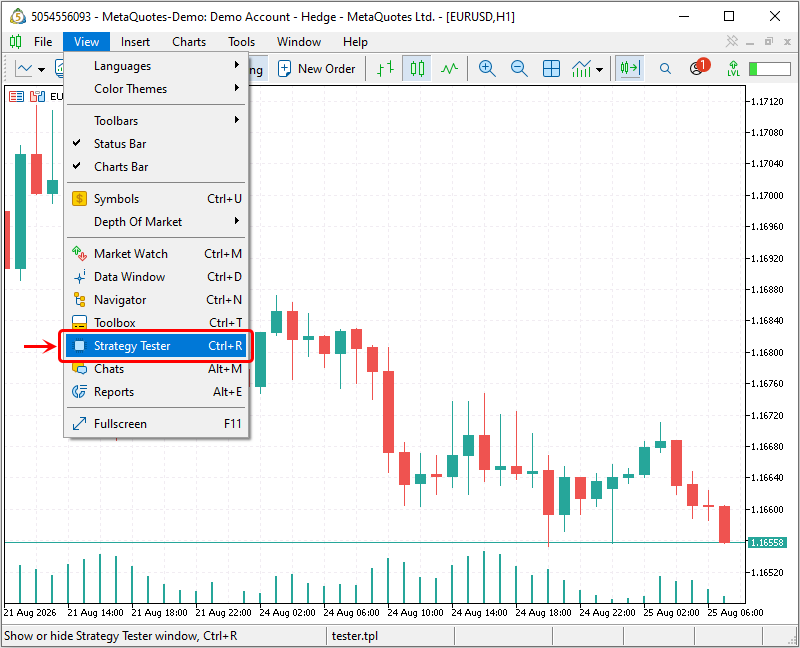
Go to the Strategy Tester: View > Strategy Tester:
Step 2:
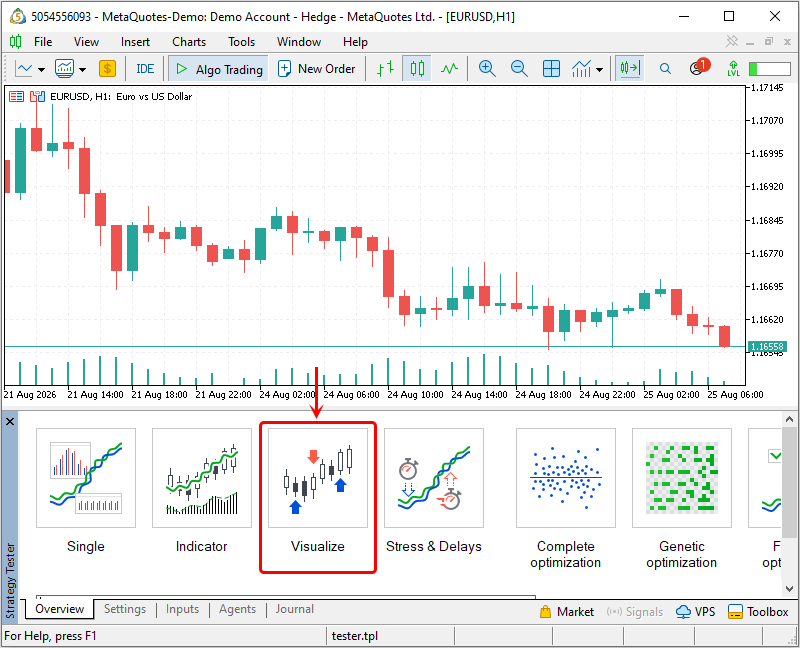
Select the "Visualize" mode:
Step 3:
Select the application you want to test (Expert: TradePanelMT5):
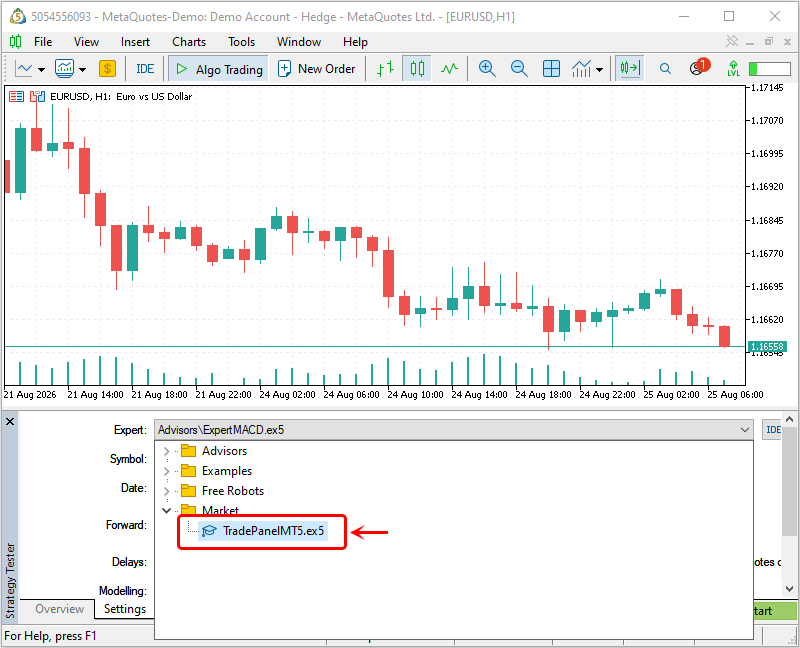
Step 4:
Set the testing parameters (for more details, see the MetaTrader 5 instructions):
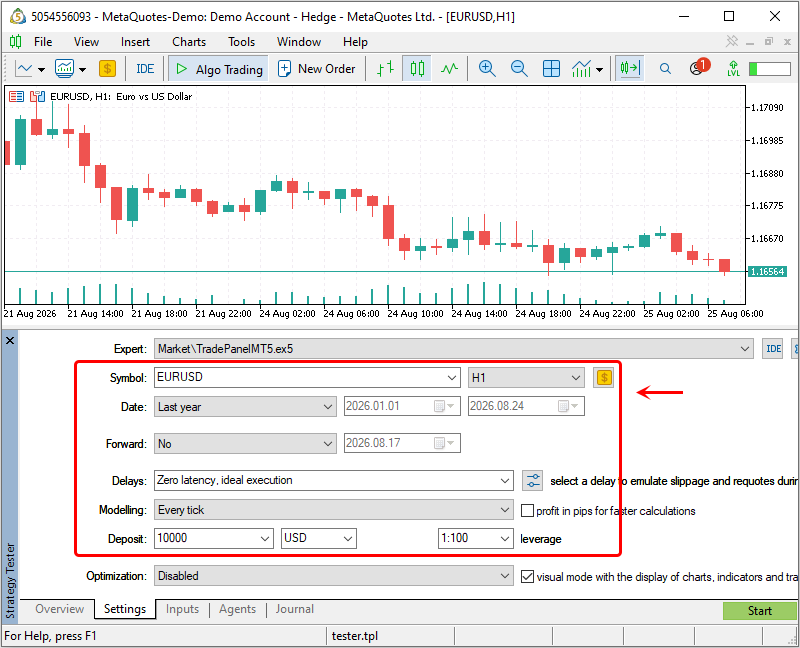
Step 5:
Set the input parameters for the application (for TradePanelMT5 you can leave "Trade Panel = 0", since the application is configured using the interface):
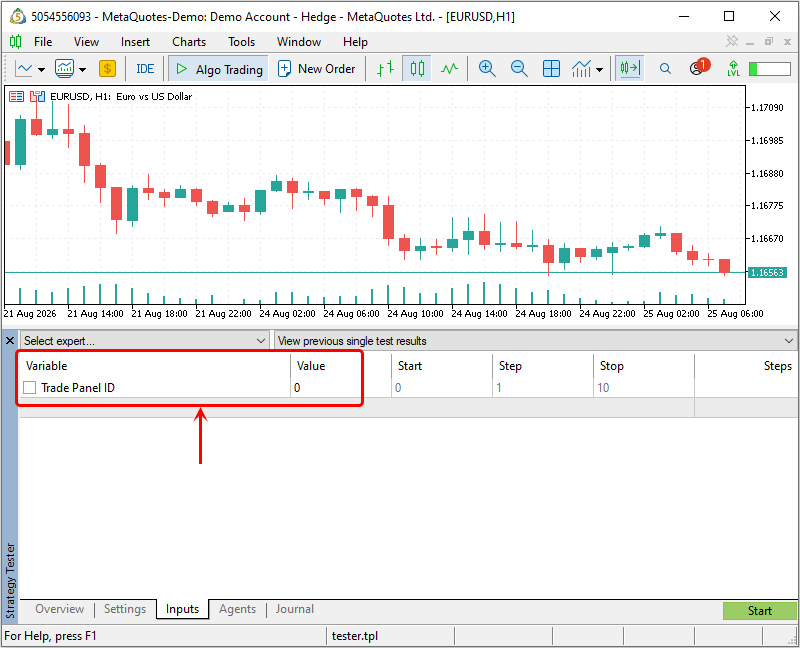
Step 6:
Click the Start button and wait for the Strategy Tester window to open:
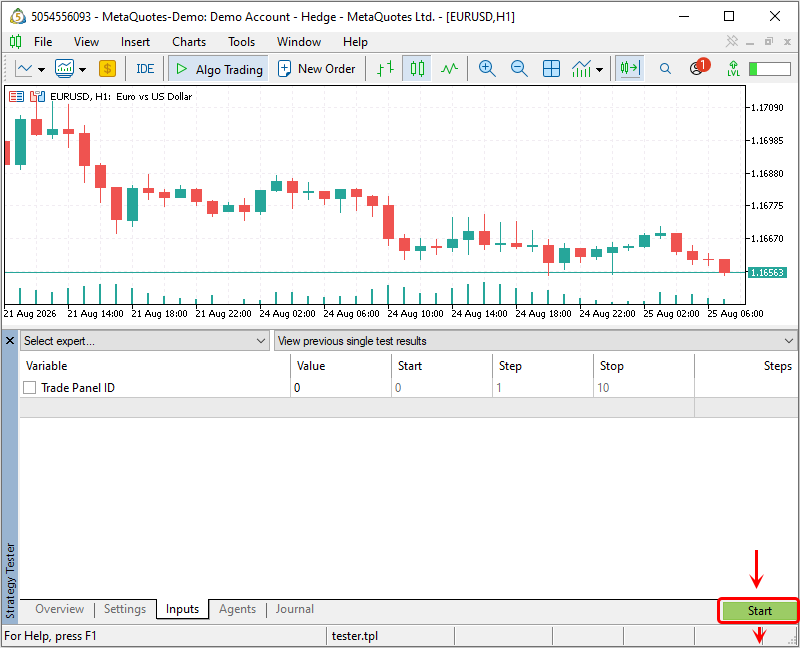
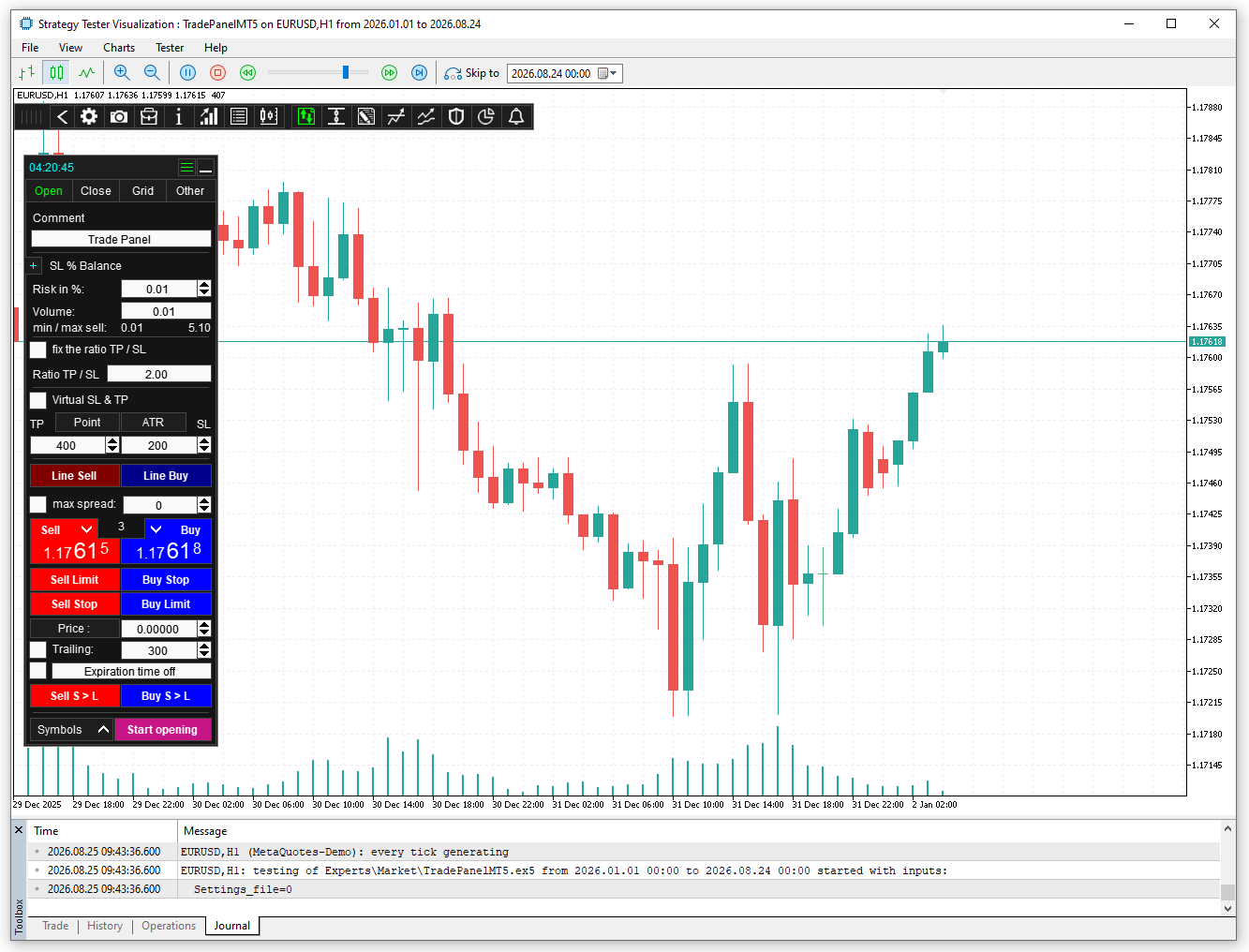
Done! Now you can configure the application and test it.
Strategy tester limitations:
- The application interface responds to mouse clicks only when testing is enabled.
- The Strategy Tester does not support functionality designed for working with multiple symbols.
- The Strategy Tester does not support hotkeys.
- The Strategy Tester has limitations in the use of input fields.
How to change the chart properties that are applied to the strategy tester by default:
To ensure the chart has the specified properties (color scheme) each time you launch the strategy tester, follow these steps:
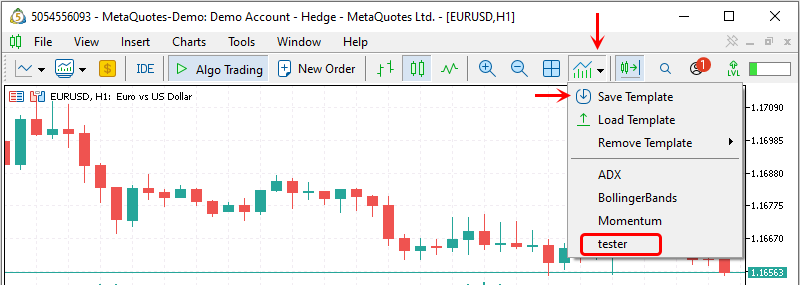
Configure the chart and set its desired color. The chart should not contain any graphical objects (such as trading history arrows). Save this chart as a template tester.tpl: