Indicator Signal Trader Kb and Indicator Signal Alerts Kb: User Manual

This manual covers two programs built on the same engine. Indicator Signal Trader Kb opens and manages trades on the signals of your indicator. Indicator Signal Alerts Kb sends alerts on those signals and never trades. Signals, filters and the panel work the same way in both; the sections marked Trader only apply to Indicator Signal Trader Kb alone.
1. Installation and first start
- Buy or download the program on the Market. The terminal installs it into Navigator → Expert Advisors → Market.
- Open a chart of the symbol and timeframe you want to trade.
- Drag the program from the Navigator onto the chart.
- On the Common tab tick Allow Algo Trading. On the Inputs tab enter your settings (sections 3 to 6). Press OK.
- Make sure the Algo Trading button in the toolbar is green.
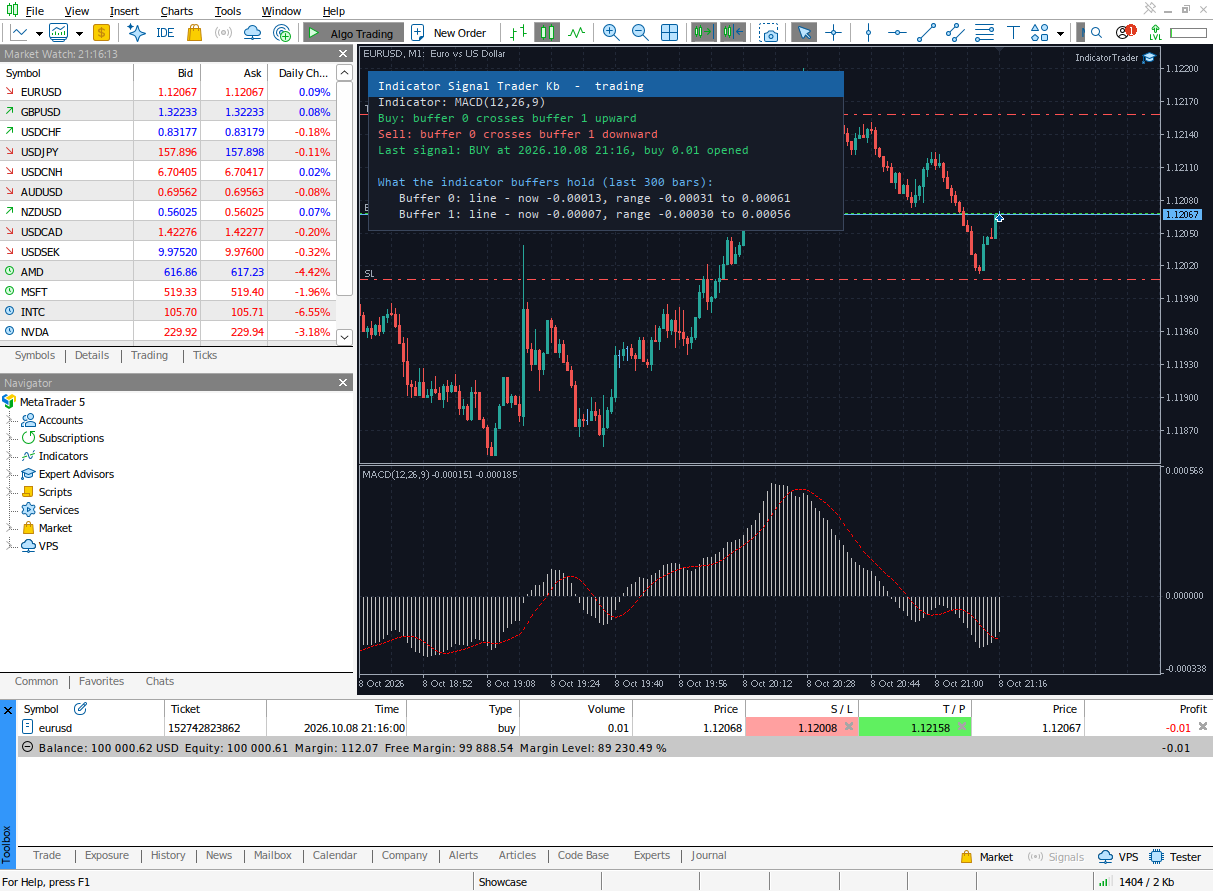
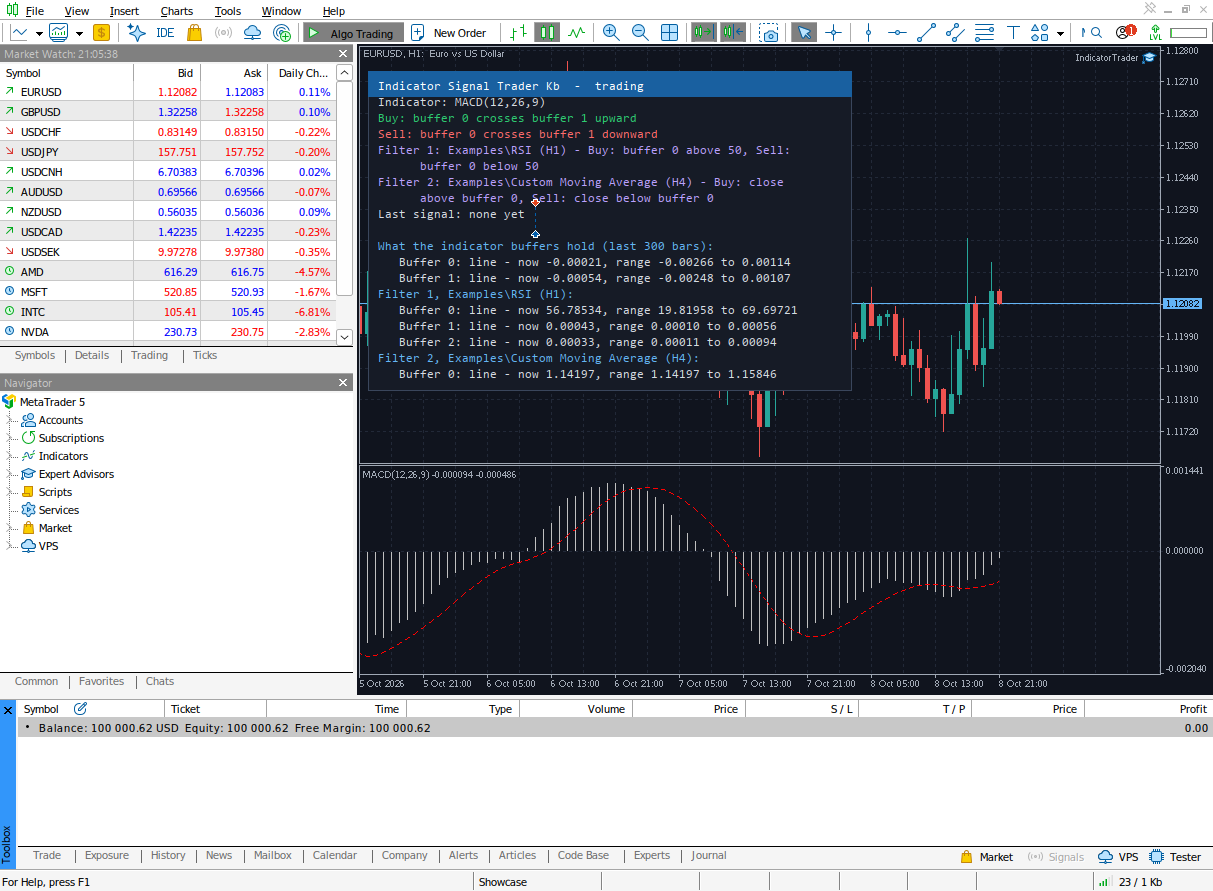
Without any settings the program runs on the built-in MACD (12,26,9): it buys when the MACD main line crosses the signal line upward and sells when it crosses downward. This is a quick way to see it working before you connect your own indicator.
When you change any input later (press F7 on the chart), the program restarts by itself: there is no need to remove it and attach it again.
2. The panel
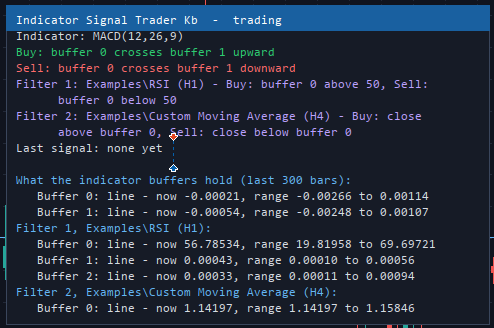
The panel in the upper left corner is the main help. It shows:
| Line | Meaning |
|---|---|
| Title | the program and its mode: trading or alerts only |
| Indicator | the indicator the program reads |
| Buy, Sell | your rules in plain words, for example buffer 0 crosses buffer 1 upward |
| Filter 1..4 | the filters, if you set any (section 5) |
| Last signal | what happened to the latest signal: opened, blocked by a filter, or not traded and why (section 8) |
| Red lines | Algo Trading is off, or a setup problem with what to correct |
| What the indicator buffers hold | the buffer map (below) |
The buffer map solves the usual difficulty of tools like this one: knowing which buffer of an indicator is which. For every buffer it shows what the buffer held over the last 300 bars:
- ARROWS - 43, the latest on 2026.10.06 14:00 : arrows. Use the rule Arrow appears in the buffer.
- line - now 1.0850, range 1.0700 to 1.0990 : a line. Use level or line-cross rules.
- colour index - values 0 to 1, now 0 : a colour. Use Buffer becomes equal to the level; the "now" value tells which number is the colour you see on the last bar.
The panel colours can be switched between Dark and Light (input Panel colours).
3. Connecting your indicator
| Input | What to enter |
|---|---|
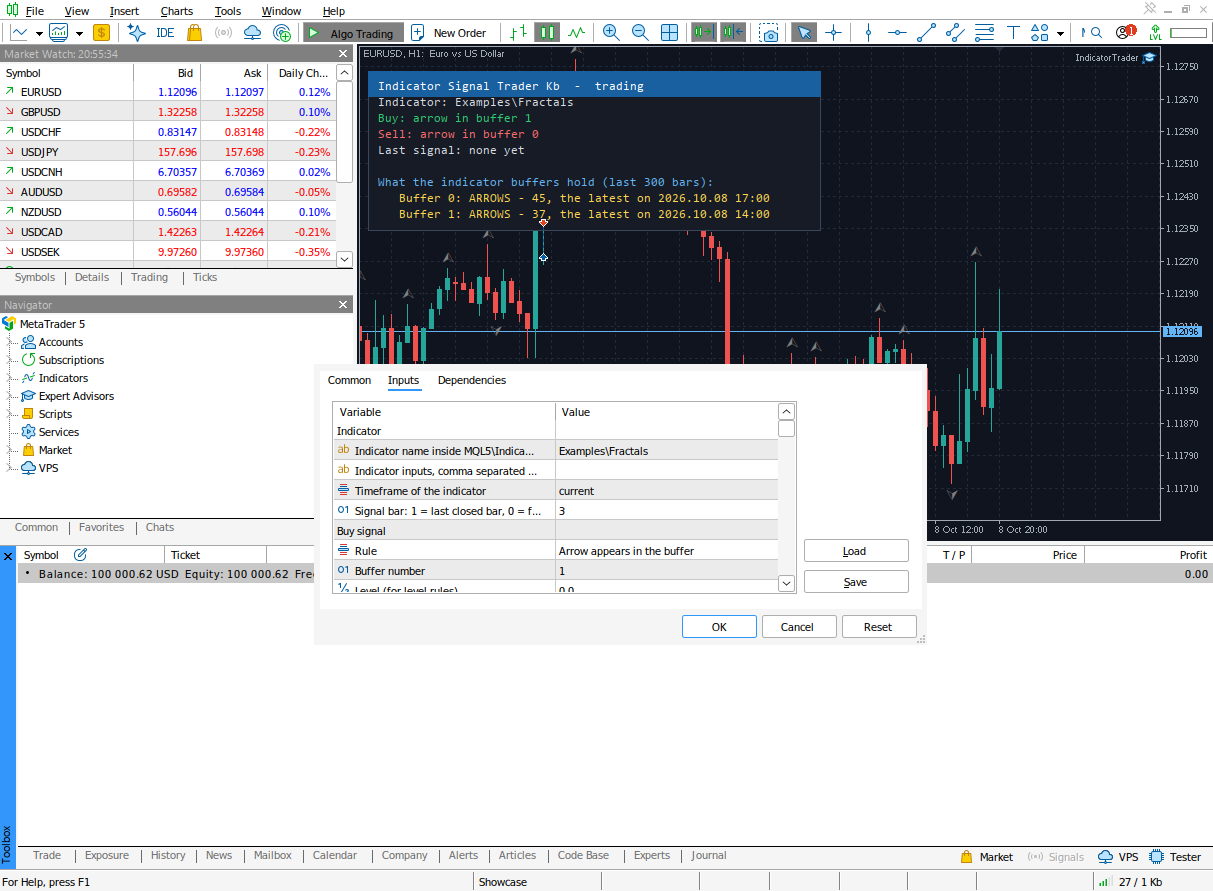
| Indicator name inside MQL5\Indicators (empty = built-in MACD) | The path of the indicator inside the MQL5\Indicators folder, without .ex5. Examples: Examples\Fractals , Market\Indicator Name for a purchased Market indicator, or just My Indicator when the file is directly in Indicators . |
| Indicator inputs, comma separated (empty = its defaults) | The inputs of the indicator in the same order as in its own settings window: 14, 2.5, true . Text in quotes: "text" . Leave empty to use the indicator's defaults. |
| Timeframe of the indicator | current = the chart's timeframe, or any other. |
| Signal bar | 1 = the last closed bar (default; the Strategy Tester then shows exactly what happens live). 0 = the forming bar: faster, but a signal may disappear before the bar closes. For Fractals use 3. |
To find the folder of an indicator: File → Open Data Folder → MQL5 → Indicators. The path is everything after Indicators\ .
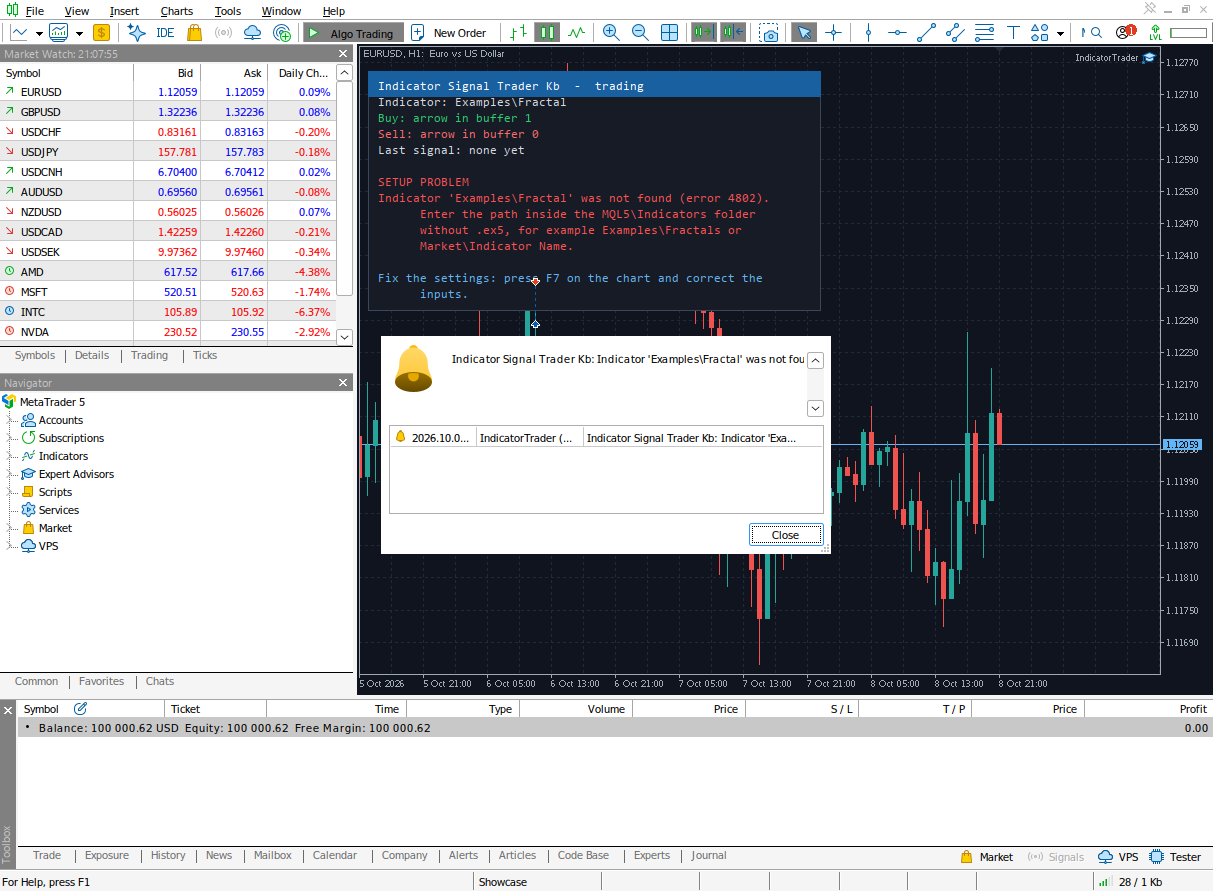
A wrong name or wrong inputs do not stop the program silently: the panel shows SETUP PROBLEM in red with the reason, and a pop-up appears.
4. Buy and Sell rules
| Rule | Fires when | Uses |
|---|---|---|
| Disabled | never (the side is off) | |
| Arrow appears in the buffer | the buffer has a value other than empty or zero | Buffer number |
| Buffer crosses the level upward / downward | the value crosses a fixed level | Buffer number, Level |
| Buffer crosses the second buffer upward / downward | one line crosses another | Buffer number, Second buffer |
| Buffer becomes equal to the level (colour buffers) | the colour changes to the given value | Buffer number, Level |
How to find the buffer number: enter only the indicator name, press OK and read the buffer map on the panel.
Ready recipes (tested in the Strategy Tester)
| Indicator name | Inputs | Signal bar | Buy | Sell | |
|---|---|---|---|---|---|
| MACD (default) | empty | 1 | crosses the second buffer upward, buffer 0, second buffer 1 | crosses the second buffer downward, buffer 0, second buffer 1 | |
| Fractals | Examples\Fractals | 3 | Arrow appears, buffer 1 | Arrow appears, buffer 0 | |
| RSI 30/70 | Examples\RSI | 14 | 1 | crosses the level upward, buffer 0, level 30 | crosses the level downward, buffer 0, level 70 |
| Heiken Ashi colour | Examples\Heiken_Ashi | 1 | becomes equal to the level, buffer 4, level 0 | becomes equal to the level, buffer 4, level 1 |
5. Filters: up to four more indicators that must agree
A filter does not create signals. It only allows a signal of the main indicator. A trade (or an alert) happens only when every filter you set agrees. Each filter is checked on the last closed bar of its own timeframe. A signal that a filter rejects is ignored completely: no alert, no entry, no exit; the Last signal line shows which filter rejected it and what the filter saw.
| Input (groups Filter 1 ... Filter 4) | What to enter |
|---|---|
| Indicator name (empty = filter off) | as for the main indicator |
| Indicator inputs, comma separated | the filter's inputs |
| Timeframe of the filter | for example H4 for a trend filter |
| Allow Buy only when / Allow Sell only when | the condition (list below) |
| Buy: buffer number, Buy: level, Sell: ... | the buffer and level the condition uses |
| Second buffer | for above / below the second buffer |
Conditions: Buffer is above / below the level, Buffer is above / below the second buffer, Close price is above / below the buffer (price against a line such as a moving average), Buffer equals the level (colour buffers), Buffer has a value on the bar, No condition.
Example: trade MACD signals only in the direction of the H4 trend, confirmed by RSI
| Filter 1 | Filter 2 | |
|---|---|---|
| Indicator name | Examples\Custom Moving Average | Examples\RSI |
| Indicator inputs | 200,0,1 (period 200, shift 0, method 1 = exponential) | 14 |
| Timeframe of the filter | H4 | current |
| Allow Buy only when | Close price is above the buffer, buffer 0 | Buffer is above the level, buffer 0, level 50 |
| Allow Sell only when | Close price is below the buffer, buffer 0 | Buffer is below the level, buffer 0, level 50 |
6. Trading settings (Trader only)
| Input | Meaning |
|---|---|
| Mode | Trade, or Alerts only |
| Lot size | Fixed lot, or Risk % of balance (needs a stop loss) |
| Stop loss | none, fixed in points, or a multiple of ATR (with ATR period) |
| Take profit | none, fixed in points, or a multiple of the stop loss |
| On an opposite signal | ignore it, close the position, or close it and open the opposite one |
| Only one position at a time | do not open a second position while one is open |
| Break-even | move the stop to the entry after a profit of N points, locking M points (0 = off) |
| Trailing stop distance | in points (0 = off) |
| Maximum spread | do not enter when the spread is wider (0 = off) |
| Trading window | start and end in server time; start later than end crosses midnight |
| Magic number, Order comment | identify the program's positions |
Points are the smallest price step: on a 5-digit EURUSD 10 points = 1 pip.
Before every order the program checks the symbol's lot limits, the minimum stop distance, free margin, the broker's order limit and whether the trading session is open.
7. Alerts
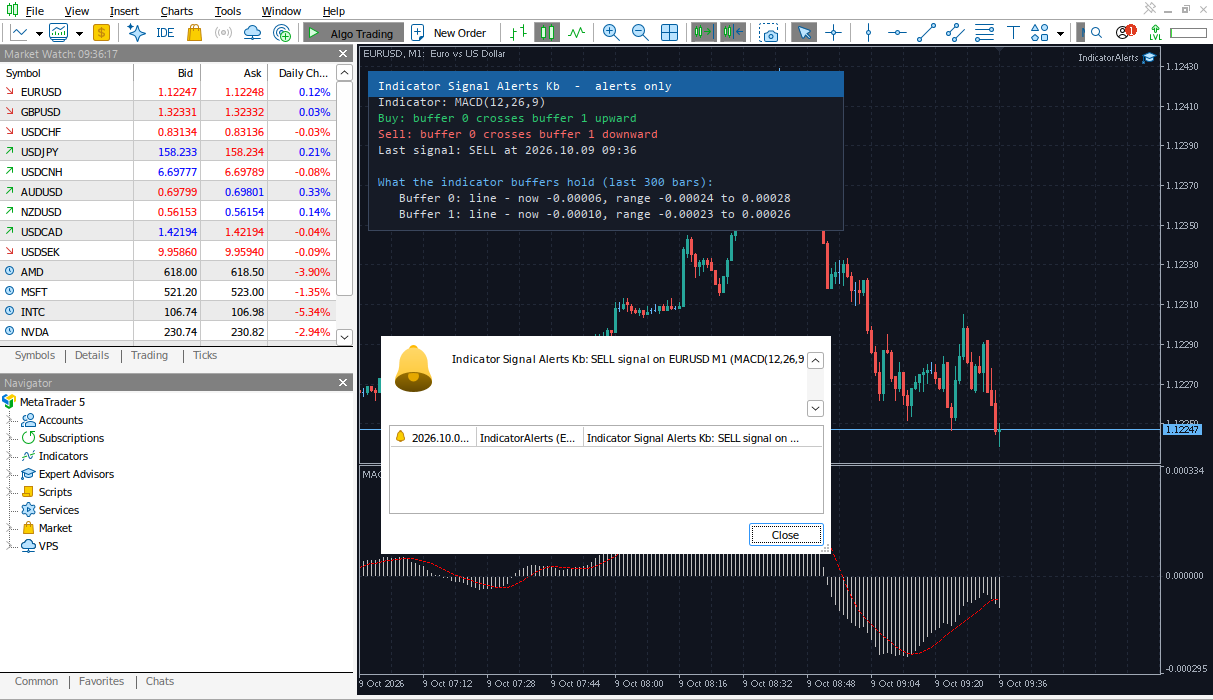
Pop-up alert opens the terminal's alert window (on by default in Indicator Signal Alerts Kb). Push notification needs the MetaQuotes ID of your phone in Tools → Options → Notifications. E-mail needs Tools → Options → Email.
8. No trades or no alerts? Check these
- Red line "Algo Trading is OFF": turn on the Algo Trading button and Allow Algo Trading (F7 → Common).
- Red "SETUP PROBLEM": it says what to correct (indicator name, inputs, a buffer number the indicator does not have). Press F7 and fix it.
- Signals come when a bar closes. On H1 the next chance is the next full hour.
- Read the Last signal line:
| Last signal says | Meaning | What to do |
|---|---|---|
| buy 0.01 opened | the position is open | |
| blocked by filter N (...) | filter N did not agree | as designed; change the filter if needed |
| not traded: Algo Trading is off | trading is switched off | the button and the checkbox |
| not traded: outside the trading window 10:00-12:00 (server time 14:00) | outside the time window | change the trading window |
| not traded: spread 25 points is above the maximum 20 | the spread is too wide | raise Maximum spread or set 0 |
| not traded: a position is already open (...) | Only one position at a time is on | as designed |
| not traded: an opposite position is open (...) | On an opposite signal = Ignore it | choose Close or Reverse |
| not traded: the trading session of the symbol is closed | weekend or the symbol's daily break | wait |
| not traded: not enough free margin for 1.00 lots | not enough margin | a smaller lot or risk |
| not traded: the risk is too small for the minimum lot | the risk % gives less than the minimum lot | a larger risk or a fixed lot |
| order rejected: ... | the broker rejected the order | the reason is the broker's; see the Experts tab |
- Try it in the Strategy Tester with Visual mode: the same panel is shown there. The demo of Indicator Signal Trader Kb runs in the Strategy Tester, so you can check your own indicator before buying.
9. Questions
My indicator draws arrows, but the program does not see them. Some indicators draw only graphical objects on the chart and keep nothing in their buffers. If the buffer map shows no ARROWS, the indicator is of this kind and cannot be read.
An arrow appeared, but there was no trade. With Signal bar = 1 the program uses closed bars only. An arrow that appears on the forming bar and then disappears is not a signal: this protects you from repainting indicators.
Can I use several indicators? One signal indicator and up to four filters (section 5).
How do I pass inputs to a Market indicator? Through Indicator inputs, in the order of its settings window; the name is Market\ followed by its name as shown in the Navigator.