How to Place a Multi-Take-Profit Trade at 1% Risk in MT5 (Step by Step)

Splitting a trade into several take-profits is a simple way to lock in part of a move and let the rest run. Doing it by hand in MT5 means working out the lot size, dividing it between targets and opening one order per TP, which takes time and invites mistakes.
This guide shows how to do it in a few seconds with the Position Tool in ATC Position Tool and Trade Manager MT5 (also included in the All In One Trade Management Panel). The example uses a 1% risk per trade.
Before you start
- Multiple take-profits need a hedging account, because each TP opens as its own position. With a single TP, a netting account works too.
- Attach the EA to the chart of the symbol you want to trade.
Step 1: Set your risk to 1%
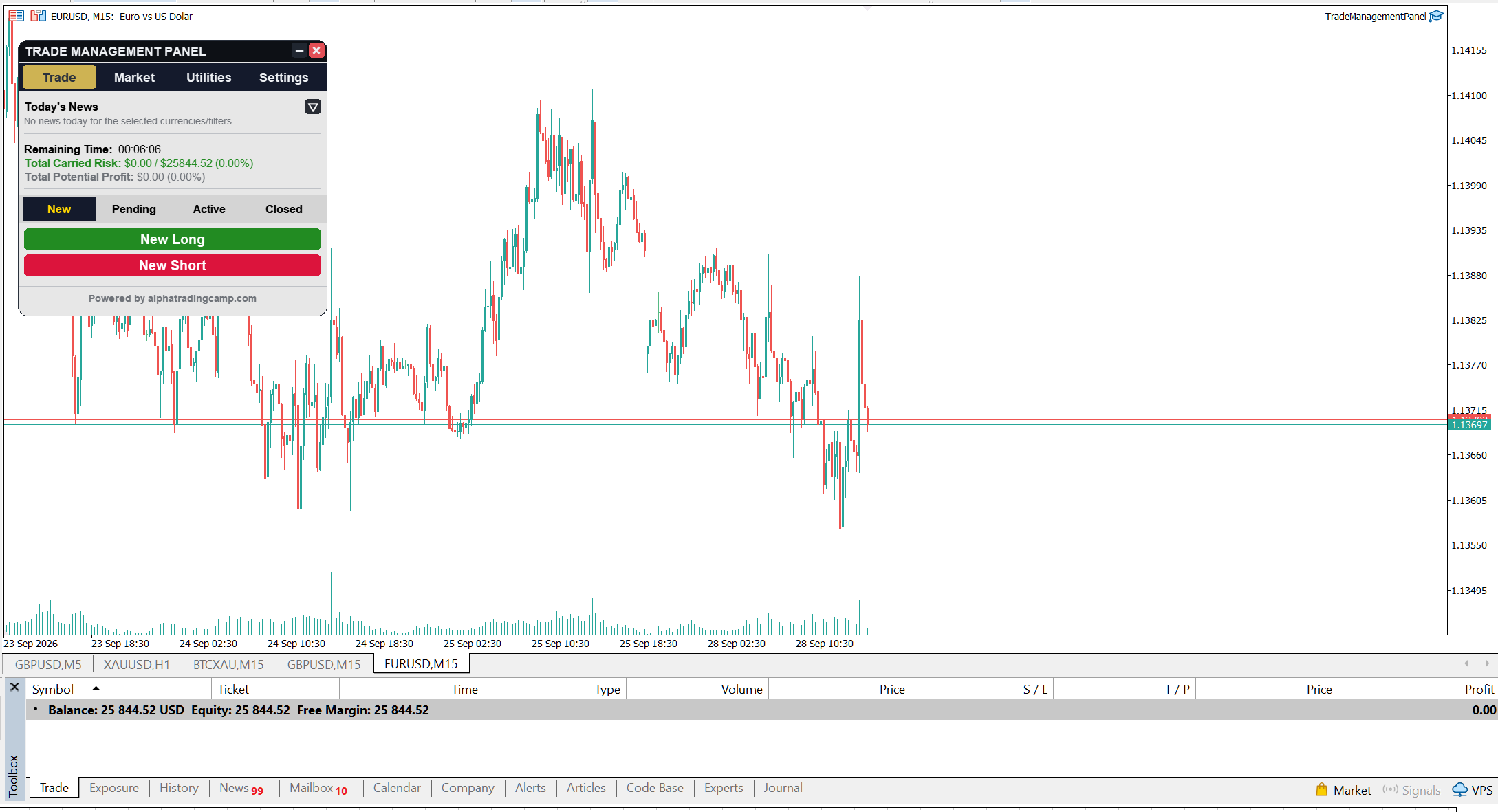
In the panel, open Trade > New. In the Configuration box, set Risk Mode to Percentage and type 1 in the box next to it. The tool now sizes every trade so that hitting the stop loss costs 1% of your balance.
Step 2: Start the trade
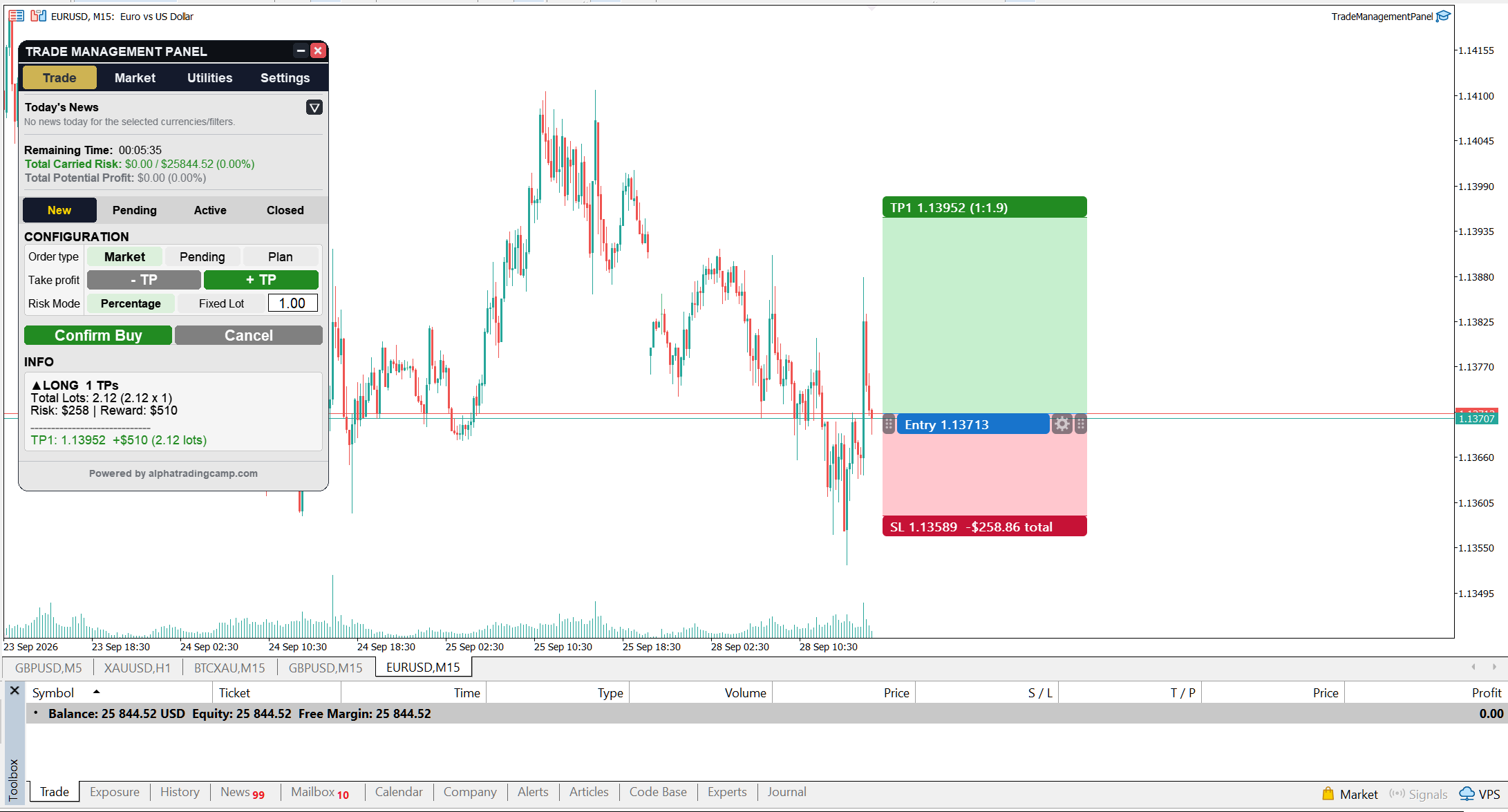
Click New Long (or New Short) and click on the chart to place the entry. The position tool appears with an Entry, SL and TP level.
Step 3: Place the stop loss
Drag the SL label to where your idea is wrong, for example below the last swing low for a buy. The lot size updates as you drag, so the loss at the stop always stays at 1%.
Step 4: Add your take-profits
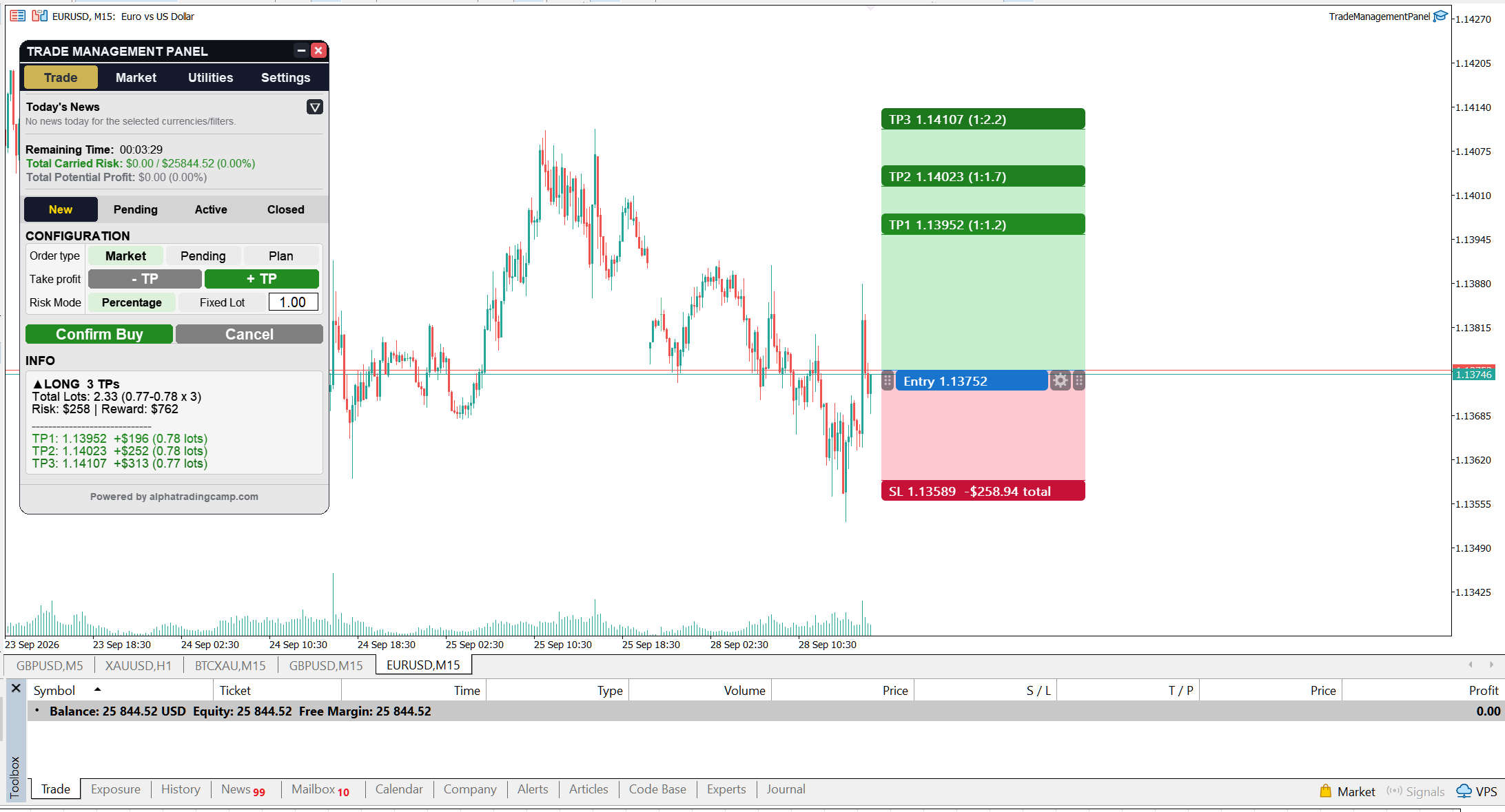
Click + TP to add a take-profit level (up to 10) and - TP to remove one. Drag each TP label to its target. The total lot size is split equally between the TPs, and any leftover from rounding goes to the last one.
Step 5: Check the numbers
The Info box shows the direction, total lots, the risk in money and a line for each TP with its lot size and reward. If a TP's share would fall below your broker's minimum lot, the tool warns you and won't let you confirm until you fix it.
Step 6: Choose how to place it
In Order type, choose one of:
- Market: executes now, at the current price.
- Pending: places the order at your entry. The tool picks Limit or Stop automatically, depending on where the entry sits relative to price.
- Plan: saves the setup on the chart without sending anything, so you can execute it later.
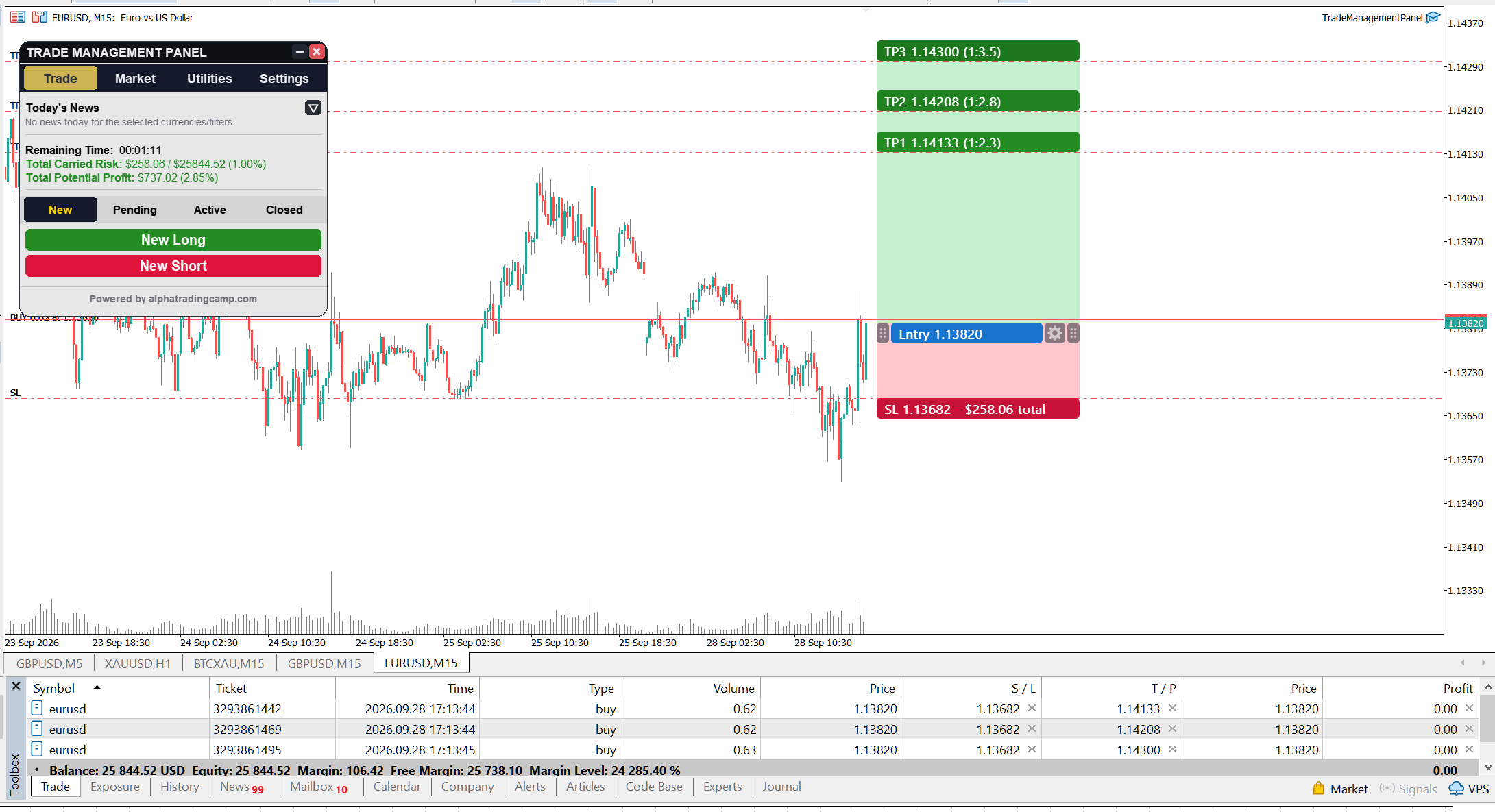
Then click Confirm Buy / Confirm Sell (or Save Plan).
A worked example
- Account and risk: a $10,000 balance, so 1% risk is $100.
- Trade: buy EURUSD at 1.1000 with the stop at 1.0950, a 50-pip stop. At about $10 per pip per lot, the tool sizes the trade at 0.20 lots.
- Two take-profits: 0.10 lots each.
- TP1 at 1.1050 (1:1) makes about $50.
- TP2 at 1.1100 (1:2) makes about $100.
- Result: if both targets hit, you make $150 on $100 of risk. If only TP1 hits and you then move the stop to breakeven, the rest of the trade runs without further risk.
After the trade is open
- Drag the SL or any TP on the chart to modify the live orders.
- Use the menu for breakeven, partial close, or closing one leg or the whole group.
- After breakeven or trailing, the tool keeps showing your planned SL, risk and RR, so you can still judge the trade against your original plan.
Questions or setups you'd like covered next? Leave a comment on the product page.
Trading involves risk. The tool helps you size and manage trades; it does not make trading decisions for you.