
|

ApeX Trading Console is a professional MT5 Trade Manager, Trade Assistant, Risk Manager, and Position Size Calculator for MetaTrader 5.
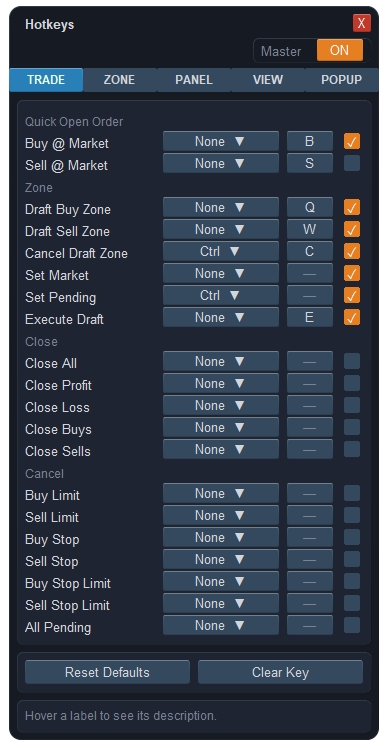
Popup "Hotkeys"
Every action in the panel can be put on a key, and every key can be changed.
Opened from Setup next to Hotkeys in the Setting tab.
1. Top row
- 1.1 Master — Turns all hotkeys off at once — handy while typing in another window or when a key clashes with something else.
2. A hotkey row
- 2.1 Action — What the key does.
- 2.2 Key — Click it, then press the key you want. It is stored per terminal.
- 2.3 Modifier — Ctrl, Shift, Alt or a combination, chosen from a small list.
- 2.4 On / Off — Enables that single shortcut. Actions with no key assigned stay off.
- 2.5 Needs a zone — Some actions work on the selected zone, so select a box first — Break-Even Now or Set Trailing Stop, for example.
3. Groups
- 3.1 Trade — Buy and Sell at market, draft a Buy or Sell zone, cancel the draft, switch Market or Pending, execute the draft, close all / profit / loss / buys / sells, and cancel pending orders by type.
- 3.2 Zone — Select the next or previous zone, deselect, break-even now, toggle trailing, switch Virtual and Server.
- 3.3 Panel — Show or hide the panel, minimise it, jump to a tab, toggle sessions and P&L badges.
- 3.4 View — Centre on price, zoom in and out, the six zoom levels, FreeChart pan, alert line, hide UI, hide zones, screenshots, next theme, candle colour.
- 3.5 Popup — Open any window straight from the keyboard: News, Theme, Notify & Sound, Zone Options, Risk:Reward, Set Virtual, TP and SL levels, Break-Even, Trailing, OCO, Order Manager, Market Watch, Currency Performance, Currency Strength, Alert List.
4. Footer
- 4.1 Reset Defaults — Restores the shipped key map.
- 4.2 Clear Key — Removes the key from the selected action, leaving it unbound.
━━━━━━━━━━━━━━━━━━━━━━━━━━━━━━
Popup "Order History"
Your closed trades, with the filters a trading journal needs.
Opened from the ☰H button on the Order Manager bar. Data comes from the broker's own history, so trades opened outside this EA are included.

1. View
- 1.1 Positions — One row per position, the way MT5 shows them. Partial closes are merged into a weighted average exit.
- 1.2 Deals — One row per deal, if you want to see each partial fill separately.
2. Period
- 2.1 Presets — Ready-made ranges, from today up to the whole history.
- 2.2 Custom, Start, End — Your own date range.
3. Match
- 3.1 Magic — Separate this EA's trades from another EA's or from your manual ones.
- 3.2 Symbol — One symbol, or all of them.
- 3.3 Type — Buy or Sell.
- 3.4 Comment — Keeps only trades whose comment contains this text.
4. Range
- 4.1 Volume — Minimum and maximum lot.
- 4.2 Profit — Minimum and maximum money result.
- 4.3 RR — Minimum and maximum reward-to-risk achieved.
- 4.4 Duration — How long the trade was held, in hours.
Leave a box empty and that end is not filtered.
5. Tick-box filters
- 5.1 Day of Week — Mon to Sun — find the day that costs you money.
- 5.2 Session — Sydney, Tokyo, London, New York, by the trade's opening time.
- 5.3 Result — Only Winning, Only Losing, Only Breakeven.
- 5.4 Stops — With SL, Without SL, With TP, Without TP — useful for auditing your own discipline.
- 5.5 Reset — Clears every filter back to default.
Nothing ticked in a group means that group does not filter. Inside a group the ticks are an "or"; between groups they are an "and".
6. The table
- 6.1 Columns — Ticket, Symbol, Type, Lot, Open Time, Close Time, Entry, Exit, SL, TP, Profit, Swap, Comm, RR, Duration, Magic, Session and Comment.
- 6.2 SL, TP and RR — Taken from the order as it was opened, so they show what you actually planned, not what it ended at.
- 6.3 Sorting and paging — Click a header to sort; set the rows per page and move with < >.
- 6.4 Footer — Totals for the rows the filter matched.
━━━━━━━━━━━━━━━━━━━━━━━━━━━━━━
Popup "Notify History"
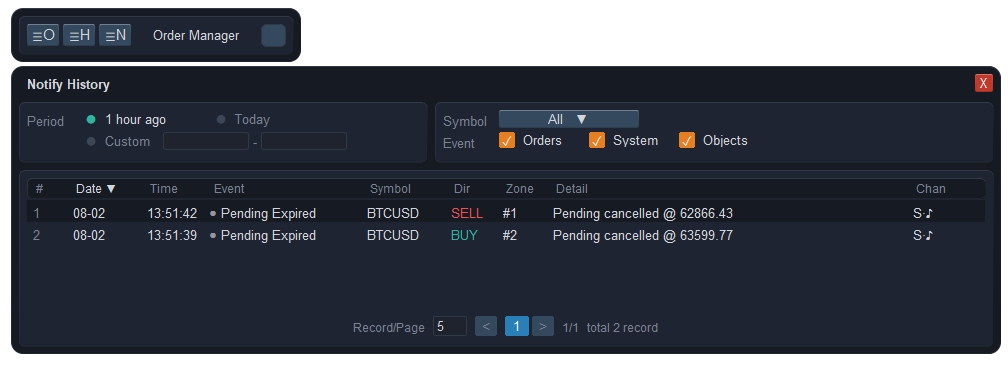
Every alert the panel has raised, kept in one searchable list — so a card that appeared while you were away is never lost.
Opened from the ☰N button on the Order Manager bar.
1. Filters
- 1.1 Period — 1 hour ago, Today, or Custom with your own date range.
- 1.2 Symbol — All, or one symbol from the list of symbols that actually raised alerts.
- 1.3 Event — Which families to show: Orders (opened, closed, filled, failed), System (news, candle close, price alerts and other tool messages), Objects (your own lines and boxes being crossed).
2. The table
- 2.1 # — Running number, newest first.
- 2.2 Date and Time — When the alert was raised.
- 2.3 Event — What happened, with a coloured dot for its family.
- 2.4 Symbol — The symbol concerned, when there is one.
- 2.5 Dir — Buy or Sell.
- 2.6 Zone — The zone number involved.
- 2.7 Detail — The message itself. Point at it and the full text appears in a card, for messages too long for the column.
- 2.8 Chan — Which channels the alert went out on: screen card, mobile push, sound.
3. Table controls
- 3.1 Sorting — Click a column header to sort; click again to reverse.
- 3.2 Record/Page and < > — Rows per page and page navigation, with the total on the right.
━━━━━━━━━━━━━━━━━━━━━━━━━━━━━━
Popup "Screenshot"
Chart images for your journal, taken the way you want them.
Opened from Setup next to Screenshot in the Settings tab. The shot itself is taken with the 📷S and 📷M buttons on the Tools bar, or from a hotkey.

1. Image
- 1.1 Resolution — 720p, 1080p, 2K, or Native — exactly what you see on screen.
- 1.2 Align — Which edge the price action is anchored to when the picture is wider than the chart: Right or Left.
- 1.3 Format — PNG, GIF or BMP.
2. What is in the picture
- 2.1 Hide UI — Take the panel and the floating bars out of the shot, leaving a clean chart.
- 2.2 Hide Zone — Take the zone boxes and their lines out as well.
- 2.3 Defer frames — How many frames to wait after hiding things, so nothing is caught half-drawn. Raise it if pieces of the panel still appear.
3. Custom Look
- 3.1 Master switch — Force a different chart appearance for the shot only, then put your chart back.
- 3.2 Grid — Show or hide the grid in the picture.
- 3.3 OHLC — Show or hide the OHLC line at the top.
- 3.4 Period Sep — Show or hide the period separators.
4. Multi-TF Capture
- 4.1 Master switch — Take one picture per timeframe in a single go — the same setup seen from M5 to D1, ready for a journal entry.
- 4.2 Timeframes — Tick which timeframes are in the set. The EA switches through them and returns to the one you started on.
━━━━━━━━━━━━━━━━━━━━━━━━━━━━━━
Popup "Sessions"
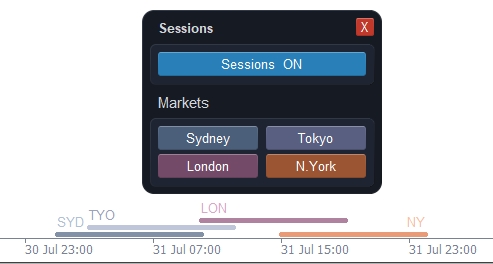
Shades the trading sessions on the chart, so you can see at a glance which market was open when a move happened.
Opened from Setup next to Sessions in the Settings tab. Every click applies at once.
1. Sessions
- 1.1 Master switch — Turns the whole session display on or off in one click, without losing which markets you had chosen.
2. Markets
- 2.1 Sydney — The Asian open.
- 2.2 Tokyo — The Asian session proper.
- 2.3 London — The European session.
- 2.4 New York — The US session; its overlap with London is the busiest part of the day.
Each market has its own colour, and the shading follows daylight-saving changes automatically.
3. Good to know
- 3.1 Higher timeframes — Session shading is hidden on D1, W1 and MN, where a session no longer means anything on the candle.
━━━━━━━━━━━━━━━━━━━━━━━━━━━━━━
Popup "Theme"
The colour scheme of the whole panel and of the chart behind it.
Opened from Set Theme in the Settings tab. A theme is applied the moment you click it and is remembered.
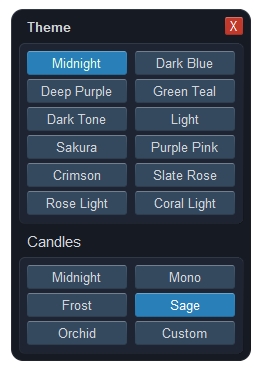
1. Themes
- 1.1 Dark set — Midnight, Dark Blue, Deep Purple, Green Teal, Dark Tone, Purple Pink, Crimson, Slate Rose.
- 1.2 Light set — Light, Sakura, Rose Light, Coral Light.
- 1.3 What changes — Panel, popups, zone boxes, lines and the chart background all follow the theme, so the tool never clashes with your chart.
2. Candles
Candle colours can be left to the theme, or overridden on their own.
- 2.1 Presets — Midnight, Mono, Frost, Sage and Orchid — each sets the bull body, bear body and the two bar colours together.
- 2.2 Custom — Opens the colour picker, where you set all four colours yourself: bull body, bear body, up bar and down bar. Pick from the square and the hue slider, or type RGB or a hex code; a sample candle shows the result.
- 2.3 Back to the theme — Clicking the preset that is already selected clears the override and the candles follow the theme again.
━━━━━━━━━━━━━━━━━━━━━━━━━━━━━━
Popups "Zone Paging" and "Zone Filter"
When several zone boxes are open at once the chart gets crowded, so the panel shows them a page at a time.
The paging bar appears by itself once there is more than one executed zone, at the bottom of the chart.
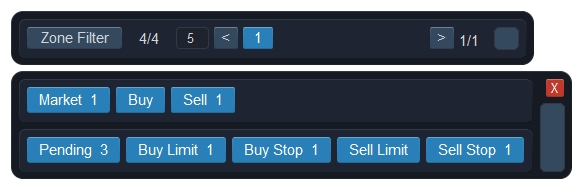
1. Zone Paging bar
- 1.1 Filter — Opens the filter window below.
- 1.2 Page size — How many zone boxes are drawn on the chart at once.
- 1.3 < and > — Move to the previous or next page of zones.
- 1.4 Counter — Which page you are on and how many there are in total.
- 1.5 Drag strip — The grip on the right moves the bar; the position is remembered.
2. Zone Filter
- 2.1 Market — Show open positions, and narrow to Buy or Sell only.
- 2.2 Pending — Show pending orders, and narrow to Buy Limit, Sell Limit, Buy Stop or Sell Stop.
- 2.3 X — Closes the filter window; the filter itself stays as you left it.
3. Good to know
- 3.1 Display only — Paging and filtering change what is drawn. Trades that are not on the page keep running, keep their stops, their break-even and their trailing exactly as before.
- 3.2 Panel figures — Profit and Loss in the Trade tab count every zone on the symbol, including those on other pages.
━━━━━━━━━━━━━━━━━━━━━━━━━━━━━━
Popup "Price Alerts" (☰A)
Alert lines on the chart: drop a line at a price and be told when it is crossed — on any symbol, not only the chart you are looking at.
Opened from ☰A on the Tools bar; a new line is added with the 🔔 button next to it.
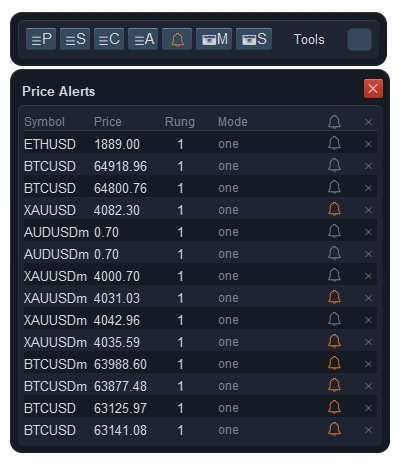
1. Adding a line
- 1.1 🔔 on the Tools bar — Drops an alert line on the current chart. Drag it to the price you care about — the row in this table follows.
2. The table
- 2.1 Symbol — The symbol the line belongs to. Lines on other symbols keep being watched while you work on this chart.
- 2.2 Price — The level being watched.
- 2.3 Rung — How many times the alert repeats when it fires, ten seconds apart. Click the number to change it.
- 2.4 Mode — Whether the line arms again after it has fired, or is done.
- 2.5 🔔 on a row — Orange = armed, grey = already fired. Click to arm or disarm that line.
- 2.6 ✕ on a row — Deletes the line and its alert.
3. Header buttons
- 3.1 🔔 in the header — Arms or disarms every line at once.
- 3.2 ✕ in the header — Deletes all lines, after a confirmation.
4. Good to know
- 4.1 Where it appears — Delivered through the Alert event in Notify & Sound — choose screen card, phone push or sound there.
- 4.2 Your own drawings — Trend lines, rectangles and horizontal lines you draw yourself can raise alerts too; those are the Objects events in Notify & Sound and need no setup here.
━━━━━━━━━━━━━━━━━━━━━━━━━━━━━━
Popup "Candle Alert" (☰C)
Warns you a few minutes before a candle closes, so you are at the screen when the bar you are waiting for prints.
Opened from ☰C on the Tools bar. The same window also controls the floating countdown bar.

1. Candles time remaining (first frame)
- 1.1 Show / Hide — A small floating bar counting down to the close of each timeframe you tick, for example 12:45 M15 | 3:45:12 H4. Drag it anywhere; its place is remembered.
- 1.2 Timeframe buttons — M1, M3, M5, M15, M30, H1, H4 — tick the ones you want on the bar. Times come from the trade server, not from your PC clock.
2. New alert
- 2.1 Timeframe — Which candle you are waiting for.
- 2.2 Alert N bars ahead — Which close to aim at: 1 is the candle now forming, 2 the one after it, and so on.
- 2.3 min before close — How many minutes before that close to warn you.
- 2.4 Repeat — How many times to repeat the alert, ten seconds apart, so it is not missed.
- 2.5 Apply — Adds the alert. The target moment is frozen right then, so the alert survives changing chart or timeframe afterwards.
3. The table
- 3.1 Rows — Every alert you have set, with its timeframe, its target time, the bars ahead, a live countdown and a status that turns to Fired once it has gone off.
- 3.2 Delete — Removes a row.
4. Good to know
- 4.1 Where it appears — The alert is delivered through Candle Close in Notify & Sound, so enable a screen card, push or sound there.
- 4.2 Saved to disk — The list survives restarts.
|