Equity Analyzer — Interactive Trading History Analysis in MetaTrader 5

This article provides a detailed overview of Equity Analyzer — an application for MetaTrader 5 that helps analyze trading history, evaluate balance and equity dynamics, filter trades, and find patterns in reports. You will learn how to work with the current account history and imported reports, use the Equity Indicator, interactive results chart, and navigation to trades on the terminal chart.
Contents
1. Introduction
If you analyze trading results — your own account, backtests, third-party reports, or Signals history — you eventually face the same task: understand how balance and equity changed, which trades contributed the most, and where drawdowns occurred. Standard terminal reports and Excel tables provide numbers, but they do not link them to the price chart or let you quickly jump to a specific trade.
Equity Analyzer solves this inside MetaTrader 5. The application combines a balance/equity indicator on the chart, an interactive results chart, trade filtering, statistics, and navigation — so you can study trading history visually and move from the big picture to individual trades in one click.
Equity Analyzer addresses two main tasks:
- Equity Indicator — a balance and equity indicator in the chart subwindow. Shows how balance and equity changed as trades were executed.
- Interactive results chart — a clear overview of balance/equity and per-symbol curves. Click a point on the chart to jump to the corresponding trade on the terminal chart.
The data source is the current account history or an external CSV report. Several common formats are supported — MetaTrader 4 and MetaTrader 5 exports, and history from the Signals service. The file type is detected automatically from the header. Support for other formats will be added in future updates. This is useful for reviewing archived data, optimization results, and reports from other traders.
The application is built on a custom graphical engine with a high-quality interface:
- Dark and light themes — switch with one click; all interface elements update together.
- Resizable windows — windows can be stretched, and content reflows with them.
- Grab-and-scroll — scroll elements by dragging anywhere within the window, just like on smartphones.
- High-quality graphics — smooth rendering of all controls with rounded forms.
- DPI-aware scaling — the interface scales correctly and looks sharp on screens with any resolution.
In this article, I will walk you through all the features of Equity Analyzer and explain how to use it for trading history analysis.
2. Application Overview
Equity Analyzer consists of several windows, each responsible for its own area of functionality. All windows share a unified design style and work together: changes in filters and data source are instantly reflected on the chart, tables, and indicator. Let us examine each of them in detail.
2.1. Main Window
When Equity Analyzer is launched, a compact main window appears on the chart — the control center of the application.
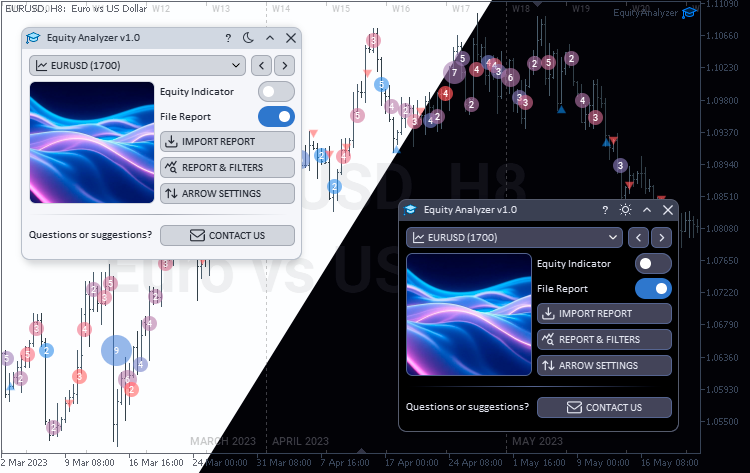
Equity Analyzer main window in light and dark themes
At the top of the window there is a symbol dropdown list with a chart icon. It lists instruments selected in the Symbol filter of the Filters window after pressing Apply, with the number of trades for each. If nothing is selected in the filter, the list shows the symbol of the current chart. To the right of the list are navigation buttons (left and right arrows) for switching between instruments from this list. The selected symbol opens on the terminal chart.
The main window also includes:
- Equity Indicator — enables the balance and equity indicator in the chart subwindow. Works with both the current account history and an imported report.
- File Report — switches the data source to a report file instead of account history.
- IMPORT REPORT — opens the report file selection window.
- REPORT & FILTERS — opens the main analytics window.
- ARROW SETTINGS — opens trade arrow settings on the chart.
- CONTACT US — author contact information.
While data is loading and being processed, a progress indicator with a stage label appears over the symbol row.
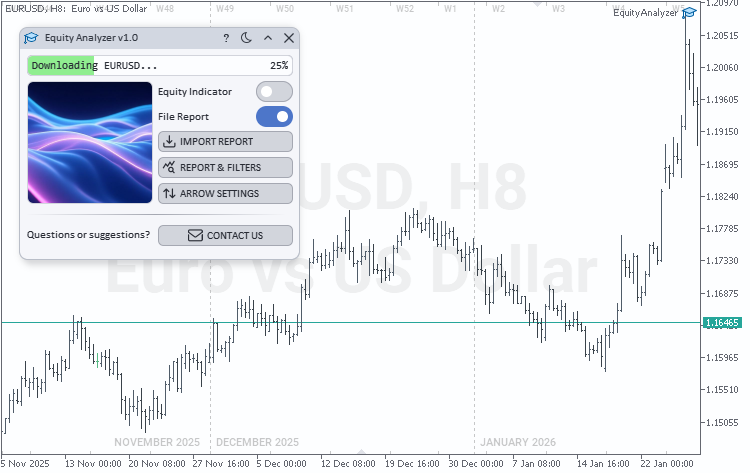
Main window — progress indicator while loading data
2.2. Import Report Window
The Import Report window is used to select a trading report file when File Report mode is enabled.
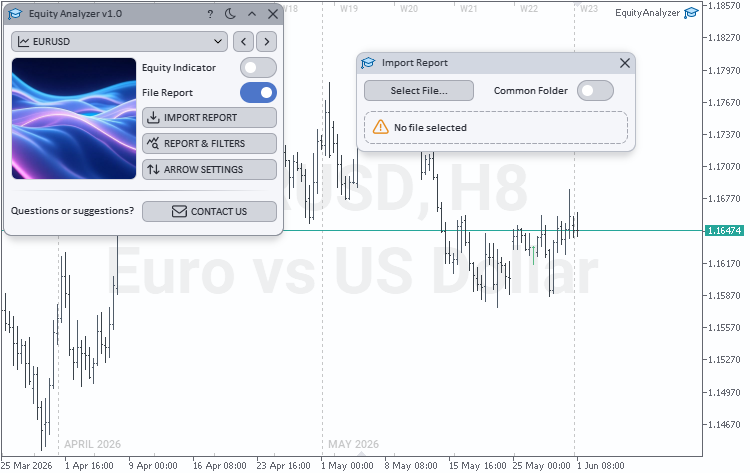
Import Report window
Window elements:
- Select File... — opens the file selection dialog. Common CSV reports from MetaTrader 4, MetaTrader 5, and Signals are supported. The file type is detected automatically.
- Common Folder — toggle for access to the terminal common folder (Common\Files) when selecting a file.
- Path field — shows the selected file. A status icon to the left of the path: green if the report loaded successfully; red if the file could not be read; orange if no file is selected yet.
After you choose a file with Select File..., the application loads the report immediately. Status is shown by the icon in the path field:

Import Report — successful load (green icon)
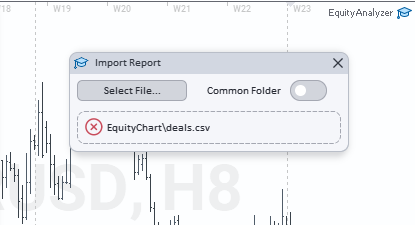
Import Report — load error (red icon)
Data is applied automatically. The path and folder setting are saved between application launches.
If the application could not read your report, contact me — specify the file source or the header of the first line. I will add support for the new format in the next update.
2.3. Report & Filters Window
The Report & Filters window is the main workspace for analyzing trading results. At the top there is a tab panel and a Filters button to open the filters window.

Report & Filters window — EQUITY tab
On the EQUITY tab, click the interactive chart to select a moment — a crosshair helps aim. A vertical dashed line with a marker appears and the nearest trade is selected; the same dashed line is placed on the terminal chart at the trade open time, and the chart scrolls there. You can also open a trade from the HISTORY tab: select a row in the table — it is highlighted, and the lines on the EQUITY chart and the terminal chart update the same way.
To remove the lines and row highlight, click the time axis or value axis of the interactive chart on the EQUITY tab, or clear the row selection in the table on the HISTORY tab.

Trade navigation — dashed lines on the EQUITY chart and the terminal chart
Available tabs:
- EQUITY — interactive balance/equity chart and a table of per-symbol curves. Individual symbols can be enabled or disabled.
- STATISTIC — key trading metrics: profit, drawdown, recovery factor, and other statistics for filtered trades.
- HISTORY — trade history table with sorting and page-by-page navigation; selecting a row opens the same trade navigation.
- SYMBOLS — summary statistics by trading instruments.
- MAGICS — summary statistics by expert advisor magic numbers.

STATISTIC tab — key metrics
On the HISTORY tab, trades matching the current filters are listed — one row per position (built from account history or an imported report). Table columns:
- Symbol, Open time, Type, Volume, Open price — instrument, open time, and entry parameters;
- Close time, Close price, Close reason — close time, price, and exit reason;
- Commission, Swap, Profit — commission, swap, and profit (positive and negative values are color-coded).
Click a column header to sort; drag column borders to resize. Below the table: page navigation and rows per page. The selected row is highlighted; row selection and chart navigation are described above.

HISTORY tab — selecting a row in the trade history table
The SYMBOLS tab shows summary statistics by instrument: trade count, financial result, and each symbol's impact on overall dynamics. This helps you quickly identify which instruments contribute most to profit or drawdown and choose symbols for deeper analysis via the Symbol filter.

SYMBOLS tab — summary statistics by instruments
The rightmost table columns show whether local price history is sufficient to calculate equity for each symbol. Need from and Need to are the required date range from trade history (respecting the period filter); Local from is the earliest date of quotes available in the terminal for that symbol.
The Status column shows quote coverage: OK — sufficient history; Missing — no bars in range; Partial — incomplete coverage; Partial (start) — missing history at the start (compare Need from and Local from); Partial (end) — missing at the end of the range; N/A — check unavailable. REFRESH STATUS re-runs the check; DOWNLOAD HISTORY downloads missing quotes — for the selected row, one symbol only; with no selection, all symbols whose status is not OK.

SYMBOLS tab — Need from, Local from, Need to, Status columns and REFRESH STATUS, DOWNLOAD HISTORY buttons
2.4. Filters Window
The Filters window opens via the Filters button on the Report & Filters panel and lets you select trades for analysis.

Filters window
Available filter parameters:
- From / To — date range.
- Show Equity — display the equity curve on the interactive chart.
- Timeframe — timeframe for equity calculation.
- Exclude deposits/withdrawals — exclude deposits and withdrawals from analysis.
- Symbol — instrument filter with multiple selection; Select All and Clear All buttons.
- Magic — magic number filter; Select All and Clear All buttons.
- Apply — apply filters and refresh the chart, tables, and statistics.
The Apply button activates only after parameters are changed — this helps avoid unnecessary recalculation while adjusting several filters in a row.
After applying filters, enable the equity display mode by setting Show Equity = true. The equity curve appears on the interactive EQUITY chart, which helps you quickly assess drawdowns, recovery, and the impact of specific history segments on the final result.

Filters window — Show Equity parameter enabled
The chart below uses the same trade history as above. Turn off the Exclude deposits/withdrawals switch to see how deposits and withdrawals affect the balance curve.

Filters window — Exclude deposits/withdrawals switch off
The same deposits and withdrawals are also shown in the equity indicator subwindow when Equity Indicator is enabled in the main window. Deposits use yellow markers at the top edge of the subwindow with a dashed vertical line to the balance/equity curve; withdrawals use green markers at the bottom edge with a dashed line to the curve. This makes it easier to match balance jumps on the EQUITY chart with specific cash operations.

Equity Indicator subwindow — deposit and withdrawal markers
2.5. Arrow Settings Window
The Arrow Settings window controls how trades are drawn on the terminal chart: entry/exit arrows, dashed position lines from open to close, deal clusters when Clustering is on, hover tooltips, and where to show them (Display Mode — main chart, Equity Indicator subwindow, or both).
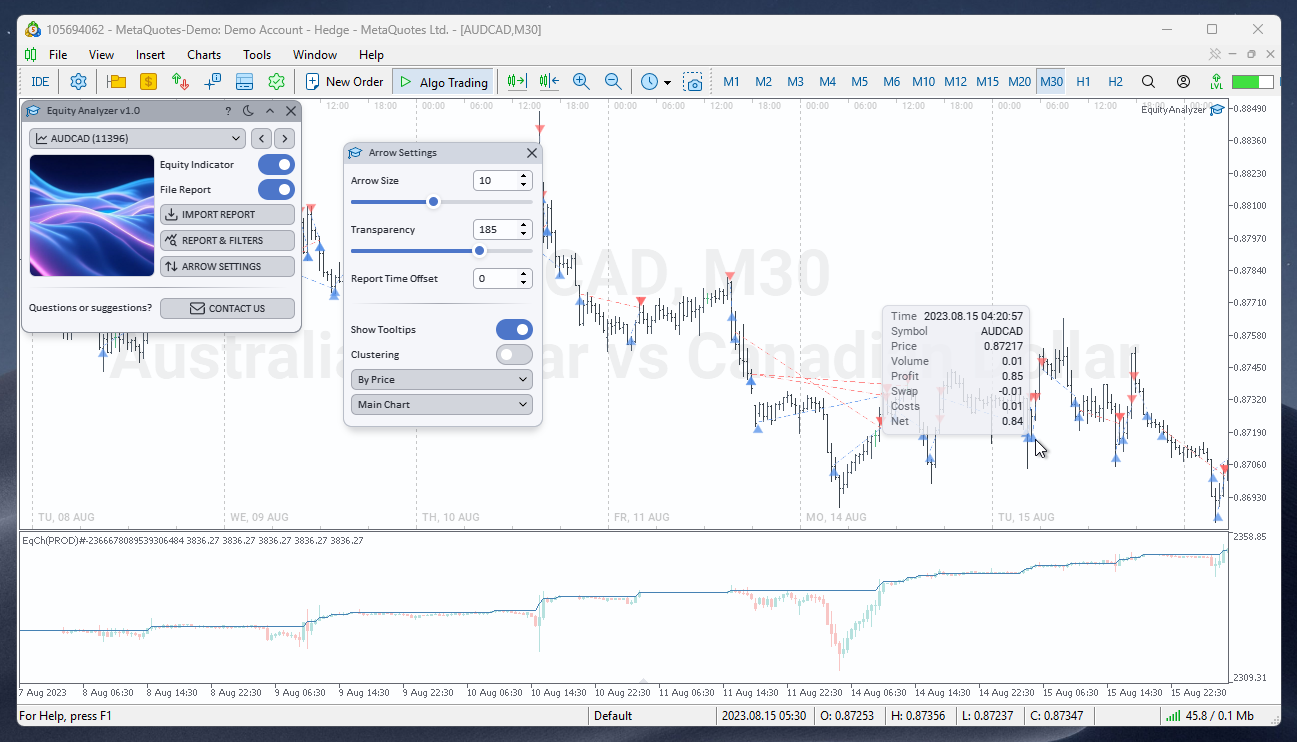
Arrow Settings window
Settings:
- Arrow Size — arrow size.
- Transparency — arrow transparency.
- Report Time Offset — time offset to align an imported report with the chart. If trades were opened at another broker, this helps match trade times with your quotes.
- Show Tooltips — tooltips when hovering over a trade.
- Clustering and Clustering Mode — grouping of nearby trades (By Price, By Time, By Price + Time, Adaptive).
- Display Mode — display area: None, Main Chart, Equity Indicator subwindow (Equity), or Both.
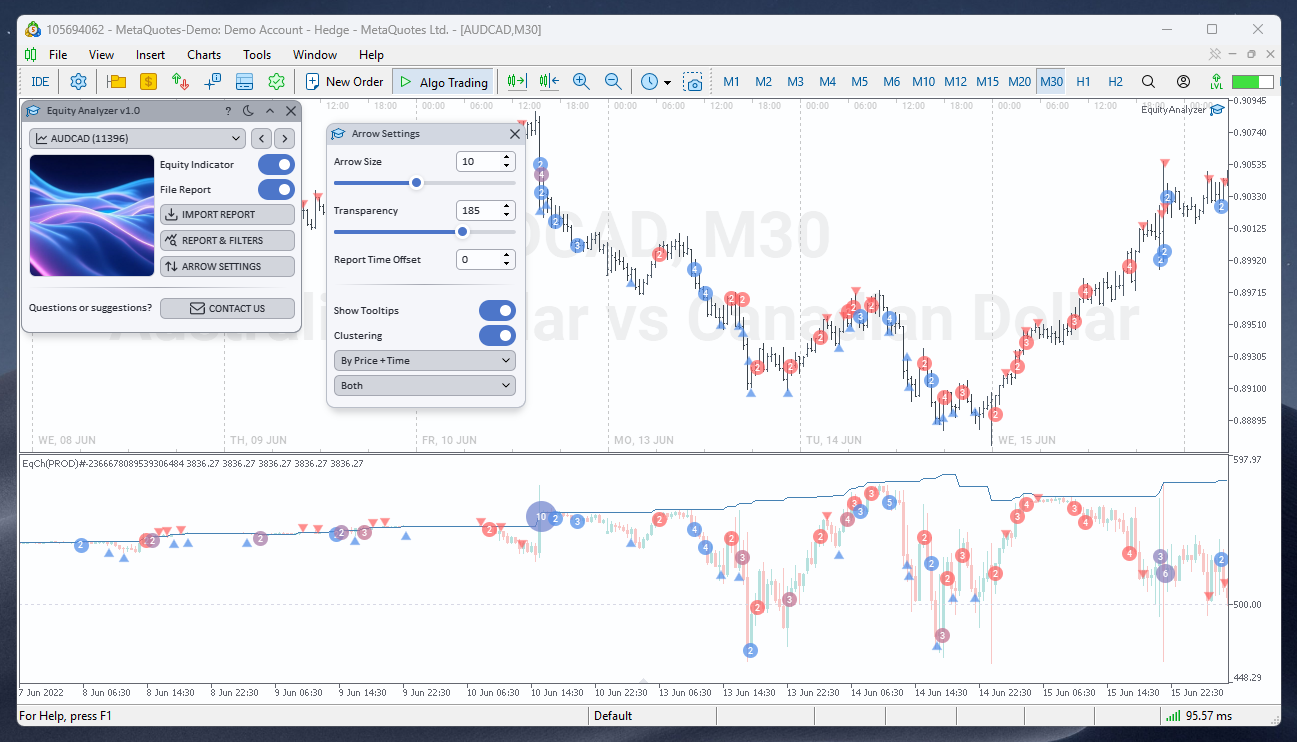
Trades on the main chart and in the Equity Indicator subwindow (arrows, lines, clusters)
Changes are applied immediately. Tooltips show symbol, operation type, volume, price, and trade result — useful when the chart is crowded with many operations.
3. How to Use the Tool
Below is the recommended workflow for Equity Analyzer — from installation to trade navigation.
3.1. Installation and Launch
The application is available in the MQL5 Market: Equity Analyzer. After downloading, Equity Analyzer automatically appears in the terminal navigator: Navigator → Expert Advisors → Market. Drag Equity Analyzer onto the chart of the desired symbol or double-click it. The main application window will appear on the chart, ready to use.
3.2. Data Source and Equity Indicator
- Launch Equity Analyzer on the chart of the symbol you want to use for trade navigation.
- Choose the trade source:
- current account history — File Report mode is off;
- external report — enable File Report, press IMPORT REPORT, and select a file.
- Enable Equity Indicator — the balance and equity indicator works with any selected data source.
4. Wait for loading to complete — the progress indicator in the main window shows the processing stage.
To switch symbols on the terminal chart, select them in the Symbol filter of the Filters window and press Apply — the dropdown in the main window updates. Choose a symbol from the list or switch with the arrows.
3.3. Filtering and Trade Navigation
- Open REPORT & FILTERS.
- Press Filters, set the period, symbols, magic numbers, and other parameters, then press Apply.
- On the EQUITY tab, review the balance/equity chart and per-symbol curves.
- On the STATISTIC tab, check summary metrics for filtered trades.
- On the HISTORY tab, find the trade of interest and click the row — the terminal chart scrolls to the trade open time, and a dashed line appears on both charts.
- Alternatively: on the EQUITY tab, click the desired point on the chart — the crosshair helps select the moment.
- Open ARROW SETTINGS and adjust arrow display on the chart as you prefer.
4. Practical Examples
Below are three scenarios that demonstrate typical trading history analysis tasks in Equity Analyzer.
4.1. Analyzing Your Account History
You want to see how equity changed over the last month and which trades caused the main drawdown.
- Launch Equity Analyzer on the chart of your main trading symbol. Leave File Report mode off.
- Enable Equity Indicator and open REPORT & FILTERS.
- In the Filters window, set the From / To period for the last 30 days, enable Exclude deposits/withdrawals, and press Apply.
- On the EQUITY tab, find the drawdown area and click the desired point on the chart — the terminal will show the corresponding trade.
- On the STATISTIC tab, check drawdown, recovery factor, and net profit for the period.
4.2. Reviewing an Imported Report
You have a CSV report — backtest results, trading on another account, or an export from the Signals service. The format is detected automatically. You need to visually assess equity and review trades on the chart.
- Enable File Report and press IMPORT REPORT. Select the CSV report file.
- Enable Equity Indicator — the equity curve is built from file data.
- Open REPORT & FILTERS. In the Filters window, select a symbol from the report, set the period if needed, and press Apply. Switch symbols in the main window.
- If trade time or price on the chart does not match the report, open ARROW SETTINGS and adjust Report Time Offset.
- Go to the HISTORY tab and browse trades with one-click navigation to the chart.
If trades in the report were opened at another broker, arrows on your chart may not match the price. For accurate analysis, use quotes from the same broker or adjust Report Time Offset.
4.3. Comparing Expert Advisors by Magic Numbers
Several expert advisors with different magic numbers run on one account. You need to see which one performs better. This scenario suits current account history — magic numbers are often missing in imported reports.
- Launch Equity Analyzer on current account history. Leave File Report mode off.
- Open REPORT & FILTERS → MAGICS tab — review summary statistics for each magic number.
- In the Filters window, select one magic number, press Apply, and study the chart on the EQUITY tab.
- Repeat for another magic number and compare the equity curve shape and metrics on the STATISTIC tab.
- On the SYMBOLS tab, check which instruments each expert advisor trades most.
5. Conclusion
Equity Analyzer is a tool for visual trading history analysis in MetaTrader 5. Instead of scattered tables and manual trade lookup on the chart, you get an equity indicator, interactive results chart, filtering, and instant navigation to any trade — from account history or an imported report.
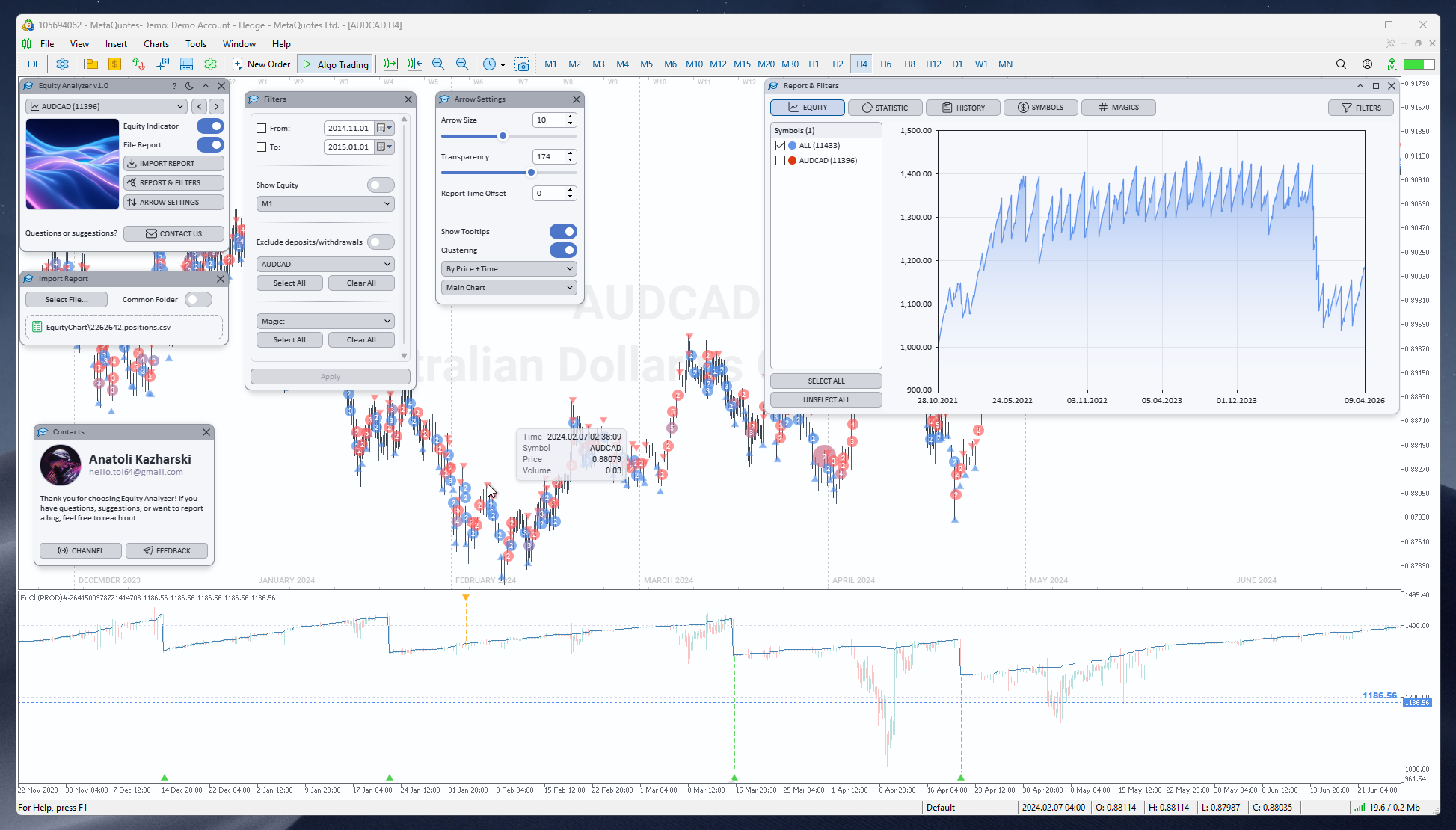
Equity Analyzer — overview: main window, Report & Filters, and terminal chart
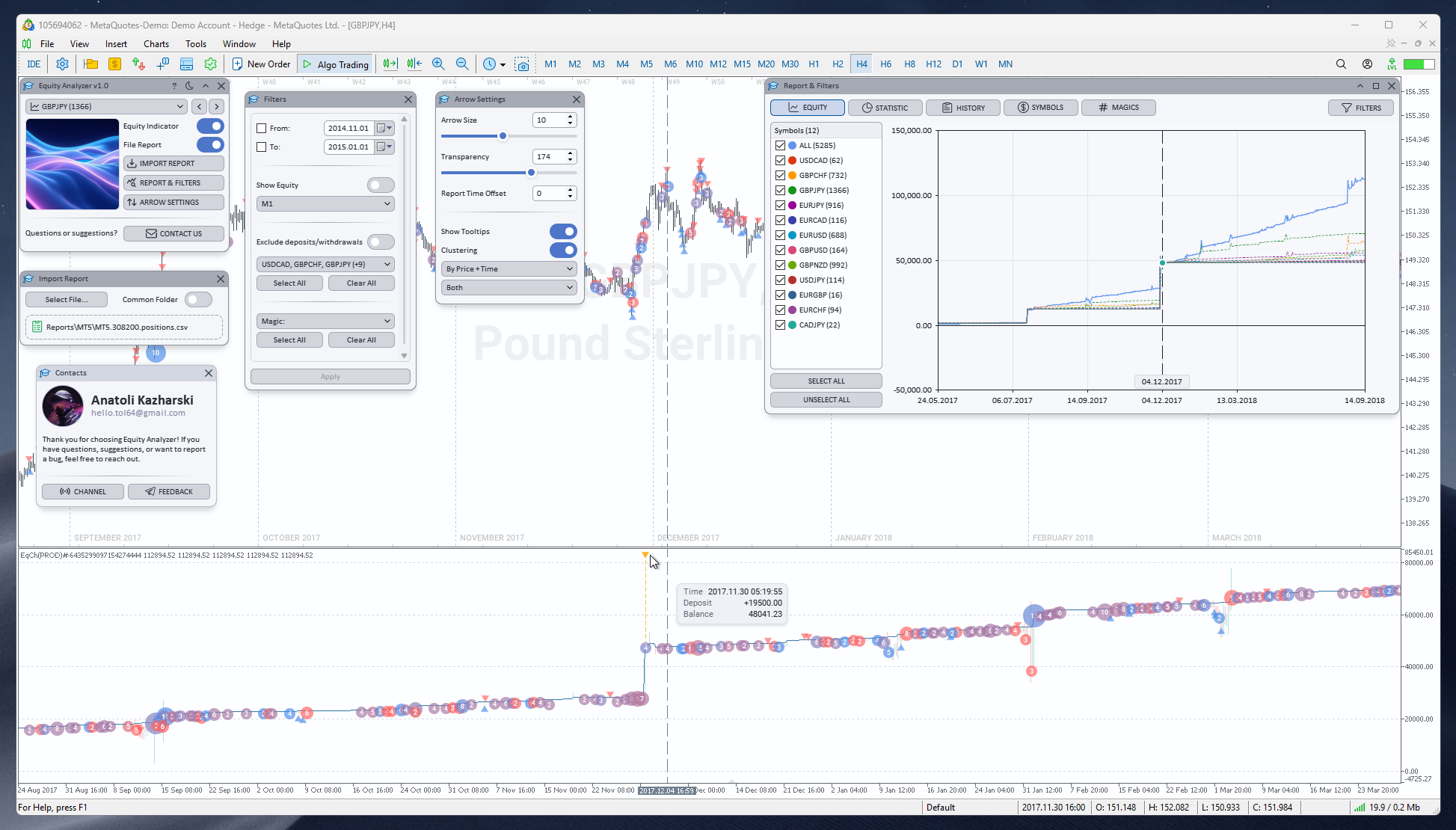
Equity Analyzer — full work environment: main window, Report & Filters, terminal chart, and Equity Indicator subwindow
Key features that make analysis easier:
- Equity Indicator — balance and equity in the chart subwindow for any data source.
- Interactive chart — results overview and one-click navigation from the EQUITY chart.
- Report import — CSV from MetaTrader 4, MetaTrader 5, and Signals. Support for other formats will be added in future updates.
- Flexible filtering — period, symbols, magic numbers, excluding deposits/withdrawals.
- Trade arrows — clear display of operations on the chart with tooltips and clustering.
- Instant navigation — a click in HISTORY or on the EQUITY chart scrolls the terminal to the trade open time and marks it with a dashed line on both charts.
If you have questions, suggestions, found a bug, or encountered an unrecognized report format — contact me. I will add support for new formats on request.
Happy trading!